












The photos folder looked normal at first glance. Then the storage warning popped up. One trip photo appeared four times. A tax PDF sat in three different folders. Two old setup files were still in Downloads, and each one was over 500 MB. Nobody plans this mess. Copies pile up slowly. A download runs twice. […]
10 Best Software Updater for Windows (Free & Paid)
Keeping your Windows software up to date is essential. It protects your system from security threats. It also ensures your apps run smoothly and efficiently. Manually updating every program takes time. It’s easy to miss important updates. That’s where software updaters come in.
These tools scan your system for outdated software. They notify you when updates are available. Some even install updates automatically. Using a software updater saves time. It reduces the risk of vulnerabilities. It helps maintain system performance and stability.
Whether you’re a casual user or a professional, a good updater makes a difference. It simplifies maintenance and improves your overall experience.
Top 5 Software Updaters Compared
Here are five standout tools that simplify software maintenance on Windows. Each offers unique features for different needs—from casual users to IT pros.
| Software Updater | Key Features | Price Tier | Auto Update Support | Extra Utilities |
| CCleaner Professional | Cleans junk files + updates apps | Paid | Yes | System optimization |
| IObit Software Updater | One-click updates + large app database | Free & Paid | Yes | App recommendations |
| Avira Software Updater | Security-focused + patch management | Paid | Yes | Antivirus integration |
| Systweak Software Updater | Simple UI + reliable update detection | Paid | Yes | Lightweight performance |
| Glarysoft Software Update Pro | Fast scans + customizable update settings | Free & Paid | Yes | Registry cleaner |
How to Choose a Software Updater Tool?
Picking the right updater depends on your needs. Look for tools that balance automation, security, and ease of use.
- Check if it supports auto updates
- Look for a large app database
- Prioritize security and patch management
- Consider free vs paid features
- Bonus utilities like cleaning or optimization
- Easy-to-use interface
- Update history and rollback options
- Good customer support or community help
10 Best Software Updater for Windows 11/10/8/7 (Free & Paid)
We have tested & reviewed 17 different tools available in the market before listing the best tools for you.
1. CCleaner Professional
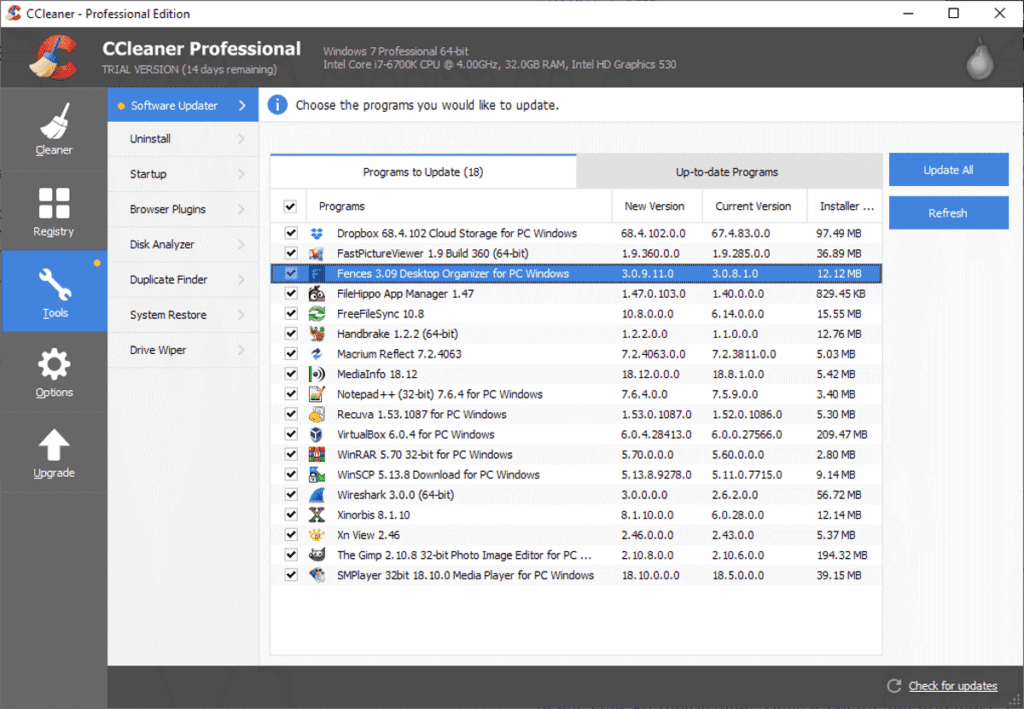
Yes, you have read it right! CCleaner Professional is now compatible with software update features. You can find the feature to update software in the Tools section. It deep scans your system storage to find, list, and update all outdated software on your PC. It ensures a faster computer, quicker startup, safer browsing, and fewer errors & crashes. You can use this all-in-one PC optimization software to keep your system in good health.
Features of CCleaner Professional
- It is all in one PC cleaning, optimization, and software updater tool.
- It sends you regular alerts for software updates.
- It works on advanced algorithms and ensures safe software updates.
- It offers priority customer support.
Compatible OS: Windows 11/10/8/7 (Both 32-bit and 64-bit)
Price: $24.95/year
2. IObit Software Updater
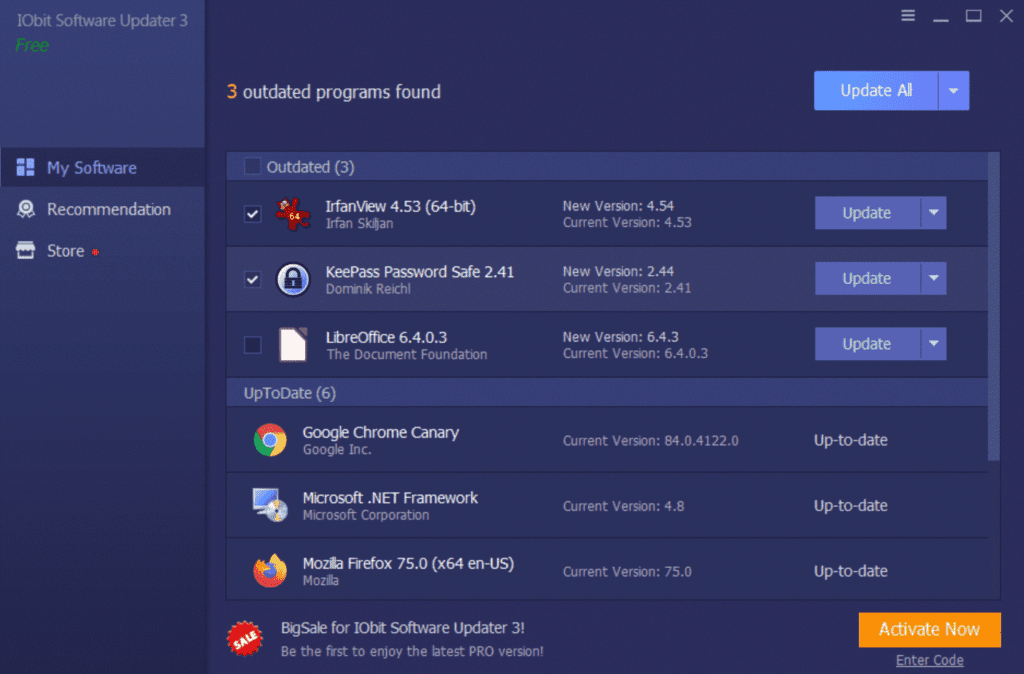
It is one of the best solutions you should use to update software on Windows. It helps you bring the best out of each software installed on your PC. You can use it to update any outdated software on your Windows system. It is available as a free version, but you can try its paid version to explore more useful features. You can use this software to reduce vulnerabilities caused by outdated software.
Features:
- It sends you regular notifications about available software updates.
- It abides by strict updating processes to guarantee the entire installation without the need for additional installers or bundles.
- Here all leading remote work tools are added to help you work seamlessly.
Compatible OS: Windows XP/Vista/7/8/8.1/10/11
Price: $12.97/year
3. Avira Software Updater for Windows
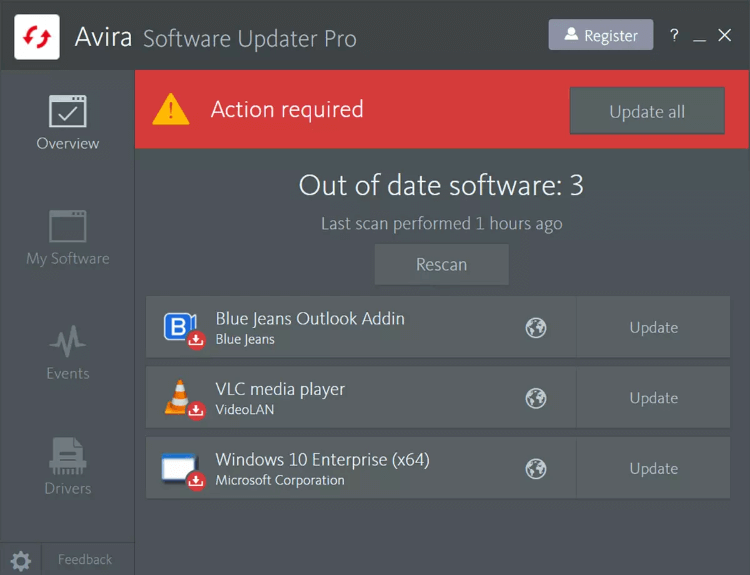
It helps you fix all security flaws by updating all outdated software easily. It not only helps you update software, but it also works as driver updater software for Widows. You can use this powerful program to optimize your hardware’s performance. It updates outdated software and reduces annoying update reminders.
Features:
- It offers extensive support and
helps you update all commonly used programs. - It fixes all flaws immediately
and blocks zero-day exploits. - It provides priority access to
updates. - It lets you decide when and
what to update.
Compatible OS: Windows 11/10/8.1/8/7
Price: $16.80/year
4. Systweak Software Updater
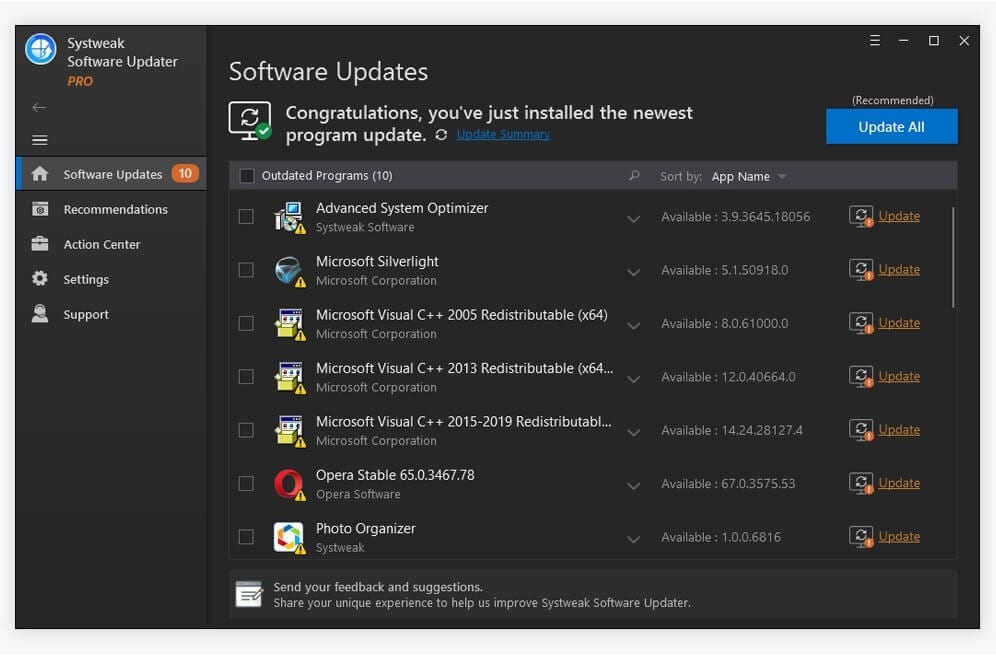
It helps you scan your PC for outdated software and install genuine updates effortlessly. Working on smart algorithms ensures safe & secure downloads. It offers a one-click update for all your outdated software to save time. You can view the updating process from the interactive dashboard for better management. It automatically scans, identifies, downloads, and installs updated out-of-date software.
Features:
- It has a crowd-sourced repository of the most popular software for your everyday needs.
- It also has a dedicated section for software ratings to help you make informed decisions.
- It automatically creates a restore point and helps you restore it if something goes wrong with a software update.
- You can set an automatic update scheduler to update software automatically.
Compatible OS: Windows 10/8.1/8/7 (Both 32 bit and 64 bit)
Price: $47.14/year
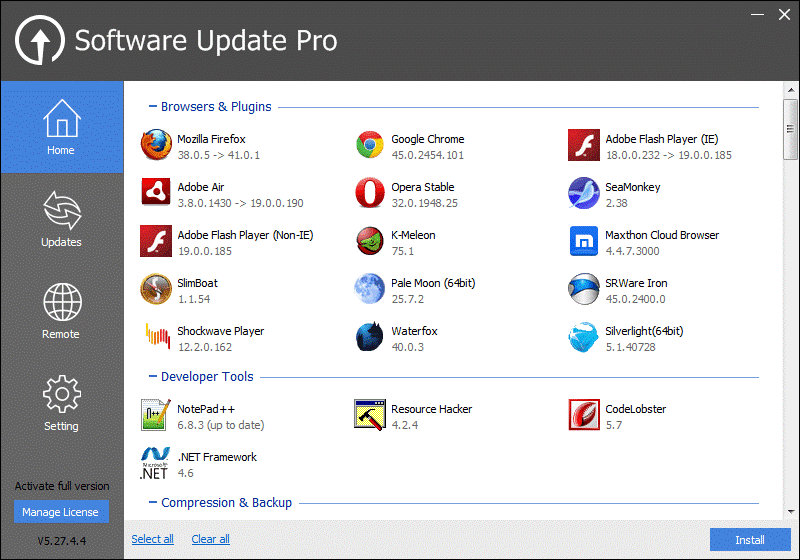
5. Glarysoft Software Update Pro
It is a highly functional utility that is easy to use. It offers highly effective results while working on an intuitive interface. It sends you regular notifications for outdated software and helps you update them before it cause any trouble. It is supported by a growing software library to ensure every single software on your PC is up to date.
Features:
- It offers secure software updates and doesn’t leak any personal information.
- It sends you quality software recommendations for effective results.
- It offers remote management to save time.
- It helps update outdated software in batch.
Compatible OS: Windows 10/8/7/2000/XP/Vista
Price: $9.98/year
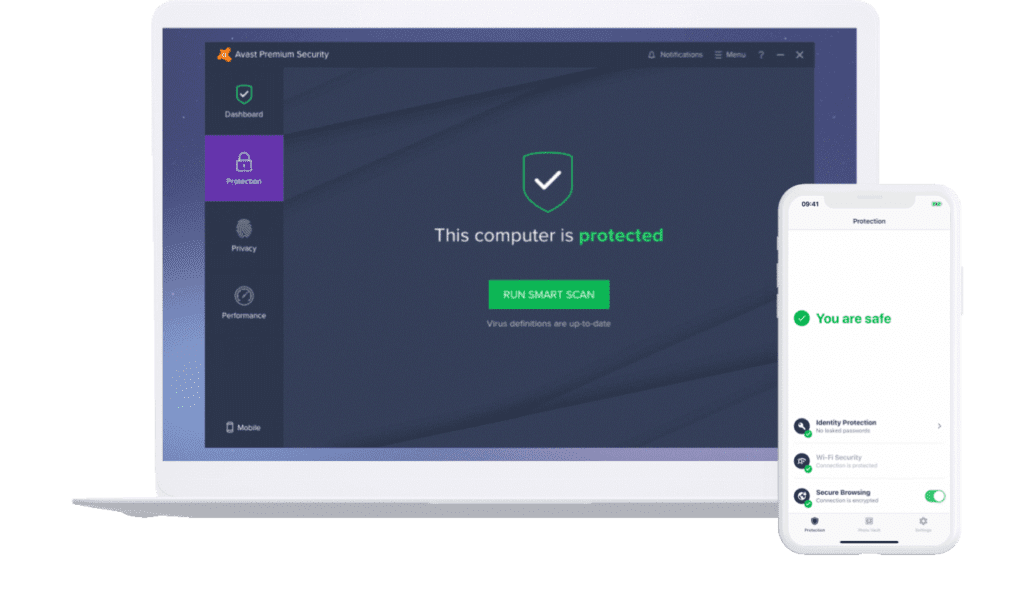
6. Avast Premium Security
If you are looking for a comprehensive security solution that also helps you update outdated software, then you should consider downloading Avast Premium Security. This all-in-one security tool helps you secure your system by updating outdated software and blocking all malware threats. This premium solution by Avast is designed to provide you with complete security against various online and offline threats.
Features:
- It helps you update all software in the background for a seamless user experience.
- It has a huge software library in comparison to other software updater tools.
- It doesn’t bother you with annoying update notifications and updates them automatically.
- It works as a comprehensive security solution for your PC.
Compatible OS: Windows 11/10/8.1/8/7
Price: $39.99/year
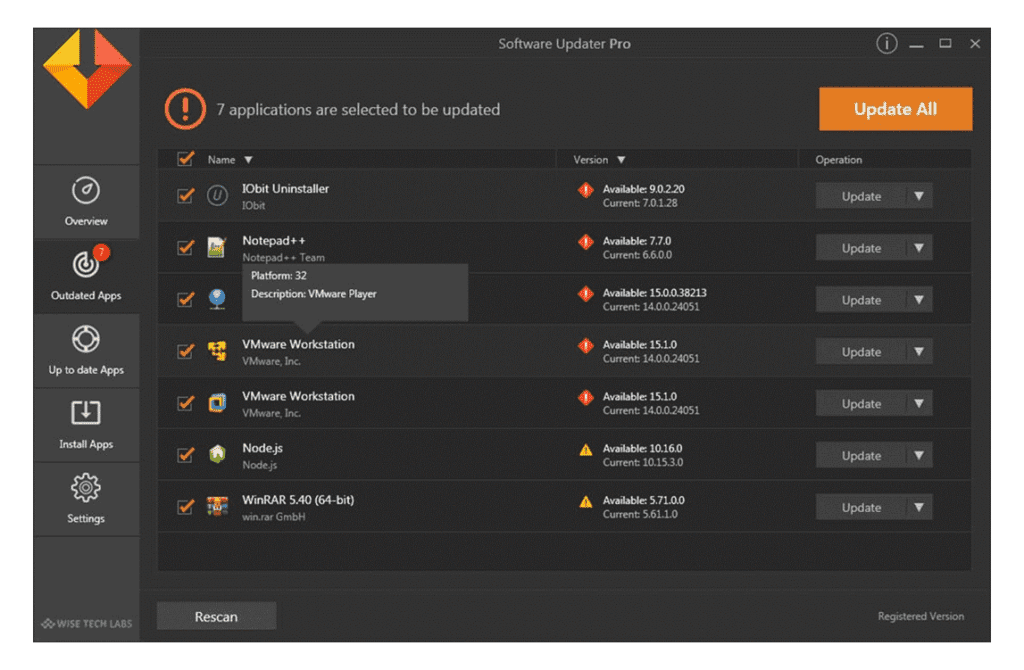
7. Software Updater Pro
It is a meticulously designed tool that helps you save time by automatically updating outdated software. It deep scans your system storage to find all category software and update them instantly. It has a growing database with coverage of almost all the latest software updates in the library.
Features:
- You can install reliable software and software updates within the app.
- It offers priority access to the latest versions of software.
- It automatically installs patches for software vulnerabilities.
- It offers free professional technical support.
Compatible OS: Windows 10/8.1/8/7 (Both 32-bit and 64-bit)
Price: $9.99/month
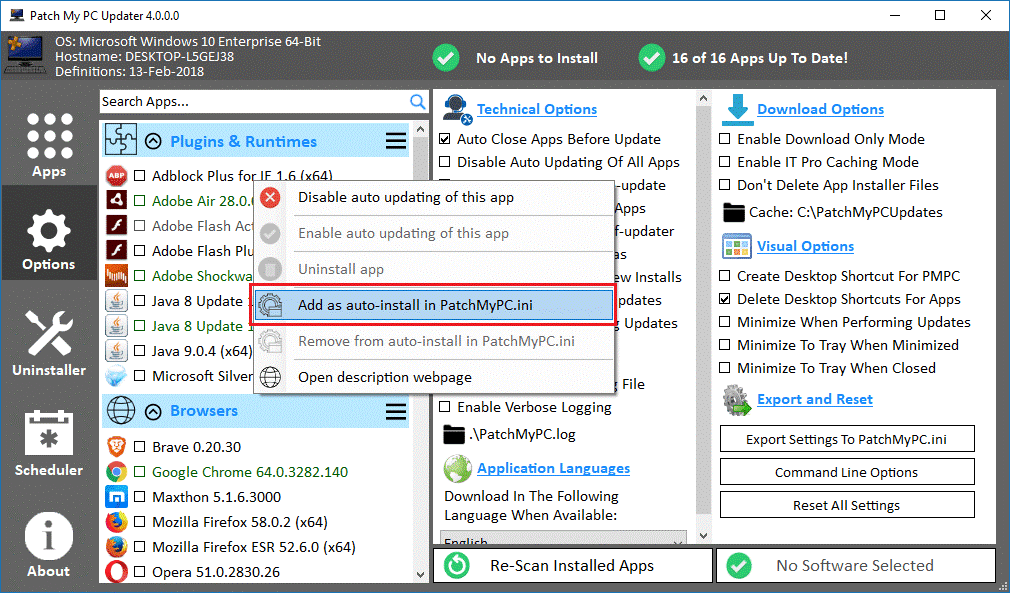
8. Patch My PC Updater
Patch My PC simplifies third-party software patching on your PC. You can use this free and easy-to-use program to update or install a large number of programs on your system. It works on interactive UI and displays all outdated programs in red, updated programs in green, and not-installed programs in black color code. It works well with all your needs no matter you are a novice, tech-savvy, or go-to tech person.
Features:
- It displays scan results in color color-coded manner.
- It is available as a portable version.
- It allows you to schedule updates to save time.
- You can kill programs automatically before updating them.
Compatible OS: Windows 10/8.1/8/7
Price: Free
9. Software Updater
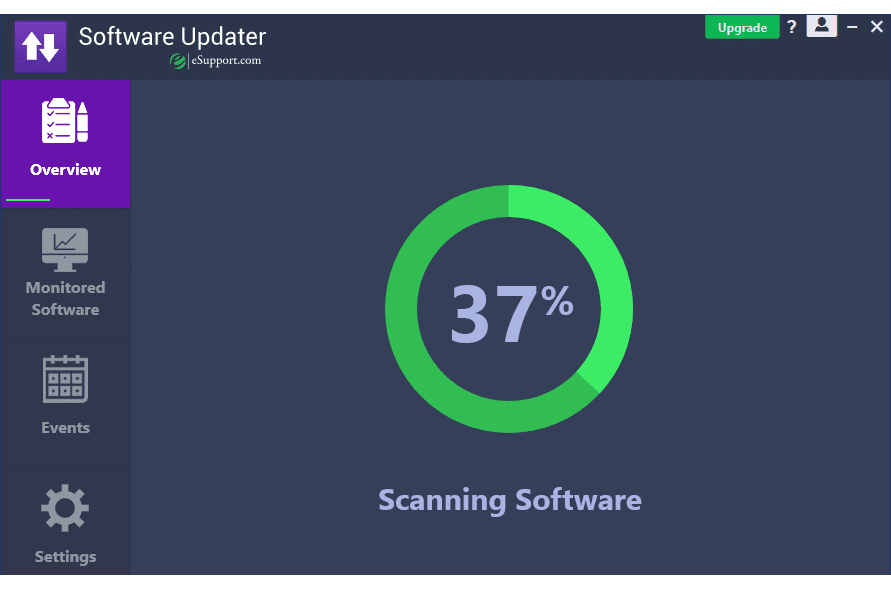
It helps you update outdated software on Windows for free. It has access to a vast database of software titles and can update all your installed programs instantly. It scans, detects, and installs the latest software updates from millions of updated software titles. It keeps tabs on outdated software on your PC and alerts you at suitable time.
Features:
- It is free of added bundles, installers, or toolbars.
- You can find a scheduler to run the app automatically in the background.
- It keeps malware, adware, and viruses away from your system during updates.
- You can decide which updates to install and which to skip.
Compatible OS: Windows 10/8/7
Price: Free
10. AVG PC TuneUp
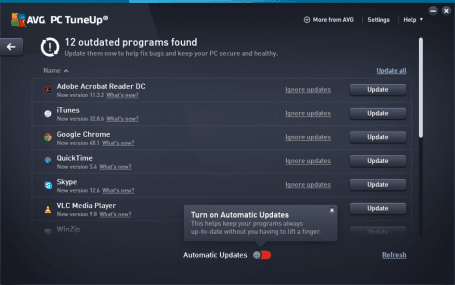
AVG PC TuneUp is an all-in-one PC clean and tuneup utility that helps you optimize your system for better performance. You need to click on the Fix Problems option in AVG TuneUp to update the software on your PC. It displays all installed programs on your PC and helps you update them easily. You can even enable automatic updates to install the latest updates silently and hassle-free.
Features:
- It gives you full control over updates from a single screen.
- It works automatically to avoid painful installers.
- It sends you notifications for critical software updates.
- It offers 30-day money-back guarantee.
Compatible OS: Windows 11/10/8.1/8/7
Price: $49.99/year
Conclusion: Choose the Right Tool for Your Needs
Software updaters are more than convenience tools. They are essential for security and performance. They help you stay ahead of bugs and threats.
Free tools offer basic features. Paid versions provide more control and automation. The right choice depends on your needs and budget.
Look for tools that are easy to use. Make sure they support the apps you rely on. Consider extra features like scheduling and rollback options. With the right updater, your system stays clean and current
FAQs About Software Updaters
1. Do I really need a software updater for Windows?
Yes. Manually updating every app is time-consuming and easy to forget. A software updater automates this, ensuring your programs stay secure and perform optimally.
2. Are free software updaters safe to use?
Most reputable free updaters are safe. Stick to well-known brands and avoid tools with excessive ads or bundled software. Always download from official websites.
3. Can software updaters improve PC performance?
Indirectly, yes. Updated software often runs faster and more efficiently. Plus, updaters can remove outdated versions that clutter your system.
Author Bio:
Dinesh Lakhwani 

Dinesh Lakhwani, the entrepreneurial brain behind “TechCommuters,” achieved big things in the tech world. He started the company to make smart and user-friendly tech solutions. Thanks to his sharp thinking, focus on quality and the motto of never giving up, TechCommuters became a top player in the industry. His commitment to excellence has propelled the company to a leading position in the industry.
Popular Post
Recent Post

Wise Duplicate Finder Review: Real Results from Wise Duplicate Finder
Read my honest Wise Duplicate Finder review. See features, pricing, pros and cons, and real PC test results. Find out if this free duplicate cleaner can free up your Windows storage.

How to Recover Deleted Files from Pen drive, USB Drive, SD Card
Introduction: On tech forums, you’ll often see posts like this: “I connected my pen drive to my laptop this morning, but the folder was empty. All my college project files had vanished. I don’t have a backup. Can someone help me?” Stories like this are very common. Pen drives, USB drives and SD cards are […]

How To Recover Files Deleted from the Recycle Bin [Windows 11]
Losing a file can happen in seconds. You clear your desktop, hit Delete, and empty the Recycle Bin. Then, just when you need that file again, it seems to have vanished. This guide will walk you through ways to restore files removed from the Recycle Bin. We will begin with simple fixes, then look at […]

Disk Drill Data Recovery Tool Explained: Full Review and Guide
It happens in a split second. You delete a folder by mistake. Your drive stops showing up. A photo album from your last trip just vanishes. And your stomach drops. Lost files feel personal. They are not just data. They are memories, work hours, and sometimes years of effort packed into a few gigabytes. When […]

Recover Deleted Files In Windows 11 With Software & Without
Introduction What is the first thing that goes through your mind the second an important file vanishes from a Windows 11 PC? For most people, it is a mix of panic and disbelief, followed by a frantic click through every folder that file could possibly be hiding in. It happens in a split second: one […]

EaseUS Data Recovery Wizard: Everything To Know
Data loss does not always come from a big disaster either. Most cases start small and boring. A drive gets formatted by mistake. A laptop freezes mid-save and restarts on its own. A memory card stops showing up after being pulled out too fast. None of these feel like emergencies at first, until you realize […]

Recuva Data Recovery Tool: Is it Actually Worth it?
When I first tried Recuva Data Recovery, I wanted to see if it could really bring back lost files. The tool is free, small in size, and promises quick recovery, which made me curious enough to test it on my own PC. The setup was fast, and the wizard guided me step by step. I […]

GetData Recover My Files Data Recovery Tool: Honest Review
A hard drive error brings a special kind of silence. Well, yes! The screen freezes, then a message appears saying the drive can’t be found or must be formatted. In that moment, years of photos and work files feel at risk. It never happens at a good time. Coffee spills near a laptop, a memory […]

Windows File Recovery: A Complete Review [Tried & Tested]
Imagine this. You spend hours perfecting a video project. You hit save. Then your laptop freezes, reboots, and when the screen comes back. The file is gone. Your stomach sinks. It’s not just you. Lost files happen all the time. A dropped hard drive, a bad update, an accidental delete, or a corrupted partition can […]

