












A slow PC rarely gives a warning. One day, it simply takes longer to start. Apps open late. The fan runs loud, even when the screen is almost empty. Most people blame old hardware. Often, that is not the real reason. The real reason is hiding in plain sight. Windows keeps many apps active in […]
How to Export Chrome Bookmarks
We often save some web pages which we feel are important for us or to be frequently visited. Google Chrome bookmarks are such links which are meant to be visited often or later. Each of these links is a precious corner of the web you would want to visit repeatedly.
We often wish to get the same bookmarks on our smartphone or on other devices and browsers. That is the reason it’s important to export Google Chrome bookmarks and keep them backed up always.
Before you encounter any mishaps, Google Chrome lets you save all your favorites and bookmarks in a single HTML file and you can also sync them automatically across all your devices. Let’s quickly have a look at easy and simple steps to back up and export Chrome bookmarks.
There are two methods, manual and automatic.
Creating Bookmarks
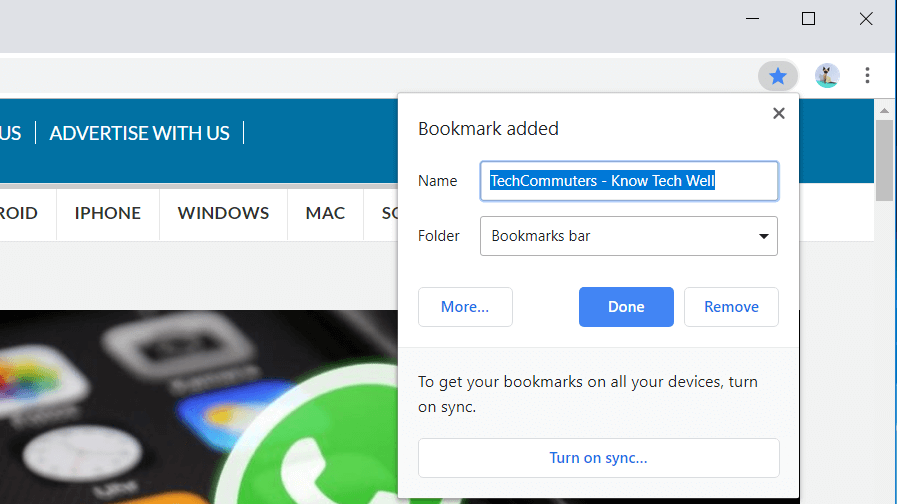
Whenever you come across any page which is meaningful for you and you wish to view it again, you can add that page to your Google Chrome bookmarks.
Adding bookmarks to your favorites list is extremely easy. We will cover this in three simple steps which you can also see in this image.
Step 1. Open the browser and search for the page which you want to add to your bookmarks. Click on the STAR ICON on your Google chrome.
Step 2. Enter the name with which you want to save the bookmark for your reference. You can keep the default name it suggests or you may enter your own description as per your choice.
Step 3. If there are multiple folders in which you manage your bookmarks, you can go ahead and select the folder else simply click on DONE to save the bookmark.
Export Google Chrome Bookmarks To HTML File (Windows)
To export chrome bookmarks as an HTML file, you will need to follow these simple steps.
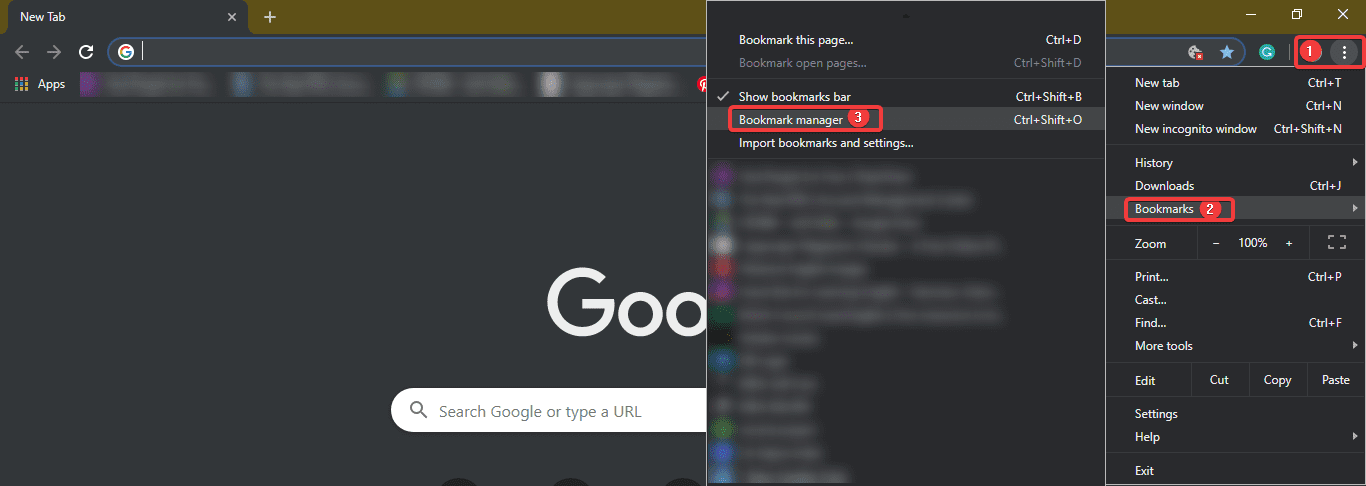
Step 1. Click on those 3 dots at the top right corner of the screen to access the drop-down menu.
Step 2. Go to Bookmarks & click on Bookmarks Manager. The same can be accessed using hotkeys (Ctrl + Shift + ‘O’)
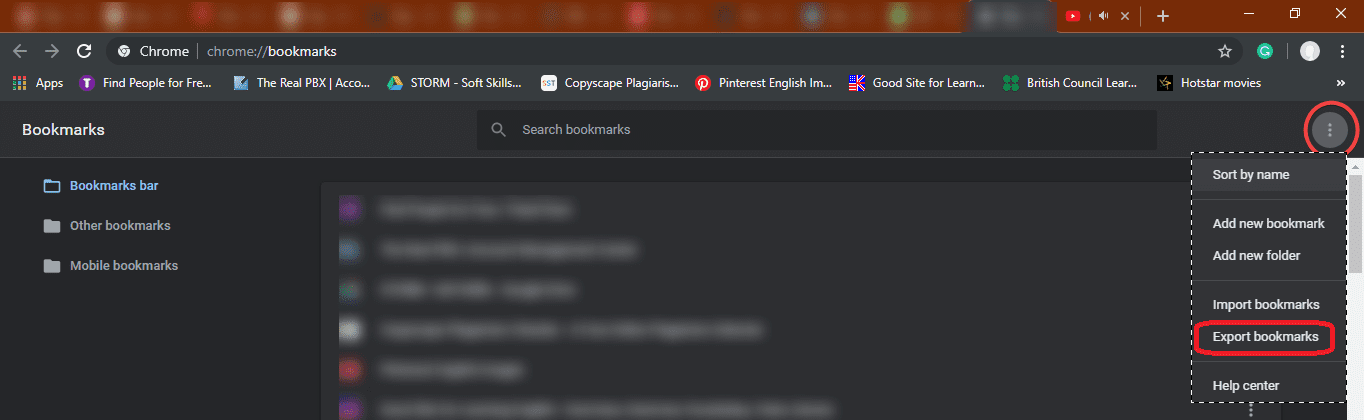
Step 3. The bookmark manager will open in a new tab show below.
Step 4. Click on the word ‘Organize’ above all the listed bookmarks.
Step 5. From the drop-down menu, click on ‘Export Bookmarks to HTML File’ located at the bottom of the list. In the most recent updated browser, it will just give you ‘Export Bookmark’ option.
Step 6. An explorer will open where you need to ensure that the save file type is ‘.html’ followed by the file name provided by you. Select the file destination and click on the ‘SAVE’ option.
All your bookmarks are stored in the file saved on your specified location.
Export Chrome Bookmarks From The Hidden Folder
Now here we are going to talk about the manual process to export Chrome Bookmarks using Windows Explorer. You just need to find the relevant folder by following the instructions given below for your Windows PC or Mac OS. Once you locate the folder, simply copy and paste the located Bookmarks file from your Chrome profile folder to another secure location.
Step 1. Navigate to the User Data folder on your PC. This is the default location for all your entire browser profiles (it includes Bookmarks, Passwords, Extensions, and Settings).
Windows (Windows 10, 8, 7 & Vista)
The default location is: C:\Users\<Your_Username>\AppData\Local\Google\Chrome\User Data\Default
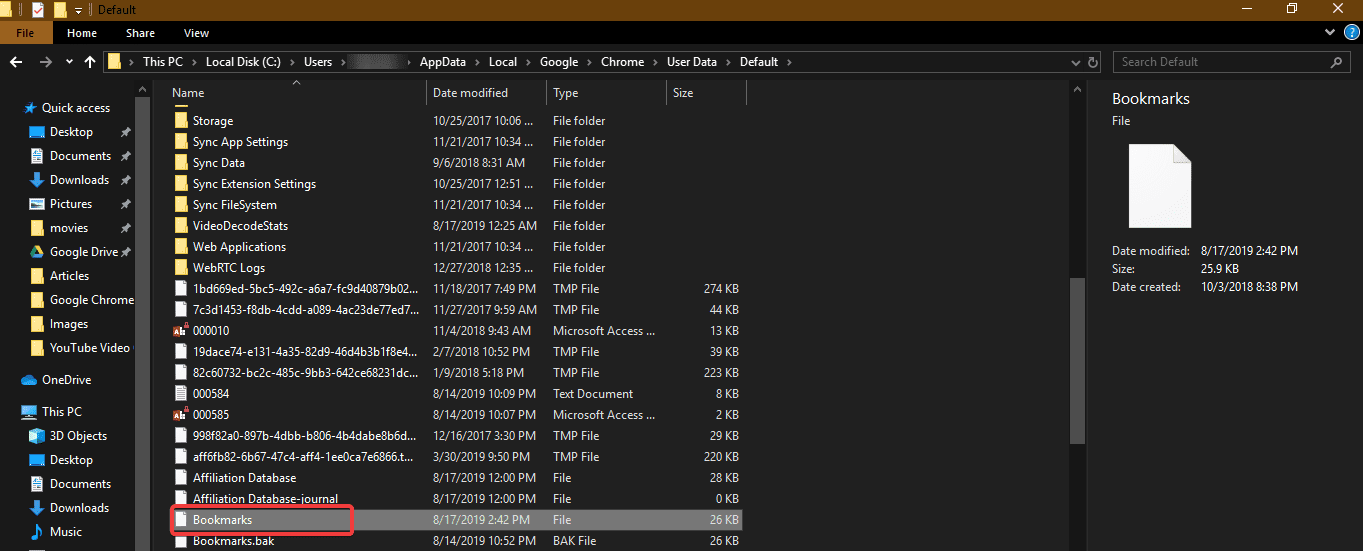
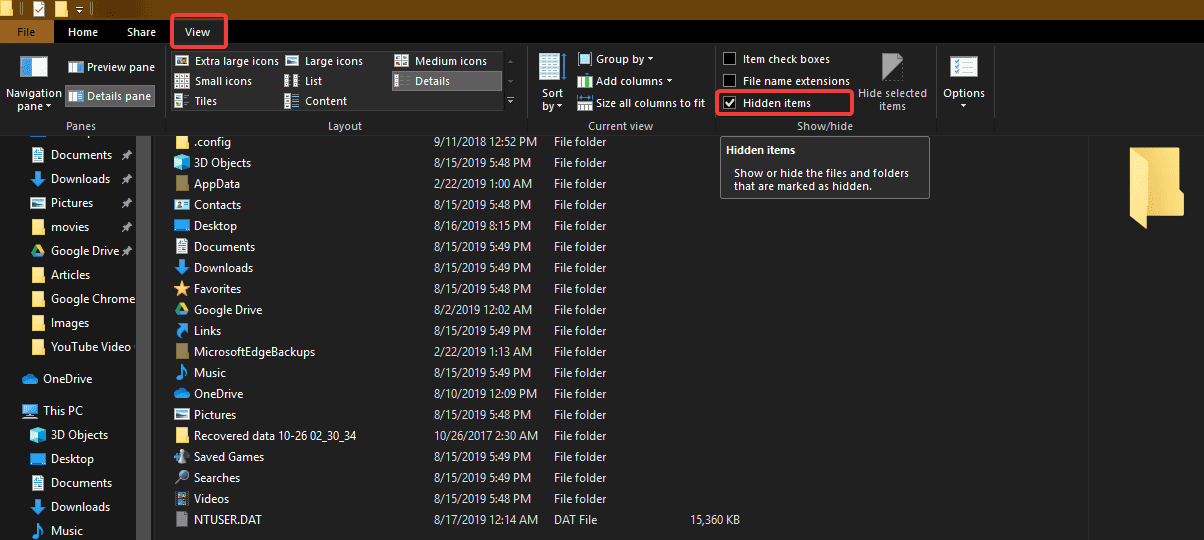
Step 2. It might be possible that you are unable to see AppData folder if your ‘Hidden Items’ are not displayed. To show ‘Hidden Items’, simply click on View Menu and put a checkmark in front of ‘Hidden Items’. You will notice an increment in listed items and should be able to find dull-colored files and folders. These are hidden files.
Step 3. Navigate to the address until you find ‘Bookmarks’ file.
Step 4. Copy and paste the bookmark file to some other location to keep it safe and reserved for further use.
macOS
The default location is: Users/<Your_Username>/Library/Application Support/Google/Chrome/Default
Please Note: For both paths, replace Your Username with the account name you use on the computer.
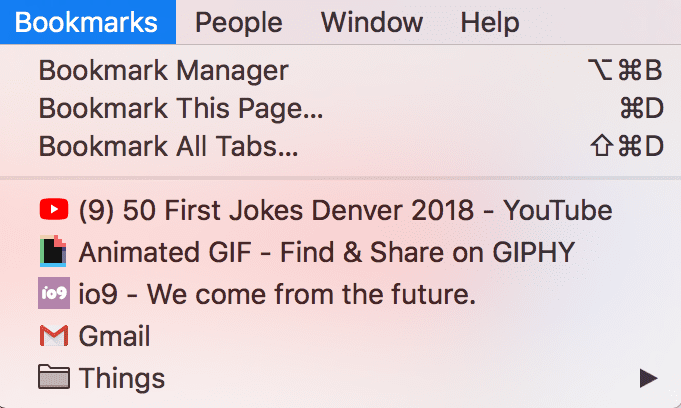
You can also follow the Google Chrome bookmarks location from the browser and save the ‘.html’ file to your desired location.
Also Read: What are Cookies, Cache and their different types
What If There Are Multiple Chrome Profiles?
If you share your computer and the same windows account with someone else, then it’s better to maintain separate Chrome profiles with their own set of bookmarks. The User Data folder has a folder for each profile that you create in Chrome. If you only have one profile, that folder will be called Default as shown above. If you have more than one Google profile, the folders will be listed with the profile names.
Summing Up
Let’s practice the same steps today and ensure that we never miss out on any of our updates precious bookmarks. If this article helped you or you know someone who can be benefited with these steps, do like and share the article. If you have any other issues related to Chrome Bookmarks, do share the same in the comment section and we will revert with an appropriate solution to it.
Author Bio:
Dinesh Lakhwani 

Dinesh Lakhwani, the entrepreneurial brain behind “TechCommuters,” achieved big things in the tech world. He started the company to make smart and user-friendly tech solutions. Thanks to his sharp thinking, focus on quality and the motto of never giving up, TechCommuters became a top player in the industry. His commitment to excellence has propelled the company to a leading position in the industry.
Popular Post
Recent Post

How to Activate Windows with a Product Key for Windows 11 & Windows 10
It always shows up at the worst time. You are halfway through a report, or about to join a video call. Then you spot it in the bottom right corner of the screen. Activate Windows. Go to Settings to activate Windows. Initially, an unactivated copy of Windows may seem like a minor inconvenience. Over time, […]

Is Easy Duplicate Finder Worth It? Honest Review
The photos folder looked normal at first glance. Then the storage warning popped up. One trip photo appeared four times. A tax PDF sat in three different folders. Two old setup files were still in Downloads, and each one was over 500 MB. Nobody plans this mess. Copies pile up slowly. A download runs twice. […]

Wise Duplicate Finder Review: Real Results from Wise Duplicate Finder
Read my honest Wise Duplicate Finder review. See features, pricing, pros and cons, and real PC test results. Find out if this free duplicate cleaner can free up your Windows storage.

How to Recover Deleted Files from Pen drive, USB Drive, SD Card
Introduction: On tech forums, you’ll often see posts like this: “I connected my pen drive to my laptop this morning, but the folder was empty. All my college project files had vanished. I don’t have a backup. Can someone help me?” Stories like this are very common. Pen drives, USB drives and SD cards are […]

How To Recover Files Deleted from the Recycle Bin [Windows 11]
Losing a file can happen in seconds. You clear your desktop, hit Delete, and empty the Recycle Bin. Then, just when you need that file again, it seems to have vanished. This guide will walk you through ways to restore files removed from the Recycle Bin. We will begin with simple fixes, then look at […]

Disk Drill Data Recovery Tool Explained: Full Review and Guide
It happens in a split second. You delete a folder by mistake. Your drive stops showing up. A photo album from your last trip just vanishes. And your stomach drops. Lost files feel personal. They are not just data. They are memories, work hours, and sometimes years of effort packed into a few gigabytes. When […]

Recover Deleted Files In Windows 11 With Software & Without
Introduction What is the first thing that goes through your mind the second an important file vanishes from a Windows 11 PC? For most people, it is a mix of panic and disbelief, followed by a frantic click through every folder that file could possibly be hiding in. It happens in a split second: one […]

EaseUS Data Recovery Wizard: Everything To Know
Data loss does not always come from a big disaster either. Most cases start small and boring. A drive gets formatted by mistake. A laptop freezes mid-save and restarts on its own. A memory card stops showing up after being pulled out too fast. None of these feel like emergencies at first, until you realize […]

Recuva Data Recovery Tool: Is it Actually Worth it?
When I first tried Recuva Data Recovery, I wanted to see if it could really bring back lost files. The tool is free, small in size, and promises quick recovery, which made me curious enough to test it on my own PC. The setup was fast, and the wizard guided me step by step. I […]

