











Imagine this. You spend hours perfecting a video project. You hit save. Then your laptop freezes, reboots, and when the screen comes back. The file is gone. Your stomach sinks. It’s not just you. Lost files happen all the time. A dropped hard drive, a bad update, an accidental delete, or a corrupted partition can […]
How To Backup & Sync Device Contacts With Google Accounts
It’s hard to manage multiple Android devices or if you’re planning to go for a new smartphone in the near future, Do you know that all your contacts can be synced with Google contacts? You can find all your Google contacts on any Android device you associate with your Google account? But what about isolated contacts which are left on your phone’s local storage?
Since those aren’t stored in your Google account, you won’t be able to access them on other devices. If you are wondering how to get them all in one place, we have got the solution for you.
It’s Easy! You can backup & sync device contacts with Google account and keep all your contacts at one place. We’ll show you how to do that in a few easy steps. We assume that you have a smartphone device that is configured with a Google account, and it contains all your contacts on the local storage.
EXPORT OR BACK UP CONTACTS
Android Device
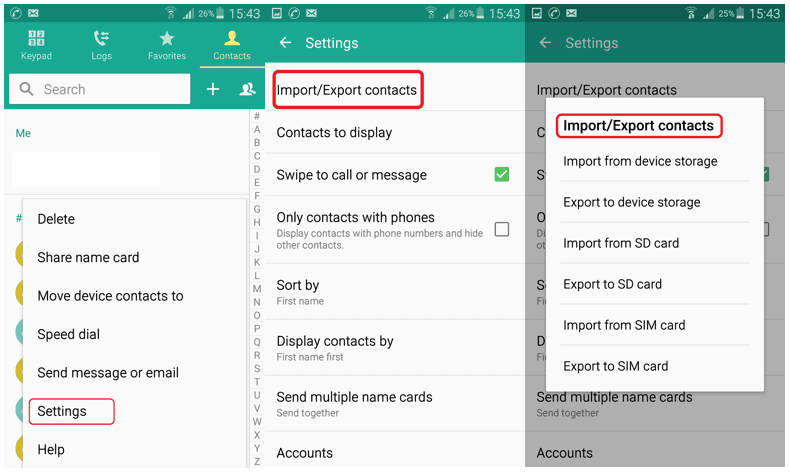
Step 1. Open the ‘Contacts App’ on your Android smartphone or tablet.
Step 2. Tap the app’s Overflow menu (Three horizontal lines in the upper left corner). Tap ‘Menu’ and then ‘Settings’ and then ‘Export’.
Step 3. Select one or more accounts from where you want to export contacts.
Step 4. Tap ‘Export to .VCF file’.
Turn Automatic Backup Off or On
When you set up your Google Account for the first time on your device, it asks you if you want to back up your data. You can turn ON automatic updates or you can change this setting at any time.
Step 1. Open your device’s ‘Settings’ App.
Step 2. Tap ‘System’ and then tap ‘Backup’.
Step 3. Turn On or Off ‘Back up to Google Drive’ as per your preference.
Computer Settings
If you want to add your contacts to another email account, you need to first download them as a ‘.CSV’ or ‘vCard’ file on your PC.
Step 1. Go to Google Contacts.
Step 2. Put a check on the boxes that appear next to their names to select contacts.
Step 3. Click More and then Export.
Step 4. To back up your contacts, select Google CSV.
Step 5. To save your file, click Export.
Backup Android Phone’s Contacts to Gmail Account
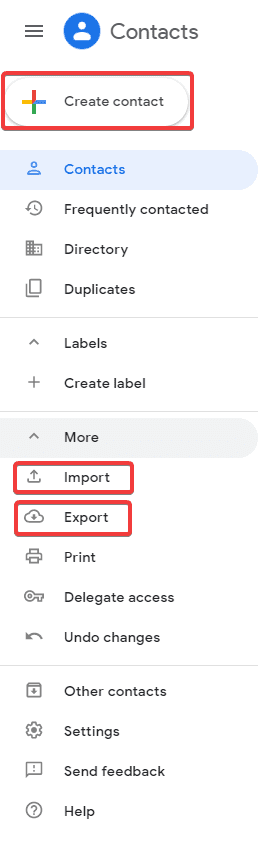
You must be delighted to know that it is invariably possible to backup or sync Android contacts to your Gmail account using your computer or a laptop. Simply follow these instructions properly and you should be able to back up your contacts to Gmail at the end of this guide.
Firstly, you need to open contacts application on your Android phone then tap on the menu button and click on ‘Import/Export’. Tap on ‘Export to Storage’ and save all the contacts to your phone’s storage device or memory card. Next, connect your phone to PC and copy the ‘.VCF’ file on your computer. Or, you may keep the phone connected and use the following steps.
Step 1. Go to Gmail.com and login with your email ID and password.
Step 2. From the top left corner that says ‘Gmail’, click on the drop-down icon.
Step 3. Click on ‘Contacts’ followed by ‘More’ and then click on ‘Import Contacts’ from the drop-down options.
Step 4. Browse and select the ‘.VCF’ file which is saved on your phone storage or PC and click on ‘Open’ to initiate the process. (If the file is saved on your phone then choose the file from your phone storage path or email it to yourself and download the file on the system before following this step.)
Step 5. Now check for all your Android contacts on your Gmail contacts folder and they should be there on your Gmail account.
Also Read: Duplicate Contacts Remover Apps For iPhone
Backup and Sync on iPhone
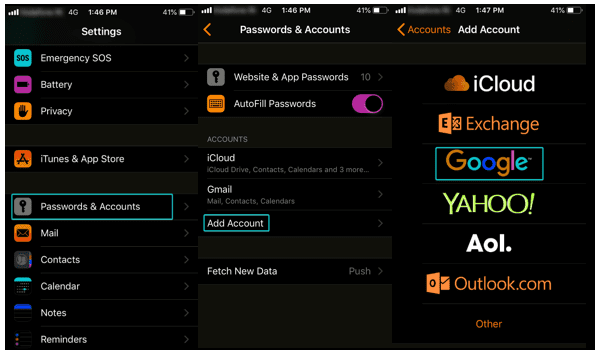
You can backup and sync all your Google Contacts on your phone, tablet, and computer simultaneously. If you edit a contact on one device, the contact details are changed and saved on all the devices.
Step 1. Open ‘Settings App’ on your iPhone or iPad.
Step 2. Go to ‘Passwords & Accounts’ and then under ‘Add Accounts’, Select ‘Google’.
Step 3. Enter your credentials (Email ID & Password), Complete 2-Step verification if prompted.
Step 4. When you go next, enable ‘Contacts’ sync and Tap on ‘Save’.
Note: To start syncing, you will need to open your iPhone or iPad’s ‘Contacts App’.
Windows 10 Computer
Configuring a Google account to Sync contacts is absolutely easy on your Windows computer.
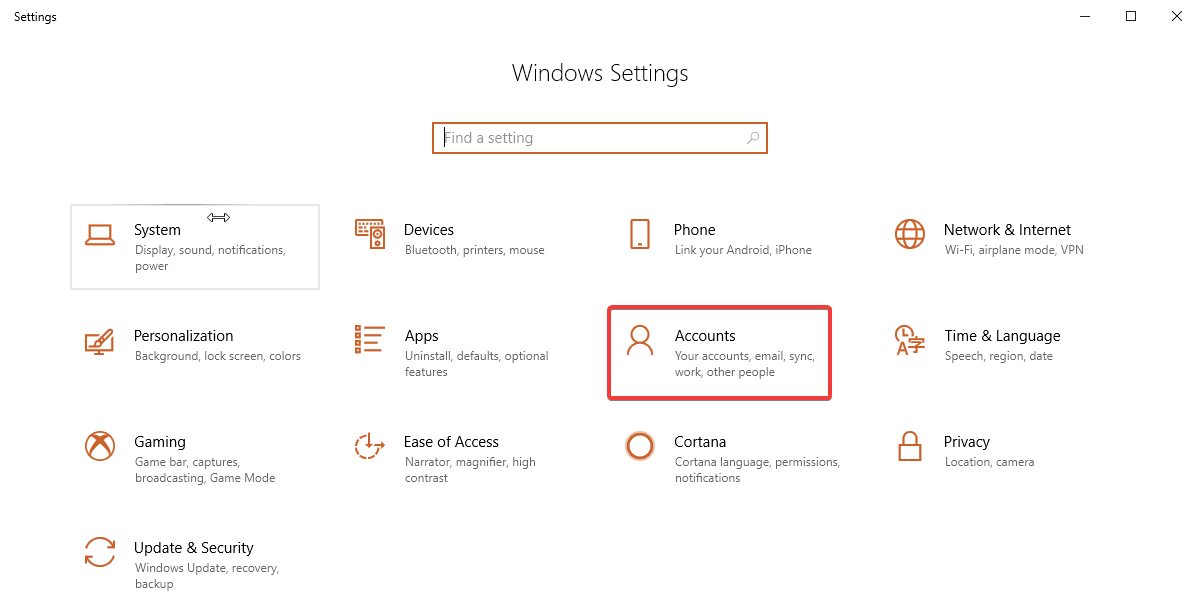
Step 1. Click on ‘Start Button’ and go to ‘Settings’.
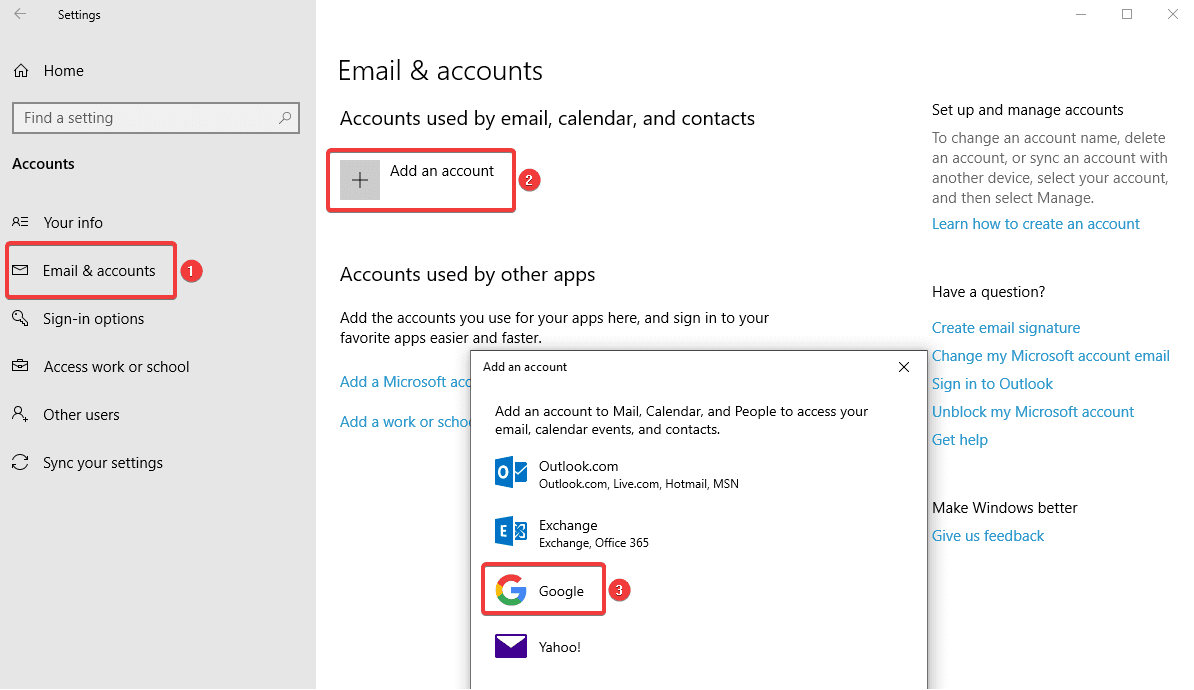
Step 2. Under ‘Windows Settings’ box, Click on ‘Accounts’ click on ‘Email & Accounts’ on the left-hand side panel Click on (+ sign to ‘Add an Account’). Select ‘Google’.
Step 3. Enter your credentials (Email Address & password) and click on ‘Next’.
Step 4. Review permissions and then click on ‘Allow’ and ‘Done’.
RESTORE CONTACTS FROM BACKUPS
Step 1. Open your device’s Settings App.
Step 2. Tap Google.
Step 3. Under ‘Services’ tap ‘Restore Contacts’.
Step 4. If you have multiple ‘Google Accounts’ to choose from which account’s contacts you want to restore, tap ‘From Account’.
Step 5. Tap the device with the contacts to copy.
Step 6. If you don’t wish to copy or sync contacts from your SIM card or device storage, you can turn off sync with SIM card or Device storage.
Step 7. Tap Restore, and wait until you see ‘Contacts restored’.
Step 8. To avoid duplicate contacts, your device only restores contacts that don’t exist. Your restored contacts automatically get synced with Google Account and all other devices.
Unable to Sync Contacts?
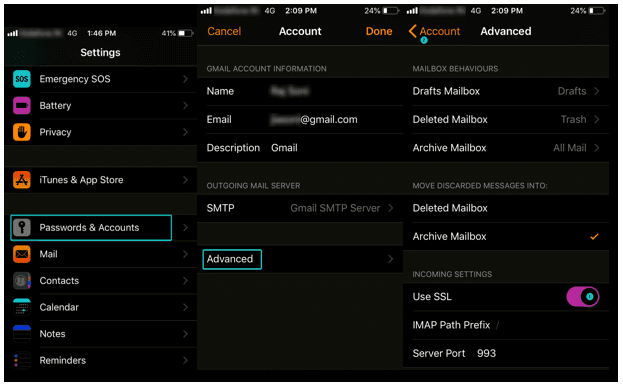
You need to ensure that your Google Account is configured on your iPhone or iPad using (SSL), It is recommended and secure connection for additional security.
Step 1. Open ‘Settings App’ on your iPhone or iPad.
Step 2. Go to ‘Contacts’ ‘Default Account’
Step 3. Tap on your Google Account.
Step 4. Put a tick on selected accounts and switch ‘Contacts’ ON.
Step 5. Tap ‘Password & Account’ ‘Advanced’ switch ‘Use SSL’ ON Tap ‘Account’ again Tap ‘Done’.
Note: You can try adding your account after configuring these settings and it should be done.
Import Contacts
Step 1. Open the Contacts app.
Step 2. Tap the app’s Overflow menu.
Step 3. Tap ‘Settings’ Tap ‘Import’ Tap ‘Google’.
Step 4. Select Import ‘vCard’ file.
Step 5. Locate and select the ‘vCard’ file which you want to import.
Step 6. Allow the import process to complete.
Step 7. By default, all the contacts on your device will be automatically synced with your Google account, so there is no further action required.
Conclusion
We have collated steps on how to sync Google contacts with Android / iPhone / Computers and other devices, now you can ensure that all your contacts are synced and backed up at one place. You can view/edit any contact on any device and all devices will have the updated details.
You can add a contact on any device and all the devices will have that contact added in the contacts list. So now stay assured about keeping all your contacts in one place and backup & sync device contacts with Google account so that you never miss out on any of your contacts on any of your devices.
If you know more such interesting ways to backup & sync device contacts with Google Accounts, then feel free to share in the comments below.
Author Bio:
Dinesh Lakhwani 

Dinesh Lakhwani, the entrepreneurial brain behind “TechCommuters,” achieved big things in the tech world. He started the company to make smart and user-friendly tech solutions. Thanks to his sharp thinking, focus on quality and the motto of never giving up, TechCommuters became a top player in the industry. His commitment to excellence has propelled the company to a leading position in the industry.
Popular Post
Recent Post

5 Best Data Recovery Software For Windows 11 and Windows 10
A crashed drive can ruin a whole day. One minute your photos, work files, and tax records sit safe on your PC. The next minute they are gone. A power cut, a bad update, or one wrong click can wipe out years of memories and months of work in seconds. That sinking feeling is why […]

How To Update NVIDIA Drivers On Windows 11/10 PC
Learn how to update NVIDIA drivers on Windows 11/10 with simple methods, safety tips, and easy steps for smoother gaming and better PC performance.

Top AI Features Hidden Inside Windows 11
Explore the top AI features in Windows 11, from Copilot to Recall, plus safety tips and simple steps to use each tool the right way.

Customize Your Screen Saver Settings in Windows [Easy Steps]
Learn how to customize screen saver settings in Windows 11 with easy steps, safety tips, and simple tricks to personalize your PC screen.

Driver Easy Windows Driver Updater Tool Review: Tried & Tested
In-depth information about Driver Easy’s functions and features can be found in our review. Learn how to update drivers more easily with this tool for a more seamless computer experience.

Is Avast Driver Updater Worth It? A Hands-On Analysis
A full review of Avast Driver Updater covering features, setup steps, pricing, pros and cons, and real PC results, to help you decide if it is worth buying.

IObit Driver Booster 13 (PRO) Review: [Tried & Tested]
IObit Driver Booster 13 is built for one purpose: keeping your PC drivers up to date. Well, yes! Outdated drivers can cause crashes, slowdowns, and hardware issues. This tool scans fast and updates with one click. The interface is simple. Even beginners can use it without confusion. Updates are pulled from a huge database, covering […]

Auslogics Driver Updater: A Detailed Walkthrough [2026]
This comprehensive review covers the key features, pros, and cons, pricing, and a final verdict on Auslogics’ driver update utility. Learn how it stacks up against manual driver maintenance.

5 Best Driver Updater Tools for Windows to Use (Free and Paid)
Introduction: Most people blame their PC for problems that a driver caused. A driver works like a bridge between your hardware and your operating system. When this bridge cracks, strange things start to happen. Screens flicker without reason. Printers go silent mid-task. Games freeze or crash out of nowhere. Manually finding the right driver is […]

