












The photos folder looked normal at first glance. Then the storage warning popped up. One trip photo appeared four times. A tax PDF sat in three different folders. Two old setup files were still in Downloads, and each one was over 500 MB. Nobody plans this mess. Copies pile up slowly. A download runs twice. […]
Is Easy Duplicate Finder Worth It? Honest Review
The photos folder looked normal at first glance. Then the storage warning popped up. One trip photo appeared four times. A tax PDF sat in three different folders. Two old setup files were still in Downloads, and each one was over 500 MB.
Nobody plans this mess. Copies pile up slowly. A download runs twice. A backup gets copied again. A phone sync brings back photos that were already saved. Each file looks harmless. Together they can eat gigabytes. Sorting them by hand takes hours, and one wrong delete can hurt.
That is why people turn to a duplicate finder. In this review, I look at Easy Duplicate Finder. I explain what it does, how it works, what it costs, and where it falls short. I also share how it behaved on my own PC.
Is Easy Duplicate Finder Worth Paying For? An Honest Review.
Part 1: Brief Overview: Easy Duplicate Finder Tool
Easy Duplicate Finder is a duplicate file cleaner made by WebMinds, Inc. It first came out in 2007, so it has a long track record. It runs on Windows and Mac. This review covers the Windows version.
Version 8 arrived in June 2026 with a new scan engine. The engine finds exact copies and similar ones. The similar search works for photos and music. That is a big step for anyone with a messy photo library.
Here is a quick look at what the app offers:
- Finds duplicate photos, videos, music, documents, and emails
- Uses a Standard Scan that mixes exact and similar matching
- Checks files with the SHA256 method for exact matches
- Gives 10 or more scan modes, including Folder Comparison and Empty Folders
- Scans Google Drive, Dropbox, and OneDrive
- Shows a preview for many file types before you delete
- Has an Undo button for emergency recovery
- Lets you move duplicates to another folder instead of deleting them
Quick Info: Easy Duplicate Finder
- Latest Version: 8.3.1.6
- Release Date: September 25, 2026
- File Size: About 30.6 MB
- Supported OS: Windows 7, 8/8.1, 10, 11 (32- and 64-bit). A Mac version is also available.
- System Needs: 1 GHz CPU, 512 MB RAM (1 GB advised), 50 MB free disk space
- License: Free trial with limits. Paid license starts at $39.95.
- Developer: WebMinds, Inc.
- Internet: Needed for activation and updates
Why It Matters?
- Long history: The tool has been updated for almost two decades, so it is not a new or unknown name.
- Beyond local drives: Cloud scans and email scans mean one app can clean more than a single disk.
- Try before you pay: The trial does not expire. It only limits how many duplicate groups you can remove.
Part 2: Smart Reasons to Let Easy Duplicate Finder Clean Your PC
This section highlights the practical benefits of using Easy Duplicate Finder to remove duplicate files and reclaim valuable storage space. Beyond freeing up disk space, the software can help improve file organization, reduce clutter, and make it easier to manage documents, photos, videos, and other data. If your PC is filled with unnecessary duplicates, these smart reasons will show why Easy Duplicate Finder can be a useful tool for keeping your system cleaner and more efficient.
- Finds real duplicates: The app compares file content, not just names. A copy with a new name still gets caught.
- Catches similar photos: Version 8 can spot edited shots and near copies, not only exact matches.
- Guided start: The Wizard asks what file types you want and where to look. New users are not left guessing.
- Covers more than files: It can scan emails, music tags, and cloud accounts. One tool does the work of several.
- Safer cleanup: You can preview files, move them instead of deleting, and use Undo if you change your mind.
- Free scanning: The trial lets you scan without limits. You can see how much space you could recover before you spend money.
Part 3: Key Features Explained: Easy Duplicate Finder Tool
Easy Duplicate Finder looks simple on the surface. Inside, it holds more tools than most people expect. Below are the seven features that matter most in daily use. I explain each one in plain words, so you know what to expect before you install it.
1. Standard Scan for Exact and Similar Files
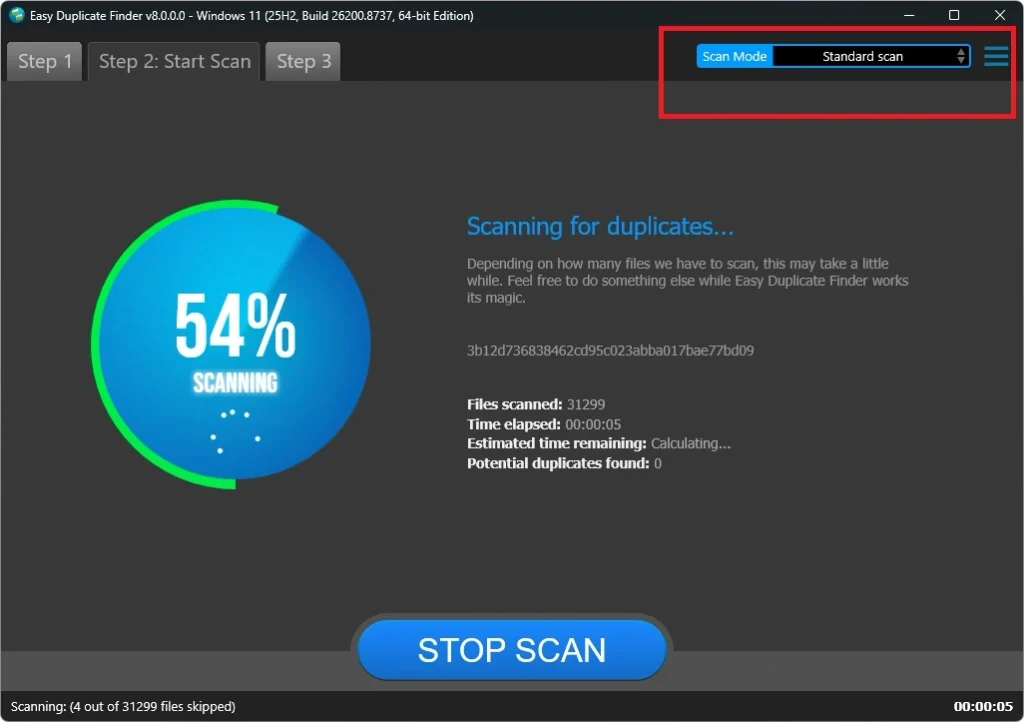
Standard Scan is the default mode in version 8. It combines exact search with similar search. Exact search finds files that match perfectly. Similar search finds photos and music that look or sound almost the same. You can also set a sensitivity level. A higher setting is stricter. A lower one finds more near matches. For a photo library full of burst shots and edits, this mode is the best place to start.
2. SHA256 Accuracy and Folder Comparison
The app builds a list of all files in your chosen folders. Then it compares their SHA256 hashes. Files with the same hash are identical. File names do not matter. This is why the results are trusted for exact matches.
Folder Comparison works a little differently. You pick a master folder and one or more target folders. The master files count as originals, and the app protects them from deletion. It is a handy way to clean a backup drive against your main folder.
3. More Than Ten Scan Modes
Easy Duplicate Finder is not just a file scanner. It has modes for music, email, Google Drive, Dropbox, OneDrive, and empty folders. Mac users also get iTunes and Photos modes. Each mode is built for one job, so the settings match the task. Version 8 also supports more music formats than before, such as APE and OptimFROG.
4. Preview Panel and Viewing Options
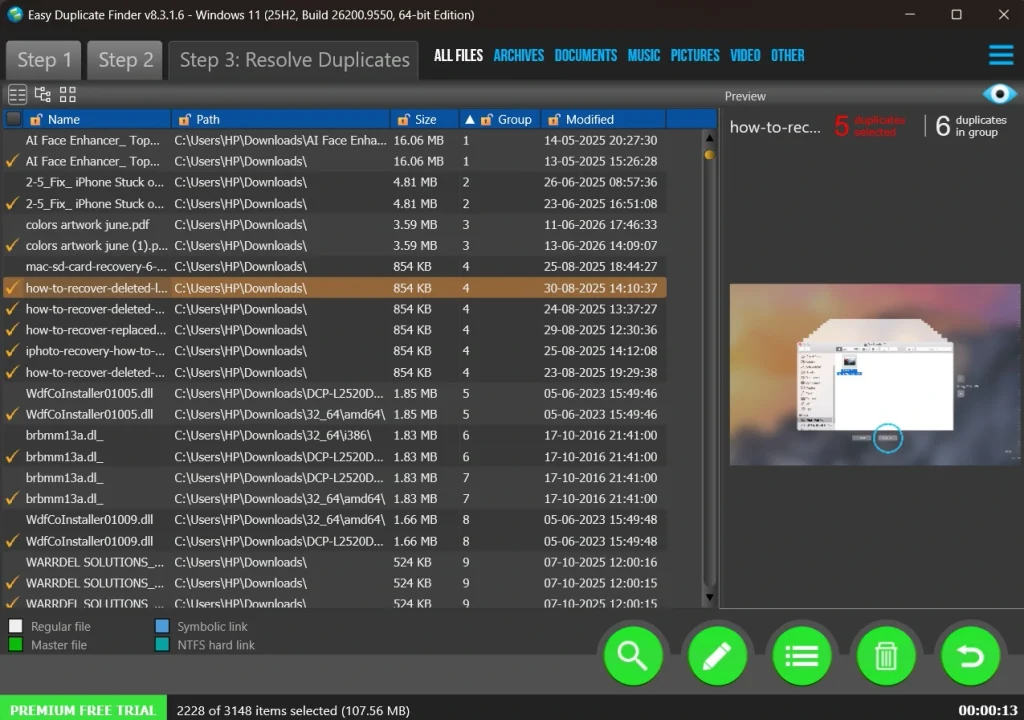
Deleting the wrong file is the biggest fear for most people. The preview panel helps here. You can look at a file before you decide. Recent updates added a side-by-side view, a tree view, and a MultiViewer mode. You can also switch between group view and list view. These options make long result lists easier to read. Some reviewers say the preview is limited for certain file types, so test it on your own files.
5. Auto Selection and Bulk Selection
After a scan, the results can run long. Ticking boxes one by one wastes time. Auto selection marks the extra copies in each group for you. Bulk options let you choose files by rules, such as oldest or newest. One point needs care. Some reviewers find auto selection too eager. Always read the marked list before you delete.
6. Undo, Move, and System Protection
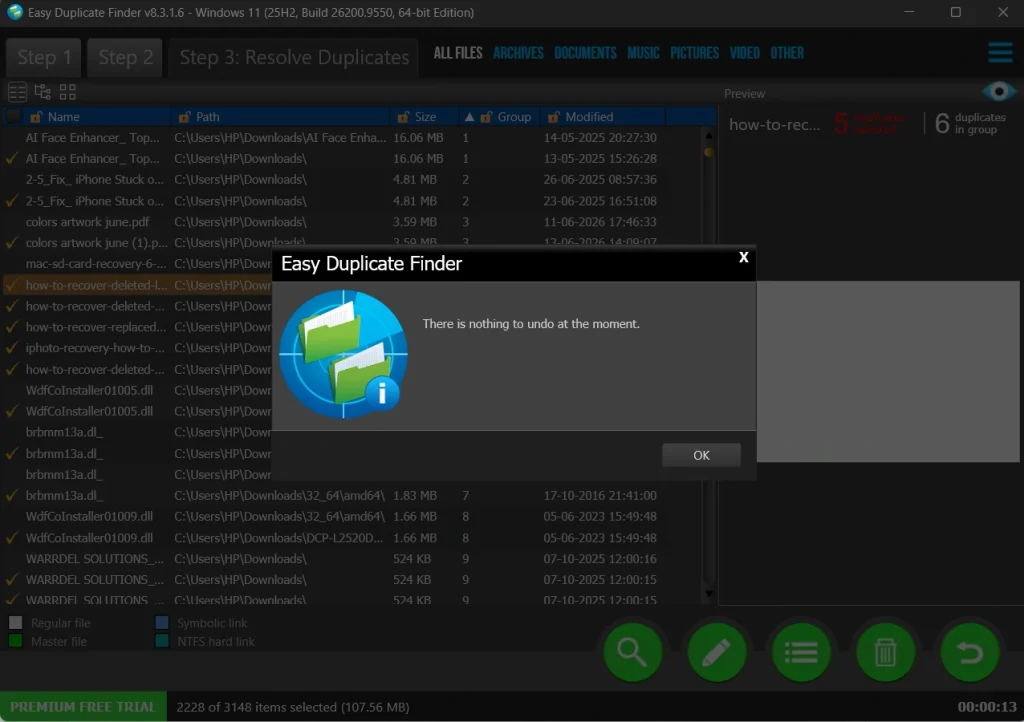
This is the safety net. The Undo button helps if you delete something by mistake. The Move option sends duplicates to any folder or external drive. That works well when you want to keep backups. The app also protects system files and folders. Even so, I would never scan the Windows folder. Stay with Downloads, Pictures, Documents, and Music.
7. Cloud Scans and Real-Time Alerts
Duplicates do not live only on your drive. Google Drive, Dropbox, and OneDrive fill up too. Easy Duplicate Finder can scan these accounts after you sign in. There is also a real-time feature that helps you avoid downloading files you already have. Small extras like these make the tool feel complete.
Part 4: How to Use Easy Duplicate Finder Tool: Step-by-Step Guide
Using this app is simple. You do not need a manual. The whole job takes three steps. Most people finish a first scan in a few minutes.
Before you begin, make a plan. Choose the folders you want to clean. Downloads, Pictures, and Documents are good starting points. Avoid system folders such as Windows and Program Files. The maker of the app warns that a system-wide scan can remove files Windows needs. Now let us walk through the steps.
Step 1: Download and Install the App
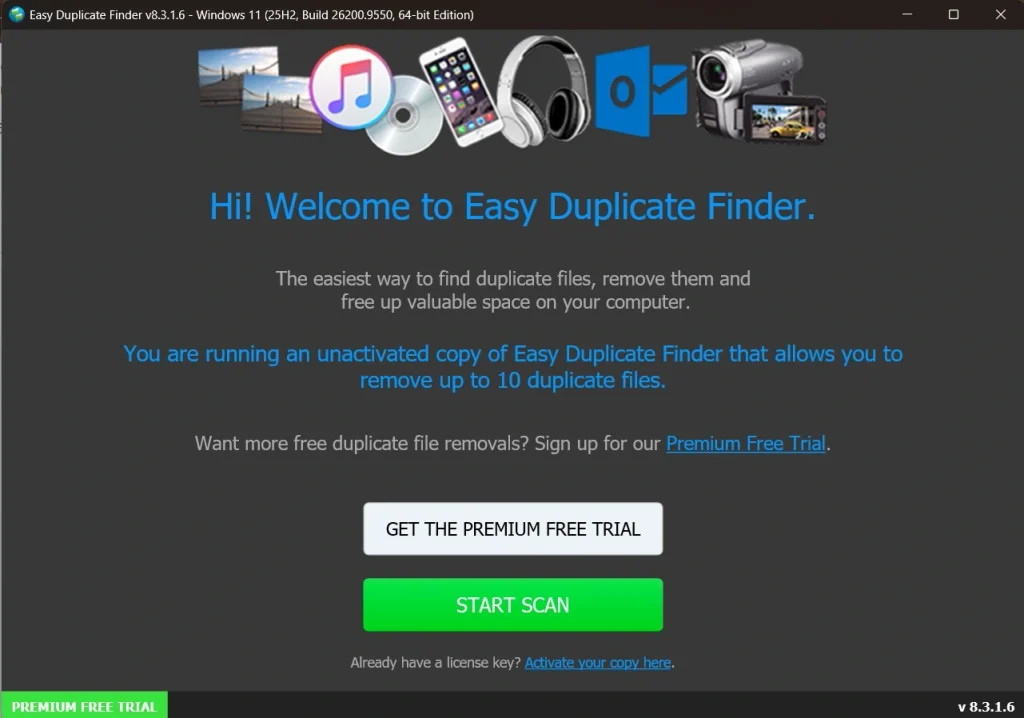
Go to the official Easy Duplicate Finder website and click the free trial download. No credit card is needed. Run the setup file and follow the prompts. Once the installation ends, open the app. A welcome screen appears with a Start Scan option.
Step 2: Choose Scan Mode and Folders
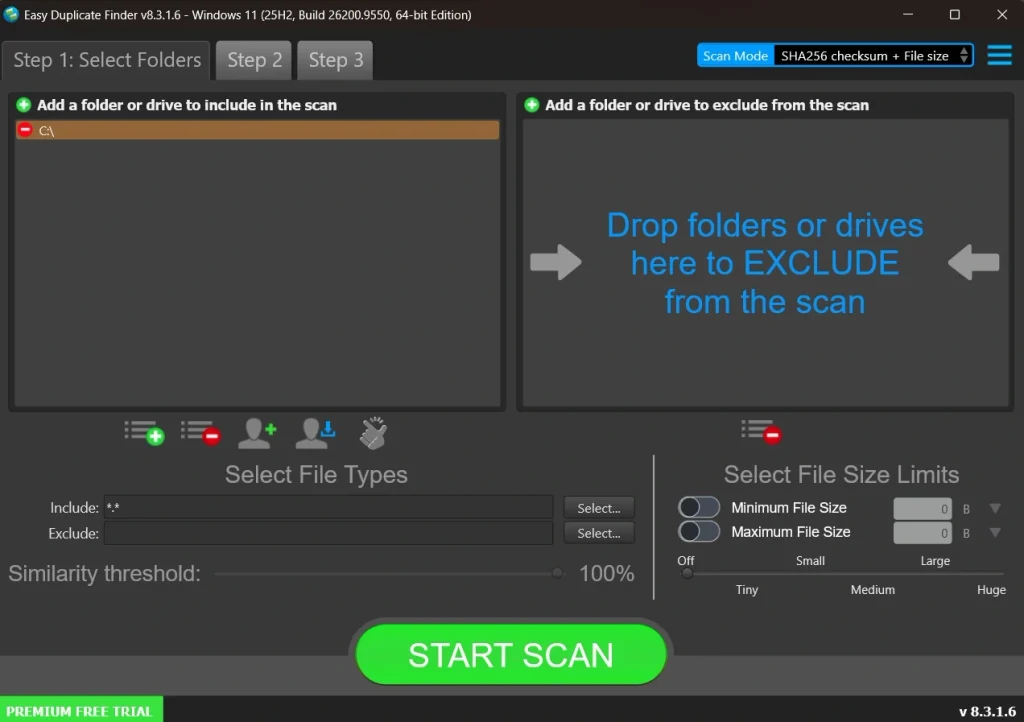
The Wizard is the easiest path. It asks which file types you want to check, such as photos, music, videos, or documents. Then it asks where to look. You can also drag and drop folders straight into the window. For most people, Standard Scan is a good pick. Click the Start scan button and wait. Big folders take longer, so be patient.
Step 3: Review the Results and Delete
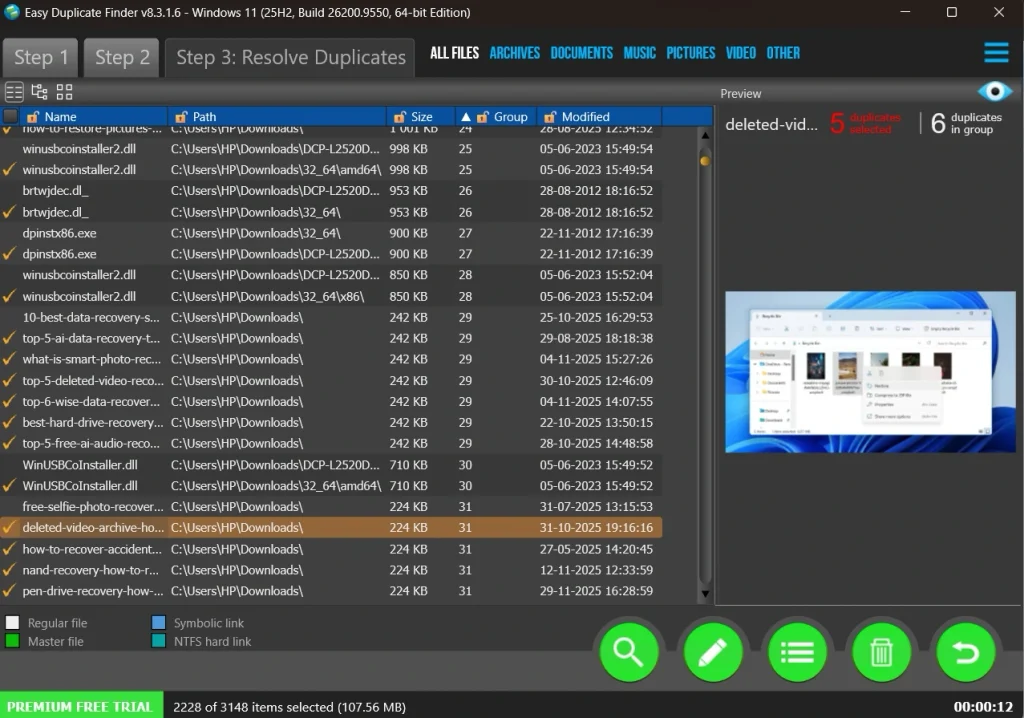
When the scan ends, the app shows duplicates in groups. Click a file to preview it. Keep one copy in each group and mark the rest. You can use auto selection to save time, but check the list first. When you are ready, click the trash can button. The marked files are removed in one go. If you spot a mistake, use Undo. To keep a backup, choose Move instead and pick a folder.
Part 5: Easy Duplicate Finder Pros and Cons: The Good and the Not So Good
No app is perfect. Easy Duplicate Finder does its main job well, but it has weak spots too. A fair review must show both sides. Here is what I liked and what I did not.
Pros
- Accurate matching: SHA256 checks mean exact duplicates are found by content, not by name.
- Finds similar photos: Version 8 can catch edited and near-identical images, which many older tools miss.
- Wide coverage: Local drives, external drives, email, music, and cloud accounts are all supported.
- Safety tools: Preview, Undo, Move, and protected system folders lower the risk of mistakes.
Cons
- Trial is limited: You can scan freely, but you can only remove 10 duplicate groups. After that, file actions lock.
- Updates are time-limited: The base license includes one year of updates. Longer coverage costs extra.
- Auto selection needs care: Some reviewers report aggressive picks and the odd false match. Manual review is a must.
- Checkout add-ons: The purchase page offers extra products and paid support options. Read each box before you pay.
Part 6: Pricing Plans: Easy Duplicate Finder Tool
WebMinds sells one product with a few license sizes. Here is what the official purchase page listed when I checked in September 2026. Prices and offers change, so confirm them before you buy.
Free Trial
- Cost: Free, no credit card needed
- Features: Unlimited scanning
- Limitations: You can manage only 10 duplicate groups. After that, file actions are locked.
1 Computer License
- Price: $39.95 (list price $59.95)
- Includes: Unlimited updates for 1 year
- Best for: One home or work PC
3 Computers License
- Price: $49.95 (list price $119.95)
- Best for: A small household with a few devices
5 Computers License
- Price: $59.95 (list price $159.95)
10 Computers License
- Price: $69.95 (list price $269.95)
- Best for: Small offices
Optional Add-ons at Checkout
- Extended license: Unlimited updates for 2 full years for $9.95
- Extended download and support: $6.95 for two years of premium support and license access. Without it, downloads are available for 28 days.
- A 30-day money-back badge appears on the checkout page.
Here is a Free Trial vs Paid License comparison table for Easy Duplicate Finder:
| Feature | Free Trial | Paid License |
| Duplicate Scan | ✅ Unlimited scanning | ✅ Unlimited scanning |
| Delete or Move Files | ⚠️ Only 10 duplicate groups | ✅ No group limit |
| Time Limit | ✅ Does not expire | ✅ License key activation |
| Updates | ❌ Not listed | ✅ 1 year included, longer with add-on |
| Premium Support | ❌ Not listed | ✅ Available with support add-on |
| License Coverage | 1 PC (trial) | 1, 3, 5, or 10 computers |
| Price | Free | From $39.95 |
Summary: The trial is good for testing. It shows you how much space you can win back. The paid license removes the cap and adds updates. It suits anyone with a large photo, music, or work library.
Part 7: Cleaning My Drive with Easy Duplicate Finder: Real Test
I installed the app on my Windows 11 laptop. Setup was quick, and I did not need a restart. The window felt clean. The Wizard asked which file types to check, and I chose photos, documents, and downloads. Then I picked my Downloads, Pictures, and Documents folders. I used Standard Scan so the app could look for both exact and similar files.
The scan finished in a few minutes. The results came in groups, sorted by size. Most were old downloads and repeated PDFs. The similar photo search was the pleasant surprise. It flagged shots that were taken seconds apart, along with a few edited versions.
The preview panel helped me pick which one to keep. I did not trust auto selection blindly. I read each marked file before I moved on.
Was it perfect? No. When I tried to clear more than a few groups, the trial limit stopped me. That is fair for a free trial, but it means you cannot finish a big cleanup without paying. The result list also felt long on my biggest folder. Still, the app never froze, and Undo gave me peace of mind. I would use it every few months on my photo folders.
Part 8: What Users and Trusted Sites Say About Easy Duplicate Finder
Most reviews agree on the same things. The tool is accurate and covers many file types. It also costs more than free options. Reviewer opinions on the interface and the trial limits are mixed.
Expert Reviews
Cisdem Review (July 2026)
- Highlights: Explains the SHA256 default mode and the Folder Comparison mode.
- Pros: Works with photos, music, video, documents, and cloud storage.
- Cons: Paid updates after the first year.
- Note: Cisdem sells a rival duplicate finder, so read its verdict with that in mind.
4DDiG Review
- Highlights: Praises the many scan modes and the accurate results.
- Pros: Simple layout, scans inside compressed files, cloud support.
- Cons: Costs more than cheaper tools. Auto selection feels risky for mass deletion, and the preview is limited.
FileHorse Listing
- Highlights: Lists Windows 7 to 11 support and clear system needs.
- Pros: Fast scans, undo feature, support for external drives and cloud sync.
- Cons: Limited free version, aggressive auto selection, occasional false positives, and a high premium price.
User Feedback
Trustpilot Reviews
- Positive: Some buyers call it fast, reliable, and easy. A few use it on both PC and Mac.
- Negative: Others are upset about the trial limit. Some say it missed duplicates that free tools found. A few complain about refunds.
- Note: The number of reviews is small, so treat it as a rough signal only.
Comparison Table: Expert vs User Sentiment
| Aspect | Expert Sites | User Reviews |
| Ease of Use | Called simple, with a helpful Wizard | Many find it easy and fast |
| Accuracy | Praised for SHA256 and content checks | Mixed, with a few missed duplicates reported |
| Features | Wide range of scan modes and cloud support | Users like the variety |
| Pricing | Seen as pricey next to free tools | Trial limit frustrates some buyers |
| Safety | Undo and protected folders praised | Auto selection needs careful review |
Key Takeaways
- Best for people with big photo, music, or work libraries who want accurate results.
- Less ideal for anyone who wants a fully free tool with no limits.
- The trial is good for testing. The paid license unlocks the full cleanup.
Conclusion
Easy Duplicate Finder is a mature tool with a clear goal. It finds copies of your files and helps you remove them. Version 8 adds smarter photo and music matching, which is a real upgrade. Preview, Undo, and Move give you safe ways to work.
The price is fair for what you get, but it is not free. The trial lets you scan without limits, so you can check the results first. After that, a license for $39.95 removes the cap. Remember that updates last one year unless you add the extended option.
If your drive is filling up and you want a tool that goes beyond names and sizes, this one is worth a look. Back up important files first. Start with one small folder. Read the marked list before you delete. A few careful minutes can give back a lot of space.
FAQs
1. Is Easy Duplicate Finder free and safe to use?
There is a free trial, but it is not fully free software. You can scan without limits, and you can manage 10 duplicate groups. After that, you need a paid license. The app comes from WebMinds, Inc., a company that has sold it since 2007. Download it only from the official website. Skip system folders when you scan, and review the file list before you delete anything.
2. Which scan mode should I pick?
For most people, Standard Scan is the best choice. It combines exact matching with similar matching, which is useful for photos and music. Use Folder Comparison when you want to clean a backup against a master folder. Use the music, email, or cloud modes when your duplicates live in those places. If you are new, let the Wizard pick the path for you.
3. Can I get back a file that I deleted by mistake?
Often, yes. The app has an Undo button for emergency recovery. It also has a Move option, which sends duplicates to another folder instead of deleting them. Use Move for files you are not sure about. Always read the marked list before you press the delete button, because auto-selection can be too eager.
Author Bio:
Dinesh Lakhwani 

Dinesh Lakhwani, the entrepreneurial brain behind “TechCommuters,” achieved big things in the tech world. He started the company to make smart and user-friendly tech solutions. Thanks to his sharp thinking, focus on quality and the motto of never giving up, TechCommuters became a top player in the industry. His commitment to excellence has propelled the company to a leading position in the industry.
Popular Post
Recent Post

Wise Duplicate Finder Review: Real Results from Wise Duplicate Finder
Read my honest Wise Duplicate Finder review. See features, pricing, pros and cons, and real PC test results. Find out if this free duplicate cleaner can free up your Windows storage.

How to Recover Deleted Files from Pen drive, USB Drive, SD Card
Introduction: On tech forums, you’ll often see posts like this: “I connected my pen drive to my laptop this morning, but the folder was empty. All my college project files had vanished. I don’t have a backup. Can someone help me?” Stories like this are very common. Pen drives, USB drives and SD cards are […]

How To Recover Files Deleted from the Recycle Bin [Windows 11]
Losing a file can happen in seconds. You clear your desktop, hit Delete, and empty the Recycle Bin. Then, just when you need that file again, it seems to have vanished. This guide will walk you through ways to restore files removed from the Recycle Bin. We will begin with simple fixes, then look at […]

Disk Drill Data Recovery Tool Explained: Full Review and Guide
It happens in a split second. You delete a folder by mistake. Your drive stops showing up. A photo album from your last trip just vanishes. And your stomach drops. Lost files feel personal. They are not just data. They are memories, work hours, and sometimes years of effort packed into a few gigabytes. When […]

Recover Deleted Files In Windows 11 With Software & Without
Introduction What is the first thing that goes through your mind the second an important file vanishes from a Windows 11 PC? For most people, it is a mix of panic and disbelief, followed by a frantic click through every folder that file could possibly be hiding in. It happens in a split second: one […]

EaseUS Data Recovery Wizard: Everything To Know
Data loss does not always come from a big disaster either. Most cases start small and boring. A drive gets formatted by mistake. A laptop freezes mid-save and restarts on its own. A memory card stops showing up after being pulled out too fast. None of these feel like emergencies at first, until you realize […]

Recuva Data Recovery Tool: Is it Actually Worth it?
When I first tried Recuva Data Recovery, I wanted to see if it could really bring back lost files. The tool is free, small in size, and promises quick recovery, which made me curious enough to test it on my own PC. The setup was fast, and the wizard guided me step by step. I […]

GetData Recover My Files Data Recovery Tool: Honest Review
A hard drive error brings a special kind of silence. Well, yes! The screen freezes, then a message appears saying the drive can’t be found or must be formatted. In that moment, years of photos and work files feel at risk. It never happens at a good time. Coffee spills near a laptop, a memory […]
Windows File Recovery: A Complete Review [Tried & Tested]
Imagine this. You spend hours perfecting a video project. You hit save. Then your laptop freezes, reboots, and when the screen comes back. The file is gone. Your stomach sinks. It’s not just you. Lost files happen all the time. A dropped hard drive, a bad update, an accidental delete, or a corrupted partition can […]

