












The photos folder looked normal at first glance. Then the storage warning popped up. One trip photo appeared four times. A tax PDF sat in three different folders. Two old setup files were still in Downloads, and each one was over 500 MB. Nobody plans this mess. Copies pile up slowly. A download runs twice. […]
How to Find Someone on Snapchat Without Username?
In the gigantic pool of social media apps, Snapchat is one heck of an interesting and innovative app. This platform is designed to send cool images and videos to your loved ones. Apart from connecting with your friends, Snapchat allows you to interact with interesting people and celebrities who are using this app.
Now, you must be wondering how can you find someone on Snapchat without a username, especially celebrities. Well, folks, it can be done very easily.
Before finding people on Snapchat if you haven’t yet downloaded this app, then easily download it from App Store or Google Play Store for free and let the magic begin.
Let’s Find Someone Special on Snapchat without Username (Updated)

To truly enjoy this entertaining app, you have to connect with more and more interesting people. However, if you are just starting your Snapchat journey and don’t have a long friends list, then by the end of this post your friend list will definitely expand. It’s very easy to add people to your Snapchat account without knowing their usernames.
There are a couple of methods present to add someone on Snapchat without a username on both iOS and Android devices. Some of the easy methods are;
Method 1: The Basic Search

Once you have installed this Yellow app on your smartphone and set up it with your basic information like name, mobile number, profile picture, etc., The next step is to add your friends to your list. Suppose, you are not connected with your friend, but he or she has an account on Snapchat, then by following these steps you can find your friends on Snapchat;
Step 1: Open your Snapchat app on your device.
Step 2: Tap over the “Add by Username” field.
Step 3: Now, as you don’t know the username of your friend, then no worries just type the name of your friend and Snapchat will automatically show the list of usernames similar to your search.
Step 4: You have to carefully go through the suggested list to find your friend. Once you locate your friend, then you can add to your Snapchat account to share some lovely pictures. This process is quite similar to Facebook.
Method 2: QR Code or Snapcode

You can easily find someone on Snapchat without a username if you have their Snapcode. The Snapcode is like a QR code that is issued to every Snapchat account holder. It is similar to the code given by Paytm to their users for fund transfers. So, if you have the Snapcode of your friend, then just follow these steps;
Step 1: After obtaining a Snapcode from your friend, you have to save it in your camera roll. With the help of Snapcode, you can add people from Google, YouTube, or other social media accounts as well.
Step 2: Now, open your concerned app and tap on “Add Friends”.
Step 3: Select Snapcode from your camera roll and add a new friend to your account.
Bonus Tip: How to scan a Snapcode from your camera roll?
Just tap on your profile screen and open Settings. Then tap on Snapcode and click on Scan from Camera Roll’ and just select a picture that has a Snapcode in it.
Method 3: Nearby Users
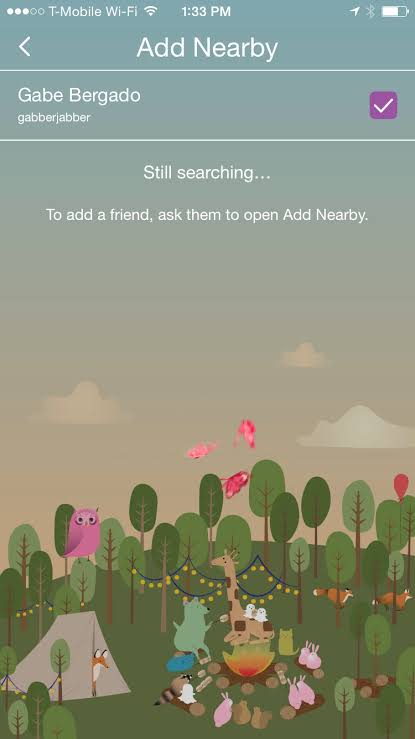
You can easily find someone on Snapchat without a username by using the nearby location of your contacts. With the “Find Nearby” feature, you can find friends who have enabled Find Nearby on their Snapchat account. This feature works like this;
Step 1: First of all check whether your friend has Add Nearby feature activated or not.
Step 2: Open your Snapchat account and select “Add Nearby”.
Step 3: The app will automatically create a list of your friends who are Nearby. You can select your friend from the list and add it to your account.
Method 4: Find Someone on Snapchat using Phone Number
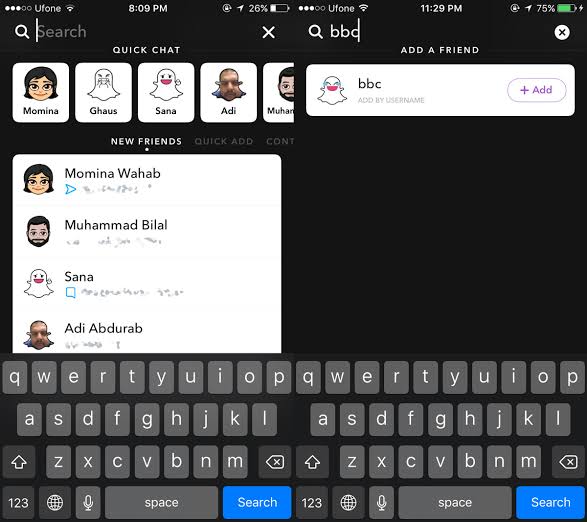
This method is only applicable to you if you already know the phone number of your friend. However, if you don’t know the username of your friend on Snapchat, still you can connect with them by using their phone number to search. You can do this by the following method;
Step 1: Click on the yellow Snapchat icon on your smartphone.
Step 2: Click on Chat like icon named Friends located at the bottom left corner of the screen.
Step 3: You will see the “Find Friends” tab on the page.
Step 4: Now, you will see the Add Contact option on your screen.
Step 5: You just have to click on the Add button beside the name of your friend to add.
Final Words
Okay, so these are four easy ways to find someone on Snapchat without a username. You can effortlessly practice these steps and find some interesting people on Snapchat to share your images and videos with.
However, if you face any issues while working on these steps, then comment below for help.
Author Bio:
Dinesh Lakhwani 

Dinesh Lakhwani, the entrepreneurial brain behind “TechCommuters,” achieved big things in the tech world. He started the company to make smart and user-friendly tech solutions. Thanks to his sharp thinking, focus on quality and the motto of never giving up, TechCommuters became a top player in the industry. His commitment to excellence has propelled the company to a leading position in the industry.
Popular Post
Recent Post

Wise Duplicate Finder Review: Real Results from Wise Duplicate Finder
Read my honest Wise Duplicate Finder review. See features, pricing, pros and cons, and real PC test results. Find out if this free duplicate cleaner can free up your Windows storage.

How to Recover Deleted Files from Pen drive, USB Drive, SD Card
Introduction: On tech forums, you’ll often see posts like this: “I connected my pen drive to my laptop this morning, but the folder was empty. All my college project files had vanished. I don’t have a backup. Can someone help me?” Stories like this are very common. Pen drives, USB drives and SD cards are […]

How To Recover Files Deleted from the Recycle Bin [Windows 11]
Losing a file can happen in seconds. You clear your desktop, hit Delete, and empty the Recycle Bin. Then, just when you need that file again, it seems to have vanished. This guide will walk you through ways to restore files removed from the Recycle Bin. We will begin with simple fixes, then look at […]

Disk Drill Data Recovery Tool Explained: Full Review and Guide
It happens in a split second. You delete a folder by mistake. Your drive stops showing up. A photo album from your last trip just vanishes. And your stomach drops. Lost files feel personal. They are not just data. They are memories, work hours, and sometimes years of effort packed into a few gigabytes. When […]

Recover Deleted Files In Windows 11 With Software & Without
Introduction What is the first thing that goes through your mind the second an important file vanishes from a Windows 11 PC? For most people, it is a mix of panic and disbelief, followed by a frantic click through every folder that file could possibly be hiding in. It happens in a split second: one […]

EaseUS Data Recovery Wizard: Everything To Know
Data loss does not always come from a big disaster either. Most cases start small and boring. A drive gets formatted by mistake. A laptop freezes mid-save and restarts on its own. A memory card stops showing up after being pulled out too fast. None of these feel like emergencies at first, until you realize […]

Recuva Data Recovery Tool: Is it Actually Worth it?
When I first tried Recuva Data Recovery, I wanted to see if it could really bring back lost files. The tool is free, small in size, and promises quick recovery, which made me curious enough to test it on my own PC. The setup was fast, and the wizard guided me step by step. I […]

GetData Recover My Files Data Recovery Tool: Honest Review
A hard drive error brings a special kind of silence. Well, yes! The screen freezes, then a message appears saying the drive can’t be found or must be formatted. In that moment, years of photos and work files feel at risk. It never happens at a good time. Coffee spills near a laptop, a memory […]

Windows File Recovery: A Complete Review [Tried & Tested]
Imagine this. You spend hours perfecting a video project. You hit save. Then your laptop freezes, reboots, and when the screen comes back. The file is gone. Your stomach sinks. It’s not just you. Lost files happen all the time. A dropped hard drive, a bad update, an accidental delete, or a corrupted partition can […]

