












The photos folder looked normal at first glance. Then the storage warning popped up. One trip photo appeared four times. A tax PDF sat in three different folders. Two old setup files were still in Downloads, and each one was over 500 MB. Nobody plans this mess. Copies pile up slowly. A download runs twice. […]
What is Microsoft Autopilot Everything You Need To Know
Technology has changed the way companies manage computers. Well, yes! Employees now work from offices, homes, and remote locations. Setting up devices manually for every worker takes time and effort. It can also create mistakes that slow down productivity.
This is where Microsoft Autopilot becomes useful. It helps businesses prepare and deploy Windows devices with much less manual work. Instead of spending hours configuring a computer, organizations can automate most of the process. This saves time for IT teams and provides a better experience for users.
Many people hear the terms Microsoft Autopilot and Windows Autopilot and assume they are different products. In reality, they refer to the same cloud-based deployment service from Microsoft. In this guide, you will learn how it works, its benefits, requirements, features, and why so many businesses use it today.
Quick Highlights
- Microsoft Autopilot simplifies Windows device deployment.
- Windows Autopilot reduces manual IT work.
- New devices can be configured automatically.
- Employees can set up devices themselves.
- It works with cloud-based management tools.
- Security policies can be applied during setup.
- Devices can be shipped directly to users.
- It supports remote and hybrid work environments.
- Businesses can save time and operational costs.
What Is Microsoft Autopilot?
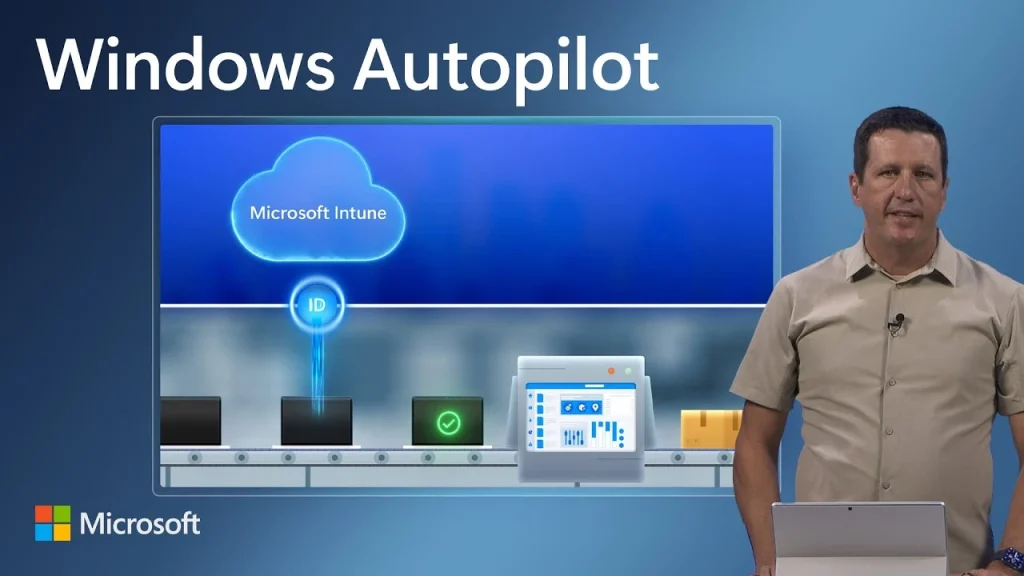
Microsoft Autopilot is a cloud-based device deployment and management service created by Microsoft. It helps organizations configure new Windows devices automatically.
Traditionally, IT teams had to unpack a device, install software, apply settings, and create user accounts before giving it to an employee. This process could take hours for every computer.
Microsoft Autopilot changes that process. The device is registered with Microsoft and linked to the organization’s settings. When the employee turns on the device and signs in, the setup process starts automatically.
The system downloads company policies, applications, security settings, and configurations without requiring extensive IT involvement.
What Is Windows Autopilot?
Windows Autopilot is simply another name for Microsoft Autopilot. Microsoft originally promoted the service as a deployment tool for Windows devices, which is why many people still call it Windows Autopilot.
Both terms describe the same service. Whether someone says Microsoft Autopilot or Windows Autopilot, they are talking about the same deployment and provisioning solution.
Why Was Microsoft Autopilot Created?
Companies often face challenges when deploying large numbers of devices. Manual deployment creates several problems:
- Long setup times
- Higher labor costs
- Configuration errors
- Delayed employee onboarding
- Increased IT workload
Microsoft Autopilot was designed to solve these issues. It automates deployment tasks and allows employees to receive a ready-to-use device with minimal effort.
How Microsoft Autopilot Works
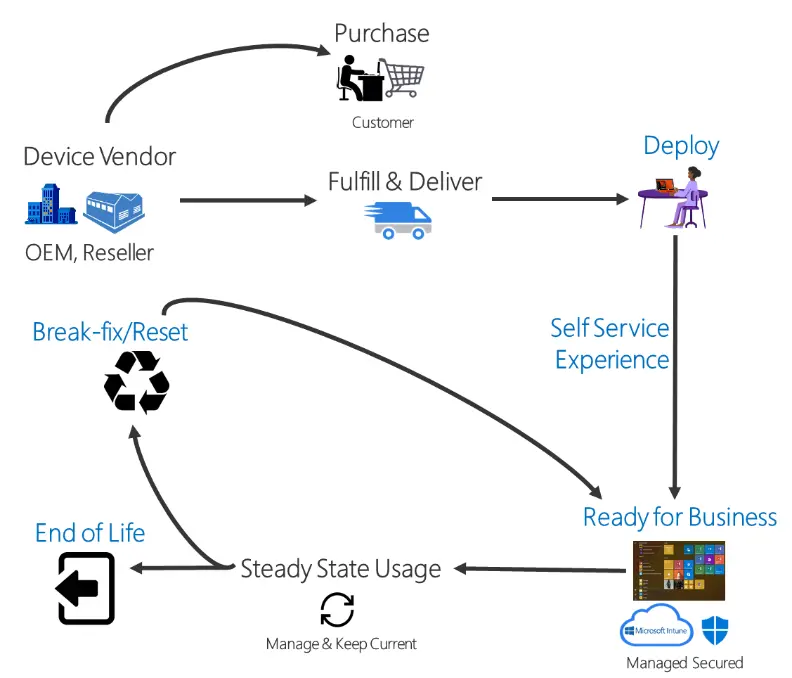
Microsoft Autopilot simplifies the entire device deployment process. Instead of spending hours setting up a computer manually, organizations can automate most of the work. Once the device is linked to the company’s Microsoft environment, it can receive settings, applications, and security policies automatically when the user signs in for the first time.
The process follows several simple steps:
1. Device Registration
The first step is registering the device with Microsoft Autopilot. This is usually done by the hardware manufacturer, reseller, or IT administrator. The device’s hardware ID is uploaded and associated with the organization’s tenant.
Once registered, Microsoft recognizes the device as belonging to that organization. This allows the correct deployment settings to be applied during setup.
2. Deployment Profile Assignment
After registration, IT administrators create and assign deployment profiles. These profiles determine how the setup experience will look for users.
For example, administrators can:
- Skip unnecessary setup screens
- Automatically join devices to the company network
- Configure security settings
- Set up management policies
- Customize the onboarding experience
This helps ensure every device follows the same standards.
3. Device Delivery
One of the biggest advantages of Microsoft Autopilot is that devices do not need to be prepared by the IT department before shipping.
The computer can be sent directly from the manufacturer or vendor to the employee. This saves time and eliminates extra handling.
4. User Powers On the Device
When the employee receives the device, they simply turn it on and connect to the internet.
The device contacts Microsoft’s cloud services and checks whether it has been registered with Microsoft Autopilot.
5. User Sign-In
The employee signs in using their company email address and password.
At this stage, Microsoft verifies the user’s identity and determines which settings, applications, and policies should be applied to the device.
6. Automatic Configuration
After sign-in, the deployment process begins automatically. The device downloads everything it needs from the organization’s cloud environment.
This may include:
- Business applications
- Security policies
- Wi-Fi settings
- VPN configurations
- Compliance rules
- Device restrictions
- Company branding settings
The entire process happens in the background with very little user involvement.
7. Device Enrollment and Management
If the organization uses Microsoft Intune, the device is automatically enrolled during setup. This allows IT teams to manage, monitor, and secure the device remotely.
Administrators can later push updates, install software, enforce security rules, and troubleshoot issues without needing physical access to the computer.
8. Ready for Work
Once setup is complete, the employee can start working immediately. The device is already configured according to company requirements and has the necessary tools installed.
This streamlined approach is what makes Microsoft Autopilot so valuable. It reduces deployment time, improves consistency, and helps organizations deliver a smoother onboarding experience for both IT teams and employees.
Key Features of Microsoft Autopilot
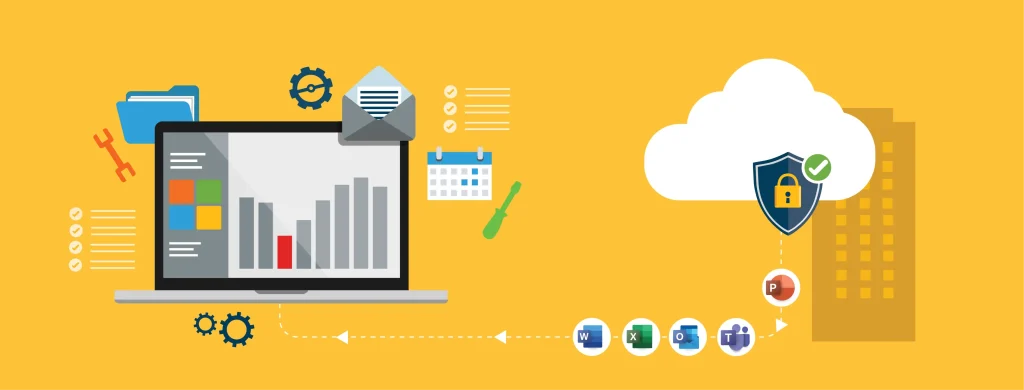
● Zero-Touch Deployment
One of the biggest advantages of Windows Autopilot is zero-touch deployment. IT teams do not need to manually configure every device.
● Self-Service Setup
Employees can complete device setup on their own. The process is guided and easy to follow.
● Automatic Enrollment
Devices can automatically enroll in management platforms such as Microsoft Intune.
● Consistent Configurations
Every device receives the same settings and policies. This creates a consistent user experience.
● Remote Deployment
Microsoft Autopilot supports remote workers. Devices can be shipped directly to employees anywhere.
● Security Integration
Security policies are applied during deployment. This helps organizations protect company data from the start.
Benefits of Microsoft Autopilot
Manual device preparation can take hours. Microsoft Autopilot reduces setup time significantly.
IT staff spend less time configuring devices and more time on strategic tasks.
Employees receive devices that are ready for work shortly after signing in.
Windows Autopilot makes remote onboarding easier for distributed teams.
Automated deployment lowers the chance of human mistakes.
Devices receive security settings immediately during setup.
Less manual labor means lower deployment costs for organizations.
Microsoft Autopilot System Requirements
Before using Microsoft Autopilot, organizations must meet certain requirements.
Supported Windows Versions
Windows 10 and Windows 11 devices are supported.
Internet Connection
The device needs internet access during setup.
Microsoft Entra ID
Formerly known as Azure Active Directory, it helps manage user identities.
Device Management Platform
Many organizations use Microsoft Intune alongside Windows Autopilot.
Compatible Hardware
The device must support Microsoft Autopilot registration and deployment.
Common Use Cases for Windows Autopilot
Windows Autopilot is used by organizations of all sizes to simplify device deployment and management. Whether a company has a few employees or thousands, the service helps reduce setup time and improve consistency across devices.
New Employee Onboarding
One of the most common uses of Windows Autopilot is onboarding new employees. Instead of having the IT team manually prepare every computer, a device can be registered and shipped directly to the new hire.
When the employee signs in with their company account, the device automatically installs required applications, security settings, and company policies. This helps new staff become productive much faster.
Remote Workforce Deployment
Remote and hybrid work have become common in many industries. Managing devices for employees who work from different locations can be challenging.
With Windows Autopilot, organizations can send devices directly to remote workers. Employees only need an internet connection and their company credentials to complete the setup process. This eliminates the need for in-person device configuration.
Device Replacement and Upgrades
When older computers need to be replaced, Windows Autopilot makes the transition easier. Employees can receive a new device and set it up themselves without extensive assistance from IT.
The new device automatically receives the correct applications and settings, ensuring a smooth upgrade experience.
Large-Scale Device Rollouts
Organizations often need to deploy hundreds or even thousands of devices at once. Manual deployment in such situations can be time-consuming and expensive.
Security Advantages of Microsoft Autopilot
Security is a major concern for modern organizations.
Microsoft Autopilot helps improve security by applying policies during setup. Devices can be configured with:
- Password requirements
- Device encryption
- Antivirus settings
- Compliance policies
- Access controls
- Multi-factor authentication requirements
This ensures devices meet company security standards from the beginning.
Challenges of Microsoft Autopilot
While Microsoft Autopilot offers many advantages, organizations may face a few challenges during implementation and deployment:
- Requires a stable internet connection during device setup.
- Initial configuration can take time for first-time users.
- IT teams may need training to understand deployment profiles and settings.
- Some advanced features require additional Microsoft licenses.
- Device registration must be completed correctly before deployment.
- Older or unsupported hardware may not work with Microsoft Autopilot.
- Troubleshooting deployment issues can sometimes be complex.
- Integration with management tools like Intune may require extra planning.
- Organizations need clear deployment policies before rollout.
- Large deployments often require testing to avoid configuration problems.
Is Microsoft Autopilot Suitable for Small Businesses?
Yes. Small businesses can benefit from Microsoft Autopilot just as much as larger organizations.
Small IT teams often have limited resources. Automation helps them deploy devices faster and more consistently.
Businesses with remote employees can especially benefit from Windows Autopilot because devices can be delivered directly to users without requiring local setup.
The Future of Windows Autopilot
Businesses are relying more on cloud-based tools to manage their devices. Remote and hybrid work have also become more common.
To keep up with these changes, Microsoft continues to improve Microsoft Autopilot. New updates focus on making device setup easier, improving security, and reducing manual work for IT teams.
As more organizations move away from traditional deployment methods, Windows Autopilot is expected to remain a popular solution for setting up and managing Windows devices.
Tips for Using Microsoft Autopilot Successfully
- Plan deployment profiles before registering devices.
- Test configurations on a small group first.
- Use Microsoft Intune for easier management.
- Keep security policies updated.
- Verify device compatibility before deployment.
- Train IT staff on deployment procedures.
- Monitor deployment reports regularly.
- Use multi-factor authentication for added protection.
- Document deployment settings for future reference.
- Review user feedback after rollout.
Conclusion
Microsoft Autopilot is a modern deployment solution that helps organizations configure and deploy Windows devices with minimal manual effort. It automates many tasks that traditionally required IT involvement. This saves time, reduces costs, and creates a smoother experience for employees.
As businesses continue to support remote and hybrid work, Microsoft Autopilot has become an important tool for device provisioning. Combined with management platforms like Intune, Windows Autopilot provides a simple and secure way to deploy devices at scale while maintaining consistency across the organization.
FAQs
1. What is the difference between Microsoft Autopilot and Windows Autopilot?
There is no difference. Microsoft Autopilot and Windows Autopilot are two names for the same Microsoft deployment service. Both terms refer to the cloud-based solution that automates Windows device setup and configuration.
2. Does Microsoft Autopilot require Microsoft Intune?
No, Microsoft Autopilot does not always require Microsoft Intune. However, many organizations use them together because Intune provides device management features after deployment. The combination offers a more complete management experience.
3. Can Microsoft Autopilot be used for remote employees?
Yes. One of the biggest advantages of Microsoft Autopilot is remote deployment. Devices can be shipped directly to employees, and the setup process can be completed through an internet connection without needing assistance from the IT department.
Author Bio:
Dinesh Lakhwani 

Dinesh Lakhwani, the entrepreneurial brain behind “TechCommuters,” achieved big things in the tech world. He started the company to make smart and user-friendly tech solutions. Thanks to his sharp thinking, focus on quality and the motto of never giving up, TechCommuters became a top player in the industry. His commitment to excellence has propelled the company to a leading position in the industry.
Popular Post
Recent Post

Wise Duplicate Finder Review: Real Results from Wise Duplicate Finder
Read my honest Wise Duplicate Finder review. See features, pricing, pros and cons, and real PC test results. Find out if this free duplicate cleaner can free up your Windows storage.

How to Recover Deleted Files from Pen drive, USB Drive, SD Card
Introduction: On tech forums, you’ll often see posts like this: “I connected my pen drive to my laptop this morning, but the folder was empty. All my college project files had vanished. I don’t have a backup. Can someone help me?” Stories like this are very common. Pen drives, USB drives and SD cards are […]

How To Recover Files Deleted from the Recycle Bin [Windows 11]
Losing a file can happen in seconds. You clear your desktop, hit Delete, and empty the Recycle Bin. Then, just when you need that file again, it seems to have vanished. This guide will walk you through ways to restore files removed from the Recycle Bin. We will begin with simple fixes, then look at […]

Disk Drill Data Recovery Tool Explained: Full Review and Guide
It happens in a split second. You delete a folder by mistake. Your drive stops showing up. A photo album from your last trip just vanishes. And your stomach drops. Lost files feel personal. They are not just data. They are memories, work hours, and sometimes years of effort packed into a few gigabytes. When […]

Recover Deleted Files In Windows 11 With Software & Without
Introduction What is the first thing that goes through your mind the second an important file vanishes from a Windows 11 PC? For most people, it is a mix of panic and disbelief, followed by a frantic click through every folder that file could possibly be hiding in. It happens in a split second: one […]

EaseUS Data Recovery Wizard: Everything To Know
Data loss does not always come from a big disaster either. Most cases start small and boring. A drive gets formatted by mistake. A laptop freezes mid-save and restarts on its own. A memory card stops showing up after being pulled out too fast. None of these feel like emergencies at first, until you realize […]

Recuva Data Recovery Tool: Is it Actually Worth it?
When I first tried Recuva Data Recovery, I wanted to see if it could really bring back lost files. The tool is free, small in size, and promises quick recovery, which made me curious enough to test it on my own PC. The setup was fast, and the wizard guided me step by step. I […]

GetData Recover My Files Data Recovery Tool: Honest Review
A hard drive error brings a special kind of silence. Well, yes! The screen freezes, then a message appears saying the drive can’t be found or must be formatted. In that moment, years of photos and work files feel at risk. It never happens at a good time. Coffee spills near a laptop, a memory […]

Windows File Recovery: A Complete Review [Tried & Tested]
Imagine this. You spend hours perfecting a video project. You hit save. Then your laptop freezes, reboots, and when the screen comes back. The file is gone. Your stomach sinks. It’s not just you. Lost files happen all the time. A dropped hard drive, a bad update, an accidental delete, or a corrupted partition can […]

