












The photos folder looked normal at first glance. Then the storage warning popped up. One trip photo appeared four times. A tax PDF sat in three different folders. Two old setup files were still in Downloads, and each one was over 500 MB. Nobody plans this mess. Copies pile up slowly. A download runs twice. […]
How To Overclock a Computer: A Complete Guide
Overclocking is the process of making your computer run faster than its factory settings. It mainly affects the processor, graphics card, and sometimes memory. Many people choose this method to improve performance without buying new hardware. It is popular among gamers, video editors, and users who run heavy software. When done properly, overclocking can give noticeable speed improvements in daily tasks and demanding programs.
Learning how to overclock computer requires patience and a careful approach. It is not about pushing parts to their limit in one step. It is about making small changes and testing results. Every system behaves differently. What works on one computer may fail on another.
This is why understanding the basics matters more than chasing high numbers. With the right steps, overclocking can be safe, stable, and rewarding.
Think Before You Push Your System
Before changing any speed or voltage setting, you must prepare your system. Overclocking increases heat and power use. Without preparation, problems can appear quickly. This section explains what you should check before starting.
Precautions to follow
- Check your cooling setup: Overclocking raises the temperature fast. Your CPU cooler must be strong enough. Case airflow should be clear and balanced.
- Confirm hardware support: Some processors and motherboards do not allow overclocking. Check official specifications before you begin.
- Update BIOS and drivers: New updates improve stability and fix known issues. Old BIOS versions may limit performance or cause errors.
- Use a reliable power supply: Extra speed needs steady power. Cheap or old power supplies can fail under load.
- Create a system backup: Crashes can corrupt files. Save important data to an external drive or cloud storage.
- Increase values in small steps: Large jumps cause instability. Small changes help you find safe limits.
- Monitor temperatures closely: Use monitoring tools to track CPU and GPU heat. Stop if temperatures cross safe levels.
- Understand warranty risks: Some manufacturers do not cover damage caused by overclocking. Accept this before proceeding.
How to Overclock a Computer
Overclocking follows a clear pattern. You adjust settings, test stability, and repeat. Rushing leads to crashes and overheating. A slow and steady method gives the best results. This section explains how to overclock a computer in a simple and controlled way.
There is no single way to overclock a system. Different users prefer different methods based on comfort and experience. Some methods give more control, while others focus on safety and ease. Below are three common methods. Each one suits a different type of user.
Method 1: Overclocking Through BIOS
BIOS overclocking is the most direct and reliable method. It works at the hardware level, before the operating system loads. This gives better stability and deeper control over CPU settings. Most experienced users prefer this method for long-term use.
This method requires patience and confidence. BIOS menus can look complex at first. Still, most modern boards label options clearly. If you change values slowly and test often, BIOS overclocking is very effective.
Steps to use this method
- Step 1: Restart the computer and enter the BIOS. Find CPU frequency or multiplier settings and increase them slightly.
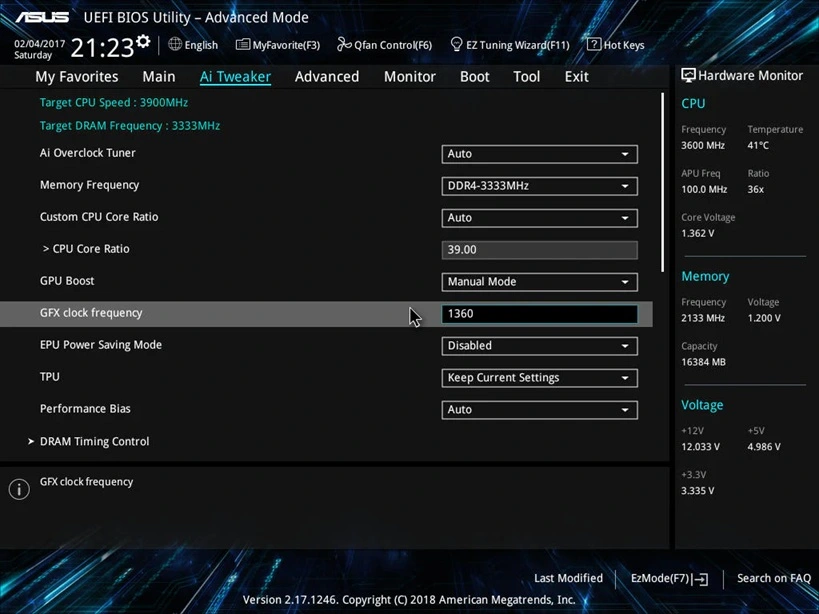
- Step 2: Save changes, reboot, then run stress tests to confirm stability and safe temperatures.
Method 2: Overclocking Using Software Tools
Software overclocking uses programs that run inside the operating system. These tools are made by CPU or motherboard brands. They provide sliders, limits, and warnings. This makes them easier for beginners.
This method is safer for first-time users. Changes can be undone quickly. If the system crashes, settings are usually reset on restart. Performance gains may be slightly lower than BIOS, but the risk is also lower.
Steps to use this method
- Step 1: Install a trusted overclocking tool like CPU Overclocking and open it. Increase clock speed in small steps using the interface.
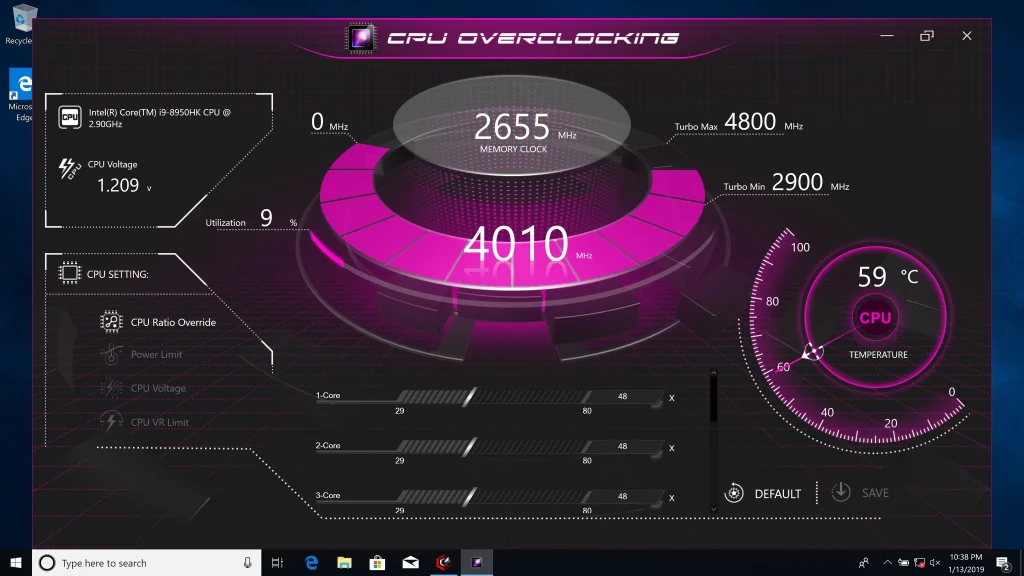
- Step 2: Apply changes and run stress tests while monitoring temperature and system behavior.
Method 3: Overclocking With Preset Profiles
Some systems offer preset overclocking profiles. These are built into BIOS or software tools. Profiles apply tested settings automatically. They are designed for stability and ease.
This method is best for users who want quick results without manual tuning. You do not get full control, but you also avoid common mistakes. It is a good balance between speed and safety.
Steps to use this method
- Step 1: Open BIOS or overclocking software and select a preset performance profile.
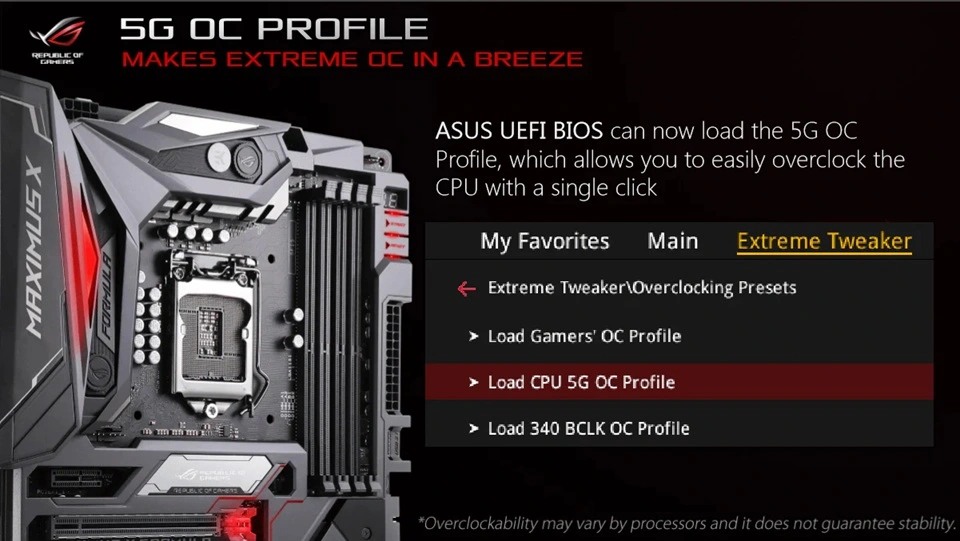
- Step 2: Save or apply the profile, then test the system to confirm stable performance.
Advanced Tips From Experienced Builders
Once you understand basic overclocking, fine-tuning becomes important. These advanced tips help improve stability and long-term reliability. They are based on common practices used by experienced users.
- Lower voltage where possible: Less voltage means less heat. Find the lowest stable voltage for your speed.
- Customize fan curves: Adjust fan speed to react faster under load. This improves cooling without constant noise.
- Tune memory settings: Faster RAM improves system response. Use preset profiles when available.
- Run long stress tests: Short tests miss errors. Longer tests reveal hidden instability.
- Keep records of changes: Write down each adjustment. This helps if you need to revert settings.
- Avoid multitasking during tests: Let stress tests run alone. Background tasks affect results.
- Check power usage: High power draw means more heat. Balance speed and efficiency.
- Know your stopping point: Chasing maximum speed risks damage. Stability is more valuable.
Conclusion
Overclocking is not about forcing performance. It is about understanding limits and working within them. When done correctly, it can make your system faster and more responsive. It can also extend the usefulness of older hardware. The key is patience, testing, and temperature control. This guide explained how to overclock computer in a clear and practical way.
Always remember that a stable system matters more than raw speed. A slightly slower computer that runs without errors is better than a fast one that crashes. Monitor heat, make small changes, and stop when the system feels balanced. With the right habits, overclocking can be a safe and useful skill for any computer user.
FAQs
Is overclocking safe for beginners?
Overclocking can be safe for beginners if done slowly and carefully. Using software tools instead of BIOS is a good start. Monitoring temperature and testing stability after every change reduces risk. Beginners should avoid voltage changes at first.
Does overclocking always improve performance?
Overclocking improves performance only when the system is limited by speed. Some tasks depend more on memory or storage. In such cases, gains may be small. Results vary based on hardware and workload.
Can overclocking damage my computer?
Yes, if done incorrectly. High voltage and poor cooling cause damage. Mild overclocking with proper cooling has a low risk. Always watch temperatures and stop if limits are crossed.
Author Bio:
Dinesh Lakhwani 

Dinesh Lakhwani, the entrepreneurial brain behind “TechCommuters,” achieved big things in the tech world. He started the company to make smart and user-friendly tech solutions. Thanks to his sharp thinking, focus on quality and the motto of never giving up, TechCommuters became a top player in the industry. His commitment to excellence has propelled the company to a leading position in the industry.
Popular Post
Recent Post

Wise Duplicate Finder Review: Real Results from Wise Duplicate Finder
Read my honest Wise Duplicate Finder review. See features, pricing, pros and cons, and real PC test results. Find out if this free duplicate cleaner can free up your Windows storage.

How to Recover Deleted Files from Pen drive, USB Drive, SD Card
Introduction: On tech forums, you’ll often see posts like this: “I connected my pen drive to my laptop this morning, but the folder was empty. All my college project files had vanished. I don’t have a backup. Can someone help me?” Stories like this are very common. Pen drives, USB drives and SD cards are […]

How To Recover Files Deleted from the Recycle Bin [Windows 11]
Losing a file can happen in seconds. You clear your desktop, hit Delete, and empty the Recycle Bin. Then, just when you need that file again, it seems to have vanished. This guide will walk you through ways to restore files removed from the Recycle Bin. We will begin with simple fixes, then look at […]

Disk Drill Data Recovery Tool Explained: Full Review and Guide
It happens in a split second. You delete a folder by mistake. Your drive stops showing up. A photo album from your last trip just vanishes. And your stomach drops. Lost files feel personal. They are not just data. They are memories, work hours, and sometimes years of effort packed into a few gigabytes. When […]

Recover Deleted Files In Windows 11 With Software & Without
Introduction What is the first thing that goes through your mind the second an important file vanishes from a Windows 11 PC? For most people, it is a mix of panic and disbelief, followed by a frantic click through every folder that file could possibly be hiding in. It happens in a split second: one […]

EaseUS Data Recovery Wizard: Everything To Know
Data loss does not always come from a big disaster either. Most cases start small and boring. A drive gets formatted by mistake. A laptop freezes mid-save and restarts on its own. A memory card stops showing up after being pulled out too fast. None of these feel like emergencies at first, until you realize […]

Recuva Data Recovery Tool: Is it Actually Worth it?
When I first tried Recuva Data Recovery, I wanted to see if it could really bring back lost files. The tool is free, small in size, and promises quick recovery, which made me curious enough to test it on my own PC. The setup was fast, and the wizard guided me step by step. I […]

GetData Recover My Files Data Recovery Tool: Honest Review
A hard drive error brings a special kind of silence. Well, yes! The screen freezes, then a message appears saying the drive can’t be found or must be formatted. In that moment, years of photos and work files feel at risk. It never happens at a good time. Coffee spills near a laptop, a memory […]

Windows File Recovery: A Complete Review [Tried & Tested]
Imagine this. You spend hours perfecting a video project. You hit save. Then your laptop freezes, reboots, and when the screen comes back. The file is gone. Your stomach sinks. It’s not just you. Lost files happen all the time. A dropped hard drive, a bad update, an accidental delete, or a corrupted partition can […]

