












A slow computer makes it hard to focus. Programs take too long to open. Free space keeps shrinking until the disk is almost full. This happens to most PC owners at some point. Even new machines can slow down after a while. That is the exact problem cleanup tools are built to solve. They comb […]
Top 9 Browsers With Built-In VPN – VPN Browser
Online browsing is no longer private by default. Every website collects data in some form. This includes location details, device information, and browsing habits. Over time, this data builds a clear picture of user behavior. Many people are now uncomfortable with this level of tracking.
A VPN browser helps reduce this exposure. It adds a privacy layer directly inside the browser. Users do not need separate apps or complex settings. This makes it useful for daily browsing, casual research, and routine online tasks.
Benefits of Using a VPN Browser
Many users want better privacy without extra effort. A VPN browser offers built-in protection that works quietly in the background. It fits well into daily routines and requires very little technical knowledge.
- Hides your IP address
Websites cannot easily trace your real location or network. - Protects public Wi-Fi use
Data stays safer on shared or open networks. - Blocks many trackers
Advertising scripts have less access to your activity. - Simple to turn on or off
Privacy controls are usually one click away. - No extra software needed
This keeps your system clean and fast. - Helps access blocked content
Some region-based limits become accessible. - Reduces data spying
Internet providers see less browsing detail. - Good for casual privacy needs
Ideal for news, shopping, and research.
Are VPN in Browsers Really Effective and Secure?
Browser-based VPNs are designed for ease of use. They focus on protecting activity inside the browser only. This includes searches, form entries, and the pages you visit. Data is encrypted while moving between your device and websites. For light browsing tasks, this level of protection is usually enough and works without effort.
However, they do not protect the entire device or system traffic. Apps running outside the browser remain visible to the network. Free plans may also limit speed, data usage, or server locations.
Because of this, users should see them as a basic privacy tool rather than a complete security solution.
Top 5 Comparison Table: Best VPN Browsers To Try
Not all browsers with built-in privacy tools work the same way. Some focus on free access. Others focus on speed or stronger security layers. The table below compares key factors that matter in daily use, such as protection level, limits, and ease of control.
| Browser | VPN Coverage | Data Limits | Privacy Strength | Ease of Use | Best For |
| Opera | Browser traffic only | Unlimited | Medium | Very easy | Beginners and casual users |
| Brave | Browser traffic with the premium plan | Paid plans only | High | Easy | Users wanting strong privacy |
| Epic Privacy | Browser traffic via proxy | Limited speeds | Medium | Easy | Anonymous short sessions |
| Aloha | Browser traffic on mobile | Fair use limits | Medium | Very easy | Mobile browsing privacy |
| Avast Secure | Browser traffic with subscription | Trial and paid plans | High | Easy | Security-focused users |
Summary:
VPN coverage shows what traffic is protected. Privacy strength reflects tracker blocking and encryption quality. Best for highlighting ideal user types.
Top 9 Browsers With Built-In VPN
These browsers combine browsing speed with privacy tools. They are designed for users who want safety without a complicated setup.
1. Opera Browser
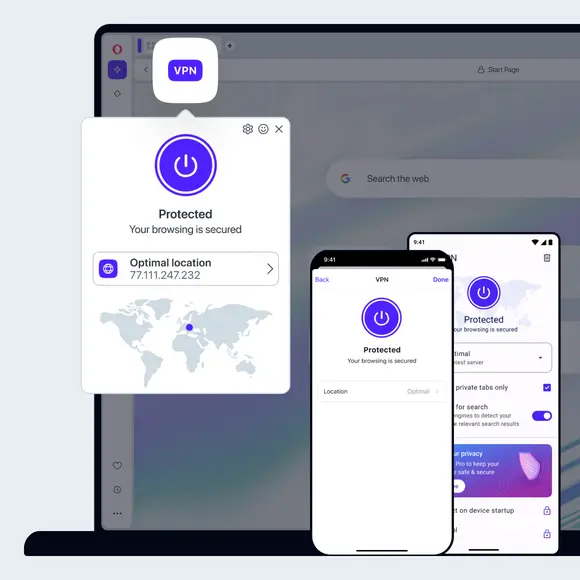
Opera was one of the first browsers to include a free VPN feature. It works without account creation. Users can turn it on directly from the settings menu. This makes it appealing for beginners who want instant privacy.
The VPN covers browser traffic and hides the IP address. It works well for reading news, research, and general browsing. Speed may vary during busy hours, but performance remains stable for most tasks.
Key features
- Free built-in VPN
- No signup required
- Ad blocker included
- Simple interface
2. Opera GX
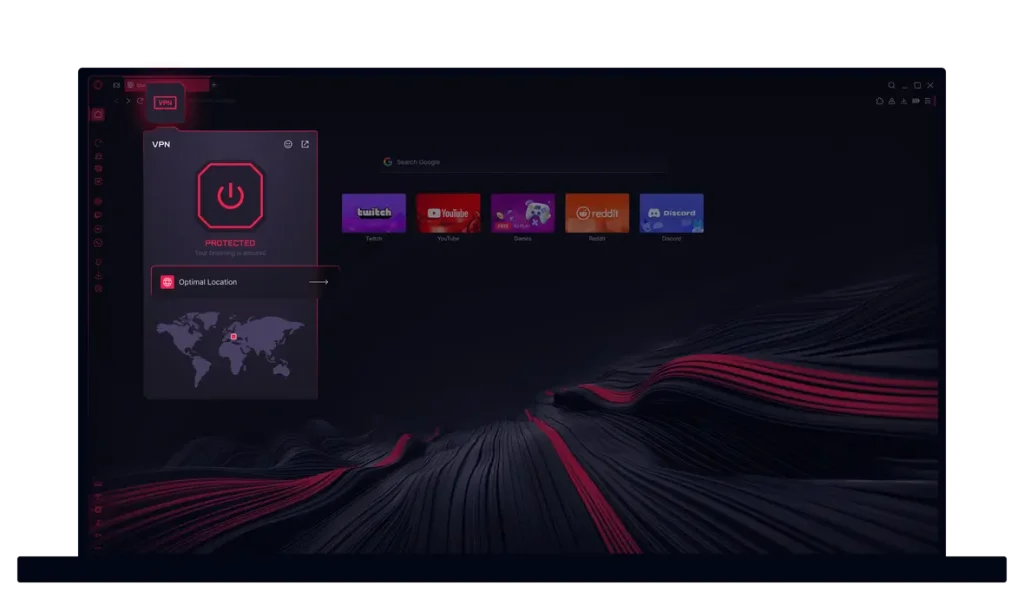
Opera GX uses the same VPN technology as Opera. It is built for users who want more control over performance. This includes gamers, streamers, and people who run many tabs at once. The design focuses on a balance between speed and system stability.
The browser allows users to limit CPU and RAM usage directly from its control panel. This prevents slowdowns during heavy use. The VPN runs quietly in the background and does not interrupt browsing. It remains easy to turn on, pause, or adjust when needed.
Key features
- Built-in VPN
- CPU and RAM controls
- Gaming-focused design
- Fast browsing engine
3. Brave Browser
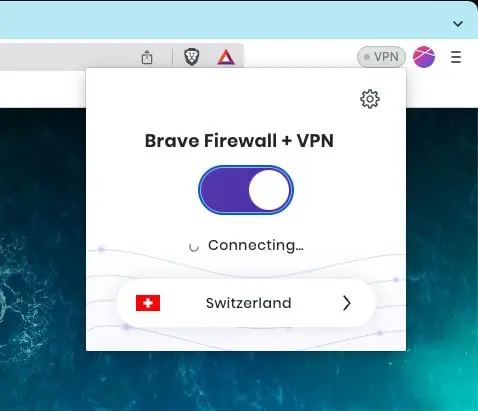
Brave focuses strongly on privacy even without a VPN enabled. It blocks ads and trackers by default, which reduces data collection from the start. This makes browsing cleaner and faster. Its VPN service is paid, but it is deeply integrated into the browser.
Users who upgrade get broader protection within the browsing environment. Speed remains strong, and pages load smoothly. Even without turning on the VPN, Brave limits tracking and fingerprinting across most websites.
Key features
- Premium VPN option
- Strong tracker blocking
- High browsing speed
- Clean privacy dashboard
4. Epic Privacy Browser

Epic Privacy Browser is built for users who value anonymity while browsing. It is designed to leave very little trace behind after use. Browsing data is cleared automatically when each session ends. The VPN proxy can be turned on with a single click.
The browser limits background tracking in an aggressive way. History, cookies, and cached data are not stored for long periods. This makes it a good choice for short, private browsing sessions where discretion matters.
Key features
- Free VPN proxy
- Auto history clearing
- Strong privacy focus
- Minimal design
5. Aloha Browser
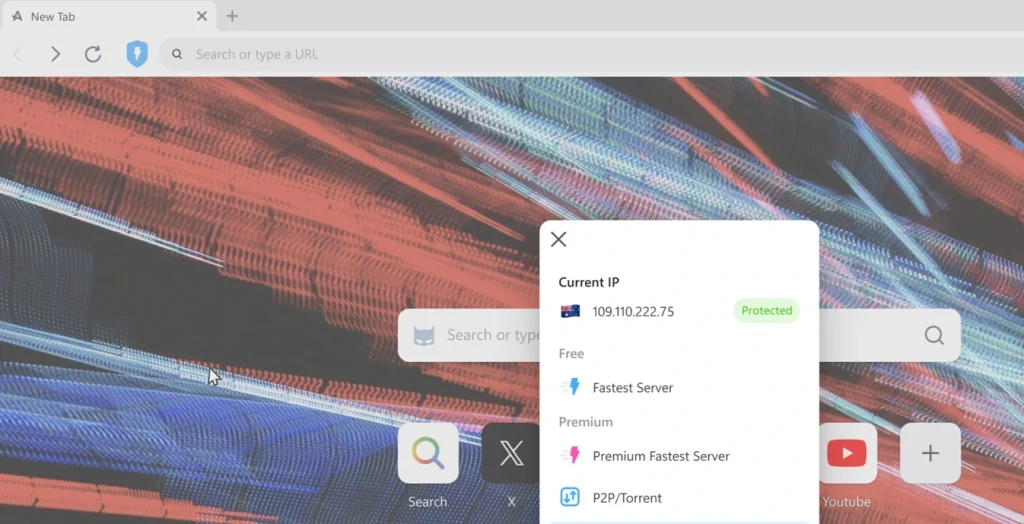
Aloha Browser is popular on mobile platforms, especially among users who want privacy on the go. It includes a free VPN feature that works directly inside the app. Setup takes only a few moments and does not require technical knowledge. The VPN can be turned on or off easily from the main screen.
The browser supports private tabs and encrypted storage for files and downloads. It is designed for touch-based navigation and smooth scrolling. This makes it well-suited for users who browse mainly on phones or tablets.
Key features
- Built-in VPN
- Mobile-friendly design
- Encrypted tabs
- Easy controls
6. Avast Secure Browser
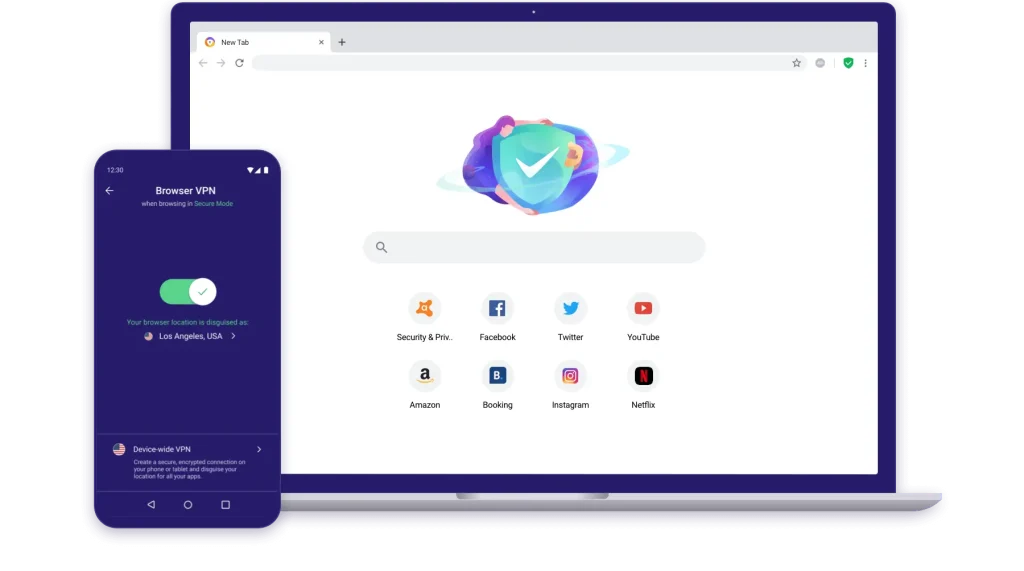
Avast Secure Browser is developed by a security company. It focuses on safe browsing and threat prevention. VPN access is included as a trial or paid option.
The browser integrates well with antivirus tools. It also includes phishing protection and privacy settings that are easy to adjust.
Key features
- Secure browsing tools
- VPN trial access
- Anti-phishing protection
- Clean interface
7. AVG Secure Browser

AVG Secure Browser shares many features with Avast and follows a similar design approach. It places a strong focus on speed, safety, and smooth browsing. VPN access is included with certain subscription plans and integrates directly into the browser.
It is a good choice for users who already use AVG security products. The interface feels simple and familiar, making it easy to navigate. Settings are clearly organized, which helps users manage privacy without confusion.
Key features
- Security-focused design
- VPN integration
- Tracker blocking
- Stable performance
8. Microsoft Edge Secure Network

Microsoft Edge offers a secure network feature that adds basic privacy while browsing. It works in a similar way to a browser VPN and protects traffic inside the browser. Activation is simple for existing Edge users and requires only a few clicks.
The feature integrates smoothly with Microsoft accounts and services. It is designed for light privacy needs such as casual browsing and research. It is not intended for advanced anonymity or heavy security use.
Key features
- Secure network feature
- Easy setup
- Microsoft integration
- Modern interface
9. Tor Browser
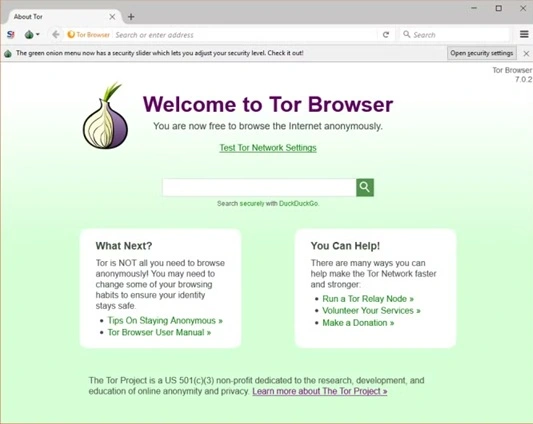
Tor Browser does not rely on traditional VPN technology. Instead, it routes traffic through multiple encrypted relays across the Tor network. This process hides the user’s location and makes tracking very difficult. As a result, it offers a high level of anonymity.
The trade-off is a slower browsing speed. Pages take longer to load due to multiple routing layers. It is best suited for users who prioritize privacy and anonymity over performance and speed.
Key features
- High anonymity
- No tracking
- Free to use
- Slower browsing speed
Advanced Tips for VPN Browser Users
Using a browser VPN is easy, but smart habits make it more effective. Small adjustments can improve privacy, reduce tracking, and avoid common mistakes. These tips help users get better results without changing tools.
- Turn on the VPN before opening new tabs
This ensures all browsing activity stays protected from the start. Opening tabs first may expose your real IP. - Clear cookies and cache regularly
Cookies store tracking data over time. Clearing them helps reduce profiling and targeted ads. - Avoid logging into sensitive accounts while using free VPNs
Free services may have limits. For banking or work logins, use trusted networks or full VPN apps. - Check the VPN location setting
Some browsers auto-select regions. Manually choosing nearby locations often improves speed. - Keep the browser updated
Updates fix security flaws and improve VPN stability. Older versions may expose risks. - Limit browser extensions
Too many add-ons can track activity. Some extensions bypass VPN protection entirely. - Always use HTTPS websites
HTTPS adds another layer of encryption. It works well alongside browser VPNs. - Read the privacy policy carefully
Know what data is collected and stored. This helps avoid services with unclear practices.
Conclusion
A VPN browser offers a simple and practical way to improve online privacy. It fits naturally into daily browsing habits and does not require extra setup or technical knowledge. Most users can start using it within minutes and manage settings easily.
It is not a replacement for full VPN software. For advanced protection and full device coverage, dedicated tools work better. Still, for casual users and everyday browsing, these browsers provide useful and reliable privacy benefits.
FAQs:
Is a browser VPN enough for daily internet use?
For general browsing, it works well. It protects web activity and hides IP addresses. However, it does not secure other apps. Users with sensitive tasks should consider full VPN solutions.
Are free browser VPNs safe to use?
Most reputable browsers offer reasonable safety. Free plans may collect limited usage data. Always review privacy policies before enabling any service.
Can browser VPNs improve privacy on public Wi-Fi?
Yes, they encrypt browser traffic. This helps reduce risks on open networks. Other device traffic remains unprotected.
Author Bio:
Dinesh Lakhwani 

Dinesh Lakhwani, the entrepreneurial brain behind “TechCommuters,” achieved big things in the tech world. He started the company to make smart and user-friendly tech solutions. Thanks to his sharp thinking, focus on quality and the motto of never giving up, TechCommuters became a top player in the industry. His commitment to excellence has propelled the company to a leading position in the industry.
Popular Post
Recent Post

Fortect Software Review: The Ultimate PC & Mobile Cleaning, Optimization & Security Tool
Slow computers are a common problem for almost every Windows user. Well, yes! Over time, your PC picks up junk files. These files sit quietly in the background. They take up space and slow things down. Programs open slower. Windows takes longer to boot. Even simple tasks like opening a folder can feel sluggish. There […]

CCleaner PC Optimizer Review: A Complete Guide for Windows Users
If your computer has started to feel slow, you are not alone. Most Windows PCs slow down over time. Junk files pile up. The registry gets messy. Too many apps open when you start your PC. All this adds up and makes even a good machine feel tired. This is where a PC cleaner tool […]

Auslogics Duplicate File Finder: Full Review and User Guide
A computer quietly gathers clutter over time. This includes duplicate photos, repeated downloads, and forgotten backups hiding in random folders. This buildup slowly eats away at storage and can make even a fast PC feel sluggish. Manually finding and deleting duplicates is tedious. It means checking every folder, comparing file names, and guessing which copies […]

CCleaner Duplicate File Finder: Key Features, Pricing, Step-by-Step Guide and More
Every computer collects junk over time. Right? Well, yes! Photos often get copied twice. Documents get saved in two folders by mistake. Old downloads pile up and never get deleted. This slowly eats up your storage space, and most people do not even notice until their drive is almost full. That is where a duplicate […]

Duplicate File Finder Pro: A Complete Review, Everything You Should Know
Computers collect thousands of files over time. Well, yes! Many of them end up being duplicates created by backups, downloads, or accidental copies. These extra files take up valuable storage space and make it harder to keep everything organized. Finding and removing them manually can take hours. Right? Duplicate File Finder Pro is a tool […]

Top 3 Duplicate File Finder for Windows 11 & Windows 10
If your PC storage keeps filling up even after you delete big files, duplicate files could be the real reason. Most of us save the same photo twice, download a document more than once, or copy a whole folder by mistake. Over months and years, these duplicate files pile up quietly. You do not even […]

Monitor Screen Calibration Guide: Everything You Should Know
Your monitor shows colors every single day. But are those colors actually correct? Most people never stop to check this. They just use the screen as it comes out of the box. This habit can lead to wrong colors in photos, videos, and work files. Colors may look too warm or too cold without you […]

How To Check Installed RAM and RAM Slots [Complete Guide]
RAM plays an important role in how smoothly a computer runs. Short for Random Access Memory, it stores the data and instructions that Windows and active applications need at any given moment. From opening multiple browser tabs to running games and productivity software, RAM helps keep everything responsive. A system with limited memory may experience […]

What is Microsoft Autopilot Everything You Need To Know
Technology has changed the way companies manage computers. Well, yes! Employees now work from offices, homes, and remote locations. Setting up devices manually for every worker takes time and effort. It can also create mistakes that slow down productivity. This is where Microsoft Autopilot becomes useful. It helps businesses prepare and deploy Windows devices with […]

