












So, search for a pair of shoes once online. Close the tab. By evening, those same shoes are sitting on your news site, your video app, and even your recipe blog. Nobody placed them there by chance. A cookie did. Well, yes! Cookies are small files that websites place on your device while you browse. […]
How To Connect to Your PC Remotely Windows [Complete Guide]
Many people need to reach their computer from far away. Well, yes! It may be for work, study, or personal use. Remote access helps you open files, use your apps, and control your system even when you are not near the device. It gives you the comfort of using your computer anywhere through the internet. This is why so many people now depend on remote access tools for daily needs.
When you learn how to connect to your pc remotely Windows, you gain freedom and speed in your tasks. This guide explains every important step in a simple and clear way. It covers all methods you can use, with advantages and clear instructions.
Precautions Before You Begin: Connect to PC Remotely With Ease.
You must follow a few safety steps before turning on remote access. These steps protect your system from threats and keep your data safe. A short check before setup prevents problems later.
• Use a strong password: Create a password that is long and uses different characters. It makes your computer harder to break into.
• Turn on basic firewall protection: Make sure your Windows firewall is active. It stops unwanted connections from entering your device.
• Update Windows: Keep your system updated. Updates include safety patches that protect your computer from new threats.
• Check the network strength: You need a stable internet connection. A weak connection leads to delays during remote use.
• Use trusted apps only: Do not install unknown remote access tools. Choose apps that have a long record of safe use.
• Avoid public Wi Fi: Public networks are not safe. Use your mobile hotspot or a private network when you connect.
• Monitor sign-in records: Look at your sign-in history from time to time. If you notice a strange login, change your password.
• Disable access when not needed: Turn off remote access when you are not using it. It reduces the chance of misuse.
How To Connect to Your PC Remotely Windows
Remote access on Windows is direct when you follow the proper steps. The system gives you different ways to do it. You can use built-in tools or install third-party software. Each method has its own benefits. Some are better for office work. Some are better for personal use. This part explains each method in depth with instructions and steps you can follow right away.
You will also see four benefits for every method, along with two simple steps to help you begin. These explanations help you choose the best option for your needs. They also make it easy for beginners to follow.
With the right method, it becomes simple to connect to your pc remotely Windows even if you do not have much technical experience.
Method 1: Remote Desktop (RDP)
Remote Desktop is the built-in option inside Windows. It is simple and does not need any extra software. It works best for people who use Windows Pro or higher versions. It is also very stable. Many offices and companies use it every day.
When you use Remote Desktop, you control your computer as if you are sitting in front of it. You can open folders, edit files, and use apps. The experience feels smooth when your network is strong. It is best for work that needs high privacy.
Benefits
• Works inside Windows with no extra download
• Safe and trusted for office tasks
• Smooth control and low delay
• Strong security settings
Step 1: Turn on Remote Desktop from the System settings. Make sure you note the device name.
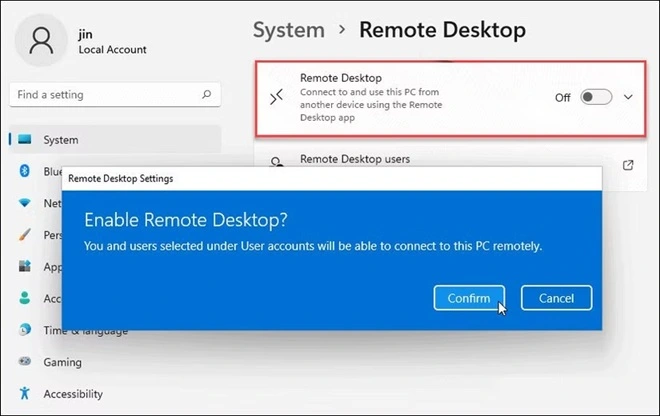
Step 2: Open the Remote Desktop Client on your second device. Enter the device name and password to sign in.
Method 2: Third-Party Apps (TeamViewer, AnyDesk)
Many people use third-party apps that offer simple screens and easy setup. These apps are helpful when two people want to connect fast without complicated settings. TeamViewer and AnyDesk are the most popular choices. They work on Windows and many other systems.
These apps are good for helping friends and family. They have options to chat, transfer files, and share the screen. They are easy for beginners and have free plans for personal use. They also work well when the internet speed is average.
Benefits
• Easy to install and simple for beginners
• Works across different devices
• Good for quick support
• Free options for personal use
Step 1: Install the chosen app on both devices. Say you are using TeamViewer. Open it and find the access code.
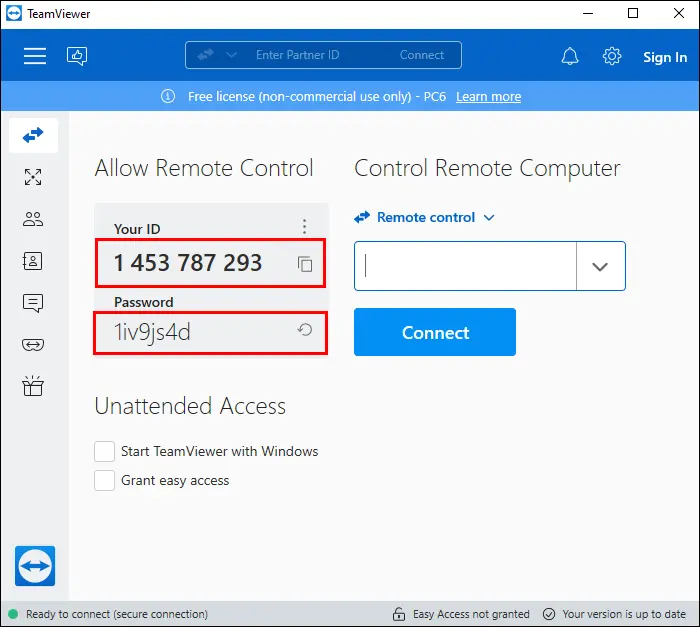
Step 2: Enter the code on your second device. Accept the permission request and start the session.
Method 3: Microsoft Remote Desktop App
Microsoft also offers a separate Remote Desktop App that you can install from the Microsoft Store. It gives a cleaner look and adds more flexibility. It works with the built-in Remote Desktop feature but provides a better control panel.
This app lets you save multiple PCs inside the app. You can then select the one you want to access. It is helpful for users with more than one computer. It also works well for office workers who travel often and need a smooth connection.
Benefits
• Easy control of many PCs
• Clean and simple interface
• Works with a Microsoft account
• Good performance on stable networks
Step 1: Install the Microsoft Remote Desktop App from the Store. Sign in with your Microsoft account.
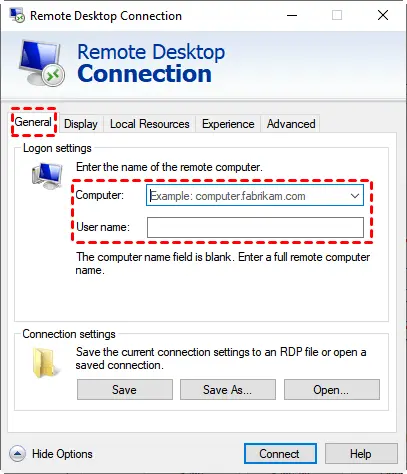
Step 2: Add your PC using its name or IP address. Connect by entering your credentials.
Method 4: Virtual Network Computing (VNC)
Virtual Network Computing is another method for remote access. It works by sharing the screen of your PC and letting you control it. It does not depend much on the Windows version. There are several VNC tools you can choose from. RealVNC and TightVNC are common options.
VNC is useful when you want strong control over settings. It is more customizable than other tools. Many tech experts like VNC because it allows deep control and works across many platforms. It is flexible and works both at home and in office spaces.
Benefits
• Good for multi-platform use
• High level of control
• Strong custom settings
• Reliable performance
Step 1: Install a VNC Server on your main PC. Set a password and allow access.
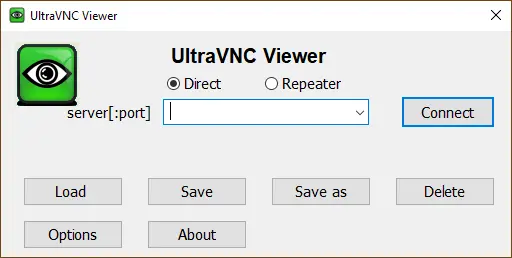
Step 2: Install UltraVNC Viewer on your second device. Enter the server address and connect.
Tips for Advanced Users and Beginners
You may be new to remote access, or you may be skilled at technical work. These tips help both groups. They are practical and easy to apply. Good habits make the connection smooth and safe. Remote access becomes trouble-free when you follow simple rules.
• Check network health often
Make sure your network is stable before connecting. It avoids sudden drops.
• Keep your apps updated
Updates improve security and user comfort. Do not skip them.
• Use safe passwords and change them sometimes
Strong passwords reduce the risk of unauthorized entry.
• Log out after work
Always end the session when you finish. It prevents misuse.
• Close background apps
Too many apps reduce speed. Close them to improve performance.
• Name your devices clearly
Clear names help you identify them faster inside apps.
• Use two-factor sign-in when possible
It gives extra safety. Many apps support this feature.
• Take a backup often
A backup keeps your data safe if something goes wrong.
Conclusion
Remote access is now a common part of life. It helps people manage work, support others, and continue tasks from far away. When you learn how to connect to your PC remotely, it gives you speed, comfort, and freedom. You can reach your files from home, office, or while traveling. The process is easy once you understand each method and follow the steps.
Each method covered in this guide offers strong value. You can select the one that fits your needs. The built-in tools work well for office tasks. Third-party apps are helpful for beginners. VNC is good for more advanced users. With the right setup, remote access becomes a skill you can use every day with confidence.
FAQs
1. Why does my remote connection feel slow and unresponsive
A slow session usually means the network is weak. Reduce the load by closing heavy apps, checking your Wi Fi strength, or using a wired connection. Update Windows and the remote app to avoid performance issues. If the problem continues, restart both devices and try again.
2. Can I use remote access on Windows Home, or do I need Windows Pro
You can use remote access even if you do not have Windows Pro. Tools like TeamViewer, AnyDesk, and VNC work on all Windows editions. Only the built-in Remote Desktop Host requires Windows Pro, so choose a third-party tool if you use Windows Home.
3. Is remote access safe for personal or office files
Remote access is safe when you use trusted apps and follow basic protection steps. Keep your system updated, choose a strong password, and avoid public networks. Enable two-factor sign-in when the app allows it. These steps lower the risk of unwanted access.
Author Bio:
Dinesh Lakhwani 

Dinesh Lakhwani, the entrepreneurial brain behind “TechCommuters,” achieved big things in the tech world. He started the company to make smart and user-friendly tech solutions. Thanks to his sharp thinking, focus on quality and the motto of never giving up, TechCommuters became a top player in the industry. His commitment to excellence has propelled the company to a leading position in the industry.
Popular Post
Recent Post

How To Disable Background Apps In Windows: 4 Quick Methods
A slow PC rarely gives a warning. One day, it simply takes longer to start. Apps open late. The fan runs loud, even when the screen is almost empty. Most people blame old hardware. Often, that is not the real reason. The real reason is hiding in plain sight. Windows keeps many apps active in […]

How to Activate Windows with a Product Key for Windows 11 & Windows 10
It always shows up at the worst time. You are halfway through a report, or about to join a video call. Then you spot it in the bottom right corner of the screen. Activate Windows. Go to Settings to activate Windows. Initially, an unactivated copy of Windows may seem like a minor inconvenience. Over time, […]

Is Easy Duplicate Finder Worth It? Honest Review
The photos folder looked normal at first glance. Then the storage warning popped up. One trip photo appeared four times. A tax PDF sat in three different folders. Two old setup files were still in Downloads, and each one was over 500 MB. Nobody plans this mess. Copies pile up slowly. A download runs twice. […]

Wise Duplicate Finder Review: Real Results from Wise Duplicate Finder
Read my honest Wise Duplicate Finder review. See features, pricing, pros and cons, and real PC test results. Find out if this free duplicate cleaner can free up your Windows storage.

How to Recover Deleted Files from Pen drive, USB Drive, SD Card
Introduction: On tech forums, you’ll often see posts like this: “I connected my pen drive to my laptop this morning, but the folder was empty. All my college project files had vanished. I don’t have a backup. Can someone help me?” Stories like this are very common. Pen drives, USB drives and SD cards are […]

How To Recover Files Deleted from the Recycle Bin [Windows 11]
Losing a file can happen in seconds. You clear your desktop, hit Delete, and empty the Recycle Bin. Then, just when you need that file again, it seems to have vanished. This guide will walk you through ways to restore files removed from the Recycle Bin. We will begin with simple fixes, then look at […]

Disk Drill Data Recovery Tool Explained: Full Review and Guide
It happens in a split second. You delete a folder by mistake. Your drive stops showing up. A photo album from your last trip just vanishes. And your stomach drops. Lost files feel personal. They are not just data. They are memories, work hours, and sometimes years of effort packed into a few gigabytes. When […]

Recover Deleted Files In Windows 11 With Software & Without
Introduction What is the first thing that goes through your mind the second an important file vanishes from a Windows 11 PC? For most people, it is a mix of panic and disbelief, followed by a frantic click through every folder that file could possibly be hiding in. It happens in a split second: one […]

EaseUS Data Recovery Wizard: Everything To Know
Data loss does not always come from a big disaster either. Most cases start small and boring. A drive gets formatted by mistake. A laptop freezes mid-save and restarts on its own. A memory card stops showing up after being pulled out too fast. None of these feel like emergencies at first, until you realize […]


