











Slow computers are a common problem for almost every Windows user. Well, yes! Over time, your PC picks up junk files. These files sit quietly in the background. They take up space and slow things down. Programs open slower. Windows takes longer to boot. Even simple tasks like opening a folder can feel sluggish. There […]
How To Reset Your PC For A Fresh Start In Windows 11/10
Introduction:
Is your Windows computer lagging or behaving unpredictably? Are you constantly dealing with system errors, crashes, or sluggish performance? When troubleshooting doesn’t help, performing a full reset might be the most effective way to restore stability.
Resetting your PC clears out all installed applications, personal files, and custom settings. It restores the system to its default factory configuration, giving you a clean and refreshed environment to work with.
This guide will help you reset your Windows PC for a fresh start. The steps are easy, safe, and simple to follow. You’ll go through the process step by step. Once it’s done, your computer will run faster and feel like new again.
Quickest Way to Reset Your PC and Save Time
If your Windows PC feels slow, keeps crashing, or is packed with unwanted files, resetting it is often the fastest way to bring it back to life. Instead of spending hours fixing errors one by one, the built-in Reset this PC feature can refresh your system in just a few clicks.
The best part is that Windows gives you options. You can either keep your personal files while reinstalling Windows or remove everything for a complete clean start. This makes it a quick and safe solution for most users who want better performance without complex troubleshooting.
Step 1: Open Settings > System > Recovery (Windows 11) or Settings > Update & Security > Recovery (Windows 10).
Step 2: Click Reset this PC, choose Keep my files or Remove everything, then follow the on-screen instructions to complete the reset.
What We Will Cover in This Guide
Resetting your PC sounds simple, but there are several things you should understand before getting started. Choosing the right reset option, backing up important files, and knowing what happens during the process can save you from mistakes and make the reset much smoother.
Here is everything we will discuss in this article:
- What resetting a Windows PC actually does
Understand how the reset process works and what changes it makes to your system. - Different reset options available
Learn the difference between Keep my files and Remove everything. - How to prepare your PC before resetting
Important steps like backing up files and checking power supply. - Step-by-step reset instructions for Windows 11 and 10
Detailed methods to complete the process safely. - Common problems during reset and how to fix them
Solutions for reset errors, freezes, or failed installations. - What to do after the reset is complete
How to reinstall apps, restore files, and optimize your fresh system.
Frequently Left Unanswered Questions (FLUQs)
1. Will resetting my PC remove Windows activation?
No, in most cases, your Windows activation remains intact after a reset. If your device was previously activated with a digital license linked to your hardware or Microsoft account, Windows usually reactivates automatically once the reset is complete and your PC connects to the internet.
2. How long does it take to reset a Windows PC?
The time depends on your PC’s speed, storage type, and the reset option selected. A basic reset with Keep my files may take 20 to 45 minutes, while a full clean reset with Remove everything can take one to three hours or more on older systems.
3. Can I stop the reset process once it starts?
Stopping the process midway is strongly discouraged. Interrupting a reset can corrupt system files and leave Windows unable to boot properly. If the process seems stuck, wait patiently and only force a shutdown if there is absolutely no progress after a very long time.
4. Is resetting better than reinstalling Windows manually?
For most users, yes. Resetting is faster and easier because Windows handles the reinstallation automatically. A manual reinstall using installation media is usually better only when your system has severe corruption, malware issues, or when resetting repeatedly fails.
Why Reset PC?/Advantages Of Resetting?
Resetting your PC offers many benefits for Windows users. Here are the main reasons why you should consider this option:
- Fixes Performance Issues – A reset removes junk files, outdated apps, and unnecessary background processes. Your PC will run faster and smoother.
- Removes Malware – Any viruses, spyware, or malicious software hiding in your system will be completely wiped out. It’s like starting fresh with a clean, secure machine.
- Solves System Errors – Frequent crashes, freezes, and blue screen errors often disappear after a reset. It restores system stability.
- Frees Up Storage Space – All the space taken up by unused programs, temporary files, and clutter is reclaimed. You’ll have more room for what matters.
- Improves Boot Time – Your computer will start up much faster. No more waiting through long loading screens.
- Cleans Registry – A reset automatically fixes corrupt or broken registry entries. This helps improve system responsiveness and reliability.
- Fresh Windows Experience – You’ll get the latest version of Windows without leftover conflicts or outdated settings. It’s a clean slate with modern features.
- Better Battery Life – Laptops typically see better battery efficiency after a reset. With fewer background processes and a streamlined system, there’s less strain on power usage.
Things to Consider Before Resetting Your Windows PC
While resetting has many benefits, there are some drawbacks to consider before you proceed:
- Data Loss – All personal files, including photos, documents, and downloads, will be permanently deleted. Make sure to back up data.
- Program Reinstallation – After the reset, none of your installed software or apps will remain. You’ll need to manually reinstall everything you use.
- Lost Settings – Any custom settings, themes, or preferences will be erased. Your system will return to its default configuration.
- Time-consuming – The reset process can take several hours, especially if you choose a full wipe or cloud download. Be prepared for downtime.
- License Issues – Paid software like Microsoft Office or Adobe products may require reactivation. Keep your license keys or login credentials handy.
- Driver Problems – Some hardware drivers may not reinstall automatically. You might need to download and install them manually for printers, graphics cards, or other devices.
- Internet Setup – WiFi passwords and network settings will be lost. You’ll need to reconnect to your networks and re-enter passwords.
- Account Recovery – Saved passwords, login credentials, and browser autofill data may be wiped. Make sure you have access to your accounts before resetting.
Precautions to Take: When Resetting a Windows PC
Taking proper precautions ensures a smooth reset process. Follow these important steps before you begin:
- Backup Important Files – Save all your personal data, including photos, documents, and videos, to an external hard drive or USB stick. This prevents permanent loss.
- Note Down Software Keys – Write down license keys for any paid software you plan to reinstall. You’ll need them to activate your programs again.
- Check Cloud Sync – Make sure services like OneDrive, Google Drive, or Dropbox have synced your latest files. Double-check that nothing is missing.
- List Installed Programs – Create a list of all the apps and software you use regularly. This makes reinstallation easier and ensures you don’t forget anything important.
- Export Browser Data – Save your bookmarks, saved passwords, and browsing history. Most browsers let you export this data or sync it to your account.
- Charge Your Battery – If you’re using a laptop, make sure the battery is at least 50% charged. A sudden shutdown during reset can cause issues.
- Stable Power Supply – Use a UPS or ensure your PC is plugged into a reliable power source. Interruptions during the reset can corrupt the installation.
- Verify Windows License – Check that your Windows license is linked to your Microsoft account. This ensures smooth reactivation after the reset.
How to Reset your PC for a Fresh Start on Windows?
You have multiple options to reset your Windows PC and start fresh. Each approach is designed for specific scenarios, whether you’re fixing errors or clearing out clutter. Pick the method that aligns best with your goals and system condition.
Method 1: Using Windows Settings (Recommended)
This is the easiest way to reset your pc for a fresh start Windows. It works through the built-in Windows settings menu. This method keeps your system stable throughout the process.
The Settings method is perfect for beginners. It guides you through each step clearly. You can choose to keep some files or remove everything completely.
Steps:
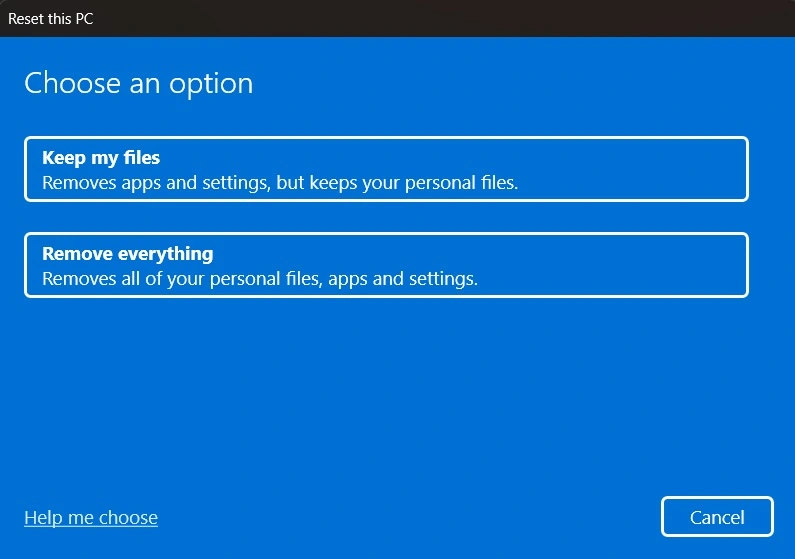
- Open Settings by pressing Windows key + I. Click on “System” and select “Recovery”.
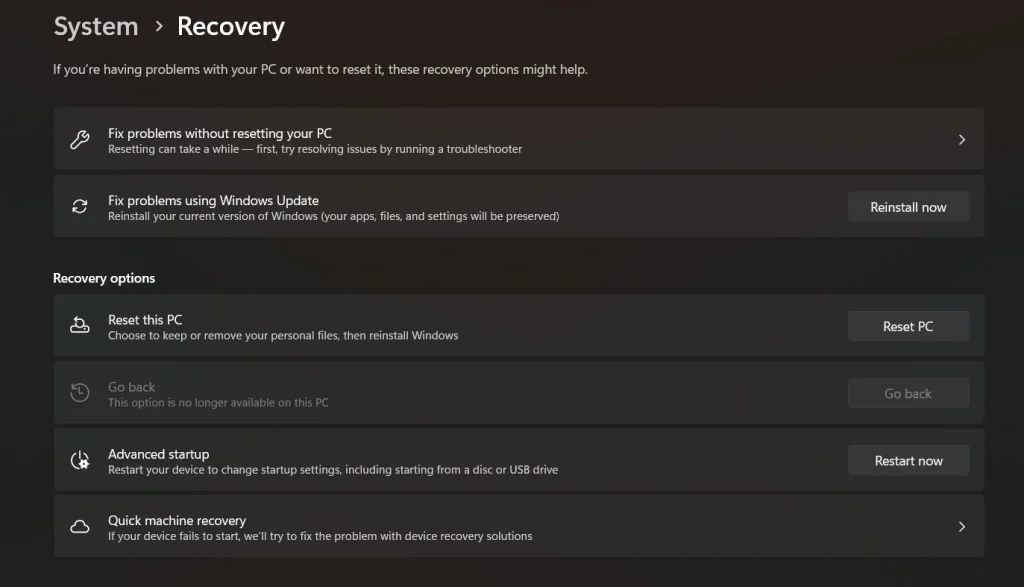
- Under the “Reset this PC” section, click the “Reset PC” button to start the process. Choose “Remove everything” for a complete fresh start, then follow the on-screen instructions.
Method 2: Using Advanced Startup Options
This method works when Windows won’t start normally. You can access it from the login screen or boot menu. It’s helpful when your PC has serious problems.
Advanced startup gives you more control options. You can reset your pc for a fresh start with Windows, even with system crashes. This method bypasses most Windows problems.
Steps:
- Hold the Shift key while clicking “Restart” from the Start menu or login screen. Select “Troubleshoot” then “Reset this PC” from the blue screen options
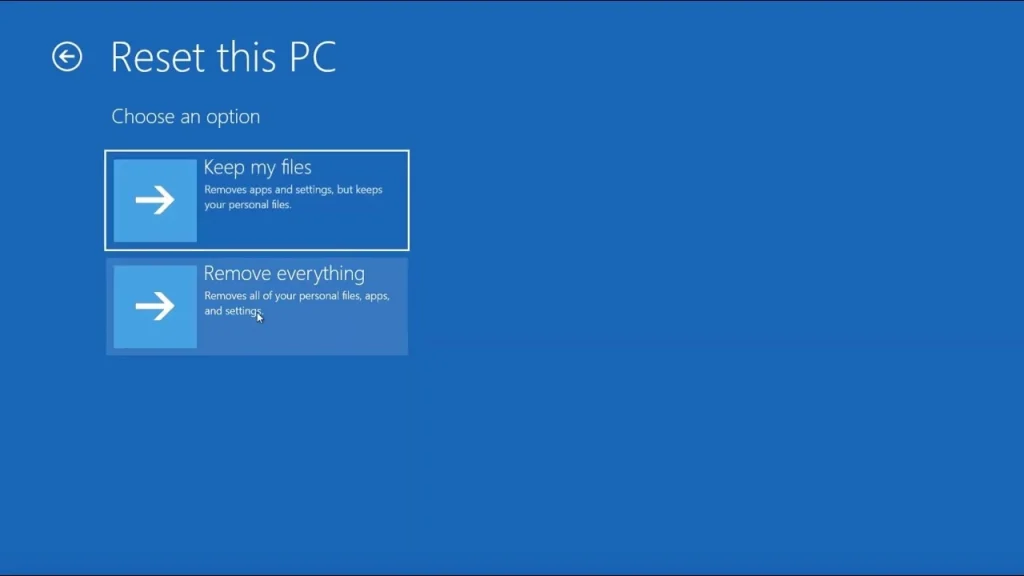
- Choose your reset preferences and click “Reset” to begin the fresh start process
Method 3: Using Installation Media
This method requires a Windows USB or DVD. It’s the most thorough way to clean your system. Use this when other methods fail to work.
Installation media gives you a completely fresh Windows copy. It’s like buying a new computer with clean Windows. This method fixes even the most stubborn problems.
Steps:
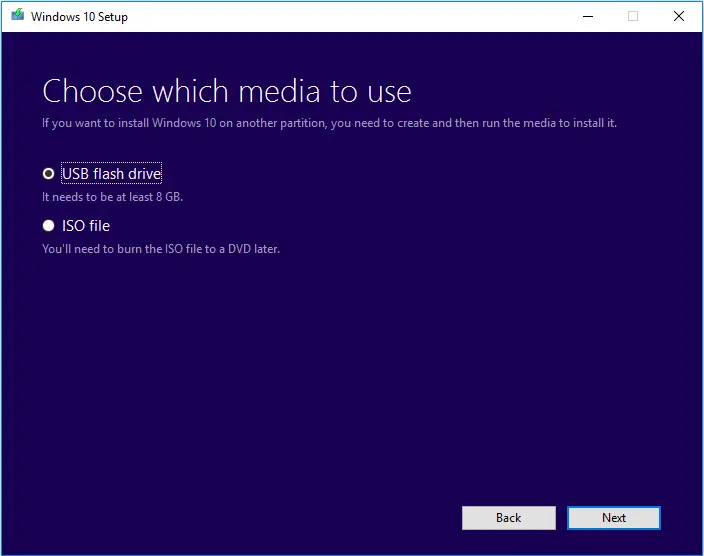
- Create Windows installation media using Microsoft’s Media Creation Tool on another computer. Boot from the USB/DVD and select your language, then click “Install Now”.
- Choose “Custom installation” and format your hard drive before installing Windows fresh
Author’s Tip
Always create a backup before you reset your pc for a fresh start Windows. Use an external hard drive or cloud storage. This saves you from losing important memories and documents.
Start the reset process when you have plenty of time. Don’t rush or interrupt the process. An interrupted reset can damage your Windows system permanently. Plan for at least 3-4 hours of downtime.
Common Problems During PC Reset
Sometimes issues can occur during the reset process. Knowing these problems helps you prepare better. Most problems have simple solutions you can try.
Power failures are the most common issue. They can corrupt your Windows installation. Always use a backup power source if possible. If your reset gets stuck, wait at least 4 hours before restarting.
Hardware problems can also cause reset failures. Bad RAM or hard drive errors stop the process. Run memory tests before resetting. Check your hard drive health using built-in Windows tools.
Driver conflicts may appear after a reset. Windows might not recognize some hardware. Download drivers from the manufacturer’s websites. Keep driver files ready on a USB drive.
What to Do After Resetting Your PC?
Your work isn’t finished after the reset completes. Several important steps ensure everything works perfectly. Take time to set up your fresh Windows properly.
First, connect to the internet and run Windows Update. This installs the latest security patches and drivers. Let all updates finish before installing other software.
Install essential software in the right order. Start with antivirus protection first. Then add your web browser and office programs. Install games and entertainment software last.
Restore your backed-up files carefully. Scan them for viruses before copying. Organize files in proper folders. Set up your desktop and taskbar preferences.
Configure privacy and security settings. Turn off unnecessary data collection. Set up Windows Defender properly. Create a new system restore point when everything is working well.
Conclusion
Resetting your PC is a powerful solution for many Windows problems. It gives your computer new life and better performance. The process removes years of digital clutter and errors.
Choose the right method based on your situation. Always back up your data first. With proper preparation, you can safely reset your pc for a fresh start Windows and enjoy a faster, cleaner computer experience.
FAQs:
Q1: Will resetting my PC remove Windows?
No, resetting your PC will not remove Windows itself. The reset process reinstalls Windows fresh while keeping your license activated. You get a clean Windows installation with all the latest updates and features intact.
Q2: How long does it take to reset a Windows PC?
The reset process typically takes 2-4 hours, depending on your computer speed and data amount. Older computers with mechanical hard drives take longer than newer systems with SSDs. The actual time varies based on your hardware specifications.
Q3: Can I recover files after resetting my PC?
Once you reset your PC with the “Remove everything” option, files are very difficult to recover. Some data recovery tools might help, but success isn’t guaranteed. Always back up important files before starting the reset process to avoid permanent data loss.
Author Bio:
Dinesh Lakhwani 

Dinesh Lakhwani, the entrepreneurial brain behind “TechCommuters,” achieved big things in the tech world. He started the company to make smart and user-friendly tech solutions. Thanks to his sharp thinking, focus on quality and the motto of never giving up, TechCommuters became a top player in the industry. His commitment to excellence has propelled the company to a leading position in the industry.
Popular Post
Recent Post
CCleaner PC Optimizer Review: A Complete Guide for Windows Users
If your computer has started to feel slow, you are not alone. Most Windows PCs slow down over time. Junk files pile up. The registry gets messy. Too many apps open when you start your PC. All this adds up and makes even a good machine feel tired. This is where a PC cleaner tool […]
Auslogics Duplicate File Finder: Full Review and User Guide
A computer quietly gathers clutter over time. This includes duplicate photos, repeated downloads, and forgotten backups hiding in random folders. This buildup slowly eats away at storage and can make even a fast PC feel sluggish. Manually finding and deleting duplicates is tedious. It means checking every folder, comparing file names, and guessing which copies […]
CCleaner Duplicate File Finder: Key Features, Pricing, Step-by-Step Guide and More
Every computer collects junk over time. Right? Well, yes! Photos often get copied twice. Documents get saved in two folders by mistake. Old downloads pile up and never get deleted. This slowly eats up your storage space, and most people do not even notice until their drive is almost full. That is where a duplicate […]
Duplicate File Finder Pro: A Complete Review, Everything You Should Know
Computers collect thousands of files over time. Well, yes! Many of them end up being duplicates created by backups, downloads, or accidental copies. These extra files take up valuable storage space and make it harder to keep everything organized. Finding and removing them manually can take hours. Right? Duplicate File Finder Pro is a tool […]
Top 3 Duplicate File Finder for Windows 11 & Windows 10
If your PC storage keeps filling up even after you delete big files, duplicate files could be the real reason. Most of us save the same photo twice, download a document more than once, or copy a whole folder by mistake. Over months and years, these duplicate files pile up quietly. You do not even […]
Monitor Screen Calibration Guide: Everything You Should Know
Your monitor shows colors every single day. But are those colors actually correct? Most people never stop to check this. They just use the screen as it comes out of the box. This habit can lead to wrong colors in photos, videos, and work files. Colors may look too warm or too cold without you […]
How To Check Installed RAM and RAM Slots [Complete Guide]
RAM plays an important role in how smoothly a computer runs. Short for Random Access Memory, it stores the data and instructions that Windows and active applications need at any given moment. From opening multiple browser tabs to running games and productivity software, RAM helps keep everything responsive. A system with limited memory may experience […]
What is Microsoft Autopilot Everything You Need To Know
Technology has changed the way companies manage computers. Well, yes! Employees now work from offices, homes, and remote locations. Setting up devices manually for every worker takes time and effort. It can also create mistakes that slow down productivity. This is where Microsoft Autopilot becomes useful. It helps businesses prepare and deploy Windows devices with […]
Enable Automatic Device Locking Feature Windows: Complete Guide
Introduction: Your computer stores important information such as emails, documents, passwords, and personal photos. Leaving it unlocked can put that data at risk. Thankfully, Windows includes built-in features that can automatically lock your device when you are away. Setting up automatic device locking is quick and does not require any extra software. In this guide, […]

