











Imagine this. You spend hours perfecting a video project. You hit save. Then your laptop freezes, reboots, and when the screen comes back. The file is gone. Your stomach sinks. It’s not just you. Lost files happen all the time. A dropped hard drive, a bad update, an accidental delete, or a corrupted partition can […]
Top Ways To Protect Windows From Malware
Keeping your Windows computer safe is crucial, don’t you think? The internet is full of risks that can harm your device. But knowing how to protect your system from malware can save you from major headaches. Every day, thousands of new malware threats surface, putting unprotected computers at serious risk.
Malware is harmful software designed to steal your data or damage your computer. It comes in various forms, such as viruses, spyware, and ransomware. Hackers use it to target your passwords, banking information, and personal files. Some even create malware that can lock your entire system until you pay a ransom.
This guide highlights practical steps to protect your Windows computer from malware. These easy-to-follow tips work for everyone, regardless of tech skills. A little effort can go a long way in keeping your data secure and your computer running smoothly. The methods shared here apply to all Windows versions, including Windows 10 and Windows 11. Let’s make your system safer, one step at a time!
Things to Consider When Using Top Ways to Protect Windows from Malware
Before using ways to protect Windows from malware, you should know some basic facts. These will help you choose the right protection for your needs.
- Not all malware is the same – Different types need different protection
- Free tools may not be enough – Sometimes, paid options work better
- Regular updates are key – Old software has weak spots that malware can use
- Backup your data often – This helps if malware does get in
- Be careful what you click – Many malware attacks start with one bad click
- Use strong passwords – This makes it harder for hackers to get in
- Know your device users – Family members can accidentally let malware in
- Check app permissions – Some apps ask for more access than they need
What Is The Difference Between Malware And Virus
Many people mix up malware and viruses. Understanding the difference helps you protect Windows from malware better.
| Malware | Virus |
| General term for all harmful software | A specific type of malware |
| Includes viruses, spyware, adware, ransomware | Self-replicates by attaching to programs |
| Can steal data, show ads, lock files, or spy on you | Mainly spreads and harms system files |
| Gets in through downloads, emails, weak passwords | Usually needs a host file to spread |
| Many different kinds with different goals | Always tries to copy itself to other files |
Can These Tips Also Protect Windows From Viruses
Yes, the ways to protect Windows from malware will also guard against viruses. Since viruses are just one type of malware, good malware protection covers viruses, too.
Most security tools are made to catch all kinds of threats. They look for the bad behavior that both malware and viruses show. This means one good security setup protects you from many threats.
But remember that new threats come out all the time. This is why you need layers of protection. Using more than one way to protect Windows from malware gives you better safety against all threats, including viruses.
Top Ways to Protect Windows from Malware
Protecting your Windows system from malware is essential. Malware can harm your data and privacy. In Part 4, you’ll learn simple and effective ways to stay secure. Use antivirus software, update your system, and avoid unsafe websites. These tips help keep your computer safe and your data protected.
1. Install Good Antivirus Software
Fortect Antivirus: Smart, Lightweight Protection for Modern Windows Systems
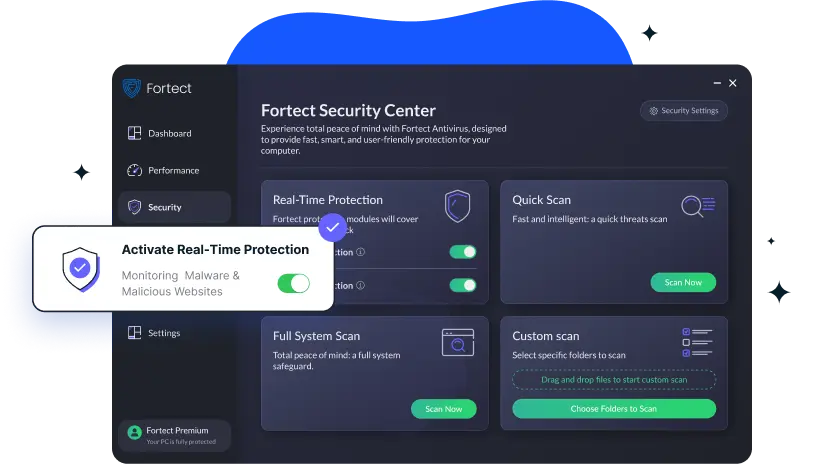

Fortect Antivirus fits well into any modern Windows security plan. It focuses on finding malware that hides deep inside system files and startup areas. Instead of only scanning known threats, it also looks for unusual behavior that often points to newer attacks. This makes it useful for Windows 11 and Windows 10 users who want protection that keeps pace with current risks.
The tool also helps keep the system stable while it protects it. Fortect checks for damaged or unsafe system files and replaces them with clean versions when needed. This reduces crashes and slowdowns that often appear after malware infections. The result is a PC that feels safer and runs more smoothly without a heavy background load.
Key Features
- Real-time malware detection that spots active and hidden threats
- Deep system scan for infected files, folders, and startup entries
- Repair of damaged Windows system files caused by malware
- Lightweight scanning that does not slow down daily work
- Automatic updates to keep threat detection current
- Clear scan reports that are easy to understand
Why Use Fortect Antivirus
- It goes beyond basic virus scans and focuses on system health
- It works well alongside built-in Windows security tools
- It suits users who want strong protection without complex settings
- It helps fix problems after an infection, not just remove threats
Adding Fortect Antivirus to your malware protection strategy strengthens Windows security and helps keep your system clean, stable, and reliable through 2026 and beyond.
2. Keep Windows Updated

Windows updates are not just about new features. They often fix security holes that malware can use to get into your system. When Microsoft finds these weak spots, it releases patches to fix them. If you don’t update, you leave these doors open for attackers.
One of the most important ways to protect Windows from malware is keeping your system updated. Many major malware outbreaks in the past targeted computers that had missed important updates. Setting updates to happen automatically is an easy way to stay protected without having to remember to check.
- Turn on automatic Windows updates
- Check for updates weekly if automatic updates are off
- Don’t skip important security updates
- Restart your computer when updates ask you to
- Check that updates are installed correctly
3. Use a Firewall

A firewall acts like a security guard for your computer’s connections. It watches data coming in and going out of your computer. When something suspicious tries to connect, the firewall can block it. This is a key way to protect Windows from malware that tries to sneak in through network connections.
Windows comes with a built-in firewall that works well for most users. But you need to make sure it’s turned on and set up right. Some more advanced users might want a third-party firewall with more features. Either way, having this layer of protection is vital to stop malware from entering through internet connections.
- Make sure Windows Firewall is turned on
- Check firewall settings after installing new programs
- Set up app permissions carefully
- Consider a third-party firewall for extra protection
- Test your firewall settings regularly
4. Practice Safe Browsing

The web is where most people pick up malware today. Dangerous websites, fake download buttons, and harmful ads can all deliver malware to your computer. Safe browsing habits are free ways to protect Windows from malware that don’t require any special tools.
Learning to spot the signs of dangerous sites takes a little practice. Things like checking the web address, avoiding sites with many pop-ups, and being careful with downloads can help. Your browser can help, too. Browsers like Chrome and Edge have built-in security features that warn you about known dangerous sites.
- Don’t click unknown links in emails or messages
- Check website addresses before clicking
- Use browsers with security features like Chrome or Edge
- Install browser security add-ons
- Be careful when downloading files
5. Be Smart About Downloads

Downloads are a common way malware gets onto computers. When you download a file, you’re bringing something from the internet onto your system. If that file has malware hidden in it, your computer can get infected. Being careful about what you download is one of the simplest ways to protect Windows from malware.
Free software can be especially risky. Many free programs come bundled with unwanted extras that can be harmful. The safest approach is to only download software from official sources like the Microsoft Store or the software maker’s website. Always read each screen during installation to avoid unwanted add-ons.
- Only download from official websites
- Read all installation screens carefully
- Uncheck boxes for extra toolbars or programs
- Scan downloads before opening them
- Avoid pirated software and media
6. Back Up Your Data

Even with all the best protection, there’s always a small chance malware might get through. That’s why backups are so important. If ransomware locks your files or malware damages your system, having good backups means you won’t lose your important data. This is a protective way to prepare for the worst.
There are many ways to back up your files. You can use external hard drives, cloud storage services, or both for extra safety. The key is to do it regularly and to test your backups to make sure they work. Some of the most effective ways to protect Windows from malware include having a solid backup plan that runs automatically.
- Set up automatic backups to an external drive
- Use cloud backup services as a second option
- Test your backups to make sure they work
- Keep at least one backup disconnected from your computer
- Update your backup plan as your needs change
Author’s Tip
One thing many people miss when trying to protect Windows from malware is checking their router. Your router is the main door to your network. If it has weak security, malware can get in even if your computer is well protected.
Change your router’s default password right away. Then, turn on its firewall and keep the firmware updated. These steps add another layer to your protection plan and help prevent malware from entering your network.
Also, teach everyone who uses your computer about basic safety. The best ways to protect Windows from malware won’t work if someone keeps making unsafe choices. A few minutes of training can prevent hours of cleanup later.
Conclusion
Protecting your Windows computer from malware takes some effort. But the steps are simple once you know them. The ways to protect Windows from malware we’ve shared will help keep you safe online.
Remember that security is an ongoing process. New threats appear every day. Keep learning and updating your protection plan. This will help you stay ahead of hackers and malware makers.
By using these top ways to protect Windows from malware, you can enjoy using your computer with peace of mind. Your personal information will stay private. And your computer will run better without malware slowing it down.
FAQs:
Is Windows Defender enough to protect my computer?
Windows Defender has gotten much better over time. For many home users, it provides good basic protection against malware. But if you do high-risk activities like downloading many files or visiting unusual websites, you might want extra protection. The best way to protect Windows from malware often includes Windows Defender plus safe user habits.
How often should I scan my computer for malware?
You should run a quick scan at least once a week. A full system scan should be done once a month. If your antivirus shows warnings or your computer acts strangely, run an extra scan right away. Regular scanning is a key way to protect Windows from malware before it causes damage.
What should I do if my computer already has malware?
First, disconnect from the internet to stop the malware from spreading or sending out your data. Then run a full scan with your antivirus in safe mode if possible. You might need to use a rescue disk from an antivirus company for serious infections. After cleaning, change all your passwords from a different device. Then review which ways to protect Windows from malware you need to improve.
Dinesh Lakhwani
Author Bio:
Dinesh Lakhwani 

Dinesh Lakhwani, the entrepreneurial brain behind “TechCommuters,” achieved big things in the tech world. He started the company to make smart and user-friendly tech solutions. Thanks to his sharp thinking, focus on quality and the motto of never giving up, TechCommuters became a top player in the industry. His commitment to excellence has propelled the company to a leading position in the industry.
Popular Post
Recent Post

5 Best Data Recovery Software For Windows 11 and Windows 10
A crashed drive can ruin a whole day. One minute your photos, work files, and tax records sit safe on your PC. The next minute they are gone. A power cut, a bad update, or one wrong click can wipe out years of memories and months of work in seconds. That sinking feeling is why […]

How To Update NVIDIA Drivers On Windows 11/10 PC
Learn how to update NVIDIA drivers on Windows 11/10 with simple methods, safety tips, and easy steps for smoother gaming and better PC performance.

Top AI Features Hidden Inside Windows 11
Explore the top AI features in Windows 11, from Copilot to Recall, plus safety tips and simple steps to use each tool the right way.

Customize Your Screen Saver Settings in Windows [Easy Steps]
Learn how to customize screen saver settings in Windows 11 with easy steps, safety tips, and simple tricks to personalize your PC screen.

Driver Easy Windows Driver Updater Tool Review: Tried & Tested
In-depth information about Driver Easy’s functions and features can be found in our review. Learn how to update drivers more easily with this tool for a more seamless computer experience.

Is Avast Driver Updater Worth It? A Hands-On Analysis
A full review of Avast Driver Updater covering features, setup steps, pricing, pros and cons, and real PC results, to help you decide if it is worth buying.

IObit Driver Booster 13 (PRO) Review: [Tried & Tested]
IObit Driver Booster 13 is built for one purpose: keeping your PC drivers up to date. Well, yes! Outdated drivers can cause crashes, slowdowns, and hardware issues. This tool scans fast and updates with one click. The interface is simple. Even beginners can use it without confusion. Updates are pulled from a huge database, covering […]

Auslogics Driver Updater: A Detailed Walkthrough [2026]
This comprehensive review covers the key features, pros, and cons, pricing, and a final verdict on Auslogics’ driver update utility. Learn how it stacks up against manual driver maintenance.

5 Best Driver Updater Tools for Windows to Use (Free and Paid)
Introduction: Most people blame their PC for problems that a driver caused. A driver works like a bridge between your hardware and your operating system. When this bridge cracks, strange things start to happen. Screens flicker without reason. Printers go silent mid-task. Games freeze or crash out of nowhere. Manually finding the right driver is […]

