












The photos folder looked normal at first glance. Then the storage warning popped up. One trip photo appeared four times. A tax PDF sat in three different folders. Two old setup files were still in Downloads, and each one was over 500 MB. Nobody plans this mess. Copies pile up slowly. A download runs twice. […]
How To Download Epson L3110 Driver for Windows 11/10/7 [Top 3 Ways]
Introduction:
The Epson L3110 printer is a go-to for both home and office use. Its sleek design and excellent print quality make it a favorite among users. But to keep it running smoothly with your computer, you’ll need the right driver.
Think of a printer driver as the middleman between your computer and your printer. Without it, the two can’t communicate properly, which can lead to issues like fuzzy prints or even a complete printing standstill. That’s why downloading and installing the Epson L3110 driver is so important.
In this article, I’ll walk you through the steps to download the Epson L3110 driver for Windows 11, 10, and 7. We’ll cover why you need the driver, different ways to get it, and how to troubleshoot any issues you might run into along the way.
Ready to get started? Let’s dive in!
Why You Need the Epson L3110 Driver?

To understand the importance of the Epson L3110 driver, it’s essential to know what a driver does. A driver acts as a translator, allowing your computer to communicate with the printer. Without the right driver, your printer won’t receive the necessary instructions to function correctly.
Here are some key reasons why having the Epson L3110 driver is crucial:
- Ensures the printer functions correctly: The driver allows the printer to communicate with your computer, ensuring that it operates smoothly.
- Enables communication between computer and printer: It translates the commands from your computer into a format that the printer can understand.
- Helps in printing documents and photos: With the correct driver, you can print a wide range of documents and photos without any issues.
- Ensures compatibility with Windows 11, 10, and 7: The driver ensures that the printer works with different versions of Windows.
- Improves printer performance: Regular driver updates can enhance the performance of your printer.
- Fixes bugs and issues: Updates often come with bug fixes and improvements that resolve existing issues.
- Provides access to all printer features: The driver unlocks all the features and functionalities of the printer.
- Ensures smooth operation: A proper driver installation ensures that the printer operates without any hiccups.
Frequently Left Unanswered Questions (FLUQs)
1. Why is my Epson L3110 driver not installing on Windows?
This usually happens due to compatibility issues, incomplete downloads, or missing system permissions. If the driver file is corrupted or not meant for your Windows version, installation may fail. Antivirus software can also block installation files in some cases. Make sure you download the correct driver version, run the installer as administrator, and temporarily disable any security tool if it interferes.
2. Can I use the Epson L3110 without installing the full driver package?
Yes, but with limited functionality. Windows may install a basic driver automatically, allowing you to print simple documents. However, features like scanning, ink level monitoring, and advanced settings may not work. For full performance and proper device control, installing the complete driver package is recommended.
3. How do I know if my Epson L3110 driver is up to date?
You can check this through Device Manager or by visiting Epson’s official support page. Compare the installed driver version with the latest version available online. If your printer shows errors, slow response, or missing features, it may indicate that your driver is outdated and needs an update.
4. Is it safe to download Epson L3110 drivers from third-party websites?
It is not always safe. Many third-party sites bundle drivers with unwanted software or modified files that can harm your system. The safest approach is to download drivers directly from the official Epson website. This ensures authenticity, proper compatibility, and security.
Important Precautions Before Downloading and Installing Epson L3110 Driver
Before you begin downloading or installing the driver, it is important to follow a few basic precautions. These steps help prevent installation errors, system issues, and security risks. A careful approach saves time and avoids unnecessary troubleshooting later.
- Download only from trusted sources
Always use the official Epson website or reliable platforms. Avoid unknown sites that may include harmful files.
- Check system compatibility
Make sure the driver matches your Windows version (Windows 11, 10, or 7) and system type (32-bit or 64-bit).
- Use a stable internet connection
Interruptions during download can corrupt the driver file, leading to installation failure.
- Disable conflicting programs temporarily
Some antivirus or background apps may block installation. Pause them briefly if needed.
- Run the installer as administrator
This ensures the driver gets proper permissions to install all required components.
- Remove old or duplicate drivers
Existing or outdated drivers can cause conflicts. Uninstall them before installing a new one.
- Avoid interrupting the installation process
Do not restart your system or close the installer midway, as this may corrupt the setup.
- Keep a backup or restore point
Creating a restore point helps you roll back changes if something goes wrong during installation.
How to Download the Epson L3110 Driver
Downloading the Epson L3110 driver can be done in several ways. Each method has its advantages and disadvantages, so it’s essential to choose the one that suits you best.
Here are three methods to download the driver:
Method 1: Manual Download from Epson’s Official Website
Downloading the driver manually from Epson’s official website is a reliable method. This approach guarantees that you receive the most recent version of the driver directly from the manufacturer, ensuring compatibility and optimal performance. By obtaining the driver from the official source, you can trust that it is free from any harmful modifications or malware. This method is ideal for users who prefer to handle the download and installation process themselves, giving them full control over every step.
Additionally, downloading the driver manually allows you to verify that you are getting the correct driver for your specific printer model and operating system. It eliminates the risk of installing an outdated or incorrect driver, which could lead to functionality issues. This method is particularly useful for advanced users who are comfortable navigating through the manufacturer’s website and managing software installations.
Overall, the manual download method provides a secure and straightforward way to ensure your Epson L3110 printer operates smoothly.
Steps:
Step 1: Open your web browser and go to the Epson website. Type “Epson L3110 driver” and press Enter.

Step 2: Select the appropriate driver for your operating system (Windows 11, 10, or 7). Click the download button.
Once the download is complete, open the file and follow the on-screen instructions to install the driver.
Pros
- You get the most recent driver version.
- It is a secure and reliable source.
Cons
- Requires an active internet connection.
- The process can be time-consuming.
Method 2: Using Device Manager to Download Epson L3110 Driver
Device Manager is a built-in tool in Windows designed to help you manage devices and their drivers. By using Device Manager, you can search for and install the latest driver for your Epson L3110 printer without needing to visit external websites. This method leverages the functionalities already present in your Windows operating system, making it a straightforward and accessible option. For those who prefer using the tools provided by Windows, Device Manager is a convenient choice, as it integrates seamlessly with your system’s settings and configurations.
One of the advantages of using Device Manager is that it simplifies the process of updating drivers. You don’t need to worry about downloading the wrong driver or navigating through multiple web pages. Instead, Device Manager automatically searches for the appropriate driver and installs it for you. This method is particularly beneficial for users who may not be as comfortable with manual installations or those who want a quick and hassle-free way to ensure their printer driver is up-to-date.
Step 1: Right-click Windows icon. Select “Device Manager” from the menu. In Device Manager, locate your Epson L3110 printer under the “Printers” section. Right-click on the Epson printer. Select “Update driver.”
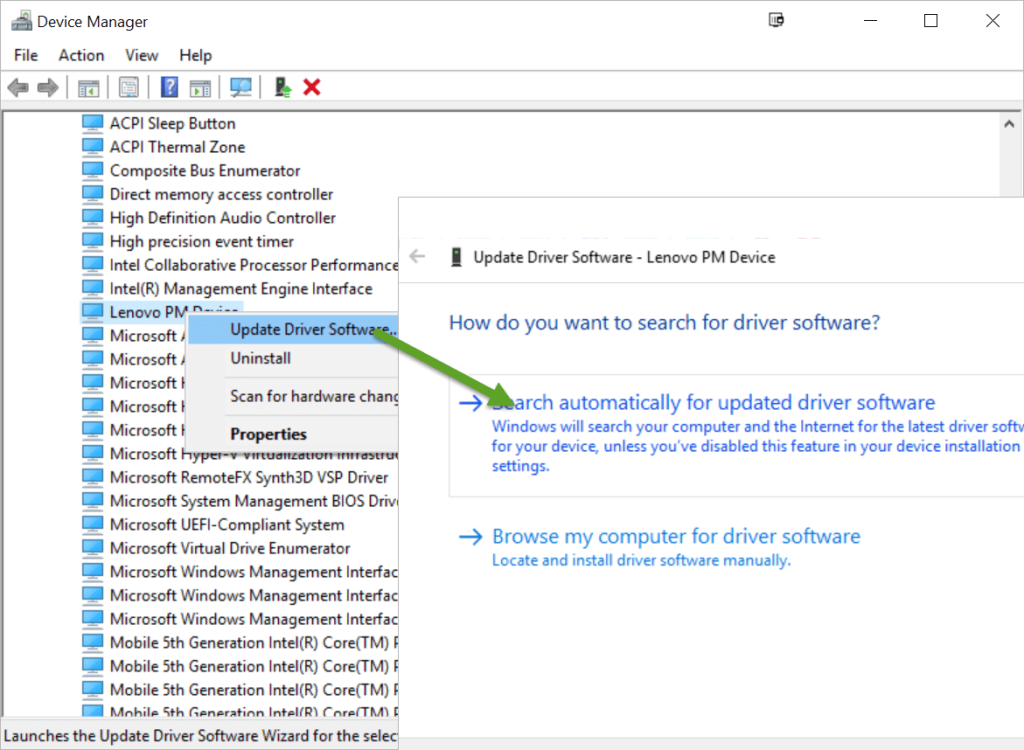
Step 2: Choose “Search automatically for updated driver software.” Windows will search for the latest driver and install it.
Pros
- Utilizes a built-in Windows tool.
- The steps are easy to follow.
Cons
- May not always find the latest driver version.
- Requires an internet connection.
Method 3: Windows Update to Download Epson L3110 Driver
Windows Update is an integrated feature within the Windows operating system that plays a crucial role in maintaining system security and performance by automatically checking for and installing updates. This includes updates for drivers, which are essential for the proper functioning of hardware devices like printers. Leveraging Windows Update to download and install the Epson L3110 driver is a convenient method, as it simplifies the process by automating it.
One of the primary advantages of using Windows Update is its seamless integration with the operating system, which provides a hassle-free experience for users.
Steps
Step 1: Open the Start menu and go to “Settings.” Click on “Windows Update.” Click on “Check for updates.”

Step 2: If a driver update for the Epson L3110 is available, Windows will download and install it.
Pros
- The process is automated.
- Integrated with the Windows operating system.
Cons
- May not always include the latest driver.
- The update process can be slow.
Tips for Troubleshooting Common Issues While Downloading Epson L3110 Driver
Downloading drivers can sometimes be a tricky process, encountering various issues that may disrupt the installation. Whether it’s a connection problem, compatibility issue, or interference from other software, these challenges can be frustrating.
In this section, we will provide useful tips to troubleshoot and resolve common issues you might face while downloading the Epson L3110 driver.
By following these tips, you can ensure a smoother and more successful installation process, ensuring your printer works perfectly with your computer.
- Ensure your internet connection is stable: A stable connection is essential for downloading drivers.
- Restart your computer: Sometimes, a simple restart can resolve many issues.
- Check if your Windows version is compatible: Ensure that you are downloading the driver compatible with your version of Windows.
- Temporarily disable antivirus software: Antivirus software can sometimes interfere with the download process.
- Use another method if one fails: Try a different method if you encounter issues with the current one.
- Contact Epson support for help: If all else fails, reach out to Epson’s customer support for assistance.
Conclusion
Downloading the Epson L3110 driver is a crucial step to ensure your printer functions correctly. This driver enables your printer to communicate with your computer, ensuring smooth operation. You can download the driver manually from Epson’s official website, use Device Manager, or rely on Windows Update.
Each method has its pros and cons, but they all aim to provide you with the necessary driver for your printer. Additionally, troubleshooting tips can help you overcome common issues during the download process.
In conclusion, having the right driver is essential for the optimal performance of your Epson L3110 printer. Regularly updating the driver can fix bugs, improve performance, and unlock new features. Ensure that your printer is always ready to deliver high-quality prints by keeping its driver up-to-date.
Remember, a well-functioning printer makes all your printing tasks easier and more efficient. Happy printing!
FAQs:
1. What is a printer driver?
A printer driver is a software program that allows your computer to communicate with your printer. It acts as a translator, converting the data from your computer into a format that the printer can understand. Without the correct driver, your printer may not function properly, as it won’t receive the necessary instructions to perform tasks like printing documents or photos. The driver ensures compatibility between the printer and your operating system, enabling smooth and efficient printing operations.
2. Why should I update my printer driver?
Updating your printer driver is essential for several reasons. First, it ensures that your printer can function optimally with the latest features and improvements. Manufacturers frequently release driver updates to fix bugs, enhance performance, and add new functionalities. Additionally, updating the driver can resolve compatibility issues with your operating system, especially after major updates. Keeping your printer driver up-to-date ensures that you get the best performance and reliability from your printer, reducing the likelihood of errors or malfunctions.
3. Can I download the driver without internet?
No, you cannot download the driver without an internet connection. The driver file needs to be downloaded from the manufacturer’s website or other online sources, which requires internet access. However, once you have downloaded the driver, you can transfer it to your computer using a USB drive or other storage devices. If you don’t have internet access at home, you can visit a location with internet access, such as a library or a friend’s house, to download the driver and then install it on your computer.
4. What should I do if the driver is not working?
If the driver is not working, there are several steps you can take to resolve the issue. First, ensure that you have downloaded the correct driver for your printer model and operating system. Double-check that the driver is compatible with your version of Windows. If the issue persists, try uninstalling the current driver and reinstalling it. You can also use the Device Manager to update the driver or check for any hardware issues. If none of these steps work, consider reaching out to Epson’s customer support for further assistance. They can provide specific troubleshooting steps or guide you through the installation process.
Author Bio:
Dinesh Lakhwani 

Dinesh Lakhwani, the entrepreneurial brain behind “TechCommuters,” achieved big things in the tech world. He started the company to make smart and user-friendly tech solutions. Thanks to his sharp thinking, focus on quality and the motto of never giving up, TechCommuters became a top player in the industry. His commitment to excellence has propelled the company to a leading position in the industry.
Popular Post
Recent Post

Wise Duplicate Finder Review: Real Results from Wise Duplicate Finder
Read my honest Wise Duplicate Finder review. See features, pricing, pros and cons, and real PC test results. Find out if this free duplicate cleaner can free up your Windows storage.

How to Recover Deleted Files from Pen drive, USB Drive, SD Card
Introduction: On tech forums, you’ll often see posts like this: “I connected my pen drive to my laptop this morning, but the folder was empty. All my college project files had vanished. I don’t have a backup. Can someone help me?” Stories like this are very common. Pen drives, USB drives and SD cards are […]

How To Recover Files Deleted from the Recycle Bin [Windows 11]
Losing a file can happen in seconds. You clear your desktop, hit Delete, and empty the Recycle Bin. Then, just when you need that file again, it seems to have vanished. This guide will walk you through ways to restore files removed from the Recycle Bin. We will begin with simple fixes, then look at […]

Disk Drill Data Recovery Tool Explained: Full Review and Guide
It happens in a split second. You delete a folder by mistake. Your drive stops showing up. A photo album from your last trip just vanishes. And your stomach drops. Lost files feel personal. They are not just data. They are memories, work hours, and sometimes years of effort packed into a few gigabytes. When […]

Recover Deleted Files In Windows 11 With Software & Without
Introduction What is the first thing that goes through your mind the second an important file vanishes from a Windows 11 PC? For most people, it is a mix of panic and disbelief, followed by a frantic click through every folder that file could possibly be hiding in. It happens in a split second: one […]

EaseUS Data Recovery Wizard: Everything To Know
Data loss does not always come from a big disaster either. Most cases start small and boring. A drive gets formatted by mistake. A laptop freezes mid-save and restarts on its own. A memory card stops showing up after being pulled out too fast. None of these feel like emergencies at first, until you realize […]

Recuva Data Recovery Tool: Is it Actually Worth it?
When I first tried Recuva Data Recovery, I wanted to see if it could really bring back lost files. The tool is free, small in size, and promises quick recovery, which made me curious enough to test it on my own PC. The setup was fast, and the wizard guided me step by step. I […]

GetData Recover My Files Data Recovery Tool: Honest Review
A hard drive error brings a special kind of silence. Well, yes! The screen freezes, then a message appears saying the drive can’t be found or must be formatted. In that moment, years of photos and work files feel at risk. It never happens at a good time. Coffee spills near a laptop, a memory […]

Windows File Recovery: A Complete Review [Tried & Tested]
Imagine this. You spend hours perfecting a video project. You hit save. Then your laptop freezes, reboots, and when the screen comes back. The file is gone. Your stomach sinks. It’s not just you. Lost files happen all the time. A dropped hard drive, a bad update, an accidental delete, or a corrupted partition can […]

