












A computer quietly gathers clutter over time. This includes duplicate photos, repeated downloads, and forgotten backups hiding in random folders. This buildup slowly eats away at storage and can make even a fast PC feel sluggish. Manually finding and deleting duplicates is tedious. It means checking every folder, comparing file names, and guessing which copies […]
Epson L3110 Resetter Adjustment Program: Free Download & Uses
Introduction
The Epson L3110 is the optimal inkjet printer, renowned for its compact design, inexpensive ink usage, and numerous capabilities that make it easy to print, scan, and copy documents at cost-effective rates. The printing device has proven to be an excellent option for both home and small business owners who often require regular and heavy-duty printing.
However, like any reliable printer that faces common glitches, the Epson L3110 is no exception. Despite all the key advantages, the Epson L3110 may encounter bugs and errors that can disrupt the printing experience.
Some of the most frequent problems that Epson L3110 printer users may run into are:
- Waste Ink Pad Counter Errors
- Printer’s Power & Ink Lights Flash Constantly
- The printer needs to be Serviced or Reset Errors
- Paper Jam Errors
- Printer Failing to Connect to the PC
- Printer Maintenance Errors
- Other Printing Glitches
If you are experiencing any of the issues shared above, you may consider taking the help of the Epson L3110 Resetter Adjustment Program to fix these issues.
What is Epson L3110 Adjustment Program (Resetter)
This is a dedicated software designed for troubleshooting and resetting common printer issues that occur on Epson printers. It seamlessly interacts with the printer’s firmware and resets the internal waste ink pad counter.
This counter is an essential component that keeps track of waste ink management when the printer is cleaning itself. Hence, when the counter hits its limit, it displays a “Service required” message and halts the printer process to prevent ink overflow. That’s exactly where the Epson L3110 Resetter Adjustment Program shines. It sends a command to reset the counter limit back to zero, which eventually fixes the potential error message and enables the printer to continue running until the ink pads can be properly serviced.

So, if you want to continue using the printer without any interference or investing in expensive maintenance services, download the Epson L3110 Adjustment Program (resetter) on your Windows PC. This sophisticated tool ensures that your printer remains operational when you need it the most.
Epson L3110 Resetter: Practical Applications and Use Cases
Wondering what makes it an invaluable tool for printer maintenance? Here are some scenarios where it can be specifically useful:
- When the printer’s waste ink pads are saturated, the “Service Required” error can be readily removed by using the resetter application.
- Users can rely on the Resetter Adjustment Program to avoid unscheduled printer downtime that occurs when a printer requires maintenance.
- It’s an amazing utility that helps users extend the printer’s service life without spending a penny. It supports multiple models including, Epson L3110, Epson L3210, Epson L120, Epson L3210, and more.
- Additionally, its user-friendly interface guides users through different procedures involved in repair & maintenance.
- Educational institutions and home offices with limited budgets can benefit from Epson L3110 to quickly reset printers and restore printers’ optimal performance, ensuring continuous operations and enhancing overall productivity.
Be Aware of the Potential Hazards That Could Impair the Performance of Your Printer
As responsible technical writers at Techcommuters, it is our responsibility to educate users about any potential consequences that utilizing the resetter tool may have for your printer’s functionality.
1. Warranty Voidance: Manufacturers frequently state that the warranty of a printing device may be void if illegal software is installed or if the firmware is altered. As a result, before utilizing any such tools to diagnose or fix printer problems, make sure you properly read the warranty terms.
2. Safety Risks: Installing software of any kind from unreliable sources might put your printer and related devices at serious risk for security lapses. You may end up being targeted by malware threats, malicious add-ons and other harmful elements that could compromise the system’s integrity.
3. Hardware damage: Using the resetter application incorrectly can cause major harm to your device. Consider doing frequent resets on your printer without performing necessary upkeep, cleaning, or replacement to avoid ink leaks and other problems with the printer’s parts.
4. Environmental Considerations: You might not be aware of this, but replacing the waste ink pad counter without taking care of the saturated pads can have a big negative impact on the environment. Therefore, be careful to think about appropriate disposal; recycling used ink is also crucial.
5. Legal Implications: Keep in mind that using unapproved software to change the firmware of a printer may have legal repercussions. Generally, this is determined by the digital rights management and license conditions of the product. Thus, be sure to follow suit!
How to Download the Epson L3110 Resetter Adjustment Program for Free?
If you’re witnessing the “Service Required, A printer’s ink pad at the end of its service life. Please contact Epson Support” error message. Follow the step-by-step process shared below to use the Epson L3110 reset utility.
| Writer’s Tip: Before jumping into the download and usage process, we advise you to back up any essential data or settings on your printer. This precautionary measure ensures you do not lose any crucial data during the reset or repair process. |
STEP 1: Get started by temporarily disabling your Antivirus Software. This will ensure a seamless download and installation process.
STEP 2: Download the resetter adjustment software for your Epson L3110 printer.
STEP 3: The setup file will be typically downloaded in ZIP or RAR format. Consider using software like WinRAR or 7-Zip to extract the content of the files.

STEP 4: Follow the on-screen instructions to install the latest version of the Epson L3110 Resetter on your Windows computer.

| Security Advice: Read reviews about the platform or source you’re utilizing before downloading the program. Furthermore, stay away from clicking any links on dubious websites to minimize hazards that could impair the functionality of your printer or other device. |
Once you install the program successfully, refer to the following section to learn how to use it. So, without wasting any more time, let’s get started:
How To Use the Epson Adjustment Program (Resetter):
After extracting the files, here’s what you need to do:
STEP 1: You will receive the message “Copied hardware ID”.
STEP 2: At this step, you need to navigate to the previous folder and search for the Keygen folder.
STEP 3: Now, double-click the WLGen_Epson_L3110 exe file.
STEP 4: Simply select the License Manager option now and upon clicking on the “Add License” option, just add the name in the customer field.
STEP 5: Following that, you need to right-click on the Hardware ID and select the Paste option from the list of available options.
STEP 6: Hit the Save button and just choose the License name.
STEP 7: Now, you need to click on the Create License Key button.
STEP 8: After this, you are required to open the folder with your username.
STEP 9 : Just double-click the License registry file and hit the Yes button to move forward.
STEP 10: Press the OK button to initiate the next step. After that, you need to navigate to the folder and choose the Epson L3110 Adjustment Program folder.
STEP 11: Now, double-click on the adjprog.exe file and hit the OK button.
STEP 12: Click on the OK button again and select the Particular adjustment mode option, located at the bottom right corner of the screen. This will allow you to adjust the waste ink pad counter.

STEP 13: At this step, you need to click on the Waste ink pad counter from the category – Maintenance as shown in the screenshot attached below. To move forward, hit the OK button!

STEP 14: At this point, you need to check the box next to the Main pad counter option and Platen pad counter. To proceed further, you need to hit the Check button, located at the bottom-right corner of the screen.

STEP 15: Keep patience and after a few minutes, you will be able to see the score. This indicates that the adjustment process is complete.
STEP 16: Now, you need to reselect the Main Pad Counter and Plated Counter checkboxes at this step.
STEP 17: Simply, click on the Initialize button to initialize the waste ink pad counter. This will reset the waste ink pad counter to its default settings.
STEP 18: To confirm the process of initialization, you need to hit the OK button.
STEP 19: Now, you might be asked to switch off your printer. This is required to implement the necessary adjustments.
STEP 20: At this point, you need to restart your printer and recheck the pad counter scores to ensure that they are at their default settings.
To complete the process, hit the Finish button. Hopefully, this will help your Epson L3110 printer function properly.
Perks of Using the Epson L3110 Resetter
Listed are a few significant advantages of using this program:
- Save Costs
Resetting the waste ink pad counter yourself without getting any professional aid will help you in the cost savings. The program will also ditch the possibility of investing in a new printer for a long time.
- Enhanced Printer Lifespan
Fortunately, you don’t have to put a lot of effort or time into regular maintenance. Additionally, with this resetter program, you will be able to extend the overall lifespan of the Epson L3110 printer. It prevents the waste ink pad overflow!
- Enhanced Performance
Resetting the printer once in a while using this professional utility will help you fix common glitches and faults that often result in printing halts. Hence, using this program, you can enjoy improved performance and reliability.
4 Alternative Solutions If the Epson L3110 Adjustment Program Does Not Work
If the resetter tool fails, it does not always mean your printer has a serious issue. In many cases, the problem is linked to software limits, system settings, or compatibility errors. Trying a few alternative methods can often solve the issue without much effort.
Below are some reliable solutions you can follow. Each method is simple and can help you fix the problem step by step.
Solution 1. Run the Program as Administrator
Sometimes the resetter cannot access the required system files. This happens when it does not have enough permissions on your computer.
Running the program with admin rights gives it full access. This often fixes errors related to blocked actions or failed commands.
Steps:
- Right-click on the resetter program file.
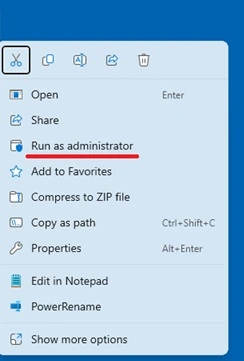
- Click on “Run as Administrator” and proceed with the reset.
Solution 2. Temporarily Disable Antivirus Software
Many antivirus programs see resetter tools as unsafe. They may block or delete important files, which stops the program from working.
Disabling the antivirus for a short time allows the tool to run without interruption. You can enable it again once the process is complete.
Steps:
- Turn off your antivirus software for a few minutes.
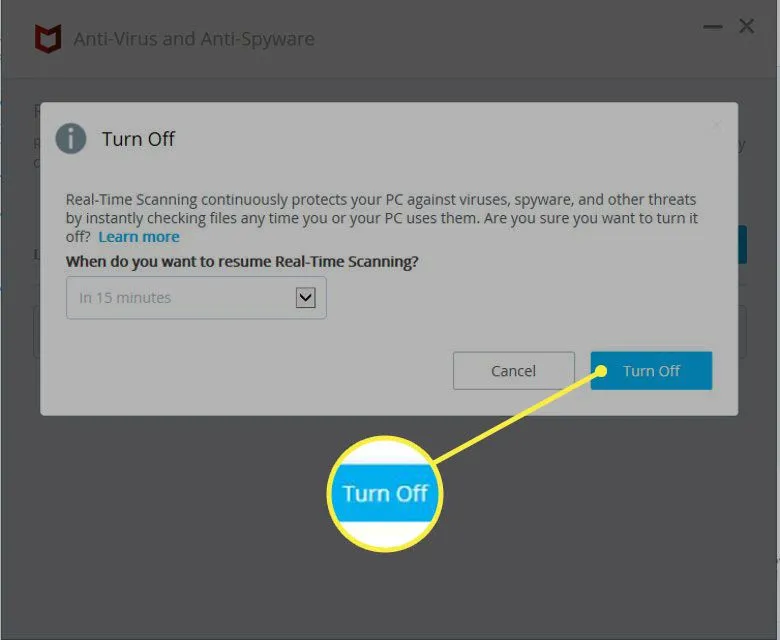
- Run the resetter tool and complete the reset process.
Solution 3. Reinstall Printer Drivers
Old or damaged drivers can stop your printer from responding to the reset command. This can make the tool appear faulty even when it is not.
Installing fresh drivers ensures proper communication between your system and the printer. It also removes hidden errors.
Steps:
- Uninstall the current driver and download the latest one from the Epson website.
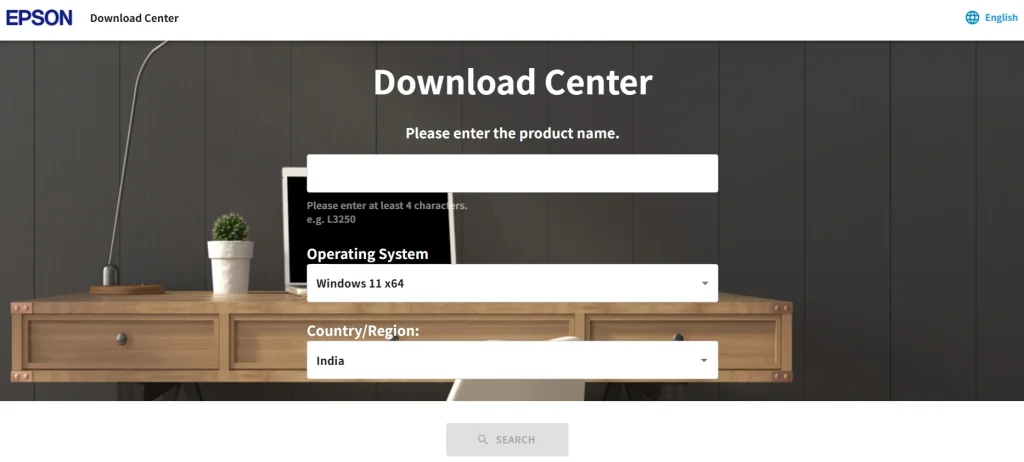
- Install the new driver and reconnect your printer.
Solution 4. Contact Epson Support
If none of the methods work, expert help is the safest option. There may be a deeper issue that needs professional attention.
Support teams can guide you with the correct solution. They may also suggest repair if needed.
Steps:
- Visit the official Epson support page.
- Contact customer support and explain your issue clearly.
Final Verdict
Undoubtedly, for anyone who often uses the Epson L3110 printer, the Epson L311O Resetter Adjustment Program is an indispensable tool. You can save a significant amount of money on repair and maintenance by using the program in addition to helping to reset the waste ink pad counter.
I think that giving users access to useful maintenance tools greatly increases their productivity and contentment with their devices, especially in this digital age where computer apps are necessary for a wide range of technical jobs. To help both tech novices and seasoned professionals save expenses and seek convenience, our step-by-step guide demystifies the entire process.
So, what’s your take on this Epson L3110 Resetter Adjustment Program? Do share your opinion in the comments section below! We’re eager to know your thoughts and experience on utilizing this resetter tool for troubleshooting and repairing the Epson printers.
Frequently Asked Questions
Q1. How will I know if I need to reset my Epson L3110 printer?
The waste ink pad counter on your Epson L3110 printer may need to be reset if it shows a “Service Required” notice.
Q2. After utilizing the resetter application, what should I do if my printer is still not working?
For troubleshooting advice, refer to the printer’s handbook or get in touch with customer care.
Q3. How often should the waste ink pad counter on my printer be reset?
Reset the counter only as needed, and take care to maintain the waste ink pads properly to avoid damage.
Q4. If my printer is not detected by the Epson L3110 Resetter Adjustment Program, what steps should I take?
Verify that your printer is turned on and that the USB connection between it and your computer is correct. Try utilizing an alternative USB cable or port. Additionally, you can try restarting your computer and printer if the problem still exists.
NEXT READ: Guide to Connect Canon Printer to the Wi-Fi Router
Author Bio:
Dinesh Lakhwani 

Dinesh Lakhwani, the entrepreneurial brain behind “TechCommuters,” achieved big things in the tech world. He started the company to make smart and user-friendly tech solutions. Thanks to his sharp thinking, focus on quality and the motto of never giving up, TechCommuters became a top player in the industry. His commitment to excellence has propelled the company to a leading position in the industry.
Popular Post
Recent Post

CCleaner Duplicate File Finder: Key Features, Pricing, Step-by-Step Guide and More
Every computer collects junk over time. Right? Well, yes! Photos often get copied twice. Documents get saved in two folders by mistake. Old downloads pile up and never get deleted. This slowly eats up your storage space, and most people do not even notice until their drive is almost full. That is where a duplicate […]

Duplicate File Finder Pro: A Complete Review, Everything You Should Know
Computers collect thousands of files over time. Well, yes! Many of them end up being duplicates created by backups, downloads, or accidental copies. These extra files take up valuable storage space and make it harder to keep everything organized. Finding and removing them manually can take hours. Right? Duplicate File Finder Pro is a tool […]

Monitor Screen Calibration Guide: Everything You Should Know
Your monitor shows colors every single day. But are those colors actually correct? Most people never stop to check this. They just use the screen as it comes out of the box. This habit can lead to wrong colors in photos, videos, and work files. Colors may look too warm or too cold without you […]

How To Check Installed RAM and RAM Slots [Complete Guide]
RAM plays an important role in how smoothly a computer runs. Short for Random Access Memory, it stores the data and instructions that Windows and active applications need at any given moment. From opening multiple browser tabs to running games and productivity software, RAM helps keep everything responsive. A system with limited memory may experience […]

What is Microsoft Autopilot Everything You Need To Know
Technology has changed the way companies manage computers. Well, yes! Employees now work from offices, homes, and remote locations. Setting up devices manually for every worker takes time and effort. It can also create mistakes that slow down productivity. This is where Microsoft Autopilot becomes useful. It helps businesses prepare and deploy Windows devices with […]

Enable Automatic Device Locking Feature Windows: Complete Guide
Introduction: Your computer stores important information such as emails, documents, passwords, and personal photos. Leaving it unlocked can put that data at risk. Thankfully, Windows includes built-in features that can automatically lock your device when you are away. Setting up automatic device locking is quick and does not require any extra software. In this guide, […]
How to Update Wireless Network Driver in Windows 11 and 10
Your Wi-Fi keeps dropping. Pages load slowly. The connection feels unstable? Well, you are not alone. Most of the time, the problem is not with your internet plan. It is with your wireless network driver. A driver is a small piece of software that helps your computer talk to its hardware. When it gets outdated, […]
Common Windows 11 Problems and Solutions (2026 Version)
Windows 11 has become more polished over the years, but it is still not completely free from problems. Even after regular updates from Microsoft, many users continue to face issues like lagging performance, failed updates, audio troubles, random crashes, and network errors. Some problems appear after installing new features, while others develop gradually as the […]
Fortect Driver Updater Review: Features, Steps, Pros, and Cons.
A new PC usually feels quick and responsive. Applications open instantly, games run smoothly, and everything works as expected. As time passes, however, you may notice slower performance, system crashes, hardware glitches, or devices that stop working properly. While many people assume malware or low storage space is to blame, outdated drivers are often the […]

