












So, search for a pair of shoes once online. Close the tab. By evening, those same shoes are sitting on your news site, your video app, and even your recipe blog. Nobody placed them there by chance. A cookie did. Well, yes! Cookies are small files that websites place on your device while you browse. […]
How to Clear the Delivery Optimization Cache in Windows
Delivery Optimization in Windows is a feature that helps users save bandwidth and improve download speeds by downloading updates and apps from other Windows devices on the same network or even from the internet. While this feature is beneficial, it can accumulate a significant amount of cache over time, impacting system performance. Here, we will explore the methods to clear the Delivery Optimization cache in Windows, ensuring optimal system performance.
Common Reasons to Clear the Delivery Optimization Cache in Windows
1. Optimizing System Performance
One of the primary reasons to clear the Delivery Optimization Cache in Windows is to optimize the overall performance of the Windows operating system. Over time, when the cache fills up with numerous files, it can use up a lot of system resources and disk space. Longer file access times, poor program performance, and slower system boot times can all be caused by this. You may enhance system speed and responsiveness by reducing the load on system resources and freeing up valuable disk space by deleting the cache.
2. Resolving Update Failures
The Optimization of Delivery Windows update delivery and installation depends heavily on the cache. Update difficulties or errors may result from the cache becoming corrupted or containing out-of-date files, which can impede the update process. By ensuring that the most recent and accurate update files are downloaded and saved, clearing the cache can help fix these problems and enable successful update installs free from errors or inconsistent results.
3. Ensuring Data Integrity
Due to disk problems, network outages, and other causes, the Delivery Optimization Cache may, over time, gather damaged or incomplete data. In addition to possibly compromising the integrity of the update process, these damaged files might also result in system instability or security flaws. The system’s overall integrity and security may be preserved by routinely cleaning the cache, which reduces the possibility of utilizing tainted data during updates.
4. Improving Network Efficiency
Files that are downloaded from Microsoft servers, such as apps and Windows updates, are stored in the Delivery Optimization Cache. The size of the cache might affect network efficiency as it uses more bandwidth and takes longer to receive and disseminate updates. By ensuring that only relevant and current data are kept, clearing the cache can assist in increasing network efficiency by lowering total network traffic and streamlining the update process.
5. Enhancing Update Reliability
By removing any conflicts or inconsistencies that can result from out-of-date or mismatched files, clearing the Delivery Optimization Cache helps improve the update process’s dependability. The Windows Update service may download and store the most recent update files once the cache is cleared, guaranteeing that the installation process is founded on reliable and consistent data. As a result, there may be fewer mistakes or update-related problems seen during more dependable and predictable update installs.
6. Facilitating Troubleshooting
By removing any conflicts or inconsistencies that can result from out-of-date or mismatched files, clearing the Delivery Optimization Cache helps improve the update process’s dependability. The Windows Update service may download and store the most recent update files once the cache is cleared, guaranteeing that the installation process is founded on reliable and consistent data. As a result, there may be fewer mistakes or update-related problems seen during more dependable and predictable update installs.
7. Supporting Disk Maintenance
Unnecessary file accumulation in the Delivery Optimization Cache can lead to increased wear on storage devices and disk fragmentation. By decreasing the quantity of temporary data kept on the disk, lessening the effects of file fragmentation, and extending the life of the storage medium, you may assist disk maintenance efforts by routinely cleaning the cache. This can enhance the general health of the disk and increase the storage system’s long-term dependability.
8. Mitigating Disk Space Constraints
As the Delivery Optimization Cache grows in size, it can consume a significant amount of disk space, especially on systems with limited storage capacity. This can lead to disk space constraints, which may impede the installation of updates, applications, or the creation of new files. By clearing the cache, you can free up valuable disk space, ensuring that sufficient storage capacity is available for essential system operations and user data.
9. Addressing Privacy Concerns
Details about the items that have been downloaded and delivered on the system, including information about updates, applications, and other material, may be kept in the Delivery Optimization Cache. By eliminating potentially sensitive information from the system, cleaning the cache can assist users who are worried about privacy and data retention to feel more at ease. This improves data protection and privacy.
10. Promoting System Hygiene
Frequent emptying of the Delivery Optimization Cache helps maintain system hygiene by getting rid of old and superfluous files that might build up over time. This procedure ensures that the system runs as efficiently as possible with the least amount of clutter possible, in accordance with the principles of system cleaning and maintenance. Furthermore, it encourages users to take proactive measures to preserve the functionality and health of their Windows environment, hence fostering a proactive attitude to system administration.
Precautions to Take When Clearing the Delivery Optimization Cache in Windows
There are some precautions that should be taken when clearing the delivery optimization cache in Windows. Some of the most crucial precautions to take are discussed below:
1. Backup Important Data
Make sure you have a backup of any essential data on your computer before emptying the Delivery Optimization Cache. This applies to any files, documents, pictures, movies, and other things that you can’t risk losing. Although data loss shouldn’t occur by emptying the cache, it’s always best to be cautious rather than sorry. You may make sure that your vital data is safe in the event that something goes wrong with the cache cleaning procedure by making a backup of it.
2. Create a System Restore Point
Prior to emptying the Delivery Optimization Cache, create a system restore point. This is a preventative action that might come in handy if something goes wrong. By using a system restore point, you may essentially undo any modifications that might have led to issues and return your computer’s state to a prior one. You may rest easy knowing that you have a backup plan in place in the event that the cache-cleaning procedure causes unforeseen problems by making a restore point.
3. Research Potential Side Effects
It’s critical to learn about any possible consequences of clearing the Delivery Optimization Cache. Although wiping the cache is usually safe and can assist with some update-related problems, there can be consequences or side effects that are unique to your system setup or the exact updates that are being processed. You can determine whether cleaning the cache is the best course of action for your circumstances by investigating any adverse effects.
How to Clear the Delivery Optimization Cache in Windows
Method 1: Using the Settings App
The Settings app provides a user-friendly interface to clear the Delivery Optimization cache in Windows. Follow these steps to clear the cache:
Step 1: Open the Settings app by pressing the Windows key + I on your keyboard.
Step 2: Click on “Update & Security” and select “Delivery Optimization” from the left-hand menu.
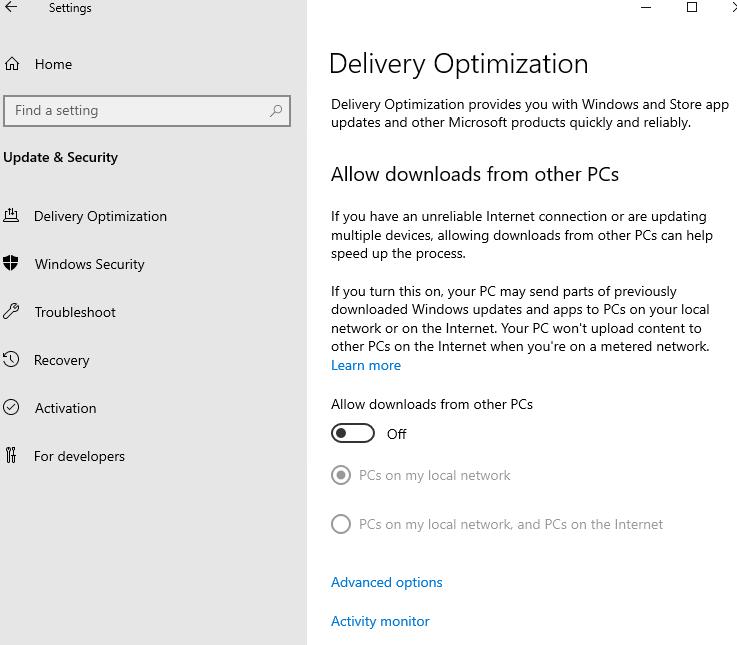
Step 3: Under “Download settings,” click on “Advanced options.”
Step 4: Scroll down and click on the “Clear” button under “Delivery Optimization files.”
Step 5: Confirm your action by clicking “Clear” in the popup window.
Method 2: Using the Command Prompt
The Command Prompt allows you to clear the Delivery Optimization cache in Windows using simple commands. Follow these steps:
Step 1: Press the Windows key + X and select “Command Prompt (Admin)”.
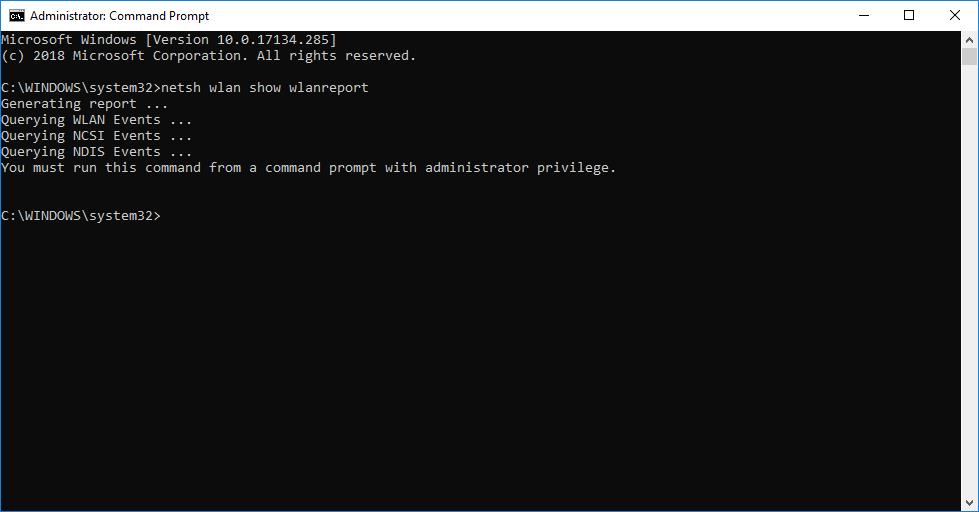
Step 2: In the command prompt window, type the following command and press Enter:
net stop dosvc
Step 3: Next, enter the following command and press Enter:
rd /s /q %systemroot%\SoftwareDistribution\Datastore
Step 4: Finally, restart the Delivery Optimization service by entering the command:
net start dosvc
Method 3: Using Windows PowerShell
Windows PowerShell provides a powerful command-line interface to clear the Delivery Optimization cache. Follow these steps:
Step 1: Press the Windows key + X and select “Windows PowerShell (Admin).”

Step 2: In the PowerShell window, type the following command and press Enter:
Get-DeliveryOptimizationStatus | Clear-DeliveryOptimizationCache
Method 4: Using the Run Command
The Run command offers a quick way to clear the Delivery Optimization cache in Windows. Follow these steps:
Step 1: Press the Windows key + R to open the Run dialog box.
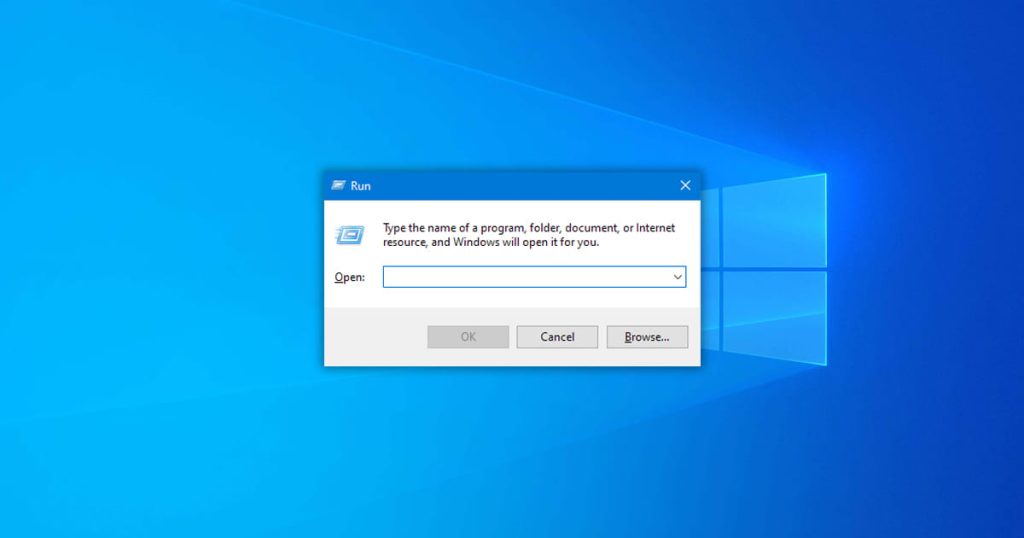
Step 2: Type “services.msc” and press Enter to open the Services window.
Step 3: Scroll down and locate “Delivery Optimization.”
Step 4: Right-click on “Delivery Optimization” and select “Stop.”
Step 5: Navigate to the following folder: C:\Windows\SoftwareDistribution\Download.
Step 6: Delete all the files and folders from this directory.
Step 7: Go back to the Services window, right-click on “Delivery Optimization,” and select “Start.”
Method 5: Using Windows Explorer
Windows Explorer provides a graphical method to clear the Delivery Optimization cache in Windows. Follow these steps:
Step 1: Open Windows Explorer by pressing the Windows key + E.
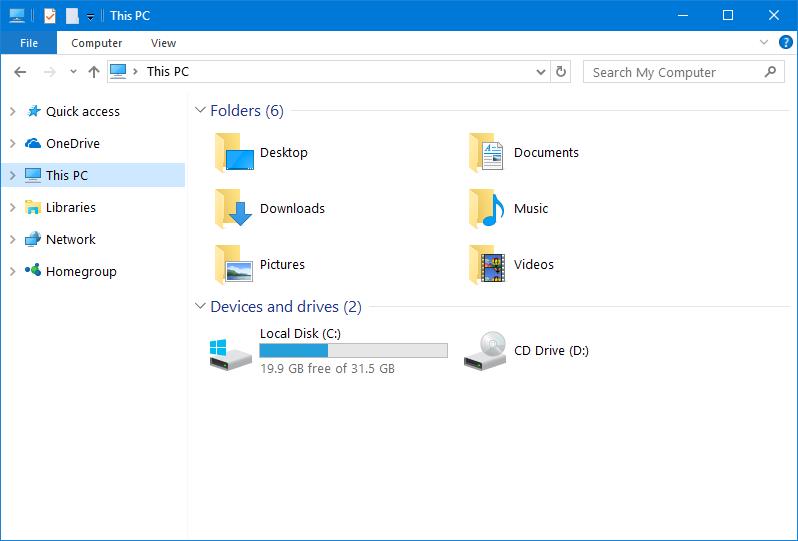
Step 2: In the address bar, type “%localappdata%\Microsoft\Windows\DeliveryOptimization” and press Enter.
Step 3: Delete all the files and folders inside the DeliveryOptimization folder.
Method 6: Using Disk Cleanup
Disk Cleanup is a built-in Windows utility that can clear various caches, including the Delivery Optimization cache. Follow these steps:
Step 1: Press the Windows key + S and type “Disk Cleanup.”
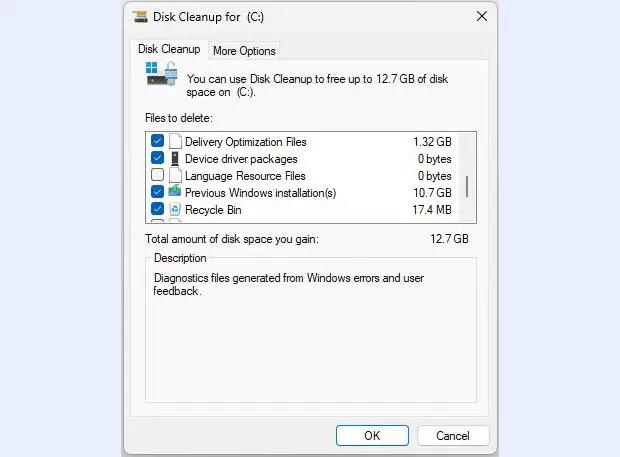
Step 2: Click on “Disk Cleanup” from the search results.
Step 3: Select the drive where Windows is installed (usually C:) and click “OK.”
Step 4: In the Disk Cleanup window, click on “Clean up system files.”
Step 5: Select the drive again and click “OK.”
Step 6: Check the box next to “Delivery Optimization Files” and click “OK.”
Step 7: Confirm your action by clicking “Delete Files.”
Conclusion
Clearing the Delivery Optimization cache in Windows is essential to maintain optimal system performance. By following the methods outlined here, users can easily clear the cache and free up valuable disk space.
FAQs
1. What Is the Delivery Optimization Cache?
It is a repository of files used by the Windows operating system to facilitate the efficient delivery of updates and apps across devices within a network. These files are stored locally on the system to reduce the need for downloading the same content multiple times, thereby conserving bandwidth and speeding up the update process.
2. Why Should I Clear the Delivery Optimization Cache?
To ensure that the system operates at optimal performance. As the cache accumulates files over time, it can consume significant disk space and potentially impact the speed and efficiency of the system. By clearing the cache, users can free up disk space and potentially resolve issues related to slow update downloads or system performance.
3. How Does the Accumulation of Cache Affect System Performance?
The accumulation of cache in the Delivery Optimization cache can impact system performance in several ways. Firstly, the cache consumes disk space, which can lead to storage constraints and affect the overall performance of the system. Additionally, a large cache can potentially slow down the update process, as the system has to sift through a larger volume of files to identify and apply the necessary updates.
4. Is Clearing the Delivery Optimization Cache Safe?
Yes, it is a safe procedure and is officially supported by Microsoft as a troubleshooting step for Windows systems. However, it is essential to follow the recommended methods for clearing the cache to avoid unintended consequences or potential data loss.
Author Bio:
Dinesh Lakhwani 

Dinesh Lakhwani, the entrepreneurial brain behind “TechCommuters,” achieved big things in the tech world. He started the company to make smart and user-friendly tech solutions. Thanks to his sharp thinking, focus on quality and the motto of never giving up, TechCommuters became a top player in the industry. His commitment to excellence has propelled the company to a leading position in the industry.
Popular Post
Recent Post

How To Disable Background Apps In Windows: 4 Quick Methods
A slow PC rarely gives a warning. One day, it simply takes longer to start. Apps open late. The fan runs loud, even when the screen is almost empty. Most people blame old hardware. Often, that is not the real reason. The real reason is hiding in plain sight. Windows keeps many apps active in […]

How to Activate Windows with a Product Key for Windows 11 & Windows 10
It always shows up at the worst time. You are halfway through a report, or about to join a video call. Then you spot it in the bottom right corner of the screen. Activate Windows. Go to Settings to activate Windows. Initially, an unactivated copy of Windows may seem like a minor inconvenience. Over time, […]

Is Easy Duplicate Finder Worth It? Honest Review
The photos folder looked normal at first glance. Then the storage warning popped up. One trip photo appeared four times. A tax PDF sat in three different folders. Two old setup files were still in Downloads, and each one was over 500 MB. Nobody plans this mess. Copies pile up slowly. A download runs twice. […]

Wise Duplicate Finder Review: Real Results from Wise Duplicate Finder
Read my honest Wise Duplicate Finder review. See features, pricing, pros and cons, and real PC test results. Find out if this free duplicate cleaner can free up your Windows storage.

How to Recover Deleted Files from Pen drive, USB Drive, SD Card
Introduction: On tech forums, you’ll often see posts like this: “I connected my pen drive to my laptop this morning, but the folder was empty. All my college project files had vanished. I don’t have a backup. Can someone help me?” Stories like this are very common. Pen drives, USB drives and SD cards are […]

How To Recover Files Deleted from the Recycle Bin [Windows 11]
Losing a file can happen in seconds. You clear your desktop, hit Delete, and empty the Recycle Bin. Then, just when you need that file again, it seems to have vanished. This guide will walk you through ways to restore files removed from the Recycle Bin. We will begin with simple fixes, then look at […]

Disk Drill Data Recovery Tool Explained: Full Review and Guide
It happens in a split second. You delete a folder by mistake. Your drive stops showing up. A photo album from your last trip just vanishes. And your stomach drops. Lost files feel personal. They are not just data. They are memories, work hours, and sometimes years of effort packed into a few gigabytes. When […]

Recover Deleted Files In Windows 11 With Software & Without
Introduction What is the first thing that goes through your mind the second an important file vanishes from a Windows 11 PC? For most people, it is a mix of panic and disbelief, followed by a frantic click through every folder that file could possibly be hiding in. It happens in a split second: one […]

EaseUS Data Recovery Wizard: Everything To Know
Data loss does not always come from a big disaster either. Most cases start small and boring. A drive gets formatted by mistake. A laptop freezes mid-save and restarts on its own. A memory card stops showing up after being pulled out too fast. None of these feel like emergencies at first, until you realize […]

