












The photos folder looked normal at first glance. Then the storage warning popped up. One trip photo appeared four times. A tax PDF sat in three different folders. Two old setup files were still in Downloads, and each one was over 500 MB. Nobody plans this mess. Copies pile up slowly. A download runs twice. […]
How to Get Help in Windows 11: Complete Guide
Introduction
Windows 11 is the latest operating system from Microsoft, offering a sleek and modern user interface. However, like any software, you may encounter issues or need assistance with certain features. Fortunately, Microsoft provides several avenues for getting help in Windows 11. Here, we will explore some methods to help you quickly resolve any problems you encounter. So, if you are wondering how to get help in Windows 11, keep reading.
Precautions to Keep in Mind While Getting Help in Windows 11
Getting help the right way matters as much as getting help at all. A few careless steps can turn a simple fix into a bigger problem, or worse, open the door to a scam. Keep these points in mind before you reach out for support or let someone access your PC.
- Never share your Microsoft account password. Real support agents will never ask for it directly.
- Be careful with remote access requests. Only allow control from someone you trust or a verified Microsoft channel.
- Avoid help offers from random pop-ups. Scammers often use fake alerts claiming your PC is infected.
- Check the source of any link. Fake support sites copy the real Microsoft design closely.
- Do not install random “fix it” tools. Some claim to solve Windows errors but install malware instead.
- Back up your files before deep troubleshooting. Some fixes involve resetting settings or apps.
- Keep Windows updated. Many support issues are already solved in the latest update.
- End remote sessions when done. Always close Quick Assist or similar tools after the help session ends.
Best Practices for Seeking Help in Windows 11
When seeking help in Windows 11, it is important to follow best practices to ensure a smooth and effective experience. Some of the best practices to follow when seeking help in Windows 11 are:
1. Clear and Detailed Information about the Issue
When requesting assistance with Windows 11, it is essential to give precise and comprehensive details about the problem you are experiencing. This speeds up the troubleshooting process and aids in the support staff’s understanding of the issue.
First and foremost, it’s critical to characterize the problem’s symptoms precisely. For example, if you are having a system crash, you should describe the exact moment and manner in which the problem happens, any error messages that appear, and any recent modifications or upgrades that have been done to the system. Giving support staff this much information might help them identify the source of the issue.
2. Being Patient and Cooperative with Support Personnel
It is necessary to possess both patience and cooperation while requesting assistance with Windows 11. It’s critical to understand that troubleshooting technological problems can be difficult and time-consuming and that support staff may need to take a methodical approach in order to locate and fix the issue.
Consequently, having greater tolerance and understanding when troubleshooting might lead to more fruitful communication with support personnel.
3. Taking Advantage of Available Resources
In the pursuit of seeking help in Windows 11, leveraging available resources such as user guides, tutorials, and community forums can be immensely beneficial.
User guides, often provided by the operating system manufacturer, offer comprehensive documentation on the features, functionalities, and troubleshooting procedures specific to Windows 11. These guides can serve as valuable references for understanding the operating system and resolving common issues.
How to Get Help in Windows 11
Some of the most effective methods to get help in Windows 11 are discussed below:
Method 1: Windows Help and Support
Windows 11 offers a comprehensive built-in Help and Support feature that can guide you through various troubleshooting steps. To access it, follow these steps:
Step 1: Click on the Start button located at the bottom-left corner of your screen.
Step 2: Type “Help” in the search bar and click on the “Help and Support” option from the search results.
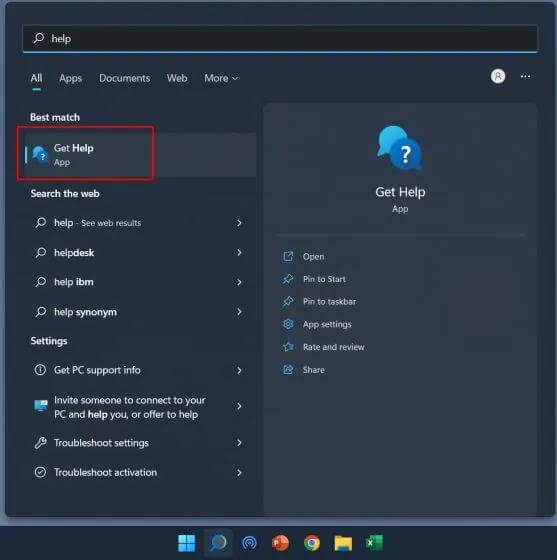
Step 3: In the Help and Support window, you can browse through various topics or search for specific keywords related to your issue.
Step 4: Click on the relevant topic to access detailed instructions and solutions.
Method 2: Microsoft Support Website
Another valuable resource for getting help with Windows 11 is the official Microsoft Support website. It provides a vast knowledge base, community forums, and virtual agents to assist you. Here’s how to get help in Windows 11 with the help of this method:
Step 1: Open your preferred web browser and visit the Microsoft Support website.
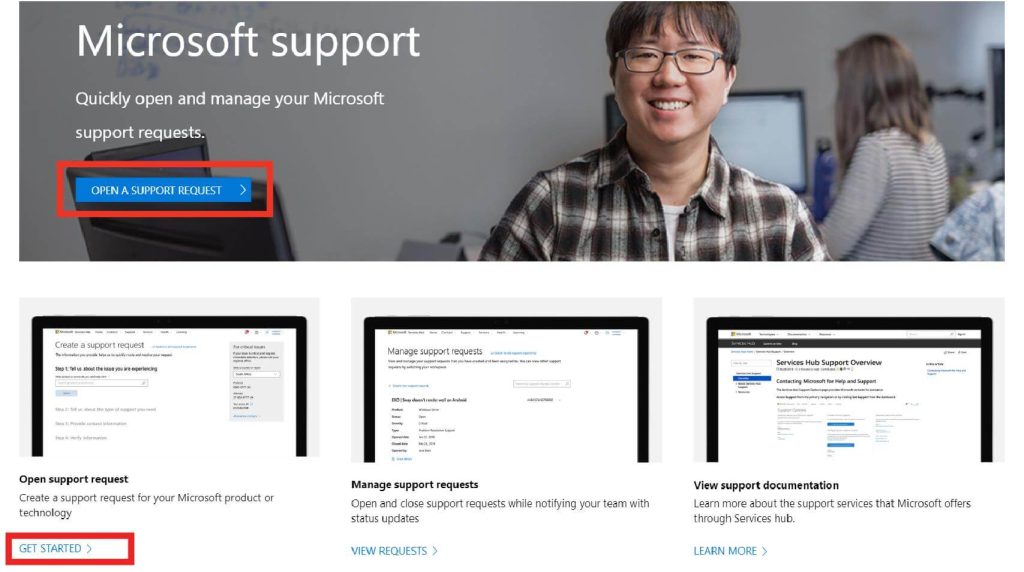
Step 2: On the homepage, you can either browse through popular topics or use the search bar to find specific solutions.
Step 3: If you can’t find a suitable solution, click on the “Contact us” button to explore further support options, such as virtual agents or community forums.
Method 3: Windows Community
Windows Community is an online platform where users can interact, seek help, and share their experiences with Windows 11. It’s an excellent resource for troubleshooting, finding solutions, and connecting with other Windows users, and is thus a great platform for those who want to find out how to get help in Windows 11. Follow these steps to access the Windows Community:
Step 1: Open your web browser and go to the Windows Community website.
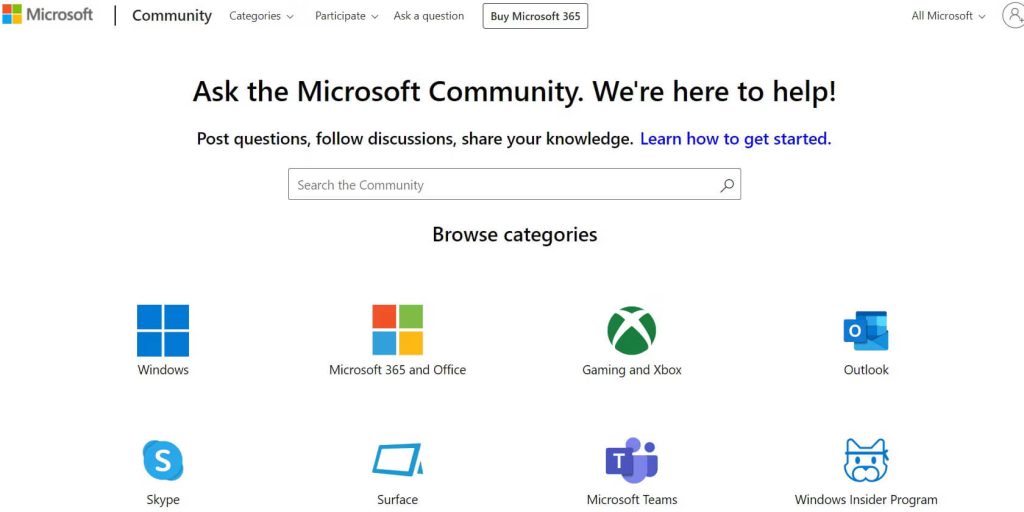
Step 2: Sign in with your Microsoft account or create a new one if you don’t have an account already.
Step 3: Browse through the various categories and topics to find answers to your queries or post your questions to seek assistance from the community.
Step 4: Engage with other users, share your knowledge, and contribute to the Windows Community.
Method 4: Get Help App
Windows 11 introduces the Get Help app, which provides personalized assistance and troubleshooting options directly from your desktop. Here’s how to access it:
Step 1: Click on the Start button and search for “Get Help” in the search bar.
Step 2: Click on the “Get Help” app from the search results.
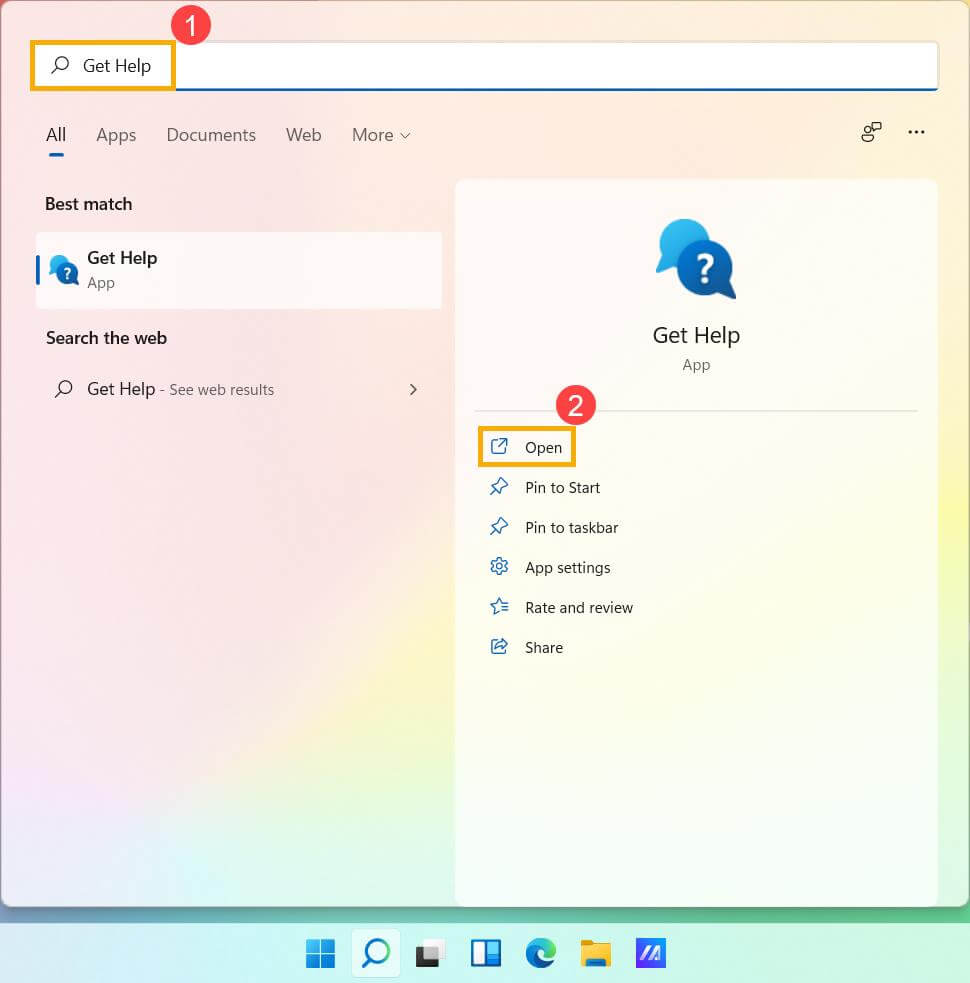
Step 3: In the Get Help app, you can either browse through the various topics or type in your specific issue in the search bar.
Step 4: The app will provide relevant articles and step-by-step instructions to help you resolve your problem.
Step 5: If you can’t find a suitable solution, you can chat with a virtual agent or schedule a call with a Microsoft support representative directly from the app.
Method 5: Windows Feedback Hub
If you encounter a bug or have a suggestion for improving Windows 11, the Windows Feedback Hub is the ideal place to provide feedback directly to Microsoft. Here’s how to access it:
Step 1: Click on the Start button and search for “Feedback Hub” in the search bar.
Step 2: Click on the “Feedback Hub” app from the search results.
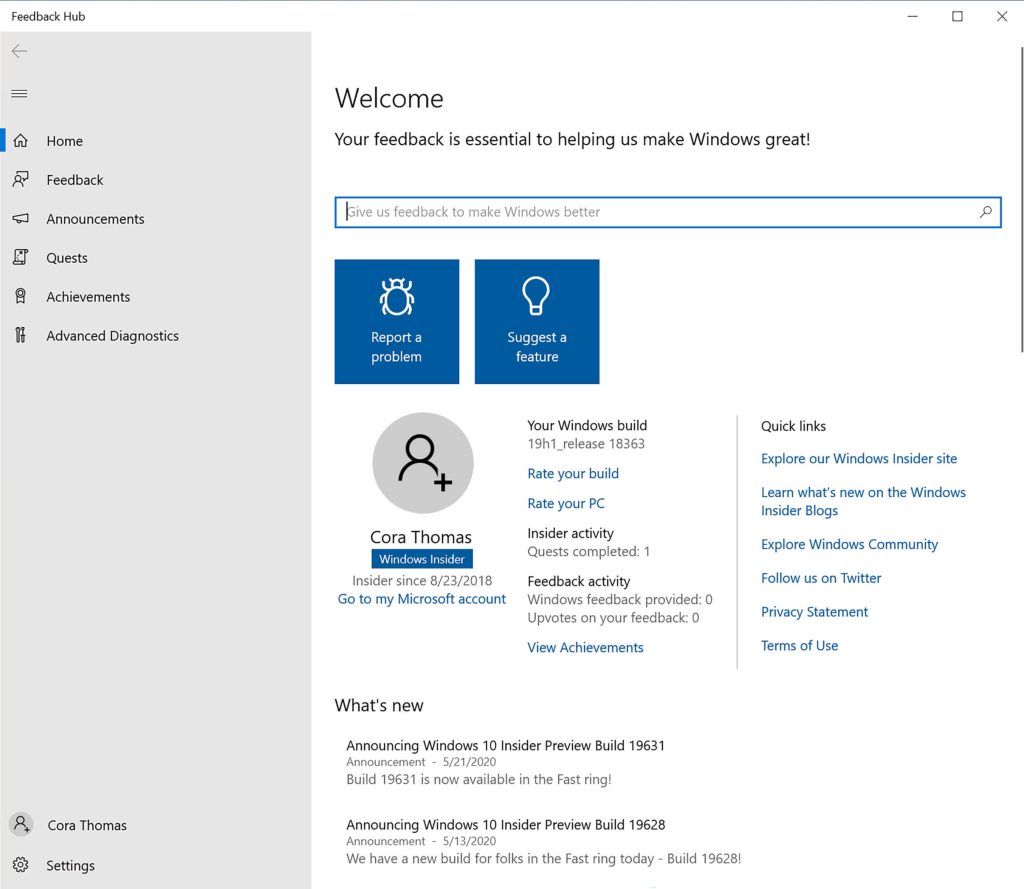
Step 3: In the Feedback Hub, you can browse through existing feedback or submit your own by clicking on the “Add new feedback” button.
Step 4: Provide a detailed description of your issue or suggestion, attach relevant screenshots, and categorize your feedback appropriately.
Step 5: Microsoft engineers and other users can review your feedback, comment on it, and upvote it if they experience the same issue.
Method 6: Contact Microsoft Support
If the above methods don’t resolve your issue, you can directly contact Microsoft Support for personalized assistance. Here’s how:
Step 1: Open your web browser and visit the Microsoft Support website.
Step 2: Click on the “Contact us” button, usually located at the top or bottom of the page.
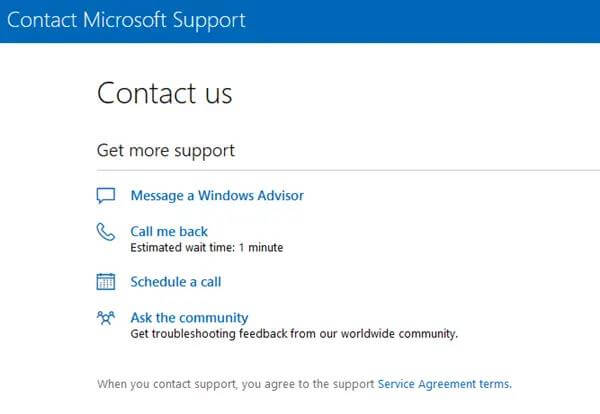
Step 3: Select the appropriate product category and subcategory related to your issue.
Step 4: Choose the contact option that suits you best, such as chat support, phone support, or email support.
Step 5: Follow the instructions provided to get in touch with a Microsoft support representative who can address your problem directly.
Method 7: Use the Tips App
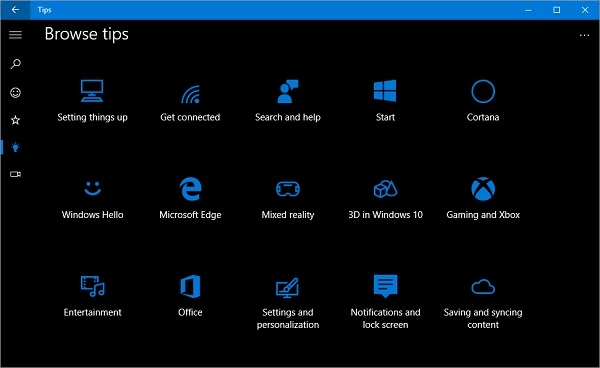
Windows 11 comes with a built-in app called Tips. Most users never open it, but it holds a lot of small, useful lessons about the system. It works well for people who want quick answers without searching online.
This app is especially handy for those who want fast, simple instructions without digging through menus or browsing forums. It’s not flashy, but it quietly serves as a helpful guide, making Windows 11 more approachable for beginners and even offering small discoveries for experienced users.
Step 1: Open the Start menu and type “Tips” in the search bar, then open the app.
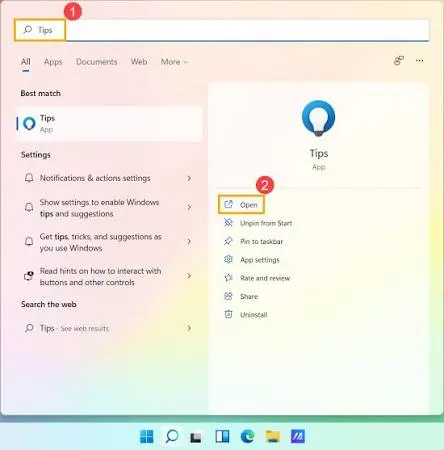
Step 2: Browse the home screen cards or use the search bar inside the app to find a specific topic.
Method 8: Use Quick Assist for Remote Help
Quick Assist is a built-in remote access app in Windows 11. It lets another person view or control your screen to help fix a problem. It is often faster than describing an issue over chat or phone.
Step 1: Open Quick Assist from the Start menu and choose to give or get help.
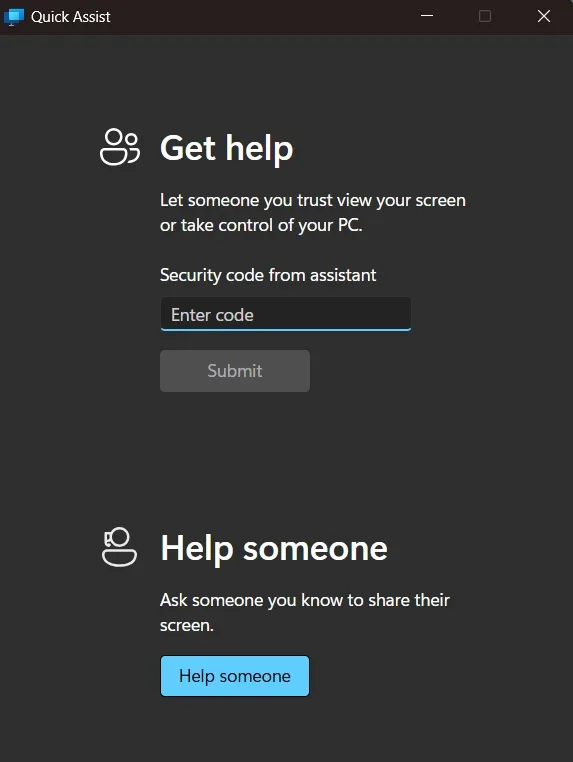
Step 2: Share the security code with your helper, or enter the code they give you, to connect.
Once connected, the helper can see the screen and, with permission, take control to fix settings or troubleshoot errors directly. This works well for family members helping each other or for IT staff supporting a remote worker.
Method 9: Ask Windows Copilot
Windows 11 now includes Copilot as part of the system. You can open it from the taskbar and type a plain question, such as “how do I turn on dark mode” or “why is my laptop running slow.” Copilot gives a direct answer and sometimes offers a button to open the right settings page for you.
Step 1: Click the Copilot icon on the taskbar to open the panel.
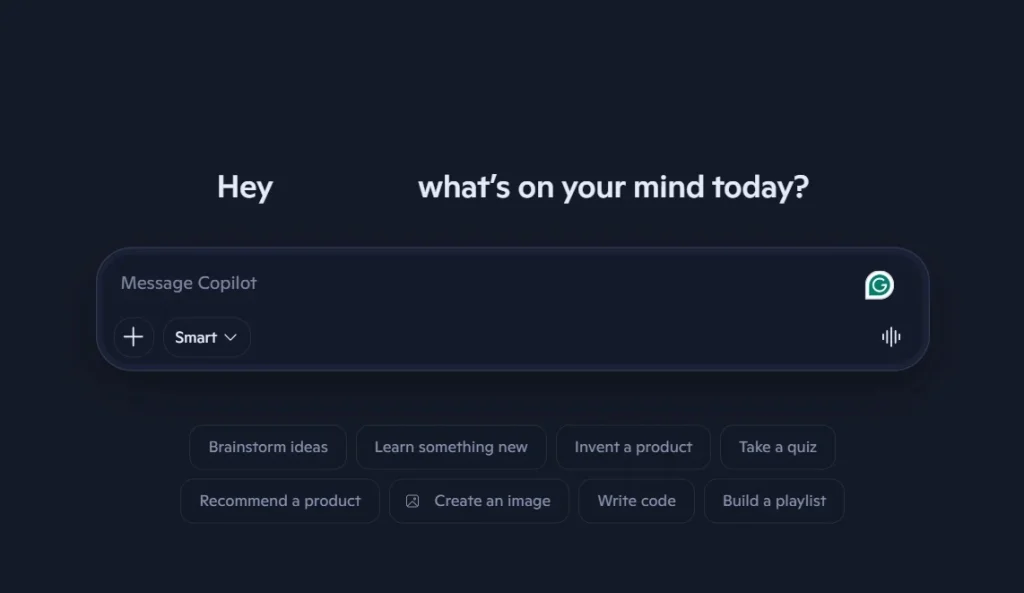
Step 2: Type your question in plain language and press Enter.
Method 10: Press F1 for Contextual Help
Many apps and some parts of Windows still respond to the F1 key. Pressing it while a window is active opens help content related to that specific app or task. It is an old trick, but it still works in several Microsoft apps bundled with Windows 11.
Step 1: Open the app or window where you need help.
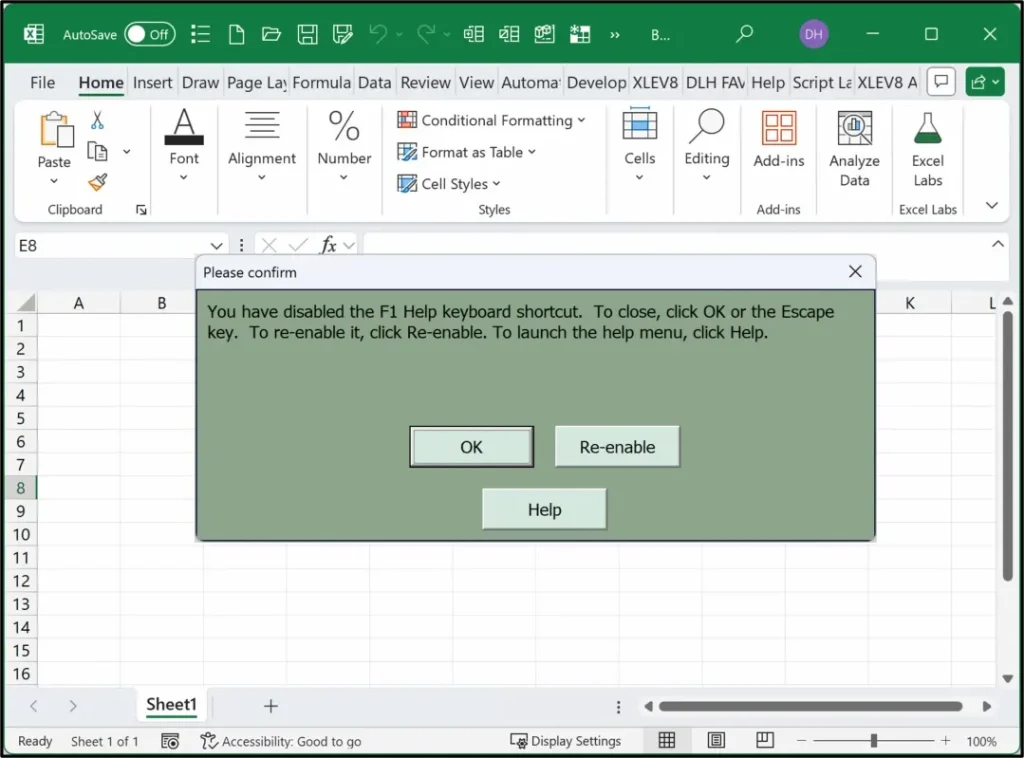
Step 2: Press the F1 key to open its help content.
Method 11: Run the Built-in Troubleshooters
Windows 11 includes automatic troubleshooters for internet connections, audio, printers, and Windows Update itself. Running one can fix a problem without any outside help at all.
Step 1: Go to Settings, then System, then Troubleshoot, then Other troubleshooters.
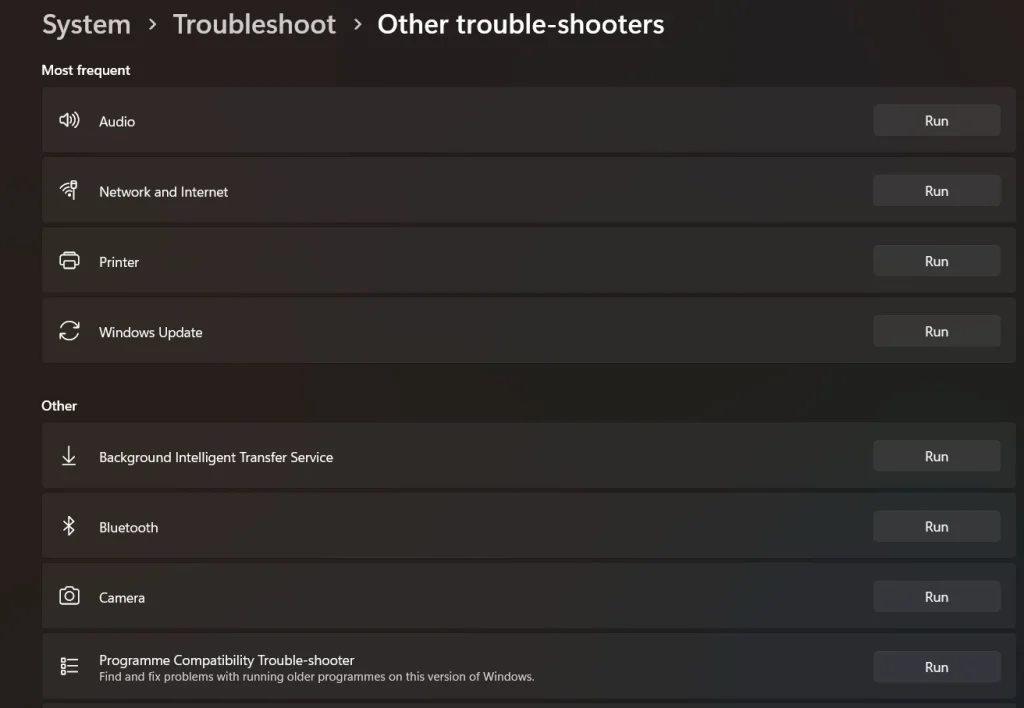
Step 2: Find the troubleshooter that matches your issue and click Run.
Common Reasons to Get Help in Windows 11
1. Installation and Upgrade Challenges
The installation and upgrading procedure of Windows 11 is among the most frequent reasons people ask for assistance. Users may run into technical issues while switching to a new operating system that calls for professional help. Compatibility problems, hardware specifications, and software conflicts are a few examples of this. Furthermore, problems that customers can encounter throughout the installation process, including failures or system crashes, call for the assistance of technical support specialists.
2. Driver and Hardware Compatibility Issues
Hardware and driver compatibility problems with Windows 11 are another common cause of support requests. Users may discover that some hardware elements, such as network adapters, graphics cards, and printers, are incompatible with Windows 11 or not working correctly after switching to a new operating system. This may result in unpleasant encounters and the requirement for help finding and fixing compatibility problems.
3. Performance and Stability Concerns
Concerns about stability and performance in Windows 11 may also lead users to look for assistance. People may experience frequent system crashes, decreased system performance, or software issues after switching to the new operating system. These problems may have a major negative effect on productivity and user experience, leading users to look for help in identifying and resolving performance and stability issues.
4. User Interface and Navigation Challenges
Users may also seek assistance as a result of the changes made to the Windows 11 user interface and navigation. After getting used to Windows 11’s new design and functionality, users could find it difficult to navigate the operating system, access certain settings, or comprehend new functions. As a result, it might be necessary to receive assistance and support in order to maximize the use of new features and get used to the changed user interface.
5. Software Compatibility and Application Support
Application support and software compatibility are two more reasons why people look for assistance with Windows 11. Users may experience problems like crashes, errors, or functional limits if they discover that a particular application or piece of software is not entirely compatible with the updated operating system. Under such circumstances, customers might need help finding substitutes, looking for updates for their software, or investigating compatibility settings to make sure their favorite apps run smoothly.
6. Security and Privacy Concerns
Windows 11’s emphasis on security and privacy may also encourage people to look for assistance in guaranteeing the safety of their personal information. Users may need guidance establishing security choices, comprehending privacy controls, and addressing possible vulnerabilities with new security features and settings. Technical support specialists are essential when it comes to advising users on how to secure their systems and reduce security threats.
7. Accessibility and Inclusivity Support
With Windows 11, a number of accessibility features are introduced with the goal of improving inclusivity and meeting a range of user demands. People who have particular needs or impairments can ask for assistance in adjusting accessibility settings, using assistive technology, and making the most out of the user experience. Community forums and technical support services offer invaluable direction and help to guarantee that Windows 11 is usable by all users.
Author’s Tip
I have used almost every method in this guide at different points, and my honest advice is to start small. Before opening a support chat or calling anyone, try the Tips app or the built-in troubleshooters first. They solve more problems than people expect, and they take only a few minutes.
If the issue is something you cannot see clearly, like a strange error code or a setting that will not stick, Quick Assist is worth trying with someone you trust. Watching someone else work through the same menus you are stuck on often teaches you more than a written guide ever could.
Lastly, do not rush into contacting Microsoft support for small issues. Save that option for real problems, like account recovery, license errors, or hardware-level system failures. It keeps the process faster for you and avoids long wait times over something a five-minute search could have solved.
Conclusion
Windows 11 gives you far more ways to find help than most users realize. Between the Get Help app, the Tips app, Quick Assist, community forums, and direct Microsoft support, there is a method for almost every kind of problem, from a confusing setting to a serious system error.
The key is matching the method to the problem. Small, everyday questions are best solved with the Tips app or a quick troubleshooter. Bigger issues, like account access or hardware trouble, deserve direct contact with Microsoft or a trusted person using Quick Assist. Jumping straight to the most complex option for a small issue only wastes time.
Whichever method you choose, stay alert to fake support offers and never hand over sensitive information without checking the source first. With the right approach, getting help in Windows 11 is quick, safe, and often free.
Common Questions About Getting Help in Windows 11
1. Is the Tips app the same as Get Help?
No. The Tips app teaches you about Windows 11 features through short cards, while Get Help connects you to actual support options, including live chat or a virtual agent. Tips is more for learning, and Get Help is more for fixing.
2. Is Quick Assist safe to use?
Yes, if you only connect with someone you trust or a verified support agent. Quick Assist itself is a genuine Microsoft tool, but scammers sometimes trick people into using it with the wrong person. Always confirm who you are connecting with first.
3. Do I need an internet connection to get help in Windows 11?
Most methods, including Get Help, Microsoft’s website, and Quick Assist, need an internet connection. However, the Tips app and built-in troubleshooters work even without one, since they are stored locally on your PC.
4. What is the fastest way to fix a common Windows 11 problem?
For most common issues, the built-in troubleshooters under Settings, System, Troubleshoot are the fastest option. They run an automatic scan and often fix the problem in under a minute, without needing to contact anyone.
Author Bio:
Dinesh Lakhwani 

Dinesh Lakhwani, the entrepreneurial brain behind “TechCommuters,” achieved big things in the tech world. He started the company to make smart and user-friendly tech solutions. Thanks to his sharp thinking, focus on quality and the motto of never giving up, TechCommuters became a top player in the industry. His commitment to excellence has propelled the company to a leading position in the industry.
Popular Post
Recent Post

Wise Duplicate Finder Review: Real Results from Wise Duplicate Finder
Read my honest Wise Duplicate Finder review. See features, pricing, pros and cons, and real PC test results. Find out if this free duplicate cleaner can free up your Windows storage.

How to Recover Deleted Files from Pen drive, USB Drive, SD Card
Introduction: On tech forums, you’ll often see posts like this: “I connected my pen drive to my laptop this morning, but the folder was empty. All my college project files had vanished. I don’t have a backup. Can someone help me?” Stories like this are very common. Pen drives, USB drives and SD cards are […]

How To Recover Files Deleted from the Recycle Bin [Windows 11]
Losing a file can happen in seconds. You clear your desktop, hit Delete, and empty the Recycle Bin. Then, just when you need that file again, it seems to have vanished. This guide will walk you through ways to restore files removed from the Recycle Bin. We will begin with simple fixes, then look at […]

Disk Drill Data Recovery Tool Explained: Full Review and Guide
It happens in a split second. You delete a folder by mistake. Your drive stops showing up. A photo album from your last trip just vanishes. And your stomach drops. Lost files feel personal. They are not just data. They are memories, work hours, and sometimes years of effort packed into a few gigabytes. When […]

Recover Deleted Files In Windows 11 With Software & Without
Introduction What is the first thing that goes through your mind the second an important file vanishes from a Windows 11 PC? For most people, it is a mix of panic and disbelief, followed by a frantic click through every folder that file could possibly be hiding in. It happens in a split second: one […]

EaseUS Data Recovery Wizard: Everything To Know
Data loss does not always come from a big disaster either. Most cases start small and boring. A drive gets formatted by mistake. A laptop freezes mid-save and restarts on its own. A memory card stops showing up after being pulled out too fast. None of these feel like emergencies at first, until you realize […]

Recuva Data Recovery Tool: Is it Actually Worth it?
When I first tried Recuva Data Recovery, I wanted to see if it could really bring back lost files. The tool is free, small in size, and promises quick recovery, which made me curious enough to test it on my own PC. The setup was fast, and the wizard guided me step by step. I […]

GetData Recover My Files Data Recovery Tool: Honest Review
A hard drive error brings a special kind of silence. Well, yes! The screen freezes, then a message appears saying the drive can’t be found or must be formatted. In that moment, years of photos and work files feel at risk. It never happens at a good time. Coffee spills near a laptop, a memory […]

Windows File Recovery: A Complete Review [Tried & Tested]
Imagine this. You spend hours perfecting a video project. You hit save. Then your laptop freezes, reboots, and when the screen comes back. The file is gone. Your stomach sinks. It’s not just you. Lost files happen all the time. A dropped hard drive, a bad update, an accidental delete, or a corrupted partition can […]

