












A slow PC rarely gives a warning. One day, it simply takes longer to start. Apps open late. The fan runs loud, even when the screen is almost empty. Most people blame old hardware. Often, that is not the real reason. The real reason is hiding in plain sight. Windows keeps many apps active in […]
Auslogics Driver Updater: A Detailed Walkthrough [2026]
Old and broken drivers cause a lot of trouble on a Windows PC. Sound may stop working. Graphics may lag. USB devices may stop connecting. A printer may suddenly refuse to print. These small annoyances often trace back to one root cause, and that cause is usually a driver that has fallen out of date or gotten corrupted somewhere along the way.
Most people do not know how to find the right driver for their device. Searching for drivers manually means visiting the manufacturer website, finding the exact model number, and picking the correct version for the operating system. One wrong click and a person could end up installing a driver meant for a different device. This can cause even bigger problems than the original issue. This is where a driver update tool becomes helpful.
Auslogics Driver Updater is one such tool. It scans a computer and finds outdated or missing drivers. It then suggests the correct update for each device. This saves a lot of time and effort for regular users who do not want to deal with technical searches. It also reduces the risk of downloading a wrong or unsafe file from a random website.
This article looks at the tool in detail. It covers the features, the pricing, the pros and cons, and a real experience of using it. It also looks at how the tool is viewed by users around the world and answers common questions people have before trying it.
Auslogics Driver Updater: What Why and How
Part 1: Brief Overview: Auslogics Driver Updater
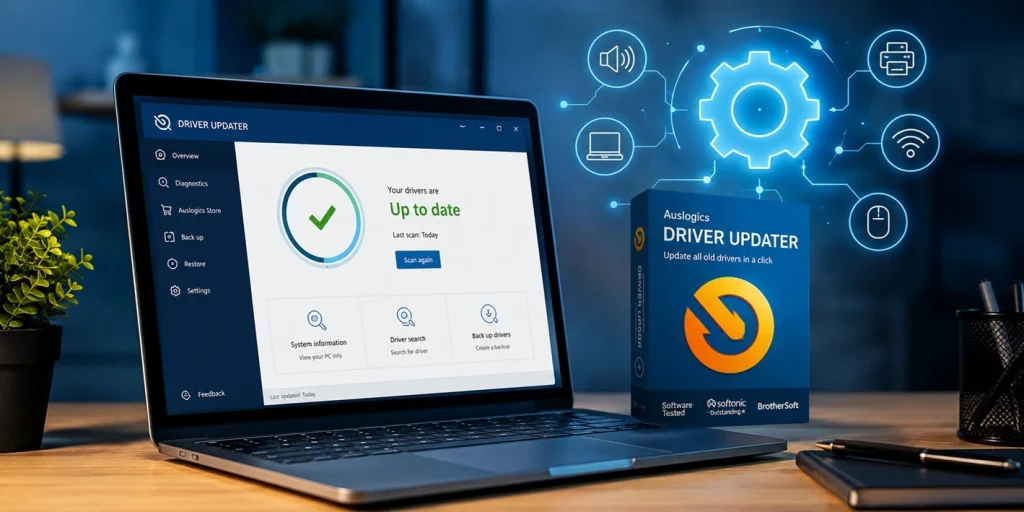
Auslogics Driver Updater is a Windows program made to fix driver problems. It scans the system and checks every installed driver against a large database of official versions. If a driver is old, broken, or missing, the tool flags it and offers a fix right away. The scanning process is quick and does not require any manual input from the user beyond clicking a single button.
The tool is made by Auslogics, a company known for PC optimization software. The brand has been active in the software space for many years and has built a name around utility tools for Windows systems. The interface of this driver tool is simple and shows clear results after every scan.
Users can update drivers one by one or choose to update everything in one go. The design keeps things easy for people who are not comfortable with technical settings.
Quick features include:
- Scans the whole system for driver issues in a short amount of time
- Matches drivers to the exact device model and brand
- Backs up old drivers before applying any update
- Supports a large number of device brands and hardware types
- Monitors hardware temperature during use
- Provides a simple one click update option for convenience
Part 2: Why Choose Auslogics Driver Updater?
Many people ignore driver updates until something stops working properly. This part explains why using this tool early can prevent bigger problems later and keep a system running without sudden surprises.
- Saves time: Manual driver searches take a long time, sometimes hours if the device model is hard to find. The tool finds updates in a few minutes and removes the guesswork.
- Reduces errors: Downloading the wrong driver can crash a system or cause hardware to stop working. This tool matches drivers exactly to the device, lowering that risk by a large margin.
- Improves stability: Fresh drivers reduce random freezes, sudden restarts, and crashes that often confuse regular users.
- Better hardware performance: Updated drivers help graphics cards, sound cards, and network cards work at their best, which can improve gaming, video calls, and daily browsing.
- Safe downloads: All drivers come from a checked database, which lowers the risk of viruses hiding inside fake driver files from unknown websites.
- Backup and restore: Old drivers are saved before any update, so users can go back if a new driver causes unexpected issues.
- Simple for beginners: No technical knowledge is needed to use the tool, since the whole process is guided through clear buttons and messages.
- Regular database updates: The driver library keeps growing, so users get access to newer versions as manufacturers release them.
Part 3: Key Features Explained: Auslogics Driver Updater Tool
The tool comes packed with features that go beyond basic driver scanning. Below are the main ones explained in simple terms, along with why each one matters for everyday use.
Driver Scanning
The scanning feature checks every driver on the system. It looks at version numbers and compares them with the latest official releases. The scan usually finishes within a few minutes and shows a full list of problem drivers, including how old each one is and what device it belongs to. This gives users a clear picture of their system health without digging through settings menus.
Bulk Driver Update
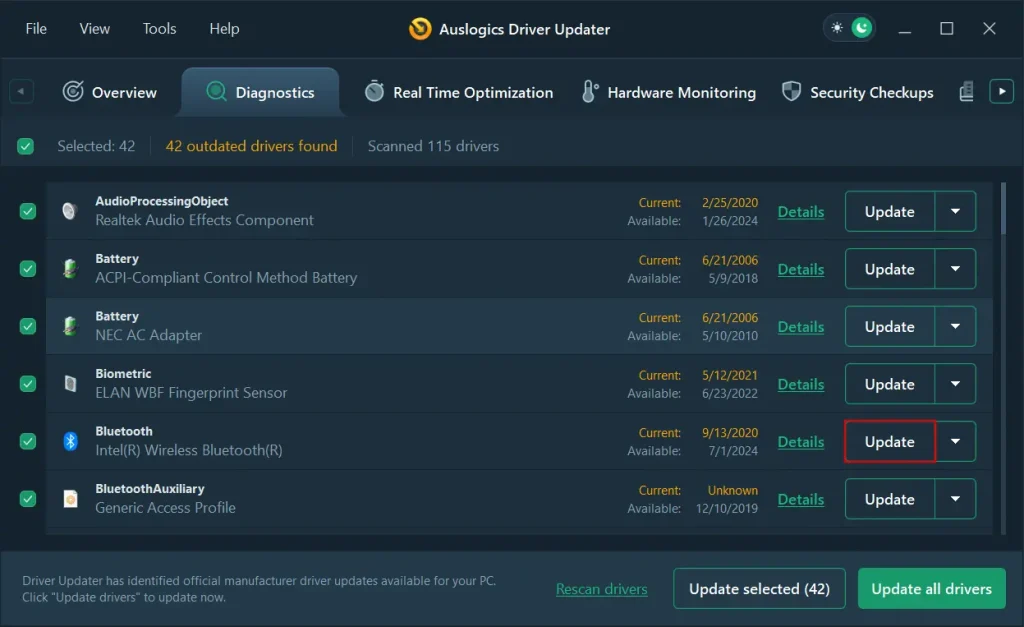
Users do not need to update drivers one at a time. This feature lets them select all outdated drivers and update everything with a single click. It saves a lot of manual effort, especially on older machines that may have a long list of outdated drivers built up over time.
Hardware Temperature Monitor
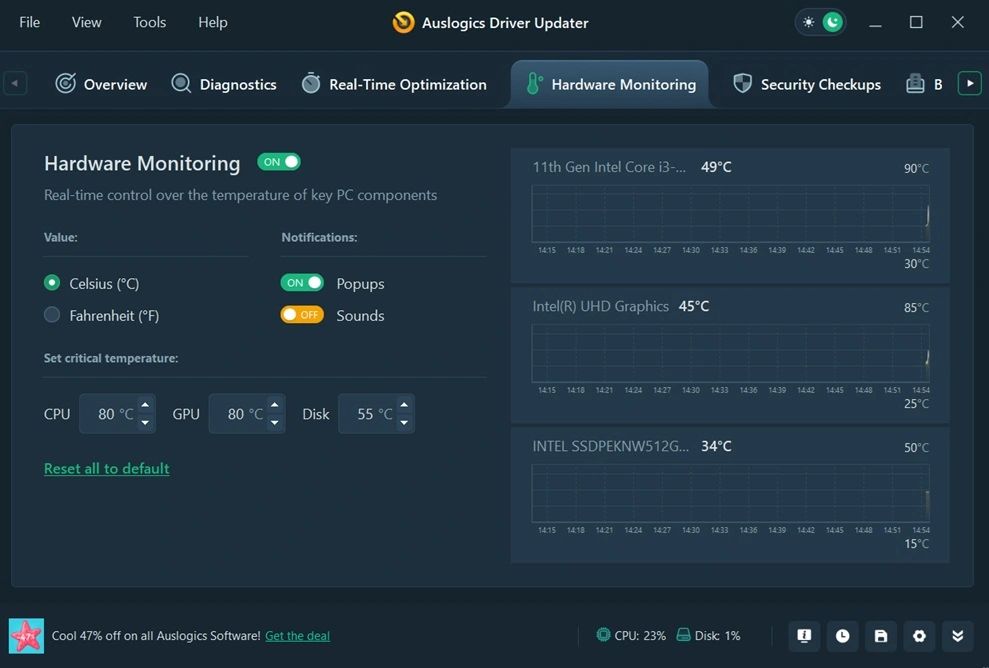
This feature tracks the temperature of the CPU, GPU, and disk in real time. It helps users catch overheating problems early, which can prevent hardware damage over the long run. This is a useful extra for people who game or run heavy programs for long hours.
Driver Backup and Restore
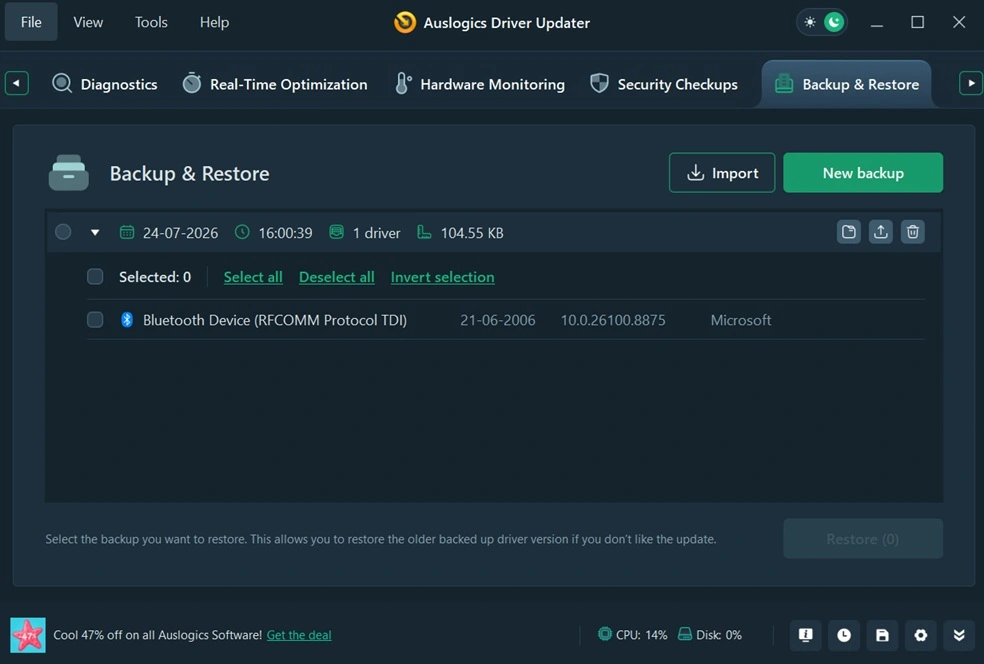
Before any driver is replaced, the old version is saved automatically. If a new driver causes issues, users can restore the previous one in seconds without needing outside help. This adds a safety layer that many free tools do not offer, and it gives users confidence to update without fear of breaking something.
Large Driver Database
The tool pulls from a database with a huge number of driver versions covering many brands and device types. This gives it a strong chance of finding the right match for almost any device, even older hardware that may not get much support elsewhere.
Safe and Verified Downloads
Every driver goes through a check before being offered to the user. This lowers the risk of downloading corrupted or harmful files from random sources online. It also means users do not have to worry about picking the wrong file format or version by mistake.
Part 4: How to Use Auslogics Driver Updater Tool: Step by Step Guide
Getting started with this tool does not take much effort. The setup process is quick, and most users can complete their first scan within minutes of installing the program. There is no need to change any advanced settings before the first run, since the default options work well for most systems.
Below are the three main steps to follow. Each step is simple and does not require any technical background. Following these steps in order gives the best results and avoids confusion during setup.
Step 1: Download the tool from Auslogics’ official site and install it. Open the program to access the main dashboard. The scanning process will begin right away as soon as you launch the program.
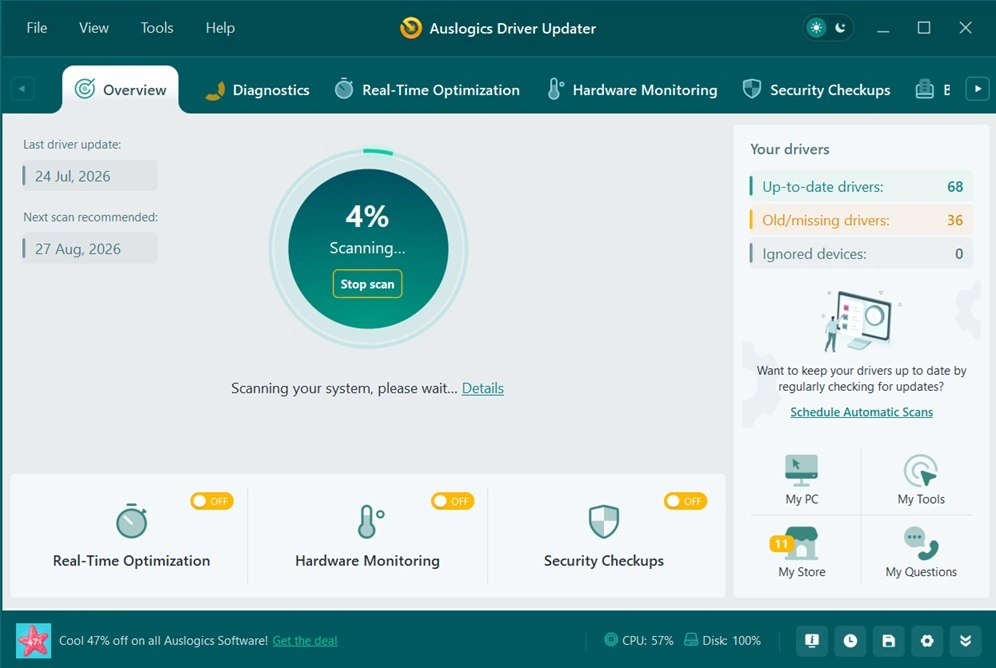
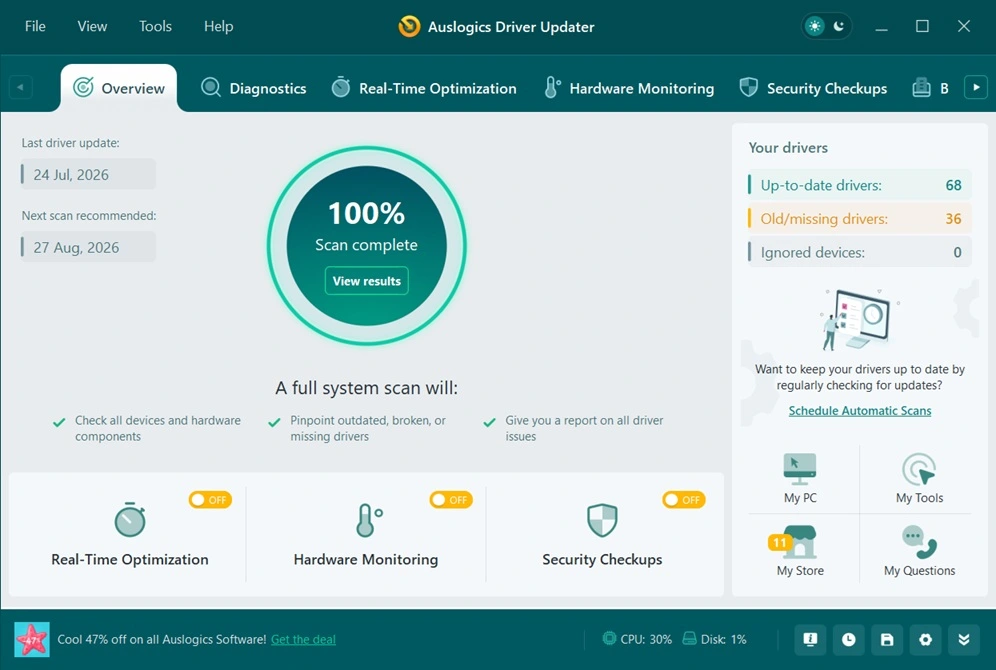
Step 2: Click “View Results”. Review the list of drivers that need updates.
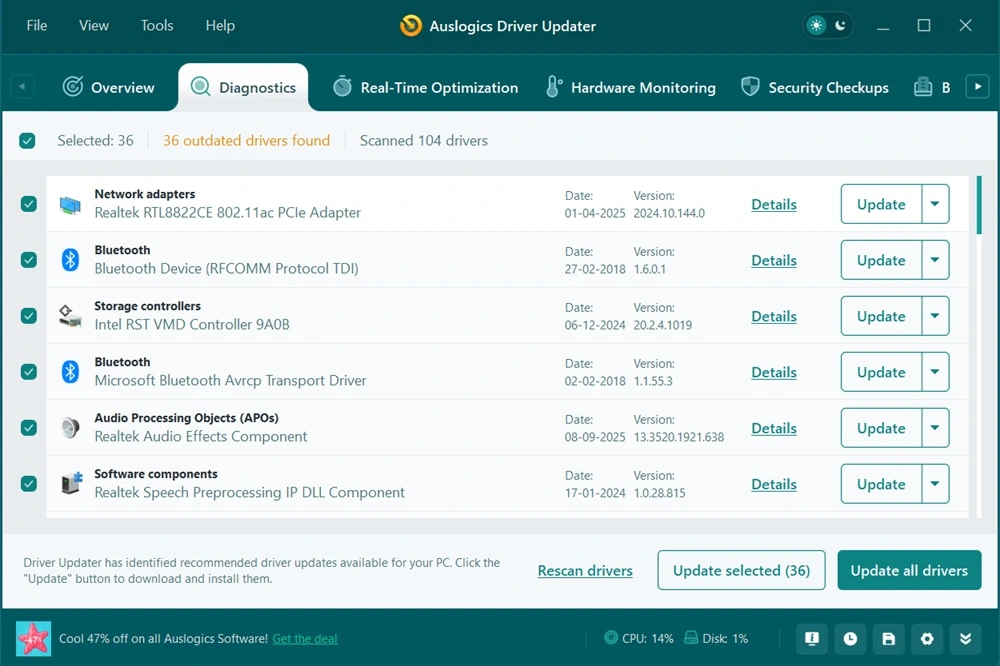
Step 3: Choose the drivers you want to update and click Update. The tool automatically downloads and installs the latest versions.
Part 5: Pros and Cons Explained: Auslogics Driver Updater
Every tool has strong points and weak points. This part breaks down what works well and what could be better with this software, based on its features and general user experience.
Pros:
- Easy to use: The layout is simple and works well for beginners who have never touched driver settings before.
- Fast scanning: A full scan usually finishes in a short time, even on systems with many installed devices.
- Backup feature: Old drivers are saved automatically before updates, giving users a safety net.
- Temperature monitoring: Helps catch overheating issues early before they cause lasting damage.
- Dark mode and light mode support: The tool lets users switch between a dark theme and a light theme, so people can pick whatever feels easier on their eyes during use.
Cons:
- Free version is limited: Only single driver updates are allowed without a paid plan, which can be slow for systems with many outdated drivers.
- Windows only: The tool does not support Mac or Linux systems, so users on other platforms will need a different option.
- Slow bulk updates: Updating five drivers at once took nearly 25 minutes on my Windows 11 machine. The download speed felt throttled compared to other driver tools I’ve tested.
- Residual files after uninstall: When I removed the program, it left behind registry entries and a couple of folders under AppData. I had to clean those manually with CCleaner to fully get rid of them.
Part 6: Pricing Plans: Auslogics Driver Updater Tool
The tool offers a free version along with a paid Pro version. Pricing plans include the following, though users should always check the official website for the latest numbers since prices can change with offers and seasonal discounts.
Pricing Plans Overview
| Plan | Price | Key Features | License Duration |
| Free Version | ₹0 | Basic driver scan and report; manual updates only | Unlimited |
| Pro Plan | ≈ $49.95 (₹4,100) per year | Automatic driver detection and updates, one‑click bulk update, driver backup & restore, scheduled scans | 1 year / 3 PC license |
| Discount Offer | $23.82 (₹1,950) | Promotional 47 % off on Pro plan (occasionally available on official site) | 1 year / single PC license |
Part 7: Honest Feedback of Using Auslogics Driver Updater On My PC
The scan was fast and easy. It found outdated drivers quickly and gave me a clear list. The interface was simple, and switching between dark mode and light mode was a plus. I rarely see that option in other driver updater tools.
Updating drivers worked, but not perfectly. My graphics driver update installed an older build, so I had to manually correct it. Bulk updates also felt slow. Five drivers took nearly half an hour to finish.
Uninstalling the tool wasn’t smooth. It left behind registry entries and folders in AppData that I had to clean manually. That part made me feel the software wasn’t as polished as it should be.
Part 8: Trust, Reviews, and Ratings of the Auslogics Driver Updater Tool Worldwide
Trustpilot Reviews
- 4.1/5 stars from nearly 2,000 reviews.
- Praised for ease of use, PC performance boosts, and straightforward installation.
- Criticisms include uninstallation difficulties and some tools (like SSD optimizer) not showing noticeable improvements.
TechRadar Expert Review
- Verdict: Good tool for driver management with handy features like automatic scans, backup & recovery, and scheduling.
- Cons: Slow download speeds for some drivers and very limited free version.
- Overall rating: Recommended for consideration.
Global Comparison Rankings
- Ranked #2 Top Alternative in 2026 driver updater lists.
- Overall score: 9.0/10, praised for rollback support and guided updates.
- Positioned alongside DriverFix (9.3/10) and Driver Easy (8.4/10).
Key Strengths
- Ease of Use: Simple interface suitable even for non‑technical users.
- Performance Boost: Many users report faster, more stable PCs after updates.
- Safety Features: Includes driver backup & restore to prevent system issues.
- Global Reach: Widely used across home and small‑office PCs worldwide.
Common Concerns
- Free Version Limitations: Cannot update multiple drivers or schedule scans.
- Uninstallation Issues: Some users report difficulty removing the software.
- Download Speed: Driver downloads may be slower compared to competitors.
Quick Comparison Table:
| Aspect | User Reviews | Expert Reviews | Global Ranking |
| Ease of Use | Highly praised | Positive | Top 3 |
| Performance | Noticeable improvements | Boosts productivity | 9.0/10 |
| Free Version | Too limited | Minimal functionality | Weak |
| Reliability | Mixed (some uninstall issues) | Backup & restore praised | Strong |
| Overall Rating | 4.1/5 | 4/5 | #2 globally |
Conclusion
Auslogics Driver Updater is a solid choice for anyone dealing with driver problems on a Windows PC. It scans quickly, finds the right updates, and backs up old drivers before making changes. This gives users a safer way to fix hardware issues without needing deep technical knowledge or spending hours searching manufacturer websites.
The tool is not perfect. The free version has limits, and a few antivirus programs raise warnings during installation that can catch new users off guard. Still, these are minor issues compared to the overall benefit the tool provides for everyday PC maintenance and long term system health.
For anyone tired of manually searching for drivers or dealing with random hardware glitches, this tool offers a simple and effective solution. It is worth trying, especially for users who want a hassle free way to keep their system running smoothly without constant manual checks.
FAQs:
Is Auslogics Driver Updater safe to use?
Yes, the tool pulls drivers from a checked database and creates backups before making changes. Some antivirus programs may show a warning during installation, but this is usually a false alarm tied to how the installer is packaged, and not a sign of actual harm to the system.
Does the free version update all drivers?
No, the free version only allows one driver update at a time, which can be slow if many drivers need fixing. To update all outdated drivers together in one click, users need to buy the Pro plan, which removes that restriction.
Can this tool be used on Mac or Linux?
No, the tool only works on Windows systems and does not have a version built for Mac or Linux. Users on those platforms will need to look for a different driver update solution that supports their operating system.
Author Bio:
Dinesh Lakhwani 

Dinesh Lakhwani, the entrepreneurial brain behind “TechCommuters,” achieved big things in the tech world. He started the company to make smart and user-friendly tech solutions. Thanks to his sharp thinking, focus on quality and the motto of never giving up, TechCommuters became a top player in the industry. His commitment to excellence has propelled the company to a leading position in the industry.
Popular Post
Recent Post

How to Activate Windows with a Product Key for Windows 11 & Windows 10
It always shows up at the worst time. You are halfway through a report, or about to join a video call. Then you spot it in the bottom right corner of the screen. Activate Windows. Go to Settings to activate Windows. Initially, an unactivated copy of Windows may seem like a minor inconvenience. Over time, […]

Is Easy Duplicate Finder Worth It? Honest Review
The photos folder looked normal at first glance. Then the storage warning popped up. One trip photo appeared four times. A tax PDF sat in three different folders. Two old setup files were still in Downloads, and each one was over 500 MB. Nobody plans this mess. Copies pile up slowly. A download runs twice. […]

Wise Duplicate Finder Review: Real Results from Wise Duplicate Finder
Read my honest Wise Duplicate Finder review. See features, pricing, pros and cons, and real PC test results. Find out if this free duplicate cleaner can free up your Windows storage.

How to Recover Deleted Files from Pen drive, USB Drive, SD Card
Introduction: On tech forums, you’ll often see posts like this: “I connected my pen drive to my laptop this morning, but the folder was empty. All my college project files had vanished. I don’t have a backup. Can someone help me?” Stories like this are very common. Pen drives, USB drives and SD cards are […]

How To Recover Files Deleted from the Recycle Bin [Windows 11]
Losing a file can happen in seconds. You clear your desktop, hit Delete, and empty the Recycle Bin. Then, just when you need that file again, it seems to have vanished. This guide will walk you through ways to restore files removed from the Recycle Bin. We will begin with simple fixes, then look at […]

Disk Drill Data Recovery Tool Explained: Full Review and Guide
It happens in a split second. You delete a folder by mistake. Your drive stops showing up. A photo album from your last trip just vanishes. And your stomach drops. Lost files feel personal. They are not just data. They are memories, work hours, and sometimes years of effort packed into a few gigabytes. When […]

Recover Deleted Files In Windows 11 With Software & Without
Introduction What is the first thing that goes through your mind the second an important file vanishes from a Windows 11 PC? For most people, it is a mix of panic and disbelief, followed by a frantic click through every folder that file could possibly be hiding in. It happens in a split second: one […]

EaseUS Data Recovery Wizard: Everything To Know
Data loss does not always come from a big disaster either. Most cases start small and boring. A drive gets formatted by mistake. A laptop freezes mid-save and restarts on its own. A memory card stops showing up after being pulled out too fast. None of these feel like emergencies at first, until you realize […]

Recuva Data Recovery Tool: Is it Actually Worth it?
When I first tried Recuva Data Recovery, I wanted to see if it could really bring back lost files. The tool is free, small in size, and promises quick recovery, which made me curious enough to test it on my own PC. The setup was fast, and the wizard guided me step by step. I […]


