












Read my honest Wise Duplicate Finder review. See features, pricing, pros and cons, and real PC test results. Find out if this free duplicate cleaner can free up your Windows storage.
UPDF – Why This Cross-Platform AI-Powered PDF Editor Could Totally Change Your Way?
Part 1: Introduction
PDFs have become a staple in our digital lives, and finding the right editing tool can be a game-changer. Enter UPDF: an all-in-one solution designed for seamless PDF management. With a streamlined interface compatible across Windows, Android, macOS, iOS, and iPadOS, UPDF offers a comprehensive array of features—from editing and annotating to converting, OCR, form filling, AI integration, cloud support, batch processing, compression, security, and organization.
Here’s the kicker: UPDF is offering the biggest discount of the year on UPDF Pro with an AI add-on. Yes, that’s right! Don’t miss out on this unbeatable offer as it’s the best deal you’ll find all year.
Part 2: What Can UPDF Do?
Ever wished handling PDFs could be a breeze? Meet UPDF PDF Image Editor – your new best friend in the world of documents, ready to make your life a whole lot easier! Explore the powerful capabilities of UPDF, designed to revolutionize your PDF experience.
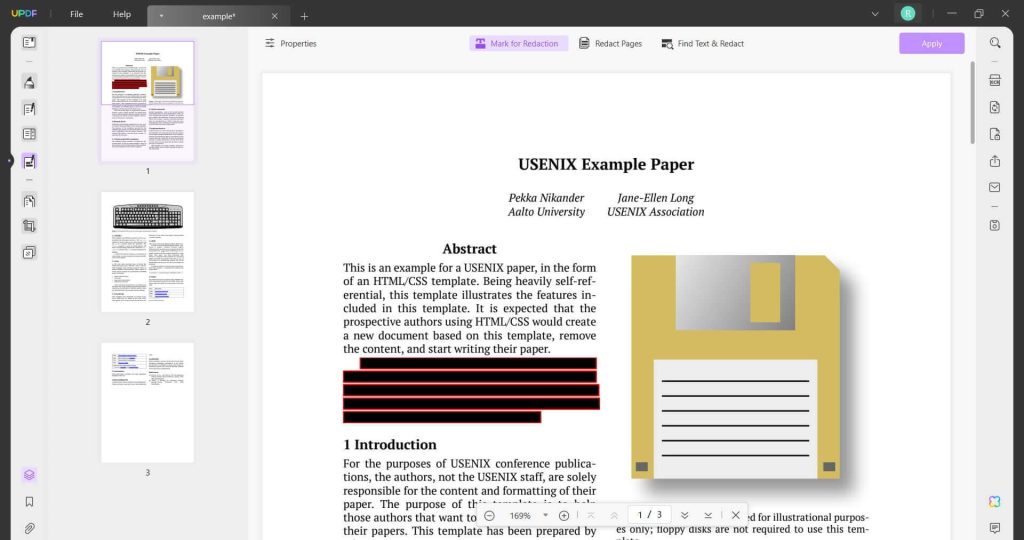
- Redact: Protect sensitive information effortlessly by utilizing the new Redact feature. Instead of deleting data, simply hide it within the document, ensuring confidentiality when sharing PDFs.
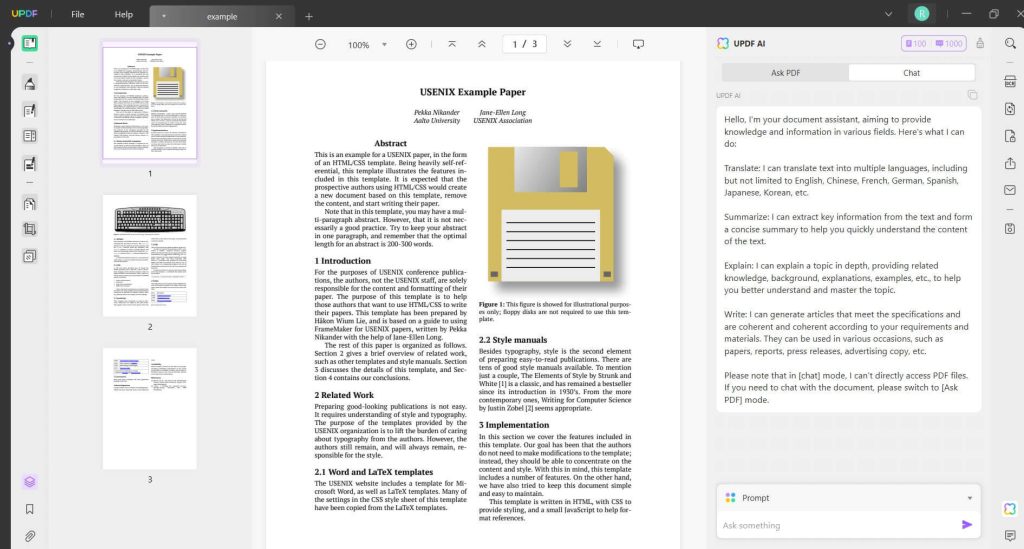
- UPDF AI: Experience the rare integration of AI within a PDF tool. With UPDF’s AI functionality, not only can you summarize, explain, write, and translate content with precision, but you can also leverage its intelligence to assess risks in contracts or seek answers for crucial life and work queries.
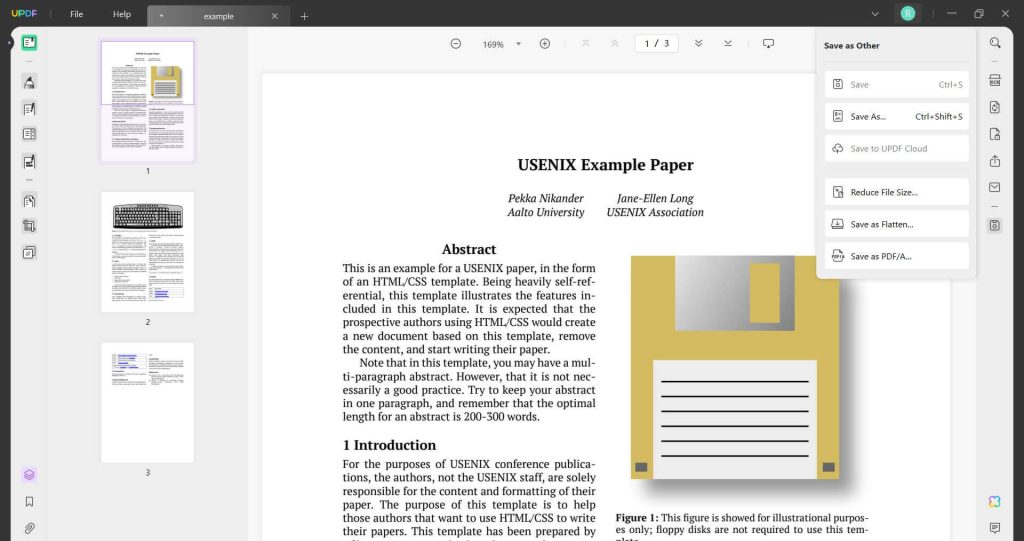
- Cloud Storage: Enjoy the convenience of 20 GB Cloud storage offered with UPDF Pro+AI. Unlike iCloud limited to Apple devices, UPDF’s cloud storage operates seamlessly across all platforms—Windows, Android, macOS, and iOS—making your files accessible on any device, anywhere.
- Dynamic PDF Forms: Effortlessly create and fill dynamic PDF forms. UPDF PDF Image Editor simplifies both fillable and non-fillable forms, enabling easy editing, comments, and direct filling for interactive forms on various devices—Windows and macOS.
- Conversion Capabilities: Explore a wide array of conversion options unmatched by other tools. Not only can you convert various formats into PDFs, but UPDF also offers diverse conversion formats, providing unparalleled flexibility. UPDF can instantly convert your PDF to various formats including fully editable Word, Excel, CSV, and PowerPoint. You can also use UPDF to convert PDF to other formats like PNG, JPEG, BMP, RTF, HTML, XML, and more.
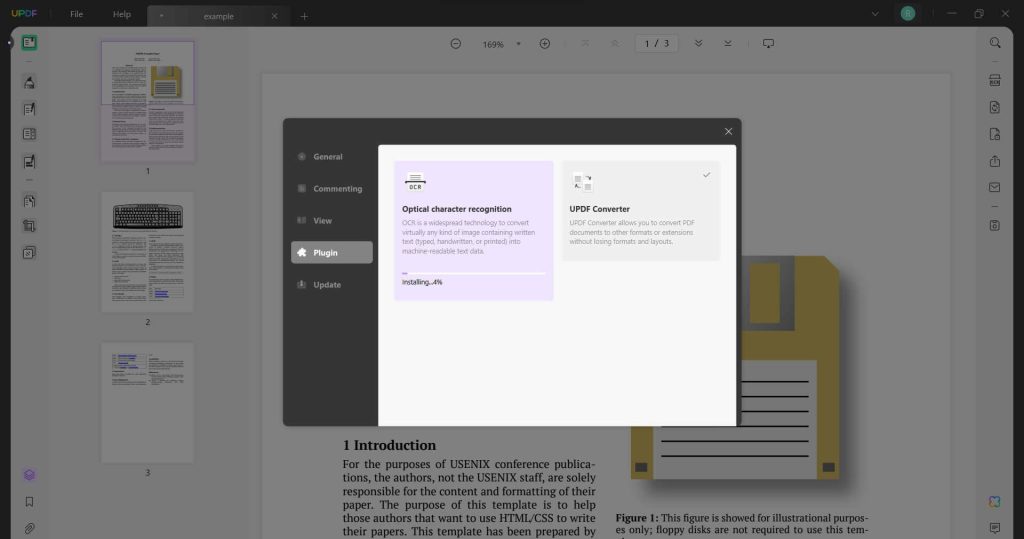
- OCR PDF: Seamlessly convert scanned PDFs into searchable and editable formats using OCR technology. UPDF offers three layouts to transform scanned content, ensuring efficient editing and searchability. The three OCR conversion layouts offered by UPDF include: Text and Pictures Only, Text Over the Page Image, and Text Under the Page Image.
Experience the comprehensive features of UPDF, empowering you to manage, edit, and manipulate PDFs like never before.
Part 3: What Makes UPDF Different From Others?
UPDF emerges as a standout in the realm of PDF tools for several compelling reasons.
- Aesthetic Appeal: UPDF’s interface is a visual delight, featuring a youthful design and vibrant colors reminiscent of Apple products. This design ethos doesn’t just enhance aesthetics but also contributes to a user-friendly experience. Navigating through UPDF feels intuitive and engaging, adding a touch of delight to document management.
- AI and OCR Integration: UPDF seamlessly combines AI and OCR functionalities into a single PDF tool. This unique integration significantly eases work and study tasks. Accessible to students and individuals alike, UPDF Pro offers these advanced features at a price that caters to a wide audience, making high-end capabilities accessible without breaking the bank.
- Affordability and Multi-Platform Accessibility: UPDF’s pricing strategy stands out. Moreover, the membership spans across Mac, iOS, Windows, and Android, eliminating the need for separate platform purchases. This contrasts sharply with Adobe’s pricing, often considered too steep for many users. Currently, UPDF Pro costs a mere 12% of Adobe Acrobat’s price and introduces a perpetual plan—features absent in Adobe’s offerings.
UPDF is appealing not only for its features but also for making advanced PDF capabilities easily accessible and affordable. By bringing high-quality PDF editing to more users, UPDF redefines expectations for capability and value in PDF software.
Part 4: How to Use UPDF PDF Image Editor?
Using UPDF’s PDF Image Editor is a straightforward process:
Step 1: Visit UPDF Editor’s official website and hit on the “Free Download” button. Open the UPDF tool on your device.
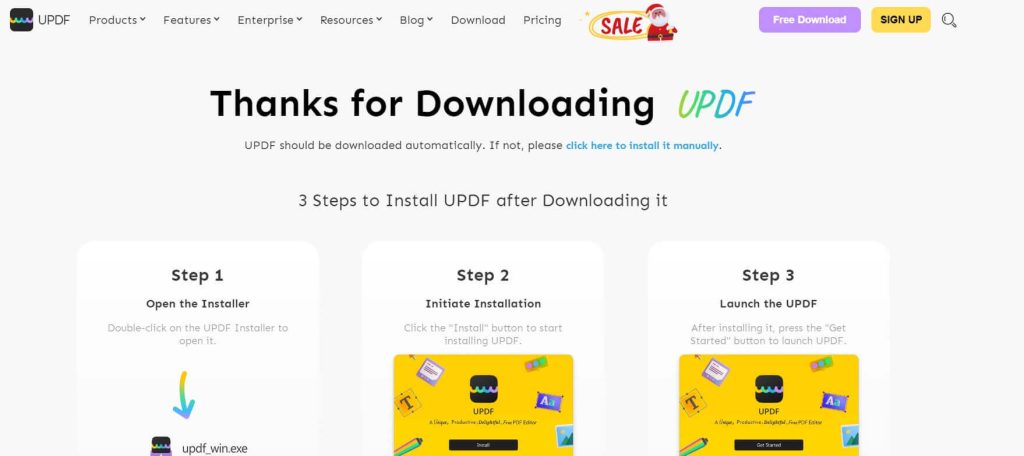
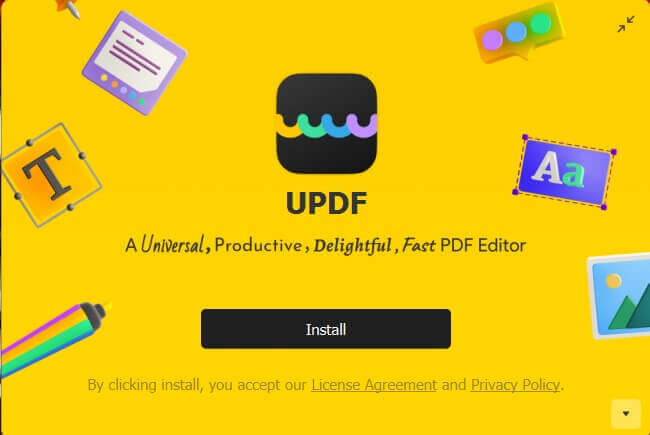
Step 2: Run the setup file on your PC, and hit “Install”. Follow the directions on the screen and wait until the installation finishes.
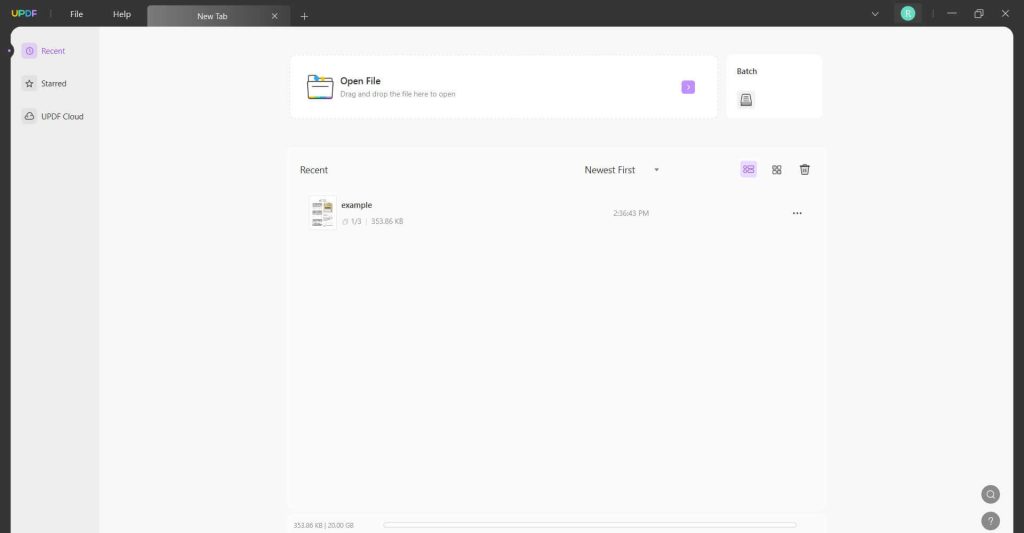
Step 3: Select the PDF file you want to edit by clicking on “Open File” or dragging the file directly into the UPDF interface.
Step 4: Click on the “Edit PDF” tab placed on the left menu pane.
Step 5: Locate the image or content within the PDF that you wish to edit or modify.
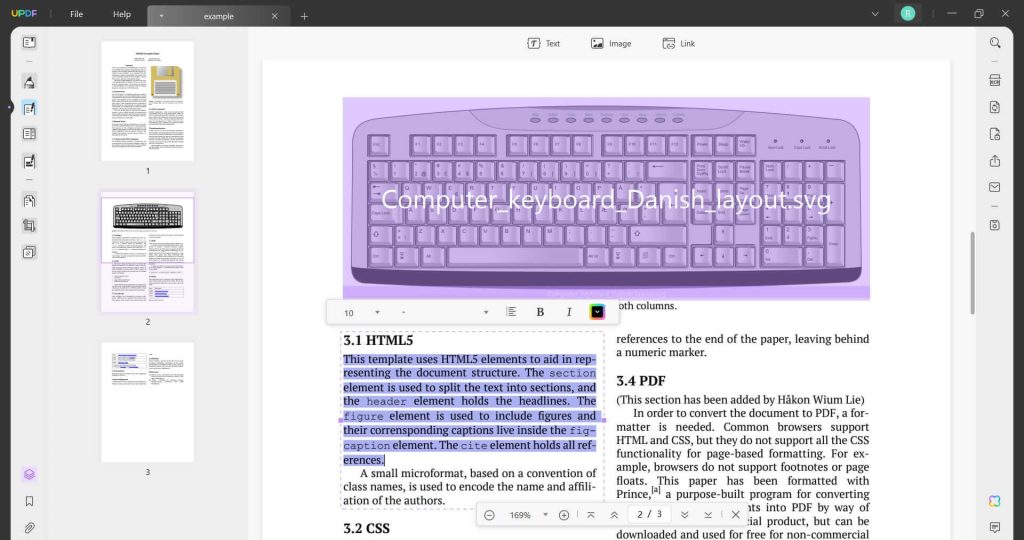
Step 6: Choose the editing option you need, such as cropping, resizing, rotating, or adding elements.
Use the available tools to make changes to the image as required.
Step 7: Once you’ve made the necessary adjustments, save the changes by clicking on the “Save” or “Save As” option. After editing, save the modified PDF document.
Always remember to save your work periodically during the editing process to avoid losing any changes made. UPDF usually provides an intuitive interface with clearly labeled tools to assist you throughout the editing journey.
Conclusion
UPDF spearheads the next generation of PDF software. It surpasses traditional tools by blending comprehensive capabilities with wide accessibility across devices and budgets. Specifically, now is a good time to try this product as UPDF is offering the biggest discount of the year on UPDF Pro with an AI add-on.
By making robust PDF features highly affordable, UPDF PDF Image Editor sets a new standard for value in document handling software. Its capabilities reflect the future landscape of editable, interactive PDFs.
With its discounted AI-enhanced Pro version, UPDF provides cutting-edge features at a very compelling price point. We strongly recommend taking advantage of this deal to experience the modern functionality and convenience that UPDF offers. It’s a chance to step into the next generation of PDF editing.
Author Bio:
Dinesh Lakhwani 

Dinesh Lakhwani, the entrepreneurial brain behind “TechCommuters,” achieved big things in the tech world. He started the company to make smart and user-friendly tech solutions. Thanks to his sharp thinking, focus on quality and the motto of never giving up, TechCommuters became a top player in the industry. His commitment to excellence has propelled the company to a leading position in the industry.
Popular Post
Recent Post

How to Recover Deleted Files from Pen drive, USB Drive, SD Card
Introduction: On tech forums, you’ll often see posts like this: “I connected my pen drive to my laptop this morning, but the folder was empty. All my college project files had vanished. I don’t have a backup. Can someone help me?” Stories like this are very common. Pen drives, USB drives and SD cards are […]

How To Recover Files Deleted from the Recycle Bin [Windows 11]
Losing a file can happen in seconds. You clear your desktop, hit Delete, and empty the Recycle Bin. Then, just when you need that file again, it seems to have vanished. This guide will walk you through ways to restore files removed from the Recycle Bin. We will begin with simple fixes, then look at […]

Disk Drill Data Recovery Tool Explained: Full Review and Guide
It happens in a split second. You delete a folder by mistake. Your drive stops showing up. A photo album from your last trip just vanishes. And your stomach drops. Lost files feel personal. They are not just data. They are memories, work hours, and sometimes years of effort packed into a few gigabytes. When […]

Recover Deleted Files In Windows 11 With Software & Without
Introduction What is the first thing that goes through your mind the second an important file vanishes from a Windows 11 PC? For most people, it is a mix of panic and disbelief, followed by a frantic click through every folder that file could possibly be hiding in. It happens in a split second: one […]

EaseUS Data Recovery Wizard: Everything To Know
Data loss does not always come from a big disaster either. Most cases start small and boring. A drive gets formatted by mistake. A laptop freezes mid-save and restarts on its own. A memory card stops showing up after being pulled out too fast. None of these feel like emergencies at first, until you realize […]

Recuva Data Recovery Tool: Is it Actually Worth it?
When I first tried Recuva Data Recovery, I wanted to see if it could really bring back lost files. The tool is free, small in size, and promises quick recovery, which made me curious enough to test it on my own PC. The setup was fast, and the wizard guided me step by step. I […]

GetData Recover My Files Data Recovery Tool: Honest Review
A hard drive error brings a special kind of silence. Well, yes! The screen freezes, then a message appears saying the drive can’t be found or must be formatted. In that moment, years of photos and work files feel at risk. It never happens at a good time. Coffee spills near a laptop, a memory […]

Windows File Recovery: A Complete Review [Tried & Tested]
Imagine this. You spend hours perfecting a video project. You hit save. Then your laptop freezes, reboots, and when the screen comes back. The file is gone. Your stomach sinks. It’s not just you. Lost files happen all the time. A dropped hard drive, a bad update, an accidental delete, or a corrupted partition can […]

5 Best Data Recovery Software For Windows 11 and Windows 10
Introduction: A crashed drive can ruin a whole day. One minute your photos, work files, and tax records sit safe on your PC. The next minute they are gone. A power cut, a bad update, or one wrong click can wipe out years of memories and months of work in seconds. That sinking feeling is […]

