












Losing a file can happen in seconds. You clear your desktop, hit Delete, and empty the Recycle Bin. Then, just when you need that file again, it seems to have vanished. This guide will walk you through ways to restore files removed from the Recycle Bin. We will begin with simple fixes, then look at […]
How To Download and Update 802.11n WLAN Driver
Do you need help with using the 802.11 N WLAN adapter? Then, it might indicate that it is time to update your device drivers. When the WLAN driver goes missing or sometimes gets corrupted, severe issues could occur with the internet connectivity. If you are facing the same connectivity issues or cannot change the internet connection settings, there are chances that the WLAN driver is corrupt, missing, or outdated.
Therefore, in this blog, the whole talk is about the process of downloading 802.11n WLAN Driver along with the update. Technically, there are two methods. So, read on to learn.
Some Methods to Download and Update 802.11n WLAN Driver on Windows 11, 10, 8, 7
If you want to successfully perform the 802.11n Wireless LAN driver download process for Windows PC, many tactics can be followed. So, without further ado, let’s explain the process and learn more.
Method 1: Download Manually and Install 802.11n WLAN Driver from Official Website
The 802.11n Wireless LAN adapter driver can be downloaded and updated manually by visiting the manufacturer’s website.
Note: Many users want to download the driver manually. However, this manual update process of the drivers involves risk and requires the users to have some technical skills. However, if you are not skilled enough and comfortable enough to update the drivers manually, you can even skip this step and go for the automatic method.
To do the process manually, follow the steps below:
Step 1: Go to the WLAN adapter manufacturer’s official website.
Step 2: Once you are on the manufacturer’s website, you can look for the latest version of the driver. Then, you can download and install it. For example, if your adapter is from Realtek, you should search for Realtek 802.11 n WLAN adapter driver.
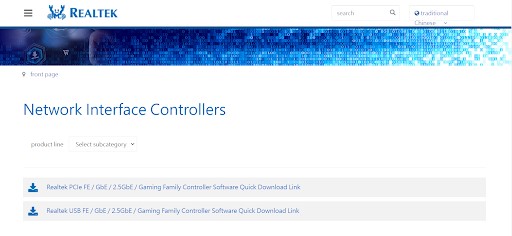
Step 3: Then, download the latest driver update and check your version and operating system.
Step 4: At the next step, double-click the .exe file and install the update.
Step 5: Now, restart your PC to apply the changes.
Method 2: Use of Device Manager to Update 802.11n WLAN USB Network Adapter Driver
There is another effective manual method available to update the outdated drivers, and that is the usage of Device Manager. Below, we are mentioning the steps of how to do that:
Step 1: First, to get started, you must ensure your network adapter card is properly connected to your PC.
Step 2: Now, check the search bar, look for the start menu, and type Device Manager. Now, open the program from the showing results.
Step 3: Launch Device Manager by quickly pressing the Windows logo + X keyboard buttons as shown below.
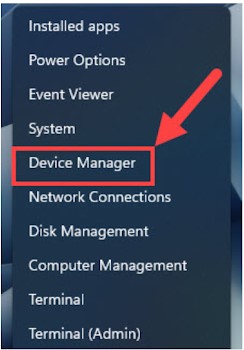
Step 4: Now, check for the Network Adapters in the newly opened tab. Click on it so that you will find the available options. Usually, the 802.11n WLAN is present in the Network adapters category.
Step 5: Select the 802.11 n WLAN adapter driver and right-click on it.
Step 6: Once you right-click on it, a context menu list will open, then click on the Update Driver Software option.
Step 7: In the newly opened window showing updating drivers, click on the option that is showing Search Automatically for Updated Driver Software.
Step 8: Go for the on-screen instructions and finish the driver installation process. If you see the message below, click the option to Search for updated drivers on Windows update.
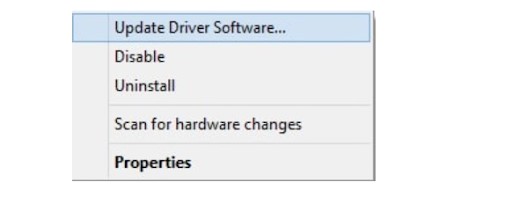
Step 9: Now, check for the Windows updates and install them.
Step 10: If it is already installed, reboot your system to run the update.
Method 3: Take the Help of the Windows Hardware Troubleshooter to Update the 802.11n WLAN Driver
A lot of times 802.11 N WLAN adapters cannot be downloaded or installed due to some pertaining issues. Fixing these issues may help in successfully downloading and installing the 802.11 N WLAN adapter. The Windows Hardware Troubleshooter can help identify and fix issues with drivers. Below, we are mentioning the steps of how to do that:
Step 1: Open the Settings app on your computer.
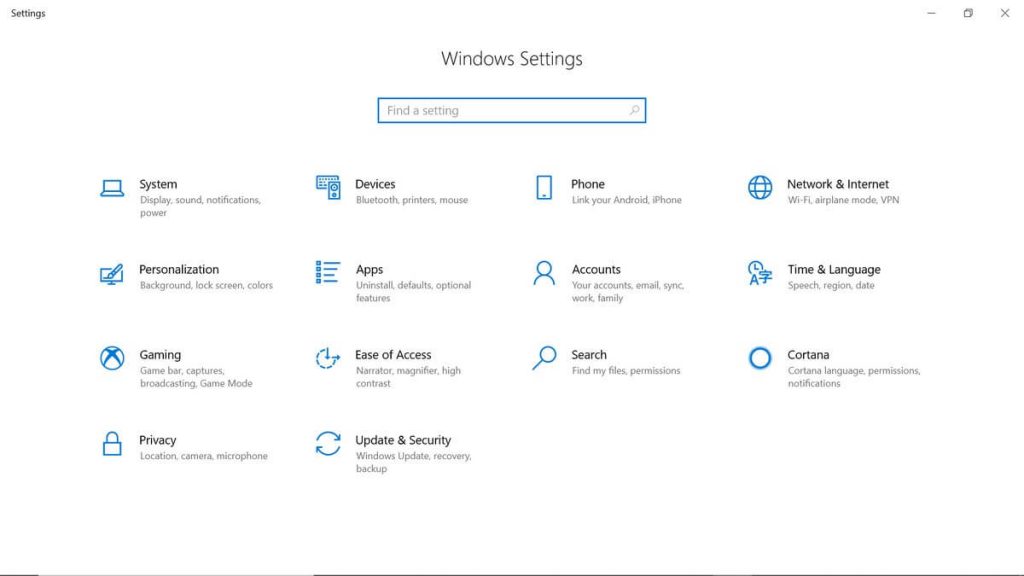
Step 2: Head over to the “Update & Security” section.
Step 3: Click on the “Troubleshoot” option.
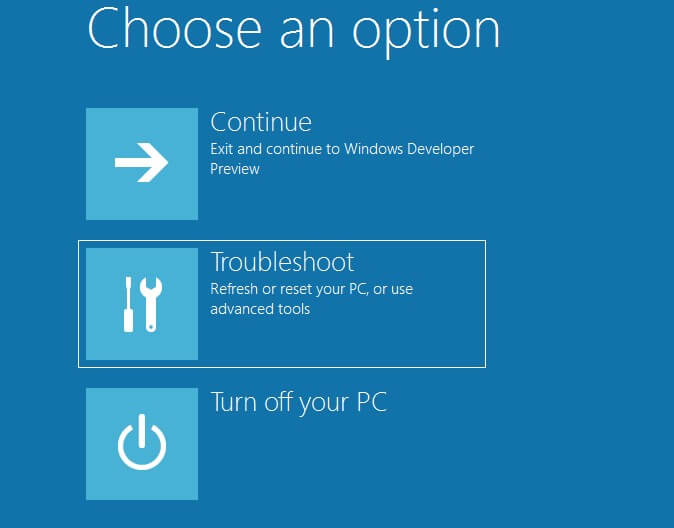
Step 4: Under the “Find and fix other problems” section, click “Hardware and Devices”.
Step 5: Follow the on-screen instructions to run the troubleshooter and see if it can detect and fix any issues with your 802.11n WLAN driver.
Method 4: Automatically Update 802.11 n WLAN Using the AuslogicsDriver Updater (Recommended)
If you are uncomfortable with those methods, go for the Auslogics Driver Updater to automatically update the 802.11n WLAN driver. It is easy to use, and you can update your drivers. With this tool, you don’t need to worry about missing or outdated drivers slowing your computer down and causing crashes.
If you want to use the Auslogics Driver Updater, below we are mentioning some steps:
Step 1: Visit the official Auslogics website to download and install the software.
Step 2: Download the updater and install it.
Step 3: After the installation is complete, double-click on the Auslogics Driver Updater icon to launch the program.
Step 4: Once the program opens, you will see a Scan button. Click on it to start the scanning process.
Step 5:Click on the Update button to start the driver update process.
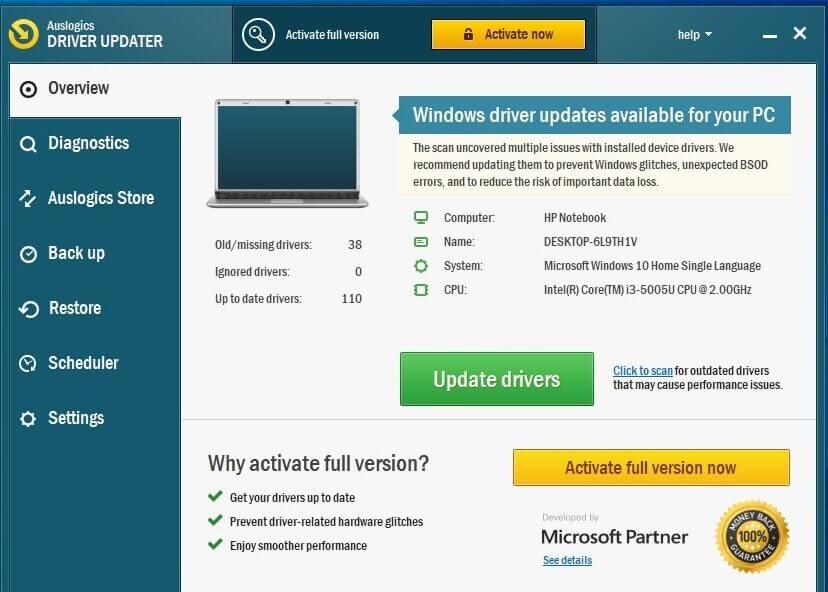
Step 6: After the driver update process is complete, you will be prompted to restart your computer.
You can also check out these tools to update outdated drivers.
Method 5: Run the Windows Update to Download the 802.11n WLAN Driver
If you want to download 802.11n WLAN, which is the most compatible one, then check the updated version of the Windows operating system; you can do this.
Step 1: Click the Start menu icon at the left edge corner at the bottom of the screen.
Step 2: Now, click on the settings option which is the gear sign.
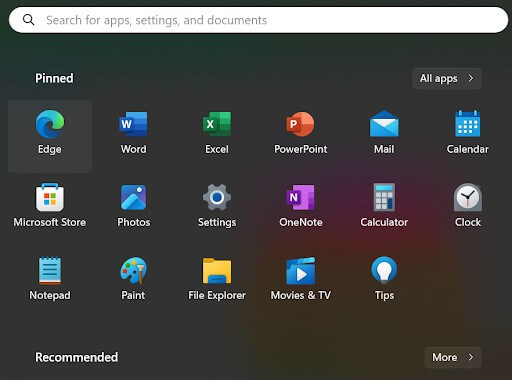
Step 3: You will be navigated to the Windows settings page.
Step 4: Now click the Update & Security option.
Step 5: On the left, you will find the option Windows Update. Now, click on it.
Step 6: Lastly, you can check for the updates by clicking the check for updates option.
Now, your Windows system will start looking for the available updates. However, if there are some available updates present, your system will automatically download the update and install the most recent version of the drivers. On the other hand, if it is already up-to-date, you will see the message.
Conclusion:
Are you facing issues with your 802.11 n WLAN adapter driver? Then, updating the device drivers on time on your computer is a must thing to consider. As we have already recommended a few effective methods in the above steps, you can even use the steps to download and update 802.11n WLANDriver and fix the issue. So, read the article, and follow the process of the 802.11n WLAN driver download, update, and installation process for Windows 8, 9, 10, and 11.
Frequently Asked Questions (FAQs)
What Is An 802.11n WLAN Adapter?
802.11n adapter is a Wireless LAN communication specification. Using this adapter, systems can easily boost WLAN’s speed, known as Wireless Local Area Network. Not only that, this adapter can also enhance the overall reliability of the connections.
How Can I Install Drivers for 802.11 n WLAN?
You can install the 802.11n WLAN drivers by checking the manufacturer’s official website.
What is the Purpose of 802.11n Driver?
802.11n is an advanced and standard driver which is used by many users. It is also used to enhance the overall network connectivity. Also, the driver boosts the speed range of the wireless transmissions and enhances the dependability of the WLANs.
How Do I connect to 802.11n WLAN?
You can check the Network Adapters category once you open the Device Manager utility on your PC. Choose the Wireless adapter and click the Action button. Then, you can navigate to the Advanced tab, press 802.11n, and enable the option.
How Do I Install An 802.11n USB to the Wi-Fi Dongle?
Once you insert the Network card into the USB port of your device, so, download the latest driver that is compatible with your 802.11n driver. However, using the automatic driver updater Bit Driver or Adapter updater to install the drivers automatically in your system is advisable.
Author Bio:
Dinesh Lakhwani 

Dinesh Lakhwani, the entrepreneurial brain behind “TechCommuters,” achieved big things in the tech world. He started the company to make smart and user-friendly tech solutions. Thanks to his sharp thinking, focus on quality and the motto of never giving up, TechCommuters became a top player in the industry. His commitment to excellence has propelled the company to a leading position in the industry.
Popular Post
Recent Post

Disk Drill Data Recovery Tool Explained: Full Review and Guide
It happens in a split second. You delete a folder by mistake. Your drive stops showing up. A photo album from your last trip just vanishes. And your stomach drops. Lost files feel personal. They are not just data. They are memories, work hours, and sometimes years of effort packed into a few gigabytes. When […]

Recover Deleted Files In Windows 11 With Software & Without
Introduction What is the first thing that goes through your mind the second an important file vanishes from a Windows 11 PC? For most people, it is a mix of panic and disbelief, followed by a frantic click through every folder that file could possibly be hiding in. It happens in a split second: one […]

EaseUS Data Recovery Wizard: Everything To Know
Data loss does not always come from a big disaster either. Most cases start small and boring. A drive gets formatted by mistake. A laptop freezes mid-save and restarts on its own. A memory card stops showing up after being pulled out too fast. None of these feel like emergencies at first, until you realize […]

Recuva Data Recovery Tool: Is it Actually Worth it?
When I first tried Recuva Data Recovery, I wanted to see if it could really bring back lost files. The tool is free, small in size, and promises quick recovery, which made me curious enough to test it on my own PC. The setup was fast, and the wizard guided me step by step. I […]

GetData Recover My Files Data Recovery Tool: Honest Review
A hard drive error brings a special kind of silence. Well, yes! The screen freezes, then a message appears saying the drive can’t be found or must be formatted. In that moment, years of photos and work files feel at risk. It never happens at a good time. Coffee spills near a laptop, a memory […]

Windows File Recovery: A Complete Review [Tried & Tested]
Imagine this. You spend hours perfecting a video project. You hit save. Then your laptop freezes, reboots, and when the screen comes back. The file is gone. Your stomach sinks. It’s not just you. Lost files happen all the time. A dropped hard drive, a bad update, an accidental delete, or a corrupted partition can […]

5 Best Data Recovery Software For Windows 11 and Windows 10
Introduction: A crashed drive can ruin a whole day. One minute your photos, work files, and tax records sit safe on your PC. The next minute they are gone. A power cut, a bad update, or one wrong click can wipe out years of memories and months of work in seconds. That sinking feeling is […]

How To Update NVIDIA Drivers On Windows 11/10 PC
Learn how to update NVIDIA drivers on Windows 11/10 with simple methods, safety tips, and easy steps for smoother gaming and better PC performance.

Top AI Features Hidden Inside Windows 11
Explore the top AI features in Windows 11, from Copilot to Recall, plus safety tips and simple steps to use each tool the right way.

