












A slow computer makes it hard to focus. Programs take too long to open. Free space keeps shrinking until the disk is almost full. This happens to most PC owners at some point. Even new machines can slow down after a while. That is the exact problem cleanup tools are built to solve. They comb […]
How to Fix the “Network Path Was Not Found” Error on Windows
Introduction:
Having a reliable network connection is crucial for seamless communication and uninterrupted access to shared resources. However, encountering errors can disrupt our productivity and leave us scratching our heads for solutions. One such frustrating error is the “Network Path Was Not Found.” This error message typically pops up when attempting to access files or resources on a network, hindering collaboration and file sharing among connected devices.
In this blog, we have listed a step-by-step instruction guide to help you get your network connection back on track. So, go ahead and discover these solutions that will have you swiftly navigating your network without any hassle.
Why Does the “Network Path Was Not Found” Error Happen?
This error shows up when your system cannot reach another device or shared folder on the network. It usually means something is blocking the connection or the path is incorrect. The issue can come from settings, permissions, or network problems.
- Wrong network path
The address you entered may have a small mistake. Even one wrong letter can break the connection. - Device is offline
The target computer or server may be turned off or not connected to the network. - Network discovery is disabled
If this setting is off, your system cannot find other devices. - Firewall blocking access
Security settings may stop the connection to protect your system. - File sharing is turned off
Without this, shared folders cannot be accessed. - Incorrect permissions
You may not have access rights to open the folder or path. - DNS or IP issues
The system may not be able to translate the path into an IP address. - Outdated network drivers
Old or faulty drivers can cause connection failures.
Precautions: Stay Safe While Fixing the Issue
Before you start fixing the error, take a few simple steps. These steps help avoid mistakes and protect your data. Small precautions can save time and prevent bigger problems.
- Check the network connection
Make sure your internet or local network is working fine. - Confirm the correct path
Recheck the spelling and format of the network path. - Restart both devices
This clears temporary glitches and resets connections. - Back up important files
Keep a copy of your data before making changes. - Turn off VPN if active
VPNs can sometimes block local network access. - Update Windows and drivers
Updated systems work more smoothly and avoid bugs. - Temporarily disable firewall (carefully)
Test if it is blocking the connection, then turn it back on. - Use admin rights if needed
Some fixes require higher permissions to apply changes.
How to Fix the “Network Path Was Not Found” Error on Windows?
Solution 1: Cross-Check the Path Name
Before you move towards complex troubleshooting, make sure that you double-check the path names that you are entering. Even a minor error in the path name can obstruct the system’s ability to locate the desired network connection.
Solution 2: Make the Network Drive Shareable
To ensure smooth communication and seamless sharing, it’s crucial to double-check if the intended device has the sharing feature enabled. If it’s currently disabled, enabling it will resolve the issue and allow you to proceed with the desired actions.
If you’re wondering how to make a targeted drive on a remote computer shareable, fret not! We’ve got you covered. Follow these simple steps to ensure your drive is ready for sharing:
- Navigate to the drive or folder you want to share. Right-click on it and select “Properties” from the context menu.
- In the Properties window, switch to the “Sharing” tab. Tap on the “Advanced Sharing” button.
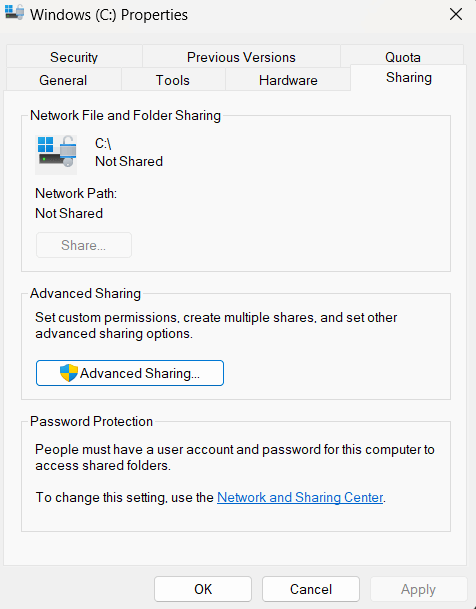
- Check the box that says “Share this folder” to enable sharing for the selected drive or folder.
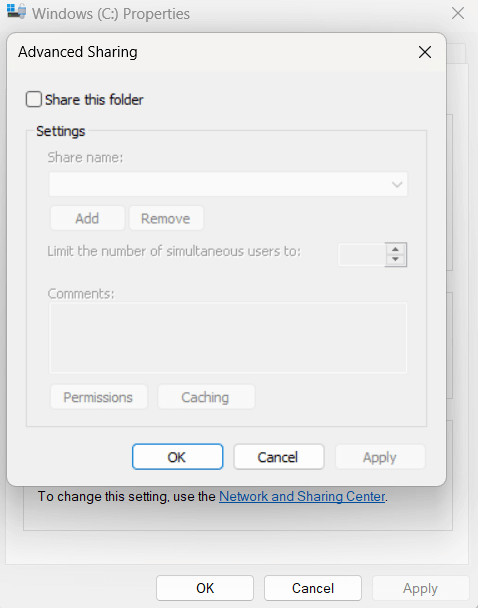
- Optionally, you can modify the Share name to give it a more descriptive or user-friendly name.
- Click on the “Permissions” button to manage the permissions for users accessing the shared drive or folder. You can add or remove users and set their level of access (read-only or read-write).
- Once you have set the desired permissions, click “OK” to save the changes.
- Hit on “Apply” and then “OK” to close the window.
Solution 3: Connect Using an IP Address
Here are the steps to follow:
- Tap on the search icon placed on the Taskbar and type “Command Prompt”. Select the “Run as administrator” option to launch the app in admin mode.
- In the Command Prompt window, enter the following command:
ipconfig/all

- Scroll down and locate the IPv4 Address. Take note of this address.
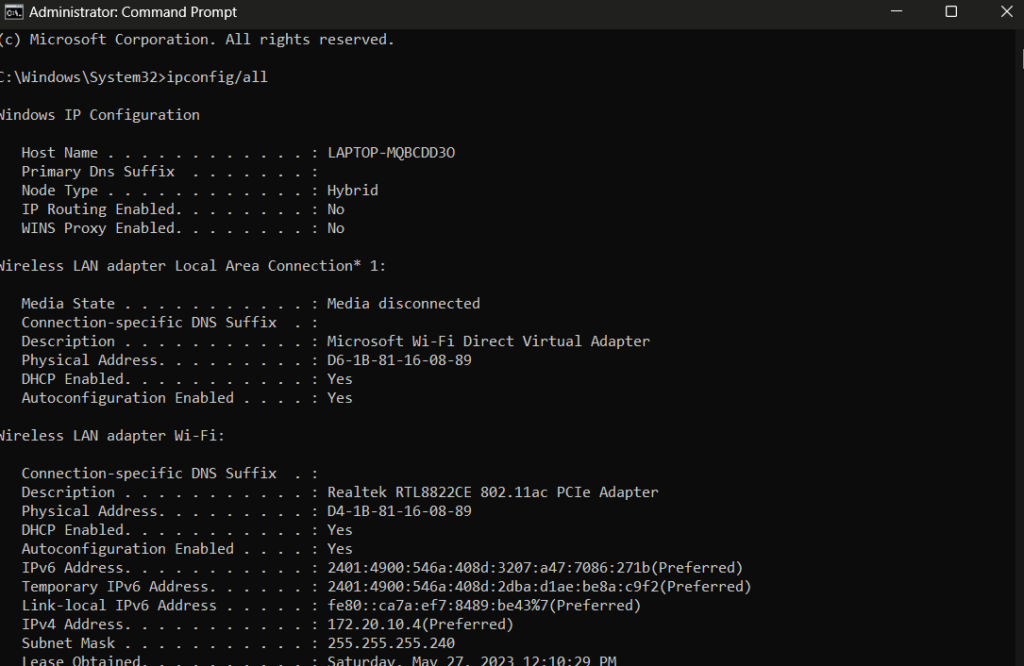
- Open the Run dialog again by pressing the Windows key + R. Paste the previously noted IPv4 Address into the text field of the Run dialog.
- Press Enter and check if you can establish a successful connection to the remote computer.
By following these steps, you will be able to verify the IP address resolving any connectivity issues you may have encountered.
Solution 4: Restart the TCP/IP NetBIOS Helper Service
You can attempt restarting the TCP/IP NetBIOS Helper service in order to resolve the “Network Path Was Not Found” error on Windows.
How to do it is as follows:
- Open the Run dialog by pressing the Windows key plus R. To open the Services window, enter “services.msc” and press Enter.
- TCP/IP NetBIOS Helper can be found by scrolling down in the Services window.
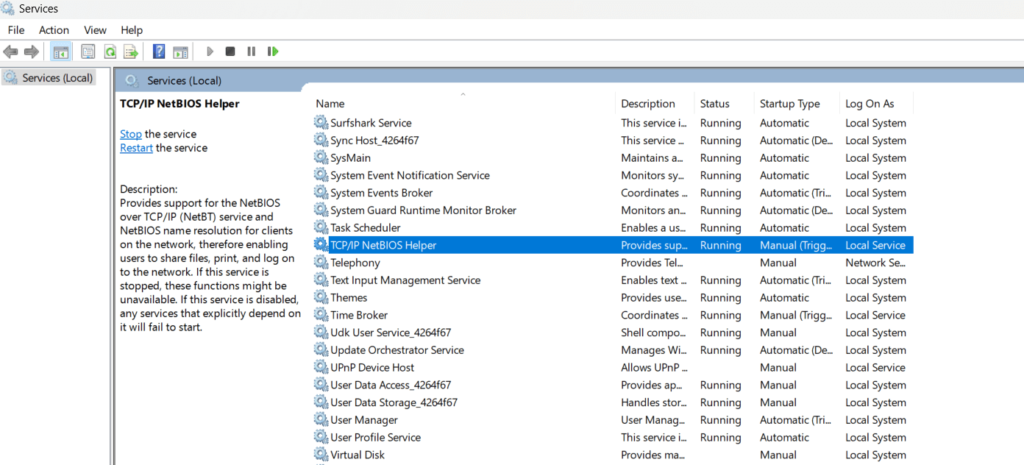
- Choose “Restart” from the context menu when you right-click on the service. Alternately, select “Start” if the service is not already running.
- Close the “Services” window.
By restarting the TCP/IP NetBIOS Helper service, you can refresh the network configurations and potentially resolve any underlying issues that were causing the error.
Solution 5: Enable SMB 1.0
Enabling SMB 1.0 can help resolve the “Network Path Was Not Found” error on Windows. Follow these steps:
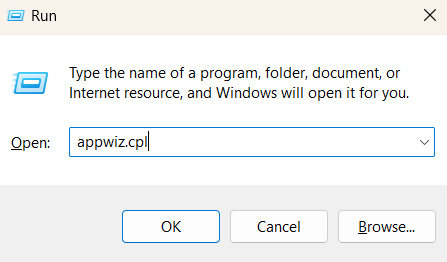
- Press the Windows key + R to open the Run dialog. Type “appwiz.cpl” in the text field and press Enter to open the Programs and Features window.
- In the Programs and Features window, click on “Turn Windows features on or off” located in the left pane.

- The Windows Features window will open. Scroll down and locate “SMB 1.0/CIFS File Sharing Support” in the list.
- Expand the SMB 1.0/CIFS File Sharing Support option by clicking on the “+” sign next to it.
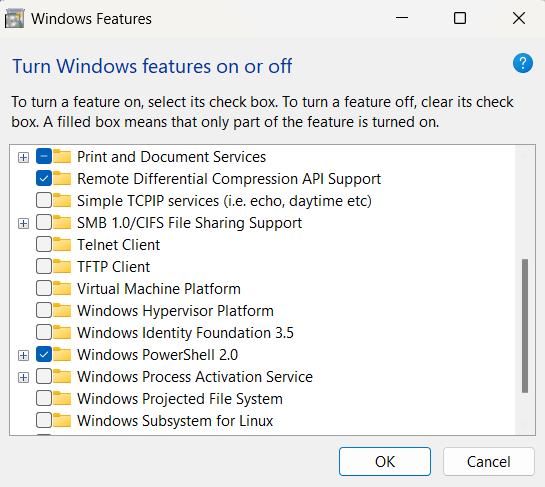
- Check the box for “SMB 1.0/CIFS Client” and “SMB 1.0/CIFS Server” to enable them.
- Click OK to save the changes.
- Restart your computer to apply the changes.
Enabling SMB 1.0 can help establish compatibility with older network devices and resolve any compatibility issues that might be causing the error.
Solution 6: Reset TCP/IP
Resetting the TCP/IP (Transmission Control Protocol/Internet Protocol) stack can often resolve network-related errors, including the “Network Path Was Not Found” error. To reset TCP/IP on Windows, follow these steps:
- Press the Windows key + X and select “Command Prompt (Admin)” or “Windows PowerShell (Admin)” from the menu. This will open an elevated command prompt window.
- In the command prompt window, type the following command and press Enter
netsh int ip reset
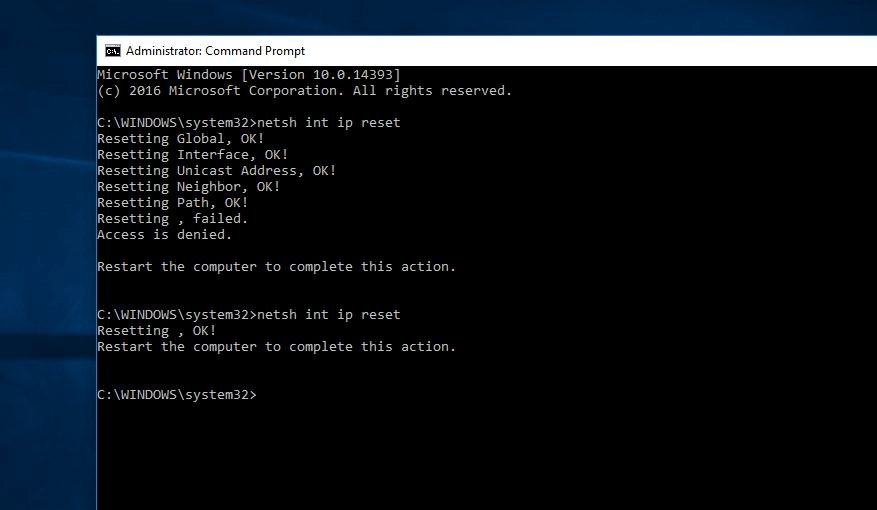
- Wait for the command to execute and complete the TCP/IP reset process. You may see a message indicating that the reset was successful.
- Once the reset is complete, restart your computer to apply the changes.
After the restart, your TCP/IP settings will be reset to their default configurations, which can help resolve any underlying issues causing the error.
Solution 7: Temporarily Disable the Third-Party Antivirus
Sometimes, third-party antivirus software can interfere with network connections and lead to the “Network Path Was Not Found” error. To determine if the antivirus software is causing the issue, you can temporarily disable it.
Once the antivirus software is disabled, attempt to perform the action that was previously resulting in the error. If the error no longer occurs while the antivirus software is disabled, it indicates that the software is indeed causing the issue.
Author’s Tip
Troubleshooting starts simple. Before diving into complex fixes, pause and check the basics. A disconnected cable, an incorrect path, or a device that’s gone offline can be the real cause. Confirming these small details often clears the issue faster than any advanced solution.
Build stability into your network. Keep configurations straightforward and avoid piling on unfamiliar tools or experimental settings. A clean, well‑maintained setup reduces the risk of errors and makes diagnosing problems easier. Regular updates and routine maintenance not only improve performance but also stop the same issues from coming back.
Conclusion
The “Network Path Was Not Found” error may look serious, but it is often easy to fix. Most of the time, it comes from small mistakes or simple network issues. Once you identify the cause, the solution becomes clear. A step-by-step approach works best.
Keep your system updated and your network settings correct. Always double-check paths and permissions. These habits reduce the chance of errors. With a little care, you can keep your system running smoothly and avoid such problems in the future.
FAQs
1. Can this error happen without internet issues?
Yes, it can. Even if your internet is working, local network settings may cause this error. For example, file sharing may be off or the path may be wrong. So always check both internet and local network settings.
2. Is it safe to disable the firewall to fix this error?
You can disable it for testing, but only for a short time. If the issue gets fixed, you should adjust the firewall settings instead of keeping it off. This keeps your system secure.
3. How do I know if the other device is reachable?
You can try to ping the device or access it using its IP address. If it does not respond, the device may be offline or blocked. Checking this helps you find the real cause quickly.
Author Bio:
Dinesh Lakhwani 

Dinesh Lakhwani, the entrepreneurial brain behind “TechCommuters,” achieved big things in the tech world. He started the company to make smart and user-friendly tech solutions. Thanks to his sharp thinking, focus on quality and the motto of never giving up, TechCommuters became a top player in the industry. His commitment to excellence has propelled the company to a leading position in the industry.
Popular Post
Recent Post

Fortect Software Review: The Ultimate PC & Mobile Cleaning, Optimization & Security Tool
Slow computers are a common problem for almost every Windows user. Well, yes! Over time, your PC picks up junk files. These files sit quietly in the background. They take up space and slow things down. Programs open slower. Windows takes longer to boot. Even simple tasks like opening a folder can feel sluggish. There […]

CCleaner PC Optimizer Review: A Complete Guide for Windows Users
If your computer has started to feel slow, you are not alone. Most Windows PCs slow down over time. Junk files pile up. The registry gets messy. Too many apps open when you start your PC. All this adds up and makes even a good machine feel tired. This is where a PC cleaner tool […]

Auslogics Duplicate File Finder: Full Review and User Guide
A computer quietly gathers clutter over time. This includes duplicate photos, repeated downloads, and forgotten backups hiding in random folders. This buildup slowly eats away at storage and can make even a fast PC feel sluggish. Manually finding and deleting duplicates is tedious. It means checking every folder, comparing file names, and guessing which copies […]

CCleaner Duplicate File Finder: Key Features, Pricing, Step-by-Step Guide and More
Every computer collects junk over time. Right? Well, yes! Photos often get copied twice. Documents get saved in two folders by mistake. Old downloads pile up and never get deleted. This slowly eats up your storage space, and most people do not even notice until their drive is almost full. That is where a duplicate […]

Duplicate File Finder Pro: A Complete Review, Everything You Should Know
Computers collect thousands of files over time. Well, yes! Many of them end up being duplicates created by backups, downloads, or accidental copies. These extra files take up valuable storage space and make it harder to keep everything organized. Finding and removing them manually can take hours. Right? Duplicate File Finder Pro is a tool […]

Top 3 Duplicate File Finder for Windows 11 & Windows 10
If your PC storage keeps filling up even after you delete big files, duplicate files could be the real reason. Most of us save the same photo twice, download a document more than once, or copy a whole folder by mistake. Over months and years, these duplicate files pile up quietly. You do not even […]

Monitor Screen Calibration Guide: Everything You Should Know
Your monitor shows colors every single day. But are those colors actually correct? Most people never stop to check this. They just use the screen as it comes out of the box. This habit can lead to wrong colors in photos, videos, and work files. Colors may look too warm or too cold without you […]

How To Check Installed RAM and RAM Slots [Complete Guide]
RAM plays an important role in how smoothly a computer runs. Short for Random Access Memory, it stores the data and instructions that Windows and active applications need at any given moment. From opening multiple browser tabs to running games and productivity software, RAM helps keep everything responsive. A system with limited memory may experience […]

What is Microsoft Autopilot Everything You Need To Know
Technology has changed the way companies manage computers. Well, yes! Employees now work from offices, homes, and remote locations. Setting up devices manually for every worker takes time and effort. It can also create mistakes that slow down productivity. This is where Microsoft Autopilot becomes useful. It helps businesses prepare and deploy Windows devices with […]

