











Learn how to customize screen saver settings in Windows 11 with easy steps, safety tips, and simple tricks to personalize your PC screen.
How to turn off/disable OneDrive on Windows?
Cloud storage is the ultimate solution for the different needs of modern smart device users. Windows has solved the dilemma of selecting the perfect cloud solution for its users by introducing OneDrive, which works seamlessly on all the latest versions. However, many people look for different ways to turn off/ disable OneDrive on Windows 10.
Let us go through all the possible solutions on how to turn off OneDrive. We’ll start with a brief overview of OneDrive, followed by the possible reasons for quitting its services. The step-by-step guide for disabling OneDrive on Windows 10 will help readers understand all about it in detail.
OneDrive- An Overview
It is a cloud service by Microsoft connecting with different system files. Launched in 2007, it allows file and data saving on the cloud with free storage of up to 5GB. It can sync files across different Windows, MacOS, iOS, and Android devices. Starting from Windows 10, OneDrive is pre-installed on these systems. Let us now have a quick look at some of its top features:
OneDrive features
- It is easy to send the link to anyone for sharing files and folders in OneDrive.
- It has an Office Online feature allowing the uploading, creating, editing, and sharing of different OneNote, PowerPoint, Excel, and Word documents.
- All the online edited files in OneDrive are saved in real-time for improved data protection.
- It can sync pictures automatically. Hence, it uploads pictures from the available device to the cloud and offers a quick backup if the device fails, and that too without any manual intervention.
Why disable OneDrive on Windows 10?
After going through OneDrive’s top features, time for the top reasons citing the need to disable it on Windows 10. While OneDrive seems to be the best possible solution for cloud storage on different operating systems, many Windows users may look to disable it. This can be due to the following reasons:
- If the user wants to remove the data from the specific device connected to OneDrive.
- If the user wants to switch to other cloud storage options.
- If the system is already using some cloud storage solution.
Methods to turn off/ disable OneDrive on Windows
After going through the different reasons for disabling OneDrive, it comes down to the steps to do it. So, here you’re at the top methods to turn off or disable OneDrive on Windows systems. The top methods for the same include the following:
Method 1: Using settings
The settings menu can be used to disable OneDrive on Windows 10. You must have the details you’re your email address, and other account-related information to complete the process. Hence, before starting to use the settings menu, be ready with all the OneDrive account-related details to complete the OneDrive disabling process.
Once you’re ready with all the details, it is easy to follow the following detailed steps for the same are:
Step 1: Open the OneDrive icon in the taskbar.
Step 2: Go to the context menu and select “More” to continue.
Step 3: Go to the “Settings” option.
Step 4: Go to the pop-up menu and uncheck the option “Start OneDrive automatically when I sign into Windows.
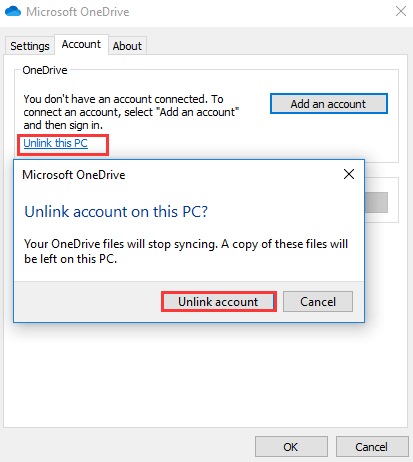
Step 5: Next, go to the “Accounts” option and click on “Unlink this PC.”
Step 6: Lastly, press the “Unlock account” to complete the process.
Step 7: You’ll be prompted to enter the email address and other account details for disabling OneDrive.
Method 2: Using the registry editor
The registry editor is a useful and powerful tool for different system settings. However, all you need to do is change all its values and keys carefully, as a minute difference can make the entire system useless.
The important step in using the registry editor for turning off OneDrive is to keep its backup. It can be achieved using different tools. You can select any of the available tools and then go ahead for registry editor backup.
Once the backup is complete, it saves the system from unnecessary changes, and you can go ahead for using it to turn off OneDrive. The detailed steps for using the registry editor to turn off OneDrive are as follows:
Step 1: Start by pressing Windows and R keys to open the “Run” dialog.
Step 2: Once the registry editor opens navigate to the following key
HKEY_LOCAL_MACHINE\SOFTWARE\Policies\Microsoft\Windows
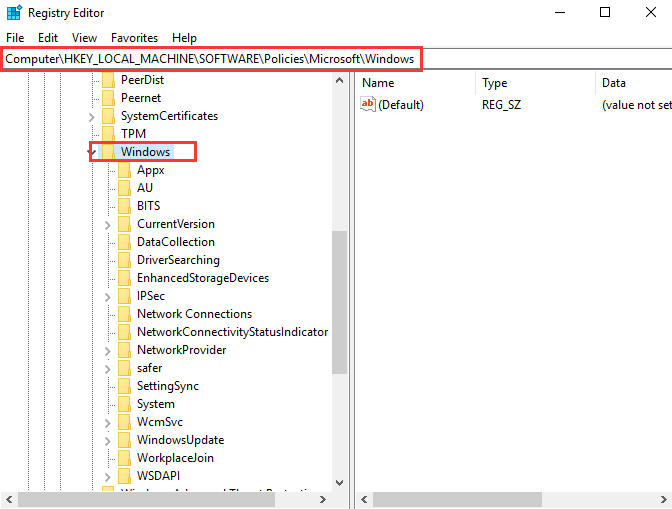
Step 3: Now right-click on the Windows key and select the “New” option followed by the “Key” option.
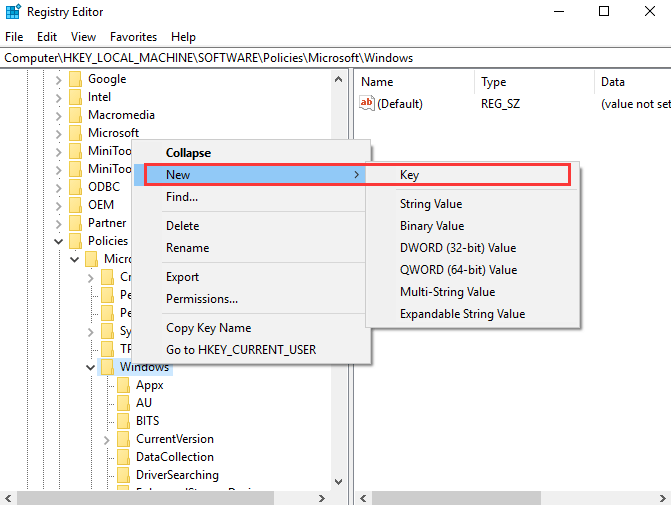
Step 4: Name the new key “OneDrive.”
Step 5: Next, select the OneDrive key and right-click on the right white area. Now, select the “New” option followed by “DWORD(32-bit) Value” to continue.
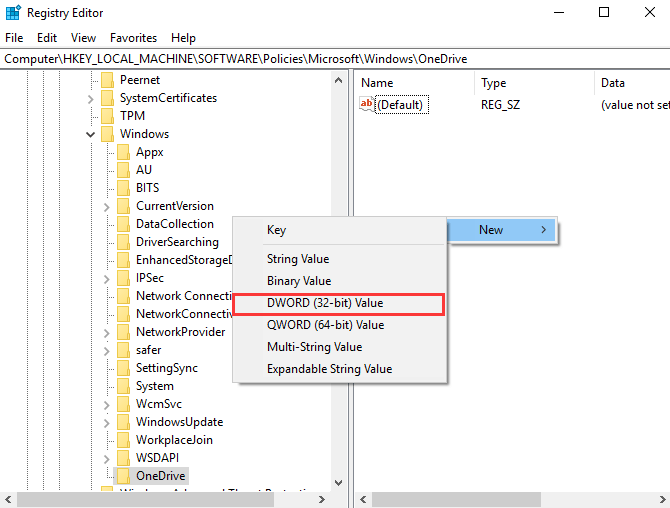
Step 6: Name the new key and double-click the new key and change the Value Data to 1.
Step 7: Lastly, close the Registry Editor window and reboot the system now.
Method 3: Using group policy
Group policy controls the working environment of the user accounts and computer accounts on Windows system. It offers an efficient management of the Windows system with ease of administration. Users can quickly deploy software, updates, and other patches through group policy only.
Some of the other top uses of the group policy in Windows include folder redirection configuration and better password policy enforcement.
Hence, it can be help Windows users to disable the OneDrive from the system safely. All you need to do start by safely opening the group policy and follow the directed steps to use it. The quick steps for using the group policy to turn off OneDrive are:
Step 1: Press Windows and R key together to open the “Run” dialog.
Step 2: Now type “msc” in the dialog box and click on the “OK” option.
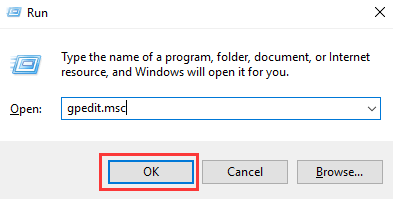
Step 3: The Local Group Policy Editor window will open now. Go to the “OneDrive” folder by selecting “Computer Configuration,” “Administrative Templates,” “Windows Components,” and “OneDrive” options.
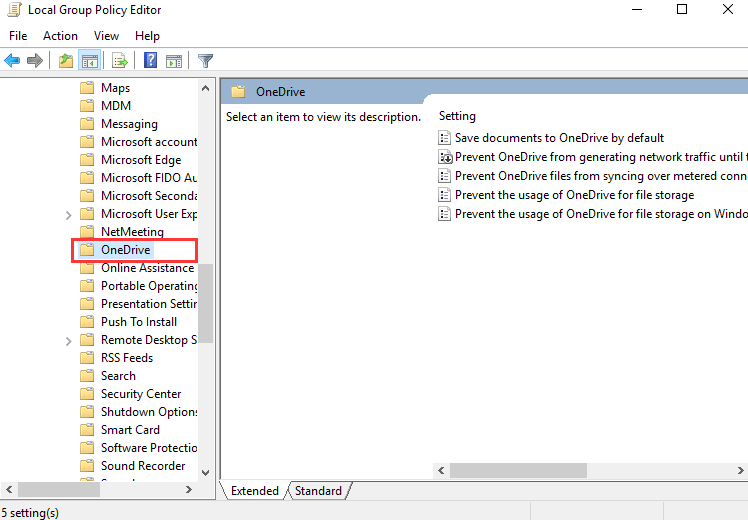
Step 4: Click on the item “Prevent the usage of OneDrive for file storage.”
Step 5: Now, a pop-up window will open. All you need to do is select the “Enabled” option and press “Apply” followed by “OK” to confirm the changes.
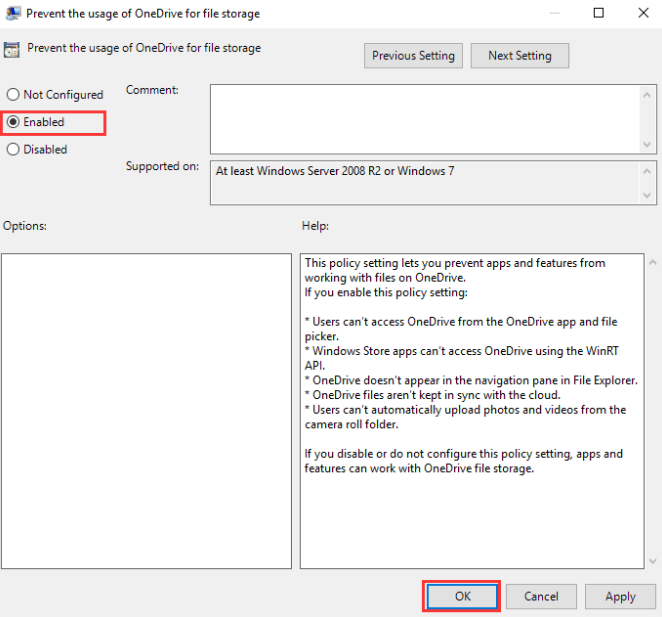
Step 6: Now, restart your system to confirm if OneDrive is available or not.
Wrapping Up
Hope everything is clear to our readers about how to turn off OneDrive. It is the powerful cloud storage service offered by Microsoft, which is available for different operating systems, including Windows. It is a feature-rich service offering automatic data saving and quick file sharing using simple links.
Different reasons, like switching to other cloud options, using some other compulsory cloud solutions, etc., may compel users to disable OneDrive on Windows 10. Users can go for the different methods mentioned above to safely and quickly turn off OneDrive from their Windows devices. The easy to use steps further makes it possible for the beginners and professionals to manage OneDrive on their own.
Author Bio:
Dinesh Lakhwani 

Dinesh Lakhwani, the entrepreneurial brain behind “TechCommuters,” achieved big things in the tech world. He started the company to make smart and user-friendly tech solutions. Thanks to his sharp thinking, focus on quality and the motto of never giving up, TechCommuters became a top player in the industry. His commitment to excellence has propelled the company to a leading position in the industry.
Popular Post
Recent Post

Driver Easy Windows Driver Updater Tool Review: Tried & Tested
In-depth information about Driver Easy’s functions and features can be found in our review. Learn how to update drivers more easily with this tool for a more seamless computer experience.

Is Avast Driver Updater Worth It? A Hands-On Analysis
A full review of Avast Driver Updater covering features, setup steps, pricing, pros and cons, and real PC results, to help you decide if it is worth buying.

IObit Driver Booster 13 (PRO) Review: [Tried & Tested]
IObit Driver Booster 13 is built for one purpose: keeping your PC drivers up to date. Well, yes! Outdated drivers can cause crashes, slowdowns, and hardware issues. This tool scans fast and updates with one click. The interface is simple. Even beginners can use it without confusion. Updates are pulled from a huge database, covering […]

Auslogics Driver Updater: A Detailed Walkthrough [2026]
This comprehensive review covers the key features, pros, and cons, pricing, and a final verdict on Auslogics’ driver update utility. Learn how it stacks up against manual driver maintenance.

5 Best Driver Updater Tools for Windows to Use (Free and Paid)
Introduction: Most people blame their PC for problems that a driver caused. A driver works like a bridge between your hardware and your operating system. When this bridge cracks, strange things start to happen. Screens flicker without reason. Printers go silent mid-task. Games freeze or crash out of nowhere. Manually finding the right driver is […]

Fixing Lock Screen Timeout – Screen Timeout Settings
Your Windows screen does not stay on forever. After a certain amount of idle time, it turns off or locks automatically. This is a normal feature found on both laptops and desktop PCs. It helps save battery power and reduces electricity use. It also keeps your files and personal information safe when you step away […]

How to Recover Unsaved Word Document? [Complete Guide]
It can be frustrating when a Word document suddenly disappears. You may have spent hours writing a report, assignment, or letter. Then your computer crashes, the power cuts out, or Word closes before you save the file. In that moment, it may seem like all your work is gone. This happens more often than most […]

What Is A Zero-Day Attack And How Can You Defend Against One?
Picture this. A hacker finds a secret crack in your favorite app. You don’t know it’s there. The company that built the app doesn’t know either. But the hacker does. And they use it right away, before anyone can stop them. This is the heart of a zero-day attack. It strikes when a flaw is […]

Iolo System Mechanic PC Cleanup Software: Hands-On Performance Review
PCs feel fast on the first day. Every click is quick. Apps open right away. With time, things slow down. Programs take longer to load. Files open slowly. Fans get loud even during light use. This happens to almost every computer, no matter how careful you are. The reason is clear. Junk files build up […]

