











Imagine this. You spend hours perfecting a video project. You hit save. Then your laptop freezes, reboots, and when the screen comes back. The file is gone. Your stomach sinks. It’s not just you. Lost files happen all the time. A dropped hard drive, a bad update, an accidental delete, or a corrupted partition can […]
An Ultimate Guide to Back up Your Mac
Taking back up on your Mac should be routine work that might be pushed to the bottom of your to-do list in favor of more pressing matters. However, if your MacBook fails at an inconvenient time, you’ll be eternally thankful that you took the effort to preserve all of your essential data.
Furthermore, a backup makes things simple to transfer your data and programs to a new Mac if you decide to upgrade. You may be curious about the most innovative method to back up your Mac. So, if you’re seeking a technique to back up your Mac, this article will come in handy. We will look at the several ways of backup and detail the appropriate methods.
Why is Backing Up You Mac Necessary?
Backing up is not something you consider daily. Even though it hasn’t been on your mind recently, it will become essential. Taking a backup is an essential element in preparing your Mac for service, especially since some repairs may need replacing or wiping your hard drive. If you do not back up all your data, you potentially lose all your valuable data if anything occurs to your Mac or it malfunctions somehow. There are a few more other advantages of keeping a backup:
- You might be able to access and read the data from some other device.
- If you purchase a new Mac, you can quickly restore all of your data onto it, basically cloning your old device.
- Backups provide protection and can assist you in recovering from unforeseen data loss circumstances. For example, they may be the only option to retrieve data from a stolen Mac or a hard disc that has been destroyed.
- You can get a hold of an earlier edition of a document.
How do you get your Mac ready for a backup?
Hard discs have limited storage capacity, which might soon run out when you’re constantly backing up data. To ensure that your Mac’s hard disk has enough space for almost all of your crucial files, you must use the best tool like CCleaner. It is a cross-platform application for Macs, PCs, and Android that can help you to save hard drive space, optimize your Mac, and even improve your security.
A disc cleaner, app uninstaller, and browser cleaner are all included in the package. In addition, CCleaner detects unneeded items on a Mac and allows users to pick and eliminate unnecessary files or folders to make more space. It also has a new photo cleaner, which can discover and eliminate duplicate and badly taken photographs, allowing you to save critical hard disc space.
Best Methods That Support Back-Up on Your Mac
There are several methods for backing up your Mac. However, if you had to pick only one, which would be? We’ll guide you through the effective methods to back up your Mac in the following article.
Method 1: Using Time Machine to Back Up
Time Machine is an in-built-in backup program for Macs that allows you to store up-to-date backups of all the essential data. To use it, you will need an external memory drive that is, at a minimum double the size of the data you wish to back up.
Steps to Perform
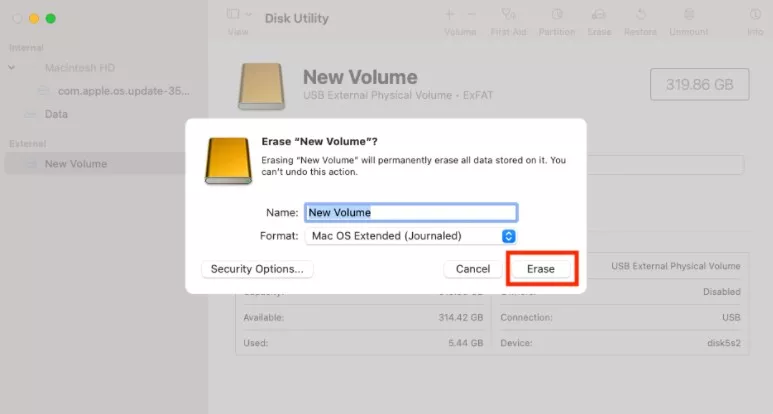
Step 1: Launch Disk Utility, choose the external disk and set the Format to Mac OS Extended (Journaled). Then, click on the Erase option.
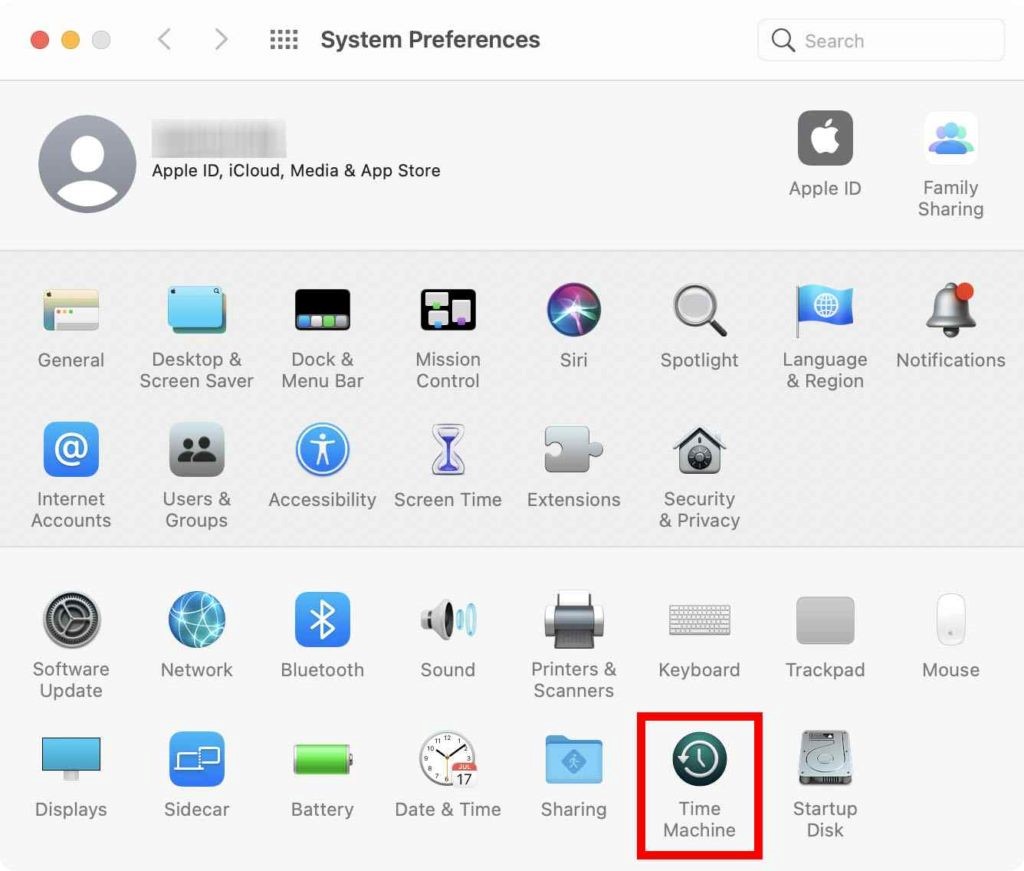
Step 2: Go to System Preferences and select Time Machine.
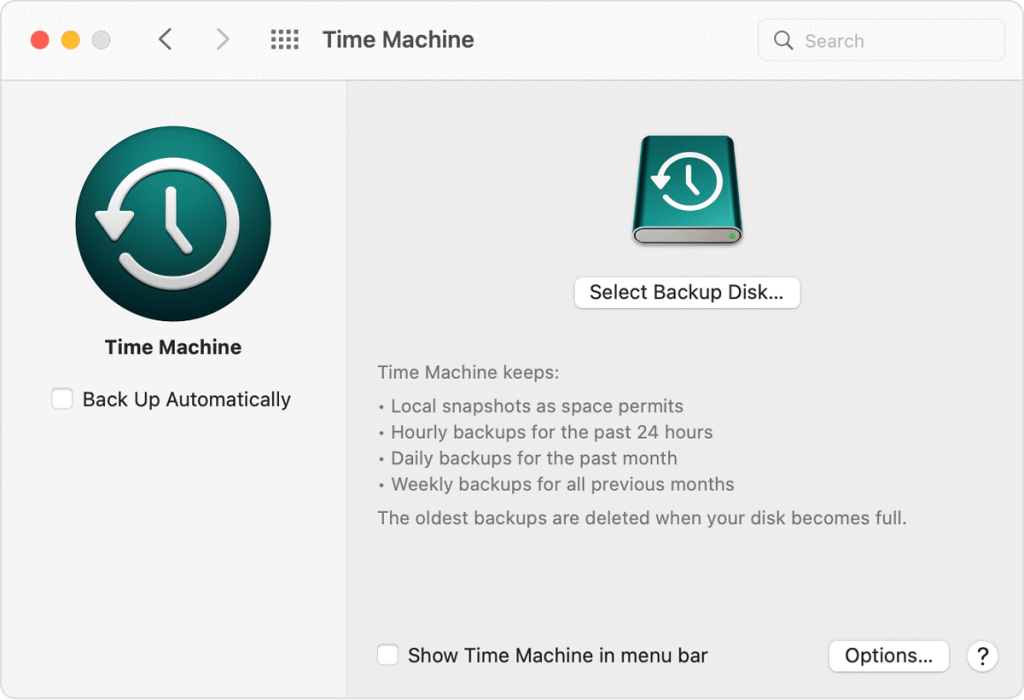
Step 3: In Time Machine, select the Select Backup Disk option.
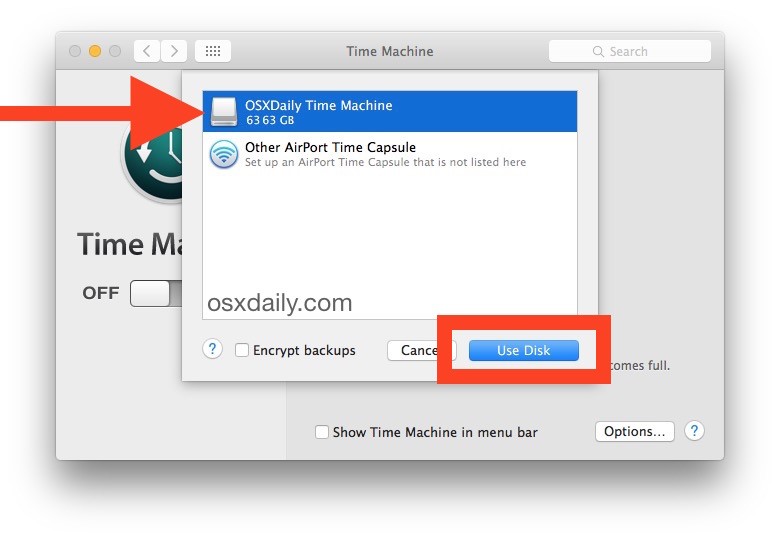
Step 4: From the list, select the external drive and press the “Use Disk” button.
Step 5: To create automatic backups with Time Machine, click on the checkbox next to Back Up Automatically.
Method 2: Manage Your Mac Back up with iCloud
Apple’s iCloud is an online backup solution for iOS
and Mac devices. Users get only 5GB of storage capacity if they choose the free plan. That may be plenty for your backup requirements. However, you can quickly increase it by purchasing additional storage space. You’ll have to create an Apple ID first, and then iCloud backups will be automatically created.
Steps to Perform
Step 1: Navigate to System Preferences and choose Apple ID.
Step 2: Choose iCloud from the listing on the left if it isn’t already chosen. Navigate through the list and uncheck any items you don’t need to backup to iCloud.
Step 3: Select the Manage option.
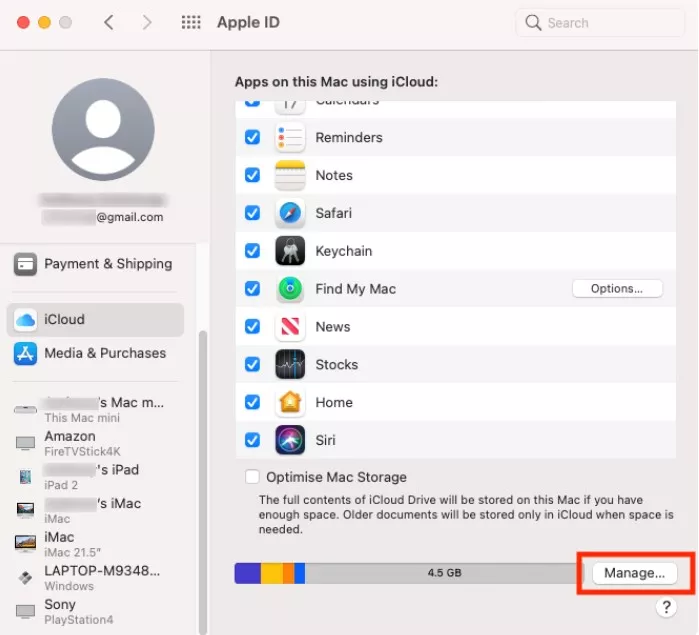
Step 4: You can now check your iCloud’s storage space remaining in your iCloud. Also, you can examine and remove your existing backups.
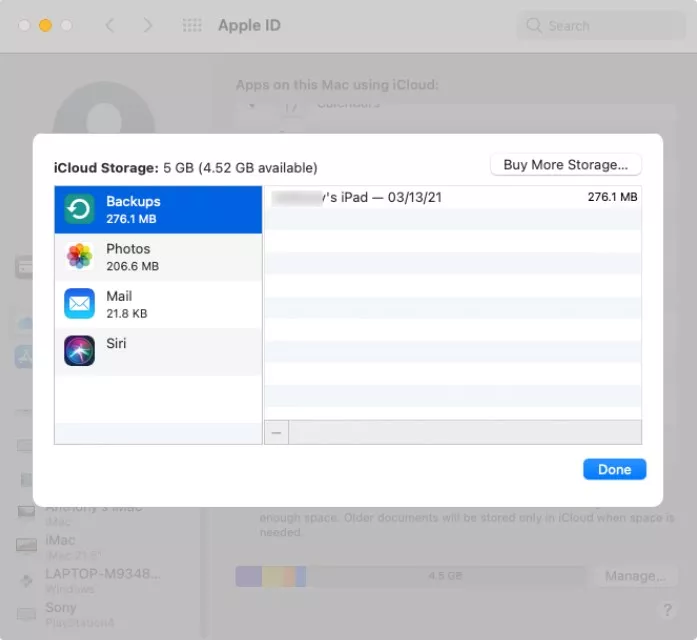
Method 3: Using Third-Party Tools for Mac Backups
If you’re searching for an alternate backup option, these are the top-most cost-effective and safe applications for backing up your data.
1. iDrive
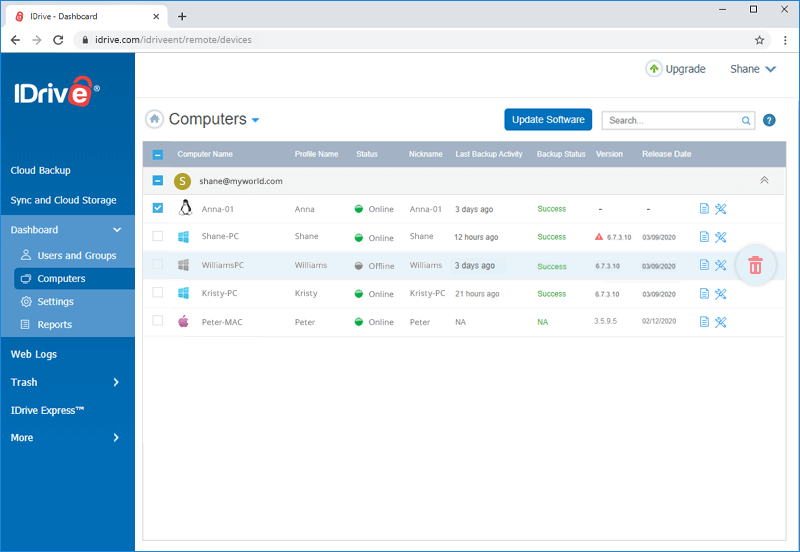
iDrive is an excellent backup solution compatible with a wide range of devices and platforms. It syncs your documents in real-time, intuitively identifying updated sections, so you don’t have to back up the entire document. It also allows you to restore deleted files within 30 days, guaranteeing that you don’t lose any crucial data.
Features:
- Backup as many PCs, Macs, iPhones, iPads, and Android devices as you want into a single account. Also, it backs up all the content and data from external drives.
- Enables data backup and recovery in less than a week using storage devices shipment, without bandwidth utilization.
- Its Sync storage does not affect your backup storage and is equal to your backup data limit.
2. Ease Us Todo Backup
EaseUS Todo Backup for Mac is a wonderful complement to Time Machine with additional functionality. For example, you can use disk cloning to produce bootable backups, encrypted backups with secure data, select files and documents to back up, and back up network and mounted drives. In addition, it includes several tools that allow you to back up your data in various ways.
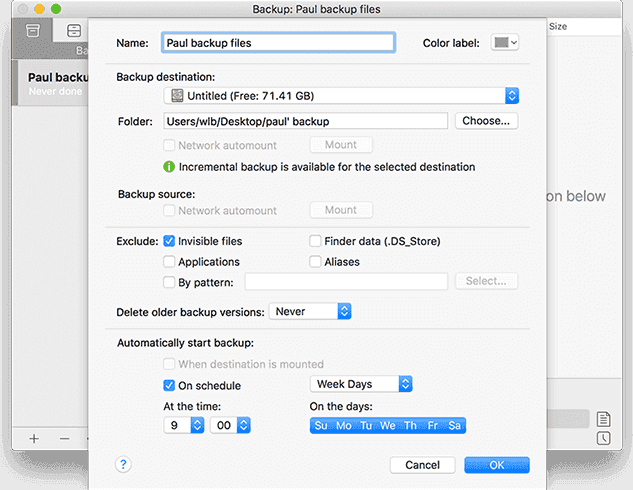
It is a tool for backing up data from every Mac device while reducing data loss. EaseUS Todo Backup offers complete, differential, or incremental backups of your files using pre-sets for iTunes, contacts, mail, images, and documents.
Features:
- Sets a schedule for automatic backups in stealth mode.
- Minimizes backups to conserve storage space.
- To preserve your anonymity, this utility encrypts the backups.
3. Systweak’s Right Backup
Systweak’s Right Backup is a safe cloud storage solution that allows you to back up your files. It is straightforward to use this safe, scalable, and robust cloud backup service. You only have to register an account via the app or the online management panel to submit your critical data and access anything anywhere and at any time.
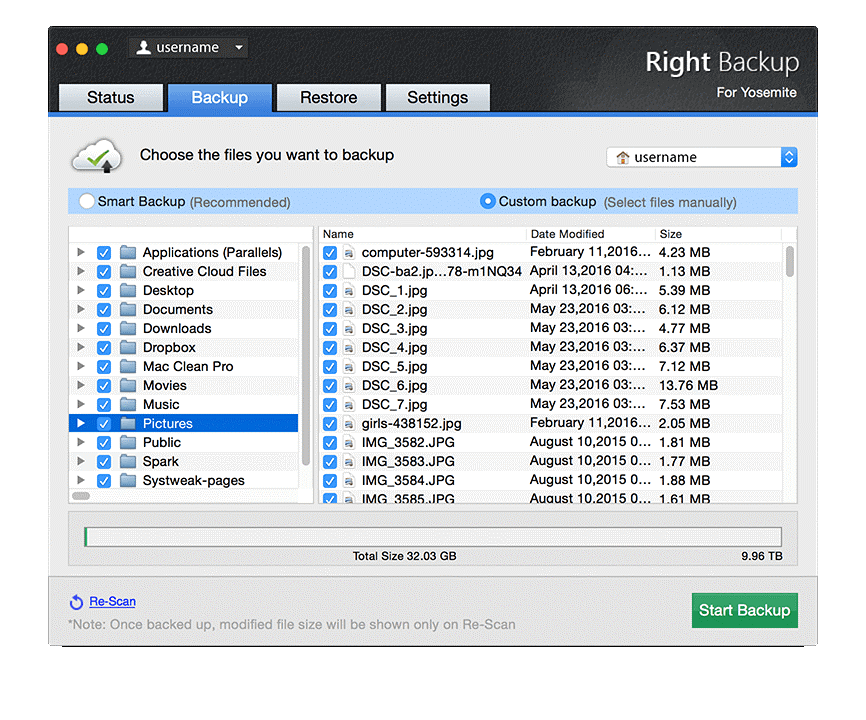
Furthermore, Right Backup makes it simple to transfer media files, photographs, etc. It provides necessary backup attributes to approach as simple as possible.
Features:
- Proper Backup offers an autopilot option that automatically backups all of your data every 12 hours.
- Using the Right Backup tool for crucial files, you may access uploaded data regardless of device and OS type, at any time and from any place.
- You may recover all data within a few clicks by using any restore options. In addition, you may utilize Also; users get the option of custom restores to recover their chosen data.
4. Acronis Cyber Protect Home Office
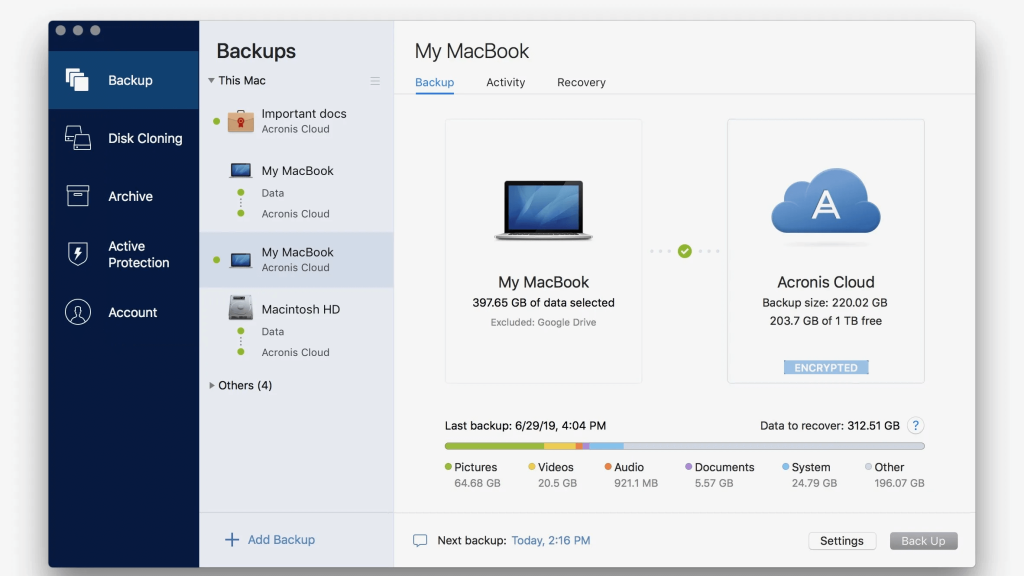
Acronis True Image is another name for Acronis Cyber Protect Home Office. It is a software program designed by Acronis International GmbH. This tool seeks to preserve the systems and enables users to backup and recovery data or complete systems from a backup archive prepared with the software before. In addition, it features the best-looking and straightforward application software among the finest cloud backup solutions.
It is intended for home use and provides backups and recovery to Macs, PCs, and mobile devices. It is the best tool to secure your home computer against software or hardware failures by backing it up. Because of the following capabilities, Acronis True Image is the quickest, simplest, and most comprehensive backup software.
Features:
- Backs up all on your Mac to guarantee the safety of your sensitive digital information.
- Backs up to the Acronis Cloud, the local storage, and network-attached storage (NAS), ensuring dual protection.
- Allow users to search for files in the cloud and local backups and archives to ensure that you are restoring from the appropriate backup.
5. Backblaze
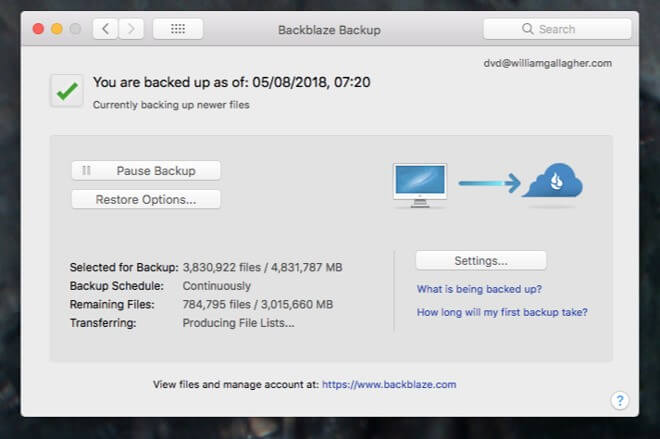
Backblaze is among the most economical cloud backup options on the market. It chooses which data needs backing up, but you may explicitly remove files you don’t need backing up. The personal backup option distinguishes out due to its infinite storage capacity and simple price. Backblaze also tackles data security by employing strong encryption and urging customers to implement two-factor identification. In addition, all data backed up to Backblaze’s cloud service are shareable with others.
Features:
- Backblaze offers two-factor verification to secure your data from hackers.
- Provides unlimited cloud backup as well as enterprise-grade security.
- It may transfer your data to an external hard disk or a USB device.
Conclusion
To conclude, there are several methods you may use to back up your Mac. Inability to back up your system exposes you to data deletion and all of the difficulties that might arise from such an incident. If you aren’t already backing up, pick any of the choices above and get started right away. We recommend the EaseUS Todo Backup program because it allows you to backup data from any Mac device while minimizing data loss.
Author Bio:
Dinesh Lakhwani 

Dinesh Lakhwani, the entrepreneurial brain behind “TechCommuters,” achieved big things in the tech world. He started the company to make smart and user-friendly tech solutions. Thanks to his sharp thinking, focus on quality and the motto of never giving up, TechCommuters became a top player in the industry. His commitment to excellence has propelled the company to a leading position in the industry.
Popular Post
Recent Post

5 Best Data Recovery Software For Windows 11 and Windows 10
A crashed drive can ruin a whole day. One minute your photos, work files, and tax records sit safe on your PC. The next minute they are gone. A power cut, a bad update, or one wrong click can wipe out years of memories and months of work in seconds. That sinking feeling is why […]

How To Update NVIDIA Drivers On Windows 11/10 PC
Learn how to update NVIDIA drivers on Windows 11/10 with simple methods, safety tips, and easy steps for smoother gaming and better PC performance.

Top AI Features Hidden Inside Windows 11
Explore the top AI features in Windows 11, from Copilot to Recall, plus safety tips and simple steps to use each tool the right way.

Customize Your Screen Saver Settings in Windows [Easy Steps]
Learn how to customize screen saver settings in Windows 11 with easy steps, safety tips, and simple tricks to personalize your PC screen.

Driver Easy Windows Driver Updater Tool Review: Tried & Tested
In-depth information about Driver Easy’s functions and features can be found in our review. Learn how to update drivers more easily with this tool for a more seamless computer experience.

Is Avast Driver Updater Worth It? A Hands-On Analysis
A full review of Avast Driver Updater covering features, setup steps, pricing, pros and cons, and real PC results, to help you decide if it is worth buying.

IObit Driver Booster 13 (PRO) Review: [Tried & Tested]
IObit Driver Booster 13 is built for one purpose: keeping your PC drivers up to date. Well, yes! Outdated drivers can cause crashes, slowdowns, and hardware issues. This tool scans fast and updates with one click. The interface is simple. Even beginners can use it without confusion. Updates are pulled from a huge database, covering […]

Auslogics Driver Updater: A Detailed Walkthrough [2026]
This comprehensive review covers the key features, pros, and cons, pricing, and a final verdict on Auslogics’ driver update utility. Learn how it stacks up against manual driver maintenance.

5 Best Driver Updater Tools for Windows to Use (Free and Paid)
Introduction: Most people blame their PC for problems that a driver caused. A driver works like a bridge between your hardware and your operating system. When this bridge cracks, strange things start to happen. Screens flicker without reason. Printers go silent mid-task. Games freeze or crash out of nowhere. Manually finding the right driver is […]

