










Your Windows screen does not stay on forever. After a certain amount of idle time, it turns off or locks automatically. This is a normal feature found on both laptops and desktop PCs. It helps save battery power and reduces electricity use. It also keeps your files and personal information safe when you step away […]
What is FileRepMalware & How to Remove It?
For the continued safety of the digital system and files, many people download a third-party antivirus program into their device. These keep the system safe from security issues after an intricate scanning process. Windows devices can install options like Norton, Avast, or AVG for quick and efficient malware/virus detection.
In many cases, the tag FileRepMalware comes up. To explain FileRepMalware, it is a low reputation score given to show software status. This type of malicious software works to steal, damage, or delete computer data in the affected system. Commonly, Avast detects this particular malicious software and marks the FileRepMalware alert.
While this can do major damage, there are ways to remove it. So, let’s read on to find how to do so.
How Does FileRepMalware Occur?
In the context of understanding what is FileRepMalware and removing it, you must first detect the cause. The following are common methods in which it enters the device of users:
- FileRepMalware can get access into a user’s system through some bundled software programs they install.
- Some pop-up ads from third-party service providers are riddled with this malicious software. When you click on the ad, the malware install automatically installs into the system without any notification.
- FileRepMalware can enter into a device through different peer-to-peer file sharing and downloading networks, e.g., Torrents.
- External media sources and fake updates can also help carriers of this malware.
- FileRepMalware can exist in certain email attachments, typically from unknown sources.
3 Ways to Remove FileRepMalware
In case you notice a FileRepMalware in your system, do not get alarmed about what is FileRepMalware and its influence. That would cause you to take the wrong steps. Instead, follow these methods.
Fix 1: Delete the software
After you use antivirus software such as Avast or Norton, you would get an alert for the damaged software. Avast automatically tags software with FileRepMalware if it is affected. Here are the steps to remove the software entirely from your device.
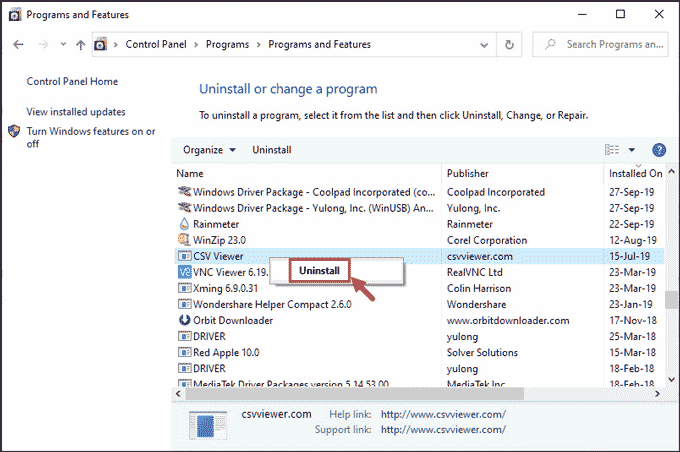
Add the software into the Windows Search bar. Right-click the result that comes up. Select “Uninstall”.
Then, choose Programs and Features > *Software name*> Uninstall.
Fix 2: Using Anti-Malware Software
You should access the official website of a reliable anti-malware like Malwareytes and install it into the system. Here are the most detailed steps for this process, using cleaning software as well.
Step 1: You must develop a restore point for your file before you start making modifications to your system logs or using any tool. With this, you can later restore any files that deleting the malware file would remove.
Step 2: Use an adware removal software like Adwcleaner to delete all types of adware present in your system. Any remaining adware prompts the re-installation of FileRepMalware. Here are some steps to use this.
- Download the AdwCleaner tool.
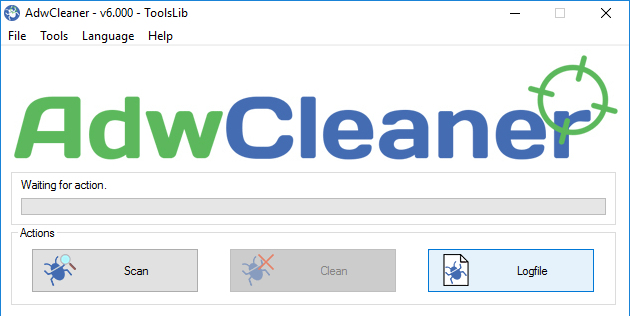
- Right-click to find Options > Run As Administrator > Start Scan
- Click on the ‘Clean’ button and press “Ok”. This would delete the malware from the system. Then, clean the adware and reboot.
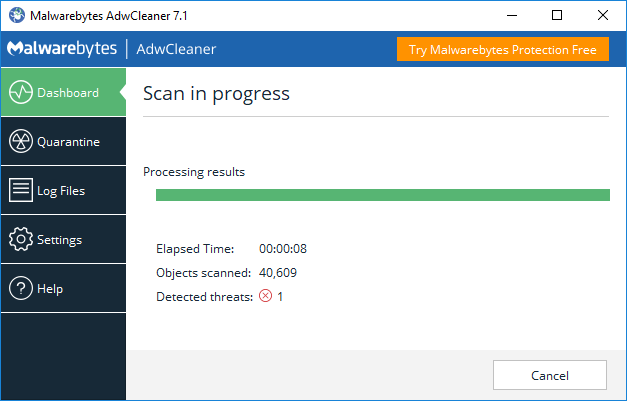
Step 3: Use the Malwarebytes tools to delete all malware types present in your system. It would deep scan your system and find the affected files/software. Choose them to delete.
Step 4: After cleaning out all malware and adware from the device system, some files and registries that are damaged would still remain. These can harm the system later. So, you should install and use CCleaner to clean them out.
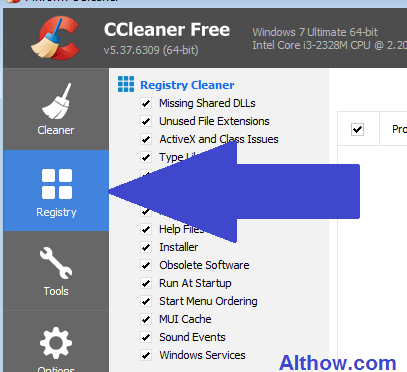
- Access the tool and select the Registry button from the upper left corner of the screen.
- Choose the file for checking damage via the “Scan for Issues” option. All registry issues would appear.
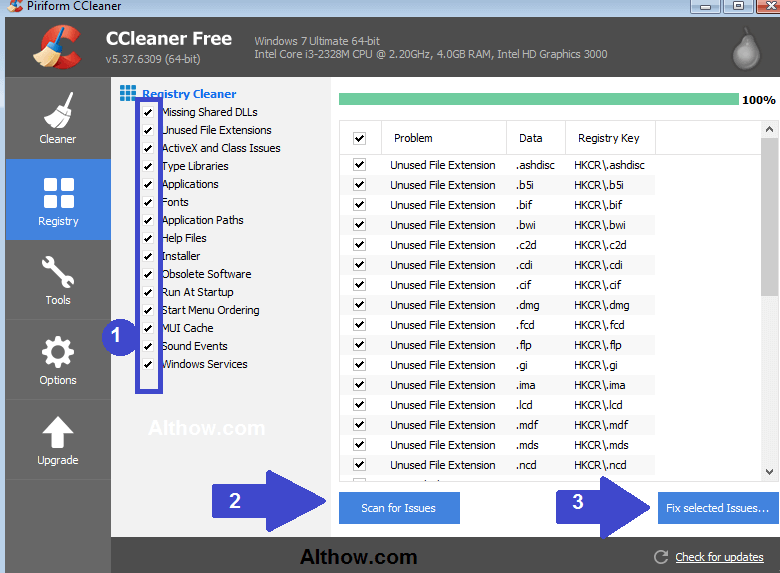
- Check/uncheck as required. Select “Fix Selected Issues”.
- On the new window that appears, click on “yes” about creating a backup and then select “Fix All Selected Issues”.
- Select Close.
Fix 3: Manually remove the malware from Windows
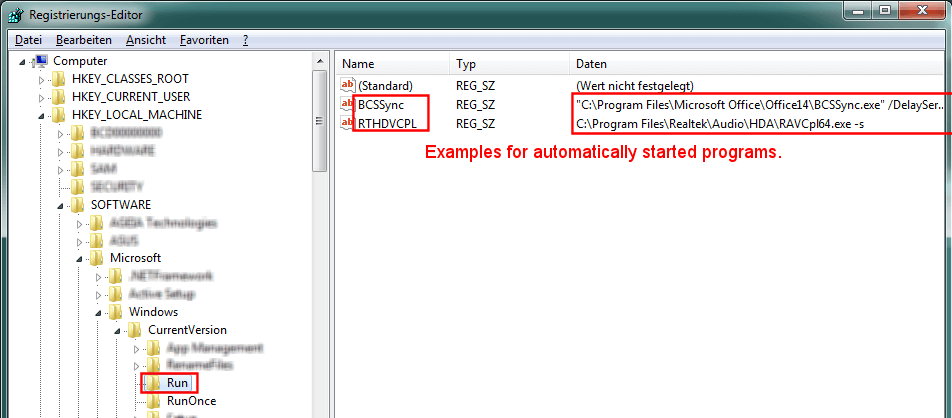
You have to delete all types of unauthorized programs directly from your device Control Panel. Search for Windows/Windows System folder. Look for the following folder from the Windows Registry; many virus files get listed here:
HKEY_LOCAL_MACHINE\Software\Microsoft\Windows\CurrentVersion\Run
Fix 3.1: Manually remove from Windows 7/XP
Carry out the following steps.
Step 1: Access Windows Start. Then, open the Control Panel. In the case of Windows XP models, users must choose the Add/Remove Programs option.
Step 2: The Programs list would appear under the Control Panel. Select it and then choose “Uninstall”.
Step 3: Scroll further to check any additional defective program. Click each, and then scroll up to the top of the page and select “Uninstall/Change”.
Step 4: After the confirmation dialog box appears, select “Yes” to continue.
Step 5: After the software uninstalls, choose “Ok”.
Fix 3.2: Manually remove from Windows 8/10/11
Step 1: Access Windows Search bar > Control Panel.
Click on the result that appears or click on Enter.
Step 2: Look for any programs under the Programs section that might be undesirable. Select them and then “Remove” or “Uninstall”.
How to Get Files Back After Removing FileRepMalware?
You can use different antivirus software options to safeguard the condition of your system for longer. Prepare system backups can keep the system safe as well, so use relevant tools to do so.
There is software for this such as MiniTool Partition Wizard. This is a professionally built partition manager. It helps with disk storage backup and supports data recovery. Use this software after carrying the different methods to remove FileRepMalware from your system. In case of data loss, the Partition Wizard is useful.
Bottom Line
At the end of this, it is important to mention that yes, FileRepMalware is a toxic malware that causes harm to your system files. However, as discussed, there are ways you can remove it without affecting your device performance. Make sure to carry out preventive steps like consistently scanning your system with reliable antivirus software like Avast or AVG regularly.
For any other doubts about software issues like this, or other information, read our diverse article. Please follow us on our socials if you found this useful.
Author Bio:
Dinesh Lakhwani 

Dinesh Lakhwani, the entrepreneurial brain behind “TechCommuters,” achieved big things in the tech world. He started the company to make smart and user-friendly tech solutions. Thanks to his sharp thinking, focus on quality and the motto of never giving up, TechCommuters became a top player in the industry. His commitment to excellence has propelled the company to a leading position in the industry.
Popular Post
Recent Post
How to Recover Unsaved Word Document? [Complete Guide]
It can be frustrating when a Word document suddenly disappears. You may have spent hours writing a report, assignment, or letter. Then your computer crashes, the power cuts out, or Word closes before you save the file. In that moment, it may seem like all your work is gone. This happens more often than most […]

What Is A Zero-Day Attack And How Can You Defend Against One?
Picture this. A hacker finds a secret crack in your favorite app. You don’t know it’s there. The company that built the app doesn’t know either. But the hacker does. And they use it right away, before anyone can stop them. This is the heart of a zero-day attack. It strikes when a flaw is […]

Iolo System Mechanic PC Cleanup Software: Hands-On Performance Review
PCs feel fast on the first day. Every click is quick. Apps open right away. With time, things slow down. Programs take longer to load. Files open slowly. Fans get loud even during light use. This happens to almost every computer, no matter how careful you are. The reason is clear. Junk files build up […]

Advanced SystemCare PC Cleanup Tool: A Detailed Review
You turn on your PC and wait. And wait. The same laptop that once opened apps in a snap now feels tired. This is not bad luck. It just happens over time. Files pile up. The registry gets messy. Old drivers stay installed long after they are useful. Junk data quietly eats up space on […]

Avast Cleanup PC Cleaner and Optimizer: Everything You Need to Know
A slow computer makes it hard to focus. Programs take too long to open. Free space keeps shrinking until the disk is almost full. This happens to most PC owners at some point. Even new machines can slow down after a while. That is the exact problem cleanup tools are built to solve. They comb […]

Fortect Software Review: The Ultimate PC & Mobile Cleaning, Optimization & Security Tool
Slow computers are a common problem for almost every Windows user. Well, yes! Over time, your PC picks up junk files. These files sit quietly in the background. They take up space and slow things down. Programs open slower. Windows takes longer to boot. Even simple tasks like opening a folder can feel sluggish. There […]

CCleaner PC Optimizer Review: A Complete Guide for Windows Users
If your computer has started to feel slow, you are not alone. Most Windows PCs slow down over time. Junk files pile up. The registry gets messy. Too many apps open when you start your PC. All this adds up and makes even a good machine feel tired. This is where a PC cleaner tool […]

5 Best PC Cleaners for Windows 11 & 10 | Top PC Optimizers
Remember when your PC felt fast? Every click was quick. Every app opened in seconds. Now it feels like a different machine. Windows takes forever to boot. Programs freeze for no reason. Even opening a browser feels like a chore. You are not alone in this. Almost every PC slows down over time. Files pile […]

Auslogics Duplicate File Finder: Full Review and User Guide
A computer quietly gathers clutter over time. This includes duplicate photos, repeated downloads, and forgotten backups hiding in random folders. This buildup slowly eats away at storage and can make even a fast PC feel sluggish. Manually finding and deleting duplicates is tedious. It means checking every folder, comparing file names, and guessing which copies […]

