











A crashed drive can ruin a whole day. One minute your photos, work files, and tax records sit safe on your PC. The next minute they are gone. A power cut, a bad update, or one wrong click can wipe out years of memories and months of work in seconds. That sinking feeling is why […]
10 Best Wi-Fi Analyzer Apps for Mac
Comparison table of top five Wi-Fi analyzer apps for Mac
| Sr. No. | Name of product | Compatibility | Pricing |
| 1 | Wi-Fi Scanner | MacOS 10.7 and later | 19.99USD |
| 2 | KisMac | MacOS 10.6 and later | Free |
| 3 | Mac Wireless Diagnostics Tool | MacOS 10.14 and later | Free |
| 4 | Wi-Fi Explorer Pro 3 | MacOS 10.13 and later | 19.99USD |
| 5 | Homedale | MacOS 10.13 and later | Free |
Nobody wants a slow internet connection that hampers the online browsing speed of any Mac device. While the majority of Mac users access the internet through dedicated Wi-Fi systems only, there is an immediate need for Wi-Fi analyzer apps. These apps help select the best Wi-Fi network using simple visual graphics.
Top 10 Wi-Fi Analyzer Apps for Mac
If you’re facing any issues like poor internet performance, unreliable connectivity, and want to discover hidden networks, the leading analyzer apps can be highly useful for you. So today, we bring you a detailed and tested list of the top ten apps for seamless internet connectivity on your MAC device.
1. Wi-Fi Scanner
It is a highly useful and easy-to-understand app. It was developed by AccessAgility that is a popular company in Wi-Fi analyzers. It helps quick detection of different spots for access points. It offers quick detection of the less used networks and hence can be used for high-speed internet connectivity.
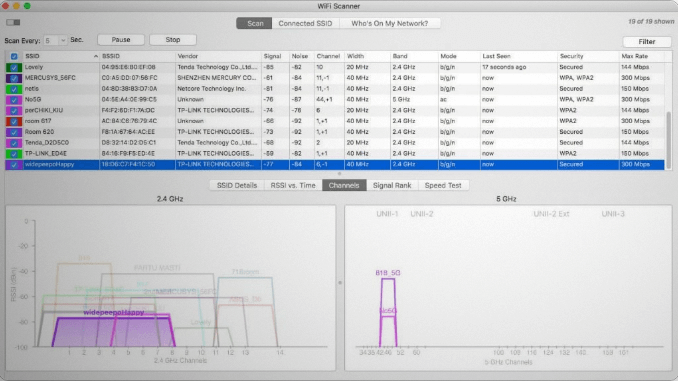
Compatibility:MacOS 10.7 and later
Price:Free
Features:
- It has a built-in IP scanner.
- It gives custom labels to all access points.
- It offers multiple overlapping channels.
Pros:
- It offers a quick analysis of download and uploads speeds.
- It captures signal level changes graphically.
- It can detect unauthorized devices.
Cons:
- It requires location services when used on Mac OS Mojave, Catalina, etc.
2. KisMac
It is the second preferred choice in our list of dedicated Wi-Fi analyzer apps. It can reveal network parameters like signal strength, IP address, and SSID. It helps quick detection of all kinds of Wi-Fi networks available in the region. It can easily locate the closed, hidden, and cloaked networks. It can further pull the client’s IP address and MAC addresses.
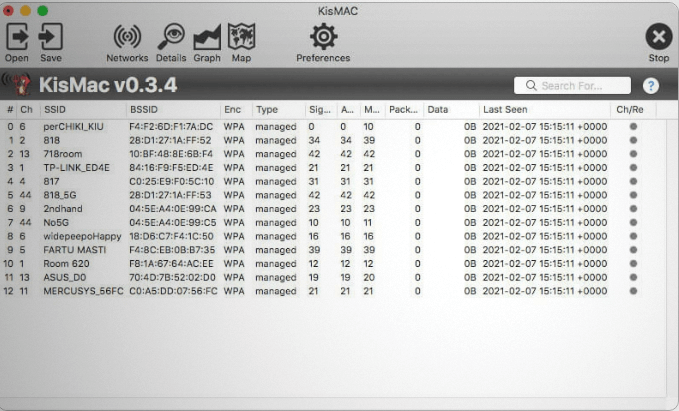
Compatibility:MacOS 10.6 and later
Price:Free
Features:
- Packet Capture export and import settings.
- Attractive plug-ins.
- Can detect all types of Wi-Fi networks.
Pros:
- Offers a detailed map of multiple networks.
- Protects from network attacks.
- Easy to use interface.
Cons:
- It can’t save graphical data.
3. Mac Wireless Diagnostics Tool
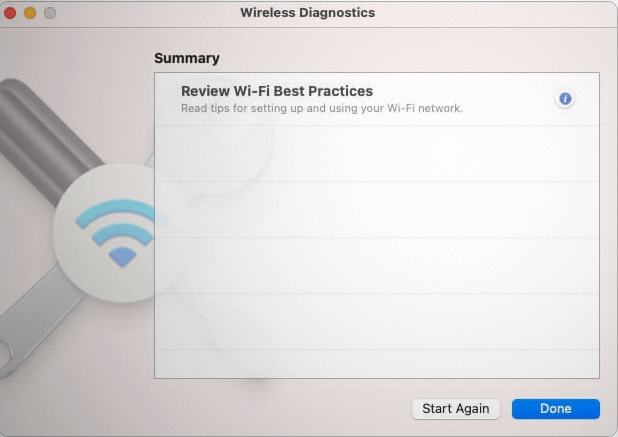
It is a top-ranking apps available in the market. It can help detect signal strength, RSSI, channel, band, RF spectrum, and SSID parameters. It saves the reports in the device’s memory. It is a built-in analyzer in Mac devices and can troubleshoot webpage issues. It can further deal with email synchronization and is an easy-to-use diagnostics tool.
Compatibility: MacOS 10.14 and later
Price: Free
Features:
- In-built tool.
- Real-time performance indications.
- Can offer difference between different spots.
Pros:
- Quick and easy to use.
- Actionable hacks to improve internet connectivity.
- It has a minimalist control interface.
Cons:
- It lacks advanced reporting tools.
4. Wi-Fi Explorer Pro 3
It is another top choice in the popular and highly useful Wi-Fi analyzer apps. It can reveal multiple network parameters like signal strength, RSSI, channel, RF spectrum, vendor, SSID, etc. The reporting options include CSV export and can capture file support. This app offers detailed visualization of channel distribution and real-time signal monitoring.
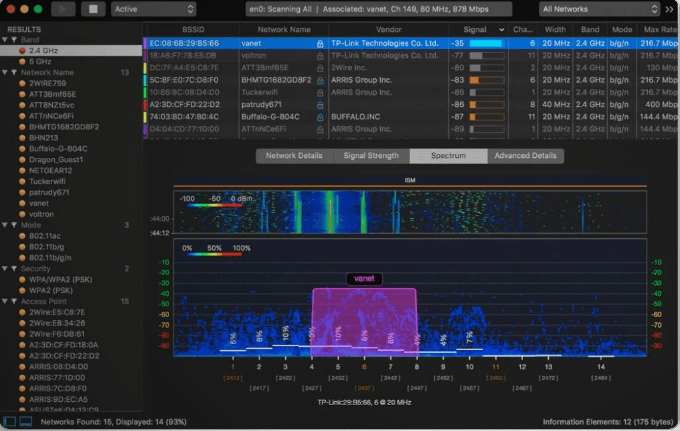
Compatibility:MacOS 10.13 and later
Price:$129 for year
Features:
- 3-D analyzer
- Offers SSID overhead estimation
- Offers personalized graphs according to needs.
Pros:
- Highly-intuitive user interface
- Hassle-free analysis
- Quick visualization of Wi-Fi analysis
Cons:
- Multiple options may confuse the new users.
5. Homedale
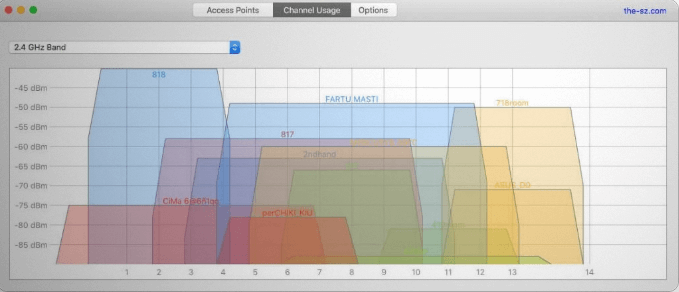
It is a good choice when you’re looking for Wi-Fi analyzer apps. It offers insights into multiple networking parameters, including signal strength, RSSI, channel, RF spectrum, SSID, and vendor details. It is powered with multiple features that optimize the ideal access point for your Mac device. It is one of the lightweight applications that fit in needs of all Mac devices.
Compatibility:MacOS 10.13 and later
Price:Free
Features:
- HT and VHT capabilities
- Quickly find a matching access point
- Scans multiple networking features
Pros:
- Minimal options for quick access
- Clean and easy to use interface
- Lightweight application
Cons:
- It doesn’t have advanced features.
6. NetSpot
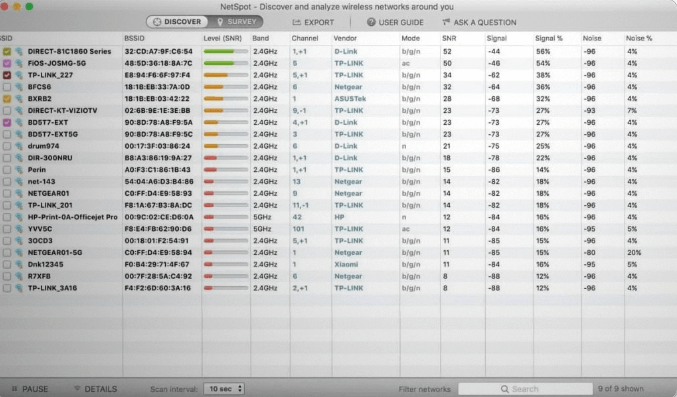
It is one of the popular apps that conducts quick Wi-Fi analysis. It offers multiple tools that offer a detailed analysis of the available Wi-Fi networks. It offers useful insights into the top helpful access points and provides details of cables and antennas.
It can run SSID, BSSID, band, channel, RSSI, signal strength, and vendor parameters. There are options in the reporting tools, including customizable report builder PNGs of heat maps and CSV export.
Compatibility: MacOS 10.10 and later
Price:$49 for single user
Features:
- Offers security standards like unauthorized workstation detection, rogue AP elimination, etc.
- It has a heat-mapping feature for quick visual information.
- It has a discover mode for detecting every possible networking information.
Pros:
- It has a beginner-friendly platform.
- It offers multiple visual tools and charts.
- It offers full features of networking data elements.
Cons:
- The trial version has limited zones.
7. Xirrus Wi-Fi Inspector 2.0
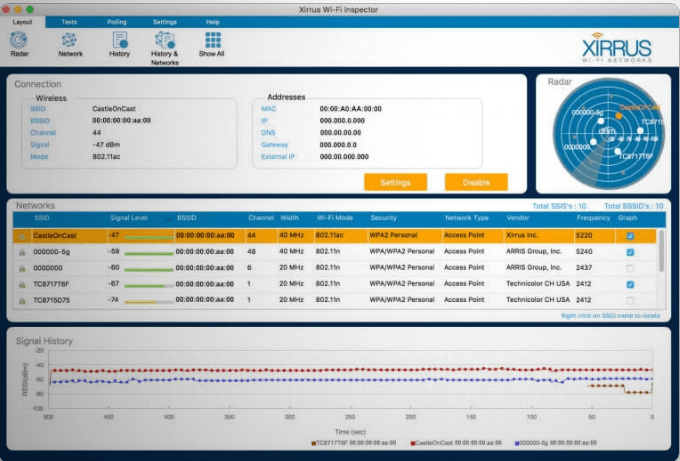
It is a good option in the Wi-Fi analyzer apps for multiple users. It can offer quick details about signal strengths, RSSI, channels, bands, vendors, RF spectrum, and SSID. It can quickly detect different access points. The users of Xirrus Wi-Fi Inspector 2.0 can monitor the client details and traffic. It is trusted by global users and helps solve multiple Wi-Fi issues.
Compatibility:MacOS
Price:Free
Features:
- Detailed site surveys
- Runs A/B tests
- Verify basic access point settings
Pros:
- Easy-to-use graphical user interface
- Can limit device’s connectivity to Wi-Fi
- Quick and easy to use troubleshooting tools
Cons:
- It is ideal for enterprise users only.
8. iAnalyzeWifi- Wi-Fi Analyzer
It is a leading app that is used on multiple Mac devices at home and offices. It can effectively monitor, diagnose, and troubleshoot the Wi-Fi connection. The new additions in the updated version of iAnalyzeWifi fixed the missing network issues. The color consistency on the map ensures quick details.
Compatibility:MacOS 10.15 and later
Price:4.99USD
Features:
- Lightweight app of 2.2MB
- Supports family sharing
- Color consistency for smooth visuals.
Pros:
- Can monitor and troubleshoot Wi-Fi networks
- Can detect neighboring Wi-Fi interferences
- Simple user interface
Cons:
- Lacks advanced features
9. Wifiner
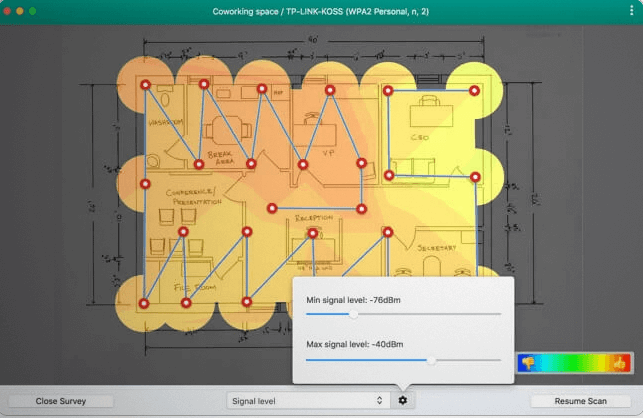
It is a useful Wi-Fi analyzer app that is popular for Mac devices. It offers heatmap surveys and quick access to signal strengths, RSSI, channels, RF spectrum, vendors, SSID, etc. It is one of the exclusive apps that offer a sandbox Wi-Fi survey for different app users. Wifiner is helpful in locating the dead spots and offers quick router placements for detailed connectivity.
Compatibility:MacOS 10.10 and later
Price:$29.99
Features:
- Color-coded heatmaps
- Optimally placement of access points
- Detailed Wi-Fi survey
Pros:
- Intuitive user interface
- Offers wall-to-wall zigzag pattern
- Gives comprehensive results
Cons:
- The scans may take multiple minutes.
10. AirRadar
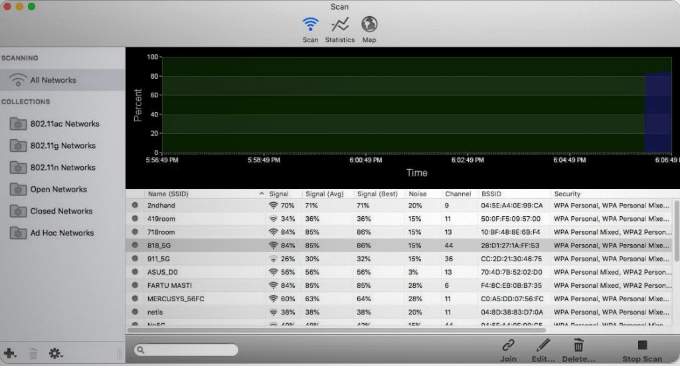
It is another great option in the Wi-Fi analyzer apps. It can provide details into signal strengths, RSSI, channels, RF spectrum, beacon intervals, vendors, SSID, etc. It can quickly scan and display the available Wi-Fi networks on a map and is powered by GPS technology. It is the ideal app for frequent travelers. When at home, users can optimize the home network by reducing signal interferences.
Compatibility:MacOS 10.13 and later
Price:$9.99
Features:
- GPS integration
- Can optimize home network
- Can save Wi-Fi scan logs
Pros:
- Easy to use dashboard
- Ideal for new-bees and professionals
- Easy to understand reports
Cons:
- It may be a bit expensive.
Wrapping Up:
You can go for any of the above-mentioned lists of high-performing Wi-Fi analyzer apps. Further, if you’ve any issues with your storage device, you can go for the MacPaw that helps improve the speed of your Mac device. These apps know areas of strongest, not so strong, and weakest signals for Mac users and help them make adjustments accordingly.
Author Bio:
Dinesh Lakhwani 

Dinesh Lakhwani, the entrepreneurial brain behind “TechCommuters,” achieved big things in the tech world. He started the company to make smart and user-friendly tech solutions. Thanks to his sharp thinking, focus on quality and the motto of never giving up, TechCommuters became a top player in the industry. His commitment to excellence has propelled the company to a leading position in the industry.
Popular Post
Recent Post

How To Update NVIDIA Drivers On Windows 11/10 PC
Learn how to update NVIDIA drivers on Windows 11/10 with simple methods, safety tips, and easy steps for smoother gaming and better PC performance.

Top AI Features Hidden Inside Windows 11
Explore the top AI features in Windows 11, from Copilot to Recall, plus safety tips and simple steps to use each tool the right way.

Customize Your Screen Saver Settings in Windows [Easy Steps]
Learn how to customize screen saver settings in Windows 11 with easy steps, safety tips, and simple tricks to personalize your PC screen.

Driver Easy Windows Driver Updater Tool Review: Tried & Tested
In-depth information about Driver Easy’s functions and features can be found in our review. Learn how to update drivers more easily with this tool for a more seamless computer experience.

Is Avast Driver Updater Worth It? A Hands-On Analysis
A full review of Avast Driver Updater covering features, setup steps, pricing, pros and cons, and real PC results, to help you decide if it is worth buying.

IObit Driver Booster 13 (PRO) Review: [Tried & Tested]
IObit Driver Booster 13 is built for one purpose: keeping your PC drivers up to date. Well, yes! Outdated drivers can cause crashes, slowdowns, and hardware issues. This tool scans fast and updates with one click. The interface is simple. Even beginners can use it without confusion. Updates are pulled from a huge database, covering […]

Auslogics Driver Updater: A Detailed Walkthrough [2026]
This comprehensive review covers the key features, pros, and cons, pricing, and a final verdict on Auslogics’ driver update utility. Learn how it stacks up against manual driver maintenance.

5 Best Driver Updater Tools for Windows to Use (Free and Paid)
Introduction: Most people blame their PC for problems that a driver caused. A driver works like a bridge between your hardware and your operating system. When this bridge cracks, strange things start to happen. Screens flicker without reason. Printers go silent mid-task. Games freeze or crash out of nowhere. Manually finding the right driver is […]

Fixing Lock Screen Timeout – Screen Timeout Settings
Your Windows screen does not stay on forever. After a certain amount of idle time, it turns off or locks automatically. This is a normal feature found on both laptops and desktop PCs. It helps save battery power and reduces electricity use. It also keeps your files and personal information safe when you step away […]

