31 Windows 11 Tips and Tricks for Beginners & Advanced Users

Last updated on March 4th, 2025 at 8:51 am
Are you eager to discover new Windows 11 tips and tricks? Look no further! Windows 11 offers many features to make your computer experience better. Whether you are a beginner or an advanced user, these tips and tricks will help you use your system better. From improving productivity to enhancing security, there’s something for everyone.
With these handy tips and tricks, you can unlock a world of possibilities. Learn how to personalize your desktop, improve performance, and increase efficiency. These tips and tricks are easy to follow and can make a big difference in how you use your computer.
Whether you’re working, playing, or just browsing, these Windows 11 tips and tricks will make your experience better.
So, let’s get started with these amazing tips and tricks for Windows 11!
Part 1: Things to Take Care Before Performing The Tips and Tricks
Before diving into Windows 11 tips and tricks, make sure to:
- Back up your important data. Always have a copy of your essential files to prevent data loss.
- Update your system to the latest version. Ensure your operating system is up to date for the best performance.
- Check for any driver updates. Keep your hardware running smoothly with the latest drivers.
- Ensure your antivirus is up to date. Protect your system from threats by updating your antivirus software.
- Create a system restore point.
- Familiarize yourself with the Windows 11 interface. Understand the new layout and features.
- Close unnecessary programs. Free up system resources before making changes.
- Have a stable internet connection. Ensure your internet is reliable for downloading updates and new apps.
Part 2: 20 Windows 11 Tips and Tricks for Beginners
Before diving into the Windows 11 tips and tricks specifically designed for beginners, it’s important to understand the basics.
This section covers useful Windows 11 tips and tricks for beginners. These tips will help you customize your computer, be more productive, and use your system more easily.
Customize the Start Menu:

Pin your favorite apps for quick access. Right-click on any app and select “Pin to Start.” You can also resize the tiles and rearrange them to your liking. This makes it easier to find and open your most-used apps.
Use Snap Layouts:

Arrange your windows easily by snapping them into place. Hover over the maximize button on a window and choose a layout. You can select from different grid patterns to organize your open apps. This helps you multitask more effectively.
Personalize Your Desktop:

Change wallpapers and themes to suit your style. Go to Settings > Personalization > Background to choose a wallpaper or slideshow. Explore different themes to give your desktop a fresh look. Customizing your desktop can make your workspace more enjoyable.
Use Virtual Desktops:

Keep work and personal tasks separate by using multiple desktops. Press Windows + Tab. Now select the “New desktop” option to create a virtual desktop. Switch between desktops to organize work and personal activities.
Use Widgets:

Stay updated on news, weather, and more by clicking the Widgets icon in the taskbar. In the Widgets panel, you can add, remove, and customize widgets to display the information you need. This feature keeps you informed without the need to open multiple apps.
Adjust Display Settings:

Optimize brightness and resolution for comfort. Go to Settings > System > Display to adjust the brightness, resolution, and scaling. This ensures that your screen is easy on your eyes and looks great. Proper display settings can reduce eye strain during long computer sessions.
Use File Explorer Tabs:

Manage files efficiently with multiple tabs. Open File Explorer and click the “+” button to add a new tab. You can switch between tabs to work on different files and folders without opening multiple windows. This makes file management more convenient.
Use Quick Settings:

Easily access frequently used features by clicking on the system icons in the taskbar to open Quick Settings. Here, you can control Wi-Fi, Bluetooth, volume, and brightness settings. This convenient access saves you time.
Use Dark Mode:

Reduce eye strain with a darker interface. Go to Settings > Personalization > Colors and select “Dark” under “Choose your color.” Dark Mode changes the appearance of Windows and some apps to a dark theme. It’s especially useful in low-light environments.
Use Microsoft Store:

Easily find and install new apps by opening the Microsoft Store from the taskbar or Start Menu. Browse through different categories and read reviews to discover the best apps for your needs. The Microsoft Store provides a wide range of apps for productivity, entertainment, and more.
Use Focus Assist:

Minimize distractions by controlling notifications. Go to Settings > System > Focus assist and choose when you want to block notifications. You can set it to activate automatically during specific times or activities. Focus Assist helps you stay focused on important tasks.
Use Taskbar Shortcuts:

Quickly access your favorite apps by right-clicking on them and selecting “Pin to taskbar.” You can also drag the icons to rearrange them. This way, your most-used apps are always within easy reach.
Use Emoji Keyboard:

Add a touch of fun to your messages with emojis. Press Windows + “.” to access the emoji keyboard. Browse through different categories and insert emojis into your text. These icons can make your messages more vibrant and engaging.
Use Voice Typing:

Dictate text effortlessly with voice commands. Press Windows + H to start voice typing in any text field. Speak clearly, and Windows will convert your speech to text. This feature is useful for hands-free typing and can save time.
Use Clipboard History:
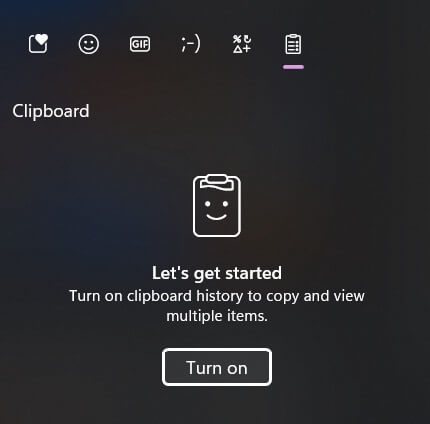
Access copied items easily from the clipboard. Press Windows + V to open the clipboard history. You can see and paste previously copied items. This feature helps you manage your copied content more efficiently.
Use Action Center:
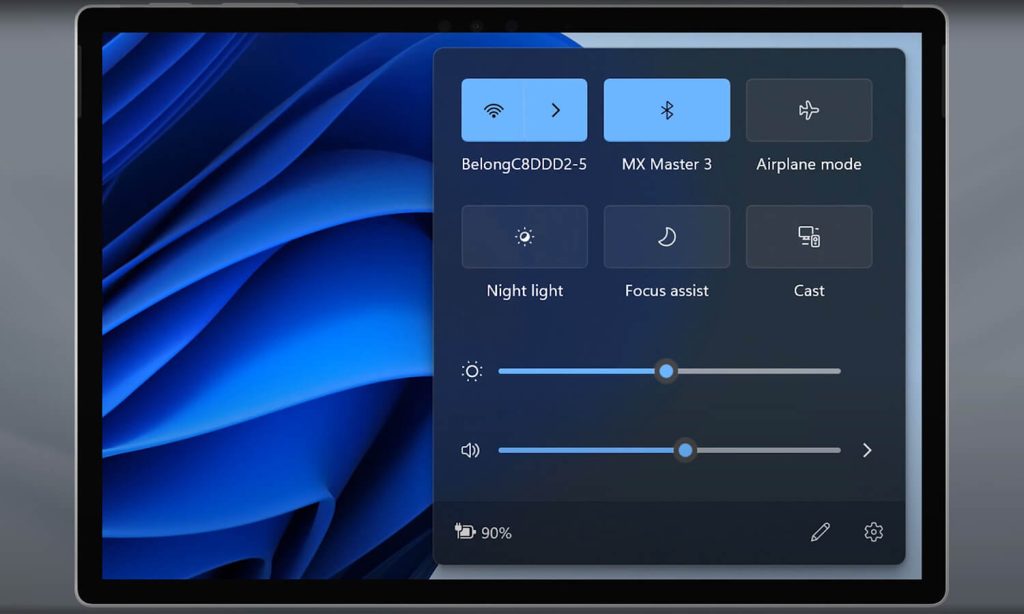
Manage notifications and quick actions. Click on the notification icon in the taskbar to open the Action Center. Here, you can view and clear notifications and access quick actions like Wi-Fi, Bluetooth, and screen brightness.
Use Task View:

Switch between open apps and desktops. Press Windows + Tab to open Task View. You can see all your open apps and virtual desktops. This feature makes it easier to switch between tasks and stay organized.
Use Windows Search:

Find files and apps quickly with the search feature. Press Windows + S to open the search bar. Type in your query, and Windows will show results from your files, apps, and the web. Windows Search helps you locate information quickly.
Use Magnifier:

Zoom in on your screen for a closer look. Press Windows + “+” to activate the Magnifier tool. You can zoom in and out to see details more clearly. This feature is helpful for reading small text or inspecting images.
Use Ease of Access Settings:

Customize accessibility options to suit your needs. Go to Settings > Ease of Access to explore features like Narrator, high contrast, and on-screen keyboard. These settings make Windows more accessible for users with different needs.
Part 3: 11 Windows 11 Tips and Tricks for Advanced Users
For those who have already mastered the basics, Windows 11 offers a range of advanced features and customization options. These tips and tricks will help you unlock the full potential of your system and take your computer skills to the next level. Whether you’re looking to automate tasks, enhance security, or optimize performance, these advanced tips and tricks have you covered.
Use Power Automate:
Create custom workflows to automate tasks. Power Automate allows you to set up automated processes for repetitive tasks. You can create flows that trigger actions based on specific events, such as moving files, sending emails, or updating records. This feature can save you a lot of time and effort by automating routine tasks.
Use Group Policy Editor:
Manage system settings and policies. The Group Policy Editor gives you control over various system settings and configurations. You can use it to enforce security policies, customize user settings, and manage software installations. This tool is especially useful for IT professionals and advanced users who need to maintain a secure and well-managed system.
Use Registry Editor:
Customize advanced settings through the registry. The Registry Editor allows you to modify system settings at a deeper level. You can tweak various aspects of Windows, such as performance settings, user interface options, and security configurations. However, be cautious when making changes to the registry, as incorrect modifications can cause system issues.
Use Task Scheduler:
Automate tasks to run at specific times. Task Scheduler lets you create and manage automated tasks that run at predetermined times or in response to specific events. You can use it to schedule system maintenance, perform backups, run scripts, and more. Automating tasks with Task Scheduler can help you ensure that important tasks are completed consistently and on time.
Use Command Prompt:
Execute commands and scripts with ease. The Command Prompt is a powerful tool for running commands and scripts. You can use it to perform a wide range of tasks, from managing files and folders to configuring network settings. Advanced users can also create batch files and scripts to automate complex processes.
Use Windows Subsystem for Linux (WSL):
Install and run a full-fledged Linux environment alongside Windows 11. With WSL, advanced users can access Linux command-line tools and applications directly from their Windows PC. This feature is ideal for developers, system administrators, and power users who need a Linux environment for testing, development, or running specific applications.
To get started, go to Settings > Update & Security > For developers and enable the “Developer mode.” Then, open PowerShell as an administrator and run the command wsl –install. This will install the Windows Subsystem for Linux and the default Linux distribution.
Use Hyper-V:
Create and manage virtual machines for testing. Hyper-V is a virtualization tool that lets you create and run virtual machines on your system. You can use it to test new software, run different operating systems, and isolate environments for security testing. Virtual machines are useful for testing and development purposes without affecting your main system.
Use BitLocker:
Encrypt your data to protect sensitive information. BitLocker is a disk encryption feature that helps you protect your data from unauthorized access. You can use it to encrypt entire drives, including your system drive and removable drives. Encrypted data is only accessible with the correct password or encryption key, providing an additional layer of security for sensitive information.
Use Windows Sandbox:
Test apps safely in an isolated environment. Windows Sandbox provides a lightweight, isolated environment where you can run untrusted applications without risking your main system. When you close the Sandbox, all data and changes made within it are discarded. This feature is useful for testing software, opening suspicious files, and experimenting with settings.
Use Remote Desktop:
Access your PC remotely from another device. Remote Desktop allows you to connect to your computer from another device over a network. You can use it to access files, run applications, and manage your system remotely. This feature is especially useful for remote work, technical support, and accessing your PC while traveling.
Use Advanced Security Settings:
Protect your system with enhanced security options. Windows 11 offers a range of advanced security settings that help you safeguard your system. You can configure features like Windows Defender, firewall rules, user account control, and biometric authentication. By fine-tuning these settings, you can enhance your system’s security and protect it from threats.
These advanced Windows 11 tips and tricks are designed to help you get the most out of your system. Whether you’re automating tasks, enhancing security, or optimizing performance, these tips will empower you to use Windows 11 like a pro. Explore these features and take your computer skills to the next level.
Conclusion
In conclusion, mastering Windows 11 tips and tricks can transform your computer experience. These tips and tricks are designed to help you get the most out of your system. From beginners to advanced users, there’s something for everyone. By following these Windows 11 tips and tricks, you can improve productivity, enhance security, and customize your system to your liking. So, don’t wait any longer—start exploring these Windows 11 tips and tricks today.
Remember, the key to unlocking the full potential of your computer lies in your hands. With these Windows 11 tips and tricks, you’ll be well-equipped to navigate your system with ease. Embrace the power of Windows 11 and take your computer skills to the next level. Happy computing!
FAQs:
What are some essential Windows 11 tips and tricks for beginners?
Some essential Windows 11 tips and tricks for beginners include customizing the Start Menu by pinning favorite apps for easy access. Additionally, using Snap Layouts helps arrange windows efficiently. Beginners can also benefit from exploring Virtual Desktops to separate work and personal tasks, adjusting display settings for comfort, and utilizing Widgets for quick updates on news and weather. These tips enhance the user experience and make navigation easier.
How can advanced users benefit from Windows 11 tips and tricks?
Advanced users can greatly benefit from Windows 11 tips and tricks by utilizing tools like Power Automate to create custom workflows that automate repetitive tasks. They can also manage system settings through the Group Policy Editor, customize advanced settings via the Registry Editor, and automate tasks with Task Scheduler. Additionally, advanced users can enhance security with BitLocker encryption and test applications safely in Windows Sandbox. These advanced tips empower users to optimize their system and improve productivity.
Are Windows 11 tips and tricks easy to follow?
Yes, Windows 11 tips and tricks are designed to be easy to follow. They cater to users of all levels, from beginners to advanced users. Each tip is explained in simple terms, and step-by-step instructions are provided to ensure clarity. Whether you are personalizing your desktop, adjusting settings, or exploring advanced features, these tips are straightforward and user-friendly. This makes it easy for anyone to enhance their Windows 11 experience.
Author Bio:
Dinesh Lakhwani 

Dinesh Lakhwani, the entrepreneurial brain behind “TechCommuters,” achieved big things in the tech world. He started the company to make smart and user-friendly tech solutions. Thanks to his sharp thinking, focus on quality and the motto of never giving up, TechCommuters became a top player in the industry. His commitment to excellence has propelled the company to a leading position in the industry.
Popular Post











Recent Post

How To Fix Issues Downloading from the Microsoft Store On Windows
Introduction: Downloading apps from the Microsoft Store should be a simple task. You open the Store, search for an app, and click install. In most cases, the process works without any problem. However, there are times when the download does not start. In some cases, it may stay stuck at a certain percentage. You may […]

How To Fix Windows Update Issues Easily On Windows [2026]
Introduction Windows updates play an important role in keeping a computer stable and secure. They bring new features, fix known bugs, and improve overall performance. When updates work as expected, the system runs smoothly. However, when they fail, users often face slow performance, missing features, or security risks. This is why it becomes important to […]

How To Check If Your PC Is Infected? [Complete Guide]
Computers now sit at the center of almost everything we do. Well, yes! From sending emails to watching videos, we depend on them without much thought. Because of this, even a small issue can disrupt daily tasks. One common problem is hidden malware. It does not always show clear signs at first. It can enter […]

Repair Apps And Programs: Repair Apps That Aren’t Working
Computers have become an essential part of everyday life, supporting work, study, communication, and entertainment. Most of these activities rely on apps and programs, so when one stops functioning, even simple tasks can be disrupted. Common problems include error messages, frozen screens, or apps that fail to open. On Windows systems, such issues often arise […]

Troubleshooting Microphone Privacy Settings: Complete Guide
Sound is a basic part of how we use computers today. People attend meetings, record audio, speak to others, and use voice tools almost every day. A working microphone makes all these tasks easy. When the microphone fails, even simple work becomes difficult. Many users first think the device is broken. In reality, the issue […]

Windows Sound Settings – Sound Control Panel: Complete Guide
Sound plays an important role in how we use a computer every day. It supports both work and leisure. You need it for meetings, videos, music, and alerts. When audio fails, even simple tasks become difficult. Many users feel stuck when sound issues appear. This usually happens because they are not familiar with Windows Sound […]

Run a Troubleshooter For PC Issues Windows: Complete Guide
A computer plays an important role in everyday life. People use it for work, study, communication, and entertainment. When a problem appears, it can interrupt everything. Even a small issue can waste time and create frustration. Many users feel unsure about how to fix such problems. They often think they need expert help. In reality, […]
![Adjusting Audio Output Settings Complete Guide [2026]](https://www.techcommuters.com/wp-content/uploads/2026/03/Adjusting-Audio-Output-Settings-Complete-Guide.webp)
Adjusting Audio Output Settings: Complete Guide [2026]
Sound is part of almost everything we do on a computer. It lets you watch videos, join calls, play music, and hear alerts. When the audio stops working the right way, it can interrupt both work and daily use. That is why adjusting audio output settings matters for every user. Many people get unsure when […]

Artificial Intelligence Explained: Concepts, Terminology, Benefits, and Future Trends
Artificial Intelligence, or AI, is basically computers doing things that usually need a human brain. We’re talking about stuff like learning from experience, figuring out problems, understanding language, and making decisions. It’s not magic, just a lot of data, pattern-spotting, and math behind the scenes. Now, AI doesn’t actually think or feel like we do. […]

Resolving Microphone Detection Problems: Latest Guide [2026]
Microphones are important tools in daily life. People use them for office meetings, online classes, interviews, gaming, customer support, and content creation. When a system fails to detect a microphone, communication stops at once. This situation can cause stress and confusion. Many users believe the microphone is damaged. In reality, most problems are simple and […]

