10 Ways to Resolve the No Battery is Detected Error on Windows 11
Last updated on April 4th, 2026 at 7:30 am
Introduction
People can use a wide range of features and applications for an optimized user experience on Windows 11. However, the system is still prone to specific problems like errors and bugs. One specific issue that is highly distracting for users is the “no battery is detected” error prompt.
As for fixing the battery detection problem, here you will learn the main solutions you can utilize instead.
What Causes the “No Battery Is Detected” Error in Windows 11?
This error usually appears due to a mix of hardware and software issues. It does not always mean the battery is faulty. In many cases, small system glitches or connection problems are responsible. Understanding the cause helps you apply the right fix and avoid unnecessary replacements.
- Loose Battery Connection
If the battery is not properly connected, the system may fail to detect it. This is common in removable battery laptops. - Outdated or Corrupted Battery Drivers
Drivers help Windows communicate with hardware. If they are outdated or damaged, the battery may not be recognized. - BIOS or Firmware Issues
An outdated BIOS can affect battery detection. Firmware errors may also cause incorrect readings. - Power Management Glitches
Temporary issues in power settings can lead to detection errors. These glitches often appear after updates or shutdown problems. - Windows Update Conflicts
Some updates may introduce bugs that affect battery recognition. This can happen if the update is incomplete or unstable. - Faulty Battery Hardware
Over time, batteries wear out and may stop working. A damaged battery may not be detected at all. - Charger or Power Adapter Problems
If the charger is not working properly, it may affect how the system reads battery status. - Third-Party Software Interference
Certain apps that manage power or hardware can interfere with battery detection. This may cause errors in system readings.
Top Fixes for the No Battery Detected Error
Users can try out different methods to repair the battery condition. Besides troubleshooting no battery detected problem, you can make other changes to your device hardware and software functions. For an easier problem, we have listed the top 10 ways we tried out for solving this error with apparent success.
Solution 1: Quick hardware-based fixes to try
You can try some actions to repair your laptop’s functionality in case of the “no battery is detected” issue. Often, the cause is due to bad placement of the battery, dirt within the device, or excess system heating. You can use specific steps to rectify these small-scale issues.
- Restart the laptop system– You can directly restart the device to fix the battery detection problem. Go to the Windows icon on the Taskbar on the Home Screen, click on the Power icon, and select the restart button. In many cases, the device picks up battery status information when the device switches on again.
- Clean out battery area– Sometimes, the system does not detect the battery in the device since the battery compartment is not well-cleaning. So, you should shut off your device and manually clean the battery compartment.
- Cool the PC system– Computer devices like laptops can get overheated batteries when they leave their device near any heat source or out under the sun. Let the device rest for some time to cool the internal components slowly to fix this.
- Put the battery again after a fall- Sometimes, the “no battery is detected” message appears after the user drops their device, which displaces the battery placement. Opening and reconnecting the battery can fix the issue. If it does not work, try the other software-based troubleshooting processes.
Solution 2: Do a full Power Cycle scan
If the “no battery is detected” prompt still appears after reconnecting the battery, you should run a total power cycle. With this method, any residual power present in the capacitor will discharge and return the device to the temporary configurations. Windows will scan the complete system and then rectify the battery problem.
How to do this?
Step 1: Shut the laptop off from the power button on the device.
Step 2: Unplug every connected external device and remove the battery.
Step 3: Press down on the power button and hold for 15 seconds approximately.
Step 4: Put the battery in the compartment again and boot the laptop up.
Step 5: Plug the power cord back on and turn the device on to see if the fix worked.
Solution 3: Use the Windows 11 Power Troubleshooter
There are troubleshooting solutions for all utilities available on Windows 11 devices. So, troubleshooting no battery detected error is possible through the Power troubleshooter. It checks the in-built battery for any issues and automatically resolves the problems.
How to do this?
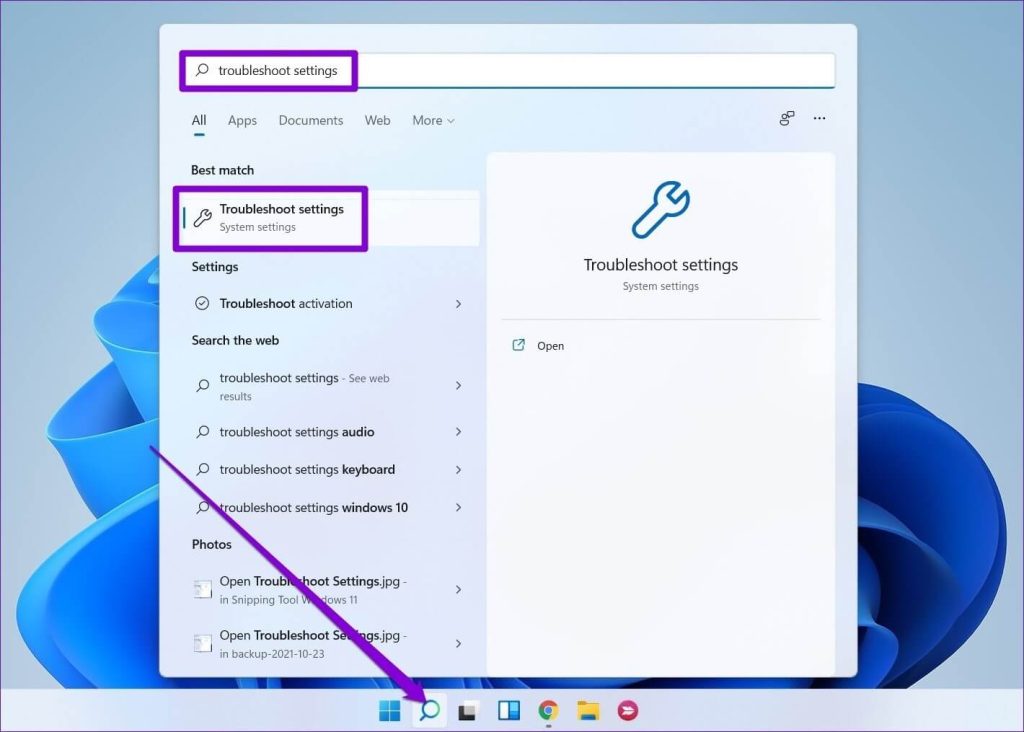
Step 1: Click on the Start button and then type the term “Troubleshooter settings” into the given text field. Choose the first search result and then press Enter.
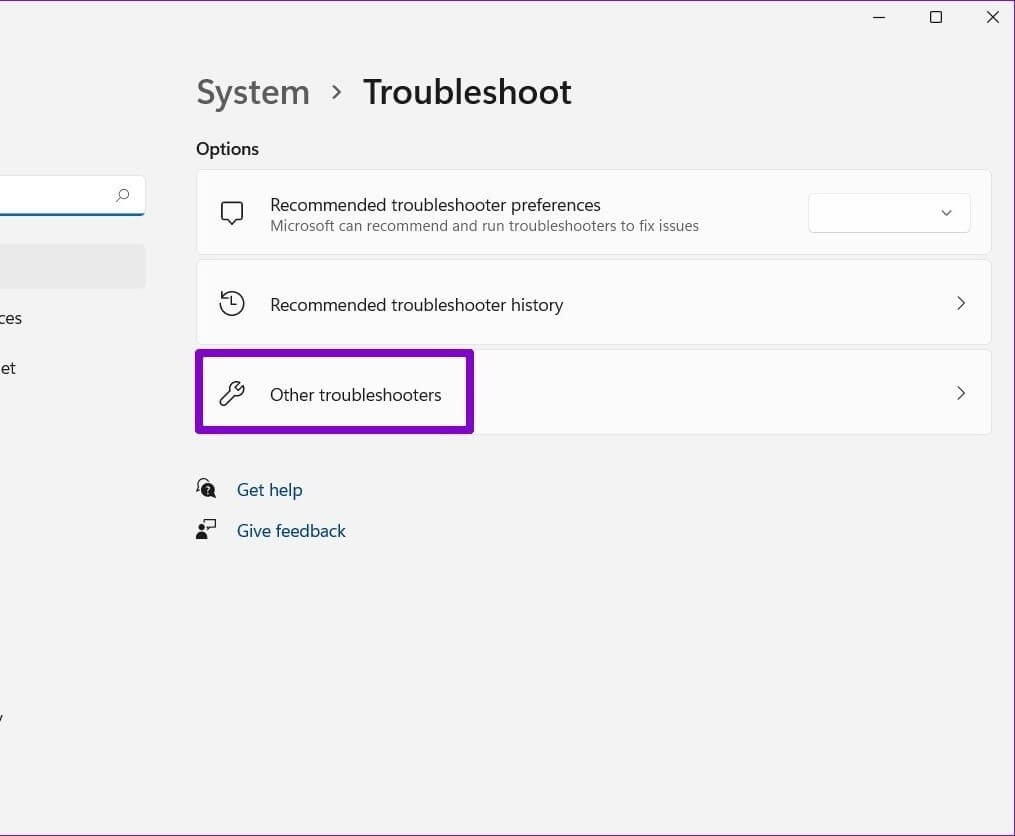
Step 2: Scroll to the “Other troubleshooters” option and click on it.
Step 3: On the side of the Power icon, the Run button is placed- press that.
Step 4: After running this sequence, see if the battery error is fixed or not.
Solution 4: Activate Battery through the Device Manager
Sometimes, the error of “no battery is detected” occurs due to a disabled battery setting. You should check the battery status through the Device Manager. There, make the right steps to enable battery functions again.
How to do this?
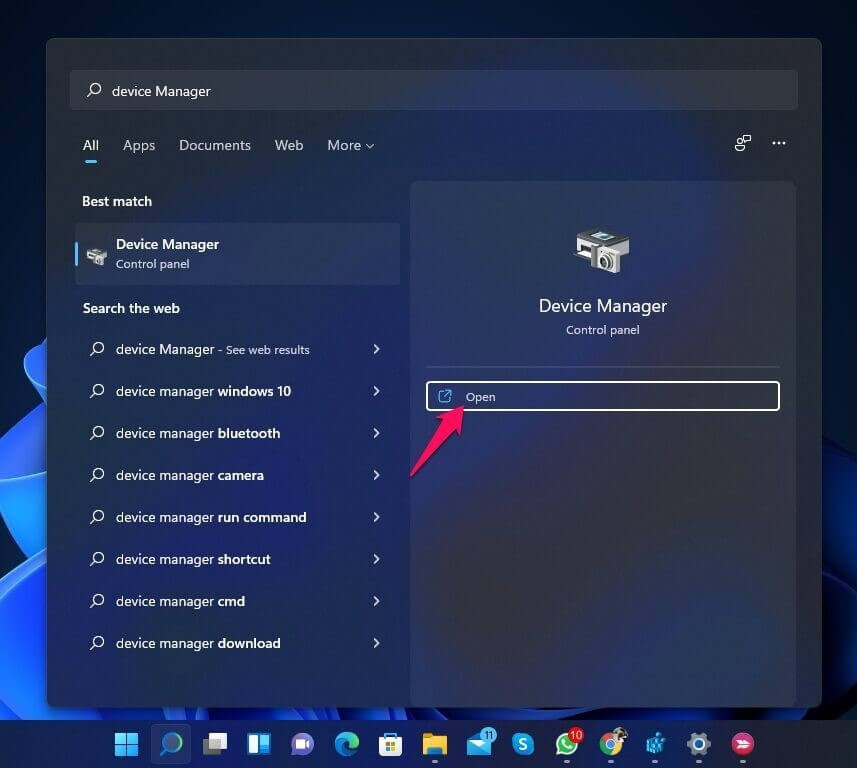
Step 1: Press the Start button on the Taskbar and search for “Device Manager” through the search section.
Step 2: Choose the first app option, and click on it to open.
Step 3: After opening this menu, click the “Batteries” option from the list.
Step 4: Choose the “Microsoft ACPI-Compliant Control Method Battery” option.
Step 5: After that, open the Driver tab and choose “Enable Device” in the pop-up menu. Press OK.
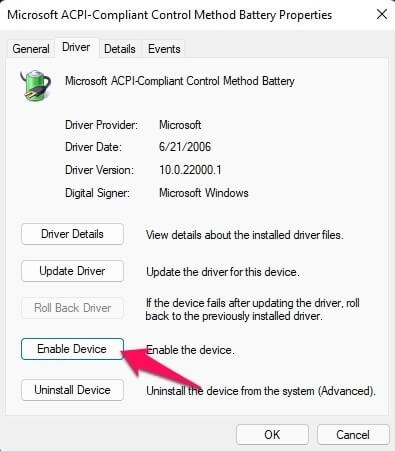
Step 6: Restart the device to check if the solution worked.
Solution 5: Enable the Battery Adapter Again
Typically, battery drivers in Windows are what connect to Windows 11 and link the system with the battery. If the drivers stop working properly, a device’s operating system cannot detect the presence of the battery or its functions. Here, you can disable the adapter for the battery and put it again- this can reactivate the regular driver functions.
How to do this?
Step 1: Through the Windows/Start icon on the Taskbar, type in “Device Manager” and open the app.
Alternatively, you can right-click on top of the Windows icon and click on “Device Manager” from the drop-down list.
Step 2: Under the Device Manager tab, find the “Batteries” option and double-click on it.
Step 3: After expanding it, choose the “Battery adapter” option and right-click on it. Then, press the Disable Device option.
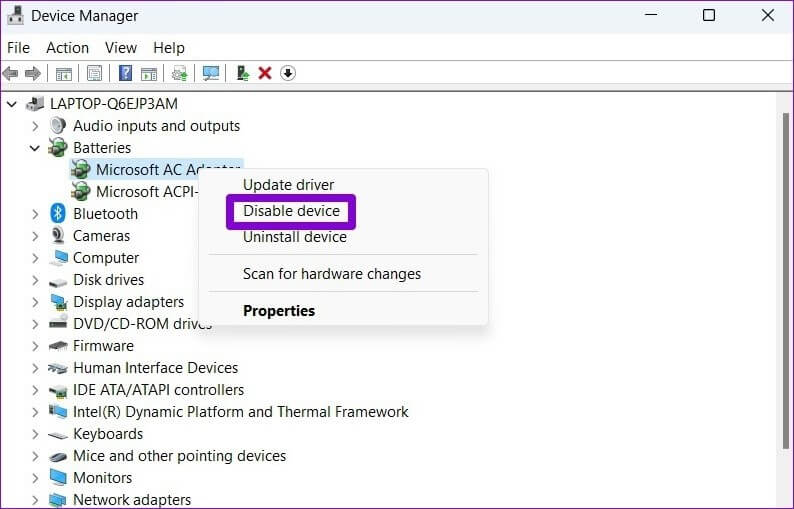
Step 4: After a few seconds, repeat the step again and choose “Enable Device” this time.
Solution 6: Update the Device’s Battery Drivers
If the device you are using has corrupted or outdated drivers, it can affect the steady functioning of the laptop, like detecting the battery. So, you should check and update the battery drivers in your laptop with the right steps. To note, you can also use Iobit Driver Booster 9 Free to scan and automatically update missing drivers on your device.
How to do this?
Step 1: Press the Start button and type “Device Manager”- double-click on the first result to open it.
Step 2: Click your cursor on Batteries > Microsoft ACPI-Compliant Control Method Battery.
Step 3: Under this pop-up window, choose the Driver tab and press the “Update Driver” button next. Click on the OK button.
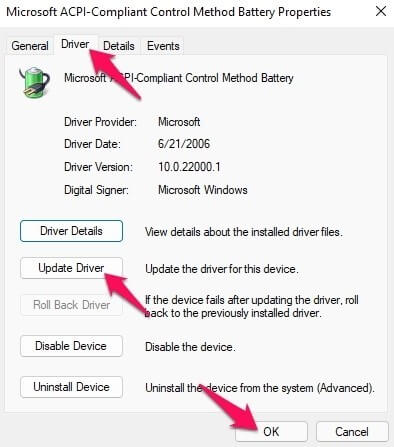
Step 4: Restart the device again.
Solution 7: Roll Back the Battery Drivers
Updating the battery drivers in the laptop can fix the error of no battery being detected. However, some users still notice the problem afterward. It would help if you rolled back your device drivers to the past version since it is not compatible with the newer one.
How to do this?
Step 1: Go to Start > Device Manager > Open.
Step 2: Click on the Batteries option from the list in this window and choose the “Microsoft ACPI-Compliant Control Method Battery” option.
Step 3: Under this selection, choose the Driver tab and press the “Roll Back Driver” option.
Step 4: Restart the laptop after this and then check again.
Solution 8: Update the Windows 11 BIOS
The BIOS (Basic Input Output System) is a robust PC device software that controls the system booting functions. In some devices, the BIOS may not be up-to-date with the current OS installed. Or the software may have defects. That causes issues in the system functions, like no battery detection.
In these cases, it is important to update the BIOS and avoid the problem.
How to do this?
Step 1: Press the Win + R key on your laptop keyboard. The Run dialog box would open.
Step 2: Type the term “msinfo32” in the text field and press OK.
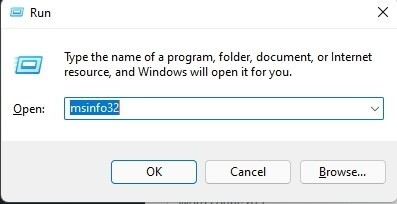
Step 3: Scroll down the list that comes up and find information like the BIOS manufacturer’s identity under the “BIOS Version/Date” section.
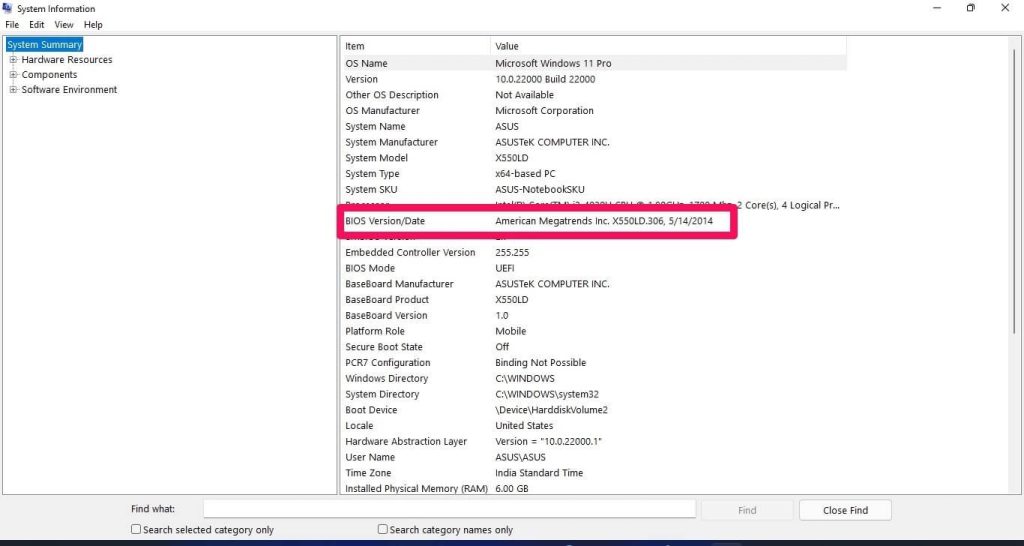
Step 4: Access the manufacturer’s official website and download the recent BIOS updates.
Step 5: Install them into your device and restart the system.
Solution 9: Reset BIOS
For some users, the no battery detected issue in Windows 11 happens after one does the BIOS update. This occurs due to compatibility problems, and you must reset it to the default functions to rectify the issue.
How to do this?
Step 1: Press the Win + S key on your keyboard to access the Search menu easily. Or, directly click on the Windows/Start icon via Taskbar.
Type the term “Recovery options” in the search field. Press Enter.
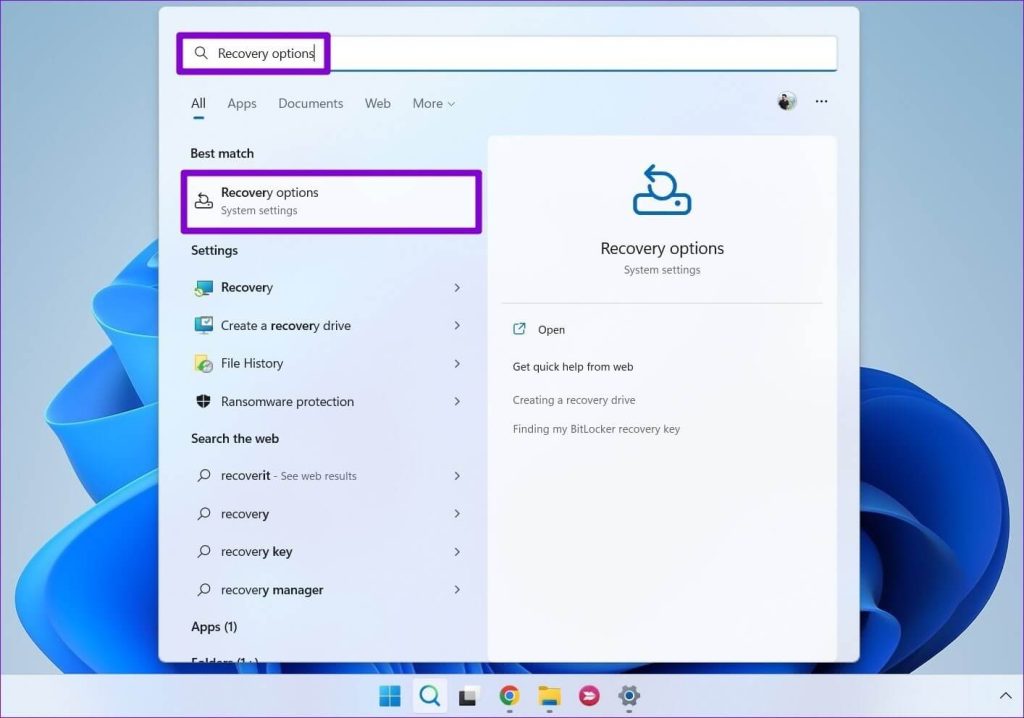
Step 2: Go to the “Advanced Startup” option and click the “Restart Now” button beside it.
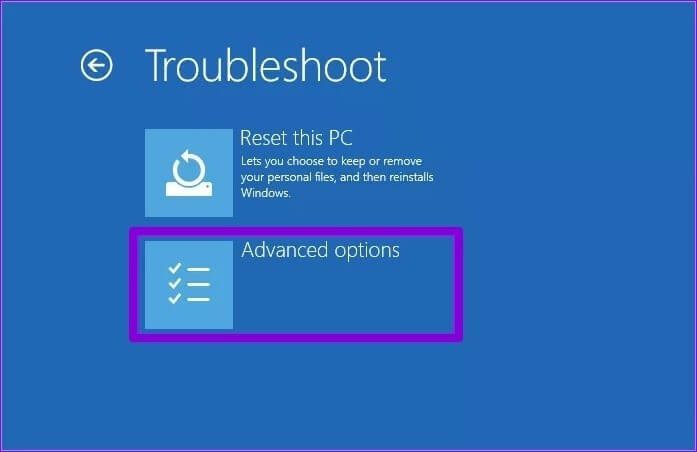
Step 3: Choose the Troubleshoot option.
Step 4: Then, access the “Advanced Options” section.
Step 5: You should click on the “UEFI Firmware Settings” under this window.
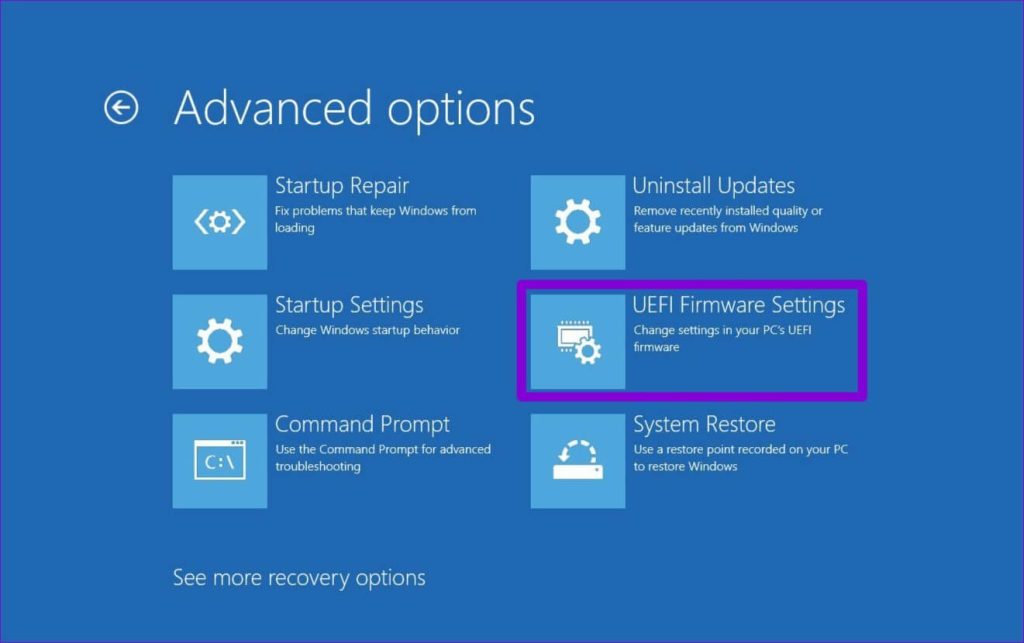
Step 6: In the next window, press the Restart button, and the device will start booting into the BIOS software. This setting can appear in different manners as per device model type.
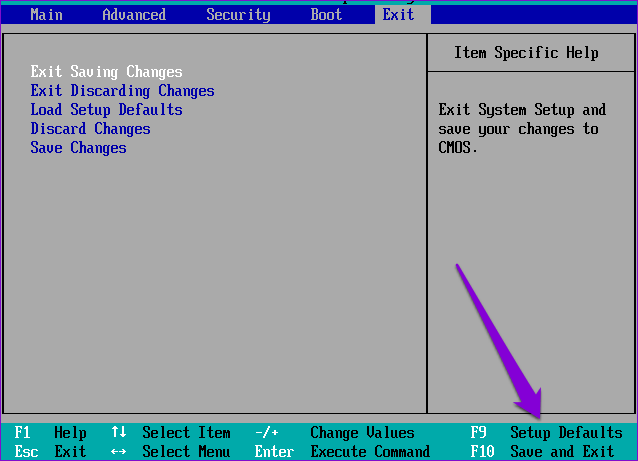
Step 7: After entering the BIOS system, press the F9 key on your keyboard to open Setup Defaults. Press the Yes option.
Step 8: Press the F10 key and exit the BIOS after the changes are saved. Restart the device again.
Solution 10: Update Windows OS
If none of the other solutions work, the problem can be due to the outdated software structure of the Windows OS itself. Typically, the operating system gets automated updates, but that can differ for some users who have done specific system configuration changes.
You can update the OS through the Start Menu and open Settings > Windows Update. In this window, press the “Check for updates” button. After the system finds the new updates, press Install now. Typically, it happens automatically.
Author’s Tip
Always start with simple checks before assuming the battery is damaged. Restart your system and check connections if your device allows it. Many users rush to replace the battery without testing basic fixes. Updating drivers and running built-in troubleshooters can solve the issue quickly. Small steps often save both time and cost.
It is also important to take care of your battery over time. Avoid overcharging and extreme heat, as they reduce battery life. Keep your system updated and avoid installing unnecessary power management tools. A well-maintained laptop battery performs better and lasts longer. Regular checks can help you avoid sudden errors like this in the future.
Conclusion
There are many methods users can try out to fix the error of no battery detection on their Windows 11 devices. Consider the main problem, such as the lack of updated drivers or the presence of faulty ones. Then, carry out the respective solution. You can also benefit from advanced software like Iobit Driver Booster 9 Free to automatically find damaged/missing drivers and fix the issue.
Carefully follow these steps on your device to fix the error, although some steps may appear differently based on the device model type. Let us know if you have any doubts.
FAQs
1. Does “No Battery Is Detected” mean my battery is dead?
Not always. This error can appear due to driver issues, loose connections, or system glitches. In many cases, the battery is still functional. You should try basic fixes like restarting your system or updating drivers before assuming the battery is faulty.
2. Can I use my laptop without fixing this error?
Yes, you can use your laptop while plugged in. However, the system will not store power without a detected battery. This means your laptop will shut down immediately if the power supply is removed. It is better to fix the issue for proper usage.
3. How do I check if the battery needs replacement?
You can run a battery health report using Windows tools. If the report shows very low capacity or no response, the battery may need replacement. You can also test with another compatible battery, if possible, to confirm the issue.
Author Bio:
Dinesh Lakhwani 

Dinesh Lakhwani, the entrepreneurial brain behind “TechCommuters,” achieved big things in the tech world. He started the company to make smart and user-friendly tech solutions. Thanks to his sharp thinking, focus on quality and the motto of never giving up, TechCommuters became a top player in the industry. His commitment to excellence has propelled the company to a leading position in the industry.
Popular Post











Recent Post

How To Check If Your PC Is Infected? [Complete Guide]
Computers now sit at the center of almost everything we do. Well, yes! From sending emails to watching videos, we depend on them without much thought. Because of this, even a small issue can disrupt daily tasks. One common problem is hidden malware. It does not always show clear signs at first. It can enter […]

Repair Apps And Programs: Repair Apps That Aren’t Working
Computers have become an essential part of everyday life, supporting work, study, communication, and entertainment. Most of these activities rely on apps and programs, so when one stops functioning, even simple tasks can be disrupted. Common problems include error messages, frozen screens, or apps that fail to open. On Windows systems, such issues often arise […]

Troubleshooting Microphone Privacy Settings: Complete Guide
Sound is a basic part of how we use computers today. People attend meetings, record audio, speak to others, and use voice tools almost every day. A working microphone makes all these tasks easy. When the microphone fails, even simple work becomes difficult. Many users first think the device is broken. In reality, the issue […]

Windows Sound Settings – Sound Control Panel: Complete Guide
Sound plays an important role in how we use a computer every day. It supports both work and leisure. You need it for meetings, videos, music, and alerts. When audio fails, even simple tasks become difficult. Many users feel stuck when sound issues appear. This usually happens because they are not familiar with Windows Sound […]

Run a Troubleshooter For PC Issues Windows: Complete Guide
A computer plays an important role in everyday life. People use it for work, study, communication, and entertainment. When a problem appears, it can interrupt everything. Even a small issue can waste time and create frustration. Many users feel unsure about how to fix such problems. They often think they need expert help. In reality, […]
![Adjusting Audio Output Settings Complete Guide [2026]](https://www.techcommuters.com/wp-content/uploads/2026/03/Adjusting-Audio-Output-Settings-Complete-Guide.webp)
Adjusting Audio Output Settings: Complete Guide [2026]
Sound is part of almost everything we do on a computer. It lets you watch videos, join calls, play music, and hear alerts. When the audio stops working the right way, it can interrupt both work and daily use. That is why adjusting audio output settings matters for every user. Many people get unsure when […]

Artificial Intelligence Explained: Concepts, Terminology, Benefits, and Future Trends
Artificial Intelligence, or AI, is basically computers doing things that usually need a human brain. We’re talking about stuff like learning from experience, figuring out problems, understanding language, and making decisions. It’s not magic, just a lot of data, pattern-spotting, and math behind the scenes. Now, AI doesn’t actually think or feel like we do. […]

Resolving Microphone Detection Problems: Latest Guide [2026]
Microphones are important tools in daily life. People use them for office meetings, online classes, interviews, gaming, customer support, and content creation. When a system fails to detect a microphone, communication stops at once. This situation can cause stress and confusion. Many users believe the microphone is damaged. In reality, most problems are simple and […]

How To Switch To A Dark Background Theme In Windows [2026]
Most people spend many hours each day in front of a computer screen. Office work, online classes, editing, browsing, and streaming all require long screen time. A bright white background may look clean at first. However, over time, it can feel sharp and tiring. The strong contrast between white backgrounds and black text may cause […]

How to Switch From Local To Microsoft Account On Windows
Many users begin with a local account when they set up a new Windows computer. A local account works only on that single device. It stores settings, files, and preferences locally. It does not connect to online Microsoft services. For basic offline use, it works well. However, as digital needs grow, many users want better […]

