ReclaiMe – Best Data & File Recovery Software For Windows

Last updated on August 22nd, 2023 at 12:19 pm
ReclaiMe Review: Introduction
Data is the powerhouse for businesses hence, keeping it safe and protected from hackers, from being corrupted, or getting deleted is important. Considering this fact here, we review a powerful data and file recovery tool using which you can recover data from NAS server, HDD, SSD, RAID, and SAN, a hard disk interface (SATA, PATA, SAS, or SCSI), etc.
Offered by ReclaiMe this multi-purpose data recovery tool is crafted with simplicity and ease of use. Anyone can use this seamlessly and recover files from most of the file systems. This means you don’t have to worry about not being able to recover data from NAS, RAID, and other storage devices when lost.
| Best For – Recovering data from various file systems, RAIDs, partition, NAS, etc. Price – $79.95 or $199.95 depending on the filesystem type Recover Data from HDD, Connected devices like USB, eSATA, FireWire, RAID array, NAS, disk image file. |
What is NAS Device?
Network Attached Storage (NAS) is a multi-disk device used as a file server. It provides data access to various clients and is combined into single storage using RAID technology.
This clearly shows how reliable these storage devices are, yet sometimes they fail. Due to which you might face problems when accessing data stored on NAS. In such situations, the only solution you are left with is to connect them to a PC and extract files using data recovery software.
But which is the right tool or which data recovery tool supports NAS?
ReclaiMe Software Review
The answer is ReclaiMe data and file recovery tools. Using it you can recover from NAS supported devices like:
- QNAP
- Seagate BlackArmor
- ASUSTOR
- Synology
- LaCie
- Western Digital and many more.
Why does NAS Storage System fail?
Network Attached Storage can fail due to the following reasons:
- Voltage fluctuations or overvoltage
- Defective NAS controllers
- Firmware issues, PCB Failure, Physical Damage, etc.
- Overheating
- NAS Storage Configuration
- Failed RAID rebuilding
- Power Surge
- Delete Vmware or snapshots
- Data Management Errors, etc.
What makes ReclaiMe the best data recovery tool?
Simplicity and ease of use make it a popular tool to recover lost or deleted data. Once you look at the ReclaiMe interface you will understand what we mean.
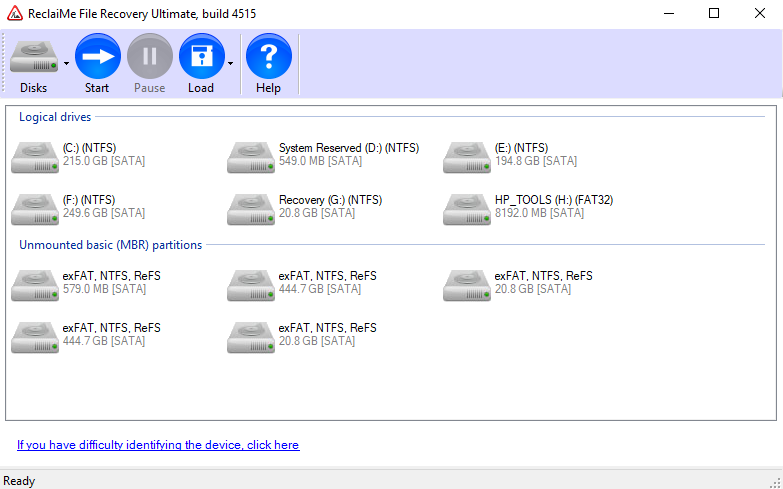
Yes, you are right, unlike other recovery tools the software interface of this excellent tool to retrieve the lost files for Windows is simple. This helps to focus on the core functioning of the application instead of spending time learning how to use the app.
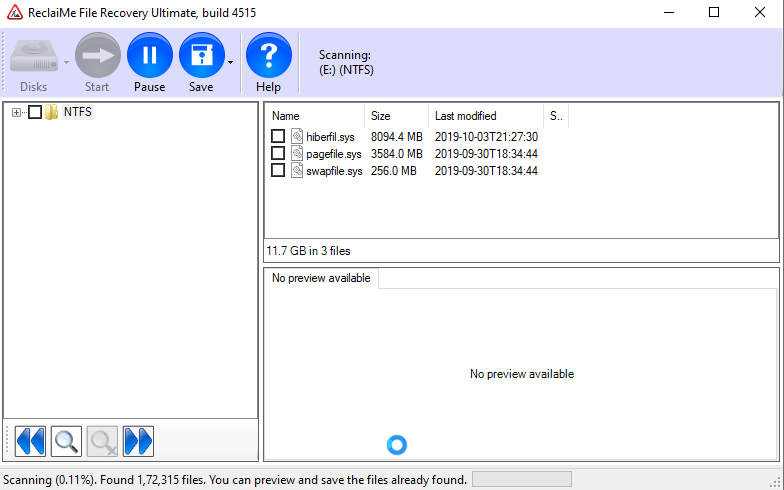
Once the application is installed and run it automatically detects all connected storage devices. This helps to select the drive and start the scanning process.
Depending on the amount of data stored, the scanning process takes time. Not only this, if you don’t have time you can pause the scan and resume it according to your convenience.
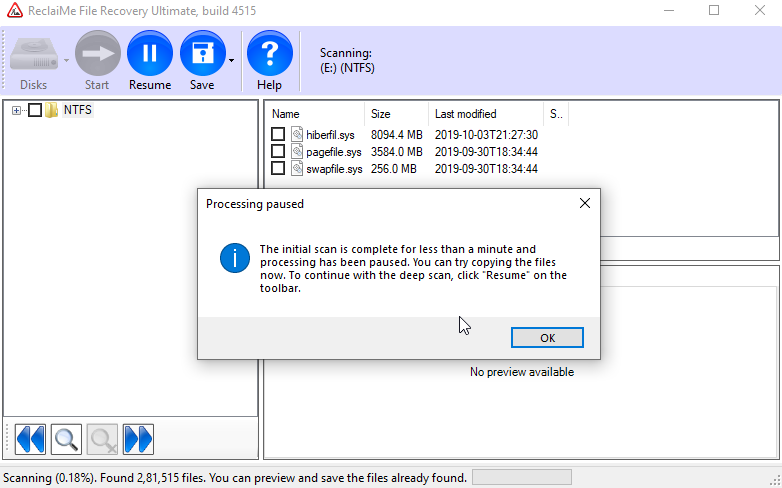
To learn more about the file and its content you can use the Preview pane. It is continuously updated and helps easily find files you want to recover. The only problem with this awesome data recovery software for Windows is there is no Quick Scan option.
Once the application gathers a small list of folders it asks to proceed with a deep scan.
Benefits of ReclaiMe
- Supports a wide array of hardware
- Helps recover data from an external disk, SSD, memory card, HDD
- Works on both USB and SATA
- Recovers files from a NAS RAID
- All file systems including FAT32, FAT, NTFS, exFAT and even the latest files system ReFS is supported
- Linux file systems like BTRFS, EXT-2, EXT-4, EXT-3, and VFS are also supported
- Supports Apple Mac HFS+, APFS, UFS and HFS file systems
In addition to this, ReclaiMe supports 98% of file allocations that you won’t be easily able to find in other data recovery tools.
| Pros | Cons |
| Value for money | No Quick Scan option |
| Excellent data recovery tool | |
| Supports almost all file systems | |
| Helps recover files from NAS RAID | |
| Supports FAT32, FAT, NTFS, exFAT | |
| Intuitive interface | |
| Reliable file recovery tool for Windows |
Now, let’s learn how to use ReclaiMe to recover data from NAS.
How to use ReclaiMe to Recover Data from NAS?
To recover data from NAS storage follow the steps below:
- Download and install ReclaiMe
- Connect NAS disks to the PC. While doing so make sure you turn off the power and plug out the wall socket. Also, we suggest labeling the NAS disks so that you know where to put them back.
Note: When you connect NAS drives to Windows if you receive a message to Initialize disk or even Format don’t do it.
- Now, select the NAS volume you need to recover and click Start. If the NAS you are using is btrfs-based you can find it under the BTRFS section. For other NASes, look under the Linux md-raid or Linux LVM section.
- Wait for the process to complete. Once done select the file and check their quality using the Preview pane.
| Note: If the array is not shown in ReclaiMe File Recovery, you will need to recover the RAID configuration. This too can be done through ReclaiMe Free RAID Recovery software. Once the parameters are determined you can click Run ReclainMe to recover data. |
ReclaiMe Performance
ReclaiMe is a great program, we can say this as we were able to recover important lost files that no other data recovery tool was able to get for us. We tried the program on a 500 GB hard disk from which we intentionally deleted some files, games, photos. To scan this drive ReclaiMe took 40 minutes. After the scan was done it displayed all results in the right pane with a preview pane.
To confirm if the file we are looking for is detected we selected it and used a preview pane to check its content. Once we had the file by clicking the Save button and selecting the destination folder, we were able to recover the files.
Conclusion: ReclaiMe Review
Certainly, this is the easiest and hassle-free process plus extensive scanning made ReclaiMe a must-have tool. Using this great data recovery tool, we were able to recover all deleted data. After trying similar products, we can see ReclaiMe is a fantastic tool to recover lost files. Even if you have a few deleted files or a huge number of them give ReclaiMe a try. Trust us you will not be disappointed. Once you try this tool let us know what you like most.
Author Bio:
Dinesh Lakhwani 

Dinesh Lakhwani, the entrepreneurial brain behind “TechCommuters,” achieved big things in the tech world. He started the company to make smart and user-friendly tech solutions. Thanks to his sharp thinking, focus on quality and the motto of never giving up, TechCommuters became a top player in the industry. His commitment to excellence has propelled the company to a leading position in the industry.
Popular Post











Recent Post

Resolving Microphone Detection Problems: Latest Guide [2026]
Microphones are important tools in daily life. People use them for office meetings, online classes, interviews, gaming, customer support, and content creation. When a system fails to detect a microphone, communication stops at once. This situation can cause stress and confusion. Many users believe the microphone is damaged. In reality, most problems are simple and […]

How To Switch To A Dark Background Theme In Windows [2026]
Most people spend many hours each day in front of a computer screen. Office work, online classes, editing, browsing, and streaming all require long screen time. A bright white background may look clean at first. However, over time, it can feel sharp and tiring. The strong contrast between white backgrounds and black text may cause […]

How to Switch From Local To Microsoft Account On Windows
Many users begin with a local account when they set up a new Windows computer. A local account works only on that single device. It stores settings, files, and preferences locally. It does not connect to online Microsoft services. For basic offline use, it works well. However, as digital needs grow, many users want better […]

How to Switch Windows 10 to a Local Account: Complete Guide
Windows 10 allows users to sign in with either a Microsoft account or a local account. When you set up a new computer, the system often suggests using a Microsoft account. This account connects your device to Microsoft services such as Outlook, OneDrive, and the Microsoft Store. It also syncs settings, themes, and passwords across […]

How To Change Default Apps For File Types In Windows
Windows is designed to make using your computer easy. One way it does this is by assigning default apps to different file types. This means when you open a file, Windows automatically opens it with a specific program. For example, photos may open with Photos, music with Groove Music, and PDFs with Edge. These default […]

How To Adjust The Mouse Pointer Speed: Complete Guide
Using a computer every day means you use the mouse a lot. The mouse pointer moves on the screen and helps you click, scroll, and select items. Many people never think about the speed of the mouse pointer. They have used the default setting for years. This can cause small problems over time. A slow […]

How to Change Mouse Scrolling Settings In Windows
A mouse is one of the most used computer tools. People use it every day. They scroll through emails. They scroll through documents. They scroll through websites and images. The movement becomes automatic. Most users do not notice it. That is why problems often go unnoticed. Scrolling problems show up slowly. At first, it feels […]

Keyboard Light Settings: Keyboard Lighting Control [Complete Guide]
Keyboards are no longer simple typing tools. Well, yes! Over time, they have evolved to include features that improve comfort, visibility, and overall experience. One of the most useful features today is keyboard lighting. It helps users work comfortably in low-light conditions. It also reduces strain when typing for long hours. Many users first notice […]

Customizing Pointer Appearance: Complete Guide
The way your mouse pointer looks on your computer may seem like a small detail. But customizing pointer appearance can make using your PC more comfortable and visually appealing. Many users do not realize that they can change the pointer size, color, and style to fit their needs. Whether you want a bigger pointer for […]

How To Choose a Computer Monitor: Monitor Buying Guide
Buying a monitor looks easy. Many people think all screens are the same. That belief causes regret later. A monitor is not just a display. It is a daily tool. You read on it. You work on it. You relax with it. Small problems become big over time. Poor brightness hurts eyes. Bad size causes […]

