15 Best PC Temperature Monitoring Software For Windows 11 And 10
Last updated on February 15th, 2026 at 10:07 am
Keeping an eye on your PC’s temperature is crucial for its performance and longevity. Whether you’re a gamer, a professional, or a casual user, having the right temperature monitoring software can make a significant difference.
In this article, we’ll explore the 15 best PC temperature monitoring software options available for Windows 11 and 10, offering insights into their features and functionalities to help you keep your system running optimally.
What is a Temperature Monitoring Software?
Temperature monitoring software is a tool designed to keep track of the temperature levels of various hardware components within a computer system, such as the CPU, GPU, hard drive, and more. It allows users to monitor real-time temperature readings and analyze historical data to ensure that the hardware operates within safe temperature ranges.
By providing alerts and detailed statistics, this software helps users prevent overheating, which can lead to performance issues, hardware damage, or system crashes. Additionally, it enables proactive measures like adjusting fan speeds or taking preventive actions to maintain optimal temperatures for efficient and stable computer performance.
Things To Consider When Choosing the Best System Temperature Monitoring Software
Here are some key points to consider when choosing the best PC temperature monitoring software:
- Compatibility: Ensure the software is compatible with your operating system (Windows 11, Windows 10, etc.) and supports monitoring for specific hardware components (CPU, GPU, etc.).
- User Interface: Look for an intuitive and user-friendly interface that provides easy-to-understand temperature readings, graphs, and alerts without overwhelming you with technical jargon.
- Resource Usage: Consider software that doesn’t consume excessive system resources or impact your PC’s performance while running in the background.
- Alerts and Notifications: Opt for software that offers customizable alerts or notifications for temperature spikes or critical levels to take timely action and prevent potential damage.
- Logging and Historical Data: The ability to log temperature data over time and analyze historical trends can be beneficial for troubleshooting or optimizing your system.
- Additional Features: Some software may offer extra functionalities like fan speed control, benchmarking, or integration with other system monitoring tools, providing added value.
- Support and Updates: Ensure the software receives regular updates and has good support channels in case of issues or inquiries.
Considering these aspects can help you select the best software for monitoring PC temps that suits your needs and ensures your system’s health and performance.
Top 5 PC Temperature Monitoring Software Comparison
Choosing the right temperature monitoring tool helps you track system health and prevent overheating. The tools below are widely used on Windows 11 and Windows 10. Each offers a different balance of detail, ease of use, and system impact.
This comparison highlights core features to help you decide which suits your needs.
| Feature / Tool | HWMonitor | Open Hardware Monitor | Core Temp | HWiNFO | Speccy |
| CPU Temperature Monitoring | Yes, detailed | Yes, real-time | Yes, core-level | Yes, very detailed | Yes, basic |
| GPU Temperature Support | Yes | Yes | No | Yes | Yes |
| Other Sensors (Voltage, Fan, Power) | Yes | Yes | Limited | Yes, extensive | Limited |
| Real-Time Updates | Yes | Yes | Yes | Yes | Yes |
| User Interface | Simple and clean | Basic but clear | Minimal | Advanced and dense | Beginner friendly |
| System Resource Usage | Low | Low | Very low | Moderate | Low |
| Portable Version Available | Yes | Yes | Yes | Yes | No |
| Best For | Everyday monitoring | Open-source users | CPU-focused checks | Power users and diagnostics | General system overview |
HWMonitor offers a balanced view of temperatures and voltages with low system load. Open Hardware Monitor appeals to users who prefer open-source tools. Core Temp focuses strictly on CPU cores and keeps things lightweight. HWiNFO provides deep system diagnostics for advanced users. Speccy works well for users who want a simple overview without technical overload.
15 Best PC Temperature Monitoring Software For Windows 11 And 10
1. HWMonitor
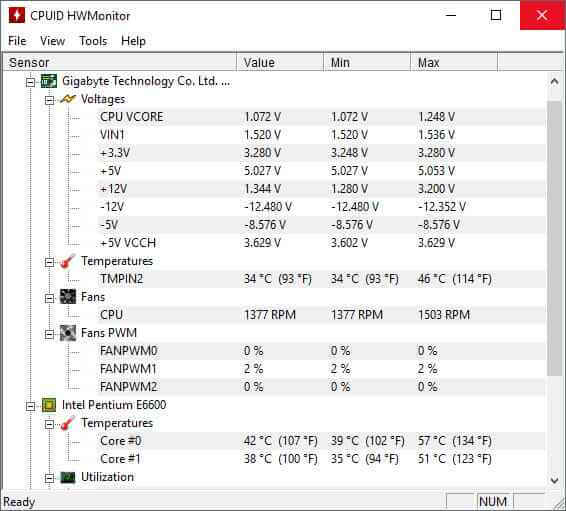
HWMonitor is a popular choice for monitoring PC temperatures. It provides detailed real-time information about various hardware components, including CPU, GPU, and hard drive temperatures. With a straightforward interface, HWMonitor displays temperature readings, fan speeds, and voltages, making it easy for users to keep tabs on their system’s health.
Features:
- Monitors CPU, GPU, hard drive temperatures, fan speeds, and voltages.
- Real-time temperature readings for various hardware components.
- Straightforward interface for easy monitoring.
- Provides data logging for historical analysis.
Pros:
- Simple and intuitive interface.
- Monitors multiple hardware components.
- Offers real-time data and alerts for temperature spikes.
- Supports various Windows versions, including Windows 11 and 10.
Cons:
- Lacks advanced customization options compared to some other software.
- Might not offer as many additional features as some competitors.
Compatibility: Supports Windows 11, Windows 10, and older versions of Windows.
2. Open Hardware Monitor
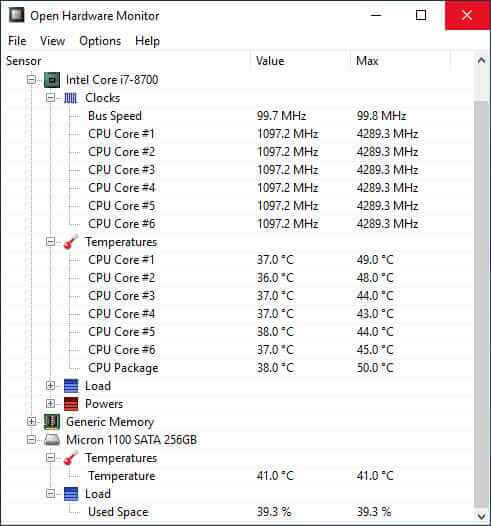
Open Hardware Monitor is an open-source, one of the best software for monitoring PC temps that offers a comprehensive view of various hardware components. It displays real-time information about temperatures, fan speeds, voltages, and more. With customizable alert settings and logging options, users can track and manage their system’s health efficiently.
Features:
- Monitors temperature, fan speeds, voltages, and more.
- Offers customizable alerts and logging options.
- Supports a variety of hardware components.
- Provides detailed real-time information.
Pros:
- Customizable alerts and logging.
- Supports a wide range of hardware.
- Open-source and free to use.
Cons:
- The interface might be less user-friendly for beginners.
- Updates might be less frequent compared to other tools.
Compatibility: Compatible with Windows 11, Windows 10, and older versions.
3. Core Temp
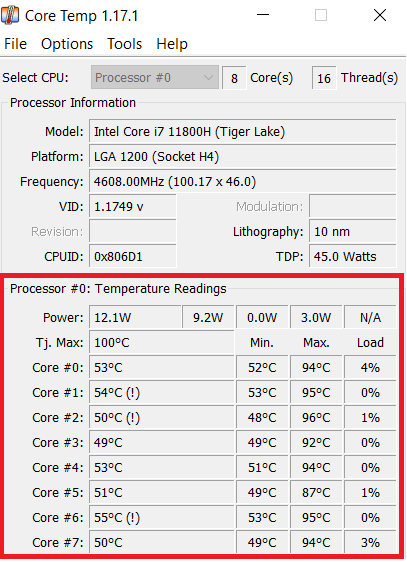
Core Temp is a lightweight yet powerful tool to monitor PC temperature, specifically focused on CPU temperature tracking. It offers precise real-time temperature readings for each CPU core, along with additional information like load levels and core voltage.
Features:
- Monitors individual CPU core temperatures.
- Displays load levels and core voltage.
- Customizable alerts for temperature thresholds.
- Supports a variety of processors.
Pros:
- Lightweight and minimal impact on system resources.
- Accurate monitoring of individual CPU core temperatures.
- Customizable alerts for temperature variations.
Cons:
- Focuses solely on CPU temperature monitoring.
- The interface might need more features compared to all-in-one monitoring tools.
Compatibility: Compatible with Windows 11, Windows 10, and older versions including Windows XP, 7, 8, 10, 11, 2003 Server, 2008 Server, 2012 Server, 2016 Server, 2019 Server, 2022 Server.
4. HWiNFO
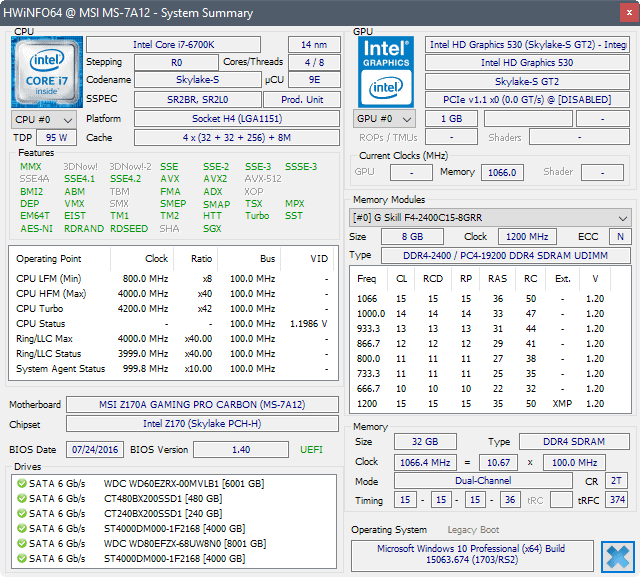
HWiNFO is a comprehensive and one of the best PC temperature monitoring software that offers detailed insights into various hardware components, including temperatures, voltages, fan speeds, and more. It provides in-depth real-time data and extensive customization options for monitoring your system’s health.
Features:
- Monitors temperatures, voltages, fan speeds, and more.
- Detailed and customizable sensor information.
- Extensive logging and reporting capabilities.
- Supports various hardware components.
Pros:
- Comprehensive monitoring of multiple hardware aspects.
- Extensive customization for alerts and logging.
- Detailed reporting for in-depth system analysis.
Cons:
- The interface might be overwhelming for casual users.
- Extensive features might not be necessary for basic monitoring needs.
Compatibility: Windows 11, Windows 10, and older versions.
5. Speccy
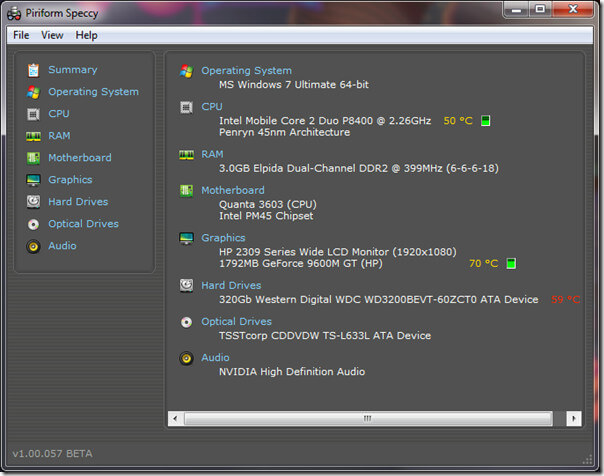
Developed by Piriform, Speccy is a user-friendly system information tool that provides detailed insights into hardware components, including temperature monitoring. It offers a simple interface displaying temperatures, along with comprehensive details about CPU, GPU, RAM, and storage devices.
Features:
- Monitors temperatures of various hardware components.
- Provides detailed system information.
- User-friendly interface for easy navigation.
- Offers both real-time and snapshot views.
Pros:
- Simple and intuitive interface.
- Displays comprehensive hardware information.
- Snapshot feature for easy sharing of system details.
Cons:
- Temperature monitoring might be basic compared to dedicated tools.
- Updates and support might be less frequent.
Compatibility: Windows 11/ 10, 8.1, 7, Vista and XP. Including both 32-bit and 64-bit versions, but not RT tablet editions.
6. Real Temp: CPU Temperature Monitoring
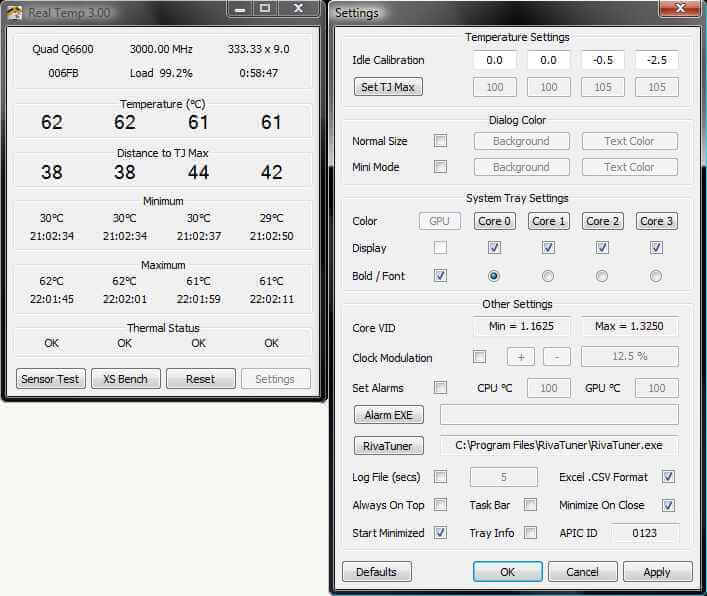
Real Temp is a specialized tool designed specifically for monitoring Intel CPU temperatures accurately. It focuses on providing precise real-time temperature readings for Intel processors, displaying individual core temperatures and other relevant details.
Features:
- Monitors temperature for Intel CPUs.
- Displays individual core temperatures.
- Provides load levels and TjMax data.
- Alerts for temperature thresholds.
Pros:
- Specialized for accurate Intel CPU temperature monitoring.
- Displays individual core temperatures for detailed analysis.
- Offers alerts for temperature variations.
Cons:
- Limited to monitoring Intel CPUs.
Compatibility: Windows 2000 / XP / Vista / Windows 7 / Windows 8 / Windows 10 (32 & 64 bit) / Windows 11.
7. NZXT Cam Software
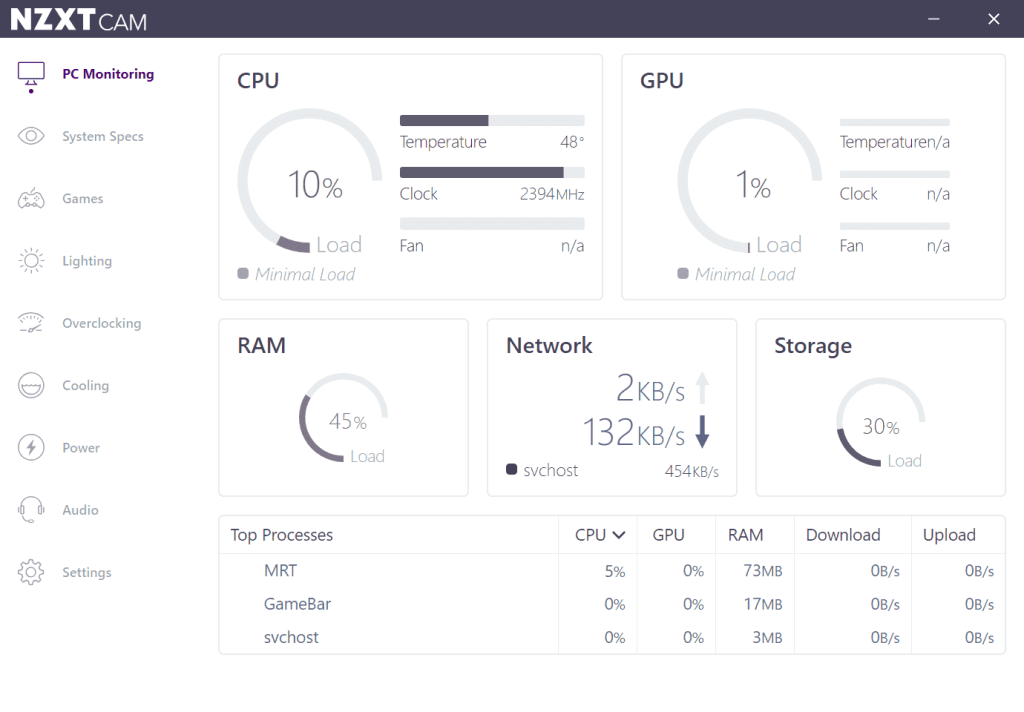
Here comes the next pick on our list of Best PC temperature monitoring software for Windows. NZXT Cam Software is a versatile monitoring tool that not only tracks temperatures but also offers control over various aspects of your PC, including cooling, lighting, and performance. It provides real-time temperature monitoring, detailed system information, and customization options.
Features:
- Monitors temperatures and system performance.
- Controls cooling and lighting for compatible NZXT hardware.
- Offers real-time data and historical logging.
- Customizable alerts and profiles.
Pros:
- Comprehensive monitoring with control over cooling and lighting.
- User-friendly interface with detailed system information.
- Customizable alerts and profiles for different usage scenarios.
Cons:
- Focuses on compatibility with NZXT hardware.
- Might have limited functionality for non-NZXT components.
Compatibility: Windows 11 and Windows 10.
8. Speed Fan by Almico
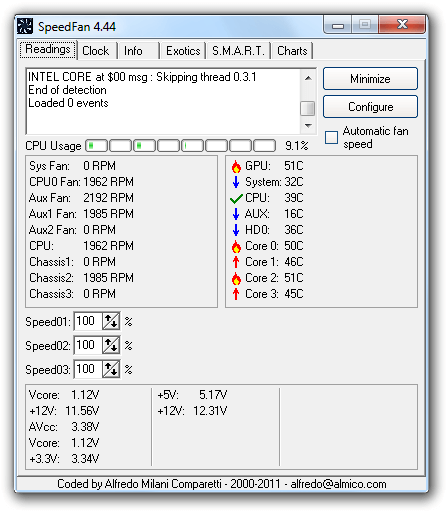
SpeedFan is a versatile and long-standing system temperature monitoring and fan control software. It’s designed to monitor temperatures, voltages, and fan speeds while allowing users to adjust fan speeds for better cooling if supported by the hardware.
Features:
- Monitors temperatures, fan speeds, and voltages.
- Allows manual fan speed control for compatible hardware.
- Customizable temperature-based fan speed profiles.
- Supports various sensors for detailed monitoring.
Pros:
- Offers manual fan speed control for compatible hardware.
- Customizable fan speed profiles based on temperature.
- Supports a variety of sensors for detailed monitoring.
Cons:
- The user interface might be less intuitive for some users.
- Compatibility issues with newer hardware might arise.
Compatibility: Windows 9x, ME, NT, 2000, 2003, XP, Vista, Windows 7, 2008, Windows 8, Windows 10 and Windows Server 2012.
9. ManageEngine OpManager
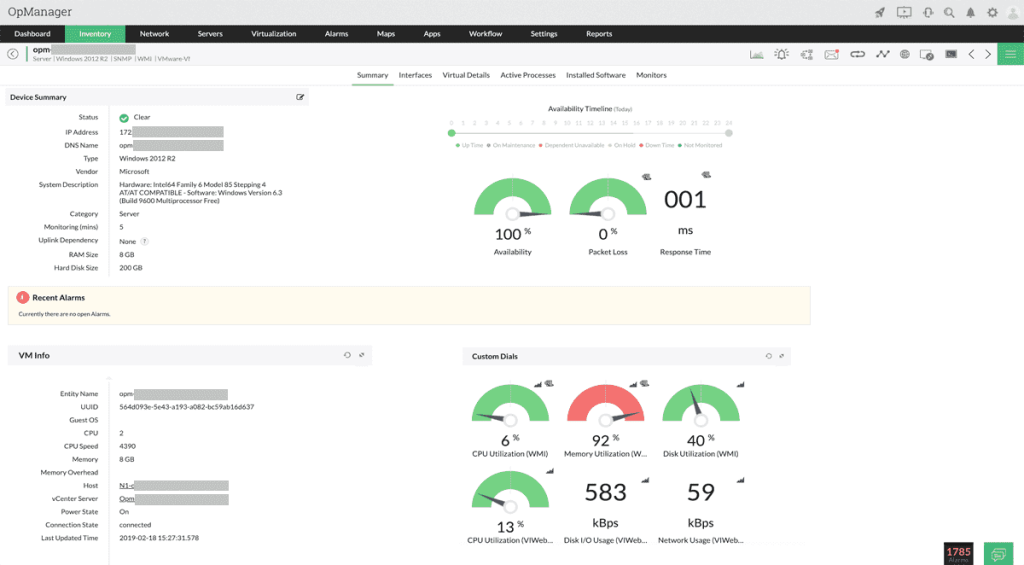
ManageEngine OpManager is a comprehensive network monitoring tool with temperature monitoring as part of its system health checks. It offers real-time monitoring of server room temperatures, and environmental sensors, and can alert administrators to potential overheating issues.
Features:
- Monitors server room temperatures and environmental sensors.
- Real-time temperature monitoring for system health.
- Alerts and notifications for temperature variations.
- Integration with broader network monitoring functionalities.
Pros:
- Comprehensive network monitoring with temperature tracking.
- Real-time alerts for environmental changes.
- Integration with broader network management tools.
Cons:
- Might have a steeper learning curve due to its extensive functionalities.
- Focused more on network monitoring with temperature as an additional feature.
Compatibility: Windows 11, Windows 10 (or) Windows Server 2012.
10. Solar Windows CPU Load Monitoring Software
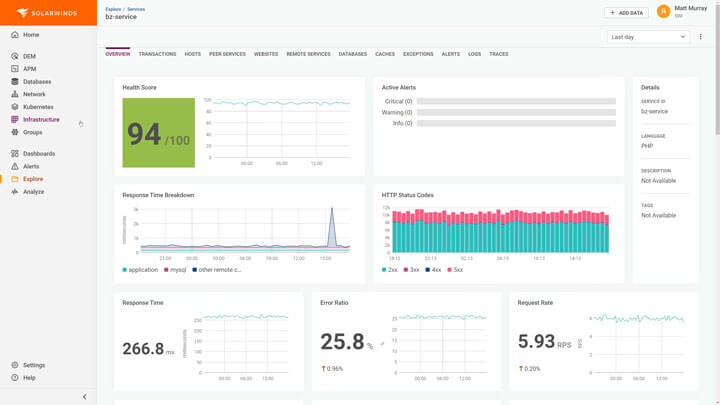
Solar Windows CPU Load Monitor is an innovative smart monitoring system designed specifically for solar pane windows. It provides real-time tracking of solar intensity, electricity generation metrics, and CPU load diagnostics right from your window panel.
Features:
- Built-in light sensors measure real-time solar intensity on windows.
- Tracks electricity production levels and efficiency from solar panels.
- Monitors CPU usage loads and diagnostics for the solar power system.
- Sends alerts for abnormal CPU loads to prevent system issues.
- The control module gives access to all metrics and settings from one place.
Pros:
- Optimizes solar electricity generation based on environmental conditions.
- Prevents system failures through early CPU load abnormality alerts.
- Easy-to-install sensors and a sleek control module with a user-friendly dashboard.
- Provides comprehensive real-time analysis of solar panel productivity.
- Enables adjusting angles of solar panels for maximal sunlight exposure.
Cons:
- Requires specific solar window panels to enable full integration.
- Upfront costs for sensors and installation, but provides long-term value.
- Needs to be installed while solar panels are initially set up.
Compatibility: Supports all versions of Windows including Windows 2000 and later.
11. AIDA64 Extreme
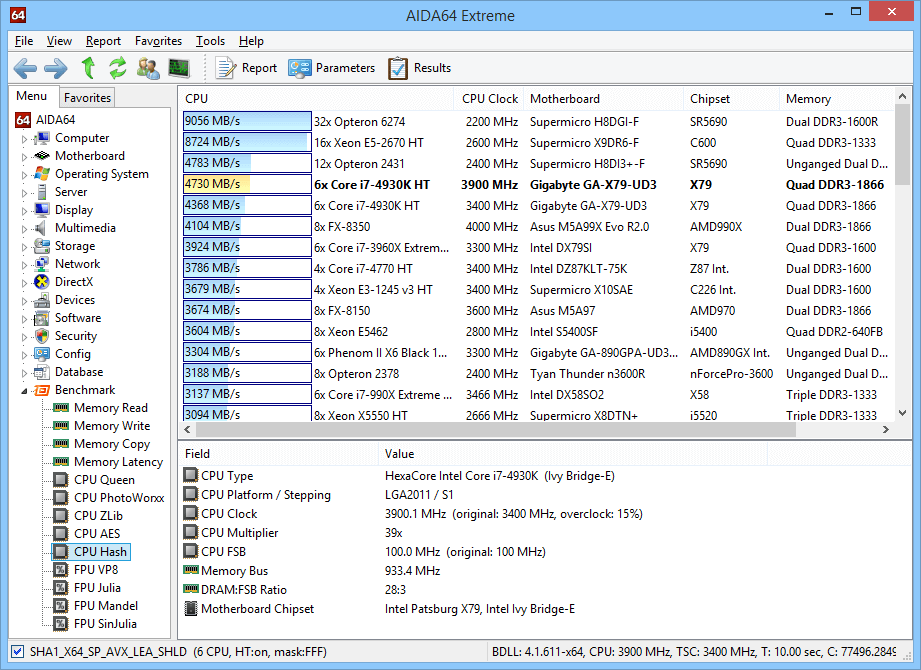
AIDA64 Extreme is a comprehensive system diagnostics and benchmarking tool that provides detailed information about hardware and system components, including temperature monitoring. It offers real-time sensor data, stress testing, and comprehensive hardware analysis.
Features:
- Hardware detection and analysis for all components
- In-depth software, network, and storage drive analysis
- Real-time monitoring of temperatures, voltages, and fan speeds
- Overclocking features and stress testing
- Capability to profile CPU, GPU, and RAM performance
- Comprehensive suite of 64-bit benchmarks
Pros:
- Comprehensive hardware analysis and diagnostics.
- Real-time monitoring of various hardware parameters.
- Extensive stress testing for system stability.
Cons:
- Overkill analytics for more basic home builds
- Real-time data monitoring puts a load on system resources
- Premium version is more costly than competing software
Compatibility: Windows 95/98/Me, Windows NT4/2000, Windows XP, Windows PE, Windows Server 2003, Windows Vista, Windows Server 2008, Windows 7, Windows Server 2008 R2, Windows 8, Windows Server 2012, Windows 8.1, Windows Server 2012 R2, Windows 10, Windows 11, Windows Server 2016, Windows Server 2019, Windows Server 2022
12. SIW (System Information for Windows)
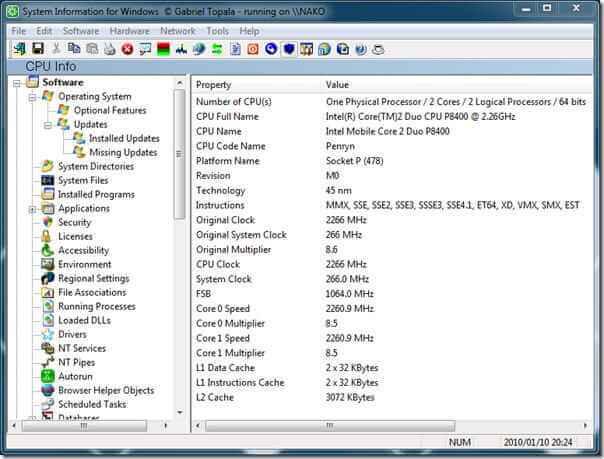
SIW is an advanced system information, monitoring, and diagnostics tool designed specifically for Windows PCs. It provides detailed analytics on hardware, software, and device drivers plus real-time performance monitoring.
Features:
- Hardware configuration identification and reporting.
- In-depth software, network, and storage analytics.
- Real-time sensor tracking for temperature, speed, and utilization.
- Performance and efficiency benchmarking of all components.
- Troubleshooting tools for stability testing and diagnostics.
- Full integration with Windows for detailed OS analytics.
Pros:
- Lightweight software with fast scanning and reporting.
- Intuitive user interface and visualization options.
- Broad hardware and software component coverage.
- Excellent real-time sensor monitoring and recording.
- A helpful suite of benchmarks to compare configurations.
- Free version available with full monitoring capabilities.
Cons:
- Lacks advanced overclocking and cooling capabilities.
- A paid premium version is required for some advanced features.
- The interface can feel a bit dated.
Compatibility: Windows 11 / Windows 10 / Windows 8.1 / Windows 8 / Windows 7 / WinPE / WinRE / Winternals ERD Commander.
13. CPU-Z
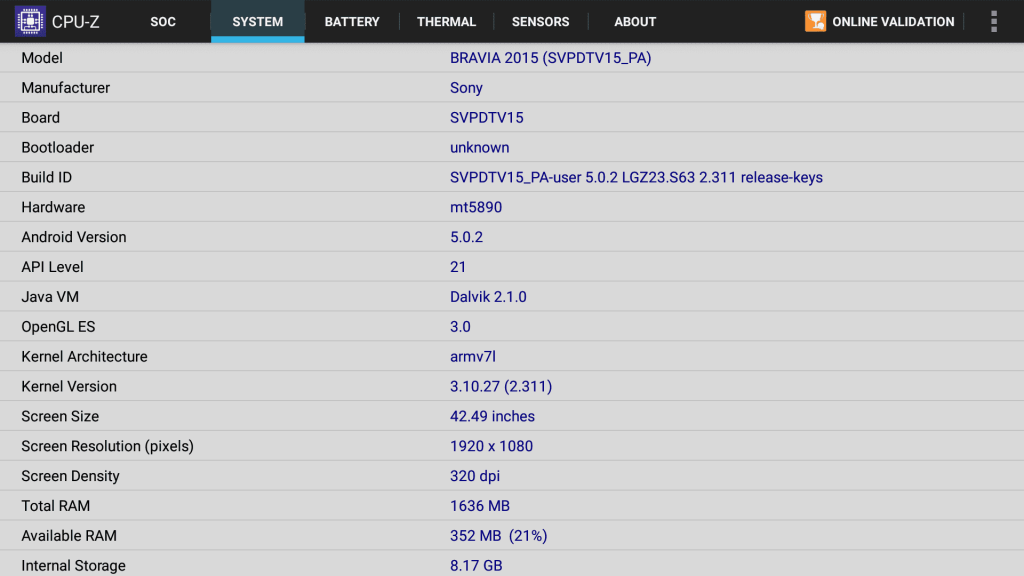
CPU-Z is a lightweight, easy-to-use system profiling and monitoring software designed to provide key details on installed processor, motherboard, memory, and graphics hardware specs. It includes real-time performance tracking capabilities.
Features:
- Identifies key CPU, motherboard, and memory configuration details.
- Graphics card and monitor analytics.
- Benchmarks to compare components against the baseline.
- Sensor tracking for core voltages, clock speeds, and temperatures.
- Stores logs and provides system stability testing.
- Light-weight software optimized for performance.
Pros:
- Simple and intuitive interface all in one window.
- Good for quick checks of core hardware + temps.
- Helpful benchmarks to gauge configurations.
- Logs provide easy diagnostics for instability.
- Free version available with key functions.
Cons:
- Minimal software/storage drive component insights.
- Some features require a paid Pro version.
Compatibility: Windows 11, Windows 10, and older versions too!
14. Rainmeter
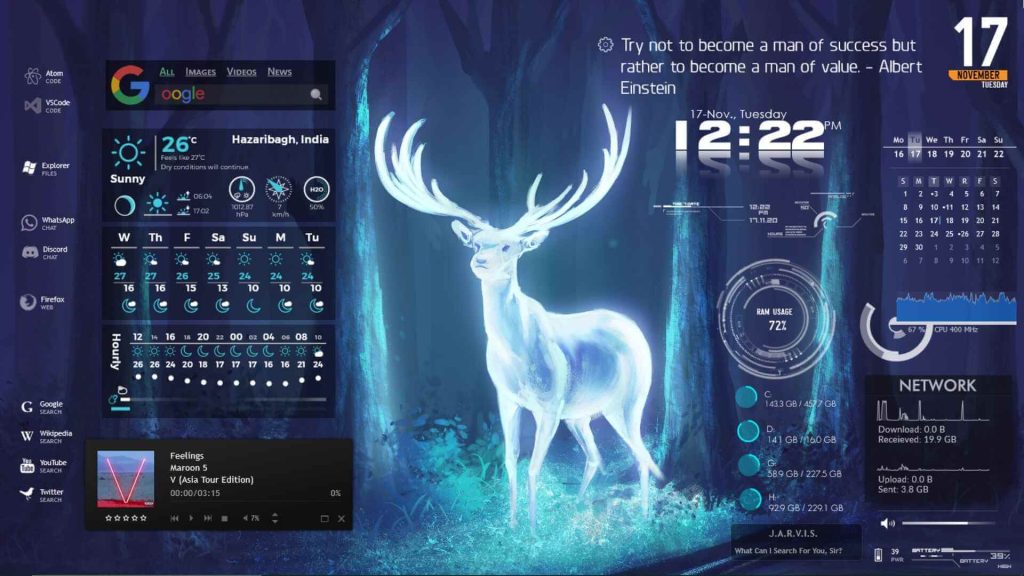
Rainmeter is a customizable desktop customization tool that offers a range of widgets, skins, and plugins. While not solely focused on temperature monitoring, it provides various skins and add-ons that include temperature monitoring as part of its system monitoring capabilities.
Features:
- Customizable desktop widgets and skins.
- Several available skins include temperature monitoring.
- Lightweight and customizable system monitoring.
Pros:
- Highly customizable interface with various skins.
- Offers temperature monitoring as part of its widgets.
- Lightweight and doesn’t consume excessive resources.
Cons:
- Temperature monitoring might require specific skins or plugins.
- Configuration might be needed for precise monitoring.
Compatibility: Windows 7 and above.
15. Corsair iCUE
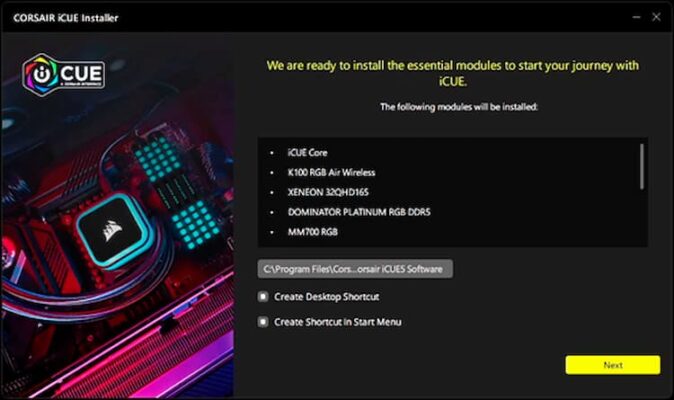
Corsair iCUE is a comprehensive utility that not only manages Corsair-branded hardware but also offers temperature monitoring for supported components. It provides real-time data on temperatures, and fan speeds, and allows users to customize settings for Corsair devices.
Features:
- Monitors temperatures and fan speeds.
- Customizable settings for Corsair devices.
- Real-time data on hardware performance.
- Integrates with Corsair RGB lighting control.
Pros:
- Specifically tailored for Corsair hardware.
- Offers detailed monitoring and control options.
- Integrates with Corsair RGB lighting systems.
Cons:
- Focused on compatibility with Corsair devices.
- Limited functionality for non-Corsair components.
Compatibility: Windows 11 and Windows 10.
Conclusion
Here are the 15 best PC temperature monitoring software for Windows that you can put to best use. In summary, this selection of diverse temperature monitoring solutions for Windows 11 and 10 ensures users have varied options to maintain their system’s health.
From specialized to comprehensive tools, these options cater to different user preferences and hardware needs, providing essential insights for optimal PC performance and longevity.
FAQs:
FAQ 1: Why is monitoring PC temperature important?
Monitoring PC temperature is crucial as overheating can damage hardware, reduce performance, and even lead to system instability or crashes. Regular monitoring helps prevent these issues by allowing timely adjustments to maintain optimal temperatures.
FAQ 2: How can I tell if my PC is overheating?
Signs of overheating include sudden system shutdowns, unusual fan noises, performance slowdowns during intensive tasks, or error messages indicating high temperatures. Using temperature monitoring software provides real-time data to detect and address potential overheating problems.
FAQ 3: What factors should I consider when choosing system temperature monitoring software?
Consider compatibility with your operating system and hardware, ease of use, customization options, resource impact on your system, alert capabilities, logging features, and additional functionalities such as fan control or integration with other monitoring tools. Choose based on your specific monitoring needs and preferences.
Author Bio:
Dinesh Lakhwani 

Dinesh Lakhwani, the entrepreneurial brain behind “TechCommuters,” achieved big things in the tech world. He started the company to make smart and user-friendly tech solutions. Thanks to his sharp thinking, focus on quality and the motto of never giving up, TechCommuters became a top player in the industry. His commitment to excellence has propelled the company to a leading position in the industry.
Popular Post











Recent Post
Resetting Audio Settings: How To Reset Sound Settings [2026]
Introduction Sound issues can affect your daily work and entertainment. You may notice that your speakers stop working, or your headphones produce unclear audio. In some cases, the sound may suddenly drop or become uneven. These problems can be frustrating, especially when you do not know the cause. Many users try random fixes, but that […]
How To Troubleshoot Miracast Connection Issues On Windows
Introduction Miracast is a useful feature that allows you to share your screen without using cables. It lets you mirror your Windows device to a TV, monitor, or projector. This feature works through wireless display technology. Many people use it for work meetings, school presentations, and home entertainment. It removes the need for HDMI cables […]

How To Fix Issues Downloading from the Microsoft Store On Windows
Introduction: Downloading apps from the Microsoft Store should be a simple task. You open the Store, search for an app, and click install. In most cases, the process works without any problem. However, there are times when the download does not start. In some cases, it may stay stuck at a certain percentage. You may […]

How To Fix Windows Update Issues Easily On Windows [2026]
Introduction Windows updates play an important role in keeping a computer stable and secure. They bring new features, fix known bugs, and improve overall performance. When updates work as expected, the system runs smoothly. However, when they fail, users often face slow performance, missing features, or security risks. This is why it becomes important to […]

How To Check If Your PC Is Infected? [Complete Guide]
Computers now sit at the center of almost everything we do. Well, yes! From sending emails to watching videos, we depend on them without much thought. Because of this, even a small issue can disrupt daily tasks. One common problem is hidden malware. It does not always show clear signs at first. It can enter […]

Repair Apps And Programs: Repair Apps That Aren’t Working
Computers have become an essential part of everyday life, supporting work, study, communication, and entertainment. Most of these activities rely on apps and programs, so when one stops functioning, even simple tasks can be disrupted. Common problems include error messages, frozen screens, or apps that fail to open. On Windows systems, such issues often arise […]

Troubleshooting Microphone Privacy Settings: Complete Guide
Sound is a basic part of how we use computers today. People attend meetings, record audio, speak to others, and use voice tools almost every day. A working microphone makes all these tasks easy. When the microphone fails, even simple work becomes difficult. Many users first think the device is broken. In reality, the issue […]

Windows Sound Settings – Sound Control Panel: Complete Guide
Sound plays an important role in how we use a computer every day. It supports both work and leisure. You need it for meetings, videos, music, and alerts. When audio fails, even simple tasks become difficult. Many users feel stuck when sound issues appear. This usually happens because they are not familiar with Windows Sound […]

Run a Troubleshooter For PC Issues Windows: Complete Guide
A computer plays an important role in everyday life. People use it for work, study, communication, and entertainment. When a problem appears, it can interrupt everything. Even a small issue can waste time and create frustration. Many users feel unsure about how to fix such problems. They often think they need expert help. In reality, […]
![Adjusting Audio Output Settings Complete Guide [2026]](https://www.techcommuters.com/wp-content/uploads/2026/03/Adjusting-Audio-Output-Settings-Complete-Guide.webp)
Adjusting Audio Output Settings: Complete Guide [2026]
Sound is part of almost everything we do on a computer. It lets you watch videos, join calls, play music, and hear alerts. When the audio stops working the right way, it can interrupt both work and daily use. That is why adjusting audio output settings matters for every user. Many people get unsure when […]

