Update Guide: Latest Windows 11 Updates
Last updated on December 22nd, 2025 at 1:40 pm
Windows 11 is Microsoft’s latest operating system, built with a sleek look and more refined functionality. It continues to evolve through frequent updates that enhance performance, resolve issues, and occasionally introduce new features.
If you are using Windows 11, you should always stay updated. Updates keep your system safe, fast, and reliable. This guide will help you understand why updates matter, how to install them, and what to do if you face problems.
We will also look at the latest Windows 11 updates and the features they bring.
Part 1: Why Windows 11 Updates Are Important?
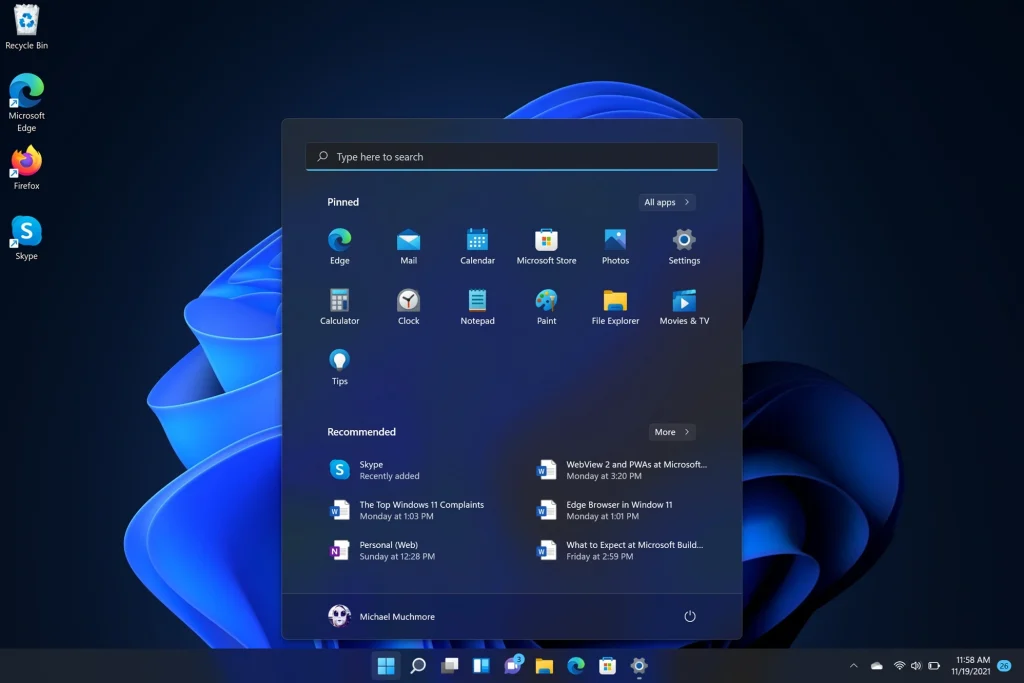
Updates may look simple. But they do much more than most people realize. Every update brings changes that protect, improve, or upgrade your PC. Missing them can slow your system or leave it unsafe.
Here are the main reasons why updates matter:
- They fix security risks. Hackers often target known flaws in software. Microsoft closes these flaws through security patches. Without them, your PC is open to attacks.
- They improve system speed. Some updates include code changes that make the system faster. Apps open quicker, and the PC feels more responsive.
- They fix software bugs. Programs may crash or freeze due to small errors. Updates repair these bugs so apps run without issues.
- They add new features. Microsoft often introduces new tools, design options, or settings. This keeps Windows 11 fresh and modern.
- They improve design and interface. Updates polish the look of menus, icons, and the taskbar. They make your PC easier to use.
- They keep drivers up to date. Hardware like printers, graphics cards, and Wi-Fi adapters need drivers. Updates ensure they work with Windows 11.
- They improve battery life. On laptops, updates may optimize background processes. This helps your battery last longer.
- They prepare your PC for the future. Updates keep your system ready for bigger upgrades. Without them, your PC may not support future features.
Part 2: How to Check for Windows 11 Updates?
Checking for updates is easy, but many users never open the update menu. Microsoft tries to install updates in the background, but manual checks give you control.
Here is how you can check:
- Click the Start button on the taskbar. Open Settings. The gear icon is easy to spot. On the left side, click Windows Update. On the right side, click Check for updates.
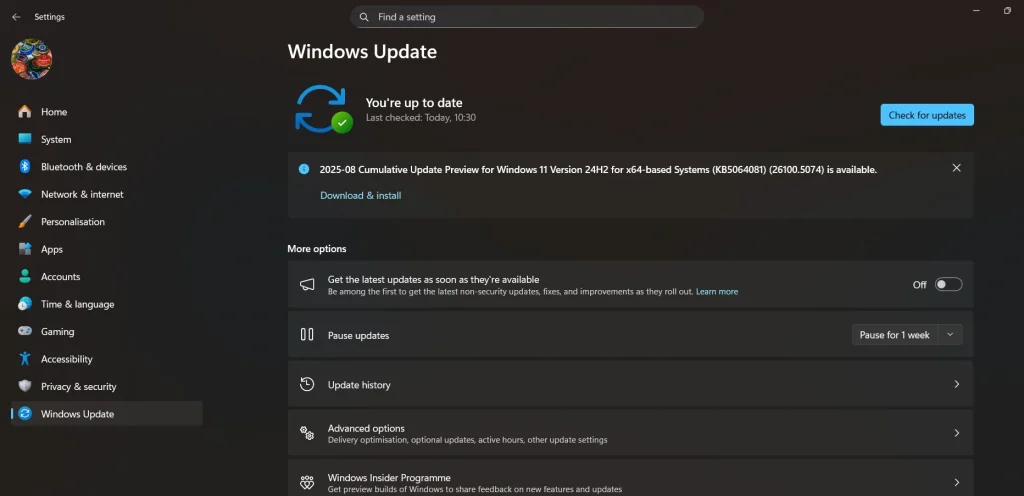
- Windows will search for new updates. If updates are available, you will see a list. Click Download and install. Restart your PC when the system asks.
If you see “You’re up to date,” your PC already has the latest updates. If updates do not appear, wait a few hours and try again. Sometimes Microsoft rolls out updates in stages.
You can also change settings for updates. You can pause them if you are busy. You can choose active hours to avoid restarts while working. These options give you more control.
Part 3: Latest Windows 11 Updates: Update Guide
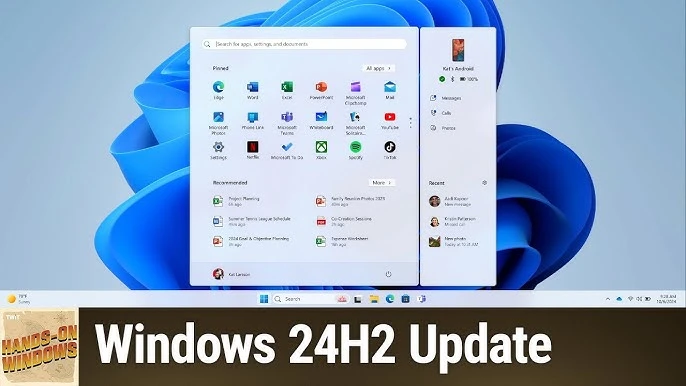
Chronological List of Windows 11 Updates:
| Release Date | KB Number | OS Build | Type | Key Highlights |
| June 25 | KB5060829 | 26100.4484 | Preview Update | Early rollout of Recall, Click to Do, and UI tweaks. |
| July 8 | KB5062553 | 26100.4652 | Patch Tuesday Update | Security fixes, compatibility updates. |
| July 13 | KB5064489 | 26100.4656 | Out-of-band Update | Emergency security patch. |
| July 22 | KB5062660 | 26100.4770 | Preview Update | Copilot+ enhancements, Notification Center updates. |
| August 13 | KB5063878 | 26100.4946 | Patch Tuesday Update | Secure Boot updates, performance fixes. |
| August 29 | KB5064081 | 26100.5074 | Preview Update | Recall homepage, voice access improvements, and redesigned settings. |
| September 9 | KB5065426 | 26100.6584 | Patch Tuesday Update | Taskbar policy, redesigned Windows Hello, Lock Screen widgets, Copilot+ AI actions. |
Here’s a complete and chronological breakdown of the latest Windows 11 (24H2) updates from September to June 2025, starting with the most recent.
KB5065426 — OS Build 26100.6584
Released: September 9, 2025 | Type: Patch Tuesday
This major update delivered a wide range of enhancements across the Windows experience, especially for Copilot+ PCs. It refined the UI, added new admin controls, and expanded AI-powered features.
- New taskbar policy to prevent repinning of unpinned apps.
- Redesigned Windows Hello and Lock Screen widgets.
- Added AI actions in File Explorer for Copilot+ PCs.
- Improved voice access, Settings, and Notification Center.
KB5064081 — OS Build 26100.5074
Released: August 29, 2025 | Type: Preview Update
This preview update focused on Copilot+ PC usability, introducing a Recall homepage and interactive tutorials to help users get more from AI features.
- Launched the Recall homepage with recent snapshots and app usage.
- Introduced the Click to Do tutorial for new users.
- Refined voice access and typing controls.
- Updated Windows Backup and Settings UI.
KB5063878 — OS Build 26100.4946
Released: August 13, 2025 | Type: Patch Tuesday
A security-focused update that strengthened system integrity and addressed key vulnerabilities, including updates to Secure Boot.
- Updated Secure Boot certificate handling.
- Fixed performance and reliability issues.
- Strengthened system security across services.
- Improved update installation stability.
KB5062660 — OS Build 26100.4770
Released: July 22, 2025 | Type: Preview Update
This update expanded Copilot+ features and polished the user interface, especially in Windows Search and Notification Center.
- Added grid view to Windows Search results.
- Improved Notification Center layout and responsiveness.
- Enhanced Copilot+ PC features like Recall and Click to Do.
- Continued performance tuning and bug fixes.
KB5064489 — OS Build 26100.4656
Released: July 13, 2025 | Type: Out-of-band Update
An emergency release to patch a critical security flaw, especially affecting enterprise systems.
- Resolved a high-risk security vulnerability.
- Targeted enterprise configurations and network stability.
- No major feature changes.
- Urged immediate installation for affected systems.
KB5062553 — OS Build 26100.4652
Released: July 8, 2025 | Type: Patch Tuesday
This monthly security update focused on system stability and compatibility, laying the foundation for future feature rollouts.
- Addressed security vulnerabilities across core components.
- Improved third-party software compatibility.
- Updated Windows Defender definitions.
- General bug fixes and performance enhancements.
KB5060829 — OS Build 26100.4484
Released: June 25, 2025 | Type: Preview Update
The first major preview of the summer, this update introduced Recall and Click to Do, setting the stage for Copilot+ PC innovations.
- Introduced Recall and Click to Do for Copilot+ PCs.
- Enhanced voice access and typing experience.
- Improved performance and responsiveness.
- Minor tweaks to UI and accessibility settings.
Part 4: Pro Tips: Install Windows 11 Updates Safely
Installing updates may look simple. But small mistakes can create problems. A few steps of care will ensure smooth installation.
Here are smart tips for safe updating:
- Backup files. Back up your important files—like documents, pictures, or videos—to an external drive or cloud storage. That way, if something goes wrong, you won’t lose them.
- Connect to power. Laptops should always be plugged in. A shutdown during an update can cause errors.
- Check storage space. Updates need free space. Delete junk files or move data to an external drive.
- Use a stable internet connection. Slow or unstable Wi-Fi may interrupt downloads. Use wired internet if possible.
- Pause other downloads. Stop big downloads or streaming while updating. This makes the process faster.
- Update drivers first. Old drivers may cause update errors. Install driver updates before system updates.
- Restart your PC once. A clean restart clears memory. This helps the update install without issues.
- Do not interrupt updates. Never turn off your PC mid-update. Wait until the restart finishes.
Part 5: Troubleshooting Common Issues During Update
Even with care, problems may appear. Updates may get stuck, or your PC may act slowly. Do not worry. Most issues have simple solutions.
Here are common issues and how to solve them:
- Update is stuck at a percentage. This happens when the system is busy. Wait at least an hour. If stuck, restart and try again.
- Slow download. Switch to faster Wi-Fi or connect with a cable. Slow networks delay updates.
- Low storage. Use Disk Cleanup or delete temporary files. You can also move files to USB storage.
- Driver errors. Update drivers from the Device Manager. If errors remain, reinstall the driver.
- PC freezes during restart. Perform a hard restart by holding the power button. The update will continue after the reboot.
- The update service is not working. Open Settings, go to Troubleshoot, and use the Windows Update troubleshooter.
- Error codes. Microsoft provides guides for each error code. Search the exact code for steps.
- Apps are not working after the update. Update the app from the Microsoft Store or reinstall it.
Author’s Tip
Many users delay updates because they feel updates slow down work. But updates are not the enemy. They are the reason your computer remains secure. Hackers search daily for weak points. Updates close these gaps. Skipping them leaves you at risk.
Plan updates smartly. Let your PC update when you are not working. You can even set active hours. This way, restarts will not disturb your projects. If you travel often, update your PC before leaving. You will not face problems on the road.
Also, remember backups. Cloud storage like OneDrive or Google Drive can keep your files safe. A backup is your shield. Even if a rare update error happens, your files remain safe. This peace of mind is priceless.
Conclusion
Windows 11 is always changing. Microsoft releases updates to fix, secure, and improve the system. The latest Windows 11 updates are proof of this. They improve speed, security, and daily use.
Take a few minutes each month to check for updates. Install them with care, follow safe steps, and solve issues if they appear. Your computer will remain fast, safe, and ready for the future. Updates are not just optional. They are part of keeping your PC alive and healthy.
FAQs:
1. How long does a Windows 11 update take?
The time depends on many things. Small updates may take 15 minutes. Larger updates may take an hour or more. Speed also depends on your PC hardware and the internet.
2. Can I stop an update once it starts?
It is not safe to stop an update in progress. Stopping it may corrupt files. Always let the update finish. If you do not want updates to start, pause them in Settings before downloading.
3. Will updates delete my files?
No, updates do not remove personal files. Your documents, photos, and apps stay safe. Still, it is wise to back them up. Updates only change system files, but errors may sometimes cause problems. A backup is the best safeguard.
Author Bio:
Dinesh Lakhwani 

Dinesh Lakhwani, the entrepreneurial brain behind “TechCommuters,” achieved big things in the tech world. He started the company to make smart and user-friendly tech solutions. Thanks to his sharp thinking, focus on quality and the motto of never giving up, TechCommuters became a top player in the industry. His commitment to excellence has propelled the company to a leading position in the industry.
Popular Post











Recent Post

Switch To a Dark Background Theme on Windows: Enable Dark Mode
People often like a screen that feels gentle on the eyes. A darker style softens bright areas and makes long computer sessions easier to handle. It also gives the desktop a cleaner and more modern feel. When you switch to a dark background theme in Windows, the colors shift to deeper shades that reduce glare […]
![Complete Guide on Managing Audio Input Devices [Latest In 2026]](https://www.techcommuters.com/wp-content/uploads/2025/12/Complete-Guide-on-Managing-Audio-Input-Devices.webp)
Complete Guide on Managing Audio Input Devices [Latest In 2026]
People use microphones for meetings, games, classes, recordings, and voice chats, so any problem with the device can interrupt their work. Even a small system error can make the voice weak or stop it fully. This is why knowing the basics of managing audio input devices is helpful for new and experienced users. Windows includes […]

Resetting Audio Settings on Windows 11: Complete Guide
Sound problems can disrupt work, study, or entertainment. Many users face issues where the audio becomes too low, too loud, unclear, or does not play at all. A common way to solve these problems is by resetting audio settings to their original state. This helps Windows rebuild its sound setup from the beginning. Windows 11 […]
Troubleshooting Headphone Detection: Headphones Not Detected/Working
A lot of users run into sound problems at some point. A common one is when the computer does not pick up the headphones. You plug them in, but the speakers keep playing. This can break your focus during work, movies, music, or calls. It also causes confusion because the reason is not always clear […]

How To Re-Pair Bluetooth Earbuds For Stereo Sound on Windows
Wireless earbuds are often paired with computers for rich stereo sound, but things don’t always go smoothly. Sometimes, the system defaults to mono audio or fails to activate the correct playback mode. This can disrupt music, calls, or gaming, making the sound feel flat and lifeless. These glitches usually stem from improper setup. Windows might […]

How To Manage Camera Permissions for App On Windows: Complete Guide [2026]
Many users run into issues when trying to join video calls or online meetings—their camera simply won’t turn on. This can happen for a few reasons: Windows might be blocking access, or the app may not have the correct permissions. These hiccups often lead to confusion and frustration. Fortunately, Windows provides straightforward tools to help […]
![Help With Color Management In Windows Complete Guide [2026]](https://www.techcommuters.com/wp-content/uploads/2025/12/Help-With-Color-Management-In-Windows-Complete-Guide.webp)
Help With Color Management In Windows: Complete Guide [2026]
Color often decides how we experience a picture, a video, a website, or even a simple chart. Many users feel confused when colors look different on each screen. A monitor may show a softer shade while a laptop shows a sharper one. This creates doubt and slows down work. It can also lead to mistakes […]
How To Install Pending Windows Updates Easily On Windows 11
Windows updates keep your computer healthy. They fix problems and improve security. Many people ignore updates because they worry about errors or slow performance. In most cases, the process is simple. You only need to follow a clear routine and give your computer enough time to finish the job. A regular update habit saves you […]

How to Set Up a Secure VPN Connection on Windows In 2026
A VPN helps protect your privacy each time you go online. It hides your real location. It protects your data from unsafe networks. It also keeps your browsing away from unwanted eyes. Many people use it to keep their work safe. Others use it to guard their regular internet use. Windows offers good support for […]
How To Extend Your Battery Life Effectively in Windows
A laptop is useful only when the battery lasts long enough to support your work. When the charge falls too fast, even small tasks feel stressful. You may rush to find a charger. You may feel forced to lower the performance. You may even stop your work in the middle of something important. This can […]

