iOS 17 Troubleshooting: Fixes for Common Problems
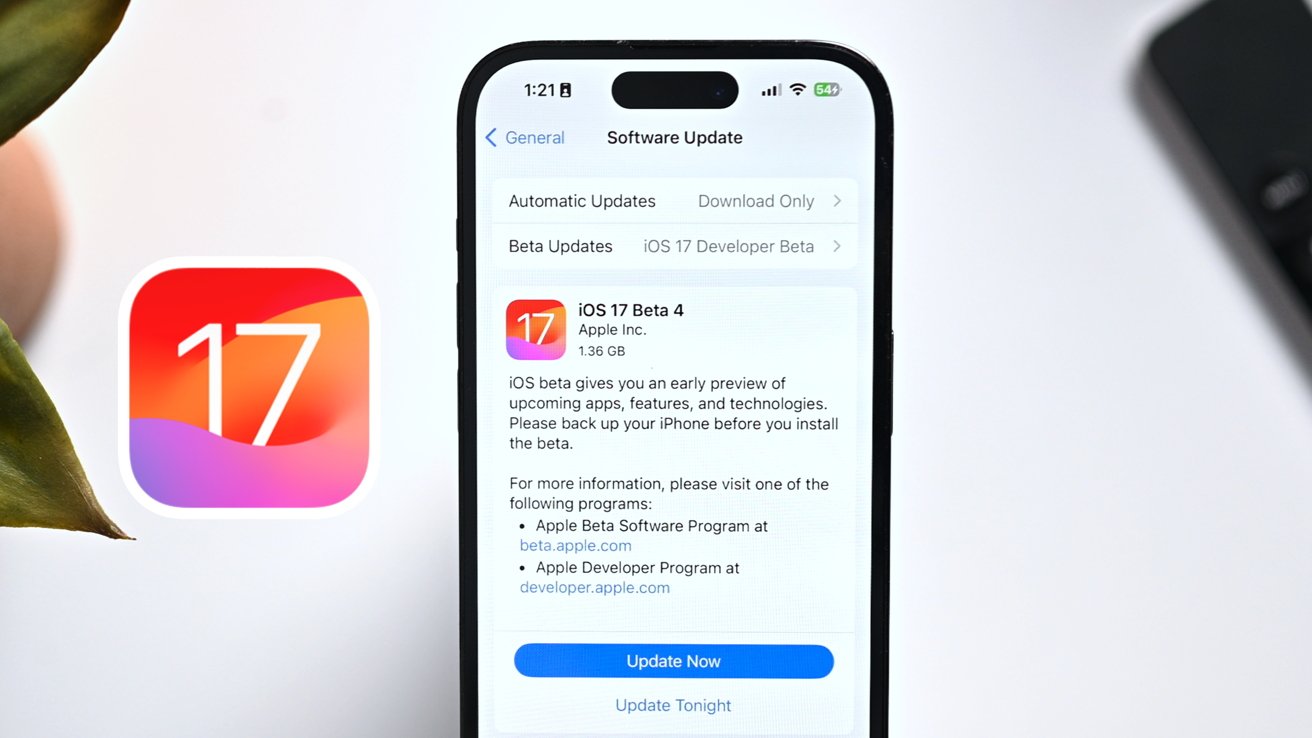
Last updated on August 4th, 2024 at 7:20 pm
Introduction
Apple has been steadfast in its efforts to improve user experience and introduce cutting-edge functionality. The efforts have resulted in a great accomplishment with the release of iOS 17. In this article, we’ll go in-depth on the iOS 17 issues and iOS 17 bugs that customers frequently experience and offer solutions to fix iOS 17 issues. This article can help you if your device is running slowly, your battery is running low, or you’re having trouble connecting to the internet.
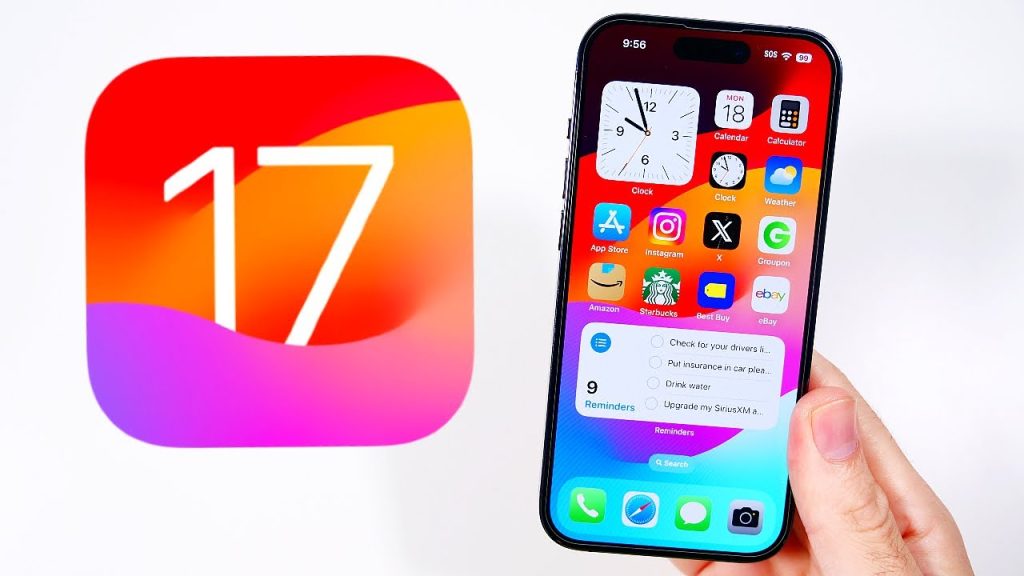
How has iOS 17 changed?
Customizable call displays are the main feature. It gives your calls a deeper level of customization. When you call, you can alter what callers see. Another recent addition is Live Voicemail, which lets you view a message’s Live Transcript.
The Messages app has undergone considerable improvements in iOS 17, which unifies all iMessage apps into a single hub. Checking in lets people know when you’ve arrived somewhere, and Swiping to reply makes it easier to respond. You can read voicemails thanks to audio message transcription, improving accessibility.
Updates are also made to stickers. For canceled FaceTime calls, you can now record voice or video messages. The communication functions in iOS 17 have been improved. In landscape mode, StandBy turns your phone into a bedside clock and provides a slideshow option. Order tracking or keeping up with real-time sports results is simple with full-screen live activities. Calling, texting, and glanceable information are given priority with iOS 17.
iOS 17 Issues – Problems Users Frequently Experience
It’s crucial to understand the typical problems users frequently face when looking into iOS 17 issues. The overall user experience may be hampered by these problems. For users to enjoy a seamless and satisfying user experience, the above iOS 17 issues must be fixed. Users who experience these issues can try several troubleshooting techniques and watch for official software updates from Apple to fix the issues.
iOS 17 Bugs: Understanding the Issues with Apple’s Most Recent Update
Just like any new software, Apple’s iOS 17 has a few bugs, even though it’s introduced some cool new features and improvements. It’s important to realize that these bugs can affect people differently. It’s essential to find and report these bugs so that Apple can make its software better.
The following are some iOS 17 bugs that users have found:
- Unstable Apps: While iOS updates are designed to make apps more stable, there have been incidents where apps on iOS 17 behave strangely. When attempting to complete tasks, this may include apps freezing or not functioning as they should.

- Slower Performance: The performance enhancements in iOS 17 might not be sufficient for users of older devices. Some users have observed that their devices are now slower and respond less quickly, which makes using them less enjoyable.
- Connection issues: After updating to iOS 17, some users have experienced issues with their Wi-Fi and cellular connections. This may lead to frustratingly slow or unreliable connections to the internet.
- Problems with apps: Crashes in apps are a major annoyance. Apps occasionally crash unexpectedly for some users, even after updating to iOS 17. Whatever they were doing may have been interrupted, which can be extremely bothersome.
It’s really important to notice and let Apple know about these iOS 17 bugs.
Apple has a way for users to report issues, and it’s a great way to tell them if something isn’t working right. While we wait for Apple to fix these issues, there are a few things users can try, like restarting their device, clearing out app data, updating apps, and looking for specific solutions to common problems.
In general, iOS 17 has made a lot of good changes, but it’s not perfect. To help Apple make it even better, we need to find and report the iOS17 issues and bugs we come across.
Potential bug fixes for common iOS 17 issues
iOS 17 has become a significant milestone in the rapidly changing world of technology, promising an extensive range of new features and improvements for Apple users. The seamless user experience can be hampered by problems, as with any software release. We’ll look at ways to fix iOS 17 issues, assisting users in overcoming typical problems and making the most of their Apple devices.
1. Resolving Connectivity Issues
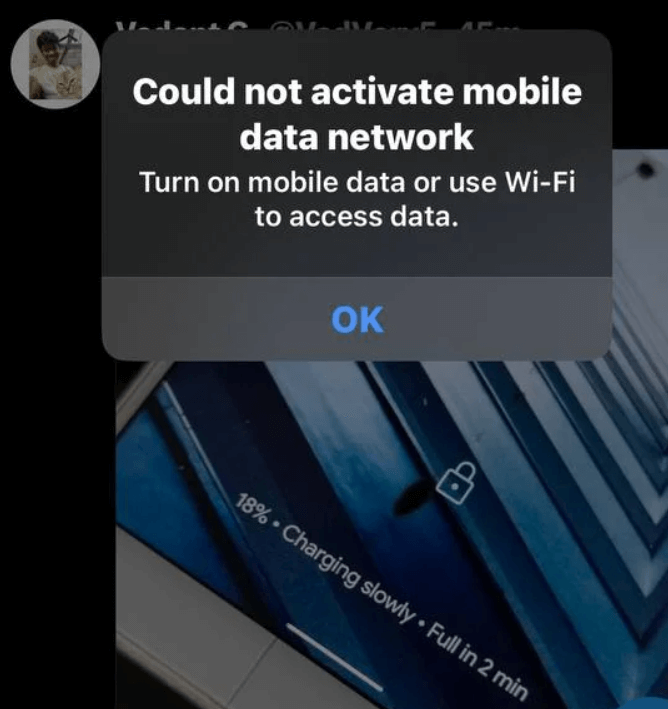
- Restart Your Device: Restarting your device can sometimes fix connectivity issues. Resetting network configurations can result in a more dependable connection.
- Check Your Router/Modem: If you’re having Wi-Fi issues, check your router or modem. Connectivity problems are frequently resolved by restarting or resetting these devices.
- Update the router’s firmware: Verify the firmware on your router is up to date. Issues with iOS 17 compatibility on newer devices can result from outdated firmware.
- Resetting network settings is an option you can access from the settings menu on your device. If connectivity problems continue, this may be useful.
2. Performance Improvement:
- Lower Visual Effects: iOS has settings to lessen transparency and motion effects. Performance can be improved by turning these off, especially on older devices.
- Manage Open Apps: Operating several apps at once can slow down your device. To clear up system resources, close any open applications.
- Optimise Storage: Freeing up storage space by deleting unused apps, pictures, and videos may improve device performance.
3. App Stabilising:
- Check for App Updates: To improve app stability on iOS 17, developers may release updates. Update your apps frequently to benefit from these fixes.
- Report App Issues: If you come across an app that behaves poorly, you might want to consider contacting the developer. They could work on a solution even if they are unaware of the problem.
4. Fixing App Crash Issues:
- Update Apps: Make sure all of your apps are current. Updates are frequently made available by developers to fix compatibility problems with new iOS versions.
- Reinstall problematic apps: If an app frequently crashes, you might want to uninstall it first and then reinstall it from the App Store. This can fix problems caused by damaged app files.
5. Tips for Generally Improving Performance:
- Reduce background activity by turning on Low Power Mode. This could enhance all-around device performance and prolong battery life.
- App Monitoring: Keep an eye on any background-running applications. Closing pointless background programs can release priceless system resources.
- Refreshing Background Apps: Adjust device settings to suit your preferences for app refresh.
Insearch of the Official iOS 17 Update
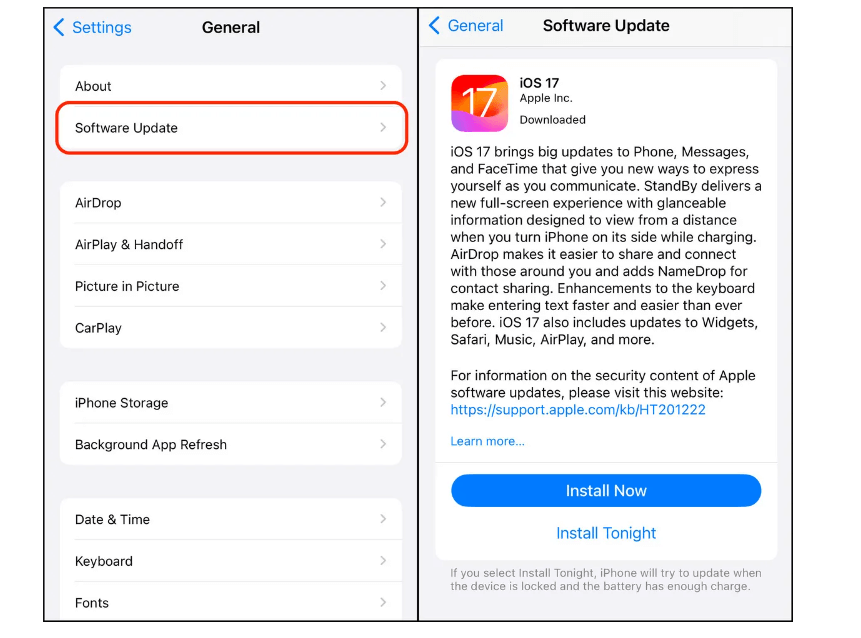
- Watch for Apple’s Official Fixes: It’s critical to wait patiently for Apple to release the official fixes for the problems with iOS 17. Apple releases updates frequently to fix bugs and glitches, giving users a more dependable and stable experience.
- Outlining Future iOS 17 Updates: Be on the lookout for notifications about forthcoming iOS 17 updates. These updates frequently include new features, performance improvements, and bug fixes. Keeping up with upcoming developments can help you foresee improvement.
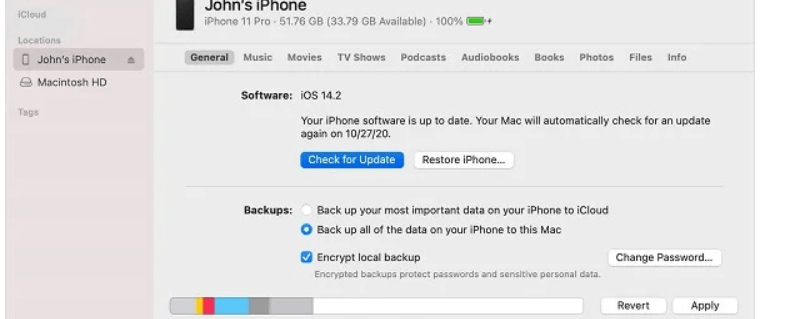
- Encourage Users to Regularly Update Their Devices: It’s critical to encourage users to update their devices regularly. In addition to improving performance, these updates make sure that security flaws are fixed. To maintain a seamless and secure iOS 17 experience, it’s a proactive measure. The current build of iOS 17.0.2 is 21A351, as opposed to the original build of iOS 17.0.2, which is 21A350. The same as before, the update’s release notes state that it resolves a problem that could “prevent transferring data straight to another iPhone during setup.
Conclusion
Users have frequently expressed concern about iOS 17 bugs and issues. The experience has been ruined by connectivity issues, performance issues, app crashes, and battery drain. However, there is hope in the form of potential solutions.
To fix iOS 17 issues, clear app caches, improve device performance, and keep an eye out for official iOS 17 updates from Apple. Users can guarantee a more seamless and enjoyable experience with iOS 17 by employing the appropriate strategies.
Author Bio:
Dinesh Lakhwani 

Dinesh Lakhwani, the entrepreneurial brain behind “TechCommuters,” achieved big things in the tech world. He started the company to make smart and user-friendly tech solutions. Thanks to his sharp thinking, focus on quality and the motto of never giving up, TechCommuters became a top player in the industry. His commitment to excellence has propelled the company to a leading position in the industry.
Popular Post











Recent Post

How To Switch To A Dark Background Theme In Windows [2026]
Most people spend many hours each day in front of a computer screen. Office work, online classes, editing, browsing, and streaming all require long screen time. A bright white background may look clean at first. However, over time, it can feel sharp and tiring. The strong contrast between white backgrounds and black text may cause […]

How to Switch From Local To Microsoft Account On Windows
Many users begin with a local account when they set up a new Windows computer. A local account works only on that single device. It stores settings, files, and preferences locally. It does not connect to online Microsoft services. For basic offline use, it works well. However, as digital needs grow, many users want better […]

How to Switch Windows 10 to a Local Account: Complete Guide
Windows 10 allows users to sign in with either a Microsoft account or a local account. When you set up a new computer, the system often suggests using a Microsoft account. This account connects your device to Microsoft services such as Outlook, OneDrive, and the Microsoft Store. It also syncs settings, themes, and passwords across […]

How To Change Default Apps For File Types In Windows
Windows is designed to make using your computer easy. One way it does this is by assigning default apps to different file types. This means when you open a file, Windows automatically opens it with a specific program. For example, photos may open with Photos, music with Groove Music, and PDFs with Edge. These default […]

How To Adjust The Mouse Pointer Speed: Complete Guide
Using a computer every day means you use the mouse a lot. The mouse pointer moves on the screen and helps you click, scroll, and select items. Many people never think about the speed of the mouse pointer. They have used the default setting for years. This can cause small problems over time. A slow […]

How to Change Mouse Scrolling Settings In Windows
A mouse is one of the most used computer tools. People use it every day. They scroll through emails. They scroll through documents. They scroll through websites and images. The movement becomes automatic. Most users do not notice it. That is why problems often go unnoticed. Scrolling problems show up slowly. At first, it feels […]

Keyboard Light Settings: Keyboard Lighting Control [Complete Guide]
Keyboards are no longer simple typing tools. Well, yes! Over time, they have evolved to include features that improve comfort, visibility, and overall experience. One of the most useful features today is keyboard lighting. It helps users work comfortably in low-light conditions. It also reduces strain when typing for long hours. Many users first notice […]

Customizing Pointer Appearance: Complete Guide
The way your mouse pointer looks on your computer may seem like a small detail. But customizing pointer appearance can make using your PC more comfortable and visually appealing. Many users do not realize that they can change the pointer size, color, and style to fit their needs. Whether you want a bigger pointer for […]

How To Choose a Computer Monitor: Monitor Buying Guide
Buying a monitor looks easy. Many people think all screens are the same. That belief causes regret later. A monitor is not just a display. It is a daily tool. You read on it. You work on it. You relax with it. Small problems become big over time. Poor brightness hurts eyes. Bad size causes […]

How To Get Help With File Explorer in Windows 11 [Complete Guide]
File Explorer is one of the most important tools in Windows 11. It is used to open folders, view files, and manage stored data. Almost every action on a Windows computer depends on it in some way. When users open documents, save downloads, or organize photos, File Explorer is always involved. Because it is used […]

