How To Unsubscribe From Emails On Gmail In Bulk – Mass Unsubscribe Gmail

Last updated on December 12th, 2025 at 10:00 am
Introduction:
Email overload is a common problem for many Gmail users. Right? Over time, your inbox can become cluttered with emails from retailers, newsletters, and other senders you no longer wish to receive messages from. Unsubscribing from these unwanted emails can be a tedious process, especially if you have to do it one email at a time.
Fortunately, Gmail provides some simple tools to help you unsubscribe from multiple emails at once.
Here’s a guide on how to unsubscribe from emails on Gmail in bulk to quickly clean up your inbox.
Why Unsubscribe from Emails in Bulk?
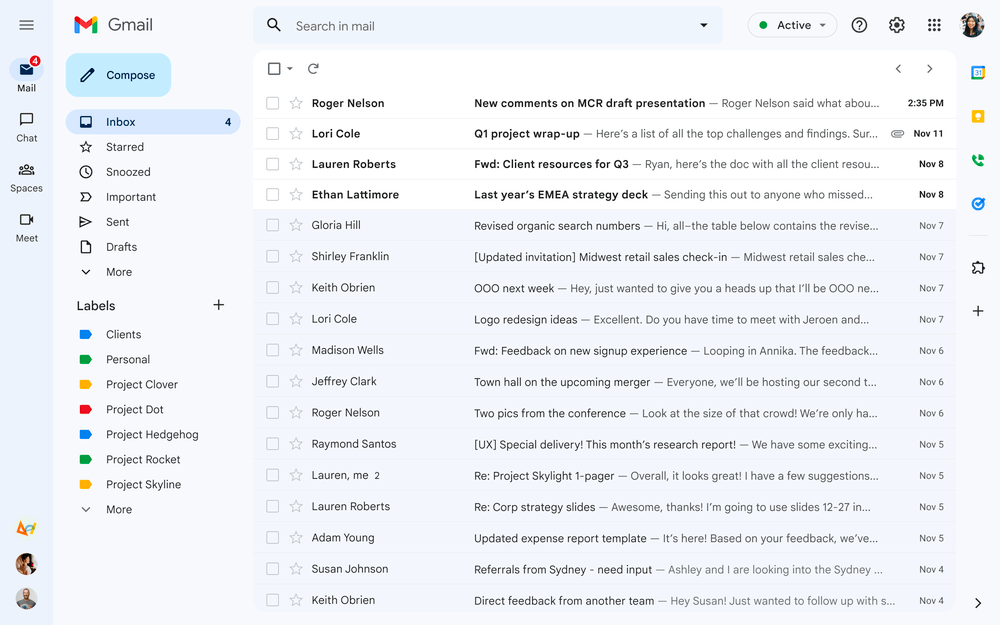
Here are some key reasons you may want to unsubscribe from a lot of emails at once:
- Reduce inbox clutter – By unsubscribing from emails you don’t read anymore, you can clear out your inbox and make it easier to find important messages. Getting rid of excess emails also helps reduce inbox anxiety.
- Save time – Unsubscribing from each email one by one takes a lot of time and effort. Being able to unsubscribe in bulk saves you time and hassle.
- Enhance productivity – Having a cluttered inbox full of emails you don’t read diminishes your productivity. Unsubscribing in bulk helps streamline your inbox so you can focus on emails that matter.
- Improve security – The more emails accumulate in your inbox over time, the more exposed you are to potential phishing attacks and data breaches. Doing a clean sweep by unsubscribing reduces these risks.
- Regain control – When you let emails pile up without unsubscribing, it can feel like your inbox is controlling you rather than the other way around. Mass unsubscribing puts you back in charge.
In summary, unsubscribing from Gmail emails in bulk allows you to take control of your inbox, enhance productivity, save time, improve security, and reduce anxiety. Keeping your inbox clutter-free is healthy email hygiene!
How To Unsubscribe From Emails On Gmail In Bulk
Gmail provides a few easy ways to mass unsubscribe from emails right from your inbox. Here are step-by-step guides on how to use Gmail’s built-in tools to unsubscribe in bulk:
Method 1: Mass Unsubscribe Gmail-Use the Unsubscribe Link
One of the fastest ways to unsubscribe from emails in bulk is by sender. Here’s how:
Step 1: Open your email account.
Step 2: Navigate to your inbox and select the email sent by the sender you want to unsubscribe from.
Step 3: Locate the “Unsubscribe” button near the top of the email, typically located next to the sender’s name.
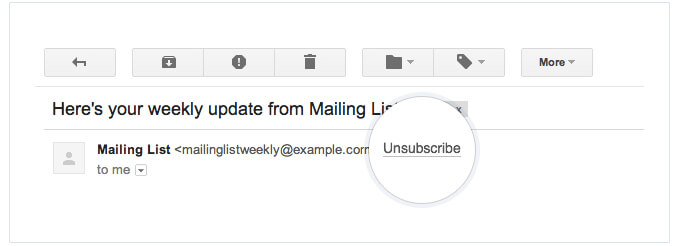
Step 4: If you find the “Unsubscribe” button, click on it to opt-out.
This method lets you rapidly unsubscribe from all emails sent by a particular domain or newsletter. The emails disappear from your inbox and Gmail will automatically unsubscribe you.
However, this method can be time-consuming to manually select each sender you want to unsubscribe from one by one. Also, this method cannot multi-select multiple senders at once.
Method 2: Mass Unsubscribe Gmail-Use Gmail Unsubscribe Chrome Extension
If Gmail’s native options are not robust enough or you find the manual unsubscribe process tedious, then utilizing a specialized extension like ‘Gmail Unsubscribe‘ can make your bulk inbox cleaning much more efficient.
You can then conveniently select all the senders you want to unsubscribe from and remove them in bulk instantly. The extension also adds an unsubscribe icon to your inbox for unsubscribing from individual emails easily. This nifty extension streamlines unsubscribing by automatically scanning your inbox and compiling a list of all senders with one click.
Here is a step-by-step guide on how to unsubscribe from emails on Gmail in bulk using this useful Chrome extension:
Step 1: Install the Chrome extension ‘Gmail Unsubscribe’ from the Chrome Web Store.
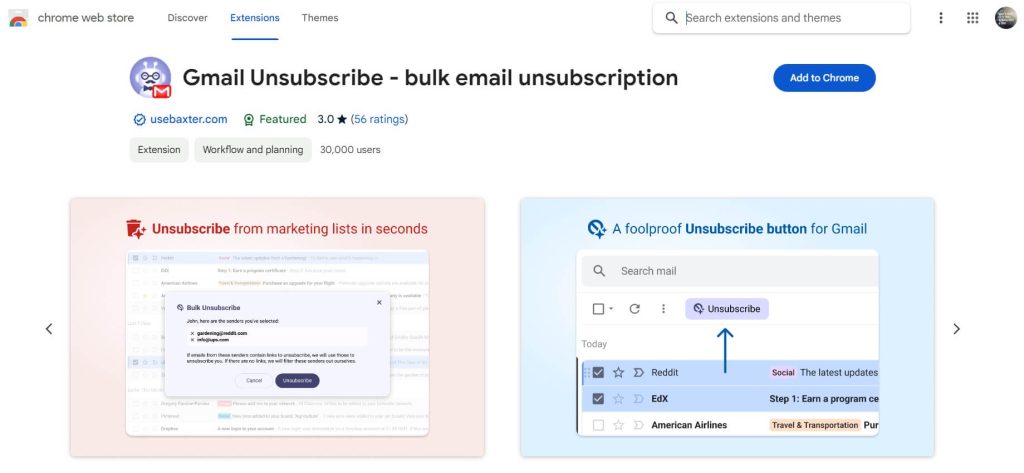
Step 2: Open Gmail and navigate to the Chrome extensions menu.
Step 3: Click the ‘Unsubscribe’ icon and the extension will begin scanning your inbox.
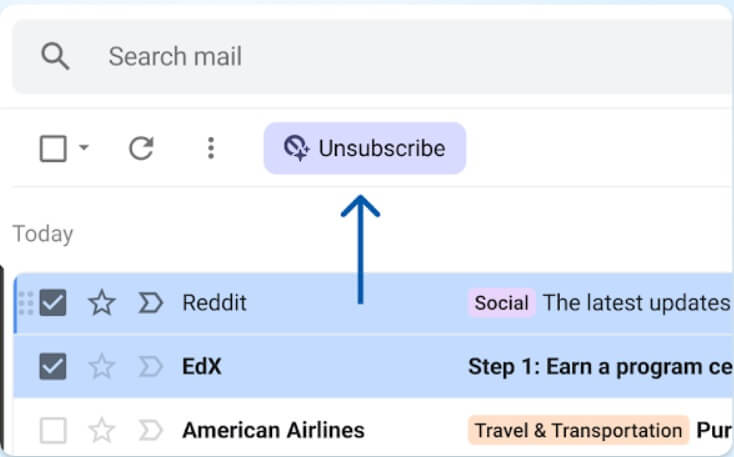
Step 4: After scanning, a list of all senders in your inbox will be shown. Select the ones you wish to unsubscribe from.
Step 5: Click ‘Unsubscribe’ and the extension will automatically unsubscribe you from the selected senders. The extension also adds an unsubscribe icon in the inbox to easily unsubscribe from specific emails.
The ‘Gmail Unsubscribe’ Chrome extension provides an added level of convenience for managing bulk subscriptions directly within your inbox.
Give it a try for easier unsubscribing!
Tips for Successful Bulk Unsubscribing
To ensure your bulk unsubscribing goes smoothly and effectively, keep these tips in mind:
- Only unsubscribe from emails you are certain you don’t want. Avoid mass unsubscribing from senders you might want to hear from in the future.
- Check your inbox categories first and target bulk actions towards entire categories, like unsubscribing from Promotions.
- Search “unsubscribe” to isolate emails with unsubscribe links before doing a mass delete.
- Periodically search your inbox for old subscriptions you may have forgotten about.
- Any important emails should be labeled, archived, or filtered so they are not affected during bulk actions.
- Use Gmail’s undo feature immediately if you make a mistake or unsubscribe from something by accident.
- Stick to Gmail’s daily limits to avoid unsubscribe errors.
- Check your inbox after unsubscribing to confirm the senders are gone.
With some strategic filtering and selective use of Gmail’s bulk actions, you can efficiently clean up your inbox and take control of your email subscriptions.
Troubleshooting Bulk Unsubscribe Issues
So, you just learned about how to unsubscribe from emails on Gmail in bulk using different methods. But despite Gmail’s straightforward tools for bulk unsubscribing, you may occasionally run into issues. Read on to master basic troubleshooting:
#1 Emails reappear after unsubscribing
If emails reappear in your inbox from senders you already unsubscribed from, here are some troubleshooting tips:
- Confirm the unsubscribe action completed successfully – look for a confirmation message from Gmail after clicking “Unsubscribe”.
- Check if the emails are coming from a slightly different sender address. You may need to unsubscribe again from the alternate address.
- Some senders use different email services for their marketing blasts, so you may be subscribed separately under multiple addresses.
- Make sure to click any confirmation link in the unsubscribe message received from the sender.
As a last resort, contact the sender directly and request removal if their unsubscribe process is not working.
#2 Unsubscribe link not working
If an unsubscribe link fails to complete the unsubscribe process, try these steps:
- Copy/paste the link into a new browser window in case the original tab had an issue.
- Clear your browser cookies and try the link again.
- Some links have expiration dates, so the one you’re using may be outdated. Search your inbox for a more recent unsubscribe link.
- If a page says you’re already unsubscribed, the request went through even if you didn’t get a confirmation. Monitor your inbox to confirm.
- For faulty unsubscribe pages, reach out to the sender for a new link or request to be removed manually.
#3 Accidentally unsubscribed from wanted emails
Did you make a mistake and unsubscribe from something you wanted to keep receiving? Here are some fixes:
- If you just unsubscribed, click the undo link immediately available at the top of the inbox.
- Use the search operator “in:unsubscribed” to find recently unsubscribed emails. Click “Re-subscribe” next to any you want to re-add.
- Find a recent email from the sender and look for a link or instructions to re-subscribe.
- As a last option, contact the sender directly, explain the situation, and ask to re-subscribe to their list.
With some troubleshooting, you can resolve most issues that arise during bulk unsubscribing.
Best Practices for Managing Gmail Subscriptions
In addition to bulk unsubscribing, utilizing other Gmail features can help prevent your inbox from getting overloaded again:
- Add senders to Contacts – For important subscriptions, add the sender to your contacts list. Gmail won’t unsubscribe you from contact emails.
- Create filters – Set up filters to automatically delete, archive, or label emails from senders you want to clean up without fully unsubscribing.
- Adjust categories – Frequently check your categories tab and adjust senders into the appropriate sections (Social, Forums, Promotions, etc.)
- Use mute – Mute threads rather than unsubscribe if you want a temporary break from certain emails but don’t want to risk missing important messages.
- Manage notifications – Adjust which senders can notify you on your phone to limit distractions from unwanted emails.
- Clean up old subscriptions – Do an annual inbox cleaning to weed out any unnecessary subscriptions you’ve accumulated over time.
- Monitor new subscriptions – When signing up for anything new, uncheck marketing email opt-ins you don’t need.
Following best practices beyond bulk unsubscribing will lead to better inbox management and fewer unwanted emails moving forward.
Best Tool to Clean Up Gmail: Unsubscribe in Bulk with Clean.Email
If Gmail’s native Mass Unsubscribe Gmail isn’t robust enough for your needs, third-party email management tools can help. Wondering how to unsubscribe from emails on Gmail in bulk quickly?
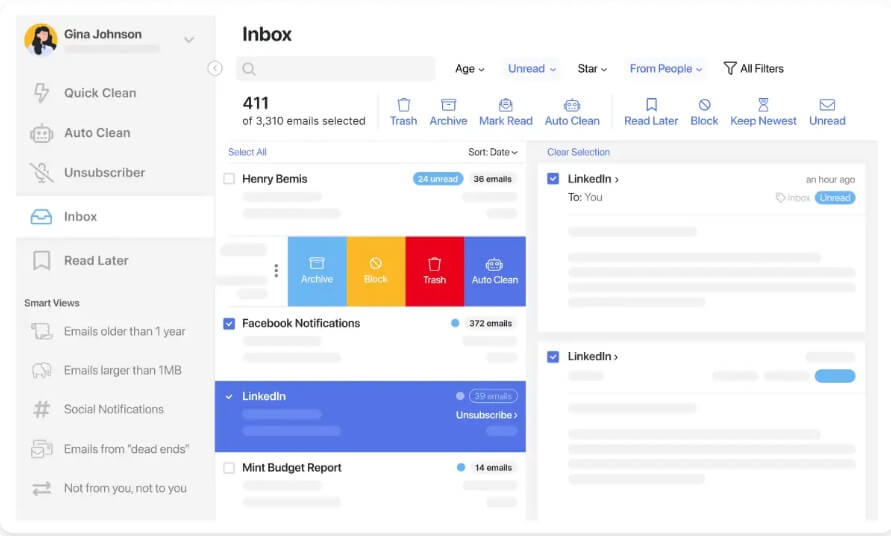
Clean.email is an email unsubscribe service that lets you mass unsubscribe from Gmail emails, newsletters, and spam with one click. Just connect your Gmail account, select all unwanted senders, and click unsubscribe.
Clean.email handles clicking every unsubscribe link for you to remove emails in bulk across multiple accounts. They also provide an Unsubscribe Assistant Chrome extension.
Key features of Clean.email:
- One-click unsubscribe – Just connect your Gmail account to Clean.email, select all the senders you want to unsubscribe from and click “Unsubscribe”. Clean.email will automatically click every unsubscribe link for you.
- Unsubscribe from multiple accounts – Clean.email can unsubscribe in bulk across unlimited Gmail accounts, as well as Outlook, Yahoo, iCloud, and more.
- Unsubscribe Assistant browser extension – Adds a one-click unsubscribe button to your browser for removing emails as you browse.
- Automatic list building – Clean.email scans your inbox and builds a list of all senders for easy bulk unsubscribing.
- Custom unsubscribing – Choose to unsubscribe by sender, domain, subject keyword, or date range for customized cleaning.
- Enhanced productivity – Eliminate email clutter and distractions to focus on priorities more effectively.
- Save time – Clean up your inbox in minutes versus hours by unsubscribing from thousands of emails in bulk.
Conclusion
This wraps up our guide on how to unsubscribe from emails on Gmail in bulk. Decluttering your Gmail inbox by unsubscribing from emails in bulk is one of the best things you can do to simplify your digital life. Email overload takes up mental bandwidth, distracts from high-value work, and exposes you to spam and security risks.
Luckily, Gmail provides effective built-in tools to facilitate mass unsubscribing. Take the time to clean up your subscriptions by sender, search, or category to wipe out the email noise. Establish healthy inbox hygiene habits like filtering and labeling to avoid buildup going forward.
Periodically unsubscribing from unnecessary emails gives you control over your inbox rather than the other way around. The hours you reclaim can be invested in deep work and living more intentionally.
So be proactive and unsubscribe today – your clarity of mind tomorrow will thank you!
FAQs:
How many emails can you unsubscribe from in Gmail per day?
Gmail allows you to unsubscribe from a maximum of 2,000 emails per day. This daily limit resets at midnight Pacific Time.
What happens if you try to unsubscribe from too many Gmail emails in one day?
If you try to unsubscribe from over 2,000 emails in one day, Gmail will prevent additional unsubscribes, and you’ll get an error message letting you know you reached the daily limit.
Does unsubscribing in Gmail delete the emails?
When you use Gmail’s unsubscribe feature, it removes the emails from your inbox and unsubscribes you from future messages. The emails are deleted rather than sent to Spam or Trash.
Can you resubscribe to an email in Gmail after unsubscribing?
Yes, in most cases, you can resubscribe to an email list after unsubscribing. Just find a recent email from the sender and look for a link or subscribe box to opt back in.
Author Bio:
Dinesh Lakhwani 

Dinesh Lakhwani, the entrepreneurial brain behind “TechCommuters,” achieved big things in the tech world. He started the company to make smart and user-friendly tech solutions. Thanks to his sharp thinking, focus on quality and the motto of never giving up, TechCommuters became a top player in the industry. His commitment to excellence has propelled the company to a leading position in the industry.
Popular Post











Recent Post

How to Switch From Local To Microsoft Account On Windows
Many users begin with a local account when they set up a new Windows computer. A local account works only on that single device. It stores settings, files, and preferences locally. It does not connect to online Microsoft services. For basic offline use, it works well. However, as digital needs grow, many users want better […]

How to Switch Windows 10 to a Local Account: Complete Guide
Windows 10 allows users to sign in with either a Microsoft account or a local account. When you set up a new computer, the system often suggests using a Microsoft account. This account connects your device to Microsoft services such as Outlook, OneDrive, and the Microsoft Store. It also syncs settings, themes, and passwords across […]

How To Change Default Apps For File Types In Windows
Windows is designed to make using your computer easy. One way it does this is by assigning default apps to different file types. This means when you open a file, Windows automatically opens it with a specific program. For example, photos may open with Photos, music with Groove Music, and PDFs with Edge. These default […]

How To Adjust The Mouse Pointer Speed: Complete Guide
Using a computer every day means you use the mouse a lot. The mouse pointer moves on the screen and helps you click, scroll, and select items. Many people never think about the speed of the mouse pointer. They have used the default setting for years. This can cause small problems over time. A slow […]

How to Change Mouse Scrolling Settings In Windows
A mouse is one of the most used computer tools. People use it every day. They scroll through emails. They scroll through documents. They scroll through websites and images. The movement becomes automatic. Most users do not notice it. That is why problems often go unnoticed. Scrolling problems show up slowly. At first, it feels […]

Keyboard Light Settings: Keyboard Lighting Control [Complete Guide]
Keyboards are no longer simple typing tools. Well, yes! Over time, they have evolved to include features that improve comfort, visibility, and overall experience. One of the most useful features today is keyboard lighting. It helps users work comfortably in low-light conditions. It also reduces strain when typing for long hours. Many users first notice […]

Customizing Pointer Appearance: Complete Guide
The way your mouse pointer looks on your computer may seem like a small detail. But customizing pointer appearance can make using your PC more comfortable and visually appealing. Many users do not realize that they can change the pointer size, color, and style to fit their needs. Whether you want a bigger pointer for […]

How To Choose a Computer Monitor: Monitor Buying Guide
Buying a monitor looks easy. Many people think all screens are the same. That belief causes regret later. A monitor is not just a display. It is a daily tool. You read on it. You work on it. You relax with it. Small problems become big over time. Poor brightness hurts eyes. Bad size causes […]

How To Get Help With File Explorer in Windows 11 [Complete Guide]
File Explorer is one of the most important tools in Windows 11. It is used to open folders, view files, and manage stored data. Almost every action on a Windows computer depends on it in some way. When users open documents, save downloads, or organize photos, File Explorer is always involved. Because it is used […]

How To Fix A Frozen Computer: Complete Guide [Windows 11/10]
A frozen computer is one of the most common problems Windows users face. The screen stops responding. The mouse pointer does not move. Keyboard inputs do nothing. You may hear the fan running loudly. Sometimes the system looks alive, but nothing works. This situation often happens when you are busy or working on something important. […]

