How To Reset Your PC For A Fresh Start In Windows 11/10 [2026]

Last updated on December 22nd, 2025 at 1:41 pm
Is your Windows computer lagging or behaving unpredictably? Are you constantly dealing with system errors, crashes, or sluggish performance? When troubleshooting doesn’t help, performing a full reset might be the most effective way to restore stability.
Resetting your PC clears out all installed applications, personal files, and custom settings. It restores the system to its default factory configuration, giving you a clean and refreshed environment to work with.
This guide will help you reset your Windows PC for a fresh start. The steps are easy, safe, and simple to follow. You’ll go through the process step by step. Once it’s done, your computer will run faster and feel like new again.
Part 1: Why Reset PC?/Advantages Of Resetting?
Resetting your PC offers many benefits for Windows users. Here are the main reasons why you should consider this option:
- Fixes Performance Issues – A reset removes junk files, outdated apps, and unnecessary background processes. Your PC will run faster and smoother.
- Removes Malware – Any viruses, spyware, or malicious software hiding in your system will be completely wiped out. It’s like starting fresh with a clean, secure machine.
- Solves System Errors – Frequent crashes, freezes, and blue screen errors often disappear after a reset. It restores system stability.
- Frees Up Storage Space – All the space taken up by unused programs, temporary files, and clutter is reclaimed. You’ll have more room for what matters.
- Improves Boot Time – Your computer will start up much faster. No more waiting through long loading screens.
- Cleans Registry – A reset automatically fixes corrupt or broken registry entries. This helps improve system responsiveness and reliability.
- Fresh Windows Experience – You’ll get the latest version of Windows without leftover conflicts or outdated settings. It’s a clean slate with modern features.
- Better Battery Life – Laptops typically see better battery efficiency after a reset. With fewer background processes and a streamlined system, there’s less strain on power usage.
Part 2: Things to Consider Before Resetting Your Windows PC
While resetting has many benefits, there are some drawbacks to consider before you proceed:
- Data Loss – All personal files, including photos, documents, and downloads, will be permanently deleted. Make sure to back up data.
- Program Reinstallation – After the reset, none of your installed software or apps will remain. You’ll need to manually reinstall everything you use.
- Lost Settings – Any custom settings, themes, or preferences will be erased. Your system will return to its default configuration.
- Time-consuming – The reset process can take several hours, especially if you choose a full wipe or cloud download. Be prepared for downtime.
- License Issues – Paid software like Microsoft Office or Adobe products may require reactivation. Keep your license keys or login credentials handy.
- Driver Problems – Some hardware drivers may not reinstall automatically. You might need to download and install them manually for printers, graphics cards, or other devices.
- Internet Setup – WiFi passwords and network settings will be lost. You’ll need to reconnect to your networks and re-enter passwords.
- Account Recovery – Saved passwords, login credentials, and browser autofill data may be wiped. Make sure you have access to your accounts before resetting.
Part 3: Precautions to Take: When Resetting a Windows PC
Taking proper precautions ensures a smooth reset process. Follow these important steps before you begin:
- Backup Important Files – Save all your personal data, including photos, documents, and videos, to an external hard drive or USB stick. This prevents permanent loss.
- Note Down Software Keys – Write down license keys for any paid software you plan to reinstall. You’ll need them to activate your programs again.
- Check Cloud Sync – Make sure services like OneDrive, Google Drive, or Dropbox have synced your latest files. Double-check that nothing is missing.
- List Installed Programs – Create a list of all the apps and software you use regularly. This makes reinstallation easier and ensures you don’t forget anything important.
- Export Browser Data – Save your bookmarks, saved passwords, and browsing history. Most browsers let you export this data or sync it to your account.
- Charge Your Battery – If you’re using a laptop, make sure the battery is at least 50% charged. A sudden shutdown during reset can cause issues.
- Stable Power Supply – Use a UPS or ensure your PC is plugged into a reliable power source. Interruptions during the reset can corrupt the installation.
- Verify Windows License – Check that your Windows license is linked to your Microsoft account. This ensures smooth reactivation after the reset.
Part 4: How to Reset your PC for a Fresh Start on Windows?
You have multiple options to reset your Windows PC and start fresh. Each approach is designed for specific scenarios, whether you’re fixing errors or clearing out clutter. Pick the method that aligns best with your goals and system condition.
Method 1: Using Windows Settings (Recommended)
This is the easiest way to reset your pc for a fresh start Windows. It works through the built-in Windows settings menu. This method keeps your system stable throughout the process.
The Settings method is perfect for beginners. It guides you through each step clearly. You can choose to keep some files or remove everything completely.
Steps:
- Open Settings by pressing Windows key + I. Click on “System” and select “Recovery”.
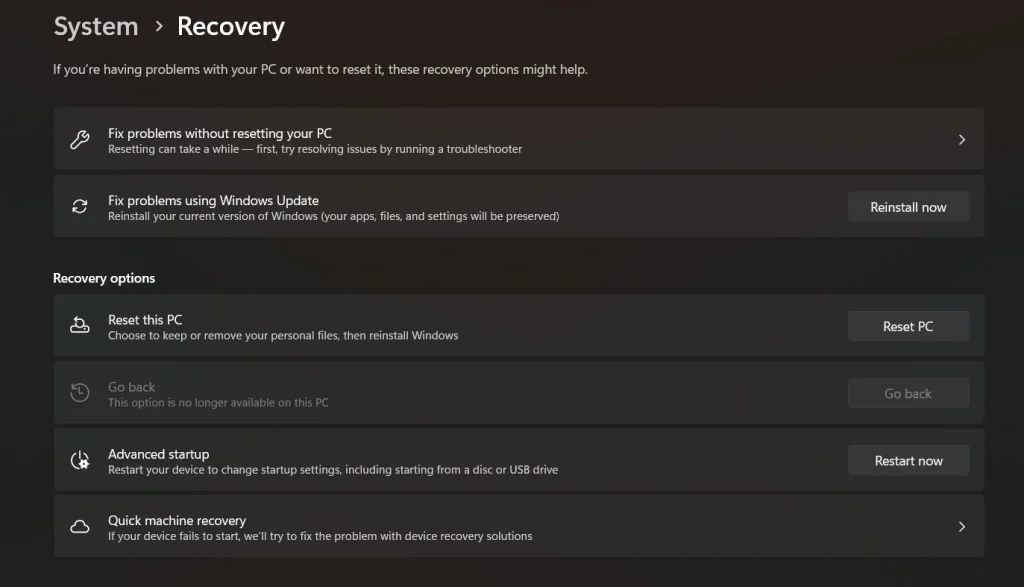
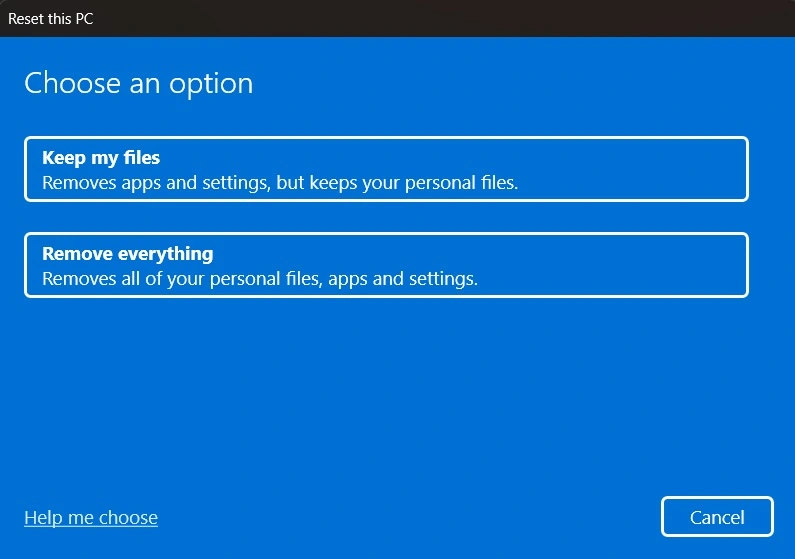
- Under the “Reset this PC” section, click the “Reset PC” button to start the process. Choose “Remove everything” for a complete fresh start, then follow the on-screen instructions.
Method 2: Using Advanced Startup Options
This method works when Windows won’t start normally. You can access it from the login screen or boot menu. It’s helpful when your PC has serious problems.
Advanced startup gives you more control options. You can reset your pc for a fresh start with Windows, even with system crashes. This method bypasses most Windows problems.
Steps:
- Hold the Shift key while clicking “Restart” from the Start menu or login screen. Select “Troubleshoot” then “Reset this PC” from the blue screen options
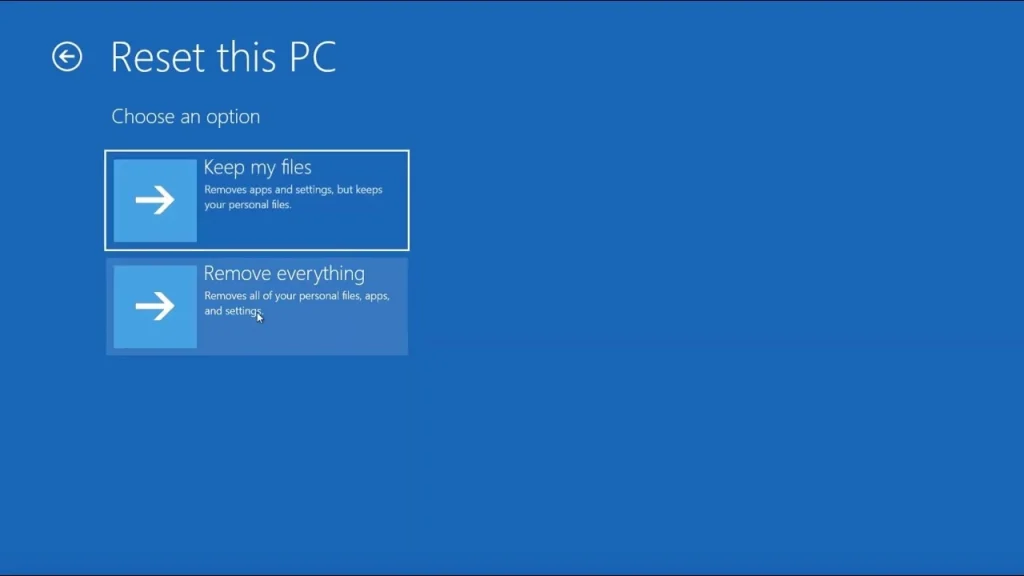
- Choose your reset preferences and click “Reset” to begin the fresh start process
Method 3: Using Installation Media
This method requires a Windows USB or DVD. It’s the most thorough way to clean your system. Use this when other methods fail to work.
Installation media gives you a completely fresh Windows copy. It’s like buying a new computer with clean Windows. This method fixes even the most stubborn problems.
Steps:
- Create Windows installation media using Microsoft’s Media Creation Tool on another computer. Boot from the USB/DVD and select your language, then click “Install Now”.
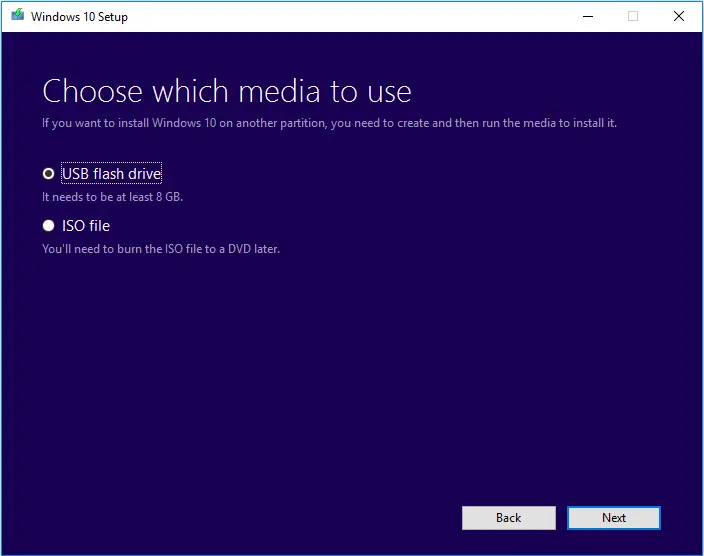
- Choose “Custom installation” and format your hard drive before installing Windows fresh
Author’s Tip
Always create a backup before you reset your pc for a fresh start Windows. Use an external hard drive or cloud storage. This saves you from losing important memories and documents.
Start the reset process when you have plenty of time. Don’t rush or interrupt the process. An interrupted reset can damage your Windows system permanently. Plan for at least 3-4 hours of downtime.
Common Problems During PC Reset
Sometimes issues can occur during the reset process. Knowing these problems helps you prepare better. Most problems have simple solutions you can try.
Power failures are the most common issue. They can corrupt your Windows installation. Always use a backup power source if possible. If your reset gets stuck, wait at least 4 hours before restarting.
Hardware problems can also cause reset failures. Bad RAM or hard drive errors stop the process. Run memory tests before resetting. Check your hard drive health using built-in Windows tools.
Driver conflicts may appear after a reset. Windows might not recognize some hardware. Download drivers from the manufacturer’s websites. Keep driver files ready on a USB drive.
What to Do After Resetting Your PC?
Your work isn’t finished after the reset completes. Several important steps ensure everything works perfectly. Take time to set up your fresh Windows properly.
First, connect to the internet and run Windows Update. This installs the latest security patches and drivers. Let all updates finish before installing other software.
Install essential software in the right order. Start with antivirus protection first. Then add your web browser and office programs. Install games and entertainment software last.
Restore your backed-up files carefully. Scan them for viruses before copying. Organize files in proper folders. Set up your desktop and taskbar preferences.
Configure privacy and security settings. Turn off unnecessary data collection. Set up Windows Defender properly. Create a new system restore point when everything is working well.
Conclusion
Resetting your PC is a powerful solution for many Windows problems. It gives your computer new life and better performance. The process removes years of digital clutter and errors.
Choose the right method based on your situation. Always back up your data first. With proper preparation, you can safely reset your pc for a fresh start Windows and enjoy a faster, cleaner computer experience.
FAQs:
Q1: Will resetting my PC remove Windows?
No, resetting your PC will not remove Windows itself. The reset process reinstalls Windows fresh while keeping your license activated. You get a clean Windows installation with all the latest updates and features intact.
Q2: How long does it take to reset a Windows PC?
The reset process typically takes 2-4 hours, depending on your computer speed and data amount. Older computers with mechanical hard drives take longer than newer systems with SSDs. The actual time varies based on your hardware specifications.
Q3: Can I recover files after resetting my PC?
Once you reset your PC with the “Remove everything” option, files are very difficult to recover. Some data recovery tools might help, but success isn’t guaranteed. Always back up important files before starting the reset process to avoid permanent data loss.
Author Bio:
Dinesh Lakhwani 

Dinesh Lakhwani, the entrepreneurial brain behind “TechCommuters,” achieved big things in the tech world. He started the company to make smart and user-friendly tech solutions. Thanks to his sharp thinking, focus on quality and the motto of never giving up, TechCommuters became a top player in the industry. His commitment to excellence has propelled the company to a leading position in the industry.
Popular Post











Recent Post

How to Switch From Local To Microsoft Account On Windows
Many users begin with a local account when they set up a new Windows computer. A local account works only on that single device. It stores settings, files, and preferences locally. It does not connect to online Microsoft services. For basic offline use, it works well. However, as digital needs grow, many users want better […]

How to Switch Windows 10 to a Local Account: Complete Guide
Windows 10 allows users to sign in with either a Microsoft account or a local account. When you set up a new computer, the system often suggests using a Microsoft account. This account connects your device to Microsoft services such as Outlook, OneDrive, and the Microsoft Store. It also syncs settings, themes, and passwords across […]

How To Change Default Apps For File Types In Windows
Windows is designed to make using your computer easy. One way it does this is by assigning default apps to different file types. This means when you open a file, Windows automatically opens it with a specific program. For example, photos may open with Photos, music with Groove Music, and PDFs with Edge. These default […]

How To Adjust The Mouse Pointer Speed: Complete Guide
Using a computer every day means you use the mouse a lot. The mouse pointer moves on the screen and helps you click, scroll, and select items. Many people never think about the speed of the mouse pointer. They have used the default setting for years. This can cause small problems over time. A slow […]

How to Change Mouse Scrolling Settings In Windows
A mouse is one of the most used computer tools. People use it every day. They scroll through emails. They scroll through documents. They scroll through websites and images. The movement becomes automatic. Most users do not notice it. That is why problems often go unnoticed. Scrolling problems show up slowly. At first, it feels […]

Keyboard Light Settings: Keyboard Lighting Control [Complete Guide]
Keyboards are no longer simple typing tools. Well, yes! Over time, they have evolved to include features that improve comfort, visibility, and overall experience. One of the most useful features today is keyboard lighting. It helps users work comfortably in low-light conditions. It also reduces strain when typing for long hours. Many users first notice […]

Customizing Pointer Appearance: Complete Guide
The way your mouse pointer looks on your computer may seem like a small detail. But customizing pointer appearance can make using your PC more comfortable and visually appealing. Many users do not realize that they can change the pointer size, color, and style to fit their needs. Whether you want a bigger pointer for […]

How To Choose a Computer Monitor: Monitor Buying Guide
Buying a monitor looks easy. Many people think all screens are the same. That belief causes regret later. A monitor is not just a display. It is a daily tool. You read on it. You work on it. You relax with it. Small problems become big over time. Poor brightness hurts eyes. Bad size causes […]

How To Get Help With File Explorer in Windows 11 [Complete Guide]
File Explorer is one of the most important tools in Windows 11. It is used to open folders, view files, and manage stored data. Almost every action on a Windows computer depends on it in some way. When users open documents, save downloads, or organize photos, File Explorer is always involved. Because it is used […]

How To Fix A Frozen Computer: Complete Guide [Windows 11/10]
A frozen computer is one of the most common problems Windows users face. The screen stops responding. The mouse pointer does not move. Keyboard inputs do nothing. You may hear the fan running loudly. Sometimes the system looks alive, but nothing works. This situation often happens when you are busy or working on something important. […]

