











When you think of “Mac” gadgets, you might not think of playing online games on them. This is because Mac haven’t been connected with hardcore gaming till their inception. Top-tier games necessitate top-tier settings. However, due to Apple’s emphasis on design elegance and efficiency, Macs were always available as pre configured systems in a few configurations. […]
How To Remove Snapchat Filters From Saved Photos (Updated)?
As chat and messaging apps take communication to the next level Snapchat becomes a revolutionary ideology. Youngsters love this app because it is not a regular text and emoji chat app. It’s like a fresh breeze that offers unique ways to share pictures and short videos in Status. The main popularity of Snapchat comes from cool and interesting Filters.
You can find an awesome range of filters on Snapchat, using which you can redefine your regular looking photos. From wicked cat to blowing kisses you can find plenty of filters.
However, if you aren’t a fan of filters or just want to remove Snapchat filters from the saved photos, you can do that too. To learn how to delete filters from saved pics you just need to follow the step by step instructions given in the article.
Ways to Remove Snapchat Filter from Saved Pictures
Note: Previously, using Magic Eraser you could easily delete Snapchat filters. But now, this tool has been permanently removed from Snapchat. Therefore, if you want to edit or delete filters from a saved image you need to follow the steps explained below.
So, let’s get started with the process and learn how to get rid of filters from a picture.
Note: If no filters are added to an image you cannot edit them. This means you can edit the picture that has filters added to it.
Instructions to remove the Snapchat filter from a saved picture.
1. Launch Snapchat app
2. Tap Memories to load the Saved images
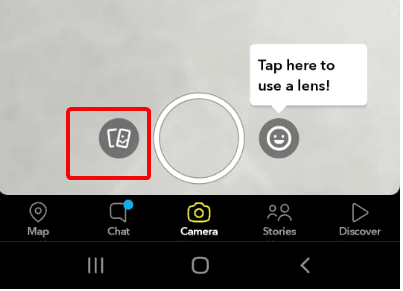
3. Select the image you want to edit and remove the filter from.
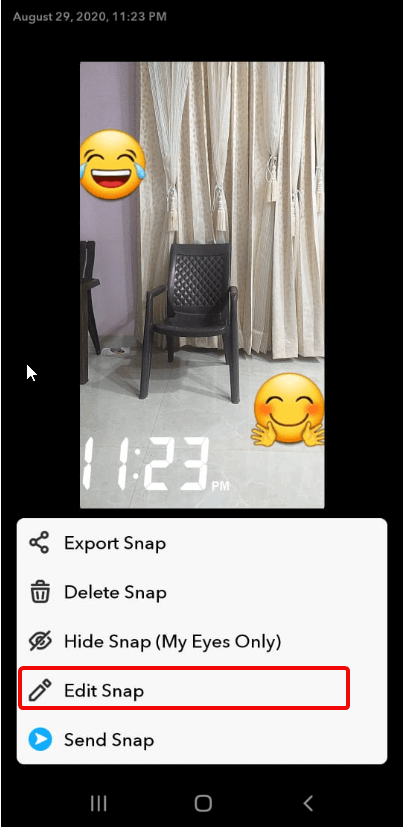
4. Once the image is loaded tap three vertical dots present at the top right corner.
5. Doing so will show different options at the bottom of the screen.
6. Tap Edit Snap.
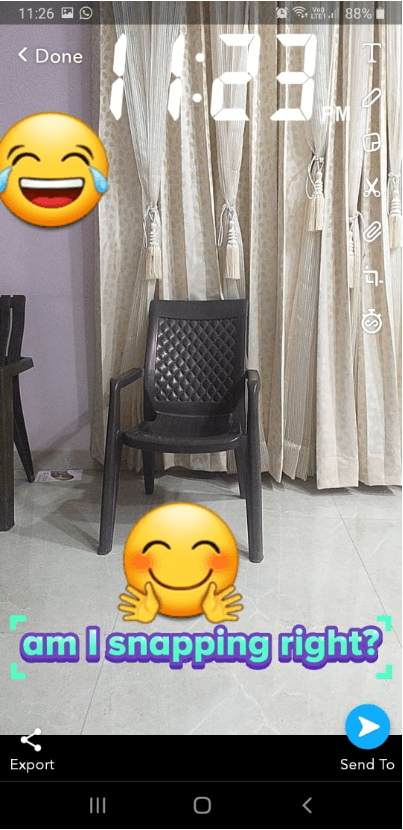
7. You can now edit the image. To add more filters like stickers, text, or time-lapse swipe left on the screen. You can use these and other filters to change the images. Alongside can crop images, correct color, and do a lot more.
Also Read: How to View Someone’s Snapchat Story without them Knowing?
8. Once the editing is finished; tap Done.
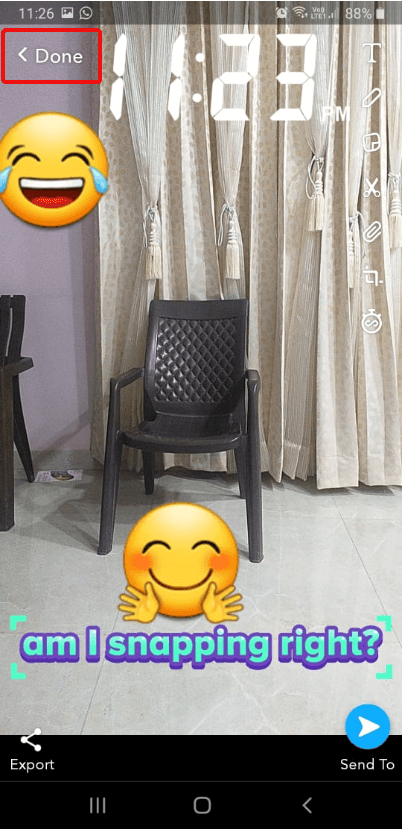
9. When prompted, make sure you tap Save as Copy option.
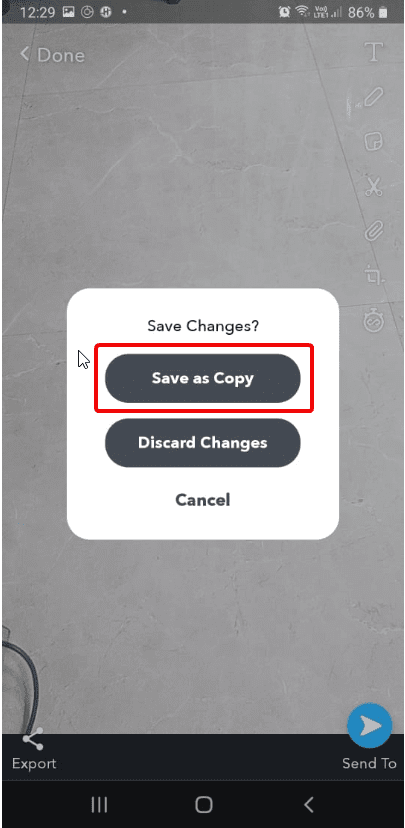
10. This will ensure that you have both original and edit images with Snapchat filters.
In addition to this, if you want to remove stickers from pictures, then you can do that too.
How to Tweak Photos with Snapchat?
Snapchat is highly creative and constantly improving. Adding or removing the filter from Snapchat photos is a hassle-free job. This is all possible because of the interesting features offered by Snapchat. To remove stickers from Snapchat, follow the steps below:
1. Open Snapchat app
2. Tap Memories section
3. Select the image from which you can to delete sticker
4. Tap the three stacked dots at the top right corner
5. Next, tap the sticker you wish to remove.
Note: Until you see Trash bin icon on the right-side list do not remove your finger
6. Once the Trash icon appears drag and drop the sticker.
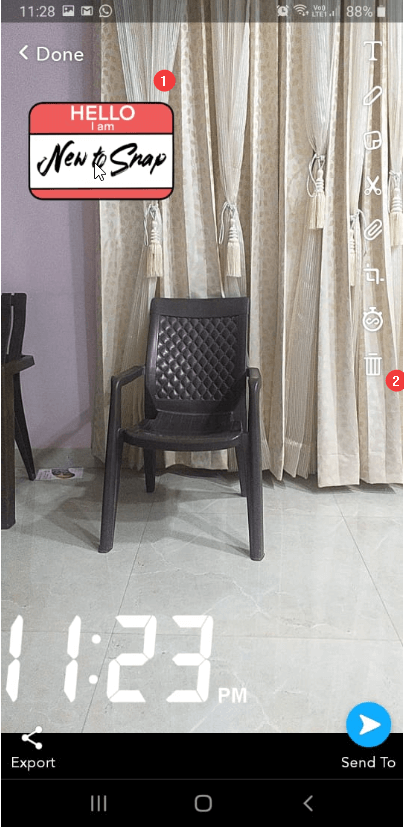
7. Repeat the process for all the stickers you wish to remove.
8. Tap the Done button to save the edited image.
Note: Alongside removing stickers from the same window you can add more stickers too.
9. Once done, remember saving the image by tapping Done > Save as Copy.
Can I remove Snapchat Emoji also from a Save Image?
Yes, if you have added an emoji you can delete that too from Snapchat. To do, so follow the steps explained above. However, if the emoji is added via keyboard then you need to follow the steps explained below:
1. Launch Snapchat app > Memories > Select image to edit
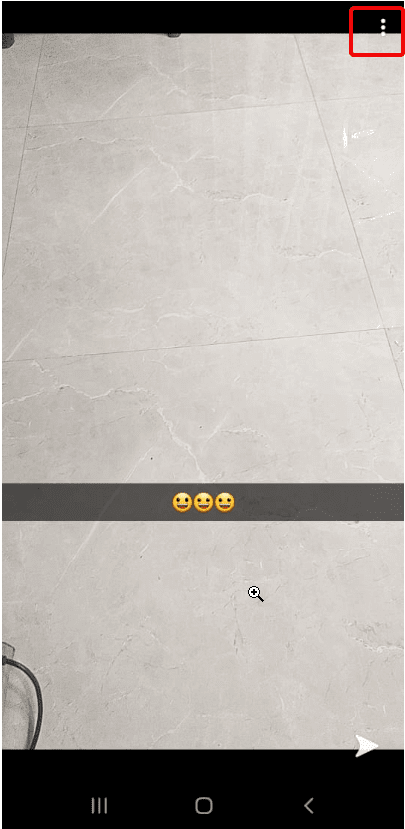
2. Tap three dots at the top right-corner > Edit Snap.
3. Tap Emoji.
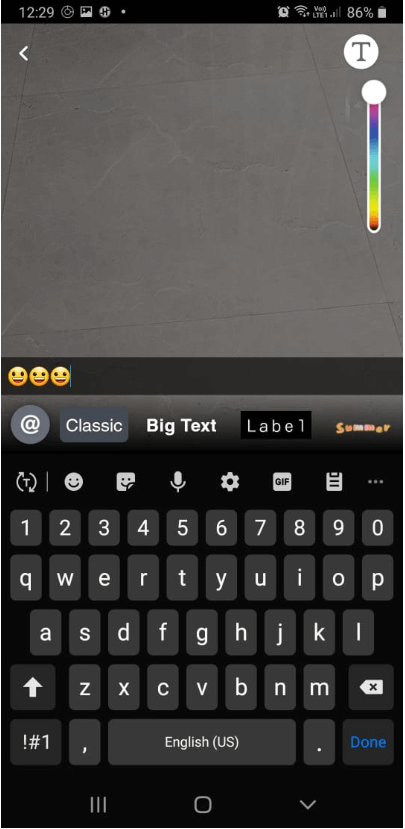
4. You will now get the edit text option. Tap Backspace to delete the emoji and leave it blank
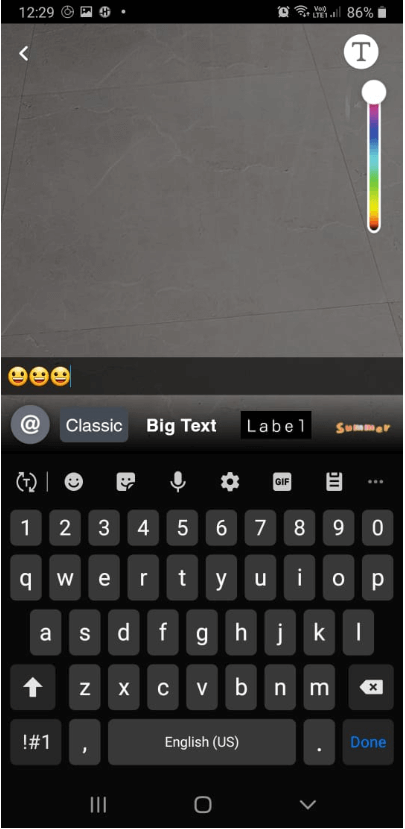
5. When done tap Done > Save as copy.
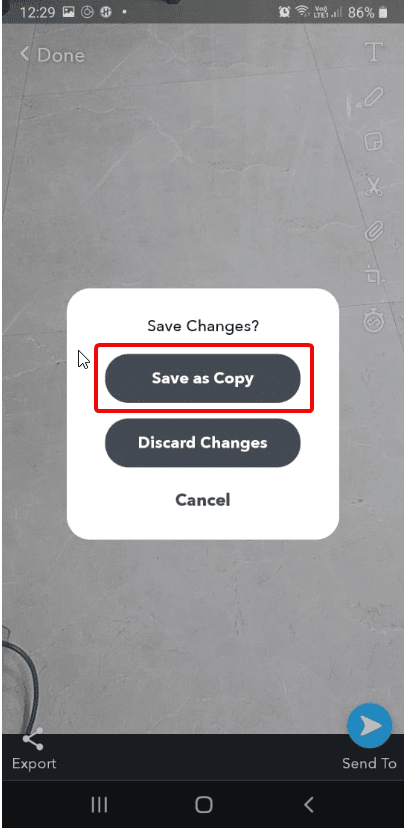
That’s it using these simple steps you can easily remove filters from Snapchat.
Can I cancel the purchased filters?
We understand, sometimes you just want to cancel purchases. But before canceling purchased Snapchat filters, review how the refund works.
Note: The refund process is different for Snapchat app purchases and online purchases.
Here’s how to cancel Filters ordered online, bought as a guest, and purchased online.
How to cancel Filters ordered online
To cancel Filters bought online follow the steps below:
- Visit Create Your Own website and log in
- Click ☰ in the top-left corner > “My Orders”
- Select the Filters you want to cancel > click Trash icon and confirm cancellation
To cancel Filters bought online as a guest follow the steps below:
- Open your order confirmation email
- Click the link that reads “Click here to view details about your Filter” > Cancel
Refunds for Filters purchased online
Note: If you cancel the purchase before the filter goes live, you can get a full refund.
However, if you cancel the purchase while the filter is active, then you get the refund on a pro-rata basis. This means you will be charged for the time your order was active!
Moreover, if you cancel an Annual Filter after it starts to run you won’t be able to get a refund as the amount is paid
How to cancel in-app purchased Filters
To cancel Filters you made in Snapchat:
- Tap ⚙️ in My Profile to open Settings
- Tap “On-Demand Geofilters” > select the filter you want to cancel > Cancel
Refunds for Filters purchased in the Snapchat app
Unfortunately, no refund is issued for the purchases made in the Snapchat app. To learn more about it click here.
Monster Snap App
It won’t be wrong to call Snapchat a monster snap app as it offers features to add interesting objects to your boring photos. In addition to this, it provided effective and simple ways to remove the filter from Snapchat saved photos.
So, it is truly an amazing app that is going to change the history of photo communication apps. This was a quick guide to remove Snapchat filters from saved photos. If you know of any other tips, feel free to comment below.
Author Bio:
Dinesh Lakhwani 

Dinesh Lakhwani, the entrepreneurial brain behind “TechCommuters,” achieved big things in the tech world. He started the company to make smart and user-friendly tech solutions. Thanks to his sharp thinking, focus on quality and the motto of never giving up, TechCommuters became a top player in the industry. His commitment to excellence has propelled the company to a leading position in the industry.
Popular Post
Recent Post
Top 10 Best ES File Explorer Alternatives: Comparison Table
The most popular program among these choices has been the ES File Explorer for a long time. It is an excellent application for organizing files and programs, with many additional capabilities. This software has remained a typical pick for Android users. However, it was discovered to be installing spyware on their devices. So, unfortunately, the […]
15 Best Hard Drive Testing Software & Diagnostic Tool
Hard drives still carry some of the most important data on a computer. Photos, work files, backups, and system data all depend on a drive staying healthy. When problems start, they often show up quietly. Slow performance, strange noises, or random crashes are early signs that should not be ignored. Hard drive testing and diagnostic […]

10 Time Tracking Apps for Remote Workers
Monitoring and organizing the time of the remote employees help improve the company’s overall performance. Time tracking software may help you measure the productivity of your staff. You may use the application to monitor the team’s progress, coordinate projects, cooperate and produce invoices. But which time tracking tools are ideal for your business? We have […]
BeeGraphy Editor – Is It the Future of 2D and 3D modeling?
You can find a plethora of CAD (computer-aided design) software in the market. However, not all 3D tools are pretty helpful in your daily job. Therefore, the need for a tool that helps cover a variety of purposes, ranging from visualization to simulation to 3D printing, is required. But the cost you have to pay […]
How to Crop a PDF On Windows & Mac? 6 Easiest Ways
PDF or Portable Document Format is the popular document form used widely in day-to-day activities. These document formats are presented and exchanged irrespective of the operating system, hardware, or software. The open-standard PDF is maintained by the International Organization for Standardization (ISO) and can contain business logic, video, audio, form fields, buttons, links, etc. PDF […]

Top 10 Best Evernote Alternatives: Comparison Table
Are you tired of Evernote’s clutter, lag, and rising costs? You’re not alone. More users than ever are ditching bulky apps for cleaner, faster note-taking tools. This year’s lineup of alternatives is impressive. Some apps offer sleek design and lightning-fast sync. Others focus on privacy, giving you full control over your data. Collaboration is smoother, […]

10 Best Email Signature Generator (Free and Paid)
Currently, emails are one of the primary forms of communication, especially for professional reasons and even personal. In addition, companies use this medium for marketing purposes or a branding strategy. A critical element is the email signature, which is the signed name at the end. Creating unique and memorable signatures is essential for the best […]
Top 10 Video Editing Apps for iPhone: Complete Guide
Currently, people use videos in shorter sizes for different platforms, be it for professional reasons or social media. Some apps are capable of providing high-quality videos and editing features. Many of iPhone’s available video editing apps provide great benefits like advanced editors and 4K support. We looked through different options in the market to compile […]
Top 10 Free PDF Readers: Complete Guide
Looking for a free PDF reader? You’re not alone. With so many options out there, it’s easy to feel overwhelmed. Some readers are fast but lack features. Others offer tools but slow down your system. The best ones strike a balance. They open files quickly, let you annotate, and don’t ask for money. This guide […]

