How To Join a FaceTime Call From an Android or Windows Web

Last updated on August 25th, 2025 at 11:56 am
Finally, iOS 15 is now available to download, and it has brought many surprises along. The biggest iOS 15 surprise is that now Apple users can FaceTime with non-Apple users.
Yep, you no longer need to use Zoom or Microsoft Teams to make video calls. Instead, Apple has allowed people to join a FaceTime call from their Android phones or Windows laptops with the new update.
That means now you can conduct video meetings on a robust FaceTime environment, no matter what device your team members are using. All you have to do is create a call link and share it with other people to make a call.
Let’s understand in detail how FaceTime calls will work on Android phones and Windows laptops.
How to a Create FaceTime Call to Join on Android or Windows Devices
Android or Windows can now join the FaceTime call using a link. They can’t make a call still, but can jump into a FaceTime call initiated by an iPad or iPhone user. So, here iOS users have to first create a FaceTime call link as follows:
Step 1. Open the FaceTime time app and tap on the Create Link button.

Step 2. A screen will slide up from the bottom with FaceTime Link. You can click on the Add Name to give a name to your chat.
Step 3. On the same screen, you will find the option to share links via text, email, calendar, Twitter, or other apps you have on your phone. You can also copy links and directly share them with the people who you want to join the call.
Step 4. Tap on the name of the chat and then tap on Join to start the call.
Step 5. When the Android or Windows users tap on the link, they will be redirected to the waiting room from where you can allow them to join the meeting.
How to Join a FaceTime Call on Android or Windows
Android or Windows users can easily join the FaceTime call using the link sent by an Apple user. To join the call, you need the latest Google Chrome or Microsoft Edge version, stable internet connection, and these steps:
Step 1. Open the FaceTime link shared with you.
Step 2. Enter your name and tap on the Continue. Allow FaceTime to use your device’s microphone and camera.
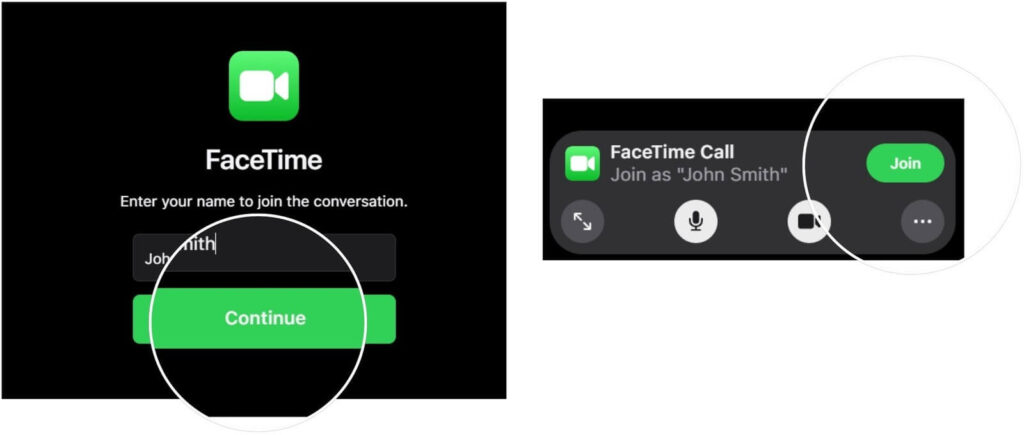
Step 3. Click on the Join and wait for the call’s host to let you in.

Step 4. You can anytime click on the Leave to cut the call.
What Else Android or Windows Users Can Do in FaceTime Call
Apple has allowed Android or Windows users to do many things on the FaceTime app on the web, such as:
- They can mute or unmute the microphone using the microphone button.
- Tap on the camera button to turn on or off the video.
- Use full-screen mode to make a FaceTime call on the whole screen.
- Click on the flip camera button to switch the camera view.
- They can select the Grid Layout button to see all the participants who have joined the call and who is speaking right now.
Thank You So Much iOS 15!
Yes, thank you so much, iOS 15, for easing out our iPhone users’ lives. Now, they don’t need to download any other video calling app to conduct virtual meetings or stay connected with their loved ones. They can now use FaceTime to call anyone regardless of their OS.
Besides this FaceTime feature, iOS 15 has introduced many other great features like schedule notification deliveries, scan live text, group tabs in Safari, and more.
So, let’s install iOS 15 now and start FaceTiming with many new features with your Android and Windows buddies.
If you like any particular iOS 15 feature or want Apple to add a certain feature to iOS 16, comment below. We always like to hear back from our readers.
Author Bio:
Dinesh Lakhwani 

Dinesh Lakhwani, the entrepreneurial brain behind “TechCommuters,” achieved big things in the tech world. He started the company to make smart and user-friendly tech solutions. Thanks to his sharp thinking, focus on quality and the motto of never giving up, TechCommuters became a top player in the industry. His commitment to excellence has propelled the company to a leading position in the industry.
Popular Post











Recent Post

AI In Cyber Security: Who is Winning, Hackers or Security Companies
Cybersecurity once followed clear rules. Companies built firewalls. Users created passwords. Antivirus tools scanned files and removed known threats. When an attack happened, security teams studied it and added new rules. This method worked for many years. It created a sense of control and stability. That sense is gone today. Artificial intelligence has changed how […]

The Biggest AI-Run Cyber Attacks Of All Time
Artificial intelligence is now part of everyday technology. It helps people search faster. It improves medical research. It supports businesses in making better choices. But AI is not used only for good purposes. Cyber criminals have also learned how to use it. This has changed the nature of cyber attacks across the world. In the […]

Switch To a Dark Background Theme on Windows: Enable Dark Mode
People often like a screen that feels gentle on the eyes. A darker style softens bright areas and makes long computer sessions easier to handle. It also gives the desktop a cleaner and more modern feel. When you switch to a dark background theme in Windows, the colors shift to deeper shades that reduce glare […]
![Complete Guide on Managing Audio Input Devices [Latest In 2026]](https://www.techcommuters.com/wp-content/uploads/2025/12/Complete-Guide-on-Managing-Audio-Input-Devices.webp)
Complete Guide on Managing Audio Input Devices [Latest In 2026]
People use microphones for meetings, games, classes, recordings, and voice chats, so any problem with the device can interrupt their work. Even a small system error can make the voice weak or stop it fully. This is why knowing the basics of managing audio input devices is helpful for new and experienced users. Windows includes […]

Resetting Audio Settings on Windows 11: Complete Guide
Sound problems can disrupt work, study, or entertainment. Many users face issues where the audio becomes too low, too loud, unclear, or does not play at all. A common way to solve these problems is by resetting audio settings to their original state. This helps Windows rebuild its sound setup from the beginning. Windows 11 […]

Troubleshooting Headphone Detection: Headphones Not Detected/Working
A lot of users run into sound problems at some point. A common one is when the computer does not pick up the headphones. You plug them in, but the speakers keep playing. This can break your focus during work, movies, music, or calls. It also causes confusion because the reason is not always clear […]

How To Re-Pair Bluetooth Earbuds For Stereo Sound on Windows
Wireless earbuds are often paired with computers for rich stereo sound, but things don’t always go smoothly. Sometimes, the system defaults to mono audio or fails to activate the correct playback mode. This can disrupt music, calls, or gaming, making the sound feel flat and lifeless. These glitches usually stem from improper setup. Windows might […]

How To Manage Camera Permissions for App On Windows: Complete Guide [2026]
Many users run into issues when trying to join video calls or online meetings—their camera simply won’t turn on. This can happen for a few reasons: Windows might be blocking access, or the app may not have the correct permissions. These hiccups often lead to confusion and frustration. Fortunately, Windows provides straightforward tools to help […]
![Help With Color Management In Windows Complete Guide [2026]](https://www.techcommuters.com/wp-content/uploads/2025/12/Help-With-Color-Management-In-Windows-Complete-Guide.webp)
Help With Color Management In Windows: Complete Guide [2026]
Color often decides how we experience a picture, a video, a website, or even a simple chart. Many users feel confused when colors look different on each screen. A monitor may show a softer shade while a laptop shows a sharper one. This creates doubt and slows down work. It can also lead to mistakes […]

How To Install Pending Windows Updates Easily On Windows 11
Windows updates keep your computer healthy. They fix problems and improve security. Many people ignore updates because they worry about errors or slow performance. In most cases, the process is simple. You only need to follow a clear routine and give your computer enough time to finish the job. A regular update habit saves you […]

