How to Fix Steam Download Speed Drops to 0: 10 Methods
Last updated on December 7th, 2024 at 10:20 am
Introduction
If you download games from Steam, you might discover that your download speed suddenly drops off and messes with your gameplay. Steam Users commonly report that their downloads frequently freeze at 0 bytes, which can be very annoying. If you’re longing to get into a new game or play online with buddies, this could be inconvenient. Fortunately, there are many troubleshooting methods you can try to resolve this issue. This blog post will discuss a few workarounds for the issue when Steam download speed drops to 0.
Reasons Behind Steam Download Speed Delays
Especially if you’re anxious to play a game or receive an update, it may be incredibly unpleasant if your Steam download speed suddenly goes to nothing. Understanding the fundamental causes of any such issues is critical before acting:
- Network Instabilities: This is one of the main causes of the abrupt decrease in Steam download speed. These network irregularities, which can include packet loss, erratic signal strength, and temporary disconnections, can temporarily stop your download.
- Server Overload: Despite having a strong infrastructure, Steam servers occasionally encounter heavy traffic volumes. Certain servers may get overwhelmed when too many users try to update or download their games at once, which can result in a sharp decline in download speeds or even a complete stop.
- Background Apps: Using a lot of bandwidth when running multiple programs at once on your PC will slow down Steam download speeds. Apps that use a lot of bandwidth, such as streaming services, software updates, and torrent clients, can slow down Steam’s download speed.
- File or Cache Corrupted: Certain game files or the Steam download cache can get corrupted over time. This kind of issue could cause the download to stop entirely or speed up considerably.
- Software Conflicts: Software from third parties, such as firewalls, VPN services, or antivirus apps, may interfere with Steam’s download process. The possibility of these software applications perceiving Steam behavior as suspicious or perhaps harmful could lead to interrupted or throttled download rates.
Continue reading if you’ve attempted these methods more than once and it’s still stuck at 0 bytes.
Ways To Fix Steam Download Speed Drops to 0
Fix 1: Modify the area of your download
The majority of the time, a technical issue or a server overload caused by a high volume of downloads or updates can be the cause of a problem with the Steam download. To try to resolve this issue, consider changing your download region by doing the following steps:
- Click Steam, then select Settings from the Steam client.
- To select a different region, click Downloads and then select the Download Region drop-down option.
- To save the setting, click OK.
Here, the secret is to locate yourself somewhere with minimal traffic when your Steam download speed drops to 0. Therefore, until you locate a download server that works, you might need to keep trying other ones. But just go on to the next adjustment if it isn’t helping at all.
Fix 2: Mend the library folder
The files that Steam requires to launch your games are kept in the Steam library folder. If you have old files or subfolders, you can run into problems. You can attempt to repair the library folder to resolve this issue. This is how you do it:
- Click the Steam menu, then choose Settings.
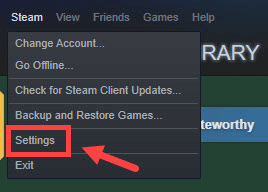
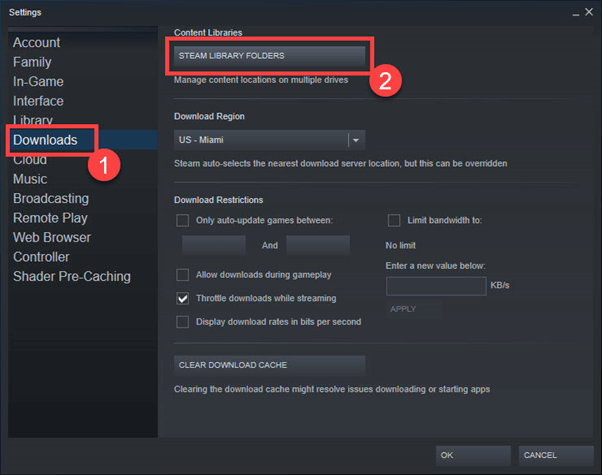
- Choose Downloads. Choose Steam library folders after that.
- To access the Repair Folder, click the three dots on the right.
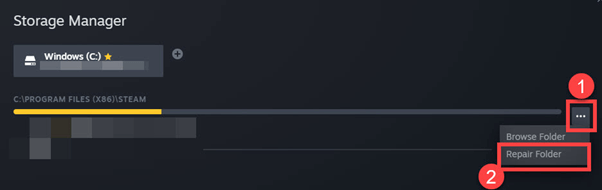
- Once it’s finished, select Close.
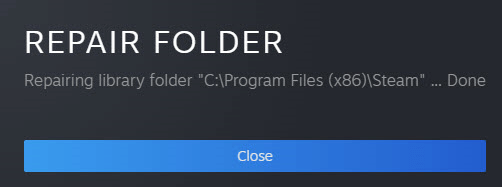
Then, to check whether there is a problem, try downloading your game. Proceed to the second approach if it persists.
Fix 3: Empty the download history
Steam download speed drops to 0 can occasionally be caused by faulty cache data. To remove any outdated files preventing the download from proceeding, you can attempt clearing the download cache:
- Click the Steam menu, then choose Settings.
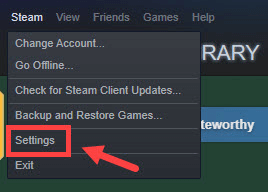
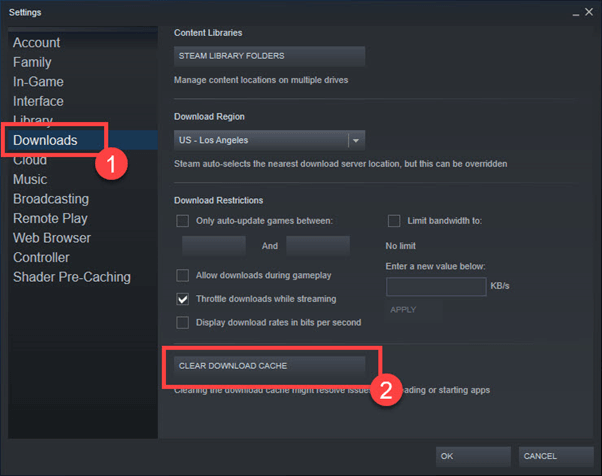
- Select downloads. Choose clear download cache after that.
- In the pop-up box, click OK.
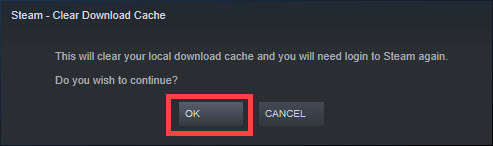
To double-check, you can restart the download. Congratulations if the problem goes away! If not, simply proceed to the next fix.
Fix 4: Clear the Windows proxy configuration
- Try disabling the Windows proxy settings if none of the aforementioned solutions work for you. This is how you do it:
- In the Windows search box, type proxy after clicking the Start button. Next, choose Proxy settings.
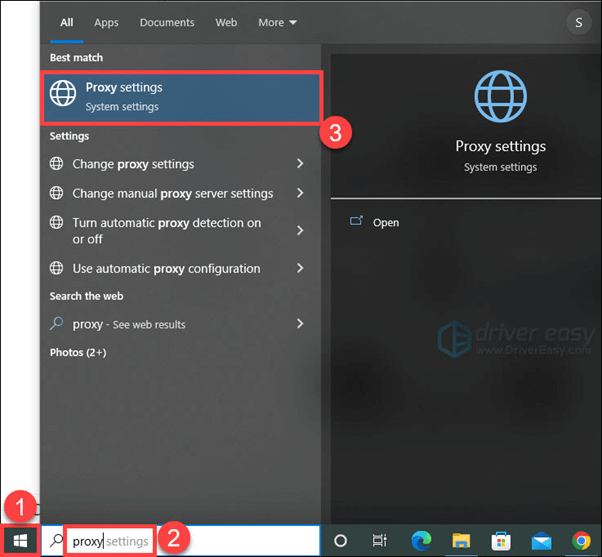
- Activate the button labeled “Automatically detect settings.”
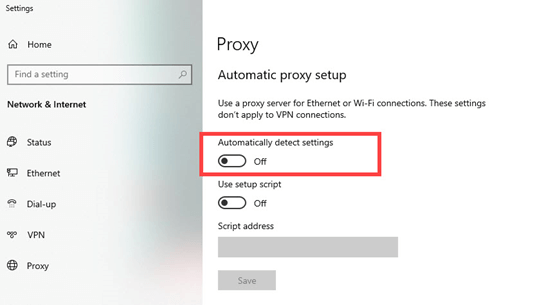
Check to see if your Steam is operating correctly after shutting it off. If that doesn’t work, just go on to another solution.
Fix 5: Clear DNS cache
Steam may not be able to connect to download servers if your computer has an outdated DNS resolver cache; clearing it could be helpful. This is how you do it:
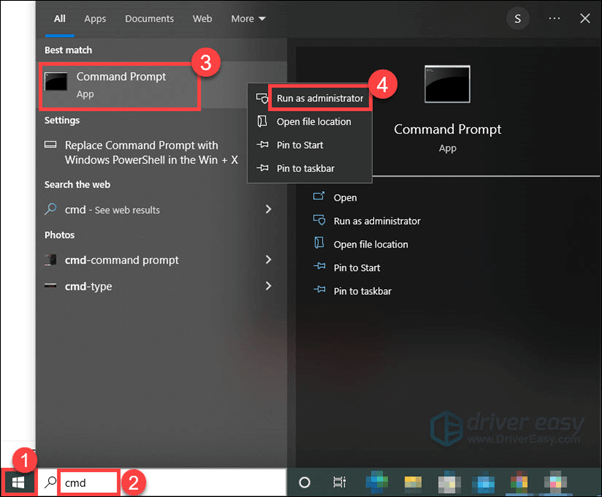
- To open the Windows search bar, click the Start button and type cmd. Next, right-click Command Prompt and select Run as administrator.
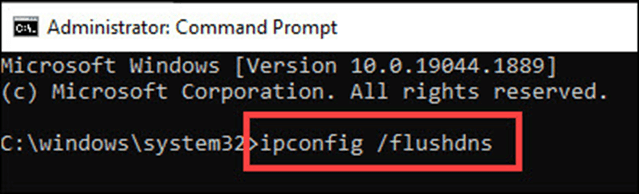
- Type ipconfig /flushdns into the pop-up box that displays.. Next, press the Enter key. A notification confirming the successful flushing of the DNS Resolver Cache ought to appear.
Fix 6: Reinstall the Network Driver
The network connection and download performance may be impacted by an out-of-date or corrupt network adapter driver. Thus, updating the driver for your network adapter is another option to resolve your download problem. You can choose, download, and install the desired drivers from the manufacturer’s websites if you want to manually update drivers.
- Install the driver after downloading it.
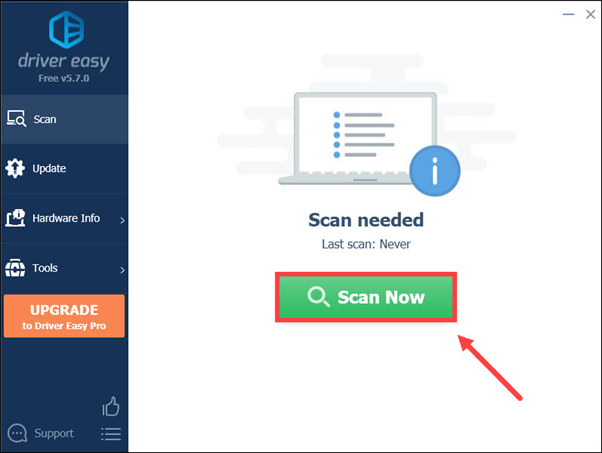
- Click Scan Now after launching Driver Easy. After that, Driver Easy will examine your machine to identify any problematic drivers.
- If any drivers are missing or out of current on your system, click Update All to have the right versions automatically downloaded and installed. This needs the Pro version; after you click Update All, you’ll be prompted to upgrade.
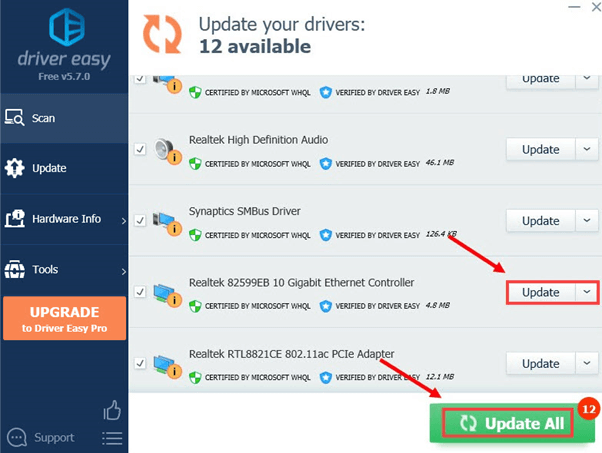
4. The free version of the drivers can be downloaded if you do want not to pay for it. They must be manually installed after being downloaded one at a time.
5. Restart your computer and see if the issue has been resolved after updating your drivers. If nothing alters, proceed with reading.
Fix 7: Check the game files’ integrity
Steam downloads that stick at 0 bytes can occasionally be caused by faulty local game files, which can be brought on by malfunctioning hardware, software breakdowns, and power surges. Steam can check the accuracy of downloaded game files and make any necessary corrections. Follow the steps below:
- Go to the Library tab of your Steam client and perform right-click on the game that is giving you trouble.
- Choose Properties.
- Choose the option to “Verify integrity of game files” after clicking on “local files.”
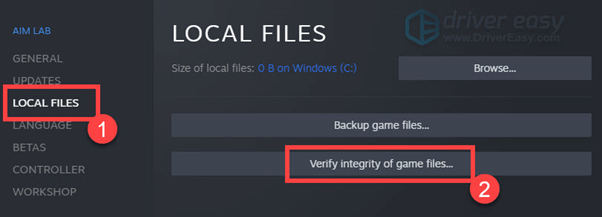
- Becauselocal files would not yet exist, this repair is only effective if the game has been downloaded somewhat before it becomes stuck at 0 bytes.
Fix 8: Turn off your antivirus program for a while
Your Steam client’s network connection may occasionally be interfered with by your firewall or antivirus program if Steam download speed drops to 0.
- See whether turning off your antivirus program for the length of the Steam download fixes the issue.
- To disable your antivirus program, see the help file for that program.
- If this resolves the problem, add Steam to the whitelist in the firewall setup window. Another choice is to contact the firewall’s manufacturer and request support.
Fix 9: Verify Software Conflicts
There is a chance that certain third-party software, including firewalls or antivirus applications, will slow down Steam’s download process.
- Turn off your firewall and antivirus software temporarily:
- This will allow you to determine whether your security software is the root of the problem.
- After you’ve determined the primary cause, make sure to enable them again.
Fix 10: Adjust the Steam Bandwidth Parameters
Changing the bandwidth settings in Steam may fix the problem where the download speed drops to nothing.
- Launch Steam.
- Go to Settings on Steam.
- Select the tab for downloads.
- Find the Limit bandwidth option and modify the allotted bandwidth. For example, you might want to think about increasing the bandwidth limit if your internet connection is fast.
- To save the modifications and restart Steam, click OK.
Conclusion
It can be annoying to have Steam download speed drop to 0, but you may be able to fix this and resume your uninterrupted gaming sessions by using the troubleshooting methods listed above. To find the best solution for your particular scenario, follow these steps methodically and test your download speed after each step.
Keeping up with community discussions and Steam updates might also yield insightful advice and helpful solutions from other users going through comparable problems.
Author Bio:
Dinesh Lakhwani 

Dinesh Lakhwani, the entrepreneurial brain behind “TechCommuters,” achieved big things in the tech world. He started the company to make smart and user-friendly tech solutions. Thanks to his sharp thinking, focus on quality and the motto of never giving up, TechCommuters became a top player in the industry. His commitment to excellence has propelled the company to a leading position in the industry.
Popular Post











Recent Post
![Adjusting Audio Output Settings Complete Guide [2026]](https://www.techcommuters.com/wp-content/uploads/2026/03/Adjusting-Audio-Output-Settings-Complete-Guide.webp)
Adjusting Audio Output Settings: Complete Guide [2026]
Sound is part of almost everything we do on a computer. It lets you watch videos, join calls, play music, and hear alerts. When the audio stops working the right way, it can interrupt both work and daily use. That is why adjusting audio output settings matters for every user. Many people get unsure when […]

Artificial Intelligence Explained: Concepts, Terminology, Benefits, and Future Trends
Artificial Intelligence, or AI, is basically computers doing things that usually need a human brain. We’re talking about stuff like learning from experience, figuring out problems, understanding language, and making decisions. It’s not magic, just a lot of data, pattern-spotting, and math behind the scenes. Now, AI doesn’t actually think or feel like we do. […]

Resolving Microphone Detection Problems: Latest Guide [2026]
Microphones are important tools in daily life. People use them for office meetings, online classes, interviews, gaming, customer support, and content creation. When a system fails to detect a microphone, communication stops at once. This situation can cause stress and confusion. Many users believe the microphone is damaged. In reality, most problems are simple and […]

How To Switch To A Dark Background Theme In Windows [2026]
Most people spend many hours each day in front of a computer screen. Office work, online classes, editing, browsing, and streaming all require long screen time. A bright white background may look clean at first. However, over time, it can feel sharp and tiring. The strong contrast between white backgrounds and black text may cause […]

How to Switch From Local To Microsoft Account On Windows
Many users begin with a local account when they set up a new Windows computer. A local account works only on that single device. It stores settings, files, and preferences locally. It does not connect to online Microsoft services. For basic offline use, it works well. However, as digital needs grow, many users want better […]

How to Switch Windows 10 to a Local Account: Complete Guide
Windows 10 allows users to sign in with either a Microsoft account or a local account. When you set up a new computer, the system often suggests using a Microsoft account. This account connects your device to Microsoft services such as Outlook, OneDrive, and the Microsoft Store. It also syncs settings, themes, and passwords across […]

How To Change Default Apps For File Types In Windows
Windows is designed to make using your computer easy. One way it does this is by assigning default apps to different file types. This means when you open a file, Windows automatically opens it with a specific program. For example, photos may open with Photos, music with Groove Music, and PDFs with Edge. These default […]

How To Adjust The Mouse Pointer Speed: Complete Guide
Using a computer every day means you use the mouse a lot. The mouse pointer moves on the screen and helps you click, scroll, and select items. Many people never think about the speed of the mouse pointer. They have used the default setting for years. This can cause small problems over time. A slow […]

How to Change Mouse Scrolling Settings In Windows
A mouse is one of the most used computer tools. People use it every day. They scroll through emails. They scroll through documents. They scroll through websites and images. The movement becomes automatic. Most users do not notice it. That is why problems often go unnoticed. Scrolling problems show up slowly. At first, it feels […]

Keyboard Light Settings: Keyboard Lighting Control [Complete Guide]
Keyboards are no longer simple typing tools. Well, yes! Over time, they have evolved to include features that improve comfort, visibility, and overall experience. One of the most useful features today is keyboard lighting. It helps users work comfortably in low-light conditions. It also reduces strain when typing for long hours. Many users first notice […]

