How to Fix MacBook Connected to WiFi but No Internet Issue?
Last updated on May 6th, 2025 at 4:54 pm
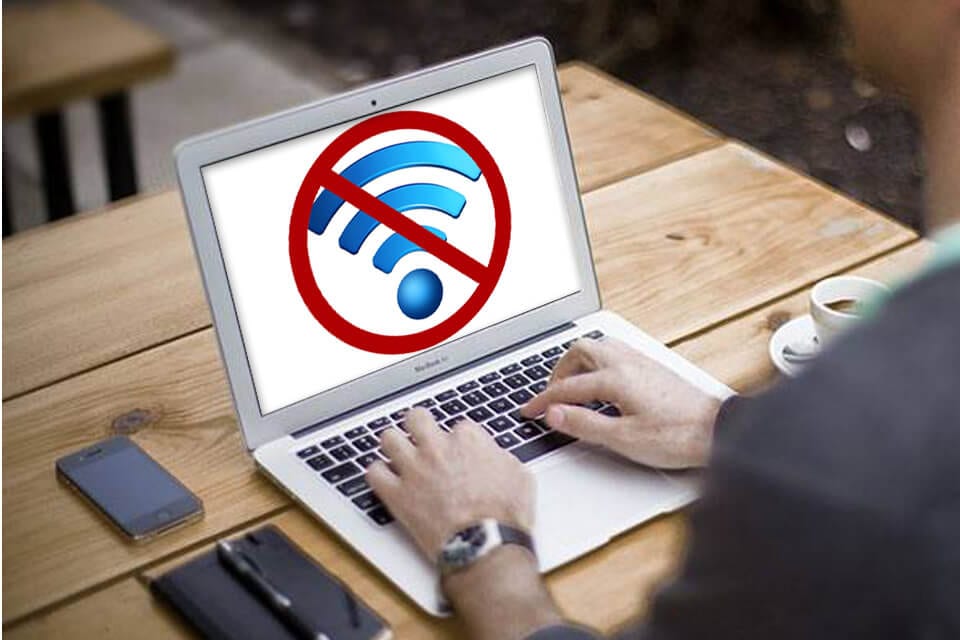
Internet issues are very common. If you are using Mac and unable to connect to the Wi-Fi or the network, then it could seriously hamper your performance. While there could be numerous reasons behind it, here we have discussed some common reasons and how to fix MacBook connected to WiFi but no Internet issue.
How to connect to Wi-Fi on Mac?
To connect to nearby Wi-Fi network on Mac, follow these steps:
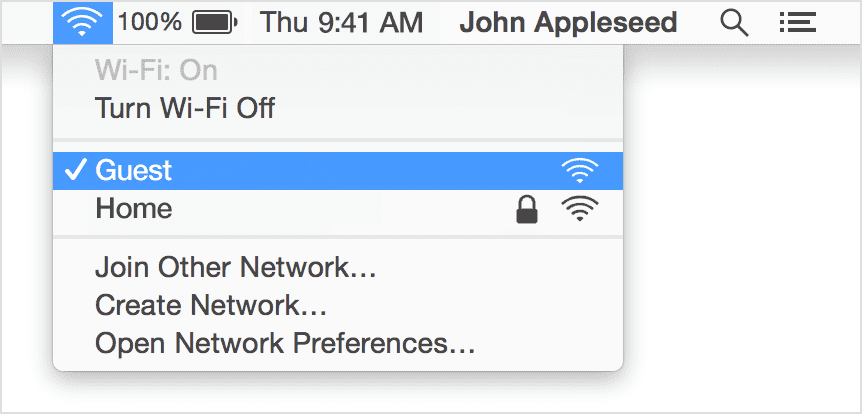
- Click the Wi-Fi icon ( or ) in the menu bar.
- Select Turn Wi-Fi on to turn Wi-Fi On.
- Select a nearby Wi-Fi network from the list.
Why my Mac is not connected to the Internet?
Well, there could be numerous reasons including intermittent issues and other problems. It is possible that there is an issue with your Mac or router, issue with your Internet service provider, Mac software issue, or anything else.
It is important to understand that we use Wi-Fi and Internet interchangeably, but technically they are not same. Wi-Fi connects you to the local network, while that network is connected to the Internet. If you remove Wi-Fi Ethernet cable disconnecting it from the network, still you would be able to connect to Wi-Fi.
How to fix Mac connected to WiFi but no Internet issue?
As a quick solution, you can try to restart your router and MacBook and check if you are able to connect to the network now. You can also try to check to another Wi-Fi network to ascertain if the problem is with Wi-Fi, MacBook, Internet service provider or something else. If you are able to connect to another network, then the issue is with your personal network. You should contact to your ISP to fix the issue.
To fix other network related issues, follow steps mentioned below
1. Forget your Wi-Fi network then reconnect
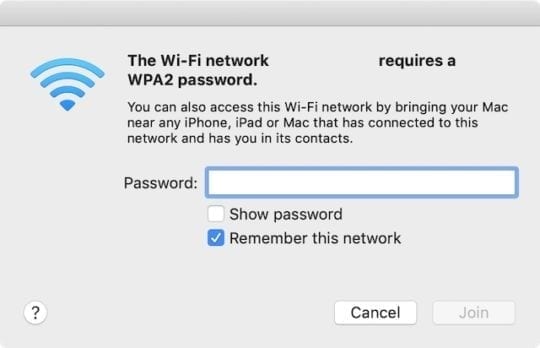
To do this, you should remember your Wi-Fi password. Follow below mentioned steps to reconnect to your Wi-Fi network.
- Select System Preferences > Network.
- On the sidebar click on Wi-Fi and then Advanced… option in the bottom right.
- Now choose your Wi-Fi network from the list and delete it. To do this, use Minus (-) button.
- Click Ok and Apply.
- Next you need to reconnect to your Wi-Fi network and enter password of Wi-Fi.
2. Ensure date, time, and location are correct
Even the wrong date, time and location could interfere with smooth network connection. So, you need to ensure they are correctly set on your MacBook. To check and correctly set it, follow these steps:
- Select System Preferences > Date & Time.
- Click Time Zone and select Set time zone automatically.
To set right location:
- Click System Preferences > Security & Privacy > Privacy.
- In the sidebar, choose Location Service and then Enable Location Services.

3. Check for Wi-Fi recommendations
If your Mac is unable to create a fast, secure, and stable connection and it finds some issue, then you can check this issue in the Status menu. Here, you will find a new item: Wi-Fi Recommendations. Select these recommendations to find the recommended solutions. This option is only available on macOS Sierra or later versions.
4. Analyze your wireless environment
To fix MacBook connected to Wi-Fi but no Internet issue, your Mac can use Wireless Diagnostic. To try this option, follow these steps:
- Quit all open apps and try to connect to your Wi-Fi network, if you could.
- Now press and hold Option (Alt) key.
- Now from the Wi-Fi status menu select Open Wireless Diagnostic option.
- When prompted enter administrator name and password.
Now it will begin analyzing wireless environment on your Mac.
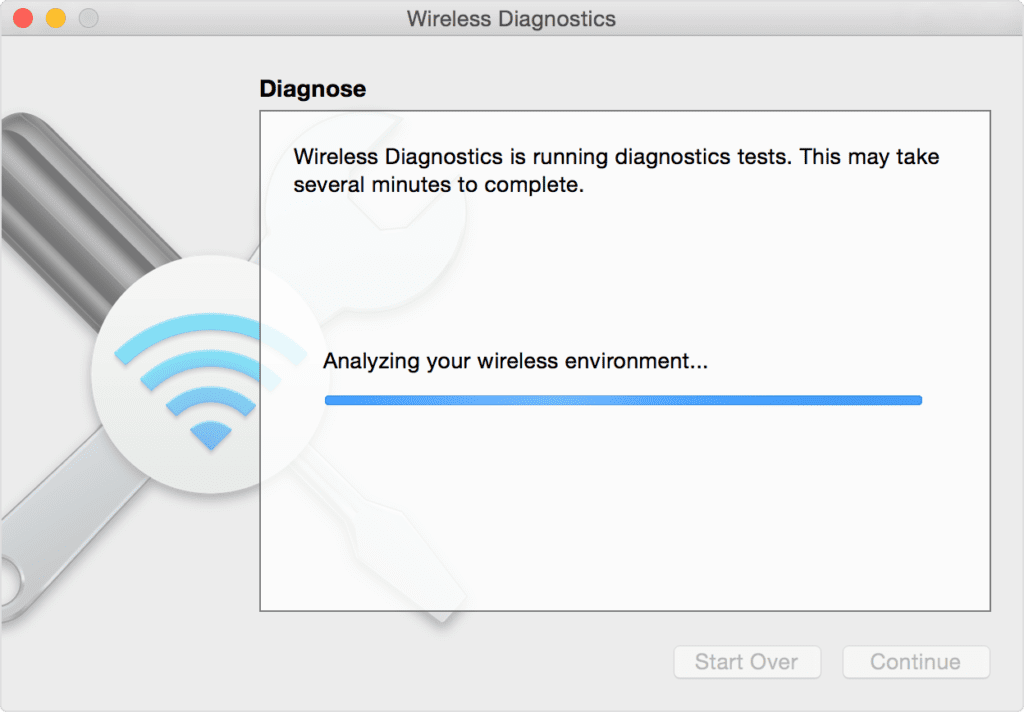
Once it completes scanning, it will display diagnose results. Here, you can select Monitor my Wi-Fi connection option to fix intermittent issue with Wi-Fi.
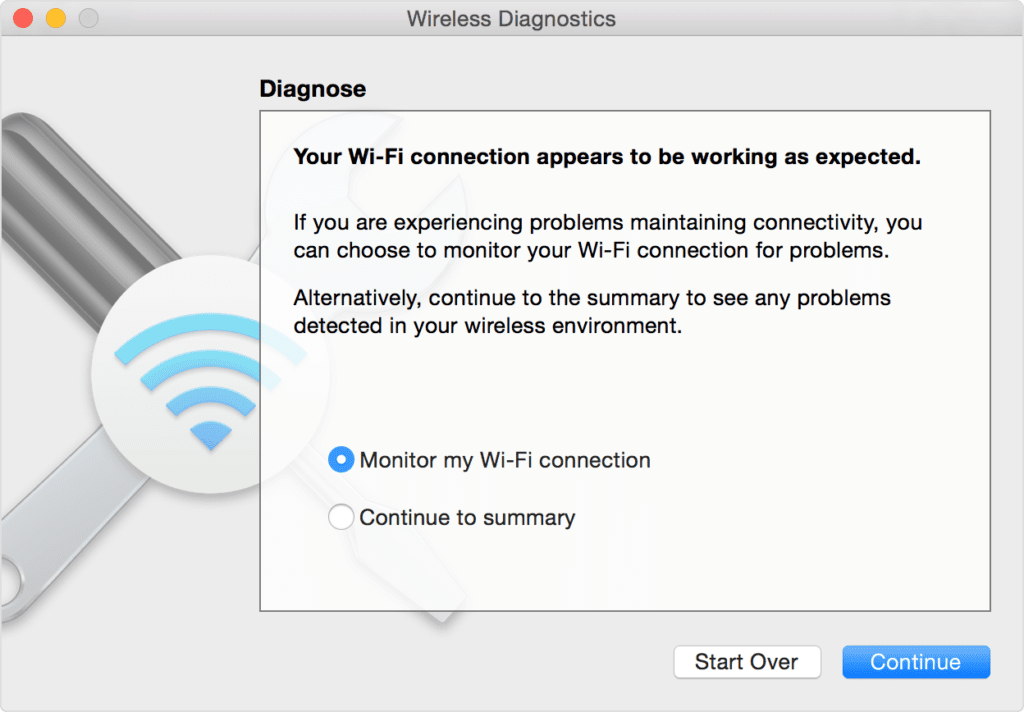
Select Continue to summary to check recommendations. Now it will display all recommendations under summary. Click on Info (i) to see details of each item. You can apply these practices to fix the issue. Remember to tak backup of your router or network settings before making any changes.
Monitor your Wi-Fi connection
If you have chosen Monitor your Wi-Fi connection, then it will analyzing network issues.
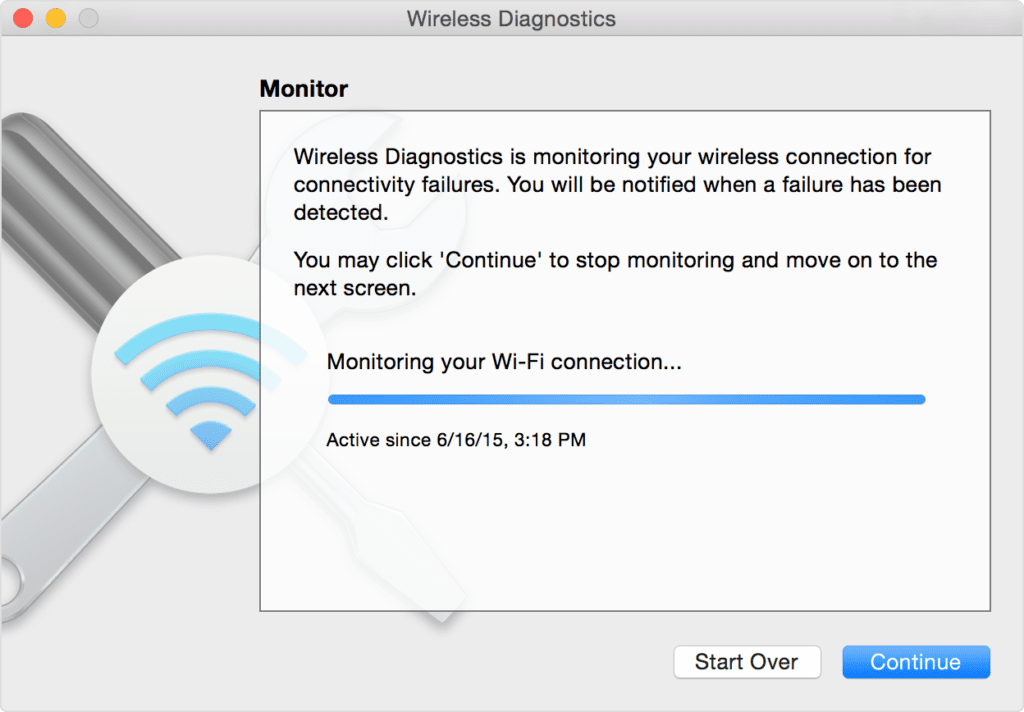
It will stop monitoring if it finds an issue and displays a brief description of the issue. Once done, you can resume monitoring. Alternatively you can select Continue to summary for details and recommendations.
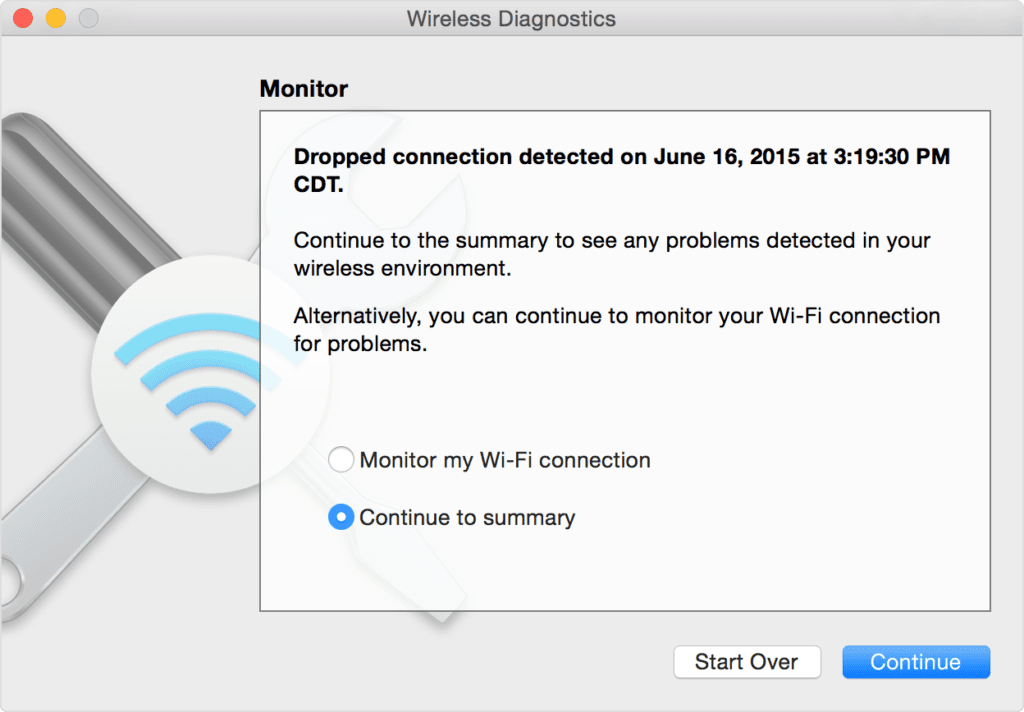
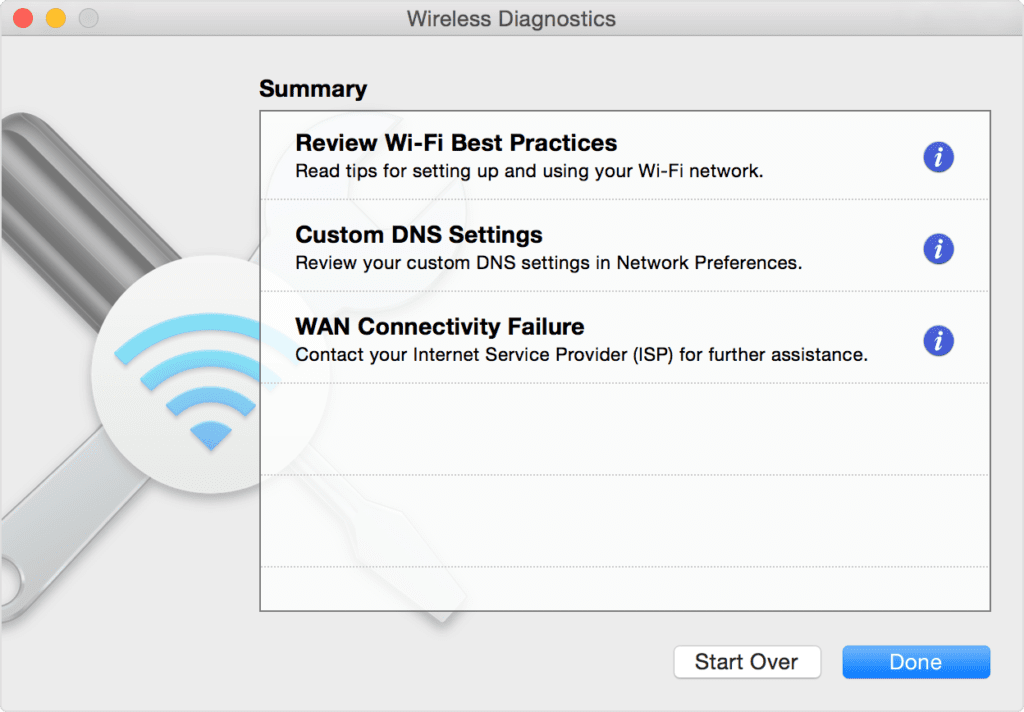
Wireless Diagnostic automatically saves a diagnostic report before it displays its summary. You can find this report with a name “WirelessDiagnostic”. This report could be helpful for network specialists for further analysis.
5. Change DNS of your Mac
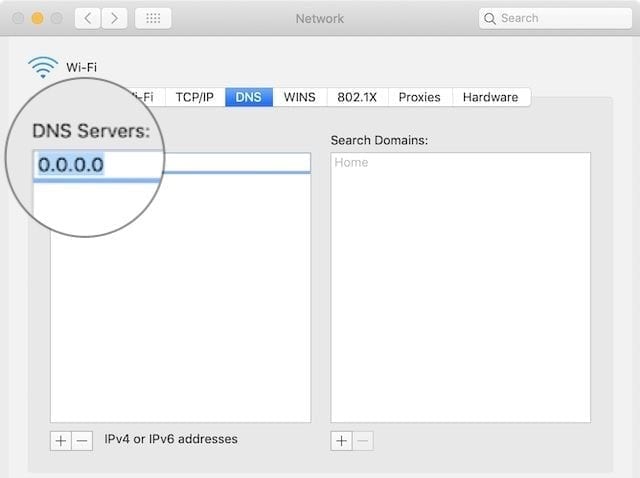
DNS or Domain Name System servers help you map domain names to their IP addresses. It is helpful to quickly open websites and servers you visit frequently. You can change your Mac’s DNS settings to public services like Google or Cloudflare to check if you can fix Mac connected to Wi-Fi but no Internet issue. To do this, follow these steps:
- Close all web browsers on your Mac.
- Go to Apple menu > System Preferences > Network.
- Next is to choose Wi-Fi > Advanced.
- Select the DNS tab.
- Click Plus icon (+) under DNS servers.
- Now you need to enter the IPv4 or IPv6 address for the DNS server you want to switch to.
Some examples include 8.8.8.8 and 8.8.4.4 for Google Public DNS and 1.1.1.1 and 1.0.0.1 for Cloudfare etc.
6. Renew the DHCP Lease in Network Preferences
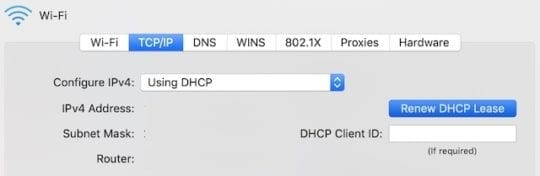
DHCP is a useful addition on your Mac that helps devices talk to each other. The MacBook, router, iPhone, or other devices on your network could communicate with each other using DHCP. Any issue with DHCP could interfere with network connectivity. You can try to renew the DHCP Lease to fix the network issue. To do this, follow these steps:
Note: Your Mac’s IP address may change due to this step.
- Go to System Preferences > Network.
- Click Wi-Fi and then Advanced… option.
- Head to the TCP/IP tab and click Renew DHCP Lease.
7. Create a new network location
If the network location selection by Mac which is done automatically causes any trouble, then you may encounter network issues. To create a new network location, follow these steps:
- Go to System Preferences > Network.
- Open the Location drop-down menu and select Automatic.
- Click Edit Locations and then Plus (+) icon to add a new location.
- Click Done and then Apply.

8. Remove Profiles from MacBook
If you have multiple Profiles created on your Mac, then it is time to delete unnecessary ones to avoid connectivity issues on your Mac. To do this, follow these steps:
- Look for a Profiles option in System Preferences.
- Next is to delete all custom profiles.
- Restart your Mac and try to reconnect to the network.
9. Disable mDNSResponder
mDNSResponder is related to iTunes and it may cause the problem you are facing with Wi-Fi on your Mac. You can stop it from running to fix the problem. It will restart automatically without any issues. To do this, follow these steps:
- Open Activity Monitor using Spotlight or Utilities.
- Select Network tab and click Process Name.
- Find and select mDNSResponder.
- Click Stop button.
- Restart your Mac and check if issue is fixed with Wi-Fi.

10. Reset your network preferences
Though there is no Reset Network Settings button on your Mac, but you can try to delete preferences files to fix the Mac connected to Wi-Fi but no Internet issue. To do this, follow these steps:
Note: Before you make any changes, ensure to backup first.
- Select Go > Computer from the Finder window.
- Now navigate to Macintosh HD/Library/Preferences/System Configuration.
Next is to delete these files:
- Com.appl.network.identification.plist
- Com.apple.airport.preferences.plist
- NetworkInterfaces.plist
- Preferences.plist
- Settings.plist
You probably don’t have all the files.

Other Solutions
In addition to above-mentioned solutions, you can try these quick fixes to deal with Wi-Fi connectivity issues. Check these here:
- Outdated software may be causing network issues, you can try to update macOS to fix this problem. Check this article here to learn how to update macOS software.
- You should disconnect all USB devices and check if Wi-Fi issue is fixed.
- You can try to open another site or app to check if the problem is with a specific app or website.
- You need to ensure you are connected to the correct Wi-Fi network.
- You can try another device to connect to the Wi-Fi. If other device connects to your network, then the problem is with your Mac. You need to Change DNS settings on your Mac as discussed above.
- You can reset your router and restart your Mac to check if the issue is fixed.
Conclusion
So these were detailed solutions to fix Mac connected to WiFi but no Internet issue. Try these steps to connect to the network and avoid performance issues. If you know more such steps, then feel free to share in the comments below.
Author Bio:
Dinesh Lakhwani 

Dinesh Lakhwani, the entrepreneurial brain behind “TechCommuters,” achieved big things in the tech world. He started the company to make smart and user-friendly tech solutions. Thanks to his sharp thinking, focus on quality and the motto of never giving up, TechCommuters became a top player in the industry. His commitment to excellence has propelled the company to a leading position in the industry.
Popular Post











Recent Post

How to Switch Windows 10 to a Local Account: Complete Guide
Windows 10 allows users to sign in with either a Microsoft account or a local account. When you set up a new computer, the system often suggests using a Microsoft account. This account connects your device to Microsoft services such as Outlook, OneDrive, and the Microsoft Store. It also syncs settings, themes, and passwords across […]

How To Change Default Apps For File Types In Windows
Windows is designed to make using your computer easy. One way it does this is by assigning default apps to different file types. This means when you open a file, Windows automatically opens it with a specific program. For example, photos may open with Photos, music with Groove Music, and PDFs with Edge. These default […]

How To Adjust The Mouse Pointer Speed: Complete Guide
Using a computer every day means you use the mouse a lot. The mouse pointer moves on the screen and helps you click, scroll, and select items. Many people never think about the speed of the mouse pointer. They have used the default setting for years. This can cause small problems over time. A slow […]

How to Change Mouse Scrolling Settings In Windows
A mouse is one of the most used computer tools. People use it every day. They scroll through emails. They scroll through documents. They scroll through websites and images. The movement becomes automatic. Most users do not notice it. That is why problems often go unnoticed. Scrolling problems show up slowly. At first, it feels […]

Keyboard Light Settings: Keyboard Lighting Control [Complete Guide]
Keyboards are no longer simple typing tools. Well, yes! Over time, they have evolved to include features that improve comfort, visibility, and overall experience. One of the most useful features today is keyboard lighting. It helps users work comfortably in low-light conditions. It also reduces strain when typing for long hours. Many users first notice […]

Customizing Pointer Appearance: Complete Guide
The way your mouse pointer looks on your computer may seem like a small detail. But customizing pointer appearance can make using your PC more comfortable and visually appealing. Many users do not realize that they can change the pointer size, color, and style to fit their needs. Whether you want a bigger pointer for […]

How To Choose a Computer Monitor: Monitor Buying Guide
Buying a monitor looks easy. Many people think all screens are the same. That belief causes regret later. A monitor is not just a display. It is a daily tool. You read on it. You work on it. You relax with it. Small problems become big over time. Poor brightness hurts eyes. Bad size causes […]

How To Get Help With File Explorer in Windows 11 [Complete Guide]
File Explorer is one of the most important tools in Windows 11. It is used to open folders, view files, and manage stored data. Almost every action on a Windows computer depends on it in some way. When users open documents, save downloads, or organize photos, File Explorer is always involved. Because it is used […]

How To Fix A Frozen Computer: Complete Guide [Windows 11/10]
A frozen computer is one of the most common problems Windows users face. The screen stops responding. The mouse pointer does not move. Keyboard inputs do nothing. You may hear the fan running loudly. Sometimes the system looks alive, but nothing works. This situation often happens when you are busy or working on something important. […]

How to Upgrade Computer RAM: Complete Guide
Upgrading RAM is one of the simplest ways to improve a computer. It helps the system feel faster and smoother. Apps open quicker. Browsers handle more tabs. Games and tools run with less delay. Many users search for how to upgrade computer RAM because it gives real results without high cost. You do not need […]

