How to Fix iPhone Reminders Not Working in iOS 16?
Last updated on December 16th, 2024 at 3:15 pm
Your iPhone’s reminder app can be a lifesaver. It can help you remember important things, dates, or events. For example, you might forget your partner’s birthday, but iPhone reminders won’t let that happen and save your relationship.
Thus, it can be a big problem when iPhone reminders do not work in iOS 16. Lately, many iPhone users have complained that they are not getting reminders after updating to the latest iOS version.
Since iOS 16 is still in beta mode, so Apple has no helpful guide to fix iPhone reminders not working in iOS 16. But no worries when we are here.
Our team has tried and tested a few solutions to fix this issue, and fortunately, we found many solutions. So, let’s check them all out one by one.
Why Are iPhone Reminders Not Working in iOS 16?
Reminders do not work (or appear to work) because you have turned off notifications, selected a faint alert tone, and have not restarted or updated your iPhone in a long time, among other things.
At times, the issue may be on Apple’s end, such as bugs in iOS or a temporary outage with iCloud servers that prevents new reminders from syncing to your iPhone, resulting in you not being notified on time.
14 Solutions to Fix iPhone Reminders Not Working in iOS 16
Do you often use reminders to set meeting alerts or important event notifications? Then, updating to the new iOS might cause a problem for you. But no need to worry about it. Just use any of the following solutions to fix iPhone reminders not working in iOS 16:
Solution 1: Check the Reminders App Notification Settings
It’s possible that you disabled the notification settings for the Reminders app, leading you to believe that the app isn’t working. Let’s be certain that this is not the case.
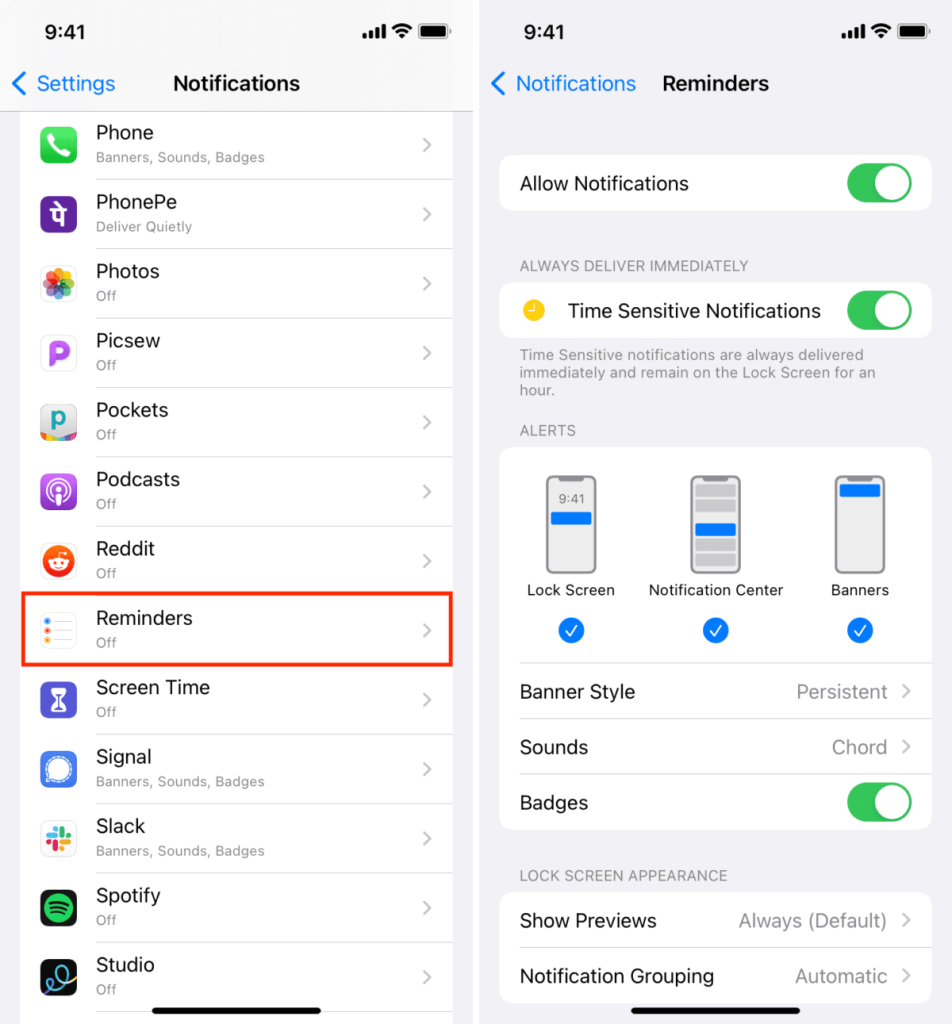
Step 1: Open the Settings app and select Notifications.
Step 2: Scroll to the bottom and select Reminders. Check that Allow Notification is turned on.
Step 3: Check if any tone is set for the Reminders app by tapping Sounds.
Solution 2: Restart Your iPhone
Let us proceed and restart the iPhone now that we are certain that notifications for the Reminders app are enabled. During normal use, a restart generally resolves minor temporary glitches on an iPhone or iPad.
You can use the button to turn off and on your iPhone as you normally would. Alternatively, go to Settings > General > Shut Down. Then, after one minute, turn on the iPhone.
Solution 3: Turn On Reminders from iCloud
Reminders are synced to all of your Apple devices via iCloud. However, it occasionally develops temporary issues and ceases to function properly. So, let’s try to turn it off and back on from iCloud to resolve this issue.
Step 1: Open the Settings app, tap your name card at the top, and then tap iCloud.
Step 2: Turn off the Reminders Delete from My iPhone toggle.
Step 3: Turn the radio button back on and let iCloud sync for at least after 30 seconds.
Solution 4: Remove the Reminders App Widget
Removing the Reminders widget from the home screen is another hack that has worked for a few people to fix iPhone reminders not working in iOS 16. Here’s how to do it:
Step 1: Swipe right from the main home screen until you reach the rightmost screen. Scroll down and, at the bottom, tap Edit.
Step 2: If you have the Reminders app widget, tap the minus sign and remove it.
Solution 5: Set a Louder Reminder Tone
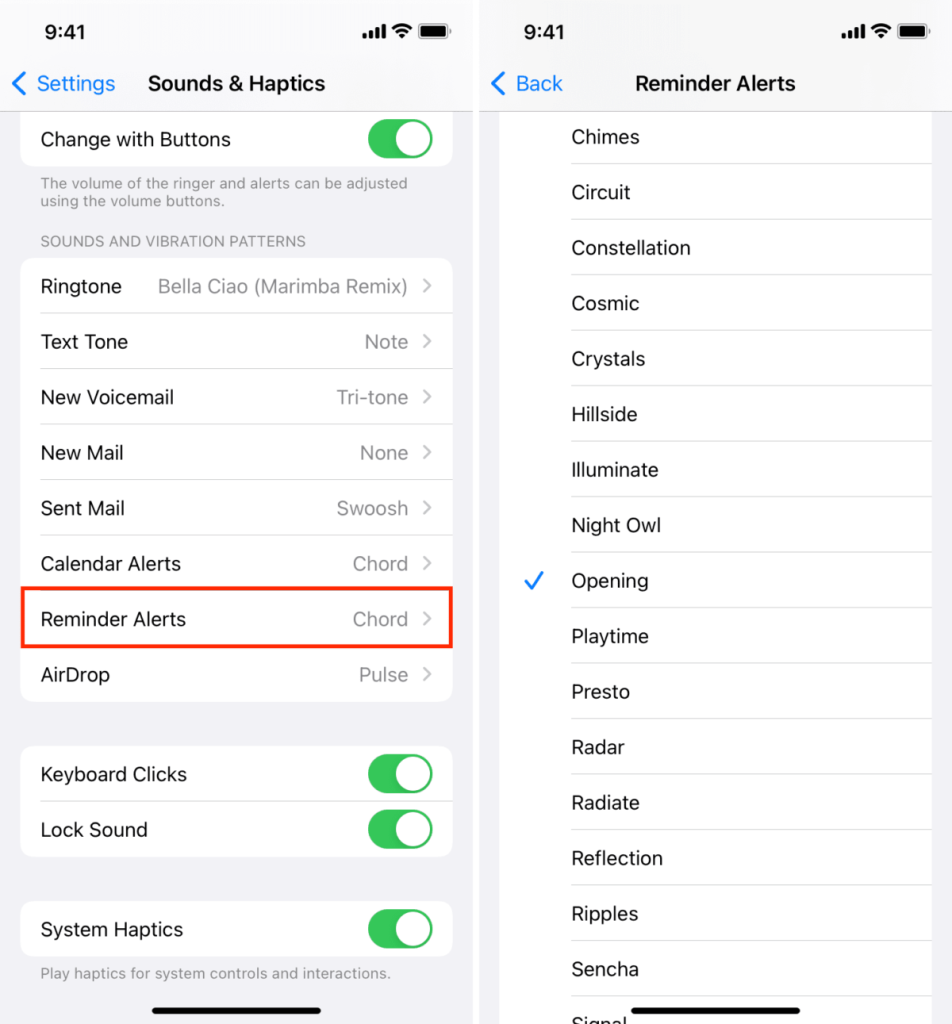
The iPhone reminder tone (named Chord) is only a few seconds long by default, and you may miss it. Here’s how to change the tone of your iPhone or iPad’s reminders:
Step 1: Tap Sounds & Haptics in the Settings menu.
Step 2: Scroll to the bottom and select Reminders Alerts.
Step 3: Select a long, loud tone. Make certain that you do select None. If reminders are critical in your daily activities, you can even choose a full ringtone for your reminders and never miss one again!
Solution 6: Exclude Reminders from the Focus Mode
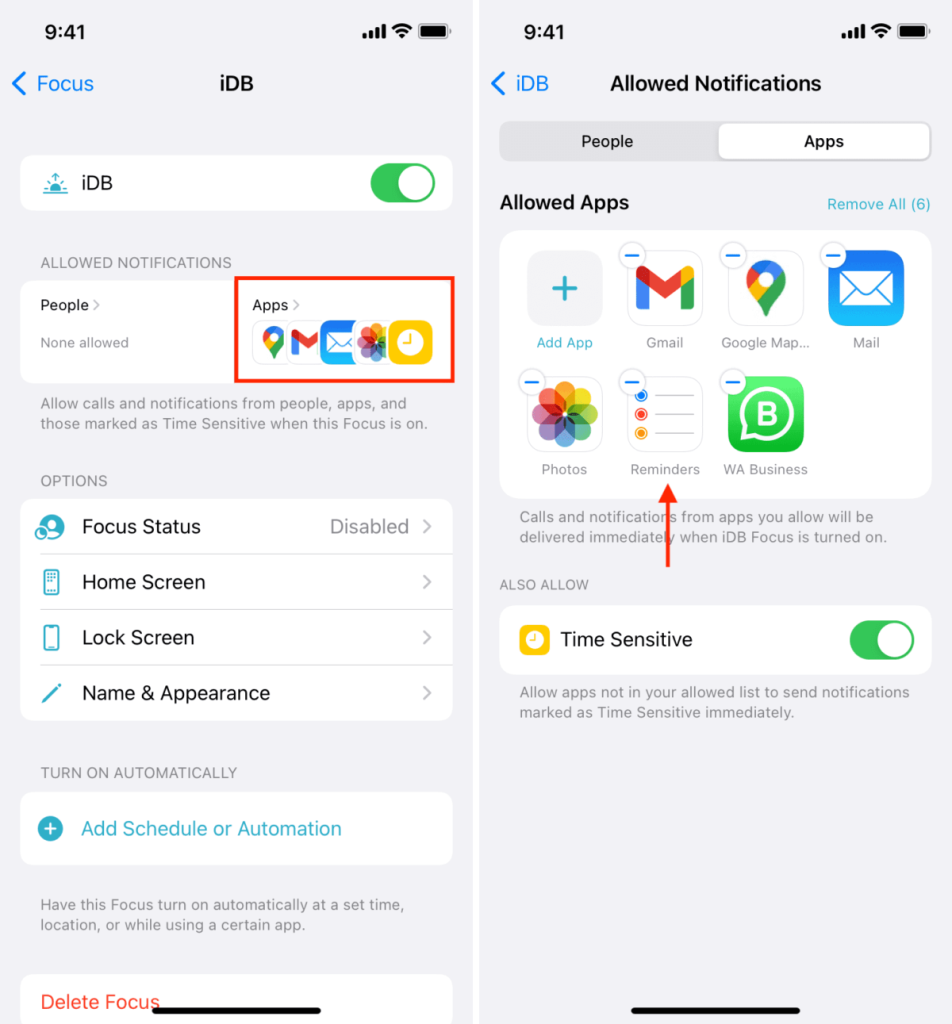
You can miss the reminder notifications when your device is in Focus mode and running iOS 16. Here’s how to avoid this by including the Reminders app in the list of excluded apps during Focus:
Step 1: Open the Settings app and select Focus.
Step 2: Choose a Focus that you use throughout the day (for example, office, home, etc.) or the period in which you miss the reminders.
Step 3: Tap Apps > Add App > Reminders from the list > Finish.
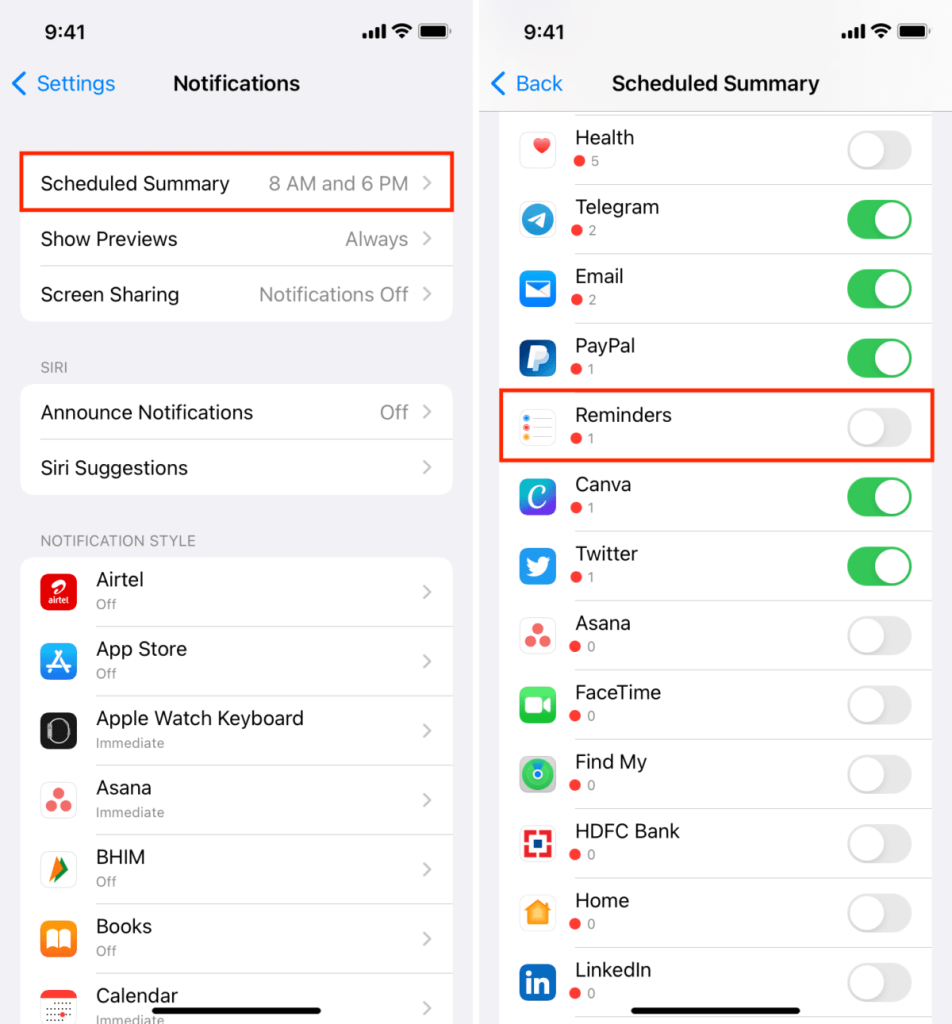
Solution 7: Disable Scheduled Summary
On iOS 15 and later, Scheduled Summary bundles non-urgent notifications and presents them as a summary at a convenient time. In other words, it disables the instant alert for some notifications that it deems less urgent.
If you frequently miss iPhone Reminders app notifications, try the following:
Step 1: Open Settings and then select Notifications.
Step 2: Select Scheduled Summary.
Step 3: You can either disable Scheduled Summary or scroll down and disable the Reminders toggle to prevent reminder notifications from being silenced and bundled up for later.
Solution 8: Fix Location-based Notifications
On your iPhone, you can set location-based reminders. For example, your iPhone can remind you to clean your drawers when you arrive at work.
If location-based reminders aren’t working correctly on your iPhone or iPad, make sure the Reminders app has permission to access your device’s location.
Step 1: Open Settings and then select Privacy.
Step 2: Select Location Services and ensure it is enabled.
Step 3: Select Reminders from the list of available apps.
Step 4: Choose While Using the App.
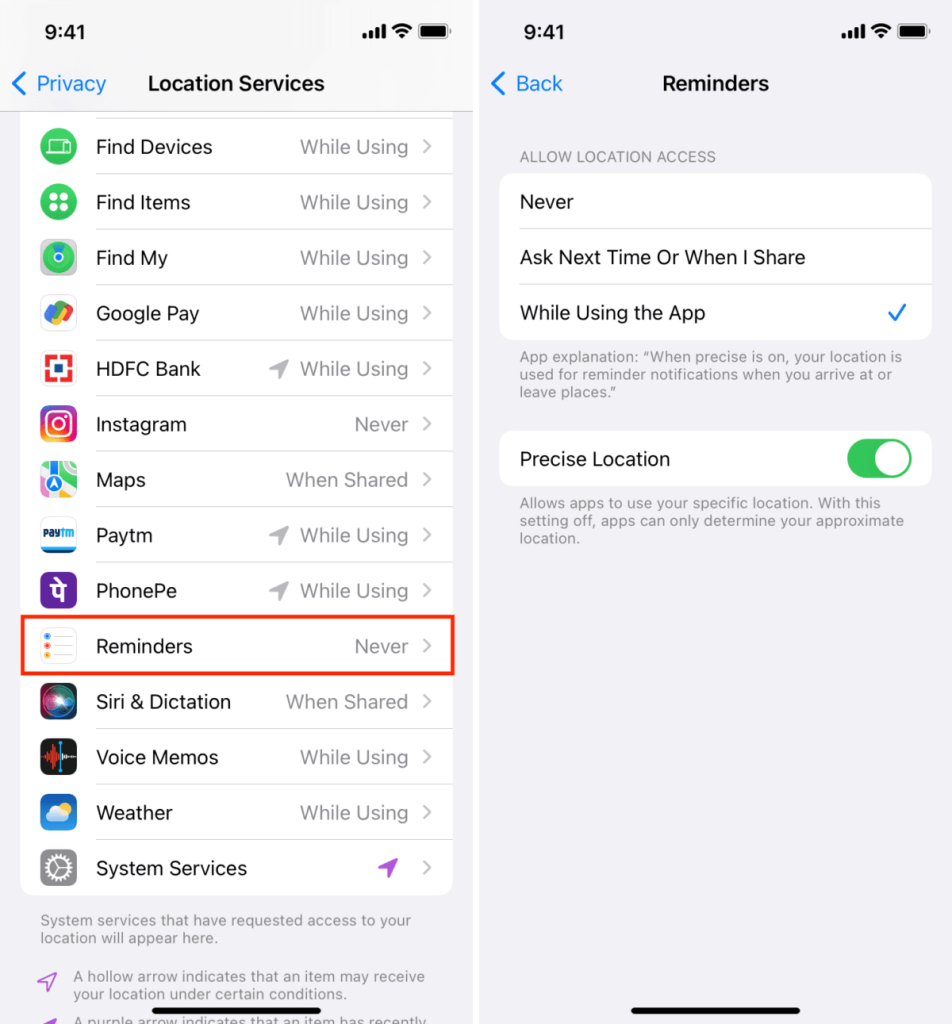
Now your iPhone should have no trouble reminding you where you are. If you already had location enabled, go to iPhone Settings > General > Background App Refresh and turn it on for Reminders. Finally, resetting the location and privacy settings should help resolve this issue.
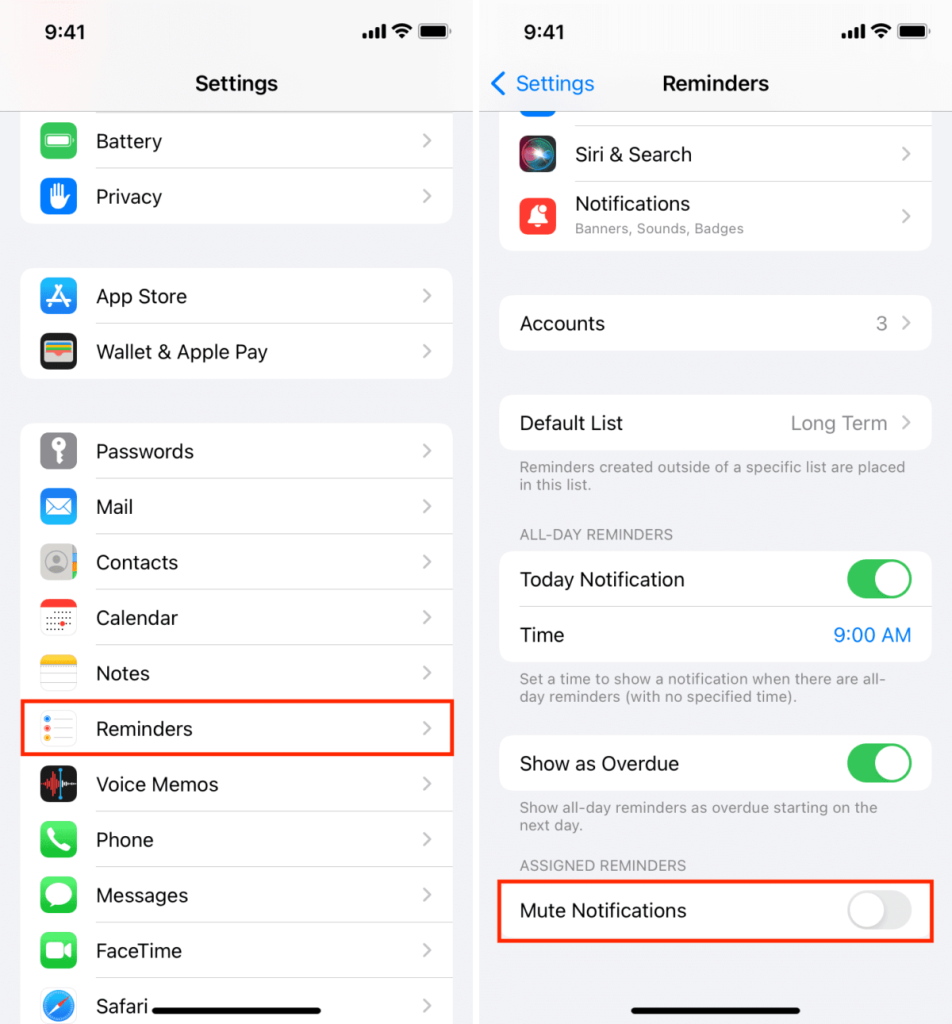
Solution 9: Check Assigned Notifications
Other people can be assigned specific reminders. For example, if you have a list of grocery shopping reminders, you can assign some to your wife and some to yourself.
If you aren’t receiving notifications for assigned reminders, go to iPhone Settings > Reminders and turn Mute Notifications off.
Solution 10: Check Apple’s Service Status
In rare cases, Apple servers may experience temporary downtime, resulting in iCloud reminders not syncing on your device. As a result, new reminders created on another Apple device may not appear on your primary iPhone. Go to the Apple Support page to check the status of iCloud Reminders.
Please remember that this only applies to reminders that have not yet been synced locally.
Solution 11: Update Your iPhone
Software bugs can lead to problems such as reminders failing to notify you. The latest version of iOS installed on your iPhone is one reliable way to keep such inconveniences at bay. Go to Settings > General > Software Update > Download and Install.
Solution 12: Delete Finished Reminders
Having thousands of finished reminders may cause a problem in rare cases. To address this, follow these steps:
Step 1: Tap All in the Reminders app. You can also select a specific list from My Lists.
Tap Clear > All Completed or Older Than a Month/6 Months/a Year at the top. If you don’t see the Clear option, tap the three dots inside a circle icon. Select Show
Step 2: Completed from the top.
Step 3: Finally, press the Delete [number] Reminders button.
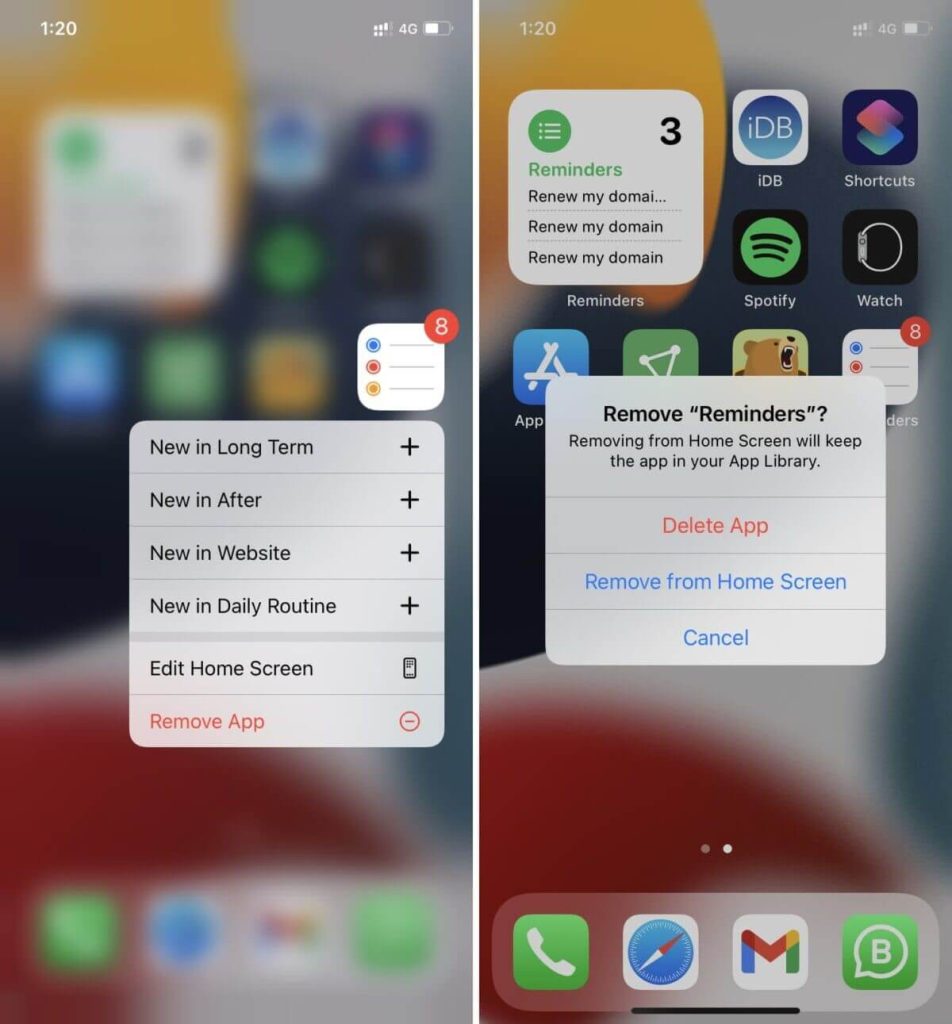
Solution 13: Remove and Reinstall the Reminders App
When you delete the Reminders app, you are not deleting the reminders themselves but rather the application itself. If none of the above solutions worked, tap the Reminders app icon on the Home Screen or App Library and select Remove App > Delete App > Delete. Restart your iPhone after that. Now, open the App Store and look for Reminders.
Solution 14: Reset Your iPhone
Finally, resetting all iPhone settings should almost certainly resolve all of your reminder issues after you’ve reset your settings, launched Reminders (and any other essential apps), and granted it permission to send notifications and access your location (if you use location-based reminders).
Let’s Fix Your iPhone Reminders Not Working Now!
That’s all, mate!
These were the correct solutions for your iPhone’s Reminders not working on iOS 16. We hope one or more of these methods worked for you. If not, you can try contacting Apple support or going in-store.
What do you think of Apple’s Reminders app? Share your thoughts in the comments and follow our other iPhone guides.
FAQs:
Why did my Reminders stop working on my iPhone?
Reminders might stop due to software glitches, outdated iOS, or app issues. Restart your device, update iOS, check Reminders app settings, and ensure iCloud sync is enabled.
How do I set a reminder on iOS 16?
Open the Reminders app, tap ‘+’, add title, date, and time, set priority, choose list, and set repeat if needed. Siri can also create reminders – just ask aloud.
Why am I not getting reminder notifications?
Ensure notifications are enabled for Reminders in iPhone Settings > Notifications. Check if the Do Not Disturb mode is off, and restart your device. Adjust notification settings to your preference.
Why am I not getting notifications on my iPhone even though my notifications are on?
Confirm notifications are enabled in iPhone Settings > Notifications for specific apps. Restart your device, check if “Silent Mode” or “Bedtime Mode” is active. If the problem persists, reset notification settings.
Why is my Apple reminders not syncing?
Check iCloud settings, and ensure Reminders sync is enabled in Settings > [your name] > iCloud > Reminders. Ensure a stable internet connection, restart the device, and update iOS if needed. Log out and back into iCloud can help too.
Author Bio:
Dinesh Lakhwani 

Dinesh Lakhwani, the entrepreneurial brain behind “TechCommuters,” achieved big things in the tech world. He started the company to make smart and user-friendly tech solutions. Thanks to his sharp thinking, focus on quality and the motto of never giving up, TechCommuters became a top player in the industry. His commitment to excellence has propelled the company to a leading position in the industry.
Popular Post











Recent Post

Keyboard Light Settings: Keyboard Lighting Control [Complete Guide]
Keyboards are no longer simple typing tools. Well, yes! Over time, they have evolved to include features that improve comfort, visibility, and overall experience. One of the most useful features today is keyboard lighting. It helps users work comfortably in low-light conditions. It also reduces strain when typing for long hours. Many users first notice […]

Customizing Pointer Appearance: Complete Guide
The way your mouse pointer looks on your computer may seem like a small detail. But customizing pointer appearance can make using your PC more comfortable and visually appealing. Many users do not realize that they can change the pointer size, color, and style to fit their needs. Whether you want a bigger pointer for […]

How To Choose a Computer Monitor: Monitor Buying Guide
Buying a monitor looks easy. Many people think all screens are the same. That belief causes regret later. A monitor is not just a display. It is a daily tool. You read on it. You work on it. You relax with it. Small problems become big over time. Poor brightness hurts eyes. Bad size causes […]

How To Get Help With File Explorer in Windows 11 [Complete Guide]
File Explorer is one of the most important tools in Windows 11. It is used to open folders, view files, and manage stored data. Almost every action on a Windows computer depends on it in some way. When users open documents, save downloads, or organize photos, File Explorer is always involved. Because it is used […]

How To Fix A Frozen Computer: Complete Guide [Windows 11/10]
A frozen computer is one of the most common problems Windows users face. The screen stops responding. The mouse pointer does not move. Keyboard inputs do nothing. You may hear the fan running loudly. Sometimes the system looks alive, but nothing works. This situation often happens when you are busy or working on something important. […]

How to Upgrade Computer RAM: Complete Guide
Upgrading RAM is one of the simplest ways to improve a computer. It helps the system feel faster and smoother. Apps open quicker. Browsers handle more tabs. Games and tools run with less delay. Many users search for how to upgrade computer RAM because it gives real results without high cost. You do not need […]

How To Clean Your Computer Keyboard: Complete Guide
A computer keyboard is touched more than almost any other device you own. It is used during work, study, gaming, and casual browsing. Fingers carry natural oils, sweat, and dirt. Small food crumbs fall between keys without notice. Dust settles each day slowly. Over time, this creates a hidden layer of grime. Many users do […]
Computer Mouse Buying Guide for Beginners and Advanced Users
Buying a mouse looks easy at first. Many people think all mouse work the same way. Well, that idea often leads to regret later. A mouse affects comfort, speed, and daily work. It matters for office tasks, gaming, design, and study. The right choice reduces strain and improves control. The wrong one feels annoying every […]
How To Overclock a Computer: A Complete Guide
Overclocking is the process of making your computer run faster than its factory settings. It mainly affects the processor, graphics card, and sometimes memory. Many people choose this method to improve performance without buying new hardware. It is popular among gamers, video editors, and users who run heavy software. When done properly, overclocking can give […]
How To Find Password Saved on This Computer: Complete Guide
Many people forget their login details at some point. It happens often. We create many accounts every year. Each one needs a username and a password. Over time, it becomes hard to remember all of them. That is why computers offer ways to store login details. These saved details help users sign in faster. They […]

