How To Fix Hulu Error Code 21 [Latest Guide]
Last updated on October 27th, 2025 at 8:41 am
Introduction:
With its extensive catalog of television, film, and originals, Hulu stands as a top streaming platform. However, as with any technology, users occasionally run into technical difficulties. A common error Hulu subscribers may encounter is the frustrating Error Code 21.
This error code typically appears when there is an issue with the Hulu app or the device’s internet connection, causing the app to fail to load or stream content properly. Encountering Error Code 21 can be frustrating, especially when you’re in the middle of binge-watching your favorite show or movie.
In this comprehensive guide, we’ll explore what the Hulu Error Code 21 is, what triggers it, and provide you with proven solutions to help you resolve this issue and get back to enjoying your Hulu streaming experience seamlessly.
What is the Hulu Error Code 21?
Hulu Error Code 21 is a specific error message that appears when the Hulu app encounters a problem connecting to the streaming service’s servers. This error code typically indicates that there is an issue with the user’s internet connection, preventing the app from accessing the necessary data to stream content.
When users encounter Error Code 21, they may see a message on their screen that reads something like “We’re having trouble playing this” or “Error Code 21.” In some cases, the error message may also provide additional details, such as “There is a problem with the internet connection” or “An error occurred while trying to play the video.”
What Triggers the Hulu Error Code 21?
Here are some potential reasons you may be seeing the Hulu Error Code 21 and suggestions to fix it:
- Internet Connection Issues: The most common cause of Error Code 21 is a problem with your internet connection. If your internet connection is unstable, slow, or intermittent, it can prevent the Hulu app from communicating with the streaming servers properly, leading to this error.
- Overloaded Network: If too many devices are connected to your home network and consuming bandwidth simultaneously, it can lead to network congestion and slow down your internet speed. This can cause issues with streaming on Hulu and trigger Error Code 21.
- Outdated Hulu App: Using an outdated version of the Hulu app can also contribute to compatibility issues and errors like Error Code 21. Developers frequently release updates to address known bugs and improve the app’s performance, so keeping your Hulu app up-to-date is essential.
- VPN or Proxy Interference: Using a virtual private network (VPN) or proxy service can sometimes interfere with Hulu’s ability to stream content smoothly. These services can mask your actual location and IP address, causing conflicts with Hulu’s content delivery systems.
- Device Cache and Data: Over time, cached data and temporary files can accumulate on your device, leading to potential conflicts and errors when trying to stream content from Hulu.
How to Fix the Hulu Error Code 21: Top Solutions
Now that we’ve explored the possible causes behind Hulu Error Code 21, let’s look at some troubleshooting steps that can help fix this problem so you can get back to enjoying Hulu’s streaming content.
Solution 1: Close and Re-open the Hulu app
At times, the most effective approach can be the simplest one. If you’re encountering Error Code 21 on Hulu, start by closing the app completely and then re-opening it after a few seconds. This can help clear any temporary glitches or hiccups that may be causing the issue.
Solution 2: Restart the WiFi Router
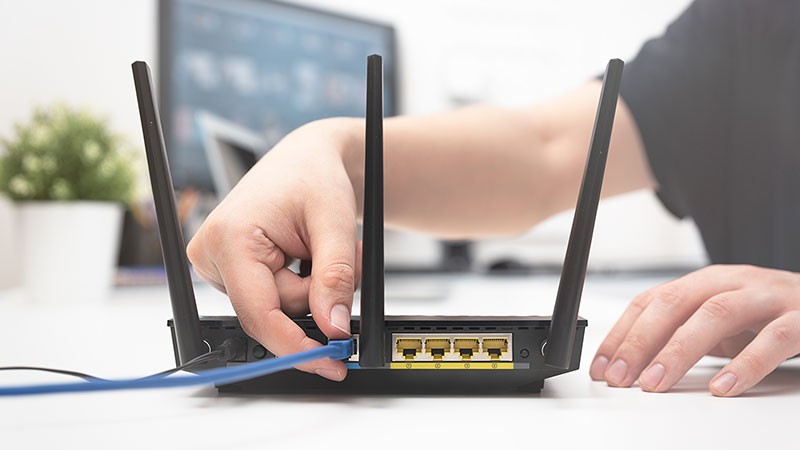
If closing and re-opening the Hulu app doesn’t work, the next step is to restart your WiFi router. Occasionally, routers can experience temporary glitches or connectivity issues that can impact your internet connection and cause problems with streaming services like Hulu.
To restart your router, find the power button or switch and turn it off. Let the router sit unplugged for a minimum of 30 seconds before turning it back on. This reboot will reset the router’s network connection and clear out any temporary glitches that could be causing problems.
After the router has fully restarted and re-established its connection, try opening the Hulu app again and see if Error Code 21 has been resolved.
Solution 3: Disable the VPN Service
If you’re using a virtual private network (VPN) or proxy service on your device, it could be interfering with Hulu’s ability to stream content correctly. VPNs and proxies can mask your actual location and IP address, which can sometimes cause conflicts with streaming services like Hulu.
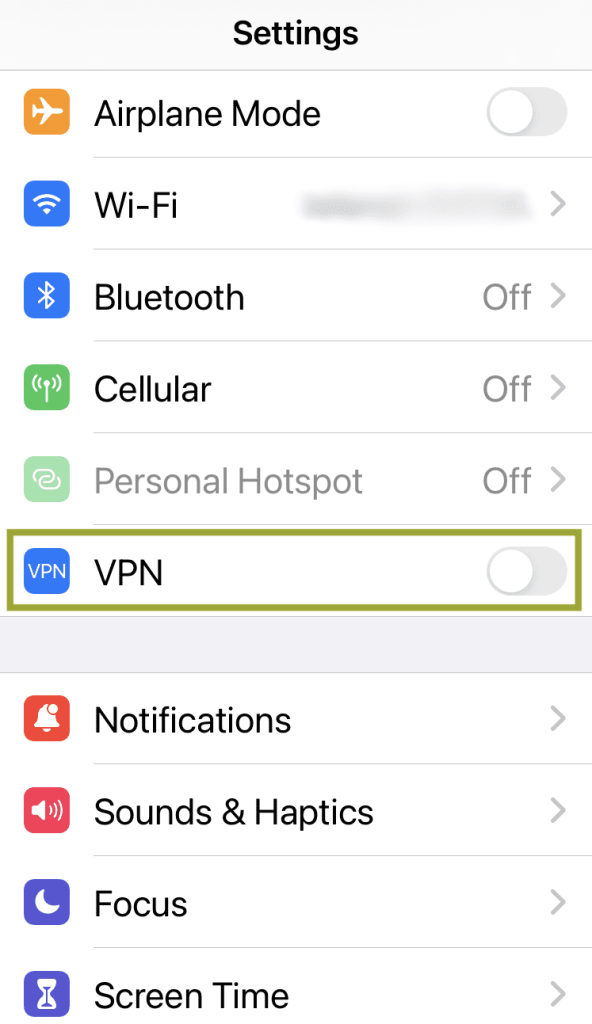
To resolve this issue, try temporarily disabling your VPN or proxy service and then attempt to stream content on Hulu again. If the error code disappears after disabling the VPN or proxy, you may need to whitelist or configure an exception for Hulu within your VPN or proxy settings to ensure smooth streaming in the future.
Solution 4: Update the Hulu App
Using an outdated version of the Hulu app can sometimes lead to compatibility issues and errors like Error Code 21. Developers regularly release updates to address known bugs, improve performance, and add new features to the app.
To check for and install any available updates for the Hulu app, follow these steps:
For iOS devices (iPhone, iPad):
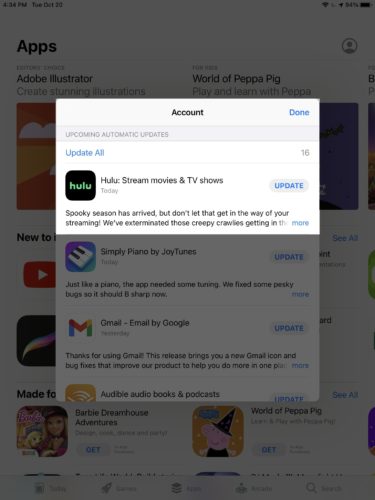
Step 1: Open the App Store on your device. Tap on the “Updates” tab at the bottom of the screen.
Step 2: If an update is available for the Hulu app, it will be listed here. Tap the “Update” button next to the Hulu app to download and install the latest version.
For Android devices:
Step 1: Open the Google Play Store app on your device. Tap on the three horizontal lines in the top-left corner to open the menu.
Step 2: Select “My apps & games” from the menu.
Step 3: In the “Updates” section, look for the Hulu app. If an update is available, it will be listed here.
Step 4: Tap the “Update” button next to the Hulu app to download and install the latest version.
After updating the Hulu app to the latest version, try streaming content again to see if Error Code 21 has been resolved.
Solution 5: Delete and Reinstall the Hulu App
If none of the previous solutions have worked, you can try deleting the Hulu app from your device and then reinstalling it from scratch. This can help clear any corrupted data or settings that may be causing conflicts and leading to Error Code 21.
To delete and reinstall the Hulu app, follow these steps:
For iOS devices (iPhone, iPad):
Step 1: Locate the Hulu app icon on your device’s home screen. Tap and hold on to the app icon until it starts wiggling.
Step 2: Tap the small “x” icon in the top-left corner of the Hulu app icon. Confirm the deletion by tapping “Delete” when prompted.
Step 3: Open the App Store and search for “Hulu” in the search bar. Tap the “Get” or “Install” button next to the Hulu app to download and reinstall it.
For Android devices:
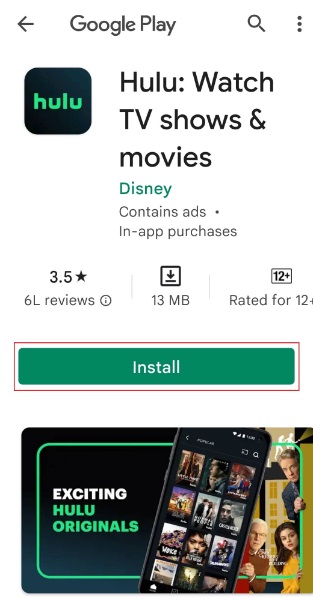
Step 1: Open the Google Play Store app on your device. Tap on the three horizontal lines in the top-left corner to open the menu.
Step 2: Select “My apps & games” from the menu. Locate the Hulu app in the list and tap on it.
Step 3: Tap the “Uninstall” button to remove the app from your device.
Step 4: Once the app is uninstalled, search for “Hulu” in the Google Play Store and tap the “Install” button to reinstall the app.
After reinstalling the Hulu app, try launching it and streaming content again to see if Error Code 21 has been resolved.
Solution 6: Clear App Cache and Data
Over time, cached data and temporary files can accumulate on your device, leading to potential conflicts and errors when trying to stream content from Hulu. Clearing the app’s cache and data can help resolve such issues and ensure a fresh start for the app.
The steps to clear the cache and data for the Hulu app may vary slightly depending on your device and operating system, but here are the general steps:
For iOS devices (iPhone, iPad):
Step 1: Go to the “Settings” app on your device.
Step 2: Tap on “General” and then select “iPhone Storage” (or “iPad Storage”). Locate the Hulu app in the list and tap on it.
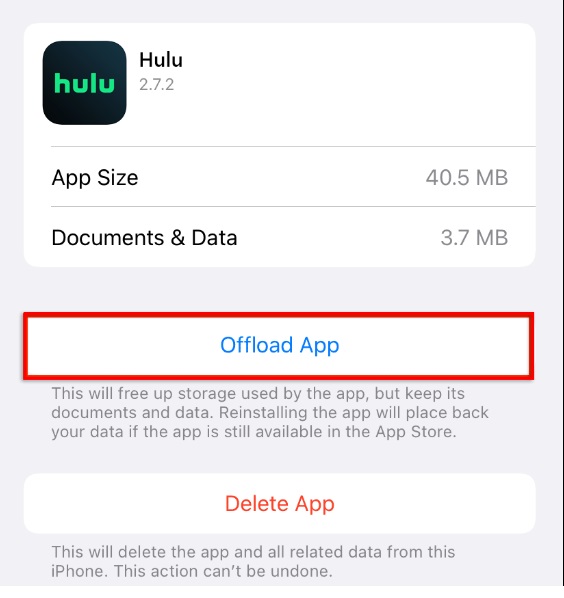
Step 3: Tap the “Offload App” button to remove the app and its data from your device.
Step 4: Tap the “Reinstall App” button to download and reinstall the Hulu app.
For Android devices:
Step 1: Open the “Settings” app on your device. Tap on “Apps” or “Applications” (the exact wording may vary). Locate the Hulu app in the list and tap on it.
Step 2: Tap the “Storage” or “Data” option (the exact wording may vary).
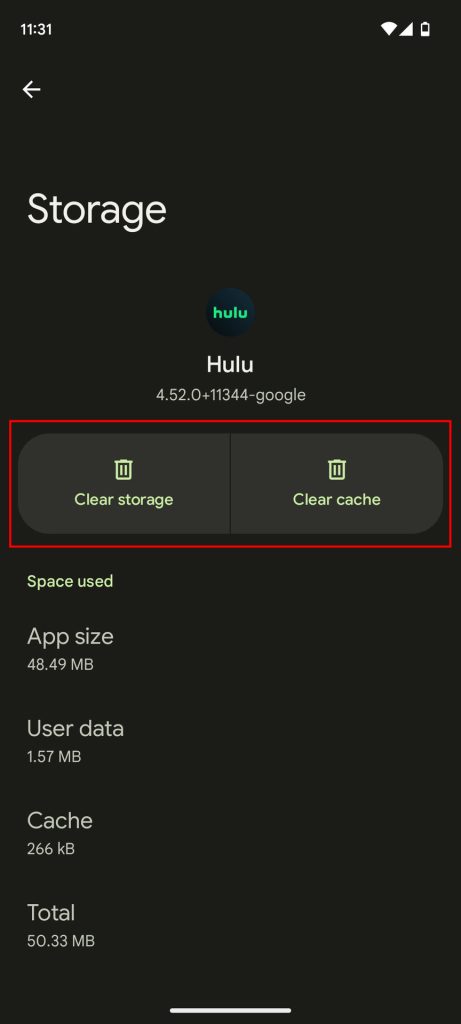
Step 3: Tap the “Clear Cache” and “Clear Data” buttons to remove the app’s cached data and temporary files.
After clearing the cache and data, launch the Hulu app again and try streaming content to see if Error Code 21 has been resolved.
Solution 7: Check for Service Outages
In some cases, Error Code 21 may not be caused by an issue on your end but rather by a temporary service outage or maintenance on Hulu’s servers. If you’ve tried all the solutions mentioned above and the error persists, it’s worth checking if Hulu is experiencing any known service outages or disruptions.
You can check for service outages or maintenance updates on Hulu’s official website, and social media channels (like Twitter), or by searching for news reports regarding any ongoing issues with the Hulu service.
If there is a known service outage or maintenance window, you may need to wait until the issue has been resolved on Hulu’s end before you can stream content without encountering Error Code 21.
Conclusion
Encountering Error Code 21 while trying to stream content on Hulu can be frustrating, but there are several solutions you can try to resolve the issue. By following the steps outlined in this guide, you should be able to troubleshoot and fix Hulu Error Code 21, allowing you to get back to enjoying your favorite shows and movies without interruption.
By following this comprehensive guide, you should be well-equipped to tackle Hulu Error Code 21 and get back to enjoying your favorite streaming content without any interruptions.
FAQs:
What should I do if restarting my router doesn’t fix Hulu Error Code 21?
If restarting your router doesn’t resolve the issue, try some of the other solutions in this guide, such as disabling your VPN or proxy, updating the Hulu app, clearing the app’s cache and data, or even reinstalling the app. If the error persists after trying all these solutions, it’s worth checking for any known service outages or maintenance on Hulu’s end.
Can using a VPN cause Hulu Error Code 21?
Yes, using a virtual private network (VPN) or proxy service can sometimes interfere with Hulu’s ability to stream content correctly and trigger Error Code 21. VPNs and proxies can mask your actual location and IP address, which can cause conflicts with streaming services like Hulu. If you’re using a VPN or proxy, try temporarily disabling it and see if that resolves the error.
Why is clearing the app’s cache and data recommended as a solution?
Over time, cached data and temporary files can accumulate on your device, leading to potential conflicts and errors when trying to stream content from Hulu. Clearing the app’s cache and data helps remove any corrupted or outdated data that may be causing issues, ensuring a fresh start for the app and potentially resolving Error Code 21.
Author Bio:
Dinesh Lakhwani 

Dinesh Lakhwani, the entrepreneurial brain behind “TechCommuters,” achieved big things in the tech world. He started the company to make smart and user-friendly tech solutions. Thanks to his sharp thinking, focus on quality and the motto of never giving up, TechCommuters became a top player in the industry. His commitment to excellence has propelled the company to a leading position in the industry.
Popular Post











Recent Post

Resolving Microphone Detection Problems: Latest Guide [2026]
Microphones are important tools in daily life. People use them for office meetings, online classes, interviews, gaming, customer support, and content creation. When a system fails to detect a microphone, communication stops at once. This situation can cause stress and confusion. Many users believe the microphone is damaged. In reality, most problems are simple and […]

How To Switch To A Dark Background Theme In Windows [2026]
Most people spend many hours each day in front of a computer screen. Office work, online classes, editing, browsing, and streaming all require long screen time. A bright white background may look clean at first. However, over time, it can feel sharp and tiring. The strong contrast between white backgrounds and black text may cause […]

How to Switch From Local To Microsoft Account On Windows
Many users begin with a local account when they set up a new Windows computer. A local account works only on that single device. It stores settings, files, and preferences locally. It does not connect to online Microsoft services. For basic offline use, it works well. However, as digital needs grow, many users want better […]

How to Switch Windows 10 to a Local Account: Complete Guide
Windows 10 allows users to sign in with either a Microsoft account or a local account. When you set up a new computer, the system often suggests using a Microsoft account. This account connects your device to Microsoft services such as Outlook, OneDrive, and the Microsoft Store. It also syncs settings, themes, and passwords across […]

How To Change Default Apps For File Types In Windows
Windows is designed to make using your computer easy. One way it does this is by assigning default apps to different file types. This means when you open a file, Windows automatically opens it with a specific program. For example, photos may open with Photos, music with Groove Music, and PDFs with Edge. These default […]

How To Adjust The Mouse Pointer Speed: Complete Guide
Using a computer every day means you use the mouse a lot. The mouse pointer moves on the screen and helps you click, scroll, and select items. Many people never think about the speed of the mouse pointer. They have used the default setting for years. This can cause small problems over time. A slow […]

How to Change Mouse Scrolling Settings In Windows
A mouse is one of the most used computer tools. People use it every day. They scroll through emails. They scroll through documents. They scroll through websites and images. The movement becomes automatic. Most users do not notice it. That is why problems often go unnoticed. Scrolling problems show up slowly. At first, it feels […]

Keyboard Light Settings: Keyboard Lighting Control [Complete Guide]
Keyboards are no longer simple typing tools. Well, yes! Over time, they have evolved to include features that improve comfort, visibility, and overall experience. One of the most useful features today is keyboard lighting. It helps users work comfortably in low-light conditions. It also reduces strain when typing for long hours. Many users first notice […]

Customizing Pointer Appearance: Complete Guide
The way your mouse pointer looks on your computer may seem like a small detail. But customizing pointer appearance can make using your PC more comfortable and visually appealing. Many users do not realize that they can change the pointer size, color, and style to fit their needs. Whether you want a bigger pointer for […]

How To Choose a Computer Monitor: Monitor Buying Guide
Buying a monitor looks easy. Many people think all screens are the same. That belief causes regret later. A monitor is not just a display. It is a daily tool. You read on it. You work on it. You relax with it. Small problems become big over time. Poor brightness hurts eyes. Bad size causes […]

