How to Fix Activation Key Not Working on Windows 11?

Last updated on January 25th, 2025 at 9:48 am
Introduction
While trying to access Windows 11, some issues can affect the System’s proper functioning. For example, the inability to activate Windows 11 without a key, like a valid digital license or activated key, is common in this context.
The issue can be frustrating to handle, but it is possible to fix it. The error is standard because the key is already active, the Internet connection is poor, or the activation key is invalid.
Best Solutions for Fixing Activation Key Not Working in Windows 11
When you cannot activate Windows 11 without a key, different situations are the leading cause. So, follow diverse processes to fix the problem on your Windows 11 system. The most common methods are detailed, including standard-level solutions to complex technical fixes.
Fix 1: Restart the PC
When you reboot your PC, many minor errors in the Windows 11 PC resolves automatically. This is because this action force stops the functions operating in the PC before it is restarted.
If some function was causing any operational issues, like the Windows Activation Key Not Working error, it would cut off that session. Then, you will see the program renew as usual when the System boots up again.
Fix 2: Verify the Internet Connection
In some cases, the main issue of the Windows 11 Activation Key not operating occurs typically due to an unstable network connection. With a steady internet connection, the activation key will perform due to the unbalanced speed and accuracy.
So, you should connect your PC to a stable and robust WiFi network connection. Use software like AVG Ultimate to improve PC performance and check WiFi network security when you are connecting to a new WiFi connection. Also, check the WiFi router you are using and reboot it to see if that increases the network speed.
Fix 3: Opt for the Right Windows Edition
In some cases, the issue of the Windows Activation Key Not Working does not happen because the activation key is at fault. Sometimes, the digital license of the activation key they are trying to use may not match the Windows edition. For example, the activation key for Windows Pro will not work if you have Windows Home installed.
Check the product box to see which one you purchased. Then, get a refund for the purchase and invest in the relevant digital license for your correct Windows 11 edition.
Fix 4: Use the Activation Key on One PC at a Time
For some users, the Windows Activation Key Not Working problem occurs when using the same activation key for multiple computers. It would be best if you uninstalled the active product key. This will deactivate Windows 11 on the first System so you can use the same license on another.
If you want to keep the previous System with Windows 11 license but also want it on another device, buying a separate activation key for the second one is best.
Fix 5: Verify whether you have activated Windows on the PC
Sometimes, users get their computer device with the Windows 11 operating system already installed. This is useful for people who want to avoid the PC’s complete installation and set-up process.
Therefore, Windows 11, being already active on the PC, can block the application of the new activation key you are trying to use. To check if that is the situation for you, check the activation status on Windows on the PC.
How to proceed?
Step 1: In Windows 11, move the cursor over the Start menu and right-click on it.
Step 2: Choose the Settings option.
Step 3: On the left side, click on System. Scroll downward and choose the About option.
Step 4: Go to Related Settings > Product Key and Activation.
Step 5: View the area beside the Activation Status option. If it comes up as Active, that means that the activate key was successfully added.
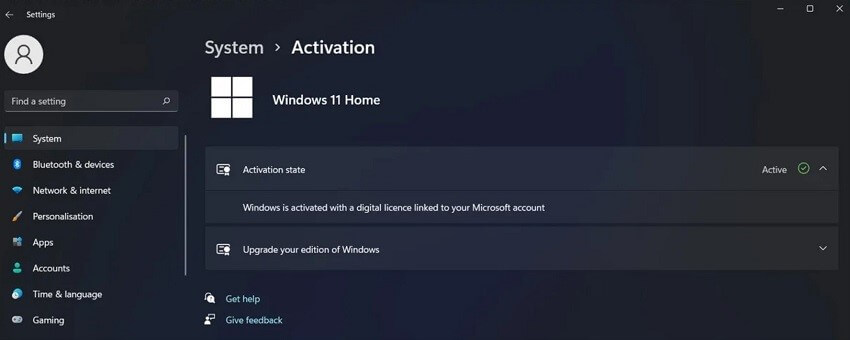
Fix 6: Utilize a Genuine Windows 11 License and OS
For users trying to operate Windows 11 on their PC without having a legal license, the issue of the Windows Activation Key Not Working is a possibility. In this situation, the right step would be to buy an official digital license or product key Windows from an authorized retailer of Microsoft or the official site. Then, please enable it in your System.
How to proceed?
Step 1: Tap the Settings app via PC.
Step 2: From the next screen, choose the System tab and then select the Activation option.
Step 3: In the next screen, choose the “Upgrade your edition of Windows” option.
Step 4: Click on Open Store.
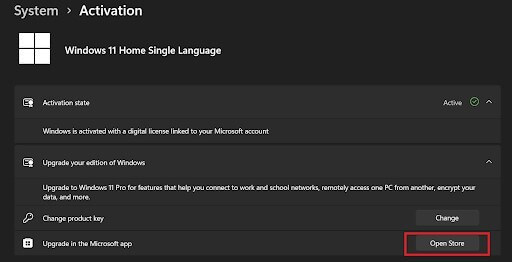
Step 5: When you reach the Microsoft App Store, get a new product key for Windows.
Fix 7: Operate the Activation Troubleshooter
Windows has many preset troubleshooters available that users can operate to kickstart the healthy functionality of different Windows utilities. In the context of the Activation key issues, the tool you have to use is the Activation troubleshooter.
How to proceed?
Step 1: Click on the Settings section on your Windows 11 PC.
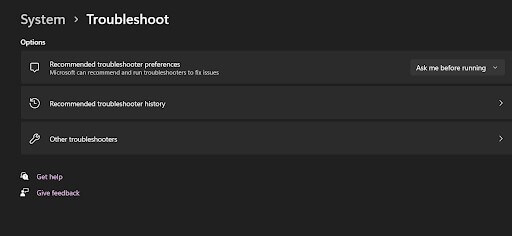
Step 2: Go to System from the left pane and scroll downward. Choose the Troubleshoot option.
Step 3: Then select the Other Troubleshooters option.
Step 4: In the list, choose Activation Troubleshooter. Please select it and click the Run button.
Fix 8: Run the SFC scanner
Another solution to fix the Windows Activation Key Not Working error is running the built-in SFC or System File Checker scanning tool. This is useful for detecting any damaged or corrupted system files in your PC causing the issue. Then, based on the insights gathered, you can proceed further.
How to proceed?
Step 1: Tap the Start button on your PC home screen and type “cmd”. Hit OK.
Step 2: Click on the “Run as administrator” option to access the Command Prompt.
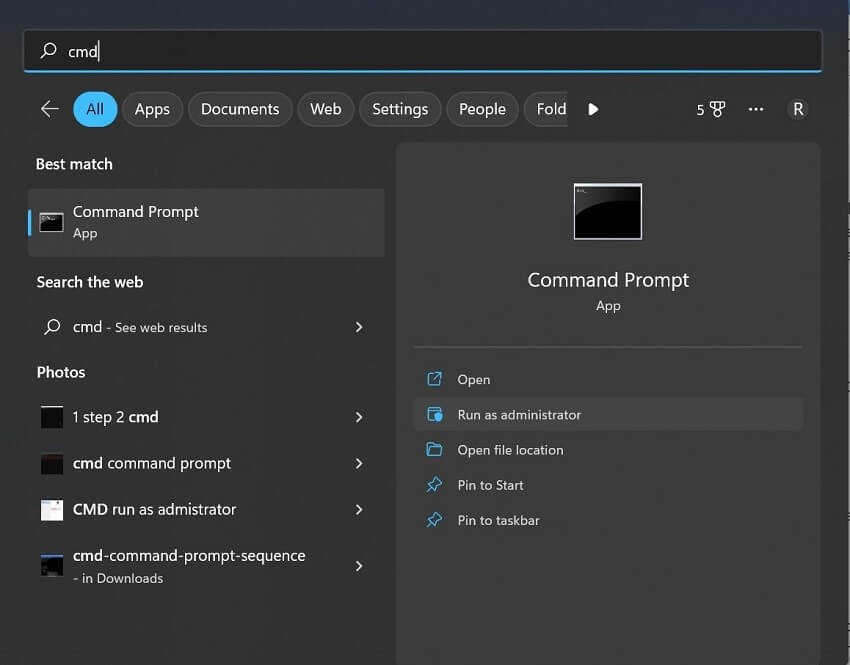
Step 3: Next, type in the following command and hit Enter:
sfc /scannow
Step 4: The System will start scanning for any damaged or corrupted problems causing the problem. Delete them instantly.
Fix 9: Deactivate and Activate Windows 11
For some users, the activation key for Windows 11 stops working suddenly without any obvious cause. Disabling the Windows 11 OS and then activating it again can help you use the activation key later smoothly.
How to proceed?
Step 1: On your PC, choose the Start menu with the Windows icon and type in “cmd”.
Step 2: From the options, choose “Run as administrator”.
Step 3: In the following Command Prompt window, add the following command:
wmic path SoftwareLicensingService get OA3xOriginalProductKey
Hit the Enter button.
Step 4: Copy the Windows product key that appears and save it.
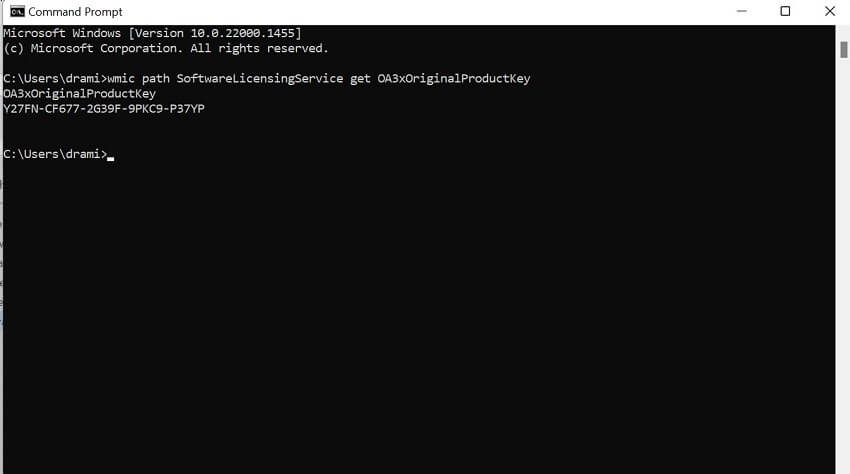
Step 5: Then, insert the next command and press Enter afterward:
slmgr.vbs /upk
Step 6: Later, type in the following command to activate the Windows 11 computer again:
slmgr /ipk <Windows activation key>
Hit Enter.
Conclusion
To summarize, you should pursue different solutions based on the potential issue causing the Windows Activation Key Not Working. Try out the most straightforward methods mentioned here and practice the more complex solutions carefully for the best results.
Author Bio:
Dinesh Lakhwani 

Dinesh Lakhwani, the entrepreneurial brain behind “TechCommuters,” achieved big things in the tech world. He started the company to make smart and user-friendly tech solutions. Thanks to his sharp thinking, focus on quality and the motto of never giving up, TechCommuters became a top player in the industry. His commitment to excellence has propelled the company to a leading position in the industry.
Popular Post











Recent Post

How to Switch Windows 10 to a Local Account: Complete Guide
Windows 10 allows users to sign in with either a Microsoft account or a local account. When you set up a new computer, the system often suggests using a Microsoft account. This account connects your device to Microsoft services such as Outlook, OneDrive, and the Microsoft Store. It also syncs settings, themes, and passwords across […]

How To Change Default Apps For File Types In Windows
Windows is designed to make using your computer easy. One way it does this is by assigning default apps to different file types. This means when you open a file, Windows automatically opens it with a specific program. For example, photos may open with Photos, music with Groove Music, and PDFs with Edge. These default […]

How To Adjust The Mouse Pointer Speed: Complete Guide
Using a computer every day means you use the mouse a lot. The mouse pointer moves on the screen and helps you click, scroll, and select items. Many people never think about the speed of the mouse pointer. They have used the default setting for years. This can cause small problems over time. A slow […]

How to Change Mouse Scrolling Settings In Windows
A mouse is one of the most used computer tools. People use it every day. They scroll through emails. They scroll through documents. They scroll through websites and images. The movement becomes automatic. Most users do not notice it. That is why problems often go unnoticed. Scrolling problems show up slowly. At first, it feels […]

Keyboard Light Settings: Keyboard Lighting Control [Complete Guide]
Keyboards are no longer simple typing tools. Well, yes! Over time, they have evolved to include features that improve comfort, visibility, and overall experience. One of the most useful features today is keyboard lighting. It helps users work comfortably in low-light conditions. It also reduces strain when typing for long hours. Many users first notice […]

Customizing Pointer Appearance: Complete Guide
The way your mouse pointer looks on your computer may seem like a small detail. But customizing pointer appearance can make using your PC more comfortable and visually appealing. Many users do not realize that they can change the pointer size, color, and style to fit their needs. Whether you want a bigger pointer for […]

How To Choose a Computer Monitor: Monitor Buying Guide
Buying a monitor looks easy. Many people think all screens are the same. That belief causes regret later. A monitor is not just a display. It is a daily tool. You read on it. You work on it. You relax with it. Small problems become big over time. Poor brightness hurts eyes. Bad size causes […]

How To Get Help With File Explorer in Windows 11 [Complete Guide]
File Explorer is one of the most important tools in Windows 11. It is used to open folders, view files, and manage stored data. Almost every action on a Windows computer depends on it in some way. When users open documents, save downloads, or organize photos, File Explorer is always involved. Because it is used […]

How To Fix A Frozen Computer: Complete Guide [Windows 11/10]
A frozen computer is one of the most common problems Windows users face. The screen stops responding. The mouse pointer does not move. Keyboard inputs do nothing. You may hear the fan running loudly. Sometimes the system looks alive, but nothing works. This situation often happens when you are busy or working on something important. […]

How to Upgrade Computer RAM: Complete Guide
Upgrading RAM is one of the simplest ways to improve a computer. It helps the system feel faster and smoother. Apps open quicker. Browsers handle more tabs. Games and tools run with less delay. Many users search for how to upgrade computer RAM because it gives real results without high cost. You do not need […]

