How To Detect And Remove Keylogger From Windows PC?

Last updated on May 18th, 2025 at 9:09 am
Introduction
Keyloggers are a famous tool hackers use to obtain passwords and other sensitive data. All they need is access to the device to detect keylogger in Windows PC. Once set up, the keylogger will operate silently in the background and capture the keystrokes you make on a physical or virtual keyboard.
There are various kinds of keyloggers; some must be installed physically, while others are software-based. Keylogger in Windows PC constitutes a significant security hazard to Windows computers. These malicious programs can be used to keep track of keystrokes and gain access to sensitive information, making them a target for surveillance instruments and hackers.
It is crucial to identify these threats before they can cause any damage. Here are certain bets methods to detect Keyloggers in PC and remove them while maintaining the performance of the system.
Primary Reason That Keylogger Is Risky:
A keylogger is a program or device that records the strokes made on a keyboard or device. Hardware keyloggers can be installed by USB or a malicious driver, making them easy to identify and disable. On the other hand, software keyloggers may be hidden and more challenging to detect.
Remote keylogger in Windows PC do not slow down system performance like regular viruses and Trojans, but they can be even more damaging as they can reveal your confidential data to others. It includes commercial data, credit card information, PINs, passwords, and anything you have posted online anonymously.
Keyloggers can be highly sophisticated, using keystroke analysis to outline clients based on the sequence and model of their keystrokes. For a keylogger to be active, it must be appropriately installed on the computer. Different types of keyloggers vary in terms of their level of complexity and the potential threat they pose. Here are some of the categories:
- General Spyware: Traditional keyloggers can be inserted onto a device through malicious means, such as a suspicious email attachment, a social media download, or a torrent website. However, Windows Defender or other anti-malware programs typically block these malicious programs.
- Hypervisor based: Virtualization technology can create a replica of the operating system, which allows sophisticated keylogger in Windows PC to capture all keystrokes. However, these types of cyber threats are uncommon.
- Browser based: Malicious webpages may attempt to gain access to your system through web-form-based keyloggers in PC, CSS scripts, or Man-In-the-Browser attacks. Thus, if your computer runs Windows 11 or 10 with the Windows Security application enabled, these potential threats are thwarted immediately.
- Kernel Level: These are even more dangerous as they can hide beneath the Windows operating system in the rootkit format, making them hard to detect.
The Process To Detect And Remove Keyloggers:
Keyloggers can cause the same type of damage to iPhones, Macs, PCs, and Androids as other forms of malware. If you think keyloggers in Windows PC have infiltrated your Windows system, there are steps you can take for detecting and eliminate them. Here is the straightforward method described:
1. Take The Initial Support Of The Task Manager:
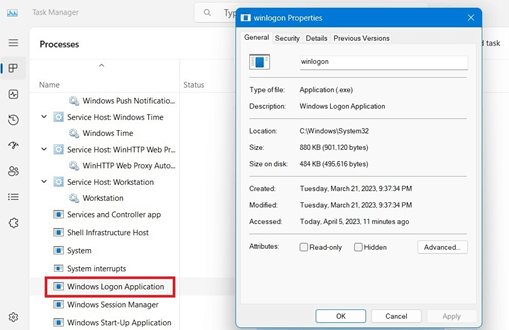
- To check if someone else is logged into your Windows system, visit the Task Manager by right-click on the taskbar.
- Enter the background procedures and go to Windows Login Application.
- A identical access, like “Windows Logon (1)”, could mean another user is accessing your computer.
- Right-click and end the program to stop the login. Additionally, you can check the “Startup” to identify any unnecessary programs that may be running.
- Disable these programs to prevent potential keyloggers in the PC from gaining access while Windows is booting.
- The essential programs in the Startup are audio-based codecs, your browser, and the SecurityHealthSystray.exe program.
2. Utilize Command Prompt For Detecting Risky Internet Networks
- Once you have made sure that nobody else has the login access into your computer, it is crucial to examine if there are any irregular network on your system.
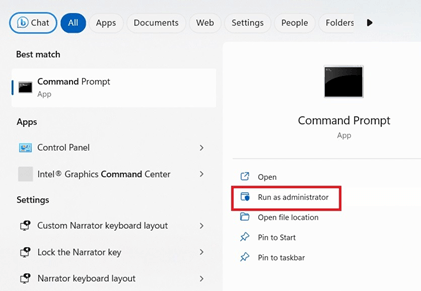
- To detect keylogger in a Windows PC, open the Windows Command Prompt in Admin mode. All the programs and webpages connected to the internet on your Windows system will now be visible.
- Those connected to the Chrome, Microsoft Store, or Edge browser, “searchhost.exe,” “explorer.exe,” or other relevant applications like “svchost.exe” are secure.
- You can tell if malware tries to mimic a natural Windows process as there are tell-tale signs.
- The Prompt command lets you to choose and copy any content, with IPv6/IPv4 reports.
- You can validate these IP addresses on certain websites which defines the security and safety of the browser.
- No keylogger in Windows PC is present if the basis is your Google, ISP, or a Microsoft data center (for Chrome or Edge), or video conferencing or gaming apps.
3. Windows Security:
- Windows Security (formerly known as Defender) is a built-in tool for Windows that can discover the keyloggers in the PC when they enter the system.
- To access it, type Windows Security into the search option. On the location, you can check the security status of your device.
- Ensure all the safety characteristics have a green checkmark. In case of warnings, go deeper and fix the issue.
- Visit “Virus & threat protection” and check if any keyloggers are detected. If there are, the method prompts you to detain the risk.
- Visit “Manage settings” and setup “threat and Virus protection set up” for more alternatives. Allow every “Threat and Virus Protection Settings.”
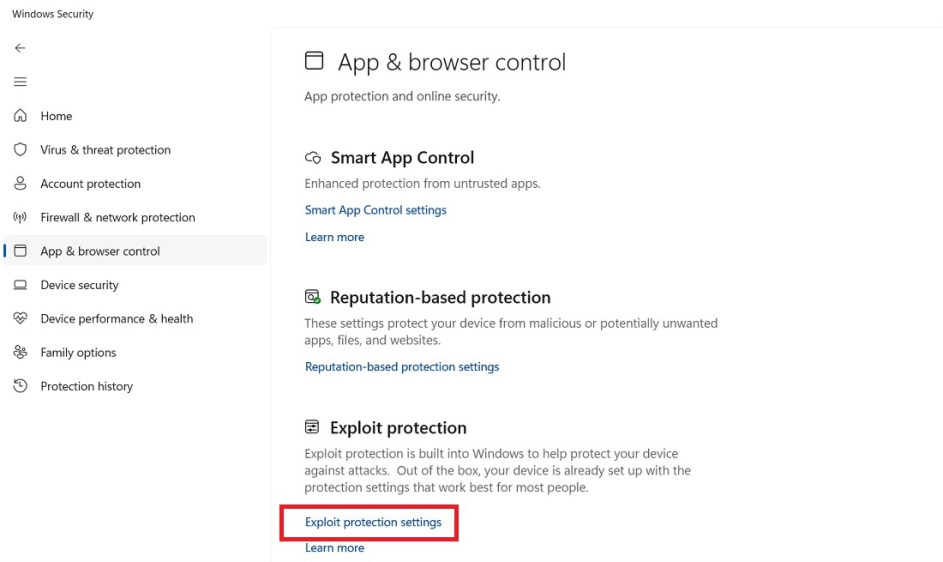
- Visit the “App & browser control” and choose “Exploit protection settings” to provide high-level protection from ransomware and rootkit attacks.
- Lastly, in “Device security,” make sure “Secure boot” and “Memory integrity” are both turned on to detect a keylogger in Windows PC and remove it.
4. Implement Anti- Malware Solutions:
- In addition to Windows Security, you can select outsourced anti- malware solution to protect yourself from kernel keylogger in Windows PC.
- Companies offer a free rootkit removal tool that is secure to use and does not trigger a warning from VirusTotal or Windows SmartScreen.
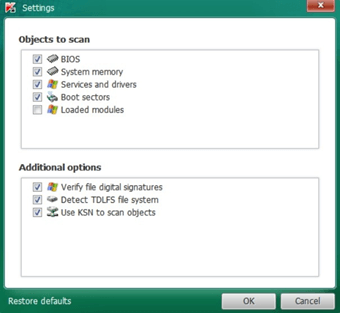
- Upon installation, you can initiate the scanning to appear for any potential kernel-method risks, with attached keyloggers.
- You can also adjust the settings to scan additional objects, although a system reboot is essential.
- The scan is quick and won’t strain the Windows device to detect keylogger in Windows PC.
- If no threats are found, the software intimates you, and if any Trojans or malware are present, the system detects and removes them routinely.
5. Identify Keyloggers Utilizing “Databases & Features:
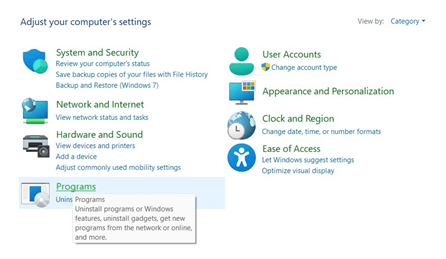
To remove suspicious or unknown applications, open the Control Panel in the search bar and connect to “Programs.” From there, you can right-click on any programs to uninstall them.
6. Reset The Windows PC:
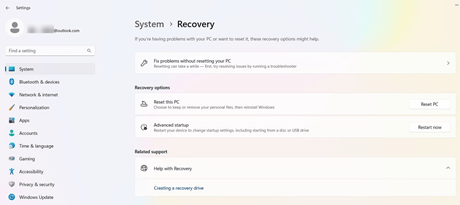
Cleaning up your Windows machine of malicious code like hypervisor-keyloggers can be efficiently done with a cloud-based reset. You won’t lose any of your data as the reset is done remotely and does not utilize local files. There are few ways to effectively identify hypervisor keyloggers in Windows PC since they can remain undetected and hidden in a virtual environment. Besides a cloud reset, there is little that can be done.
Keyloggers Protection In Windows PC:
A well-designed commercial grade keylogger in PC typically operates without any impact on system performance. It disguises any data sent to a remote operator as standard files or traffic. The preventative measures to help protect your computer from keyloggers. Here are some of them:
1. Constant Updating: The most effective way to ensure your computer is secure is to enable automatic cloud-delivered protection in the “Virus & threat protection” settings, allowing your system to receive security and intelligence updates even when idle. It will ensure you always have the latest version of Windows Security and all the security fixes necessary to stay safe.
- Windows 11, the updates are under “Settings -> Windows Update.”
- In Windows 10, the option is under “Settings -> Windows Settings -> Update and Security.”
2. Implementing Robust Keystroke Encoding: Keystroke encoding is an excellent way of thwarting keylogging. It scrambles all your keystrokes while they are sent to the internet. If an attack using a Keylogger in Windows PC at the hypervisor level has been successful, the malware can only discover random and encrypted characters. Multiple anti-keylogger solutions are dependable, malware-free, and utilize keyword encryption. Downloading, installing, and rebooting the system is very simple.
After the installation, you should enable it from the system tray on the right. You can switch on the option to protect you from keystroke profiling in the settings. Additionally, there are several encryption alternatives for your keystrokes. The feature directs the typo pattern to prevent websites from profiling you through the method of typing.
Conclusion
It is vital to stay alert regarding your digital safety since detecting keyloggers in Windows PC are one of the most widespread types of spyware and can be tough to identify and eliminate. If you think that your system is contaminated with a keylogger, take the appropriate action to delete it without delay. Keep your system current, use secure browsing habits, scan for malware frequently, and utilize reliable antivirus software to ensure that you remain protected against any spyware threats.
Frequently Asked Questions
1. What are the indicators that keylogging is taking place?
If you notice that your computer is running slower than normal, you see pop-ups and advertisements you didn’t request, or if you see a change in your browser or search engine settings, these could all be signs of a keylogger infection. To determine the cause of the issue, you can use the techniques previously mentioned.
2. Can keyloggers operate without being detected?
If you think you may have a keylogger or other malicious software on your computer, doing a free virus scan is a good idea. However, remember that the scan may not detect some advanced spyware or other forms of malware.
3. Are keyloggers present on all company laptops?
Certain organizations may have a policy in place to install keylogger software on their employees’ laptops. It could lead to administrators having access to confidential information stored on the device.
Author Bio:
Dinesh Lakhwani 

Dinesh Lakhwani, the entrepreneurial brain behind “TechCommuters,” achieved big things in the tech world. He started the company to make smart and user-friendly tech solutions. Thanks to his sharp thinking, focus on quality and the motto of never giving up, TechCommuters became a top player in the industry. His commitment to excellence has propelled the company to a leading position in the industry.
Popular Post











Recent Post

How to Switch Windows 10 to a Local Account: Complete Guide
Windows 10 allows users to sign in with either a Microsoft account or a local account. When you set up a new computer, the system often suggests using a Microsoft account. This account connects your device to Microsoft services such as Outlook, OneDrive, and the Microsoft Store. It also syncs settings, themes, and passwords across […]

How To Change Default Apps For File Types In Windows
Windows is designed to make using your computer easy. One way it does this is by assigning default apps to different file types. This means when you open a file, Windows automatically opens it with a specific program. For example, photos may open with Photos, music with Groove Music, and PDFs with Edge. These default […]

How To Adjust The Mouse Pointer Speed: Complete Guide
Using a computer every day means you use the mouse a lot. The mouse pointer moves on the screen and helps you click, scroll, and select items. Many people never think about the speed of the mouse pointer. They have used the default setting for years. This can cause small problems over time. A slow […]

How to Change Mouse Scrolling Settings In Windows
A mouse is one of the most used computer tools. People use it every day. They scroll through emails. They scroll through documents. They scroll through websites and images. The movement becomes automatic. Most users do not notice it. That is why problems often go unnoticed. Scrolling problems show up slowly. At first, it feels […]

Keyboard Light Settings: Keyboard Lighting Control [Complete Guide]
Keyboards are no longer simple typing tools. Well, yes! Over time, they have evolved to include features that improve comfort, visibility, and overall experience. One of the most useful features today is keyboard lighting. It helps users work comfortably in low-light conditions. It also reduces strain when typing for long hours. Many users first notice […]

Customizing Pointer Appearance: Complete Guide
The way your mouse pointer looks on your computer may seem like a small detail. But customizing pointer appearance can make using your PC more comfortable and visually appealing. Many users do not realize that they can change the pointer size, color, and style to fit their needs. Whether you want a bigger pointer for […]

How To Choose a Computer Monitor: Monitor Buying Guide
Buying a monitor looks easy. Many people think all screens are the same. That belief causes regret later. A monitor is not just a display. It is a daily tool. You read on it. You work on it. You relax with it. Small problems become big over time. Poor brightness hurts eyes. Bad size causes […]

How To Get Help With File Explorer in Windows 11 [Complete Guide]
File Explorer is one of the most important tools in Windows 11. It is used to open folders, view files, and manage stored data. Almost every action on a Windows computer depends on it in some way. When users open documents, save downloads, or organize photos, File Explorer is always involved. Because it is used […]

How To Fix A Frozen Computer: Complete Guide [Windows 11/10]
A frozen computer is one of the most common problems Windows users face. The screen stops responding. The mouse pointer does not move. Keyboard inputs do nothing. You may hear the fan running loudly. Sometimes the system looks alive, but nothing works. This situation often happens when you are busy or working on something important. […]

How to Upgrade Computer RAM: Complete Guide
Upgrading RAM is one of the simplest ways to improve a computer. It helps the system feel faster and smoother. Apps open quicker. Browsers handle more tabs. Games and tools run with less delay. Many users search for how to upgrade computer RAM because it gives real results without high cost. You do not need […]

