How To Add Page Numbers In PDF?

Last updated on August 26th, 2024 at 6:24 am
Introduction
In physical books, the pages are numerically marked, which makes it simple for people to browse through pages to reach the section they need to. In digital files, the creator has to mark the pages in the document to their specific page number and print accordingly. However, what if you use a PDF file that is not already numbered?
In this case, you must take specific steps to add page numbers directly to the PDF file. There are multiple ways to handle this process, using tools and techniques. Learn what they all are in the sections below.
When Should You Insert Page Numbers into PDFs?
Many writers, bloggers, editors, students, and corporate professionals create forms, documents, papers, stories, and other such content in Word file format. It is better to convert these documents to PDFs for easier transfers, a more consistent printing experience, and an organized appearance.
However, one might forget to put numbering in the Word pages, or they cannot edit the files after turning them into PDFs. Or, you may need to upgrade the document with extra information or rearrange content sections. In these cases, it is important to adjust the numbering using different methods directly.
How to Insert Page Numbers into PDFs?
You can take different steps to efficiently add page numbers in PDF files that you have already created or are using. You should proceed with the appropriate steps based on whichever process suits your requirements best.
Solution 1: Use Adobe Acrobat to Include Page Numbers into PDF Files (Multi-Platform)
One of the most common methods for adding page numbers within the PDF content is operating the Adobe Acrobat software. It is possible to use this PDF editing and viewing platform to organize the content sequences in documents properly. The process is relatively straightforward to handle on the PDF editor and make other editing work, like adding signatures, stickers, etc.
How to proceed?
Step 1: Open Adobe’s online PDF editing platform and upload the file. Or drag and drop it into the interface.
Step 2: Click on the capitalized T icon that indicates the Add Text control.
Step 3: Choose the page where you will add the page number. Then, add the specific page number.
Step 4: Select the page number and tap on the controls for text editing, like font size, style, etc. Size options are available within the range of 6-24 px.
Solution 2: Utilize a reliable Document Editing Software like EaseUS PDF Editor (Windows)
EaseUS PDF Editor is another top-notch editing software to add page numbers to PDF documents. It is a functional software that allows users to make other PDF editing steps, like formatting the content text, splitting pages, and even adding watermarks. Also, users often utilize this editor to add dates, bookmarks, and images and rearrange pages with simple steps.
How to proceed?
Step 1: Download the EaseUS PDF Editor software from the official website. Then, after completing all installation steps, you can launch the app.
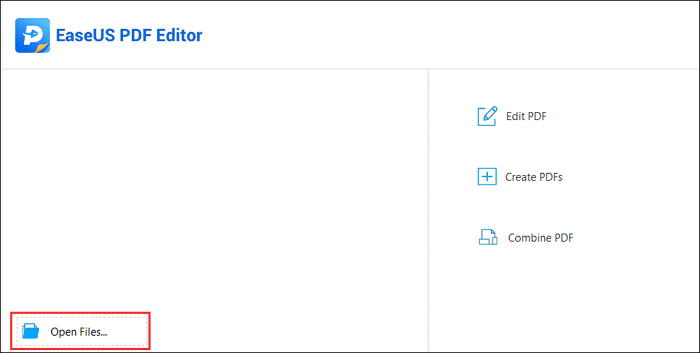
Step 2: Tap on the “Open Files…” key and insert the PDF File into the editor.
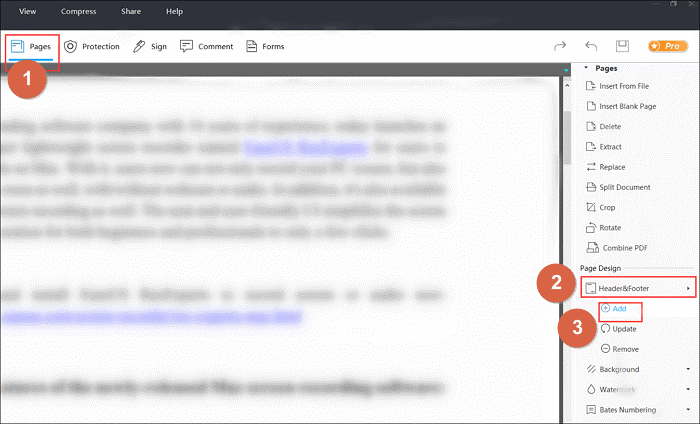
Step 3: Next, tap on the Pages section. Under this, a toolbar will appear on the right side.
Step 4: Tap on the Add icon under Header & Footer to insert the page number.
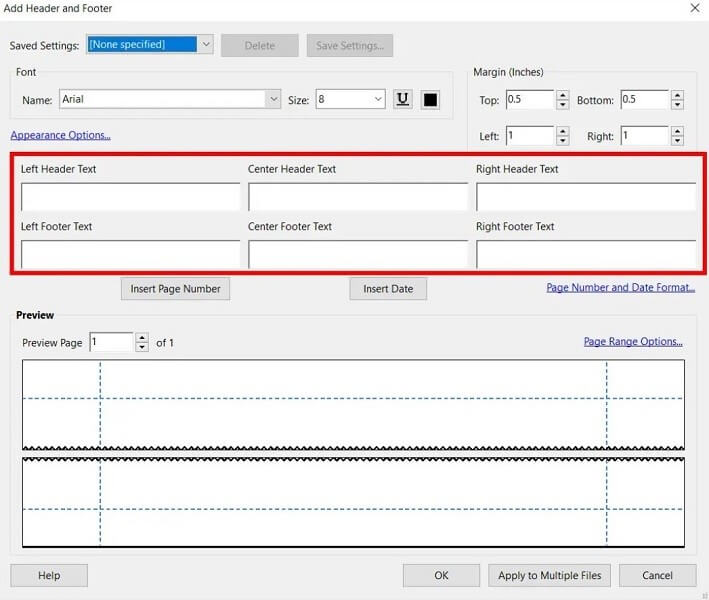
Step 5: Next, you can select the spot where the page number will appear, like the Center Footer Text.
Step 6: Tap on the Insert Page Number option and press the OK button at the end to confirm.
Step 7: Under the File section, click “Save as” or “Save” to export the file if no editing work is needed.
Solution 3: Use a desktop-based PDF Editor like Wondershare PDFelement (Windows/Mac)
Another top-notch PDF document editor you can trust with the PDF numbering process is Wondershare PDFelement. This utility is accessible for both Windows and macOS users and includes a variety of editing tools within. The process of using the software differs based on the computer’s operating system, so both are discussed here.
How to proceed with PDFelement for PDF page numbering on Windows?
Step 1: Download and launch the software.
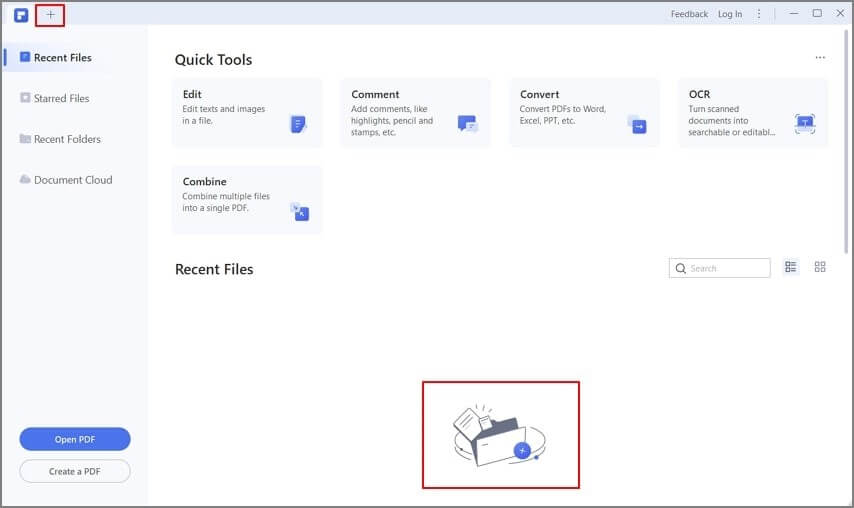
Step 2: Tap on Open PDF and insert the PDF file you will work on.
Step 3: Press the Edit button.
Step 4: Tap on Header & Footer > Add Header & Footer.
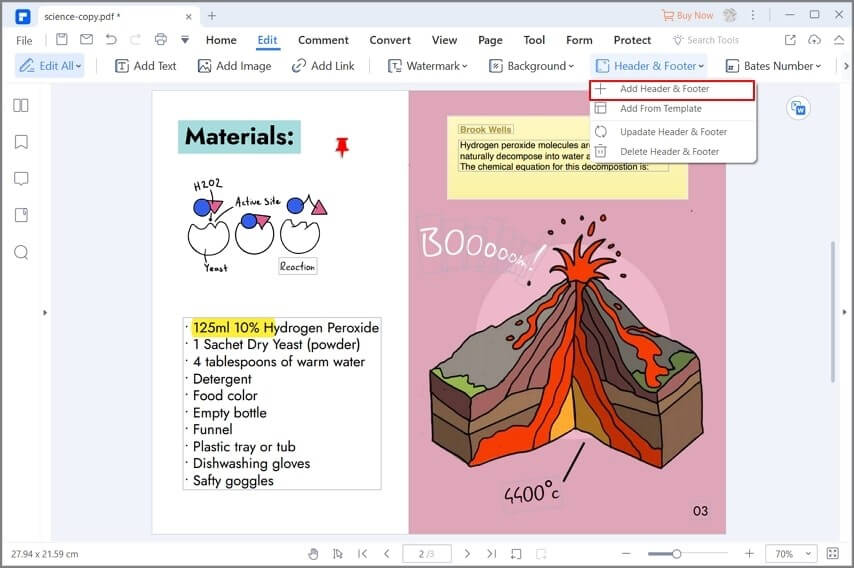
Step 5: Next, press the Add (+) icon.
Step 6: Insert the header and footer for your content, depending on your preference. Then, change the text in the fields as needed.
Step 7: Press the blue icon to access the menu for setting page numbers. Click on Page Number Style and insert the date and number here.
Step 8: Press the Position tab to select and apply a preferred alignment for the numbers. Make other such decisions, like Page Range, and click on Apply.
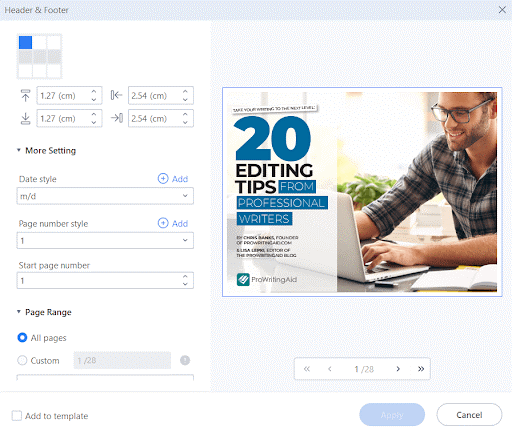
Step 9: Tap on the Save button at the end.
How to proceed with PDFelement for PDF page numbering on Mac?
Step 1: Download the software suitable for Mac devices and run it.
Step 2: Choose Tool > Batch Process.
Step 3: In the next window, tap on the Bates Numbering option on the left side.
Step 4: Tap on the Add key at the bottom part of the screen to choose the PDF file and then press the Add icon after it opens.
Step 5: Under the “Create Bates Numbering Template”, state the parameters for the page numbering as needed.
Step 6: Finally, tap on the Apply button.
Solution 4: Use an Online Tool like SmallPDF (Web-based)
Another method for users to take to include page numbering in PDF files is to operate online editing tools. These options, like SmallPDF, are easy to access via any browser, secure, and simple to operate.
How to proceed?
Step 1: Access the Add Page Numbers to the PDF page under SmallPDF and drag and drop the file into the box. Or, tap on Choose Files and upload from the device.
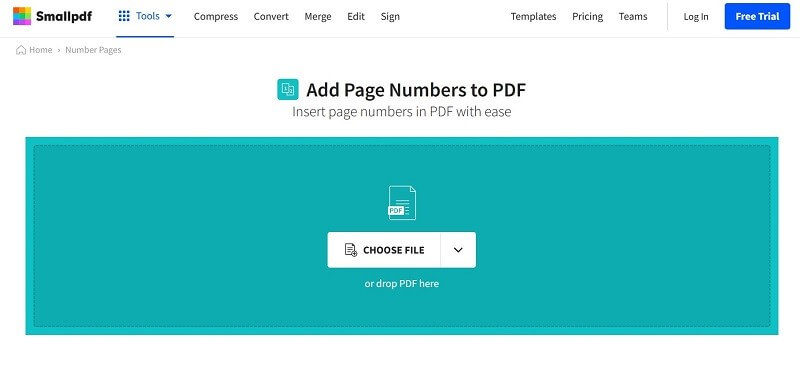
Step 2: Choose where the page number will appear when the file opens next.
Step 3: Tap on Number Pages. Then, download it for offline access.
Conclusion
Now that you know the methods to edit page numbers in PDF files, choose the one that fits your circumstances best, like compatible system availability. Then, as mentioned, you should follow the correct steps for this process and make other editing moves if needed.
Try out all of the methods, though, for the best selection process.
Author Bio:
Dinesh Lakhwani 

Dinesh Lakhwani, the entrepreneurial brain behind “TechCommuters,” achieved big things in the tech world. He started the company to make smart and user-friendly tech solutions. Thanks to his sharp thinking, focus on quality and the motto of never giving up, TechCommuters became a top player in the industry. His commitment to excellence has propelled the company to a leading position in the industry.
Popular Post











Recent Post
Computer Mouse Buying Guide for Beginners and Advanced Users
Buying a mouse looks easy at first. Many people think all mouse work the same way. Well, that idea often leads to regret later. A mouse affects comfort, speed, and daily work. It matters for office tasks, gaming, design, and study. The right choice reduces strain and improves control. The wrong one feels annoying every […]

How To Overclock a Computer: A Complete Guide
Overclocking is the process of making your computer run faster than its factory settings. It mainly affects the processor, graphics card, and sometimes memory. Many people choose this method to improve performance without buying new hardware. It is popular among gamers, video editors, and users who run heavy software. When done properly, overclocking can give […]

How To Find Password Saved on This Computer: Complete Guide
Many people forget their login details at some point. It happens often. We create many accounts every year. Each one needs a username and a password. Over time, it becomes hard to remember all of them. That is why computers offer ways to store login details. These saved details help users sign in faster. They […]

How To Open/Access Computer Management & Advanced Tips
Every Windows computer has many hidden tools. Most users never see them. They only use basic settings. They change wallpapers. They install apps. They adjust sound and display. That is enough for daily work. But problems still happen. The system slows down. Storage fills up. Errors appear without warning. At this stage, normal settings do […]

How To Transfer Photos From Android Phone To PC/Laptop [2026]
Moving photos from a phone to a computer is something most people need to do often. Phones fill up fast. Photos also matter more than apps. You may want a safe backup. You may want to edit images on a bigger screen. This guide explains how to transfer photos from Android to PC without stress. […]

Top 9 Browsers With Built-In VPN – VPN Browser
Online browsing is no longer private by default. Every website collects data in some form. This includes location details, device information, and browsing habits. Over time, this data builds a clear picture of user behavior. Many people are now uncomfortable with this level of tracking. A VPN browser helps reduce this exposure. It adds a […]

AI In Cyber Security: Who is Winning, Hackers or Security Companies
Cybersecurity once followed clear rules. Companies built firewalls. Users created passwords. Antivirus tools scanned files and removed known threats. When an attack happened, security teams studied it and added new rules. This method worked for many years. It created a sense of control and stability. That sense is gone today. Artificial intelligence has changed how […]

The Biggest AI-Run Cyber Attacks Of All Time
Artificial intelligence is now part of everyday technology. It helps people search faster. It improves medical research. It supports businesses in making better choices. But AI is not used only for good purposes. Cyber criminals have also learned how to use it. This has changed the nature of cyber attacks across the world. In the […]

Switch To a Dark Background Theme on Windows: Enable Dark Mode
People often like a screen that feels gentle on the eyes. A darker style softens bright areas and makes long computer sessions easier to handle. It also gives the desktop a cleaner and more modern feel. When you switch to a dark background theme in Windows, the colors shift to deeper shades that reduce glare […]
![Complete Guide on Managing Audio Input Devices [Latest In 2026]](https://www.techcommuters.com/wp-content/uploads/2025/12/Complete-Guide-on-Managing-Audio-Input-Devices.webp)
Complete Guide on Managing Audio Input Devices [Latest In 2026]
People use microphones for meetings, games, classes, recordings, and voice chats, so any problem with the device can interrupt their work. Even a small system error can make the voice weak or stop it fully. This is why knowing the basics of managing audio input devices is helpful for new and experienced users. Windows includes […]

