Here’s Your Ultimate Guide To Connecting Your Canon Printer to Wi-Fi in 2026
Last updated on December 22nd, 2025 at 2:22 pm
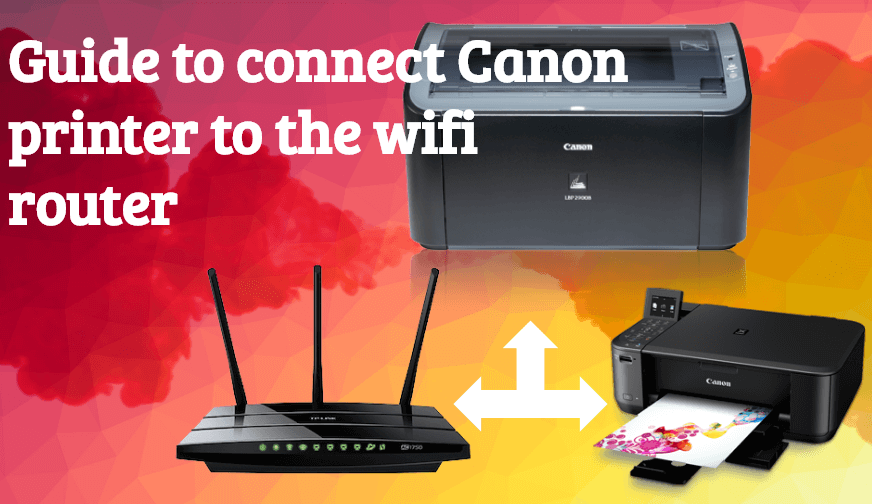
Canon printers are a popular option for both home and office settings because of their well-known compatibility and user-friendliness. However, you must connect them to a Wi-Fi router to fully utilize their capabilities. Although it may appear difficult, connecting a Canon printer to a Wi-Fi router is simple if you follow the correct instructions. In this guide, we will cover all the necessary information for establishing a wireless connection, resolving common problems, and answering commonly asked questions related to Canon printers.
By the end of this tutorial, we will make it super easy for you to set up your printer, regardless of your level of tech expertise.

Fulfil These Requirements for Establishing Seamless Canon Printer Wi-Fi Connection
Before we begin setting up and connecting your Canon Printer to Wi-Fi, make sure you fulfil the prerequisites:
- Wi-Fi Network Requirements: The printer must be within range of your active Wi-Fi network. Since WPA (Wi-Fi Protected Access) and WPA2 security protocols are frequently needed for wireless connections, make sure your router is using them.
- Printer Setup: Before beginning any test prints that might be necessary, make sure your printer is turned on and that paper is loaded in the tray.
- Update Your Software and Drivers: Visit the official Canon website to download the most recent software and drivers for your Canon printer. By doing this, compatibility with your operating system will be seamless during the process.
- Reliable Power Supply: To prevent disruptions during the setup procedure, make sure your router and printer are both connected to a reliable power source.

By meeting these requirements, you’ll be ready to connect your Canon printer to your wireless router without any hassles. Let’s go on to the comprehensive instructions for setting up your Canon printer to connect to Wi-Fi.
Stay Smart: Precautions Before You Connect Your Canon Printer
Before diving into the Wi-Fi setup, it’s important to prepare your space and devices. A smooth connection starts with a few smart checks. These steps help avoid errors and save time.
Canon printers are reliable, but Wi-Fi issues can be tricky. Taking precautions ensures your printer connects quickly and stays stable. Let’s make sure you’re set up for success.
- Check power supply: Make sure your printer is plugged in and turned on
- Test your Wi-Fi: Confirm your router is working and the signal is strong
- Use the right device: Connect using a phone, tablet, or PC with internet access.
- Know your network name: Have your SSID and password ready.
- Place the printer close to the router: Avoid walls or metal objects in between.
- Update firmware: Check for the latest printer software updates.
- Avoid public networks: Use a secure, private Wi-Fi connection.
- Restart devices: Reboot your printer and router before setup.
How to Connect Canon Printers to the Wi-Fi Router?
Before you begin, make sure your Canon printer and Wi-Fi router are turned on.
STEP 1: Turn on your Canon printer
Make sure you have a power source connected to your Canon printer. Further, if you want to enable it, just hit the Power button and wait for the printer’s initialization process.
STEP 2: Access the Canon Printer’s Menu
- Find the Menu Button: Look for the “Menu” or “Settings” button on the control panel of your printer.
- Open the Network Settings menu: To access the “Network” or “Wireless” options, use the navigation buttons, which are typically arrows.
- Choose Wireless Configuration: Select “Wireless Setup,” “WLAN Setup,” or a comparable phrase.
STEP 3: Select the Connection Mode
- Choose the Type of Connection: Usually, you’ll have two choices – WPS (Wi-Fi Protected Setup): This is typically the fastest way if your router supports it.
- Manual Setup: This approach necessitates manually inputting the name and password of your Wi-Fi network.
STEP 4: If supported, a WPS connection
- To enable WPS on your router, press the WPS button: Usually, there is a time limit on how long you can continue.
- Set up WPS on the printer: Choose “WPS” from the printer’s menu, then adhere to the on-screen directions.

- Establish a Successful Connection: The printer will make an automatic effort to connect to your Wi-Fi network.
STEP 5: Get ready to Set Up a Manual Connection
- From the printer’s menu, choose “Manual Setup”: Enter the name of your Wi-Fi network (SSID): Enter your Wi-Fi network name carefully. Enter your WiFi password: Make sure you have the correct password for your Wi-Fi network.
STEP 6: Set up your computer’s printer drivers
- Download the most recent printer model drivers from Canon’s official website.
- Set up your computer’s drivers.
- Choose Wireless Connection during the installation procedure.

STEP 7: Connect Your Computer to the Printer
On Your Windows PC:
- Go to Control Panel > Devices and Printers > Add a printer.

- Click Next after choosing your Canon printer from the list.

On Your macOS:
- Go to Printers & Scanners under System Preferences.
- After choosing your printer and clicking the plus button, click Add.
STEP 8: Verify the Connection
- Print a Network Configuration Report: A network configuration report may be printed on the majority of Canon printers. The IP address of your printer and other network information will be shown in this report.
- Print a Page for the Test: Try using your computer or smartphone to print a test page.
STEP 9: Finish the Configuration Register Your Printer (Optional)
You can use Canon’s online services to register certain Canon printers. This may give you access to more features and assistance.
List of Common Issues & Their Fixes You Face While Connecting Your Canon Printer To WiFi
here’s a list of typical problems and their respective solutions to resolve common printer issues:
Issue 1: The printer is unable to locate the wireless network.
Solutions: To fix the respective issue, here’s what you need to do:
- Verify that the Wi-Fi signal is being properly distributed by your router.
- Make sure you type the Wi-Fi password accurately and without errors.
- Try rebooting your printer as well as your router.
- To strengthen the signal, move the printer closer to the router.
Issue 2: Wi-Fi print speeds are slow.
Solutions: To fix the respective issue, here’s what you need to do:
- Look for other devices interfering with your Wi-Fi.
- Remove the unnecessary devices that are linked to your wireless network.
- Switch to a more performance-oriented router model.
- If both your printer and router support it, use a 5GHz Wi-Fi channel.
Issue 3: The printer regularly disconnects from the wireless network.
Solutions: To fix the respective issue, here’s what you need to do:
- Look for interference from Wi-Fi signals.
- Check whether the firmware installed on your device is latest or not.
- Try using a different router Wi-Fi channel.
- To increase signal strength in the locations where the printer is situated, think about utilizing a Wi-Fi extender.
Issue 4: The printer in the printer queue shows as offline.
Solutions: To fix the respective issue, here’s what you need to do:
- Make sure the printer is online and powered on.
- Verify whether your device or PC is linked to the Wi-Fi network.
- Temporary issues can frequently be fixed with a simple restart as well.
- Install the most recent drivers by downloading them from the Canon website.
- Look for interference from the firewall, which might be preventing communication. Hence, consider temporarily disabling it to see if this resolves your connection-related issues.
Issue 5: During setup, the printer is not visible on the network.
Solutions: To fix the respective issue, here’s what you need to do:
- You will need to manually enter the SSID during printer setup if your Wi-Fi network is hidden (SSID broadcast off).
- You might need to add the MAC address of your printer to the list of permitted devices if your router has MAC address filtering turned on.
Issue 6: The printer produces jumbled text or blank pages.
Solutions: To fix the respective issue, here’s what you need to do:
- Make sure you have chosen the appropriate print quality settings for the kind of document you are printing.
- Poor print quality might result from low ink levels. Hence, replace the empty cartridges.
- Fortunately, Windows provided built-in maintenance tools to fix the common printer-related glitches.
Issue 7: Although the printer can connect to Wi-Fi, mobile devices are unable to print.
Solutions: To fix the respective issue, here’s what you need to do:
- Make sure your phone is turned on for Bluetooth and Wi-Fi.
- Google Play Store offers a dedicated Canon PRINT app. Install it to get started!
- Before utilizing the app, you need to ensure that the app is authorized with the same network as your printer.
- These common connection problems can frequently be fixed with a simple restart as well.
Bonus Tips to Keep Your Connection Strong
Once your Canon printer is online, a few extra steps can make your experience even better. These tips help maintain a stable connection and avoid future issues.
- Clear old settings: Reset Wi-Fi settings if switching networks.
- Use Canon’s app: It simplifies setup and troubleshooting.
- Enable auto-reconnect: Keeps your printer online after restarts.
- Avoid network overload: Limit devices on the same Wi-Fi band.
- Assign a static IP: Prevents your printer from changing its network address.
- Use dual-band routers wisely: Connect to 2.4 GHz for better range and compatibility.
Conclusion & Writer’s POV
By enabling wireless access from multiple devices, connecting a Canon printer to a Wi-Fi router can greatly improve your printing experience. These procedures guarantee a seamless setup process regardless of whether you select WPS, Easy Wireless Connect, or Manual Connection. A wireless printer not only makes printing easier but also blends in perfectly with smart home configurations as technology advances.
Knowing these procedures, in my opinion, enables people to get the most out of their gadgets without needless annoyance. Hence, embracing this technology should be an incredible experience and by following the aforementioned guide you can effortlessly navigate your Canon printer’s wireless setup in no time.
PEOPLE ALSO ASK:
Q1. Why does my computer not display my Canon printer?
A1. Make sure that your computer and the printer are linked to the same wireless network. Restart both devices and reinstall the drivers.
Q2. Can I use a mobile hotspot to connect my Canon printer?
A2. Yes, provided that the printer’s connectivity needs are met by the mobile hotspot.
Q3. How do I change the network settings on my Canon printer?
A3. Pick Device Settings from the printer’s settings menu, then pick Reset Settings or a comparable option.
Q4. How can I find my Wi-Fi password easily?
A4. For this, you just need to check the label on your router or use a web browser to access the admin settings.
So, do you know any other way through which you can easily connect your Canon printer to a Wi-Fi router? If yes, feel free to drop your recommendations below! Till then, enjoy the convenience of wireless printing!
NEXT READ:
- How to Setup HP Printer to Wireless Network
- How to Download/Update Canon G3010 Printer Driver [2026]
- Devices and Printers Settings In Windows 11: Open and Setup
- Here’s How to Uninstall a Printer from Your Mac?
- How to Update/Download Epson L120 Driver For Free On Windows
- Fix Connections To Bluetooth Audio Devices & Wireless Displays
Author Bio:
Dinesh Lakhwani 

Dinesh Lakhwani, the entrepreneurial brain behind “TechCommuters,” achieved big things in the tech world. He started the company to make smart and user-friendly tech solutions. Thanks to his sharp thinking, focus on quality and the motto of never giving up, TechCommuters became a top player in the industry. His commitment to excellence has propelled the company to a leading position in the industry.
Popular Post











Recent Post

How To Change Default Apps For File Types In Windows
Windows is designed to make using your computer easy. One way it does this is by assigning default apps to different file types. This means when you open a file, Windows automatically opens it with a specific program. For example, photos may open with Photos, music with Groove Music, and PDFs with Edge. These default […]

How To Adjust The Mouse Pointer Speed: Complete Guide
Using a computer every day means you use the mouse a lot. The mouse pointer moves on the screen and helps you click, scroll, and select items. Many people never think about the speed of the mouse pointer. They have used the default setting for years. This can cause small problems over time. A slow […]

How to Change Mouse Scrolling Settings In Windows
A mouse is one of the most used computer tools. People use it every day. They scroll through emails. They scroll through documents. They scroll through websites and images. The movement becomes automatic. Most users do not notice it. That is why problems often go unnoticed. Scrolling problems show up slowly. At first, it feels […]

Keyboard Light Settings: Keyboard Lighting Control [Complete Guide]
Keyboards are no longer simple typing tools. Well, yes! Over time, they have evolved to include features that improve comfort, visibility, and overall experience. One of the most useful features today is keyboard lighting. It helps users work comfortably in low-light conditions. It also reduces strain when typing for long hours. Many users first notice […]

Customizing Pointer Appearance: Complete Guide
The way your mouse pointer looks on your computer may seem like a small detail. But customizing pointer appearance can make using your PC more comfortable and visually appealing. Many users do not realize that they can change the pointer size, color, and style to fit their needs. Whether you want a bigger pointer for […]

How To Choose a Computer Monitor: Monitor Buying Guide
Buying a monitor looks easy. Many people think all screens are the same. That belief causes regret later. A monitor is not just a display. It is a daily tool. You read on it. You work on it. You relax with it. Small problems become big over time. Poor brightness hurts eyes. Bad size causes […]

How To Get Help With File Explorer in Windows 11 [Complete Guide]
File Explorer is one of the most important tools in Windows 11. It is used to open folders, view files, and manage stored data. Almost every action on a Windows computer depends on it in some way. When users open documents, save downloads, or organize photos, File Explorer is always involved. Because it is used […]

How To Fix A Frozen Computer: Complete Guide [Windows 11/10]
A frozen computer is one of the most common problems Windows users face. The screen stops responding. The mouse pointer does not move. Keyboard inputs do nothing. You may hear the fan running loudly. Sometimes the system looks alive, but nothing works. This situation often happens when you are busy or working on something important. […]

How to Upgrade Computer RAM: Complete Guide
Upgrading RAM is one of the simplest ways to improve a computer. It helps the system feel faster and smoother. Apps open quicker. Browsers handle more tabs. Games and tools run with less delay. Many users search for how to upgrade computer RAM because it gives real results without high cost. You do not need […]

How To Clean Your Computer Keyboard: Complete Guide
A computer keyboard is touched more than almost any other device you own. It is used during work, study, gaming, and casual browsing. Fingers carry natural oils, sweat, and dirt. Small food crumbs fall between keys without notice. Dust settles each day slowly. Over time, this creates a hidden layer of grime. Many users do […]

