Driver Easy Review: Features and Working Process
Last updated on July 24th, 2025 at 3:56 pm
Introduction
Driver Easy, a simple-to-use software, may make the easy and tedious task of upgrading drivers on the system easier. We intend to provide you with an in-depth knowledge of Driver Easy’s features so you can see how it can enhance your computer’s effectiveness and performance. We will explore its features and advantages and offer an extensive guide on updating drivers with Driver Easy.
What is Driver Easy?
Driver Easy is a basic driver updater that searches your computer for outdated or missing drivers. To guarantee optimal performance from your hardware and operating system, it offers a simple method for updating these drivers. Regardless of your level of tech proficiency, Driver Easy makes updating your drivers easier.

Download the Driver Easy software straight from their official website to get started. To install the software on your computer, find the “Download” button and stick to the prompts shown on the display. Run Driver Easy after the installation is finished.
Driver Easy Features:
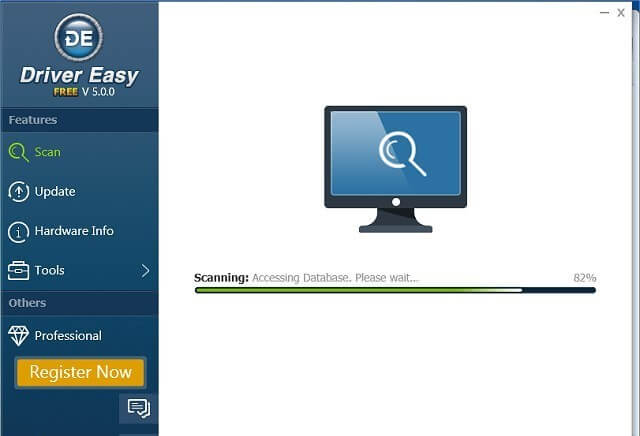
1. Automatic Scanning: One of Driver Easy’s best features is its capacity to automatically search your computer for out-of-date or missing drivers. You can save time and avoid doing manual searches with this feature.
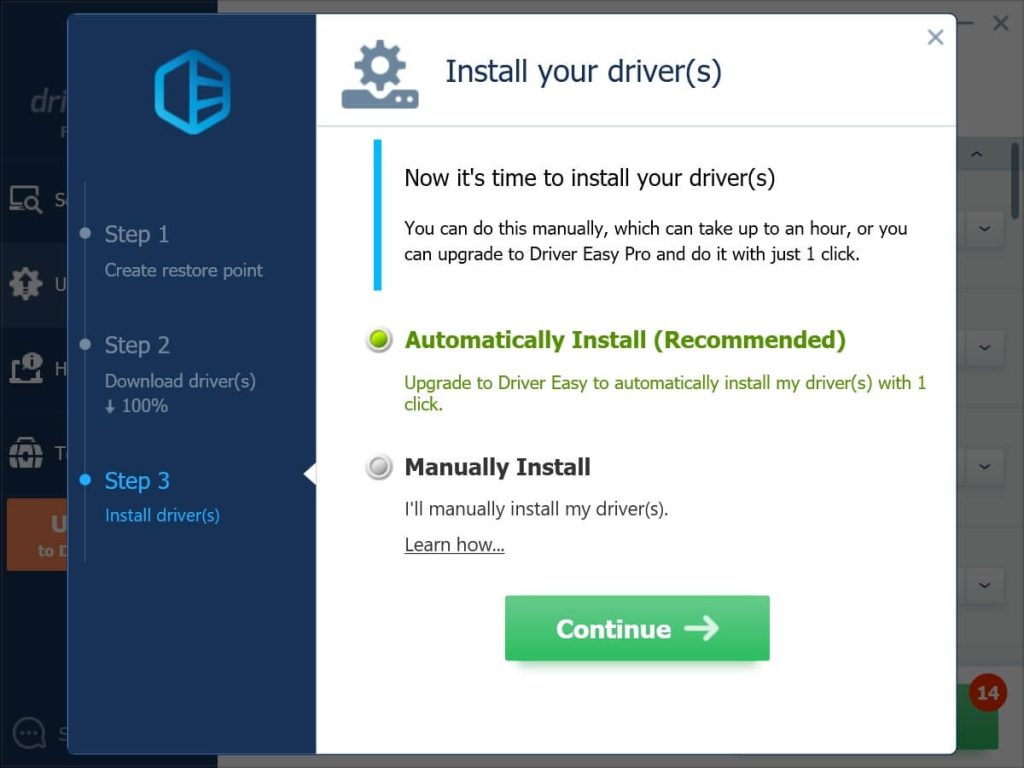
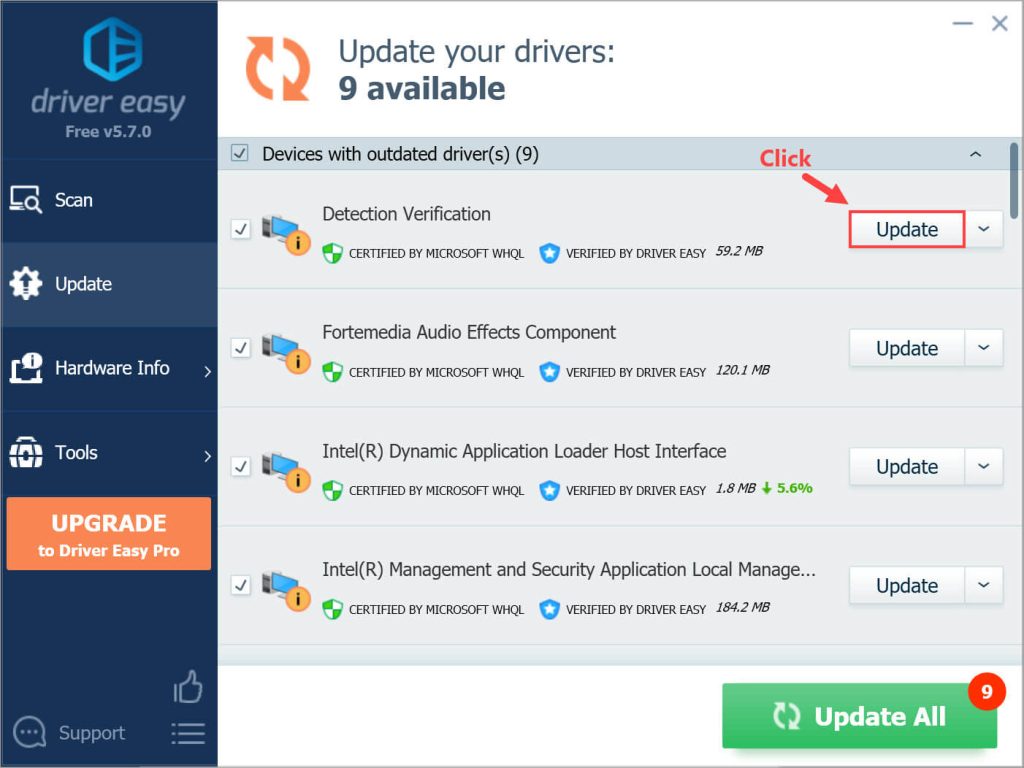
2. One-Click Updates: Driver Easy gives you a list of drivers that need to be updated after the scan is finished. Users who prefer more control can update specific drivers or all of the drivers with just one click, which is convenient.
3. Large Database: With support for more than 8 million drivers, Driver Easy has a sizable driver database. This guarantees interoperability with a variety of hardware elements, such as motherboards, sound cards, graphics cards, and more.
4. Offline Scanning: Driver Easy is a flexible tool for a variety of situations—it is capable of exporting the scan results to a different device with access to the internet if you’re working on a PC without a connection.
5. Scheduled Scans: With Driver Easy, you may arrange for automated scans to occur at the times of your choosing. With no human involvement, this guarantees that your drivers are constantly up to date.
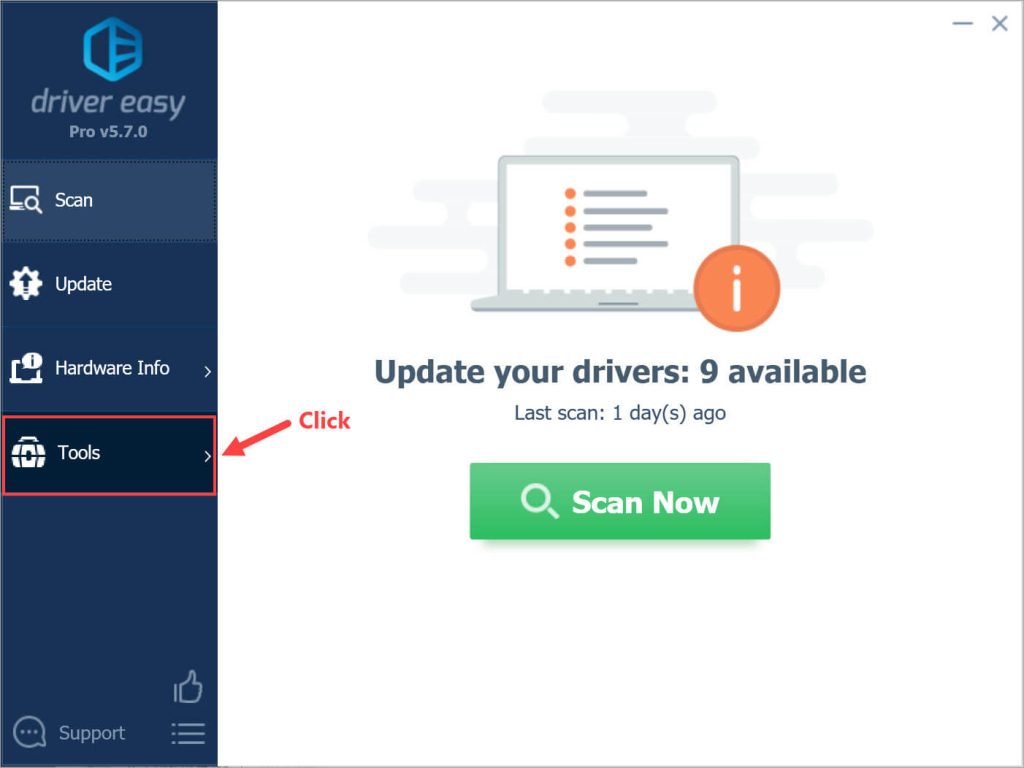
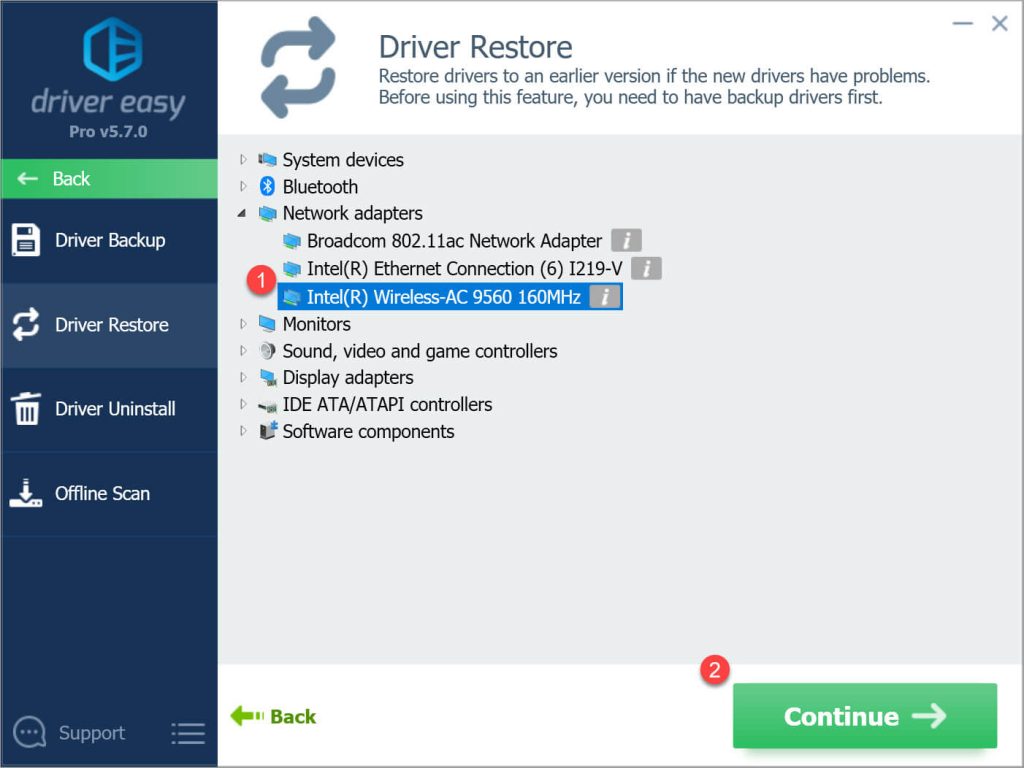
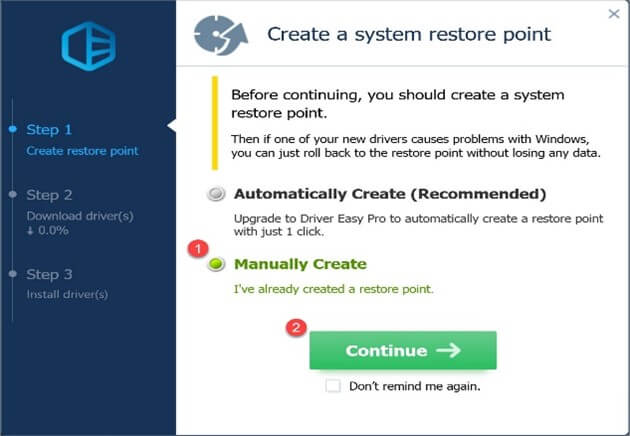
6. Backup and Restore: Before updating any drivers, Driver Easy allows you to create a backup of your current drivers.
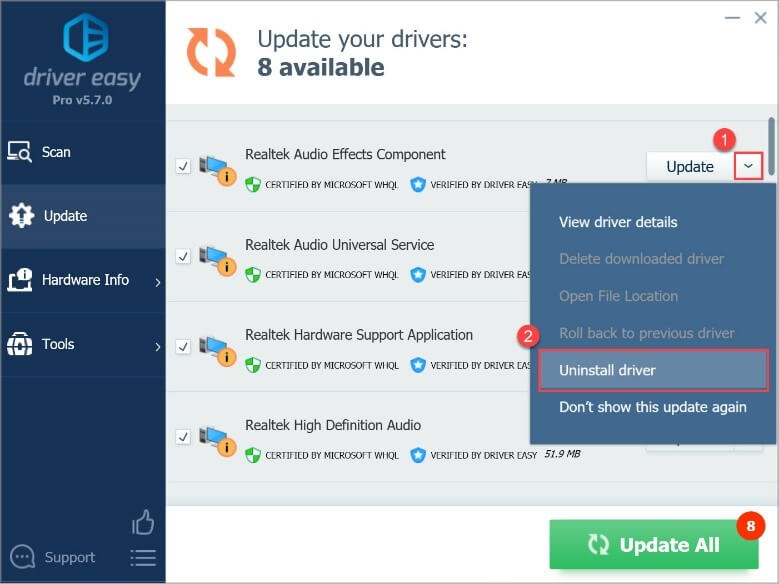
7. Driver Uninstall: Driver Easy offers a function to remove drivers that aren’t needed anymore or aren’t working properly, in addition to updating drivers.
How to Update Drivers Using Driver Easy?
Let’s now go through how to update drivers using Driver Easy:
- Install after downloading: After downloading Driver Easy from its official page, proceed to install it.
2. Scan Now to launch the scan: Driver Easy will check if the computer has any outdated or missing drivers.
3. Check the results: After the scanning process, the computer screen will show all of the outdated drivers. Drivers may be updated by choosing “Update” from the pop-up menu.
4. Install and Download: Use Driver Easy to download and install the latest recent driver update.
5. Create a Backup: Use the “Backup” option before updating the drivers in case you ever need to revert to a previous version.
In-Depth Guide to Updating Drivers with Driver Easy
Step 1: Start the Easy Software Driver. It can be opened from your Start menu or by double-clicking its desktop icon once it has been installed.
Step 2: Let the Scan Begin An option to “Scan Now” will be visible on the main interface. To start the scanning process, click on it. When Driver Easy detects outdated or missing drivers, it will start scanning your machine.
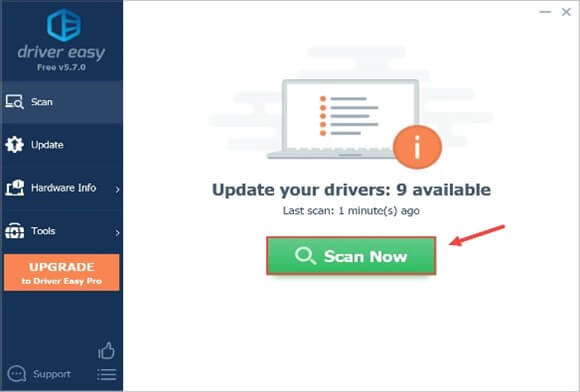
Step 3: Assess Capabilities for Scan: The scanning process may take several minutes, depending on how quickly your computer processes information and how many drivers need to be checkedA list of drivers categorized as “Outdated,” “Up-to-date,” or “Unknown” will appear after the scan is finished.
• Outdated: The latest recent iterations of each of these drivers are available for download and installation.
• Up to date: These drivers don’t need to be updated because they are currently up to date.
• Unknown: This group of drivers’ status could not be determined by Driver Easy.
Step 4: Enhance Your Driver To update it, click on the driver under the “Outdated” category. You will be able to “Update” this driver using Driver Easy. To continue, select the “Update” option.
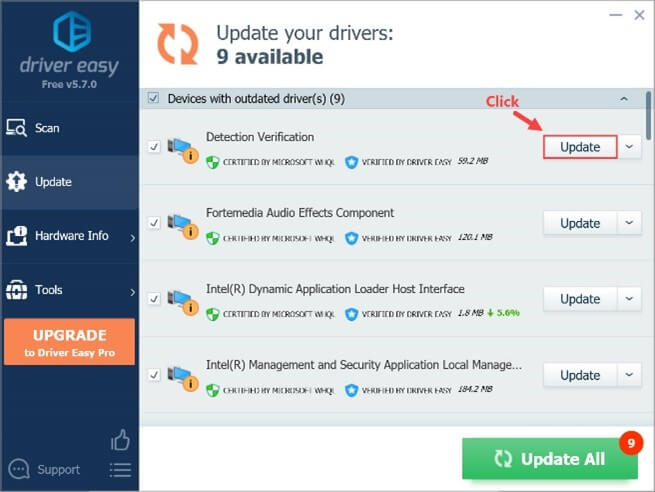
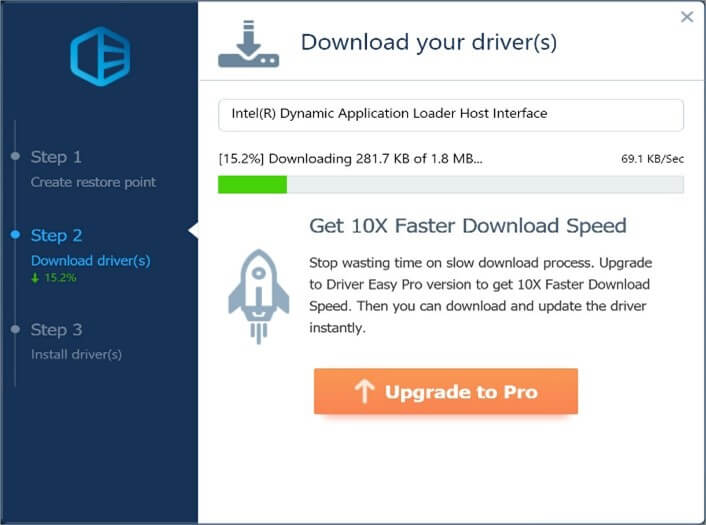
Step 5: Install the driver after downloading it. The most recent driver version will be downloaded by Easy automatically.
Step 6: Backup of Driver: Taking a backup of your drivers is a good idea before upgrading them in case something goes wrong.
Step 7: Restart: Restarting your computer is step seven after backing up all of your drivers is necessary. This guarantees that the updates’ modifications are properly implemented. This is the best way to guarantee a smooth upgrading process because some updates might need to be resumed to function properly.
Step 8: Upgrade Old Drivers: Continue with steps four to seven to install any additional outdated drivers.
Step 9: Driver Uninstallation: Driver Easy lets you delete drivers in addition to upgrading them. You can uninstall a driver by following these instructions if you decide that you no longer require it or if you experience problems with it:
• Select “Tools” from Driver Easy’s menu on the left.
• Then choose “Driver Uninstall.”
The system’s installed drivers will be listed there. Choose the driver you want to remove, then adhere to the on-screen directions.
Conclusion
Driver Easy is essential for preserving the peak performance of your computer. It is a crucial tool because of its sizable driver database, smart scanning features, and user-friendly interface. Driver Easy improves the functionality of the hardware in your computer by making sure your drivers are up to up-to-date which leads to a better user experience overall. This software makes updating drivers—graphics, sounds, network, or any other driver—simpler, saving you time and effort while assisting in the avoidance of compatibility problems.
Author Bio:
Dinesh Lakhwani 

Dinesh Lakhwani, the entrepreneurial brain behind “TechCommuters,” achieved big things in the tech world. He started the company to make smart and user-friendly tech solutions. Thanks to his sharp thinking, focus on quality and the motto of never giving up, TechCommuters became a top player in the industry. His commitment to excellence has propelled the company to a leading position in the industry.
Popular Post











Recent Post
How To Troubleshoot Miracast Connection Issues On Windows
Introduction Miracast is a useful feature that allows you to share your screen without using cables. It lets you mirror your Windows device to a TV, monitor, or projector. This feature works through wireless display technology. Many people use it for work meetings, school presentations, and home entertainment. It removes the need for HDMI cables […]

How To Fix Issues Downloading from the Microsoft Store On Windows
Introduction: Downloading apps from the Microsoft Store should be a simple task. You open the Store, search for an app, and click install. In most cases, the process works without any problem. However, there are times when the download does not start. In some cases, it may stay stuck at a certain percentage. You may […]

How To Fix Windows Update Issues Easily On Windows [2026]
Introduction Windows updates play an important role in keeping a computer stable and secure. They bring new features, fix known bugs, and improve overall performance. When updates work as expected, the system runs smoothly. However, when they fail, users often face slow performance, missing features, or security risks. This is why it becomes important to […]

How To Check If Your PC Is Infected? [Complete Guide]
Computers now sit at the center of almost everything we do. Well, yes! From sending emails to watching videos, we depend on them without much thought. Because of this, even a small issue can disrupt daily tasks. One common problem is hidden malware. It does not always show clear signs at first. It can enter […]

Repair Apps And Programs: Repair Apps That Aren’t Working
Computers have become an essential part of everyday life, supporting work, study, communication, and entertainment. Most of these activities rely on apps and programs, so when one stops functioning, even simple tasks can be disrupted. Common problems include error messages, frozen screens, or apps that fail to open. On Windows systems, such issues often arise […]

Troubleshooting Microphone Privacy Settings: Complete Guide
Sound is a basic part of how we use computers today. People attend meetings, record audio, speak to others, and use voice tools almost every day. A working microphone makes all these tasks easy. When the microphone fails, even simple work becomes difficult. Many users first think the device is broken. In reality, the issue […]

Windows Sound Settings – Sound Control Panel: Complete Guide
Sound plays an important role in how we use a computer every day. It supports both work and leisure. You need it for meetings, videos, music, and alerts. When audio fails, even simple tasks become difficult. Many users feel stuck when sound issues appear. This usually happens because they are not familiar with Windows Sound […]

Run a Troubleshooter For PC Issues Windows: Complete Guide
A computer plays an important role in everyday life. People use it for work, study, communication, and entertainment. When a problem appears, it can interrupt everything. Even a small issue can waste time and create frustration. Many users feel unsure about how to fix such problems. They often think they need expert help. In reality, […]
![Adjusting Audio Output Settings Complete Guide [2026]](https://www.techcommuters.com/wp-content/uploads/2026/03/Adjusting-Audio-Output-Settings-Complete-Guide.webp)
Adjusting Audio Output Settings: Complete Guide [2026]
Sound is part of almost everything we do on a computer. It lets you watch videos, join calls, play music, and hear alerts. When the audio stops working the right way, it can interrupt both work and daily use. That is why adjusting audio output settings matters for every user. Many people get unsure when […]

Artificial Intelligence Explained: Concepts, Terminology, Benefits, and Future Trends
Artificial Intelligence, or AI, is basically computers doing things that usually need a human brain. We’re talking about stuff like learning from experience, figuring out problems, understanding language, and making decisions. It’s not magic, just a lot of data, pattern-spotting, and math behind the scenes. Now, AI doesn’t actually think or feel like we do. […]

