Cylance Smart Antivirus – Is It the Best Security Tool?
Last updated on May 9th, 2025 at 2:42 am
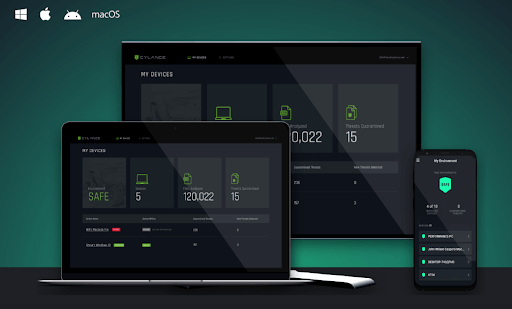
AI-based, lightweight antivirus for Windows & macOS
In older times the notion of a computer virus wasn’t that popular. Therefore, these tools were unable to scan the threats in real-time. This means the threats were detected and quarantined only after it entered the system. But with the technological advancement and exponential evolvement of detection techniques things have changed.
Now using behavioral analysis, heuristic detection, identifying these nasty threats has become easy. And most popular antivirus tools use it, but Cylance Smart Antivirus is different. Instead of using these techniques, it works on machine learning and artificial intelligence. This makes it a powerful security tool that can stand against the most popular names.
What makes Cylance the best antivirus tool?
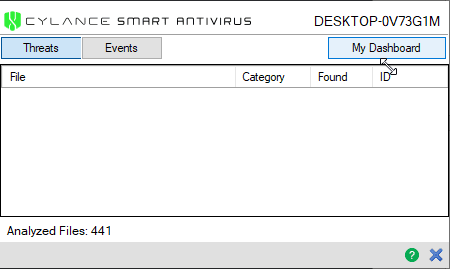
Unlike other security tools, Cylance Smart Antivirus is lightweight, uses AI to detect & quarantine malware in real-time. This means no threat can enter the system and cause damage. Also, Cylance Smart Antivirus is designed specifically for home users and is best at detecting new variants of malware. To avoid slowing down system performance, this malware protector for Windows and Mac checks only the files in use, active or open. Also, using the AI-powered engine the tool keeps on adjusting its detection abilities, which means you don’t have to update it often.
Furthermore, Cylance detects infection by the file itself not by the IP address or URL. This is good, as the user can visit websites without any problem. But this also means Cylance cannot protect you from visiting phishing or fraudulent sites.
System Requirements:
Operating system:
- Windows 7, 8, 8.1 and 10
- Mac OS X 10.9, 10.10 and 10.11
- macOS 10.12, 10.13, 10.14 and 10.15
- Android and iOS
RAM: 2GB minimum (available)
Available hard drive space: 300 MB (Windows and Mac only)
Additional requirements: .NET Framework 3.5 SP1 and later (Windows only)
Supported languages: At the time of writing, it is available only in English
Highlights
- AI-powered malware protection tool for Windows and Mac
- Easy to use
- Extremely trust and reliable antivirus tool
- 30- days money-back guarantee
- The web-based program does not take much space on the system
Features:
Ease of Use
When it comes to ease-of-use Cylance Smart Antivirus is the best. To use this powerful and robust security tool all you need to do is, buy the subscription, register using your details, and download the tool. To install follow on-screen instructions and that’s it you have the smartest web-based security tool running on your device.
Note: If a file you trust is quarantined by Cylance you can permit it to run from Cylance Event List.
In addition to this, Smart Antivirus is designed to work in real-time. This means you might face problems in finding a manual scanning option like me. But this doesn’t decrease its effectiveness, although it makes life a lot easier. Once Cylance is installed you can leave everything on the tool, it will automatically detect and quarantine the threats.
Reliability and detection rate
As Cylance Smart Antivirus works differently, comparing it with other security tools is not easy. However, when tested independently against the latest and malicious malware it detected almost all and was able to protect the device and files. This is enough to say that the tool is reliable and has a great detection rate.
But there’s a drawback the tool doesn’t serve as a spam filter, firewall, and pop-up blocker.
In addition to this, the Cloud File Scanner feature is amazing. When enabled it automatically sends the malicious detected files to the cloud for analysis. However, if disabled this activity does not take place.
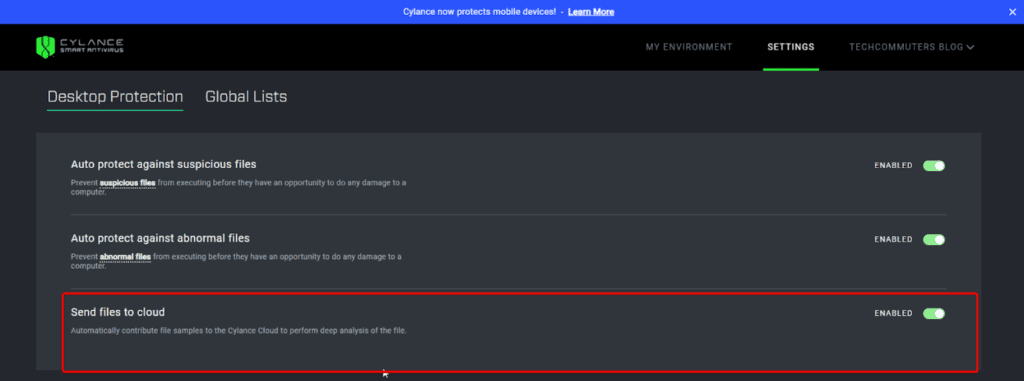
This feature helps Cylance to detect more files as it will have more samples to compare from and machine learning will learn intelligently.
Web Dashboard
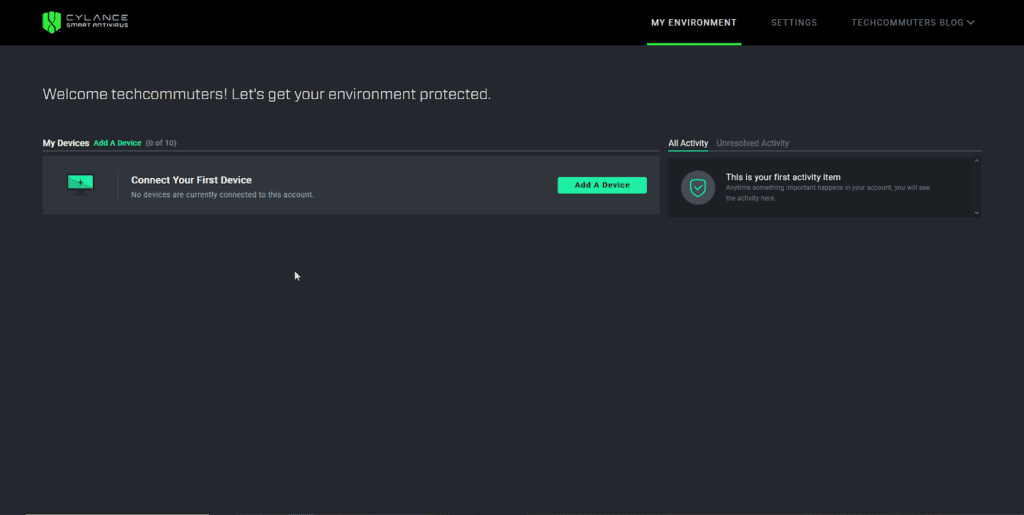
By default, you get the web dashboard to manage Cylance Smart Antivirus. Using it you can add devices, manage them, adjust settings, remove devices, and can also see quarantined files.
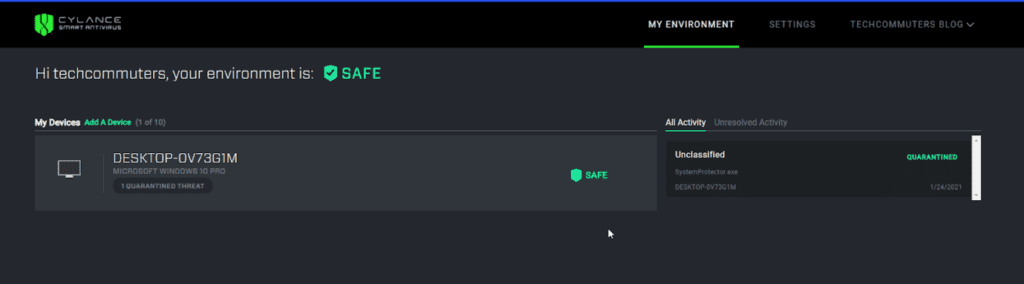
Note: To perform any operation using Cylance you need to have an active internet connection. This means if you lose internet connectivity Cylance Smart Antivirus will not help.
But the web dashboard is easy to access and it provides a detailed overview of all the activities. Moreover, using it you can change the settings and can remotely manage all added devices.
Overall, Cylance’s dashboard makes it an excellent tool to use and manage all connected devices.
Pricing
Cylance Smart Antivirus is just one package. However, based on the number of devices you want to use it on, the pricing varies.

Technical Support
To help customers troubleshoot the problems (if any), Cylance provides different mediums like – email, call, or live chat. The US, UK, Japan, Ireland, and Germany user can call on local numbers and other users can make a call on international support numbers.
Moreover, Cylance provides an extensive and searchable knowledge base, with a quick start guide, FAQ, and more.
Bottom Line
There’s no denying the fact that Cylance is a great malware protector. Also, this comprehensive tool offers online security. Moreover, if you have Windows Defender installed and running it can take care of things, that Cylance cannot.
In addition to this, its intuitive web-based dashboard is amazing and is always active. Using it you can see the quarantined files and remove them even after a month. So, what are you waiting for? Give it an outstanding tool a try and protect all your devices without burdening your system.
Overall, it is a great protection tool for your system that works on machine learning and artificial intelligence. Moreover, it learns from each scan and all the subsequent scans are more thorough. The only thing I did not like is that cannot use it when offline. Just want the company to work on it.
Author Bio:
Dinesh Lakhwani 

Dinesh Lakhwani, the entrepreneurial brain behind “TechCommuters,” achieved big things in the tech world. He started the company to make smart and user-friendly tech solutions. Thanks to his sharp thinking, focus on quality and the motto of never giving up, TechCommuters became a top player in the industry. His commitment to excellence has propelled the company to a leading position in the industry.
Popular Post











Recent Post

How to Switch Windows 10 to a Local Account: Complete Guide
Windows 10 allows users to sign in with either a Microsoft account or a local account. When you set up a new computer, the system often suggests using a Microsoft account. This account connects your device to Microsoft services such as Outlook, OneDrive, and the Microsoft Store. It also syncs settings, themes, and passwords across […]

How To Change Default Apps For File Types In Windows
Windows is designed to make using your computer easy. One way it does this is by assigning default apps to different file types. This means when you open a file, Windows automatically opens it with a specific program. For example, photos may open with Photos, music with Groove Music, and PDFs with Edge. These default […]

How To Adjust The Mouse Pointer Speed: Complete Guide
Using a computer every day means you use the mouse a lot. The mouse pointer moves on the screen and helps you click, scroll, and select items. Many people never think about the speed of the mouse pointer. They have used the default setting for years. This can cause small problems over time. A slow […]

How to Change Mouse Scrolling Settings In Windows
A mouse is one of the most used computer tools. People use it every day. They scroll through emails. They scroll through documents. They scroll through websites and images. The movement becomes automatic. Most users do not notice it. That is why problems often go unnoticed. Scrolling problems show up slowly. At first, it feels […]

Keyboard Light Settings: Keyboard Lighting Control [Complete Guide]
Keyboards are no longer simple typing tools. Well, yes! Over time, they have evolved to include features that improve comfort, visibility, and overall experience. One of the most useful features today is keyboard lighting. It helps users work comfortably in low-light conditions. It also reduces strain when typing for long hours. Many users first notice […]

Customizing Pointer Appearance: Complete Guide
The way your mouse pointer looks on your computer may seem like a small detail. But customizing pointer appearance can make using your PC more comfortable and visually appealing. Many users do not realize that they can change the pointer size, color, and style to fit their needs. Whether you want a bigger pointer for […]

How To Choose a Computer Monitor: Monitor Buying Guide
Buying a monitor looks easy. Many people think all screens are the same. That belief causes regret later. A monitor is not just a display. It is a daily tool. You read on it. You work on it. You relax with it. Small problems become big over time. Poor brightness hurts eyes. Bad size causes […]

How To Get Help With File Explorer in Windows 11 [Complete Guide]
File Explorer is one of the most important tools in Windows 11. It is used to open folders, view files, and manage stored data. Almost every action on a Windows computer depends on it in some way. When users open documents, save downloads, or organize photos, File Explorer is always involved. Because it is used […]

How To Fix A Frozen Computer: Complete Guide [Windows 11/10]
A frozen computer is one of the most common problems Windows users face. The screen stops responding. The mouse pointer does not move. Keyboard inputs do nothing. You may hear the fan running loudly. Sometimes the system looks alive, but nothing works. This situation often happens when you are busy or working on something important. […]

How to Upgrade Computer RAM: Complete Guide
Upgrading RAM is one of the simplest ways to improve a computer. It helps the system feel faster and smoother. Apps open quicker. Browsers handle more tabs. Games and tools run with less delay. Many users search for how to upgrade computer RAM because it gives real results without high cost. You do not need […]

