How To Create A Bootable USB for Windows 98
Last updated on June 9th, 2024 at 1:41 am
Ah, the good old days, when Microsoft didn’t force updates on us every five minutes and when we were still struggling to figure out the mechanics of Minesweeper.
For these nostalgic types, there are still versions of Windows 98 floating around on the internet and, because Microsoft has stopped all active support and development of these dinosaurs, many of these versions are legally free. Still, the million question is: how exactly do you load these operating systems onto your PC or laptop?
Luckily, there’s a relatively simple answer to this question, and that’s what this guide focuses on. You’ll need to download Rufus, which essentially turns a flash drive into that Windows 98 bootable USB. We’re here to walk you through this process, though, as the idea of reloading your operating system can sometimes be a bit daunting.
Can You Create Bootable USB On Your Windows 98?
Well, creating a bootable USB on Windows 98 can be a bit challenging due to its age and limited support for modern USB devices and file systems. Here are the technical requirements and steps you’ll need to follow:
Before you proceed, please review the following prerequisites:
1. The target system should support booting from a USB drive, be it a Flash drive or a HDD.
2. Ensure that the target system is equipped with an IDE hard disk drive, as SATA drives may not be compatible. If you have a SATA hard drive installed, set the ‘Legacy/IDE’ option in the BIOS setup menu (do not use ‘AHCI’).
3. Be aware that older system BIOSes might have a 137GB hard disk limitation. Installing on a hard disk larger than 137GB or using a USB Hard Disk exceeding this capacity may cause issues. E2B (Easy2Boot) will issue a warning if this situation arises.
4. Your target system must have a minimum of 256MB of memory, as the ISO contents are copied to RAM during the process.
5. You’ll require a utility like Daemon Tools Pro or UltraISO to delete certain folders from within the Win98SE ISO. This step is crucial to avoid losing the boot sectors from the ISO.
6. Be aware that Windows 98 may lack the appropriate drivers for your audio, network, and graphics devices. You may need to obtain and install these drivers separately.
7. Obtain the Windows 98 SE ISO (installation file) by yourself. It is preferable that the ISO is bootable, but it can also be non-bootable. You can try obtaining it from sources such as here (OEM Full version is bootable) or other reputable sources.
8. In case the Win98 ISO is not bootable, you will need to acquire the optional Windows 98 SE 1.44Mb floppy .img image file.
9. If you plan to attempt this installation using a Virtual Machine (e.g., Oracle VirtualBox), ensure that it is configured for Windows 98. Allocate a small amount of memory for Display VGA memory and not more than 1GB of system memory (RAM). Also, use an IDE virtual hard disk.
Taking these requirements into account will help ensure a smooth and successful installation of Windows 98 SE.
How To Create A Bootable USB for Windows 98
This is not an overly complicated or lengthy process as Rufus does most of the work for you, but creating a Windows 98 bootable USB does need to be done correctly, so, without further ado, let’s begin.
Step 1: Insert a clean flash drive
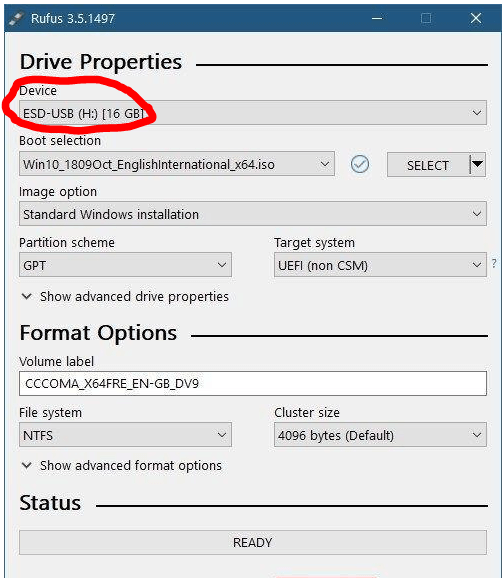
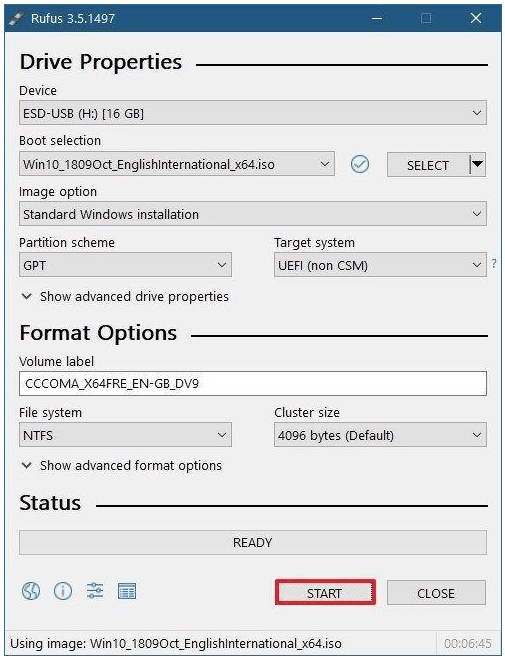
First, you’ll need to plug in a clean flash drive and start-up Rufus. Ensure that the correct flash drive is selected under the Device tab.
Step 2: Customize settings
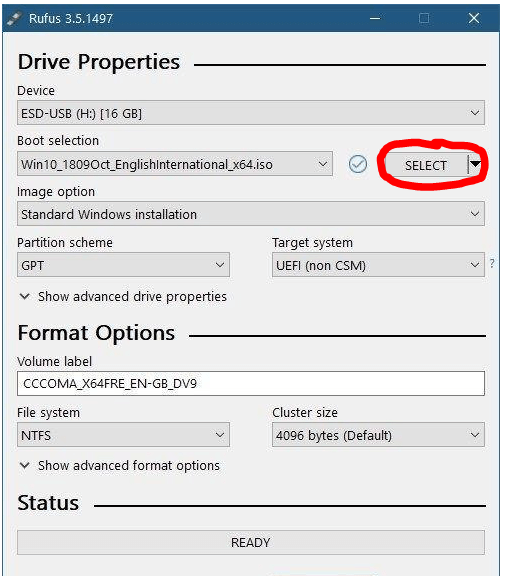
Under Boot Selection, you’ll need to make sure that it’s set to Disk or ISO image and then click on Select next to it to select the Windows 98 ISO file that you downloaded.
Step 3: Select partition scheme
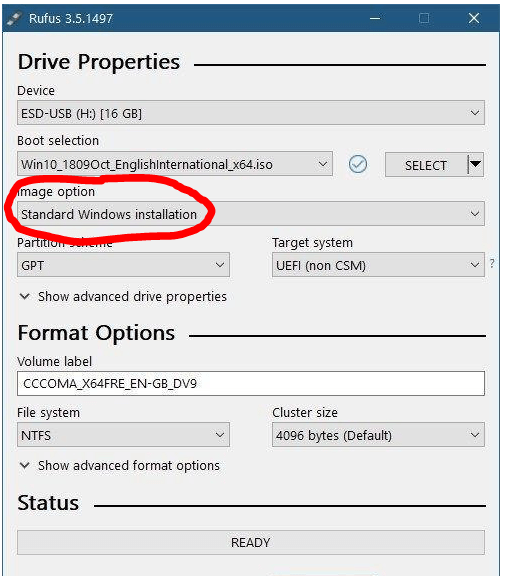
Under Image Option, select Standard Windows Installation. Rufus will then select the best partition scheme and target system based on your machine, but you can customize these in any way you choose to if you know what you’re doing. This step is essential to create a Windows 98 bootable USB.
Step 4: Finalize your Windows 98 bootable USB
You can change the Volume Label to whatever you choose, or leave it as the default name and leave all of the other settings as-is. Then click on Start, and Rufus will begin to program your USB. Once it’s finished, then your bootable USB is ready to go.
Booting Up The Past
These were the easiest steps to create a bootable USB for Windows 98. If you have any problem regarding these steps you can ask in the comments section I will be happy to help you.
Many people in this world will say that previous versions of Windows were way better than the version that we are using today, and, in some ways, this may be true.
There was far less bloatware that we were forced to run, and we could choose when we wanted to install our updates. We had more freedom, and the programs that we worked on were much simpler and straightforward.
But as time has gone on, we’ve moved into an era that depends on technology for its survival. Once we had to leave the telephone at the end of its cord, it now travels with us as an ever-present best friend.
And where computers were a bonus to any workplace, now it’s impossible to function without them. Technology is a phenomenal thing, but sometimes it’s nice to take a trip down memory lane and remember where it all started.
Author Bio:
Dinesh Lakhwani 

Dinesh Lakhwani, the entrepreneurial brain behind “TechCommuters,” achieved big things in the tech world. He started the company to make smart and user-friendly tech solutions. Thanks to his sharp thinking, focus on quality and the motto of never giving up, TechCommuters became a top player in the industry. His commitment to excellence has propelled the company to a leading position in the industry.
Popular Post











Recent Post

Resolving Microphone Detection Problems: Latest Guide [2026]
Microphones are important tools in daily life. People use them for office meetings, online classes, interviews, gaming, customer support, and content creation. When a system fails to detect a microphone, communication stops at once. This situation can cause stress and confusion. Many users believe the microphone is damaged. In reality, most problems are simple and […]

How To Switch To A Dark Background Theme In Windows [2026]
Most people spend many hours each day in front of a computer screen. Office work, online classes, editing, browsing, and streaming all require long screen time. A bright white background may look clean at first. However, over time, it can feel sharp and tiring. The strong contrast between white backgrounds and black text may cause […]

How to Switch From Local To Microsoft Account On Windows
Many users begin with a local account when they set up a new Windows computer. A local account works only on that single device. It stores settings, files, and preferences locally. It does not connect to online Microsoft services. For basic offline use, it works well. However, as digital needs grow, many users want better […]

How to Switch Windows 10 to a Local Account: Complete Guide
Windows 10 allows users to sign in with either a Microsoft account or a local account. When you set up a new computer, the system often suggests using a Microsoft account. This account connects your device to Microsoft services such as Outlook, OneDrive, and the Microsoft Store. It also syncs settings, themes, and passwords across […]

How To Change Default Apps For File Types In Windows
Windows is designed to make using your computer easy. One way it does this is by assigning default apps to different file types. This means when you open a file, Windows automatically opens it with a specific program. For example, photos may open with Photos, music with Groove Music, and PDFs with Edge. These default […]

How To Adjust The Mouse Pointer Speed: Complete Guide
Using a computer every day means you use the mouse a lot. The mouse pointer moves on the screen and helps you click, scroll, and select items. Many people never think about the speed of the mouse pointer. They have used the default setting for years. This can cause small problems over time. A slow […]

How to Change Mouse Scrolling Settings In Windows
A mouse is one of the most used computer tools. People use it every day. They scroll through emails. They scroll through documents. They scroll through websites and images. The movement becomes automatic. Most users do not notice it. That is why problems often go unnoticed. Scrolling problems show up slowly. At first, it feels […]

Keyboard Light Settings: Keyboard Lighting Control [Complete Guide]
Keyboards are no longer simple typing tools. Well, yes! Over time, they have evolved to include features that improve comfort, visibility, and overall experience. One of the most useful features today is keyboard lighting. It helps users work comfortably in low-light conditions. It also reduces strain when typing for long hours. Many users first notice […]

Customizing Pointer Appearance: Complete Guide
The way your mouse pointer looks on your computer may seem like a small detail. But customizing pointer appearance can make using your PC more comfortable and visually appealing. Many users do not realize that they can change the pointer size, color, and style to fit their needs. Whether you want a bigger pointer for […]

How To Choose a Computer Monitor: Monitor Buying Guide
Buying a monitor looks easy. Many people think all screens are the same. That belief causes regret later. A monitor is not just a display. It is a daily tool. You read on it. You work on it. You relax with it. Small problems become big over time. Poor brightness hurts eyes. Bad size causes […]

