How To Convert PDF To Word Document For Free: Top 7 Ways

Last updated on December 22nd, 2024 at 6:08 pm
Imagine you’ve just gotten a crucial PDF document that you need to change right away. It could be a contract that needs a few adjustments, or maybe it’s a resume you want to update. But when you try to make those changes, you find out that PDFs aren’t made for easy editing. You start to feel frustrated because you don’t know how to modify the content without typing the whole document again.
This is a problem that many people deal with daily. PDFs are excellent for keeping the original format of documents and making sure they look the same on any device, but they can be really difficult when you need to make changes. Luckily, there are several ways to turn PDFs into Word documents, which makes editing much easier.
In this article, we’ll look at seven free ways how to convert PDF to Word documents, saving you time and stress.
How to Convert PDF to Word Document: Best Methods
Method 1: How to Convert PDF to Word Document with MS Word
If you already have Microsoft Word installed on your computer, this method is incredibly convenient. It doesn’t require any additional software or online tools, making it a quick and easy solution for those who are comfortable with Word.
Here are the simple steps:
Step 1: Launch Microsoft Word on your computer and click the “File” option in the top-left corner.
From the dropdown menu, choose “Open“. Then, browse to find the PDF file you want to convert.
Step 2: Once you’ve located the PDF, double-click it. Word will start the conversion process. You might see a pop-up message warning about potential reformatting – if so, click “OK” to proceed. If the file opens in Protected View, you’ll need to click “Enable Content” and then confirm by clicking “OK” again.
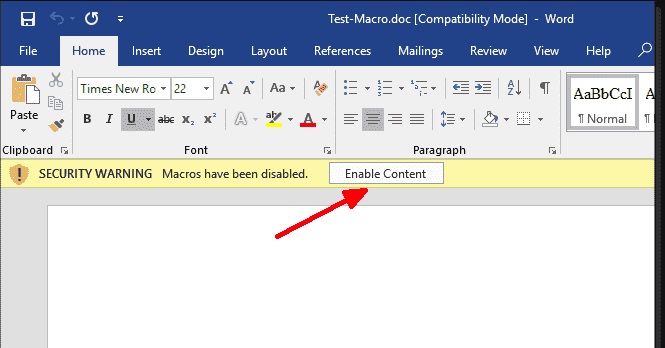
Step 3: After the conversion, review the document. You may need to adjust some formatting. When you’re satisfied, save the file as a Word document using the “Save As” function.
It’s worth noting that this method isn’t perfect. Non-text elements like images or tables might not convert accurately. A common issue is that these elements end up in incorrect positions within the converted Word document.
Despite this limitation, it’s still a useful built-in option for many simple PDF conversions.
Method 2: How to Change PDF to Word for Free with Microsoft Edge
Microsoft Edge is the default browser for Windows 10 and 11, making this method readily available for many users without the need to install additional software. It’s particularly useful if you don’t have Microsoft Word installed or if you’re working on a computer where you can’t install new programs. This method is quick, easy, and works entirely within your browser.
Here’s how to convert PDF to Word Document with Edge:
Step 1: Open the PDF file in Edge. Once the PDF is displayed, locate the menu icon (three dots …) in the top-right corner of Edge. Click it to reveal a dropdown menu, then select “Print” from the available options.

Step 2: In the Print dialog box that appears, look for the “Printer” section. Click the dropdown menu and choose “Microsoft Print to PDF” as your output option. This tells Edge to create a PDF file rather than sending the document to a physical printer.

Step 3: Before proceeding, take a moment to review other settings like page range and orientation to ensure they meet your needs. When you’re satisfied, click the “Print” button.
Step 4: A new dialog box will open, allowing you to choose where to save your converted file. Navigate to your desired location, give the file a name, and ensure the file type is set to “PDF Files (*.pdf)”. Now, hit “Save”.
Note: While this method creates a new PDF rather than a Word document directly, you can then use Microsoft Word’s built-in PDF import feature to open and edit the file as a Word document. This two-step process often results in better formatting preservation compared to direct online converters.
Method 3: Convert PDF to Word with Adobe Acrobat
Adobe Acrobat is the gold standard when it comes to working with PDFs. While the full version is a paid product, Adobe offers a free online converter that’s reliable and maintains formatting well.
This method is ideal for those who want a high-quality conversion without installing software, and it’s particularly useful for complex documents with intricate layouts.
Here’s how to change pdf to Word for free using Adobe:
Step 1: Open your web browser and go to Adobe’s online PDF to Word converter. Click on the “Select a file” button or drag and drop your PDF into the designated area.

Step 2: Wait for the file to upload. Once the upload is complete, Adobe will automatically begin the conversion process.
Step 3: When the conversion is finished, click the “Download” button to save your new Word document.
If you need to convert more files, you can sign up for a free Adobe account to process more documents.
Method 4: How to Turn a PDF to Word Doc with WPS Office
WPS Office is a free alternative to Microsoft Office that includes a powerful PDF converter. This method is excellent for users who want a full office suite with built-in PDF conversion capabilities. It’s particularly useful if you frequently work with both PDFs and Word documents, as you can handle all your tasks within one application.
Follow these simple steps:
Step 1: Start by launching WPS Office on your Windows computer. If you haven’t installed it yet, you’ll need to download and install it first. Within WPS Office, open the PDF file you want to convert. You can do this by clicking “File” > “Open” and navigate to your PDF, or by right-clicking the PDF file in Windows Explorer and choosing “Open with WPS Office”.
Step 2: Once your PDF is open, look for the menu button. It’s typically located on the left side of the WPS Office interface and often appears as three horizontal lines or dots. Click this menu button to reveal a list of options. From these, locate and select “Export PDF”.

Step 3: In the export options that appear, you’ll see various file format choices. Select “Word” or “Microsoft Word Document” as your desired export type.
Step 4: Choose your preferred save location, give your new file a name if you wish, and click “Save” or “Export” to complete the conversion process.
This method allows you to convert PDF to Word offline, which can be particularly useful when you don’t have an internet connection or when working with sensitive documents.
Method 5: How to Change PDF to Word for Free Online with Small PDF
SmallPDF is a popular online tool known for its simplicity and effectiveness. It’s an excellent choice for occasional PDF to Word conversions, especially when you’re working on a device where you can’t install software. SmallPDF is also known for its strong security measures, making it a good option for converting sensitive documents.
Here are the steps to convert PDF to DOC:
Step 1: Go to the SmallPDF website. Click on “Choose Files” or drag and drop your PDF into the designated area. Wait for the file to upload and for SmallPDF to process it.

Step 2: Once the conversion is complete, click “Download” to save your Word document.
These methods provide a range of options for users with different needs and preferences. Whether you prefer using installed software, online tools, or built-in browser features, there’s a solution that can help you convert PDF to Word document for free.
Method 6: Use iLovePDF Tool to Convert PDF to Word
iLovePDF is a versatile online platform that offers a wide range of PDF-related tools, including a robust PDF to Word converter. This method is ideal for users who need a quick, no-frills conversion without creating an account. It’s also a great choice if you need to perform other PDF-related tasks, as you can access multiple tools in one place.
Steps:
Step 1: Visit the iLovePDF website. Click on “Select PDF files” or drag and drop your PDF into the designated area. Wait for the file to upload. You can add multiple files if needed.

Step 2: Once uploaded, click on “Convert to WORD” to start the process. After conversion, click “Download WORD” to save your new document. If you need to convert more files, simply repeat the process.
Method 7: Try PDF to DOC Online Converter
PDF to DOC is a straightforward, no-frills online converter that focuses solely on transforming PDFs into editable documents. This method is perfect for users who want a simple, ad-free experience without the need to navigate through multiple features or tools. It’s especially useful for quick, one-off conversions when you don’t want to create an account or install any software.
Steps:
Step 1: Go to the PDF to DOC website. Click on “Upload Files” or drag and drop your PDF into the conversion area. Wait for the file to upload and for the conversion process to complete.

Step 2: Once finished, click “Download” to save your converted Word document. If you need to convert another file, simply refresh the page and start over.
Conclusion
This wraps up our guide on how to convert PDF to Word documents. Changing PDFs into Word files can be simple and inexpensive. We’ve looked at seven ways to do this in our article, giving you a set of free choices. You can pick from methods that use software you already have, online services, or features built into programs like Microsoft Word and Edge for Windows users.
Every method has its advantages, fitting different needs and tastes. Whether you want the ease of Microsoft Word and Edge or the flexibility of online services like Adobe, SmallPDF, and iLovePDF, there’s an option for every need.
Keep in mind the complexity of your file, how often you need to convert files, and how comfortable you are with different tools when picking the best method for you.
FAQs:
Q: Are these methods safe for converting sensitive documents?
While all the methods mentioned are generally safe, for highly sensitive documents, it’s best to use offline tools like Microsoft Word or WPS Office. Online tools, while convenient, do involve uploading your document to a third-party server.
Q: Will the converted Word document look exactly like the original PDF?
Most of these methods do a good job of maintaining formatting, but complex layouts, special fonts, or intricate graphics might not convert perfectly. You may need to make some minor formatting adjustments after conversion.
Q: How do I convert a Word document back to PDF?
A: Most word processors, including Microsoft Word and WPS Office, have a “Save As” or “Export” function that allows you to save your document as a PDF. Many online tools also offer Word to PDF conversion.
Q: Can I convert password-protected PDFs using these methods?
For password-protected PDFs, you’ll need to enter the password before conversion. Some methods, like Adobe’s online tool, support this feature, while others may not work with protected documents.
This comprehensive guide on how to convert PDF to Word documents for free should help you tackle any PDF editing challenges you encounter. Whether you need to change PDF to Word for free or simply want to know how to turn a PDF into a Word doc, these seven methods provide a range of solutions to suit your needs.
Author Bio:
Dinesh Lakhwani 

Dinesh Lakhwani, the entrepreneurial brain behind “TechCommuters,” achieved big things in the tech world. He started the company to make smart and user-friendly tech solutions. Thanks to his sharp thinking, focus on quality and the motto of never giving up, TechCommuters became a top player in the industry. His commitment to excellence has propelled the company to a leading position in the industry.
Popular Post











Recent Post

How to Switch From Local To Microsoft Account On Windows
Many users begin with a local account when they set up a new Windows computer. A local account works only on that single device. It stores settings, files, and preferences locally. It does not connect to online Microsoft services. For basic offline use, it works well. However, as digital needs grow, many users want better […]

How to Switch Windows 10 to a Local Account: Complete Guide
Windows 10 allows users to sign in with either a Microsoft account or a local account. When you set up a new computer, the system often suggests using a Microsoft account. This account connects your device to Microsoft services such as Outlook, OneDrive, and the Microsoft Store. It also syncs settings, themes, and passwords across […]

How To Change Default Apps For File Types In Windows
Windows is designed to make using your computer easy. One way it does this is by assigning default apps to different file types. This means when you open a file, Windows automatically opens it with a specific program. For example, photos may open with Photos, music with Groove Music, and PDFs with Edge. These default […]

How To Adjust The Mouse Pointer Speed: Complete Guide
Using a computer every day means you use the mouse a lot. The mouse pointer moves on the screen and helps you click, scroll, and select items. Many people never think about the speed of the mouse pointer. They have used the default setting for years. This can cause small problems over time. A slow […]

How to Change Mouse Scrolling Settings In Windows
A mouse is one of the most used computer tools. People use it every day. They scroll through emails. They scroll through documents. They scroll through websites and images. The movement becomes automatic. Most users do not notice it. That is why problems often go unnoticed. Scrolling problems show up slowly. At first, it feels […]

Keyboard Light Settings: Keyboard Lighting Control [Complete Guide]
Keyboards are no longer simple typing tools. Well, yes! Over time, they have evolved to include features that improve comfort, visibility, and overall experience. One of the most useful features today is keyboard lighting. It helps users work comfortably in low-light conditions. It also reduces strain when typing for long hours. Many users first notice […]

Customizing Pointer Appearance: Complete Guide
The way your mouse pointer looks on your computer may seem like a small detail. But customizing pointer appearance can make using your PC more comfortable and visually appealing. Many users do not realize that they can change the pointer size, color, and style to fit their needs. Whether you want a bigger pointer for […]

How To Choose a Computer Monitor: Monitor Buying Guide
Buying a monitor looks easy. Many people think all screens are the same. That belief causes regret later. A monitor is not just a display. It is a daily tool. You read on it. You work on it. You relax with it. Small problems become big over time. Poor brightness hurts eyes. Bad size causes […]

How To Get Help With File Explorer in Windows 11 [Complete Guide]
File Explorer is one of the most important tools in Windows 11. It is used to open folders, view files, and manage stored data. Almost every action on a Windows computer depends on it in some way. When users open documents, save downloads, or organize photos, File Explorer is always involved. Because it is used […]

How To Fix A Frozen Computer: Complete Guide [Windows 11/10]
A frozen computer is one of the most common problems Windows users face. The screen stops responding. The mouse pointer does not move. Keyboard inputs do nothing. You may hear the fan running loudly. Sometimes the system looks alive, but nothing works. This situation often happens when you are busy or working on something important. […]

