Computer Mouse Buying Guide for Beginners and Advanced Users
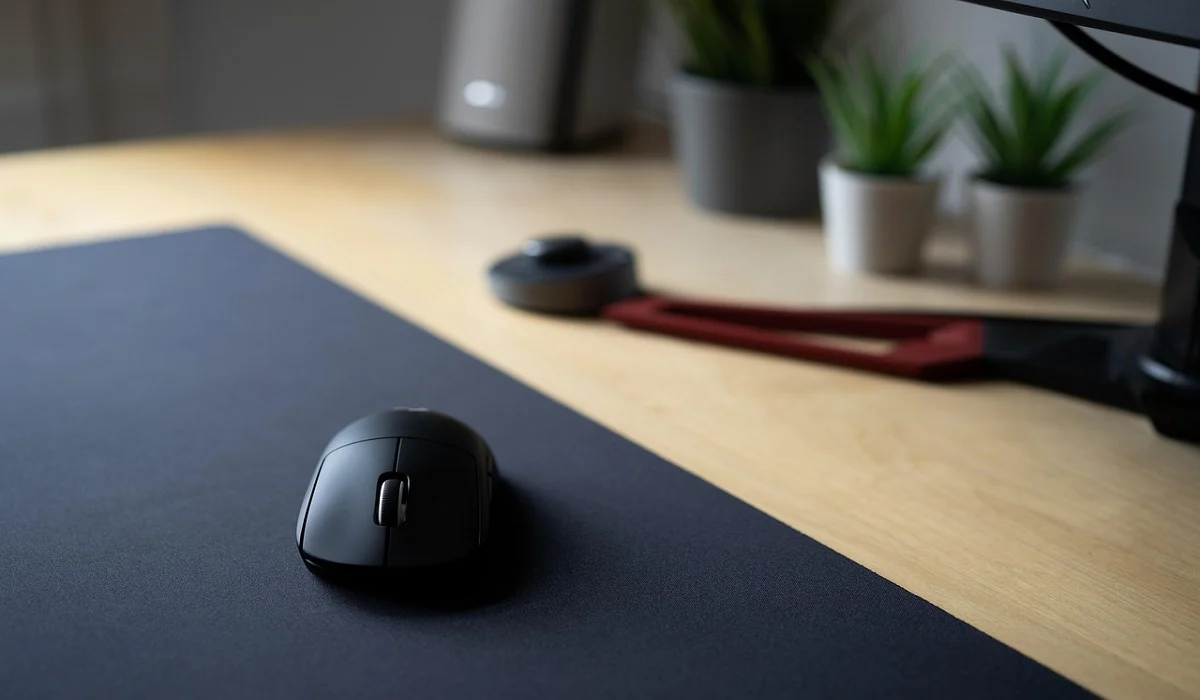
Buying a mouse looks easy at first. Many people think all mouse work the same way. Well, that idea often leads to regret later. A mouse affects comfort, speed, and daily work. It matters for office tasks, gaming, design, and study. The right choice reduces strain and improves control. The wrong one feels annoying every single day. This article works as a computer mouse buying guide for all users.
Beginners need clarity. Advanced users need detail. Both need honest advice. This guide avoids complex words and long lines. Each part focuses on real use. You will learn how to choose wisely. You will understand the features without confusion.
By the end, this computer mouse buying guide will help you feel confident before spending money.
Top 5 questions you should ask yourself before buying a mouse
Before looking at brands or prices, stop and think. A mouse should match your habits. These five questions help narrow choices fast. They save time and avoid mistakes.
Q1. What will I mostly use the mouse for?
Usage decides everything. Office work needs comfort and quiet clicks. Gaming needs speed and accuracy. Design work needs precision and smooth tracking. Travel use needs small size and wireless support. If you know your main use, many options disappear. This makes buying easier.
Q2. How many hours a day will I use it?
Short use allows basic models. Long use needs comfort first. Poor shape causes wrist pain over time. A heavier mouse may tire the hand. Light mouse feel easier during long sessions. Daily use hours should guide your choice strongly.
Q3. Do I need extra buttons?
Extra buttons help some users. Gamers use them for actions. Editors use them for shortcuts. Office users may not need them. More buttons also mean more learning time. If you like simple tools, fewer buttons feel better.
Q4. What grip style do I use?
There are three common grips. Palm grip rests the full hand. Claw grip arches fingers. Fingertip grip touches lightly. Each grip suits different shapes. A wrong shape feels awkward fast. Try to notice how you hold a mouse now.
Q5. Will I move around with this mouse?
Some users work in one place. Others travel often. A travel mouse needs a compact size. It also needs wireless support. Desk users can choose larger models. Portability matters more than people think.
Set Your Spending Limit Before You Shop
Know Your Mouse Budget
Budget keeps expectations realistic. A low budget still offers good quality today. You do not need the most expensive model. Many mid-range mouse work very well. Decide on the highest amount first. This stops impulse buying.
Higher budgets bring better sensors and build quality. They also bring comfort features. Advanced users may benefit from these extras. Beginners often do not need them. Balance needs with price. A smart budget choice feels satisfying later.
What are the types of mouse
Different mouse serve different users. Each type fits a specific purpose. Knowing types avoids confusion.
- Standard mouse: This is the most common type. It suits office and home use. It has basic buttons and a simple design.
- Gaming mouse: This mouse focuses on speed and accuracy. It offers high DPI and extra buttons. It often has lighting.
- Ergonomic mouse: This mouse supports the hand and wrist. It reduces strain. It suits long work hours.
- Travel mouse: This mouse is small and light. It fits bags easily. It often uses wireless connection.
- Vertical mouse: This mouse keeps the hand upright. It helps users with wrist pain. It feels different at first.
- Trackball mouse: This mouse uses a ball instead of movement. It needs little desk space. It suits special workflows.
Wired vs Wireless: Which one is better?
Choosing between wired and wireless depends on habits. Both types have strengths. Speed, comfort, and setup matter here.
| Feature | Wired Mouse | Wireless Mouse |
| Connection | Uses a USB cable for a direct link | Uses Bluetooth or a USB receiver |
| Response Speed | Very low delay, stable even in fast action | Modern models have low delay, nearly match wired |
| Battery | No battery needed | Requires a battery or charging |
| Setup | Plug and play, no pairing steps | Needs pairing or USB dongle setup |
| Desk Clutter | Cables can tangle and take up space | Cleaner desk, no cable to manage |
| Mobility | Tied to desk location | Free movement, good for travel |
| Price | Often more affordable | Slightly higher cost due to wireless tech |
| Interference | No interference from signals | Rare interference possible from other wireless devices |
| Gaming Use | Preferred by serious gamers for precision | Great for casual and many pro gamers now |
| Battery Life Impact | Not an issue | The battery drains over time and needs to be recharged |
| Portability | Less easy to pack due to the cable | Easier to carry without a cable |
Top 5 Wireless Mouse
Wireless mouse are popular today. They reduce desk clutter. Modern models offer strong performance. Battery life has improved a lot. This computer mouse buying guide now lists reliable options.
Top 5 Wireless Mouse Comparison Table
| Mouse | DPI | Battery life | Best for |
| Logitech MX Master 3S | 8000 | Very long | Productivity |
| Logitech Pebble Mouse 2 | 1000 | Long | Travel |
| Apple Magic Mouse | 1300 | Medium | Mac users |
| Razer Basilisk X | 16000 | Long | Gaming |
| Microsoft Bluetooth Mouse | 1000 | Long | Office |
1. Logitech MX Master 3S
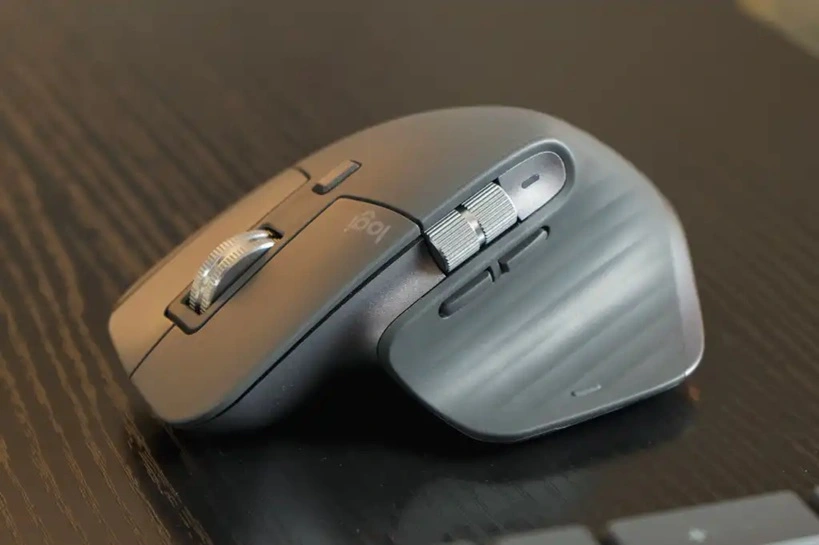
This mouse targets serious work users. It feels solid and smooth. The scroll wheel is quiet and fast. The shape supports the palm well. It suits long hours without strain.
It connects to many devices. Switching is easy. The battery lasts weeks. Charging is quick. It works well on many surfaces.
Pros
- Excellent comfort
- Very precise tracking
Cons
- High price
- Large size
Price
Premium range. Around $104–$110.
2. Logitech Pebble Mouse 2

This mouse focuses on portability. It is slim and light. It fits bags easily. The clicks are quiet. It suits cafes and travel work.
Battery life is strong. Connection stays stable. It feels basic but reliable. It suits simple tasks well.
Pros
- Lightweight
- Silent clicks
Cons
- No extra buttons
- Small for large hands
Price
Budget-friendly. About $109.99.
3. Apple Magic Mouse

This mouse suits Apple users. It has a clean look. Touch gestures work smoothly. It pairs fast with Mac devices.
The shape feels flat. Some users love it. Others dislike it. Battery charges through cable.
Pros
- Smooth gestures
- Premium design
Cons
- Charging position
- Comfort issues
Price
High range. $79–$99 USD.
4. Razer Basilisk X Hyperspeed
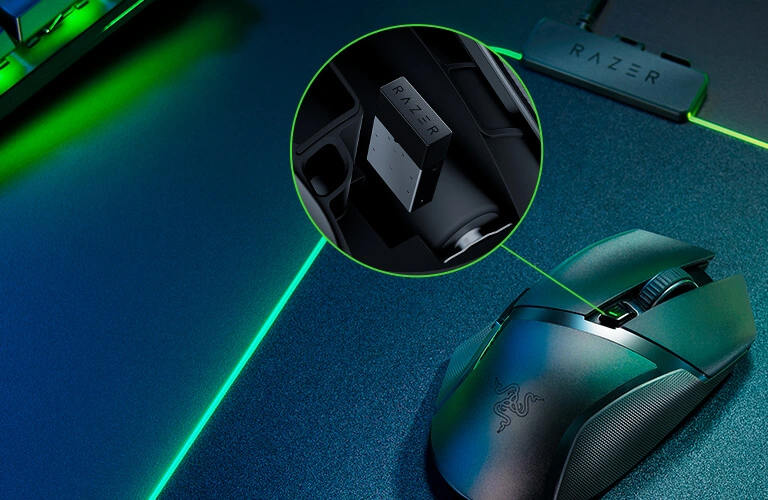
This mouse suits wireless gaming. It offers high DPI. Tracking feels fast and accurate. Buttons feel responsive.
Battery life surprises many users. It supports two wireless modes. It suits gamers on a budget.
Pros
- Fast sensor
- Long battery life
Cons
- Simple design
- No RGB lighting
Price
Mid-range. $39–$59 USD, depending on the retailer and availability.
5. Microsoft Bluetooth Mouse
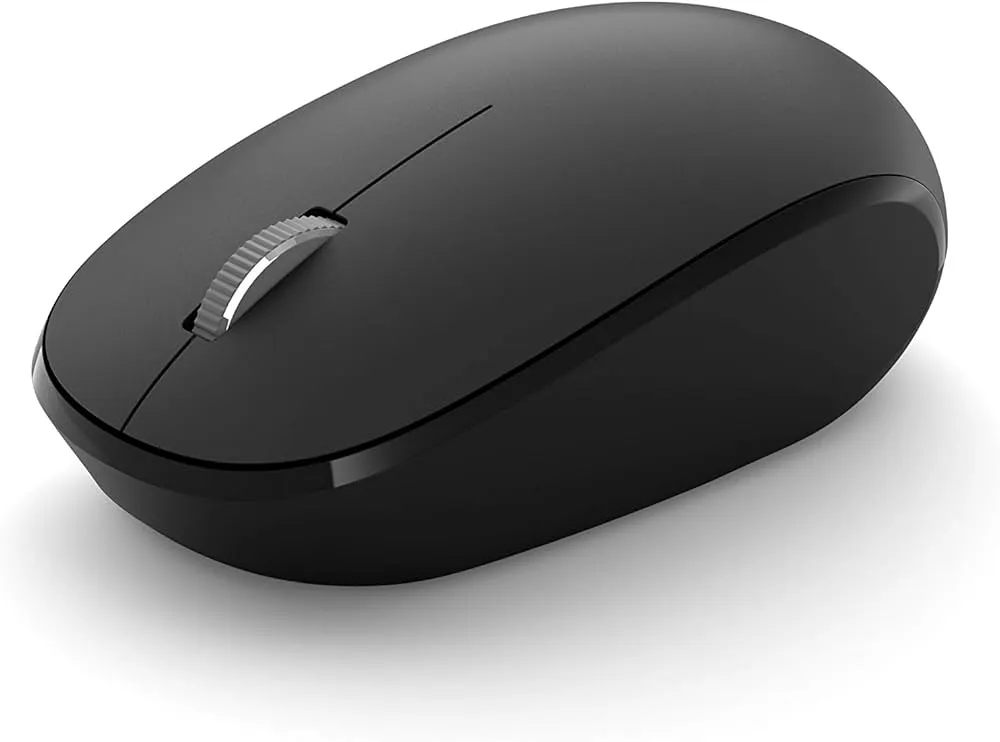
This mouse keeps things simple. It suits office tasks. It feels light and smooth. It connects easily.
Battery lasts long. Build quality feels decent. It suits daily use without fuss.
Pros
- Simple setup
- Comfortable shape
Cons
- Basic features
- Average tracking
Price
Affordable. $35-$94.
Top 5 Wired or Cable Mouse
Wired mouse still matters. Well, yes! They offer steady performance. They suit desks and gaming setups. This computer mouse buying guide covers strong wired options too.
Top 5 Wired Mouse Comparison Table
| Mouse | DPI | Cable type | Best for |
| Logitech G502 Hero | 25600 | Braided | Gaming |
| Razer DeathAdder Essential | 6400 | Rubber | Gaming |
| Logitech B100 | 800 | Rubber | Office |
| SteelSeries Rival 3 | 8500 | Rubber | Gaming |
| Dell MS116 | 1000 | Rubber | Office |
1. Logitech G502 Hero
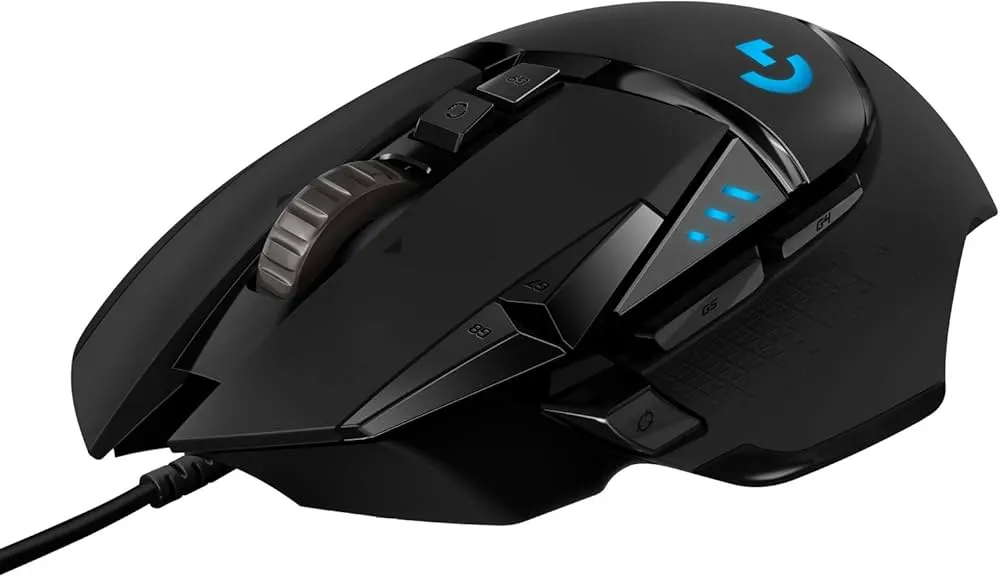
This mouse offers deep control. It has many buttons. DPI adjustment is precise. Weight tuning helps balance.
Gamers enjoy the accuracy. The cable feels strong. Software adds flexibility.
Pros
- High precision
- Custom buttons
Cons
- Heavy for some
- Complex setup
Price
Mid to high around $39–$59.
2. Razer DeathAdder Essential
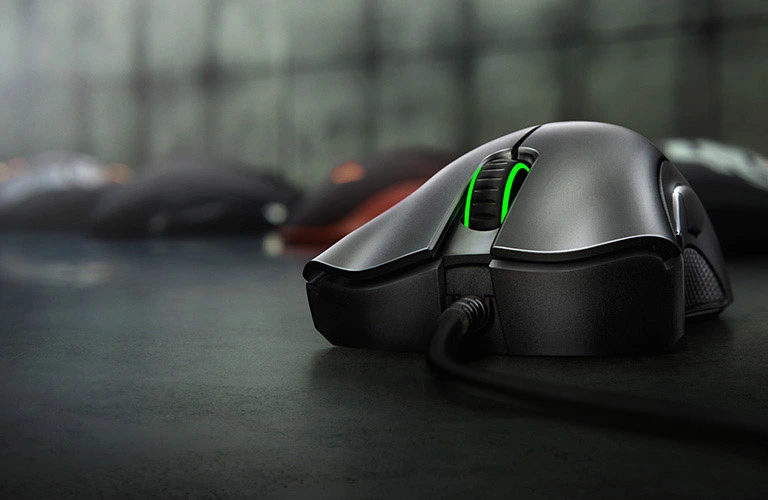
This mouse feels simple and effective. The shape fits most hands. Tracking is reliable. It suits fast movements.
Build quality feels strong. It focuses on the basics. Many gamers trust this model.
Pros
- Comfortable shape
- Reliable sensor
Cons
- No extra features
- Plain look
Price
Affordable. $29–$49.
3. Logitech B100
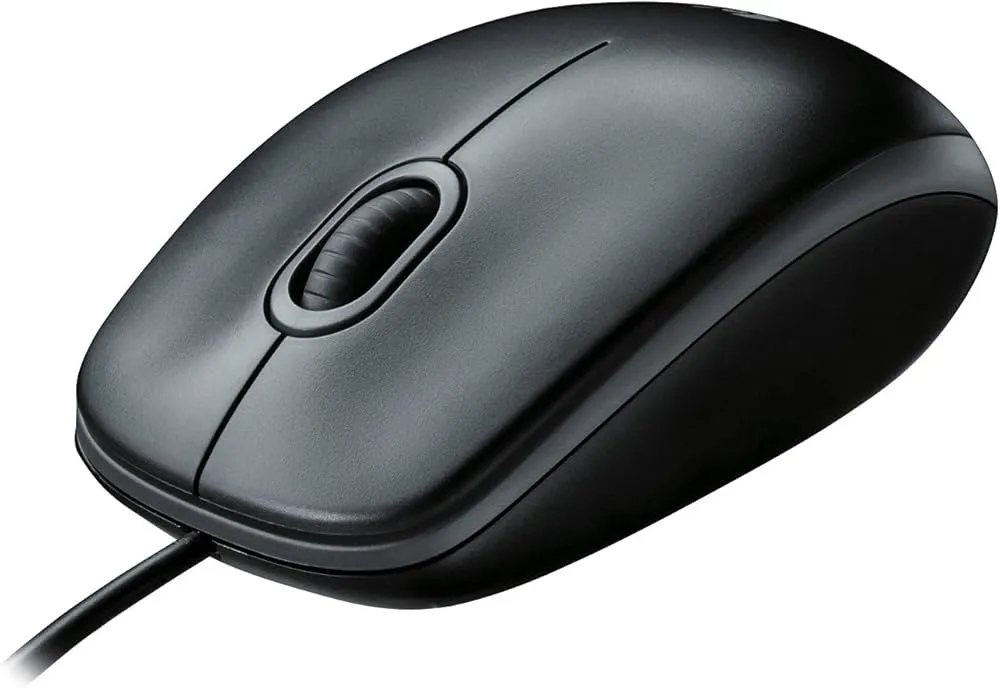
This mouse suits office desks. It feels light. Setup is instant. It works on most surfaces.
No extra features exist. That is its strength. It just works.
Pros
- Very cheap
- Plug and play
Cons
- Low DPI
- Basic design
Price
Very low. Around $6–$10 USD.
4. SteelSeries Rival 3
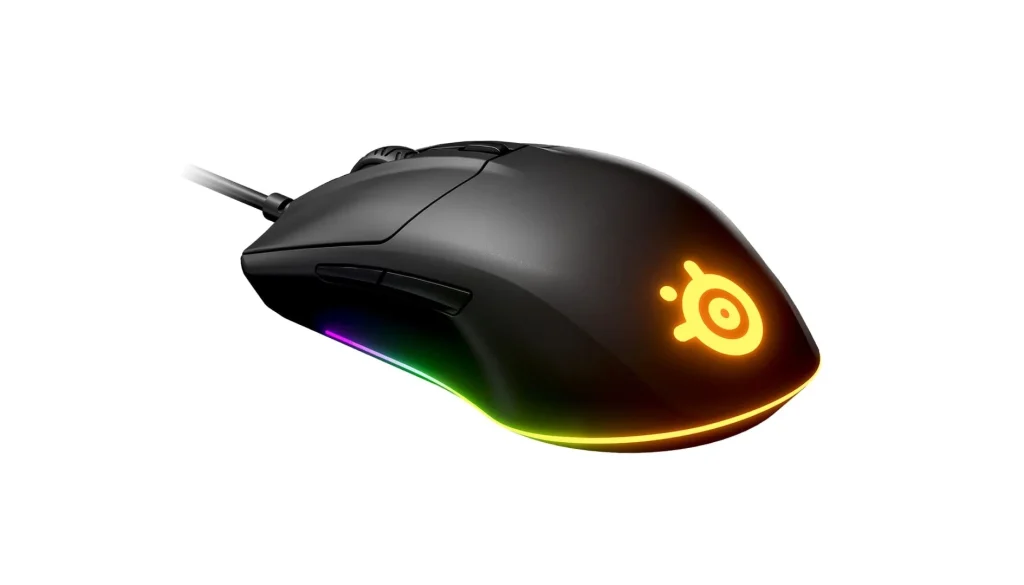
This mouse balances gaming and comfort. It feels smooth. Tracking stays accurate. Buttons respond well.
The design looks modern. It suits long sessions. Cable drag is low.
Pros
- Good sensor
- Comfortable grip
Cons
- Software learning curve
- Limited buttons
Price
Mid-range. Around $29–$39 USD.
5. Dell MS116
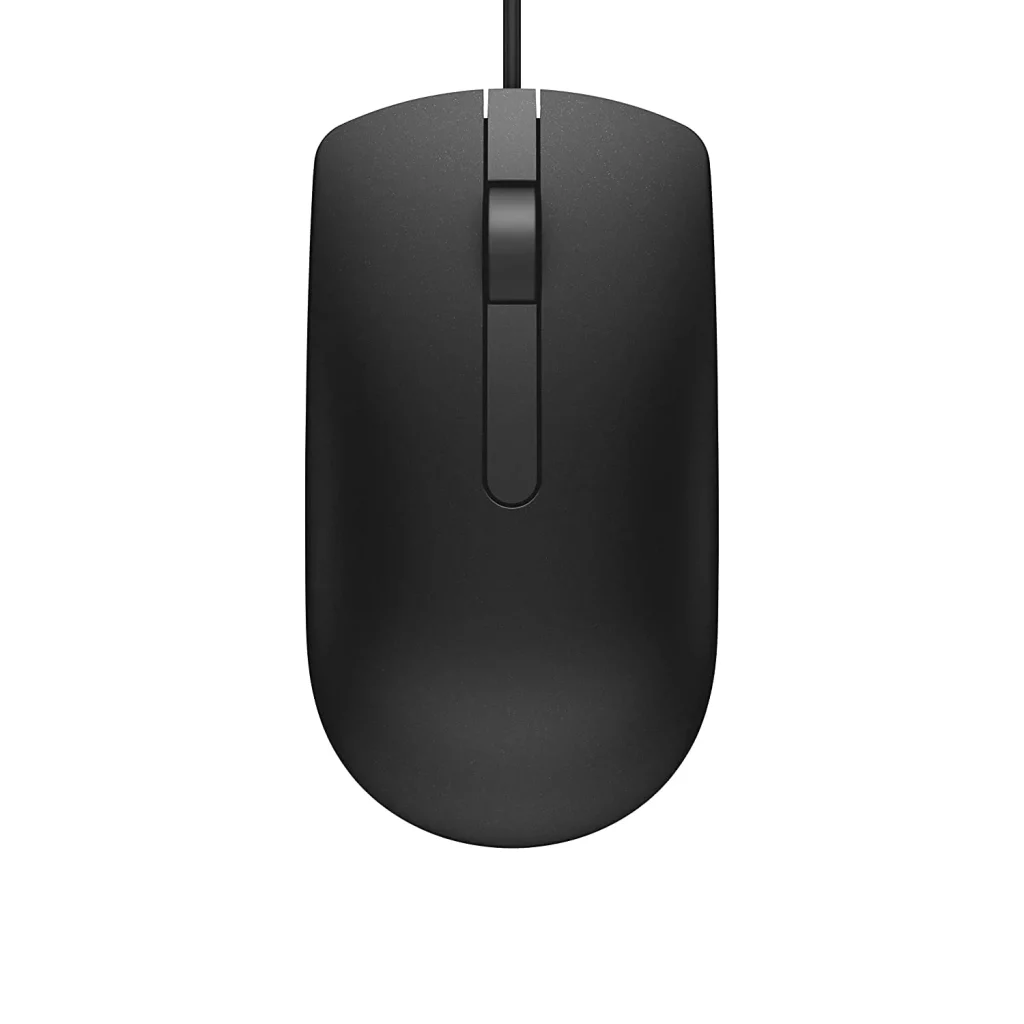
This mouse fits office needs. It feels simple and sturdy. Tracking is decent.
It suits daily tasks. It is often bundled with PCs.
Pros
- Durable
- Easy use
Cons
- Plain design
- Average feel
Price
Low cost. Around $8–$12 USD.
Author’s Tip
Do not rush this choice, because a good mouse often stays with you for years. A shape that feels right matters more than flashy design or colors. If you can, test similar shapes in person to see what fits your hand best. Before you buy, read real user reviews to learn how a mouse feels during daily use, not just on paper.
Also, think about the long term. Spending a bit more now on comfort and build quality can prevent wrist strain and save you from buying another mouse soon. In this computer mouse buying guide, comfort comes first, since it affects your daily experience. Next comes performance, because speed and tracking matter. Style and looks should be last in your decision.
Conclusion
Choosing a mouse is a personal decision, and no single model suits everyone. Hand size, grip style, and daily tasks all play a role. What feels perfect for one person may feel uncomfortable for another. That is why understanding your own habits matters more than following trends.
Use this computer mouse buying guide as a steady reference point. Take time to compare options without rushing. Focus on comfort and how the mouse fits your real work or play needs. When the choice is right, even simple clicks feel easier and more natural.
FAQs
1. Is an expensive mouse always better?
An expensive mouse is not always the right choice. Higher price often adds extra features, not better comfort. Many mid-priced mouse offer smooth tracking and solid build quality. The best option depends on how you use it, not on the cost.
2. How long does a mouse usually last?
A good mouse can last three to five years with normal use. Build quality, click strength, and daily handling all matter. Cleaning it and avoiding rough use can extend its life.
3. Is wireless safe for gaming now?
Wireless mouse are now safe for gaming. Modern models have very low input delay and stable connections. Many professional and casual gamers use them without issues.
Author Bio:
Dinesh Lakhwani 

Dinesh Lakhwani, the entrepreneurial brain behind “TechCommuters,” achieved big things in the tech world. He started the company to make smart and user-friendly tech solutions. Thanks to his sharp thinking, focus on quality and the motto of never giving up, TechCommuters became a top player in the industry. His commitment to excellence has propelled the company to a leading position in the industry.
Popular Post











Recent Post

Resolving Microphone Detection Problems: Latest Guide [2026]
Microphones are important tools in daily life. People use them for office meetings, online classes, interviews, gaming, customer support, and content creation. When a system fails to detect a microphone, communication stops at once. This situation can cause stress and confusion. Many users believe the microphone is damaged. In reality, most problems are simple and […]

How To Switch To A Dark Background Theme In Windows [2026]
Most people spend many hours each day in front of a computer screen. Office work, online classes, editing, browsing, and streaming all require long screen time. A bright white background may look clean at first. However, over time, it can feel sharp and tiring. The strong contrast between white backgrounds and black text may cause […]

How to Switch From Local To Microsoft Account On Windows
Many users begin with a local account when they set up a new Windows computer. A local account works only on that single device. It stores settings, files, and preferences locally. It does not connect to online Microsoft services. For basic offline use, it works well. However, as digital needs grow, many users want better […]

How to Switch Windows 10 to a Local Account: Complete Guide
Windows 10 allows users to sign in with either a Microsoft account or a local account. When you set up a new computer, the system often suggests using a Microsoft account. This account connects your device to Microsoft services such as Outlook, OneDrive, and the Microsoft Store. It also syncs settings, themes, and passwords across […]

How To Change Default Apps For File Types In Windows
Windows is designed to make using your computer easy. One way it does this is by assigning default apps to different file types. This means when you open a file, Windows automatically opens it with a specific program. For example, photos may open with Photos, music with Groove Music, and PDFs with Edge. These default […]

How To Adjust The Mouse Pointer Speed: Complete Guide
Using a computer every day means you use the mouse a lot. The mouse pointer moves on the screen and helps you click, scroll, and select items. Many people never think about the speed of the mouse pointer. They have used the default setting for years. This can cause small problems over time. A slow […]

How to Change Mouse Scrolling Settings In Windows
A mouse is one of the most used computer tools. People use it every day. They scroll through emails. They scroll through documents. They scroll through websites and images. The movement becomes automatic. Most users do not notice it. That is why problems often go unnoticed. Scrolling problems show up slowly. At first, it feels […]

Keyboard Light Settings: Keyboard Lighting Control [Complete Guide]
Keyboards are no longer simple typing tools. Well, yes! Over time, they have evolved to include features that improve comfort, visibility, and overall experience. One of the most useful features today is keyboard lighting. It helps users work comfortably in low-light conditions. It also reduces strain when typing for long hours. Many users first notice […]

Customizing Pointer Appearance: Complete Guide
The way your mouse pointer looks on your computer may seem like a small detail. But customizing pointer appearance can make using your PC more comfortable and visually appealing. Many users do not realize that they can change the pointer size, color, and style to fit their needs. Whether you want a bigger pointer for […]

How To Choose a Computer Monitor: Monitor Buying Guide
Buying a monitor looks easy. Many people think all screens are the same. That belief causes regret later. A monitor is not just a display. It is a daily tool. You read on it. You work on it. You relax with it. Small problems become big over time. Poor brightness hurts eyes. Bad size causes […]

