8 Best Free Telegram Clients for Windows PC [2026]

Last updated on December 26th, 2025 at 2:33 am
Telegram is one of the most valuable applications available for mobile and PC usage. You can download and then install the app into Windows 11/10/8/7 OS and other varieties directly through its website link.
Users continue using this application for many reasons, like encrypted messaging, fast and secure message delivery, multi-device support, and unlimited file transfer. However, the user interface of the desktop Telegram app is not the best version available.
In this situation, using a telegram web client application is a better alternative, in our opinion. We will discuss that more extensively in this post, including the best Telegram desktop clients you should trust.
What Is The Importance Of Using Telegram Client Apps?
The best Telegram client apps include additional functions and features not available in the original Telegram app for PC. In addition, a few of the third-party desktop clients increase the available base features, improving its chat functionality. Some of the multi-messenger options supply extra Telegram-centric tools and chat benefits.
Top 8 Best Free Telegram Clients For Windows 11/10/8/7 PC
We have tested out different third-party Telegram client application options that work well in place of the official apps. We have compiled the top five Telegram desktop clients for PC alternatives, specifically for Windows 11/10/8/7.
1. Unigram
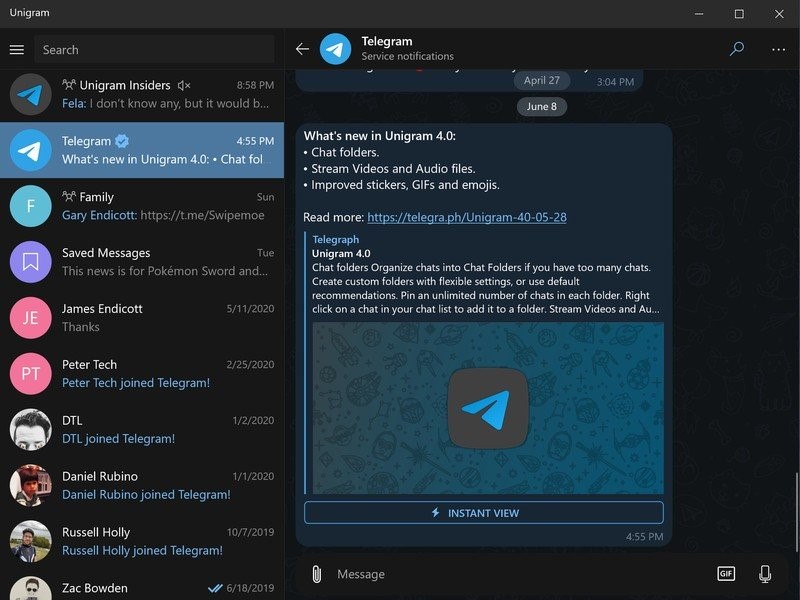
Another usable client alternative for the Telegram desktop application is Unigram. This is useful only for Windows 10 and cannot function efficiently on other OS types. The functionality of this application is very user-friendly and includes many efficient options.
The platform supports multi-account accessibility and functionality for Telegram users, primarily operating the software on Windows 10. Here, they get the Windows 10 People option to integrate. This allows users to directly add their private contact data to the chat and taskbar instead of opening the chat.
Compatibility: Windows 10
Price: Free
Features:
- Consistent updates
- F-keys operate different functions with one-click
- Record live-streaming videos
- Interactive emojis
- Live Tile
- Continuum support
2. Telefuel
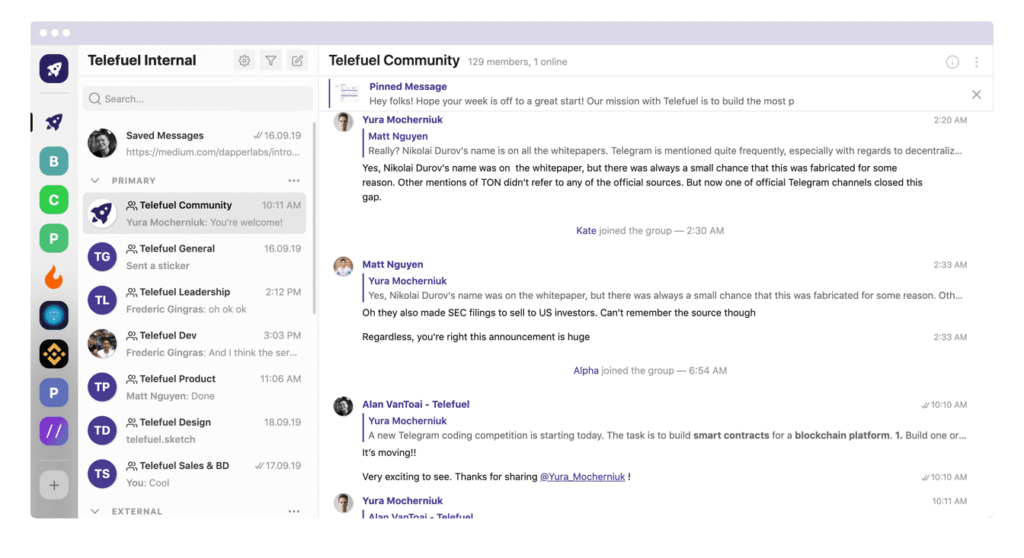
Telefuel is one of the most used Telegram clients for Windows PC, useful for people operating diverse OS types. It enhances the service quality of the Telegram app and provides its features at an expanded rate.
Users get the chats categorized into the type of chat. Furthermore, you will notice four types of tabs available here, Channels, DMs, Bots, and Groups. Plus, users get the Workspaces feature through Telefuel, which is typically available under Slack.
This type of folder gives access and control to the users for organizing all chats. Plus, you can filter the unread messages here
Compatibility: Windows 7,8,10,11
Price: Free
Features
- Easily organize all chats, channels, groups, and DMs into folders and workspaces.
- Filter chats by unread mentions/messages
- Separate important tabs/messages
- Keyboard shortcuts
- MTProto-secure data privacy with messaging
3. Ferdi
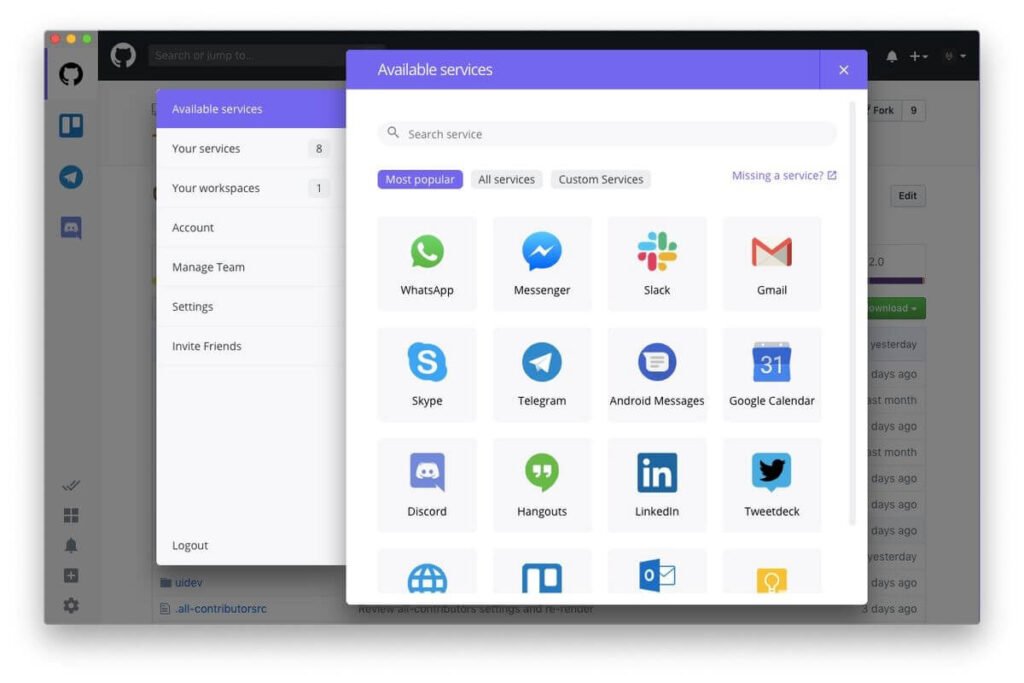
Among the different options available, Ferdi is useful as a desktop client app of Telegram for people who engage in constant messaging. This messenger browser app brings different messaging apps to the device in one location.
Besides Telegram, you can download Ferdi and access all your communications apps Google Messages, Facebook, and WhatsApp. This assures better usability since all messages are stored in this one section.
Compatibility: Windows
Price: Free
Features:
- Private notification feature
- Autohide notification menu
- Keep all individual workspaces active
- Password lock
- Quick search
4. Kotatogram
Kotatogram is one of the newer options for the Telegram client application, accessible via different Windows versions and even Linux and macOS. This cross-platform software is a suitable alternative when more than one Telegram desktop client app is working on one platform.
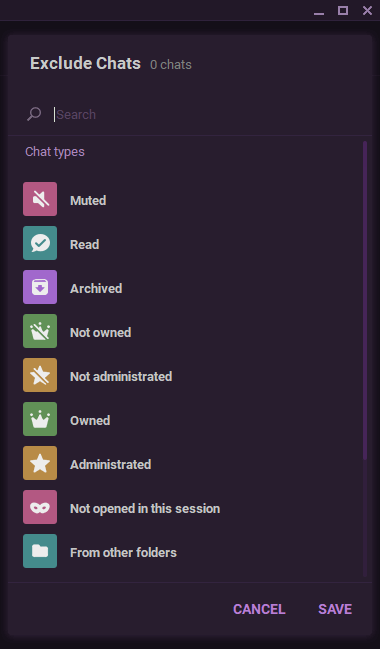
This Telegram client for Windows PC improves the already feature-rich quality of the official Telegram PC app. A helpful feature under Kotatogram is dubbed local folders, which cover non-syncing chat folders. This is an open-source option.
Also, this app lets you decide which pinned messages to show and which to hide. You would also get custom stickers and use them during the messages.
Compatibility: Windows 7 and newer
Price: Free
Features:
- Dubbed local folders
- Multi-forward/unquoted forward
- Unique chat IDs
- Easy channel/group management buttons
- Easy API ID/Hash setup
5. Station
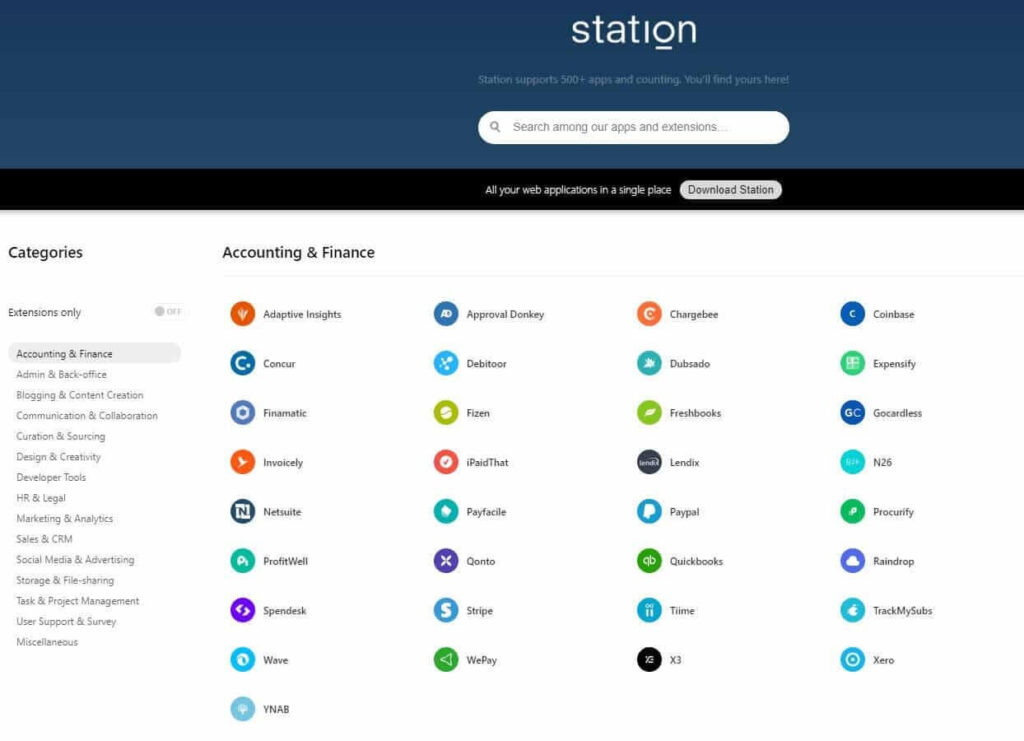
Another notable Telegram client alternative you should try out is Station. Although, it is not a traditional option for Telegram clients. It is a type of productivity suite with a host of features available.
The software works to combine different instant messaging apps and their functions. Users can opt for Station to manage their Telegram messages easily but would mostly notice standard-level features.
Compatibility: Windows 10/8/7
Price: Free
Features
- Smart docking
- Custom app notifications muting
- Access recent documents with shortcuts
- Multi-account/profile access
- Easily bookmark recently visited pages
6. TDesktop Plus
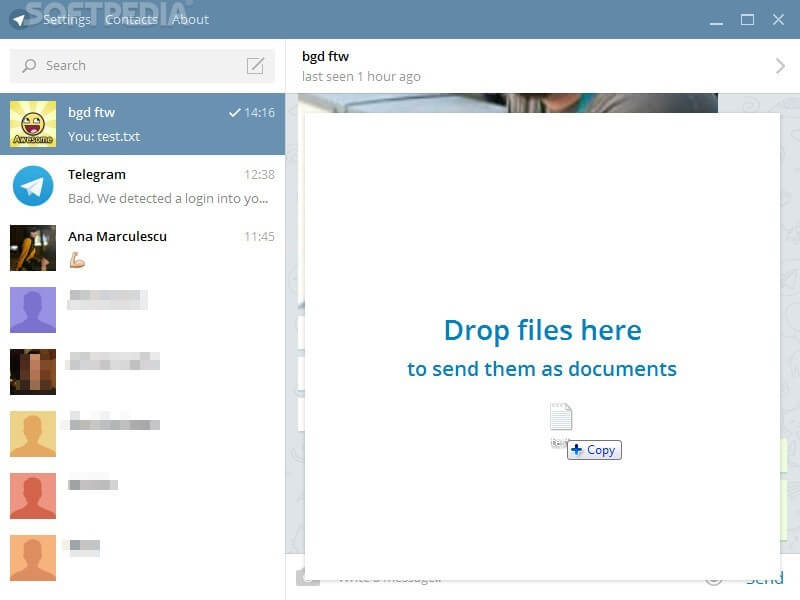
This particular Telegram client for Windows 11/10/7 PC includes a specialized source code. It follows a similar alpha version pattern as the extended desktop client application of Telegram. The primary software options that provide the main features of this client are MTProto security protocol and Telegram API.
Compatibility: Windows 7,8,10,11
Price: Free
Features:
- Transfer documents, texts, photos, voice, notes, and other elements through chat
- Broadcasting messages allowed
- Diverse emojis
- 50,000 members in a group chat
- Simple user interface
7. Rambox
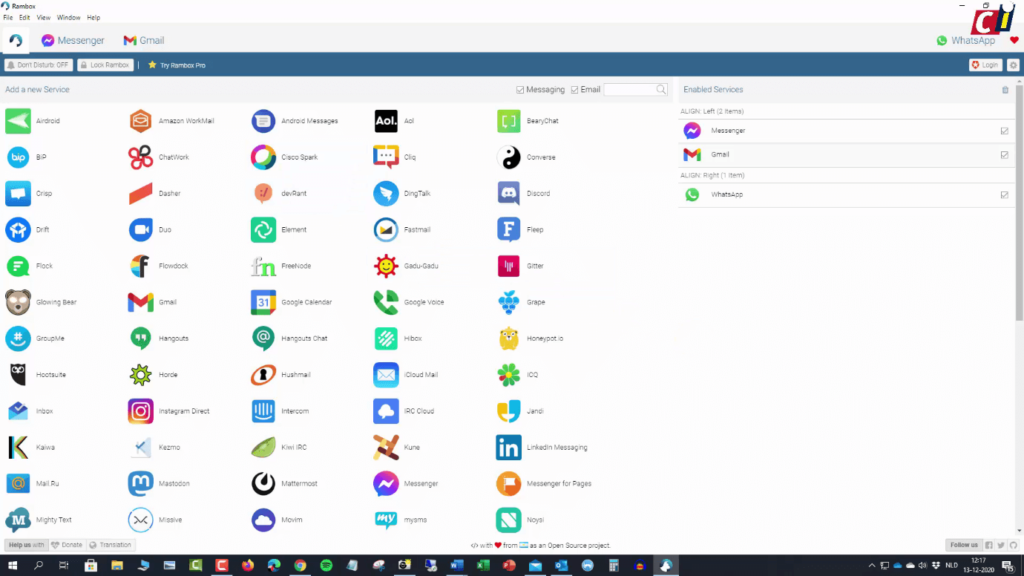
This is one of the most innovative and concise software options that work as a suitable desktop client alternative on Windows PC. It is helpful for smooth messaging and chats. Plus, it is easy to use for both professional-level users and complete beginners. To note, this workspace organizer cannot correctly work with different Windows OS versions.
Compatibility: Windows 7 and newer
Price: Free
Features:
- Simple to use features
- Visually attractive interface
- Cross-platform support
- Customizable workspaces
- Supports third-party extensions
8. Cutegram
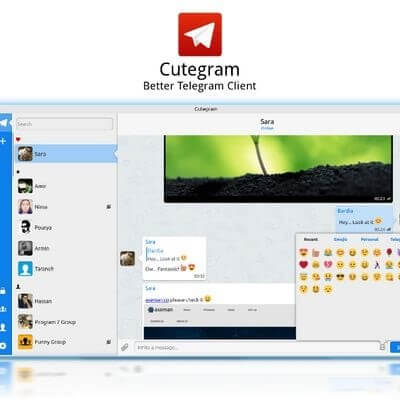
Cutegram is a suitable Telegram client for Windows alternatives that people can use on their Windows PC. Users can add their Telegram account to this in place of the original desktop app and operate the regular messaging functions.
Compatibility: Windows
Price: Free
Features:
- Send attachments, text messages, voice notes, emojis, etc.
- Message forwarding disabling
- Secret Chat feature
- Mute and favorite contacts
- Notification management
Conclusion:
Instead of the official Telegram desktop app, users can opt for the desktop client apps. It is essential to remember that third-party Telegram apps are comparatively more vulnerable than the official desktop app version. We would suggest you download high-quality antivirus software like Avast or AVG.
They safeguard the system from external hacking attacks and malware and improve firewall conditions, among other benefits. Please go through our other posts to find guidance on your other software-related questions if you found this post helpful.
FAQs:
Is there a Telegram for Windows?
Yes, Telegram has a desktop version specifically designed for Windows OS, allowing you to use Telegram on your Windows laptop or PC.
Which Telegram is best for a laptop?
The official Telegram desktop app, available for Windows, macOS, and Linux, is considered the best option for laptops, providing a seamless messaging experience.
Which is the best Telegram client?
There are several Telegram client apps available, and the best one depends on individual preferences. Some popular choices include Unigram, Telefuel, Ferdi, and Kotatogram.
Is Unigram better than Telegram?
The comparison between Unigram and Telegram depends on individual preferences and needs. Unigram is a third-party Telegram client for Windows 10, offering additional features and a user-friendly interface. However, the official Telegram app provides consistent updates and supports various platforms, making it suitable for a wider range of users. Ultimately, the choice between Unigram and Telegram depends on which features and platform compatibility is more important to you.
Author Bio:
Dinesh Lakhwani 

Dinesh Lakhwani, the entrepreneurial brain behind “TechCommuters,” achieved big things in the tech world. He started the company to make smart and user-friendly tech solutions. Thanks to his sharp thinking, focus on quality and the motto of never giving up, TechCommuters became a top player in the industry. His commitment to excellence has propelled the company to a leading position in the industry.
Popular Post











Recent Post

Artificial Intelligence Explained: Concepts, Terminology, Benefits, and Future Trends
Artificial Intelligence, or AI, is basically computers doing things that usually need a human brain. We’re talking about stuff like learning from experience, figuring out problems, understanding language, and making decisions. It’s not magic, just a lot of data, pattern-spotting, and math behind the scenes. Now, AI doesn’t actually think or feel like we do. […]

Resolving Microphone Detection Problems: Latest Guide [2026]
Microphones are important tools in daily life. People use them for office meetings, online classes, interviews, gaming, customer support, and content creation. When a system fails to detect a microphone, communication stops at once. This situation can cause stress and confusion. Many users believe the microphone is damaged. In reality, most problems are simple and […]

How To Switch To A Dark Background Theme In Windows [2026]
Most people spend many hours each day in front of a computer screen. Office work, online classes, editing, browsing, and streaming all require long screen time. A bright white background may look clean at first. However, over time, it can feel sharp and tiring. The strong contrast between white backgrounds and black text may cause […]

How to Switch From Local To Microsoft Account On Windows
Many users begin with a local account when they set up a new Windows computer. A local account works only on that single device. It stores settings, files, and preferences locally. It does not connect to online Microsoft services. For basic offline use, it works well. However, as digital needs grow, many users want better […]

How to Switch Windows 10 to a Local Account: Complete Guide
Windows 10 allows users to sign in with either a Microsoft account or a local account. When you set up a new computer, the system often suggests using a Microsoft account. This account connects your device to Microsoft services such as Outlook, OneDrive, and the Microsoft Store. It also syncs settings, themes, and passwords across […]

How To Change Default Apps For File Types In Windows
Windows is designed to make using your computer easy. One way it does this is by assigning default apps to different file types. This means when you open a file, Windows automatically opens it with a specific program. For example, photos may open with Photos, music with Groove Music, and PDFs with Edge. These default […]

How To Adjust The Mouse Pointer Speed: Complete Guide
Using a computer every day means you use the mouse a lot. The mouse pointer moves on the screen and helps you click, scroll, and select items. Many people never think about the speed of the mouse pointer. They have used the default setting for years. This can cause small problems over time. A slow […]

How to Change Mouse Scrolling Settings In Windows
A mouse is one of the most used computer tools. People use it every day. They scroll through emails. They scroll through documents. They scroll through websites and images. The movement becomes automatic. Most users do not notice it. That is why problems often go unnoticed. Scrolling problems show up slowly. At first, it feels […]

Keyboard Light Settings: Keyboard Lighting Control [Complete Guide]
Keyboards are no longer simple typing tools. Well, yes! Over time, they have evolved to include features that improve comfort, visibility, and overall experience. One of the most useful features today is keyboard lighting. It helps users work comfortably in low-light conditions. It also reduces strain when typing for long hours. Many users first notice […]

Customizing Pointer Appearance: Complete Guide
The way your mouse pointer looks on your computer may seem like a small detail. But customizing pointer appearance can make using your PC more comfortable and visually appealing. Many users do not realize that they can change the pointer size, color, and style to fit their needs. Whether you want a bigger pointer for […]

