Top 5 Streaming Video Recorders For PC [2026]

Last updated on December 26th, 2025 at 2:29 am
Introduction
Video streaming is one of the most common activities that content creators and regular users currently partake in. There are platforms available for streaming different types of content online, like gaming, entertainment, etc., like Twitch or YouTube.
For this, you can use regular recorders or instead try out the specialized best streaming video recorders for direct video streaming to connected platforms. In addition, professionals like corporate team leaders, course instructors, and coaches can also use these recorders to store and show videos to their teams for easier discussion.
The demand and customer satisfaction potential are high with these recorders that users can utilize for other features like webcam overlay, text input, and more. Therefore, we present this list of the top 5 such recorders to use.
Top 5 Streaming Video Recorders
Multiple online software and hardware-centric applications allow users to record live videos accurately and broadcast them to streaming platforms. On the other hand, specific best streaming video recorders come with a pre-built effects library, deep storage, and editing functions.
Therefore, we have compiled the list of the best 5 of them, detailing their specifications.
1. EaseUs RecExperts
Users of EaseUs RecExperts can operate this software to record different types of media, like pictures, audio, videos, images, and webcams. With this software, you can also save tutorials and videos from different sites like YouTube and record Zoom meetings.
Users find it simple to capture videos from the screen with internal audio and voiceovers. This makes the app one of the best video recorders for games you can post on streaming sites later or at a scheduled period.
Moreover, sharing the content online and recording it at any time from multiple types of devices is easy. The Auto-stop function is also available for these users.
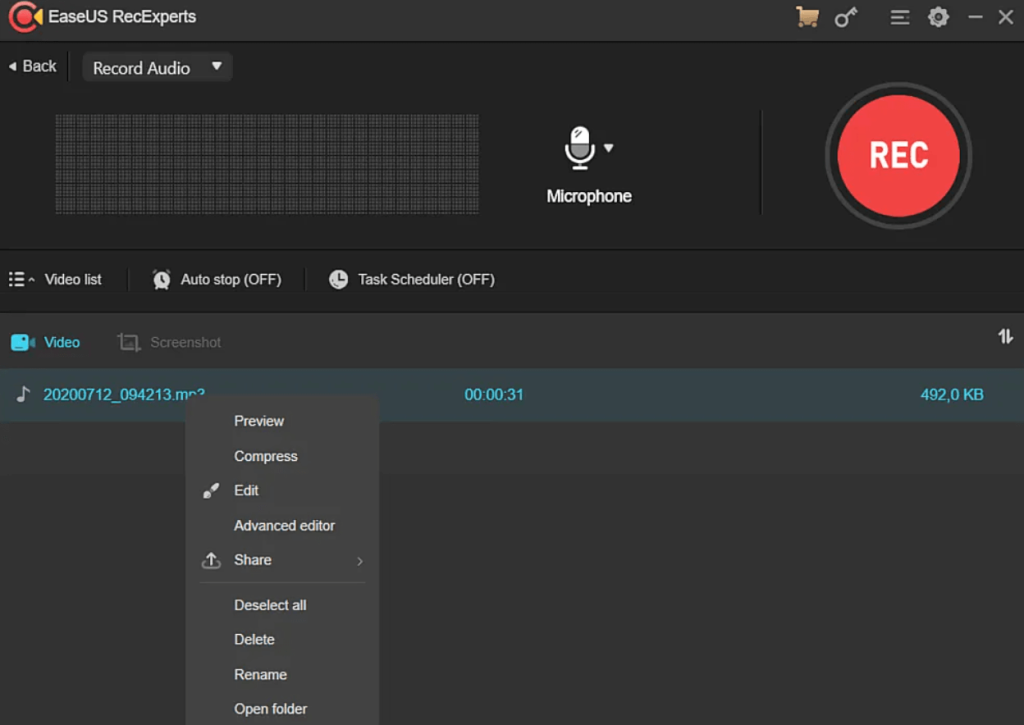
Compatibility: Windows 11/10/8.1/8/7, macOS 10.13+
Price: Monthly- USD 19.95, Yearly- USD 39.95, Business- USD 99.95, Lifetime- USD 69.95
Top Features:
- Take screenshots of videos with a powerful precision level during recordings.
- Schedule the timeline of the recording from starting moment to the ending period.
- Plan multiple overlapping or back-to-back recording and streaming tasks for automatic playing.
- The auto-split recording is possible for several files simultaneously for continued usage.
Pros:
- Many output formats are accepted, like MP3, MP4, PNG, AVI, and more.
- Trim and merge different clips and recording sections to create customized video presentations.
- Adjust sound quality specifications like volume, pitch, etc.
Cons:
- None of the advanced or standard features are available for free users until after the trial period ends.
- License for users allows 1 to 2 devices each time at least.
Best for Users: YouTube content creators, gaming experts, small-scale entrepreneurs, and training professionals can use this to record/stream/edit various videos.
2. ScreenRec Streaming Video Recorder
ScreenRec is one of the best streaming video recorders available that users can operate to install and record a variety of content on screen freely. Of course, you can also record videos from protected sites like Netflix, but it is important to stay careful and avoid distributing the recording.
The process of recording videos is simple with this application, and it can store hours’ worth of content in the device and the connected private Cloud.
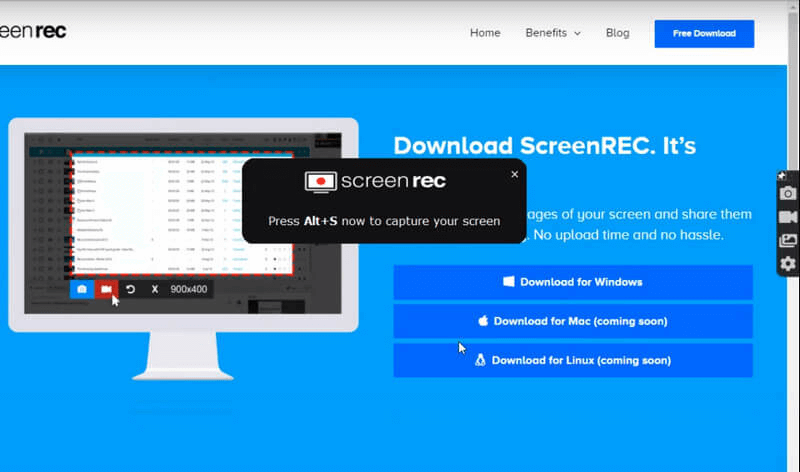
Compatibility: Windows 11/10/8.1/8/7/Vista/XP, Linux
Price: Free
Top Features:
- You would not get any watermarks on the videos.
- Private cloud access with 2 GB of free storage is guaranteed.
- You can record sound or voice directly from the desktop using this software.
- It is possible to record non-stop for hours using the audio/video recorder.
Pros:
- Users can make stream an unlimited number of recordings.
- Relatively lightweight software and compatible with many streaming service providers.
- No extensive learning curve here.
Cons:
- No version is available for Mac users yet.
- Mainly useful for personal use, one should not record copyrighted content to avoid legal issues.
Best for Users: Regular users who want simple-to-use software for video recording and streaming with no lagging can benefit from this.
3. Bandicam
Bandicam is another top software for live streaming and pre-set video recording with a rich set of software elements. For example, you can overlay real-time videos through the webcam into any video on this software, especially while recording them. For further customization, it is possible to outline and draw on the screen captures or videos on this software as well.
Through Bandicam, users can record their voiceovers for streaming videos and schedule the time for the next recording on a weekly or daily basis.
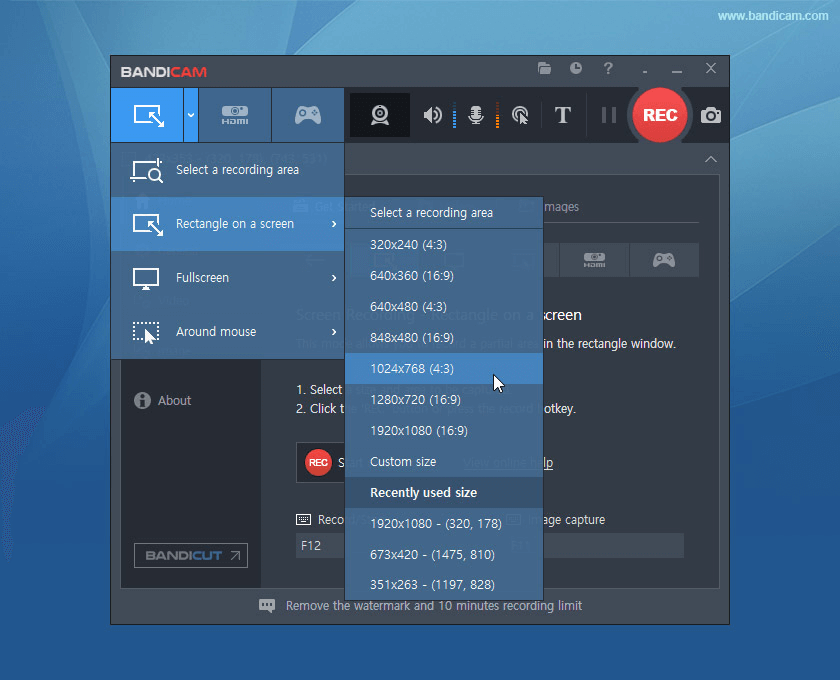
Compatibility: Windows 11/10/8/7/Vista
Price: Free, Registered plan costs start at USD 60.95.
Top Features:
- Users get total access to game controls and FPS overlay.
- You can capture recorded mages in JPG, BMP, and PNG formats.
- Screen recording and game recording are supported in AVI and MP4 video formats for each accessibility across different video players.
- With the full version, users can record videos 24x7x365 continuously.
Pros:
- Users can record via HDMI and Webcam in MP4 and AVI format.
- You can schedule the recording period with a registered account.
- Gaming experts and streamers can record games like Roblox, Skyrim, and other playthroughs.
Cons:
- Under the free version, you can only record each file for 10 minutes.
- You can remove the watermark only as a paid user.
Best for Users: Podcasters and streamers who want scheduled recordings of 2D/3D games, lectures, Zoom meetings, etc., can use this software.
4. OBS Studio
One of the best streaming video recorders is the OBS Studio, a professional-quality software for recording and streaming video across varying platforms. You can capture and mix audio and video files in real-time and edit them using available functions/tools.
Some of the notable sources editing experts can use to optimize their videos here are texts, images, window screen captures, webcams, and more. Before uploading or streaming any content, you can make modifications like audio mixing via noise suppression and noise gate filters.
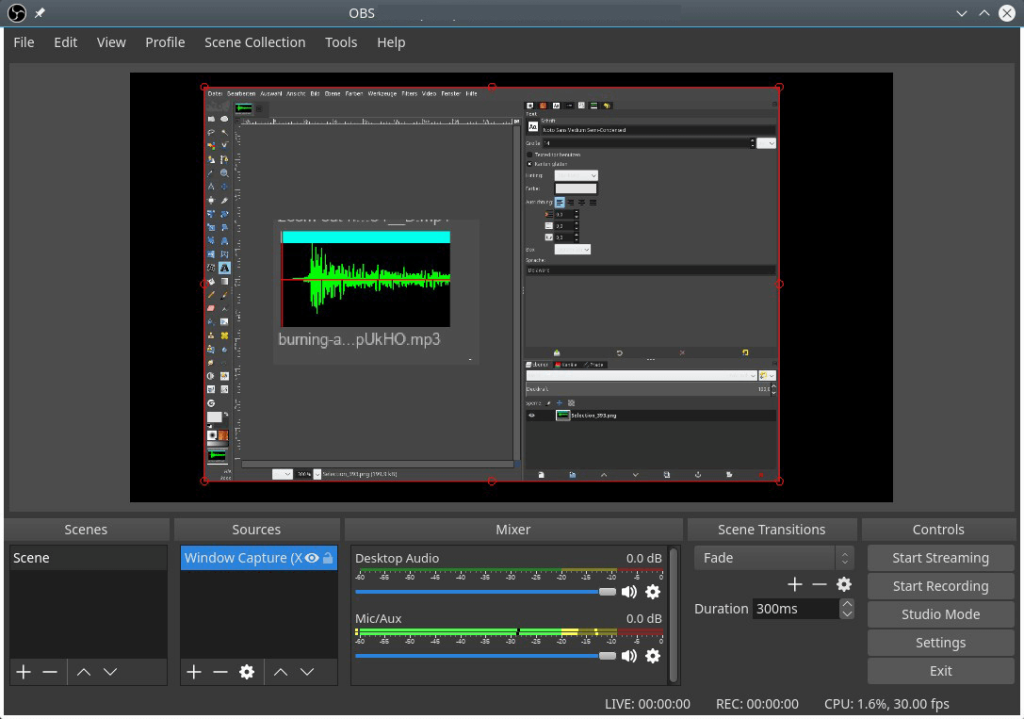
Compatibility: macOS 10.13+, Windows 11/10/8.1, Linux
Price: Free
Top Features:
- Prepare hotkeys for customized functions like audio source muting, start/stop recordings/streams, scene transitions, etc.
- A list of customizable filters and transition effects is available.
- Arrange all navigations, docks, and UI functions using Modular UI support.
- Add custom transitions to combine a wide range of videos.
Pros:
- Manage eight screens simultaneously and choose transitions between each with a few clicks.
- Preview sources/scenes before you stream them live.
- Record new scenes or edit recordings with filters and cuts in the Studio Mode.
Cons:
- Not the best software for beginners with limited technical knowledge.
- You can connect to third-party sites via this software, which is not always checked for safety.
Best for Users: This software allows professional-level videographers to get studio-quality recording benefits.
5. Movavi Screen Recorder
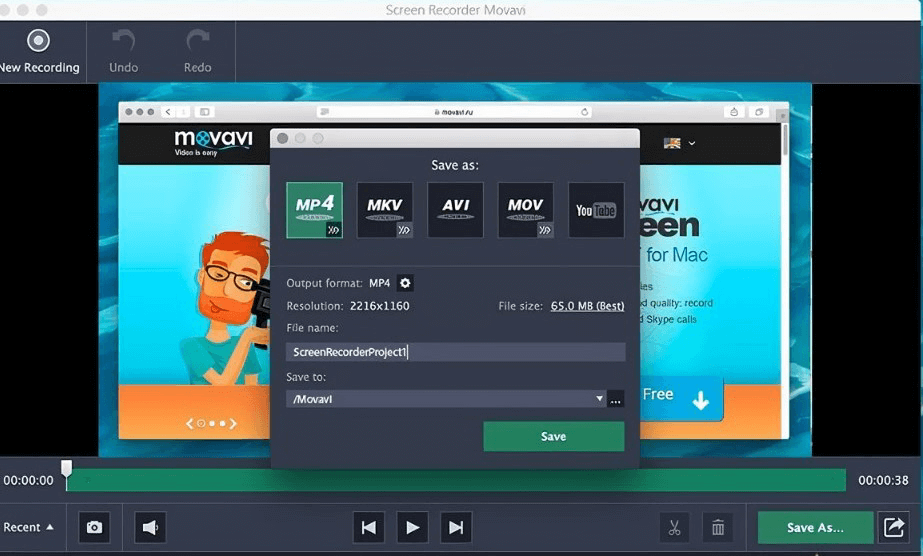
Movavi Screen Recorder is a user-friendly screen recorder and streaming software that users can operate for broadcasting online events and videos. With this, it is possible to save online calls and webinars and even record video tutorial videos and instructive guides with some clicks.
You can decide the parameters for the video recording from the software settings and then click the Record button on the screen. This would activate the recording function in 4K/FullHD resolution, saving the file in the local storage. You can also edit the size and duration of the video or audio file and choose the type of output format for the video.
Compatibility: Windows 7/8/8.1/10/11, Mac
Price: Screen Recorder- USD 19.19 (One annual purchase), USD 25.59 (One-time purchase + Windows only), Video Suite- USD 33.28, Screen Recorder (Mac) + Video Editor Plus- USD 29.44.
Top Features:
- You can record the webcam video output specifically instead of the whole screen.
- Use keystrokes/mouse for quick edits to videos.
- Prepare screencasting using a webcam, microphone, etc., and record audio/video separately.
- Adjust the recording time limit and choose the following action (e.g., saving the streaming video automatically).
Pros:
- You can record the audio files in 4K or FullHD resolution for the best sound quality.
- Directly record just audio from a microphone or computer device separately.
- You can add effects and drawings to your videos for more personalization.
Cons:
- Technical support can take upto 3 days to revert back about
- customer issues.
- Users cannot add tags or descriptions for their videos when sharing via YouTube under the trial version.
Best for Users: Business professionals or regular users who want to record online calls or meetings can do with this screen recorder properly.
Conclusion
Many of these software options are strong contenders to record and then automatically stream the videos across different platforms. In addition, some come with useful editing functions, thus improving usability and versatility.
We would recommend the EaseUs RecExperts as a suitable software choice in this case due to its user-friendly functions and variety of features available. Other well-made and top-quality steaming video recorders are ScreenRec Streaming Video Recorder and OBS Studio, each with strong usability.
Try out each or most of these software options to see which fits your streaming requirements best. Then, make the final choice of the right software for you.
Author Bio:
Dinesh Lakhwani 

Dinesh Lakhwani, the entrepreneurial brain behind “TechCommuters,” achieved big things in the tech world. He started the company to make smart and user-friendly tech solutions. Thanks to his sharp thinking, focus on quality and the motto of never giving up, TechCommuters became a top player in the industry. His commitment to excellence has propelled the company to a leading position in the industry.
Popular Post











Recent Post

How to Switch Windows 10 to a Local Account: Complete Guide
Windows 10 allows users to sign in with either a Microsoft account or a local account. When you set up a new computer, the system often suggests using a Microsoft account. This account connects your device to Microsoft services such as Outlook, OneDrive, and the Microsoft Store. It also syncs settings, themes, and passwords across […]

How To Change Default Apps For File Types In Windows
Windows is designed to make using your computer easy. One way it does this is by assigning default apps to different file types. This means when you open a file, Windows automatically opens it with a specific program. For example, photos may open with Photos, music with Groove Music, and PDFs with Edge. These default […]

How To Adjust The Mouse Pointer Speed: Complete Guide
Using a computer every day means you use the mouse a lot. The mouse pointer moves on the screen and helps you click, scroll, and select items. Many people never think about the speed of the mouse pointer. They have used the default setting for years. This can cause small problems over time. A slow […]

How to Change Mouse Scrolling Settings In Windows
A mouse is one of the most used computer tools. People use it every day. They scroll through emails. They scroll through documents. They scroll through websites and images. The movement becomes automatic. Most users do not notice it. That is why problems often go unnoticed. Scrolling problems show up slowly. At first, it feels […]

Keyboard Light Settings: Keyboard Lighting Control [Complete Guide]
Keyboards are no longer simple typing tools. Well, yes! Over time, they have evolved to include features that improve comfort, visibility, and overall experience. One of the most useful features today is keyboard lighting. It helps users work comfortably in low-light conditions. It also reduces strain when typing for long hours. Many users first notice […]

Customizing Pointer Appearance: Complete Guide
The way your mouse pointer looks on your computer may seem like a small detail. But customizing pointer appearance can make using your PC more comfortable and visually appealing. Many users do not realize that they can change the pointer size, color, and style to fit their needs. Whether you want a bigger pointer for […]

How To Choose a Computer Monitor: Monitor Buying Guide
Buying a monitor looks easy. Many people think all screens are the same. That belief causes regret later. A monitor is not just a display. It is a daily tool. You read on it. You work on it. You relax with it. Small problems become big over time. Poor brightness hurts eyes. Bad size causes […]

How To Get Help With File Explorer in Windows 11 [Complete Guide]
File Explorer is one of the most important tools in Windows 11. It is used to open folders, view files, and manage stored data. Almost every action on a Windows computer depends on it in some way. When users open documents, save downloads, or organize photos, File Explorer is always involved. Because it is used […]

How To Fix A Frozen Computer: Complete Guide [Windows 11/10]
A frozen computer is one of the most common problems Windows users face. The screen stops responding. The mouse pointer does not move. Keyboard inputs do nothing. You may hear the fan running loudly. Sometimes the system looks alive, but nothing works. This situation often happens when you are busy or working on something important. […]

How to Upgrade Computer RAM: Complete Guide
Upgrading RAM is one of the simplest ways to improve a computer. It helps the system feel faster and smoother. Apps open quicker. Browsers handle more tabs. Games and tools run with less delay. Many users search for how to upgrade computer RAM because it gives real results without high cost. You do not need […]

