Top 10 Free Ad Blocker for Windows 11, 10, 7 [2026]

Last updated on December 27th, 2025 at 1:46 am
People use browsers and applications on their devices for various functions, including streaming videos or viewing content. However, regardless of the browser type or device they use, one issue that everyone deals with is popup advertisements.
Some websites do not provide excessive ads, but they can still get distracting for most users. Not to mention, a few ads may contain malicious content or malware.
At this point, using the Best Ad Blocker plugin, software, or extension is useful to block the excessive stream of ads while browsing or using an application/service. Here, we cover the Best free Windows software available to block Ads in the market- choose the right fit for your needs.
Top 5 Comparison Table
This short overview helps you compare the most trusted free ad blockers used today. Each item has been known to work well across Windows systems and offers a balanced set of features.
| Ad Blocker | Main Strength | Ease of Use | Extra Features | Ideal For |
| Avira Browser Safety | Strong protection and tracking control | Very easy | Anti-tracking tools | Users who want simple, safe browsing |
| AdBlocker Ultimate | Blocks almost all ads | Easy | No whitelisted ads | Users who want strict blocking |
| AdLock | Wide filter list | Moderate | System-wide filtering | Users who want deeper control |
| Stands Fair AdBlocker | Light and fast | Easy | Custom blocking rules | Users who want speed and flexibility |
| Adblock Plus | Well-known and stable | Very easy | Filter list choice | Users who want dependable performance |
Top 10 Best Free Ad Blockers for Windows PC
There are multiple high-quality types of Ad Blocker for Windows that appropriately repel multiple ads during usage. Most of the options we found are compatible with varying modern browsers. We compiled a list of the top 10 ad-blocking tools that we found here.
1. Avira Browser Safety
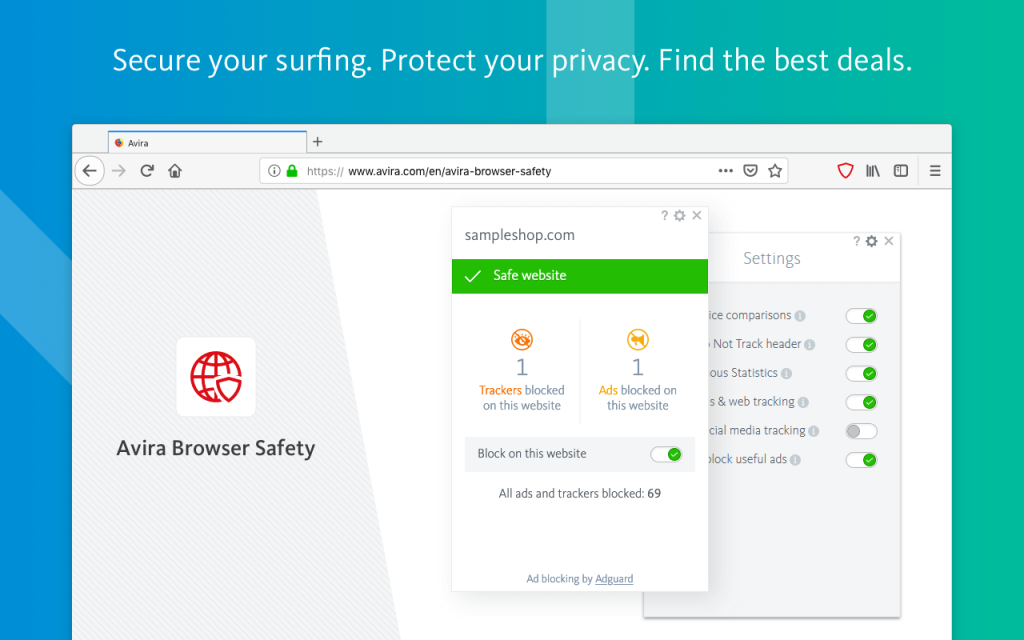
Avira Browser Safety is one of the most popular Ad Blocker options available for Windows users for strong protection against ads. It is a free add-on that users can get with the Avira Antivirus software, aiming toward privacy and browsing protection.
The features available in Avira Browser Safety center around a secure surfing experience as it rejects phishing and malicious sites. It can easily detect the presence of an infected ad when it appears on the system and blocks it out.
The add-on service also assures protection from browser hijacking and tracking and safeguards transactions/communication. Moreover, you can choose what to block, like web, ads, and social media tracking.
Compatibility: Windows
Browser Extensions/Compatibility: Firefox, Opera, Chrome
Price: Free
Features:
- Blocks out infected and excessive ads from sites automatically.
- Detects and stops tracking through ads.
- Check for unwanted applications for easier removal.
- Defends system/browser against hijacking attempts.
Pros:
- Settings are easily customizable due to the intuitive UI.
- The Dark Mode option is available.
- Easy to use functions.
Cons:
- This is an add-on with the Avira Antivirus software.
- Not available for Edge users.
2. AdBlocker Ultimate
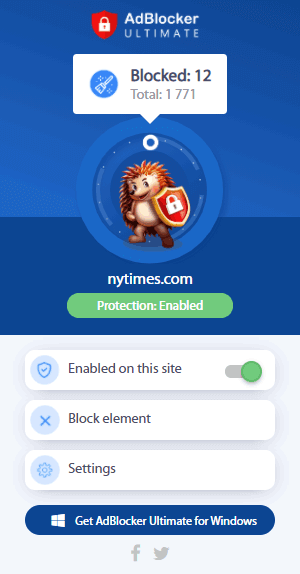
AdBlocker Ultimate is easily one of the best ad blockers currently available for Windows users. It is suitable for different types of browsers and comes equipped with strong functions that guarantee the best safety and privacy to users.
This extension for web browsers is free to use and effectively blocks out online trackers, malicious sites, and annoying ads without any fuss. Moreover, it does not offer the function of acceptable ads where there are pre-set site-based ads that are considered acceptable.
Users have full control over what types of ads they see and safelist necessary websites directly.
Compatibility: Windows
Browser Extensions/Compatibility: Firefox, Safari, Edge, Chrome
Price: Free
Features:
- Users can block specific elements of websites for customized usage.
- Strong privacy protection for all data during browsing.
- Advanced allowlisting functions for users to set which ads to block/accept directly.
- Robust ad-blocking technology for safeguarding against all ad types.
Pros:
- Free for all devices.
- Blocks out different types of ads easily.
- Compatible with different types of web browsers.
Cons:
- No Acceptable ads are pre-set.
- Slightly complicated for total beginners initially.
3. AdLock
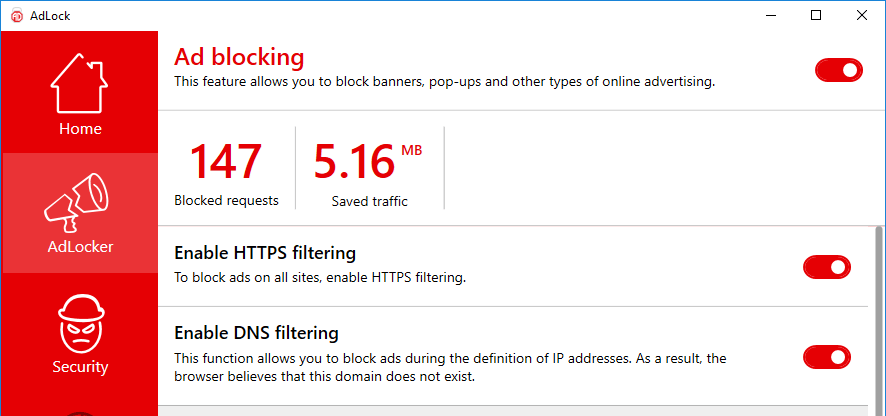
AdLock is the Best free software to block Ads on Windows that users can opt for to get rid of all ad types for users when they are browsing. On websites, it can easily block banners and popups and improve data security for users. Besides these, the AdLock extension also blocks crypto mining ads and video ads for users.
Users can expect less wastage of battery and safeguard their mobile data while using AdLock. This solution tracks bugs and spyware and detects links that can be defective. It also hides all user data efficiently.
Compatibility: Windows
Browser Extensions/Compatibility: Firefox, Safari, Edge, Chrome
Price: Free, 1 Month- USD 253.75 per month, 1 year- USD 213.52 per month, 5 years- USD 109.34 per month
Features:
- Keeps data and browsers secure against tracking ads.
- Removes all advertisement types.
- Detects and blocks ads during video playback.
- Add-on features like spam warning.
Pros:
- Multiple devices are supported under each plan for AdLock users.
- Money-back guarantee in place.
- High-quality customer service support 24×7.
Cons:
- Does not have the function of allowing acceptable ads from websites.
- The best features are available under paid plans.
4. Stands Fair AdBlocker
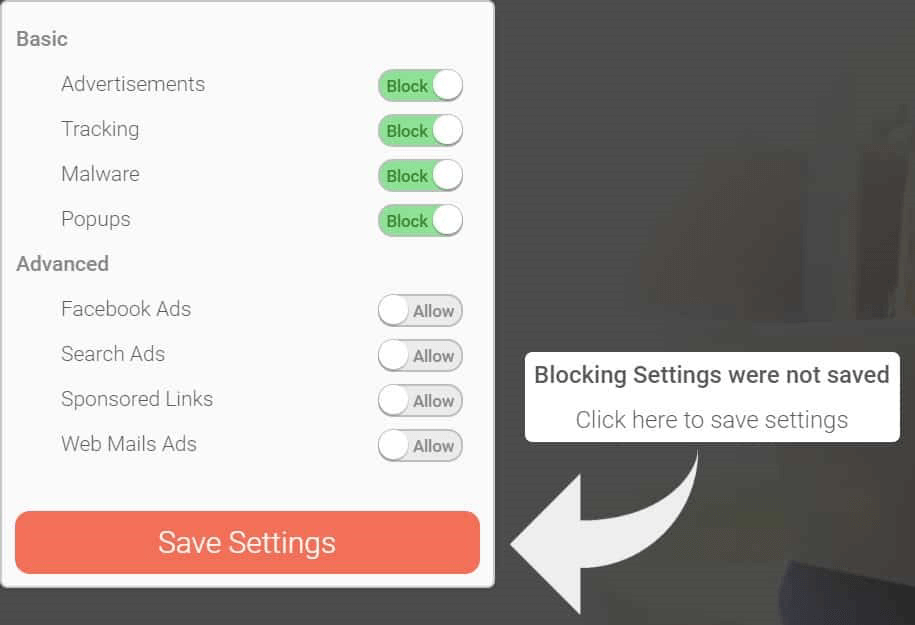
This is a top Ad Blocker for Windows that operates in a low-impact capacity. Stands Fair AdBlocker is mainly useful for Chrome users, though it is not a compatible extension for other browsers. However, in terms of operation, Stands Fair AdBlocker does handle the necessary ad blocking tasks well.
It effectively safeguards against multiple ad types, like autoplay video ads, display ads, and social media ads. You can easily customize the type of content and ads you want to accept through this as well, and even allowlist specific websites.
Compatibility: Windows
Browser Extensions/Compatibility: Chrome
Price: Free
Features:
- Customize which ads are acceptable.
- Lightweight software quality assures speedier usage.
- Blocks out trackers and malware besides ads.
- Users can allow sponsored sites.
Pros:
- Strong safelisting capability for websites.
- Blocks out every ad type from browsers.
- Flexible settings for blocking ads.
Cons:
- Only works for Chrome browsers.
- Limited feature list.
5. Adblock Plus
Adblock Plus is another one of the top options available among the finest Ad Block apps on the Windows list. Users can install this on their browser and begin experiencing a smoother surfing experience with zero ads in between.
This plugin is not huge in size, which is useful since it does not drag the system when operating. This quickly blocks out all annoying ads on websites. You can set the websites that you would allow ads for. Plus, Acceptable ads for specific sites are already pre-set.

Compatibility: Windows
Browser Extensions/Compatibility: Edge, Chrome, Firefox, Safari, Opera
Price: Free
Features:
- Blocks out popup ads, video ads, banner ads, and other advertisement types.
- Offer fast and clean browsing experience each time you load any browser.
- The software allows acceptable ads for specific websites as default.
- Simple interface with multiple features visible for quick ad removal.
Pros:
- This has an open-source nature.
- All functions are free to use.
- Compatible with multiple types of browsers.
Cons:
- It can show issues removing all ad types.
- Limited variety of functions compared to other options here.
6. AdGuard
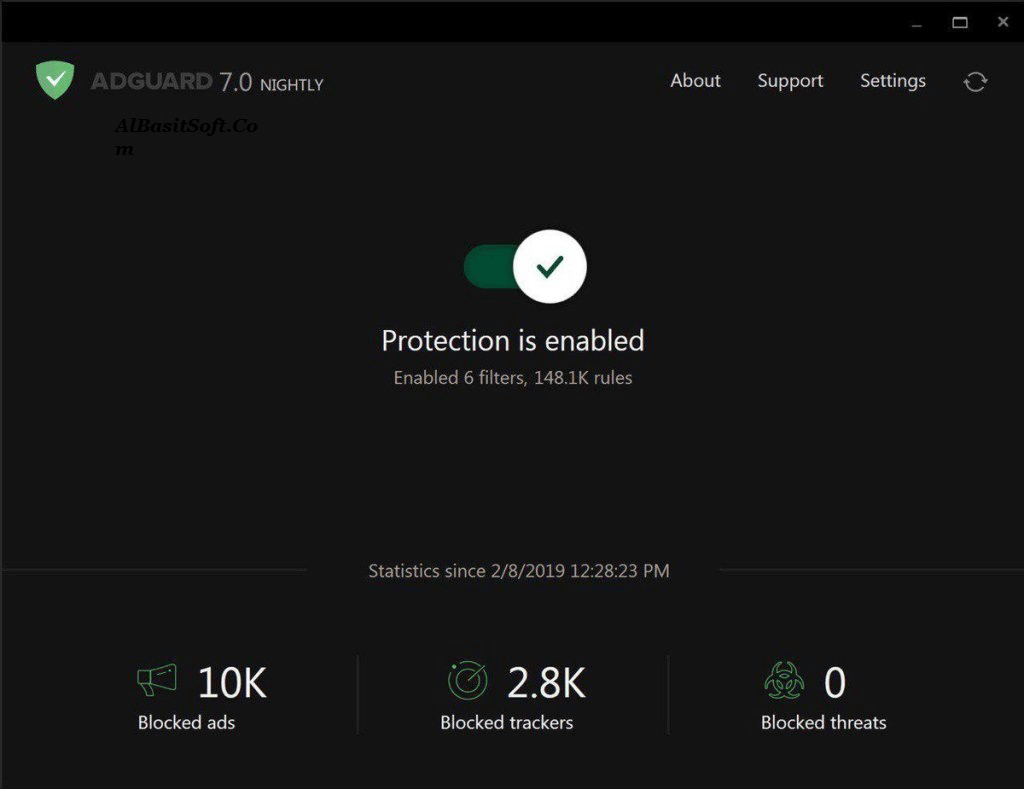
It is one of the most lightweight and multi-functional ad-blocking web extensions available that guarantees a free browsing experience.
The software protects all browsers against different types of ads, like floating ads, interstitial ads, video ads, text ads, popups, and banner ads. Additionally, users can block specific elements or sections of the webpages with the built-in element blocking ability.
AdGuard Assistant is available as an additional application that offers similar functions as this extension with strong filtering ability.
Compatibility: Windows
Browser Extensions/Compatibility: Opera, Chrome, Safari, Firefox, Yandex.Browser, Edge
Price: Free
Features:
- It can remove Adblock circumvention scripts.
- AdGuard blocks different types of ads, like text ads, popup ads, intestinal ads, etc.
- AdGuard Assistant for full-scale filtering on different desktop systems.
- Data privacy protection is available.
Pros:
- Community and GitHub repositories are available.
- Blocks video ads.
- Protects the system against tracking cookies.
Cons:
- It cannot block all types of ads/malicious content on every browser type as an extension.
- Only a 14-day free trial is available for Windows users.
7. Tor Browser
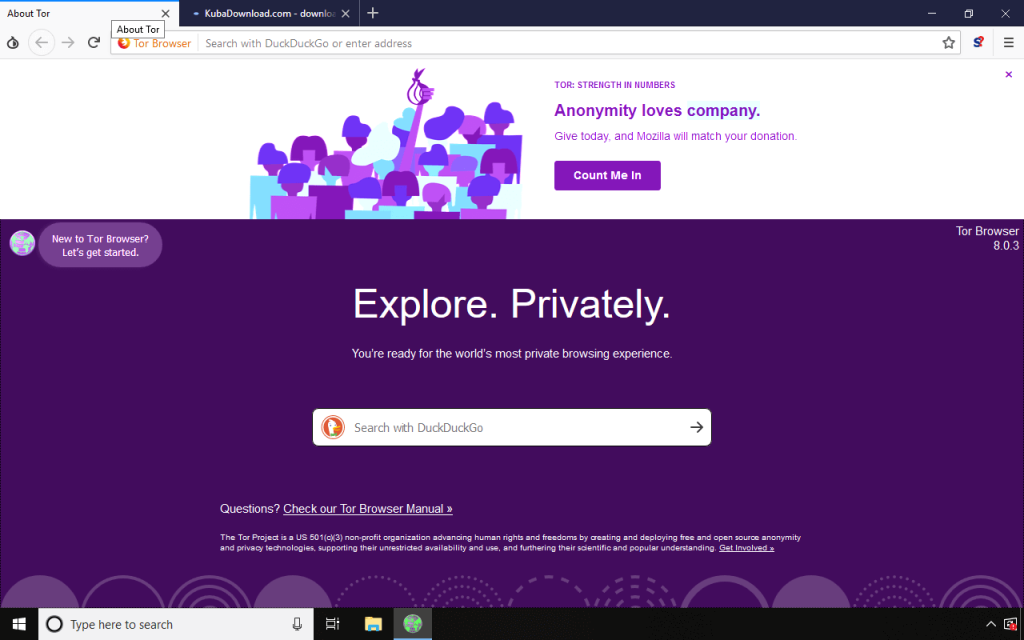
Tor Browser is a suitable solution available in the market for top Ad Blocker for Windows. It offers advanced quality functions centering around surveillance protection, tracking safety, and censorship during internet surfing for users. It is usable in diverse regions and supports various languages, making it suitable for many global users.
This extension can block third-party unauthorized browser plugins, like QuickTime, RealPlayer, and other such options that can detect private data. Tor Browser blocks them automatically for better privacy.
Compatibility: Windows
Browser Extensions/Compatibility: Opera, Chrome, Safari, Firefox
Price: Free
Features:
- Protection from censorship of content.
- High-quality surveillance-based protection.
- Safety from tracking software or ads.
- Configure bridge through Network Settings when at a location that does not support this app.
Pros:
- Supports multiple languages like English, German, French, Finnish, Spanish, etc.
- Tutorials are available for new software users.
- Three encryption layers are available.
Cons:
- Safety concerns are available as the security feature here is not the strongest.
- Not suitable for everyday users.
8. TrustNav AdBlocker
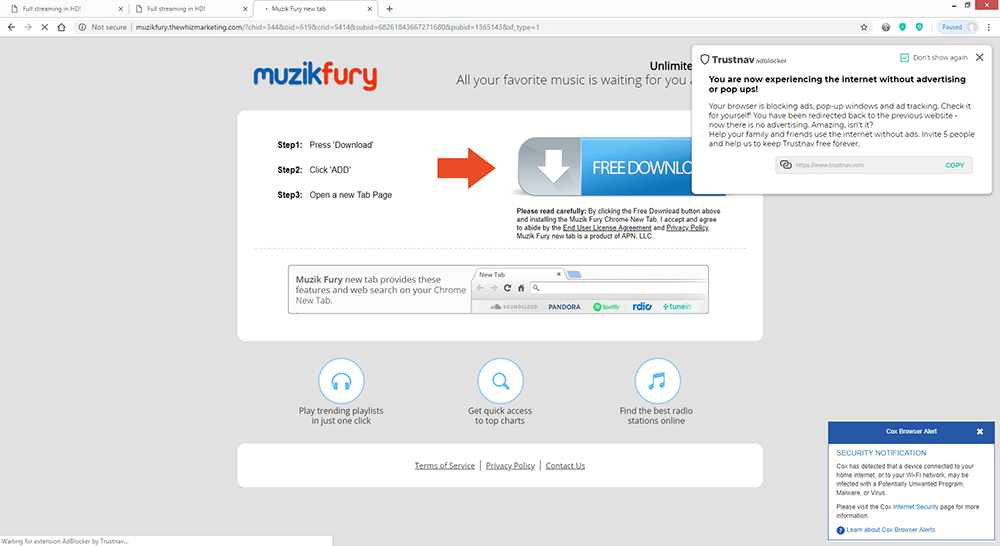
Among these Best Ad Blocker options, TrustNav AdBlocker is another useful option for lots of users. It is strong ad-blocking technology that can prevent the activation of various ad types quickly. Whether a user is streaming video content or reading blog content, this ad blocker protects against unnecessary ads consistently.
The software extension for web browsers follows privacy protection as an important point of concern. For this, it is combined with the SafeSearch function under Trustnav Security, search engines, and ad networks.
Compatibility: Windows
Browser Extensions/Compatibility: Chrome, Firefox
Price: Free
Features:
- Lightweight software assures faster performance on multiple devices.
- The advanced function of ad detection and blocking.
- Automated removal of popup ads
- Advanced settings for blocking video ads.
Pros:
- Easy to use UI.
- Keeps browsing private, making the system invisible to ads.
- SafeSearch feature for smoother, secure browsing.
Cons:
- Anti-ad blocking filters can easily detect it.
- Limited compatibility with modern browsers, e.g., Microsoft Edge.
9. Privacy Badger
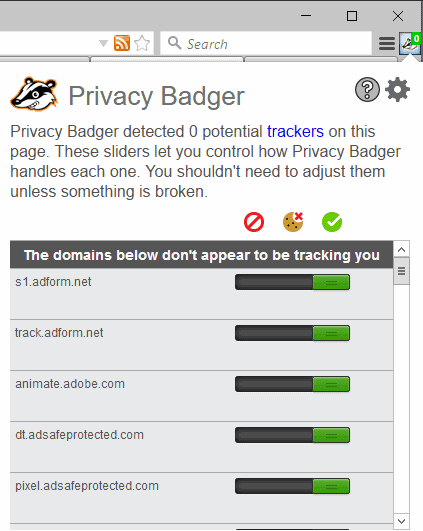
Privacy Badger is one of the notable apps to block Ads on Windows, This options is available with multiple-platform compatibility. You can download the extension for Firefox, Opera, or Chrome browsers when using Windows devices. However, the browser extension is not specifically an ad blocker and focuses on privacy protection instead.
For this, the extension helps block third-party ad tracking for users when the surf through the websites. If the software detects any advertiser specifically targeting and tracking your browsing experience, it will automatically ban all ads from that advertiser.
Compatibility: Windows
Browser Extensions/Compatibility: Opera, Firefox/Firebox (Android), Chrome
Price: Free
Features:
- Third-party fingerprinting is available for usage checking.
- Do Not Track signal available for customized ad-blocking functions.
- Keeps out tracking-based ads.
- GPC or Global Privacy Control-compliant.
Pros:
- The software tracks ads and their origin point with the enabled learning feature.
- It analyses all browser cookies before discarding any from sites.
- Privacy protection is the first priority.
Cons:
- Does not operate on Edge Legacy (Microsoft).
- This is not primarily an ad blocker; it is a privacy tool.
10. Ublock Origin
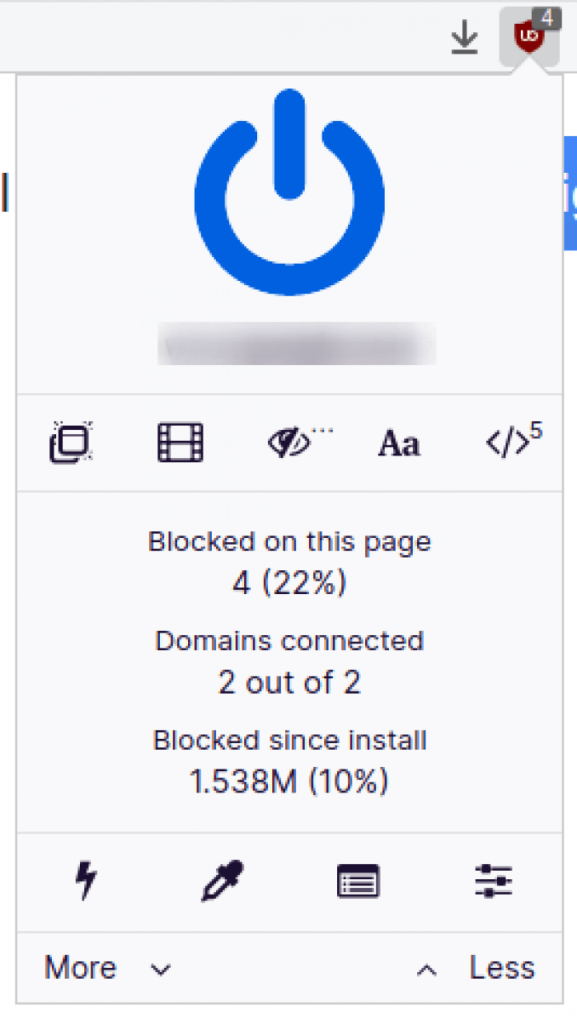
Ublock Origin is a type of wide-spectrum content blocking extension, so calling is an ad blocker is not entirely accurate. However, it is one of the best options available as it provides similar functions in high quality and as any of the finest Ad Blocker.
This tool is very lightweight and guarantees a faster browsing experience for the users. It does not exert a lot of stress on the RAM or CPU of the device. This software has strong filters for the functions it handles, like the EasyList feature for ad removal and EasyPrivacy for tracking protection.
Compatibility: Windows
Browser Extensions/Compatibility: Opera, Firefox, Edge, Chrome
Price: Free
Features:
- Open-source.
- Advanced filtering for clearing out unnecessary ads.
- Protection against harmful malware.
- Stop the loading of pre-fetched links in the absence of a VPN.
Pros:
- Free to use for all types of users.
- Block specific website parts and ads.
- Lightweight and smooth usability.
Cons:
- Not the easier option for complete beginners.
- Shows issues while blocking some types of ads.
Conclusion
A reliable ad blocker makes browsing smoother, helps pages load faster, and reduces distractions. The best choice depends on what you value most, whether it is deeper tracking control, lighter performance, or strong filter lists. Each tool in this list has earned a place because it offers consistent results across the major Windows versions used today.
Some users prefer a strict blocker, while others want a balanced approach that allows safe content through. With the right mix of protection and ease of use, these tools provide a steady and safe browsing experience throughout daily work, study, and entertainment. Pick the one that matches your habits, and you will get stable results without much effort.
FAQs
1. Do ad blockers slow down the browser
Most ad blockers do not slow the browser. In fact, pages often load quickly because ads and trackers are removed before they appear.
2. Are ad blockers safe to use
Yes, trusted ad blockers are safe. They filter scripts and trackers, which reduces risk from harmful ads and unsafe pop-ups.
3. Can I use more than one ad blocker at the same time
It is better to use only one. Two blockers may conflict and cause pages to break or load incorrectly.
FLUQ:
1. Why do some websites ask me to turn off the ad blocker
Many sites earn money through ads, so they block access when they detect a filter. You can allow the site if you trust it, or keep the blocker on if you prefer privacy.
2. Does an ad blocker protect me from viruses
It helps reduce risk by blocking harmful ads, but it is not a full security tool. You should still use antivirus software and safe browsing habits.
3. Will ad blockers work on all browsers
Most popular blockers support Chrome, Edge, Firefox, and other major browsers. Some may behave differently depending on the browser’s rules.
Author Bio:
Dinesh Lakhwani 

Dinesh Lakhwani, the entrepreneurial brain behind “TechCommuters,” achieved big things in the tech world. He started the company to make smart and user-friendly tech solutions. Thanks to his sharp thinking, focus on quality and the motto of never giving up, TechCommuters became a top player in the industry. His commitment to excellence has propelled the company to a leading position in the industry.
Popular Post











Recent Post

How To Change Default Apps For File Types In Windows
Windows is designed to make using your computer easy. One way it does this is by assigning default apps to different file types. This means when you open a file, Windows automatically opens it with a specific program. For example, photos may open with Photos, music with Groove Music, and PDFs with Edge. These default […]

How To Adjust The Mouse Pointer Speed: Complete Guide
Using a computer every day means you use the mouse a lot. The mouse pointer moves on the screen and helps you click, scroll, and select items. Many people never think about the speed of the mouse pointer. They have used the default setting for years. This can cause small problems over time. A slow […]

How to Change Mouse Scrolling Settings In Windows
A mouse is one of the most used computer tools. People use it every day. They scroll through emails. They scroll through documents. They scroll through websites and images. The movement becomes automatic. Most users do not notice it. That is why problems often go unnoticed. Scrolling problems show up slowly. At first, it feels […]

Keyboard Light Settings: Keyboard Lighting Control [Complete Guide]
Keyboards are no longer simple typing tools. Well, yes! Over time, they have evolved to include features that improve comfort, visibility, and overall experience. One of the most useful features today is keyboard lighting. It helps users work comfortably in low-light conditions. It also reduces strain when typing for long hours. Many users first notice […]

Customizing Pointer Appearance: Complete Guide
The way your mouse pointer looks on your computer may seem like a small detail. But customizing pointer appearance can make using your PC more comfortable and visually appealing. Many users do not realize that they can change the pointer size, color, and style to fit their needs. Whether you want a bigger pointer for […]

How To Choose a Computer Monitor: Monitor Buying Guide
Buying a monitor looks easy. Many people think all screens are the same. That belief causes regret later. A monitor is not just a display. It is a daily tool. You read on it. You work on it. You relax with it. Small problems become big over time. Poor brightness hurts eyes. Bad size causes […]

How To Get Help With File Explorer in Windows 11 [Complete Guide]
File Explorer is one of the most important tools in Windows 11. It is used to open folders, view files, and manage stored data. Almost every action on a Windows computer depends on it in some way. When users open documents, save downloads, or organize photos, File Explorer is always involved. Because it is used […]

How To Fix A Frozen Computer: Complete Guide [Windows 11/10]
A frozen computer is one of the most common problems Windows users face. The screen stops responding. The mouse pointer does not move. Keyboard inputs do nothing. You may hear the fan running loudly. Sometimes the system looks alive, but nothing works. This situation often happens when you are busy or working on something important. […]

How to Upgrade Computer RAM: Complete Guide
Upgrading RAM is one of the simplest ways to improve a computer. It helps the system feel faster and smoother. Apps open quicker. Browsers handle more tabs. Games and tools run with less delay. Many users search for how to upgrade computer RAM because it gives real results without high cost. You do not need […]

How To Clean Your Computer Keyboard: Complete Guide
A computer keyboard is touched more than almost any other device you own. It is used during work, study, gaming, and casual browsing. Fingers carry natural oils, sweat, and dirt. Small food crumbs fall between keys without notice. Dust settles each day slowly. Over time, this creates a hidden layer of grime. Many users do […]

