Top 10 Best Face Swap Apps for Android & iPhone In 2026
Last updated on December 26th, 2025 at 2:33 am
Mobile phone users get a wide range of applications that they can use for various functions, like camera and photo-sharing apps. Most of these come with advanced features, like adding filters/audio and other diverse editing options.
Excited to try out one such app? Read ahead to learn about the best options there are.
Top 10 Best Face Swap Apps for Android & iPhone
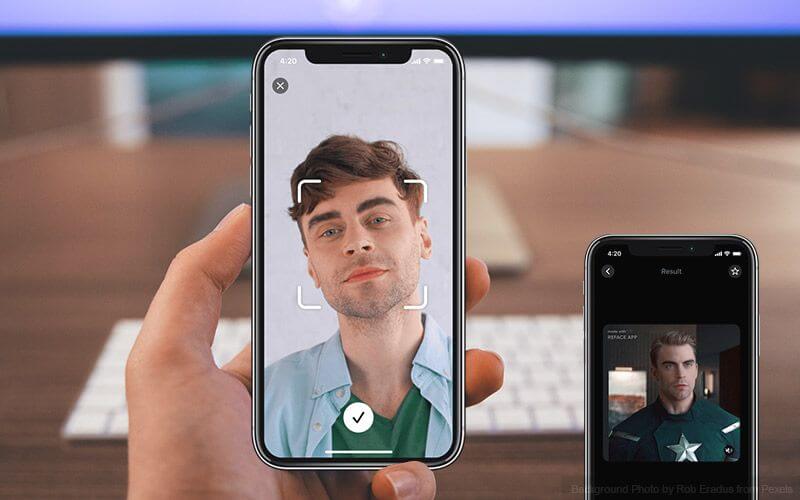
One modern function that many users enjoy is face swapping, which allows them to click videos/photos with a different face. Typically, this works with more than one person taking a picture together and is a fun option for many. There are several best face swap apps for Android & iPhone users to try. We have compiled a list of the top 10 options after going through multiple apps in the market.
1. Snapchat
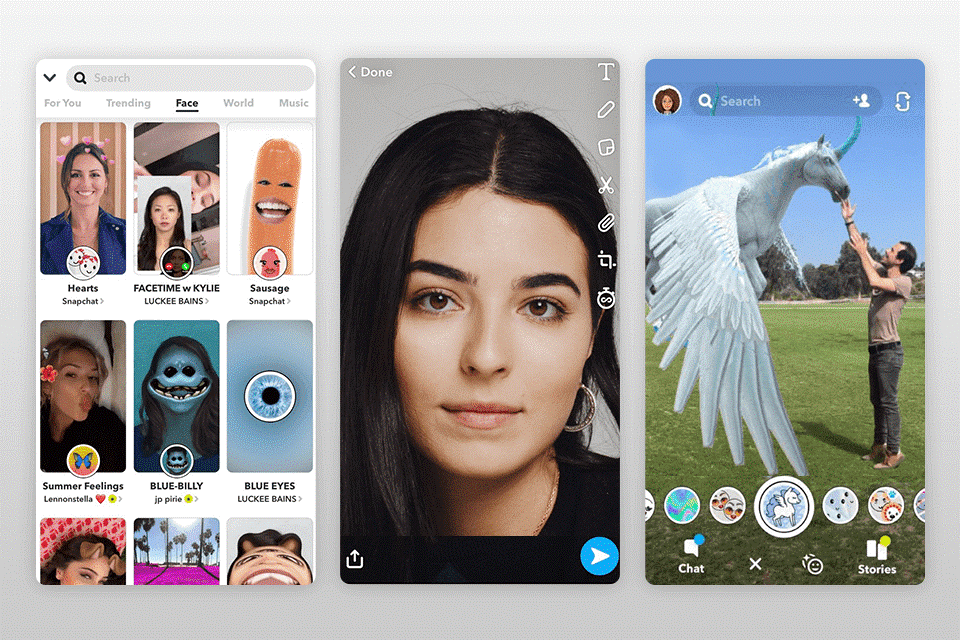
Snapchat is one of the premier-level applications available to share diverse photos and videos globally. This is a social media network with over 200 million active users. The photo swap feature is an advanced new editing feature, where users can swap their face on the video or photo while capturing the new shot.
Price: Free + in-app purchases
Compatibility: Android, iOS
Features:
- 24-hour story upload
- Private messaging with other users
- Automatic Geofilter option
- Find notable content users through Discover People
Pros:
- High-quality user interface
- Proper privacy settings
- Video/voice call options
Cons:
- Some people notice an error in performance
2. Cupace
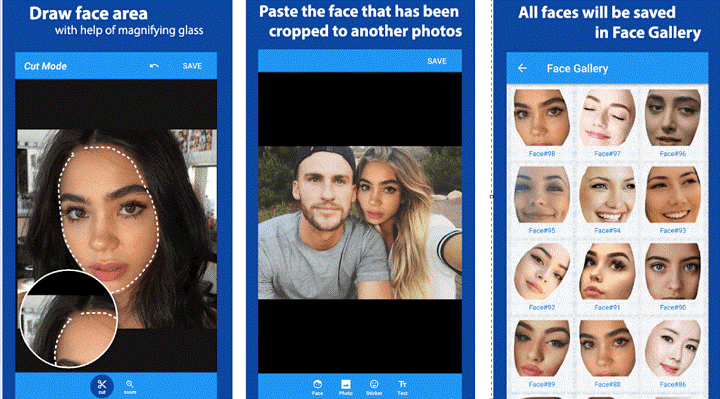
Cupace is a type of simple application for photo editing. Here, the step includes custom-drawing the outline of the face from the original photo. In terms of face swapping, users can cut out the face in a photo and paste it into another. Users choose this app to create funny images and memes.
Price: Free
Compatibility: Android
Features:
- Zoom mode and Cut mode are available
- Available Face gallery for storing all cropped faces
- Includes a range of stickers
- Text editing
Pros:
- Mainly for basic use
- Simple sharing ability via social media sync
Cons:
- It can stop working automatically
- No iOS version
3. B612
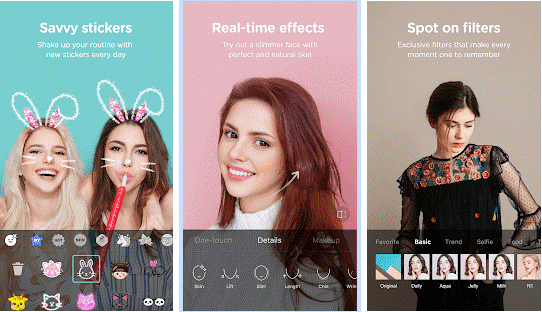
This works mainly as a beauty camera, and people use it to click selfies. It includes face swap features, accessible through the Smiley icon that comes up after one opens the app. It creates a natural look from daily to trendy makeup. You can adjust beauty and makeup to suit you.
Price: Free
Compatibility: Android, iOS
Features:
- Face swap for two people while clicking imaging
- Diverse beauty filters
- Many editing options
Pros:
- Collage making
- Over 40 filters
Cons:
- Only works real-time
- No import image from a device
4. Face Swap 4.3
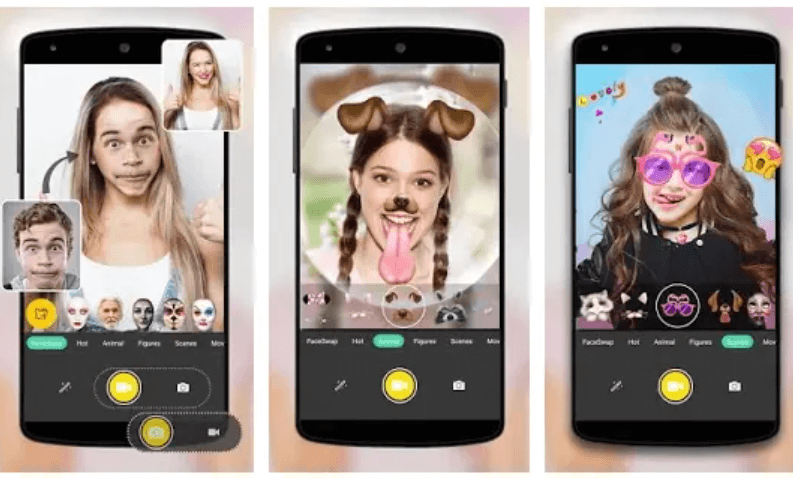
Face Swap 4.3 is one of the best app options available with diverse face-swapping features. Users can add the motion face they select and include it in their video. Or, they can operate the available Face Clone specification for copying one face into one video clip multiple times.
Price: Free + Ads
Compatibility: Android
Features:
- High quality photo editor
- Add filters/text overlays/stickers
- Motion swap feature
- Different collage styles
Pros:
- Share videos/images easily
- Theme patterns like double-swapper/multi-swapper are available
Cons:
- Not available for iOS users
5. Reface
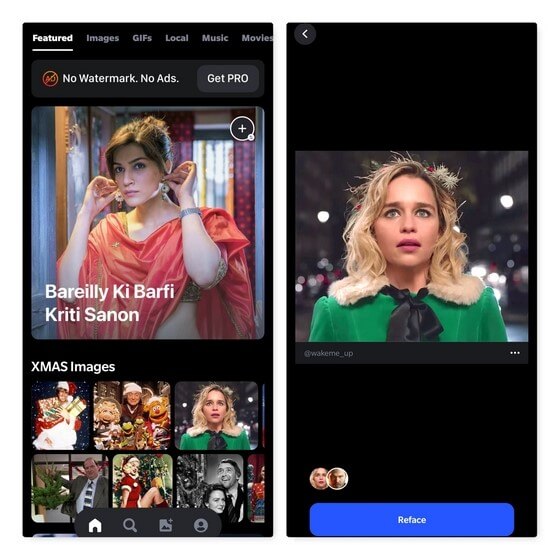
Reface is a suitable app for swapping faces from selfie images and even GIF images. While this does not work with videos, you can expect a fast and automated swapping process.
Price: Free + in-App Purchases
Compatibility: Android, iOS
Features:
- Easy sharing
- Image collection
- Multiple GIFs available
Pros:
- New templates update
- DeepFake technology
- Real-time swapping
Cons:
- In-app purchases can be high for some users
6. Face Swap Booth
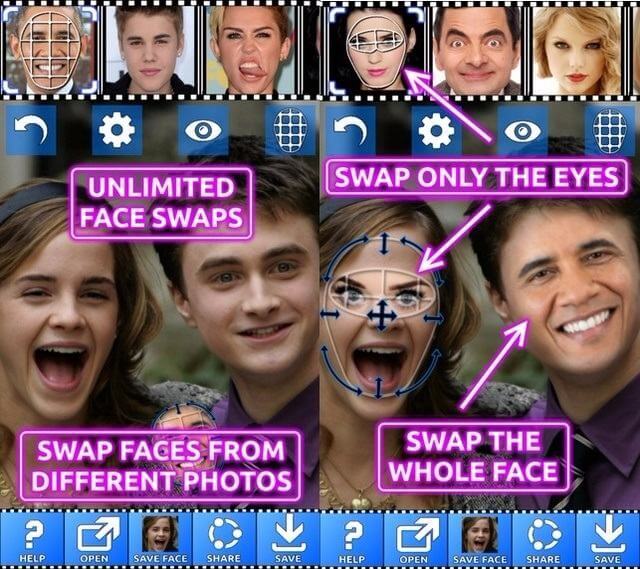
This application is easy to install on both iPhones and Android smartphones and includes a simple face swap function. You can swap your face with other images from download images. Change multiple images either manually or allow the app to do so automatically.
Price: Free + in-app purchases
Compatibility: Android, iOS
Features:
- Swap faces into many photos
- Auto face detector
- Save cropped faces in the library
Pros:
- High-quality editor for image mixing and other features
- Use the mix and match option to make a new person on the picture
Cons:
- Watermarks in free version
- Lots of ads
7. Face Swap Live
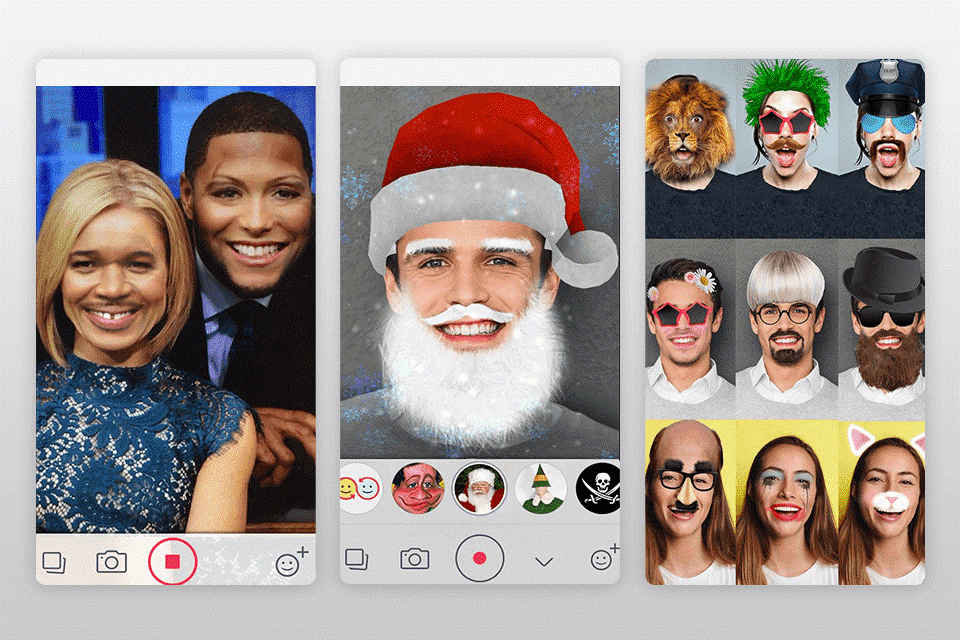
Face Swap Live is an AI-powered Face Swap generator. It works in real-time to change one person’s face from one photo or video to another. You can download online images and swap images in that picture, as well. There is a wide range of features for editing in this app.
Price: $0.99
Compatibility: Android, Iphone
Features:
- Customize photos with long beards, glasses, wigs, and hats
- Real-time face swap
- Live video feature
Pros:
- 3D filters available
- Can animate stable image into talking photo
Cons:
- Needs good lighting
- Not entirely free
8. MixBooth
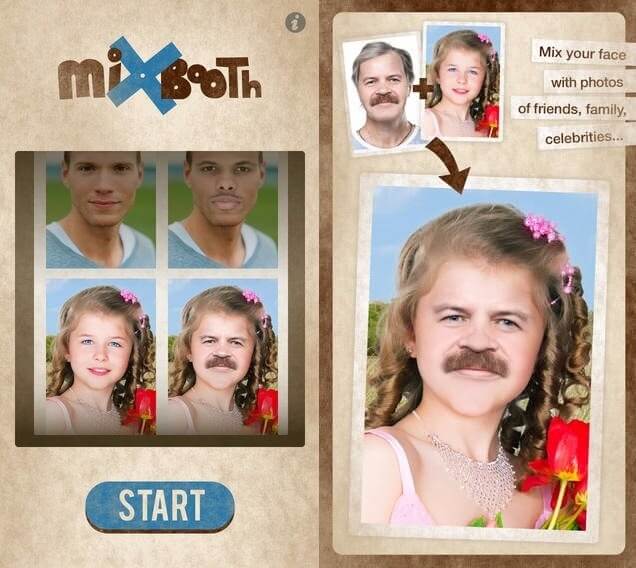
Using MixBooth, people can swap their images with celebrities after downloading photographs online. You can combine one portrait with a download celebrity picture to form a new image. While using the app, shake your device, and the image will change.
Price: Free
Compatibility: Android, iOS
Features:
- Automatically detects face
- Integrated library
- Easy editing
- Instant swap option
Pros:
- Combines faces into a single image
- Private gallery
- Offline access available
Cons:
- It can sometimes distort the facial features
- Cannot access device images
9. FaceApp – AI Face Editor
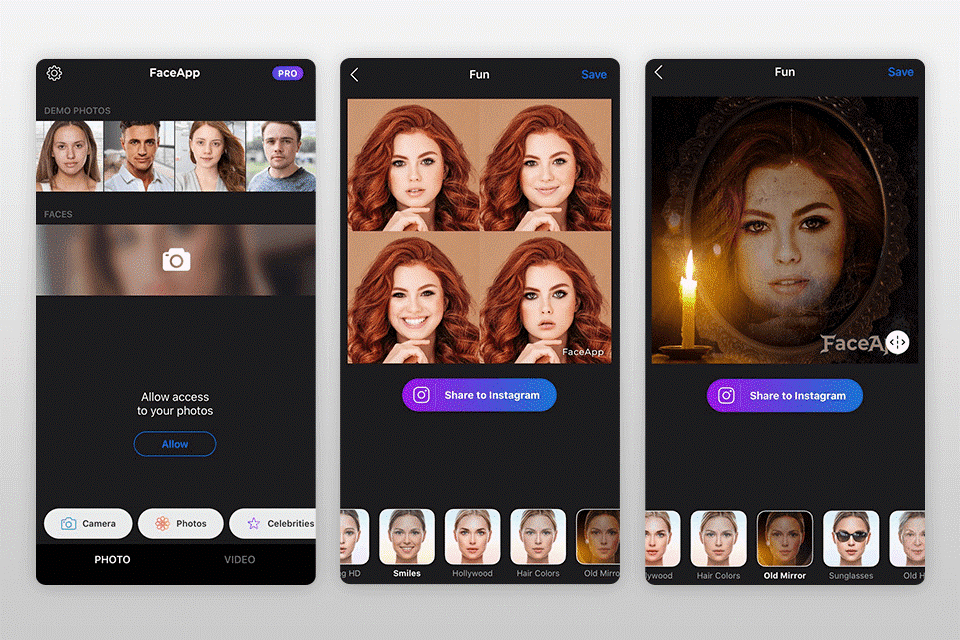
This is a smart AI-powered neural network-centric application with a face-swapping function. Editing the photos is simple through this app, and you can add more elements like beard or hairstyle. Changing makeup looks is also possible.
Price: in-App purchases
Compatibility: Android, iOS
Features:
- Edit mustache, beard, or hairstyle
- Neural AI technologies
- Can include tattoo
- Multiple filters
Pros:
- Many effects available
- Photo editing features
Cons:
- Many features only for the paid version
10. Photo Face Swap
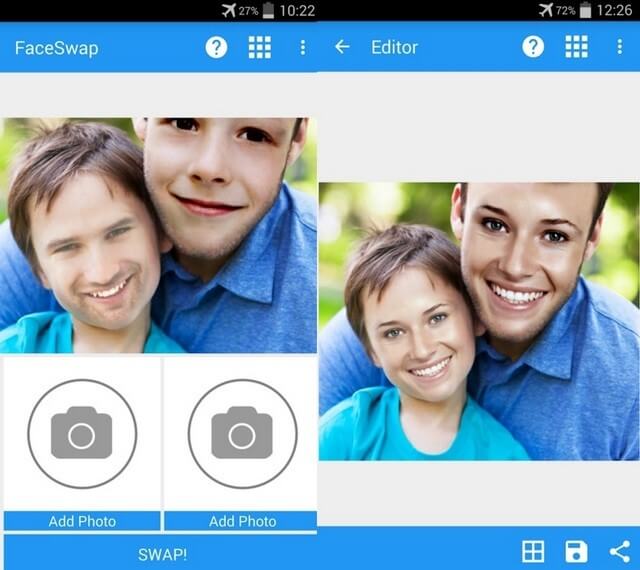
This app is another useful option for different face-swapping apps available only. Here, you can edit a single face into all of the faces in one picture. You can utilize the Face Bomb Effect through this. The process of using the app is relatively simple.
Price: Free
Compatibility: Android
Features:
- Swap multiple faces in photos easily
- Swap around six faces in 1-2 images
- Edit existing picture or after clicking a picture
- Face bomb effect
Pros:
- Free to use
- Quickly share the edited photo via social media link
Cons:
- Editing photos not precise
- Good lighting is essential
Conclusion
You can utilize one of these applications for various photography features, like face swap and more edits. Choose the best option per your system’s compatibility, different editing needs, and storage availability.
If you need more space in your phone to download the app, you can use a high-quality photo organizer like Sysweak, mainly for Windows 10. You can scan the system for photos, quickly move images, handle batch editing, create custom folders, delete duplicate photos, and more.
Now that you know your options, install and use your preferred app. Check our other guides on different topics if you want to learn more about such details.
Author Bio:
Dinesh Lakhwani 

Dinesh Lakhwani, the entrepreneurial brain behind “TechCommuters,” achieved big things in the tech world. He started the company to make smart and user-friendly tech solutions. Thanks to his sharp thinking, focus on quality and the motto of never giving up, TechCommuters became a top player in the industry. His commitment to excellence has propelled the company to a leading position in the industry.
Popular Post











Recent Post

Artificial Intelligence Explained: Concepts, Terminology, Benefits, and Future Trends
Artificial Intelligence, or AI, is basically computers doing things that usually need a human brain. We’re talking about stuff like learning from experience, figuring out problems, understanding language, and making decisions. It’s not magic, just a lot of data, pattern-spotting, and math behind the scenes. Now, AI doesn’t actually think or feel like we do. […]

Resolving Microphone Detection Problems: Latest Guide [2026]
Microphones are important tools in daily life. People use them for office meetings, online classes, interviews, gaming, customer support, and content creation. When a system fails to detect a microphone, communication stops at once. This situation can cause stress and confusion. Many users believe the microphone is damaged. In reality, most problems are simple and […]

How To Switch To A Dark Background Theme In Windows [2026]
Most people spend many hours each day in front of a computer screen. Office work, online classes, editing, browsing, and streaming all require long screen time. A bright white background may look clean at first. However, over time, it can feel sharp and tiring. The strong contrast between white backgrounds and black text may cause […]

How to Switch From Local To Microsoft Account On Windows
Many users begin with a local account when they set up a new Windows computer. A local account works only on that single device. It stores settings, files, and preferences locally. It does not connect to online Microsoft services. For basic offline use, it works well. However, as digital needs grow, many users want better […]

How to Switch Windows 10 to a Local Account: Complete Guide
Windows 10 allows users to sign in with either a Microsoft account or a local account. When you set up a new computer, the system often suggests using a Microsoft account. This account connects your device to Microsoft services such as Outlook, OneDrive, and the Microsoft Store. It also syncs settings, themes, and passwords across […]

How To Change Default Apps For File Types In Windows
Windows is designed to make using your computer easy. One way it does this is by assigning default apps to different file types. This means when you open a file, Windows automatically opens it with a specific program. For example, photos may open with Photos, music with Groove Music, and PDFs with Edge. These default […]

How To Adjust The Mouse Pointer Speed: Complete Guide
Using a computer every day means you use the mouse a lot. The mouse pointer moves on the screen and helps you click, scroll, and select items. Many people never think about the speed of the mouse pointer. They have used the default setting for years. This can cause small problems over time. A slow […]

How to Change Mouse Scrolling Settings In Windows
A mouse is one of the most used computer tools. People use it every day. They scroll through emails. They scroll through documents. They scroll through websites and images. The movement becomes automatic. Most users do not notice it. That is why problems often go unnoticed. Scrolling problems show up slowly. At first, it feels […]

Keyboard Light Settings: Keyboard Lighting Control [Complete Guide]
Keyboards are no longer simple typing tools. Well, yes! Over time, they have evolved to include features that improve comfort, visibility, and overall experience. One of the most useful features today is keyboard lighting. It helps users work comfortably in low-light conditions. It also reduces strain when typing for long hours. Many users first notice […]

Customizing Pointer Appearance: Complete Guide
The way your mouse pointer looks on your computer may seem like a small detail. But customizing pointer appearance can make using your PC more comfortable and visually appealing. Many users do not realize that they can change the pointer size, color, and style to fit their needs. Whether you want a bigger pointer for […]

